

Top 9 Strategies to Protect Mac from Malware in 2025

Before we dive in
Before we dive in, let's make sure you stay safe online. We created SpyHunter because your security matters to us.
Protect your computer today — download SpyHunter right here! Check out our top tips below to keep your computer safe and secure.

Throughout the years, Macs have enjoyed a reputation for being less susceptible to malware than other operating systems. However, as their popularity grows, so does the attention they gather from cyber criminals.
The first significant threat, Oompa, emerged almost two decades ago, and since then, the sophistication and variety of Mac malware have expanded significantly.
In 2025, it’s more important than ever for Mac users to understand the malware landscape and the risks they may face. Malicious actors devise new tactics every day, and the limits of their perseverance in accessing private data and infiltrating systems are constantly being pushed.
Being proactive, staying informed, and taking deliberate steps to secure Mac devices are the best defenses against these evolving digital threats.
Equip your Mac with the latest antivirus software
In the digital age, equipping your Mac with the latest antivirus software is not a luxury but a necessity. Cyber threats are becoming more sophisticated, and your Mac could be vulnerable without proper security measures.
While macOS does incorporate several robust security features, relying solely on these may not suffice. The ever-evolving malware poses a threat that demands additional layers of protection.
Selecting a reputable antivirus program that passes Apple’s notarization, offers real-time protection, and is regularly updated to identify and combat most malware threats is essential.
Why SpyHunter is your first line of defense
SpyHunter is a respectable antivirus software tailored to the macOS environment. It’s designed to offer comprehensive protection against various malware types, including viruses, worms, trojans, spyware, and ransomware, that are particularly threatening to Mac systems.

Key features of SpyHunter
- Real-time protection: SpyHunter operates continuously in the background, providing real-time scanning to detect and neutralize threats as they arise, ensuring your system is safeguarded against the latest malware intrusions.
- Regular updates: With cyber threats constantly evolving, SpyHunter stays ahead by regularly updating its malware database. This ensures it can recognize and eliminate even the newest malware strains.
- User-friendly interface: Designed with user experience in mind, SpyHunter offers an intuitive interface that makes it easy for users to navigate and manage their settings, regardless of their technical expertise.
- Comprehensive OS scan: SpyHunter can detect hidden malware, offering a thorough cleansing of any infected device, thus maintaining the integrity of your Mac.
- Compatibility with macOS features: SpyHunter is designed to complement and enhance the existing security features of macOS, such as ASLR (Address Space Layout Randomization) and SIP (System Integrity Protection), providing an additional layer that works in harmony with your system.

Download SpyHunter for free here and bolster your defenses, ensuring your Mac remains secure against the increasingly sophisticated landscape of cyber threats in 2025.
Enable Mac’s built-in firewall
Another vital shield apart from the antivirus software is the built-in firewall, which requires enablement and configuration for optimal defense against potential network intrusions.
By learning how to enable and customize the firewall settings correctly, you can fortify the security parameters of your Mac, limiting the exposure to unwarranted connections and the risks they carry.
Customize firewall settings for optimal protection
To achieve the ideal network environment on your computer, it’s not enough to enable the firewall; you should customize it to your specific needs.
- Allow essential apps and services while blocking untrusted ones to streamline performance without compromising safety.
- Opt for advanced features like ‘stealth mode’ to minimize your Mac’s digital footprint on networks, making it less susceptible to targeted attacks.
- Become familiar with the implications of settings like [Block all incoming connections] to ensure crucial services such as file and media sharing are not inadvertently restricted.
Install software with caution
To further protect your computer against inadvertently installing malicious software, it’s crucial to exercise caution when downloading and installing new programs.
Understanding how Gatekeeper works and how you can manage your security preferences plays a significant role in maintaining your system’s integrity.
By adopting careful download habits, only using legitimate software, and securing your settings, you maintain control over what gets installed on your Mac, thus fortifying its defense against potential malware infiltration.
Identify unsafe download sources
Not all download sources are created equal, and some pose a considerably higher risk of contamination by malware. Mac users must be able to identify and avoid unsafe sources, which often masquerade as legitimate websites or mirror sites offering pirated or cracked software.
- Review and adjust your security settings to limit app downloads to the App Store or identified developers.
- Be wary of third-party download websites; look for signs of legitimacy, such as developer certifications.
Awareness and caution in choosing download sources are fundamental to securing your ecosystem from unwanted and potentially hazardous applications.
Install essential macOS updates
The dynamic nature of digital threats means that the defenses on your Mac need to evolve through regular updates.
Apple periodically releases updates for macOS that encompass critical patches for security and system improvements, and installing these updates is vital for keeping your system secure.
Let’s discuss the importance of these updates and how you can automate the process to protect your Mac from potential vulnerabilities.
Automate updates to stay ahead of vulnerabilities
Staying ahead of vulnerabilities is a continuous process that requires diligence and often preemptive action.
This can be achieved on macOS Ventura and newer systems through System Settings, where you can configure your device to automatically download and install significant updates and the smaller patches that often address critical vulnerabilities.
This is managed through System Preferences for Mac OS Monterey and earlier versions. By enabling automatic updates, you’ll take a significant step towards reinforcing your defenses without manually checking for updates, which can save time and prevent delays that could leave your computer exposed to the latest threats.
- Ensure you have automatic updates enabled to receive the latest security fixes, or manually check a software update regularly if you want more control.
- Understand the updates’ contents and how they contribute to security by reviewing the information provided by Apple.
By automating software updates, you invest in a preventive measure that shields your device from known vulnerabilities, a cornerstone of good cybersecurity hygiene.
Keep applications and browsers up-to-date
As software evolves, so does its vulnerability to malicious attacks. Staying current with application and browser updates is critical for maintaining your Mac’s integrity.
An outdated program or browser can serve as an entry point for malware and compromise the integrity of your entire operating system. By implementing regular updates, which often include critical security patches, you can bolster your defense against many cyber threats that seek to exploit any weaknesses in your system’s armor.
How outdated apps can compromise your computer
Outdated applications on your Mac can inadvertently become the weakest link in your cybersecurity defense, serving as a gateway for malware.
Developers constantly address vulnerabilities through updates. Ignoring these updates leaves your system at risk.
Regularly updating your apps, particularly your default browsers, can significantly reduce the risk of security breaches, ensuring that your Mac remains a tough nut to crack for potential cyber attackers.
- Check for updates manually for apps and browsers not downloaded from the App Store, such as Google Chrome.
- If your default browser is Google Chrome, use the
About Chromefeature to verify it is up to date to prevent exposure to known vulnerabilities. - Enable automatic updates for apps from the App Store to ensure they are always running the latest, most secure versions.
Cultivate safe web browsing habits
To navigate the web safely in our increasingly connected world, it is crucial to develop secure browsing practices. Cybercriminals are continuously on the prowl, utilizing sophisticated phishing schemes and malware distribution tactics.
By incorporating a safe browsing protocol into your daily internet use, you can significantly reduce the risk of inadvertently compromising your personal information or falling victim to scams.
Recognize phishing attacks and scams
Phishing attacks are a prevalent threat that requires constant vigilance to evade. These cyber scams are designed to trick individuals into divulging sensitive information by masquerading as trustworthy entities.
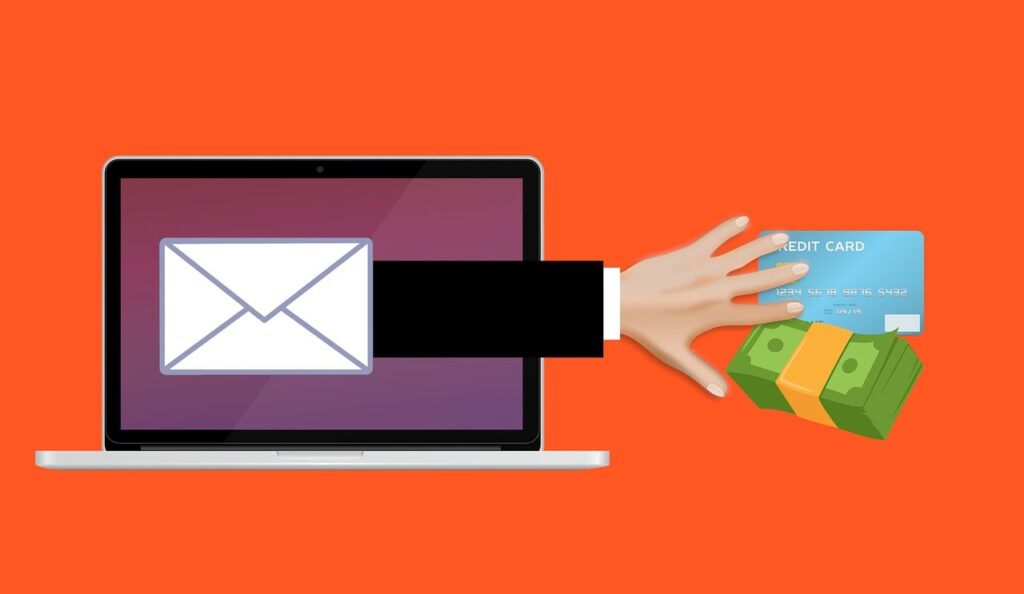
To protect yourself from phishing scams, you should exercise caution with emails and communication from unknown sources, inspect the authenticity of requests for personal data, and avoid engaging with unsolicited offers that seem too good to be true.
Additionally, paying attention to the signs of a phishing attempt, such as grammatical errors, unfamiliar sender addresses, email attachments, and inconsistencies in the message, can be instrumental in recognizing and avoiding these deceptive tactics.
- Be skeptical of emails and messages that request personal or financial information.
- Do not click on suspicious links or pop-ups.
- Do not download attachments from unknown or unverified sources.
- Regularly update your login credentials and use multi-factor authentication.
- Verify the legitimacy of each website and avoid entering sensitive information on pages without a valid SSL certificate.
By staying informed and cautious, you can significantly lower the chances of falling prey to phishing scams and protect your digital identity and assets.
Regular backups: A safety net against data loss
Data loss can be a significant blow to any individual or organization in a cyber attack. Frequent backups serve as a safety net, offering an indispensable means of restoring lost or corrupted files and maintaining the continuity of operations.
Backing up your files doesn’t have to be a cumbersome process—thanks to Mac’s built-in utility, Time Machine, and various external storage solutions on the market.
Let’s delve into how you can optimize your backup schedules and choose the proper storage solutions to ensure maximum efficiency for your backups.

Backup schedules and storage solutions
Effective backup strategies consider the frequency of backups and the storage methods utilized. Optimizing backup schedules involves determining how often your valuable information needs to be copied based on how critical it is for your operations.
For some, daily backups may be necessary, whereas for others, weekly or even monthly backups might suffice. Regarding storage solutions, redundancy is critical; it’s recommended to follow the 3-2-1 rule—having three total copies of your files, two of which are on different media and one stored offsite.
- Use
Time Machinefor automated, regular backups, with options to set up hourly, daily, and weekly backups. - Consider complementing
Time Machinewith cloud-based services for added redundancy and offsite storage. - Incorporate external drives, which offer a physical backup solution that can be safely stored away and easily accessed when necessary.
In addition to these measures, regular backups before system updates or installations of new software can help protect your data against any unforeseen issues.
Restoration and recovery: Getting back on track
A backup is only part of the solution; knowing how to restore from a backup is equally important. You can benefit from Time Machine’s user-friendly interface for restoring information.
In the unfortunate event of data compromise or loss, you can recover individual files or perform a complete system restore using your Time Machine backup. For those with cloud storage or external drive backups, recovery may require logging into your cloud account or connecting your drive and following the service-specific or device-specific restoration procedures.
Being prepared with a clear recovery plan ensures minimal downtime and a swift return to business as usual.
- Test your backups periodically by restoring a small set of files to ensure smooth recovery processes when needed.
- Maintain clear documentation or guidelines on restoring from backups for non-technical users who may need to perform recoveries.
- Ensure that critical data backed up is encrypted to prevent unauthorized access during recovery.
Craft strong login credentials
Strong login credentials are the bedrock of personal and organizational cybersecurity.
With the rise of sophisticated cyber attacks, crafting robust passwords and employing multi-factor authentication (MFA) have become essential practices for protecting your Mac and your user accounts.
Leveraging the strength of secure passwords with additional authentication factors significantly reduces the likelihood of unauthorized access, safeguarding your digital presence.
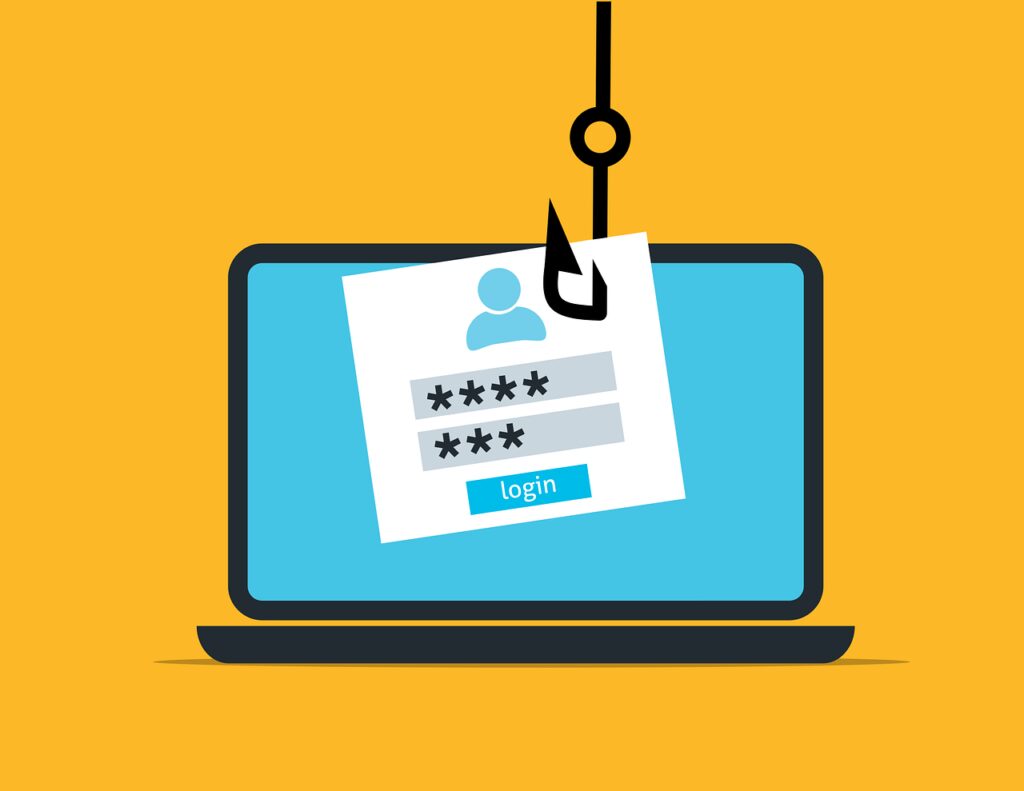
Principles of solid login credentials
To establish strong login credentials, one must abide by the principles of creating and managing passwords that are difficult to crack.
- Use complex, unique passwords for different accounts and avoid easily guessable information.
- Consider changing symbols periodically to enhance security.
- Adopt password managers to store credentials and generate random, robust options.
- Implement multi-factor authentication to add a layer of safety beyond just the password.
By adhering to these principles, you can create a solid foundation for your digital security, making it significantly more challenging for unauthorized users to access your Mac computers and online accounts.
Utilize iCloud Keychain for password integrity
iCloud Keychain is a solution provided by Apple that creates and memorizes each unique password for your accounts and synchronizes them across all your devices, ensuring password integrity and ease of access.
How iCloud Keychain aids in secure password storage
iCloud Keychain is integral to maintaining secure password storage across Apple devices. It utilizes robust AES 256-bit encryption to protect personal information such as credit card details, Wi-Fi network information, and website login credentials.
This feature autocompletes forms and logins across your devices, so you never have to memorize every password. Furthermore, with the added security of requiring a Mac login password or using Touch ID to retrieve stored information, iCloud Keychain adds extra protection by ensuring that only you can access your saved passwords.
Setting up iCloud Keychain is straightforward, adding to the user-friendly experience that Apple is known for.
- Enable iCloud Keychain from the Apple menu on your Mac by navigating to
System SettingsorSystem Preferences. - Access your login information on any linked Apple device after authentication with Touch ID or your device passcode.
- Rely on end-to-end encryption that keeps your information safe, even from Apple.
- Allow Safari to autofill user credentials on websites, ensuring you never have to input login credentials again manually.
Despite its convenience, iCloud Keychain may not be ideal for those who work across different operating systems.
Conclusion: Prevent malware attacks
Despite macOS’s robust architecture and secure features, continuous attention to protection practices is necessary. The landscape of digital threats is ever-changing, with new malware and sophisticated cyber-attacks emerging regularly.
The future of malware threats is unpredictable, but that doesn’t mean we can’t prepare and avoid malware.
Combining system features with user awareness and additional tools like SpyHunter for Mac is essential to provide regular scans and comprehensive protection for our computers.
