

What Is A Trojan Horse On Mac & How To Remove It?

Before we dive in
Before we dive in, let's make sure you stay safe online. We created SpyHunter because your security matters to us.
Protect your computer today — download SpyHunter right here! Check out our top tips below to keep your computer safe and secure.

Worried your Mac might have a Trojan horse virus? You’re in the right place.
This guide will explain how to remove Trojan viruses from Mac.
We’ll cover identifying the infection, disconnecting from the internet, using Safe Mode, stopping malicious processes, and cleaning up your system.
Understanding Trojan viruses on Mac

Trojan viruses, named after the infamous Trojan Horse from Greek mythology, are a type of malicious software that infiltrates devices by masquerading as legitimate programs.
Unlike other types of malware that replicate or spread rapidly, Trojans prefer a more subtle approach, often going undetected until they receive commands from their controllers.
This stealthy nature makes them particularly dangerous for Mac users who might not realize their system is compromised, especially if they encounter a trojan horse virus, trojan horse viruses, or trojan horses.
The primary method by which Trojans infiltrate Macs is through deception. They often disguise themselves as harmless software, tricking users into downloading and installing them.
Users are often tricked into downloading a ‘trojan installer’ through social engineering tactics, such as phishing emails that contain malicious attachments.
Common sources of Trojan infections include compromised websites, file-sharing networks, and fake email attachments. Even connecting to hacked Wi-Fi networks can lead to Trojan infections through malicious redirects.
Once inside, Trojan viruses can cause significant harm. They might download additional malicious software, steal sensitive information, or even render the system inoperable.
The slow and stealthy nature of most Trojans means they can operate undetected, making it crucial for Mac users to be vigilant and proactive in their defense against these threats.
How Trojan horse viruses work
Trojan horse viruses operate by tricking users into downloading and installing them, often by masquerading as legitimate software or files. These can appear as enticing games, videos, or documents.
Once the Trojan horse is installed, it can execute malicious code, allowing hackers to remotely access your computer, steal sensitive information, or install additional malware. Some Trojan horses create backdoors, providing hackers with ongoing access to your system.
This stealthy approach makes Trojan horse viruses particularly dangerous, as they can remain undetected while causing extensive harm.
Identifying signs of a Trojan infection
Recognizing the symptoms of a Trojan infection early on is key to mitigating the damage.
One of the most common signs is a noticeable decline in your Mac’s performance. Frequent crashes, sluggish response times, and a generally slower computer performance can all indicate that a Trojan virus has taken hold.
Another telltale sign of a Trojan infection is unexpected changes in your system or browser settings.
If you find that your homepage has been altered, your default search engine has changed, or you encounter an unusual number of pop-ups and advertisements, these could be red flags.
Trojans often manipulate these settings to redirect you to malicious websites or to gather additional data.
Additionally, the presence of unrecognized files or programs on your Mac can be a strong indicator of a Trojan infection. These suspicious files might have been installed without your knowledge, and their presence can compromise your system’s integrity.
Staying alert to these signs allows for swift action to remove the Trojan and safeguard your Mac.
Risks of a Trojan horse infection
A Trojan horse infection can pose significant risks to both your computer system and your personal data. Here are some of the potential dangers:
- Unauthorized access: Trojans can grant hackers access to sensitive information, such as passwords, credit card numbers, and personal data.
- Additional malware: Once a Trojan is on your system, it can install other malicious software, including viruses, spyware, or ransomware.
- System damage: Trojans can corrupt files, crash programs, and cause overall system instability.
- Data theft: Sensitive information, such as intellectual property, trade secrets, or confidential data, can be stolen.
- Operational disruption: For businesses, a Trojan infection can lead to downtime, lost productivity, and reputational damage.
Steps to remove Trojan from Mac

If you suspect your Mac has been infected with a Trojan virus, it’s imperative to act quickly. Trojans can cause extensive damage if left unchecked, so following a methodical approach to remove the threat is essential.
Here’s a comprehensive guide to help you eliminate the Trojan and restore your Mac’s health. The process involves several critical steps, each designed to isolate and eradicate the malicious software.
From disconnecting your internet connection to running a thorough malware scan, each step plays a vital role in ensuring that your system can effectively remove malware and is thoroughly cleansed of the Trojan, including removing malware.
Let’s break down these steps in detail to make the removal process as straightforward as possible.
1. Disconnect from the Internet
The first step in dealing with a Trojan infection is to disconnect your Mac from the internet.
This action prevents the Trojan from communicating with its server, which could potentially stop it from spreading further or sending out your data. Disconnecting can be done easily by turning off Wi-Fi or unplugging the Ethernet cable.
Disconnecting from the internet reduces the risk of additional malware downloads or data breaches.
2. Boot into Safe Mode
Next, reboot your Mac in Safe Mode. Safe Mode disables non-essential software and limits system functions, making it easier to identify and remove the Trojan virus.
To boot into Safe Mode, restart your Mac and hold down the Shift key until the Apple logo appears.
This mode provides a controlled environment to perform the necessary steps without interference from the Trojan.
3. Use Activity Monitor to spot malicious processes
Using Activity Monitor is a crucial step in identifying malicious processes.
Access Activity Monitor through the Utilities folder or by using Spotlight search. Once opened, look for processes that seem unfamiliar or are consuming an unusually high amount of CPU or memory resources. These could be indicators of Trojan malware.
If you identify any suspicious processes, select them and click the Quit Process button. This action will stop the malicious software from running, making it easier to proceed with its removal.
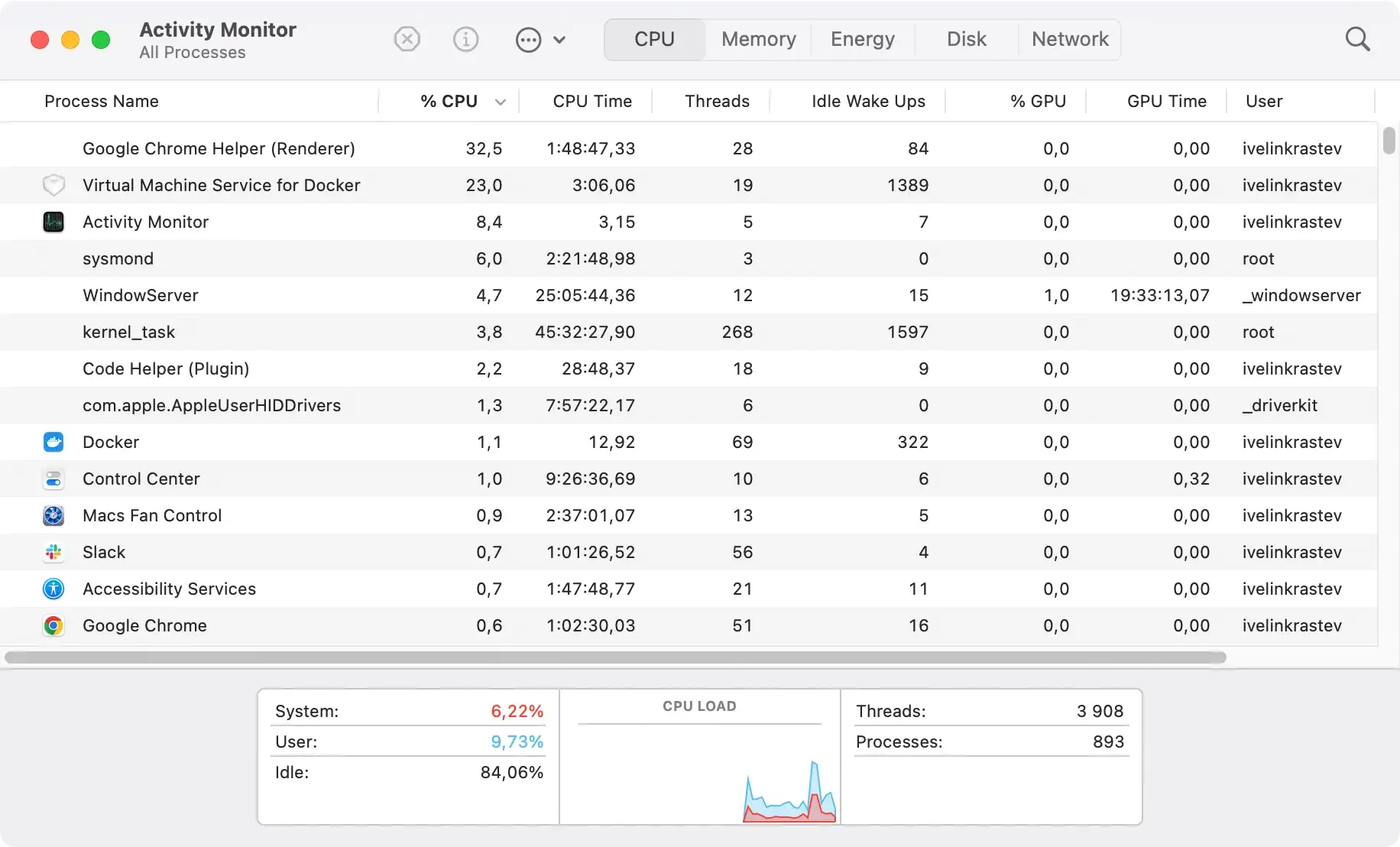
Monitoring CPU usage can also help spot abnormal activity that might indicate the presence of other malware.
4. Uninstall suspicious applications
After stopping the malicious processes, the next step is to uninstall any suspicious applications. Trojans often disguise themselves as legitimate software, so it’s important to scrutinize your installed applications carefully.
Open the Applications folder in Finder and look for any unfamiliar or recently installed programs.
If you find any suspicious applications, close them via Activity Monitor and then drag them to the Trash to delete them.

This step helps ensure that the Trojan is removed from your system and prevents it from causing further harm.
5. Delete harmful files
Deleting harmful files associated with the Trojan is an essential step in the removal process. These files might be hidden in various locations on your Mac, so thoroughness is key.
Use Finder and its Go to Folder functionality to search for recently modified files or files with suspicious names. Consider looking through the following directory locations:
/Library/LaunchAgents//Library/Application Support//Library/LaunchDaemons/~/Library/LaunchAgents/~/Library/Application Support//Library/Preferences//Library/StartupItems/
Once you locate these harmful files, select and delete them. This action will help eliminate the remnants of the Trojan infection and remove trojan horse virus, ensuring that your system is clean and safe from further damage.
6. Check and reset web browsers
Trojans often make changes to web browser settings to facilitate malicious activities. Checking and resetting your web browsers can help undo these changes and remove any harmful data. Start by reviewing your homepage and connection settings to identify any unauthorized modifications.
Next, clear your browser’s cache and website data, then remove any suspicious extensions or add-ons. This step ensures that any harmful data stored by the Trojan is deleted, restoring your browser to its normal state.
It can also be useful to reset your browser to its default settings as an extra precaution.
Reset Google Chrome
- Open Chrome.
- Click the three-dot menu (⋮) in the top-right corner.
- Select
Settings. - Scroll down and click
Reset settings. - Click
Restore settings to their original defaults. - Confirm the reset by clicking
Reset settingsin the pop-up dialog.
Reset Safari
- Open Safari on your Mac.
- Click
Safariin the top menu bar, then selectPreferences. - Navigate to the
Privacytab. - Click
Manage Website Dataand then selectRemove Allto clear browsing data. - Go to the
Extensionstab and disable or uninstall any unwanted extensions. - Close the Preferences window, then click
Safari > Clear History. - Choose
all historyfrom the drop-down menu and clickClear History.
Reset Mozilla Firefox
- Open Firefox.
- Click the three-line menu (☰) in the top-right corner.
- Select
Help, then chooseMore Troubleshooting Information. - Click the
Refresh Firefoxbutton. - Confirm the action by clicking
Refresh Firefoxin the pop-up dialog. - Firefox will close and reset, reopening with default settings and saving your essential information.
7. Run a malware scanner
Running a malware scanner is the final and crucial step in ensuring your Mac is free of any Trojan remnants. Malware scanners can detect and eliminate any residual malicious code that might have been missed during manual removal.
Choose a reputable malware scanner and perform a thorough scan of your system. This scan will help catch any lingering threats and provide peace of mind that your Mac is completely clean and secure.
Using antivirus software for protection
Using antivirus software is an effective way to protect your Mac from future Trojan infections.
These programs offer real-time protection, continuously monitoring your system for new threats and blocking them before they can cause harm. Antivirus software can also help remove trojans and other malicious software that have already infiltrated your system.
While macOS includes built-in security features like Gatekeeper and XProtect, these do not replace the need for dedicated antivirus software.
You can use SpyHunter to keep your Mac safe from Trojans and various other forms of malware. SpyHunter can serve both as a real-time active shield against malware and as an anti-malware tool that can scan your system and clean any existing threats.
- Download the app here and install it on your Mac.
- Start the app from your Dock and choose a full malware scan from the main menu.
- Once the scan is done, examine the list of detections and make sure everything is selected for cleanup.

- Proceed with the automated removal and enjoy a safer system.

Investing in a robust antivirus program ensures that your Mac remains protected against the ever-evolving landscape of malware threats.
Preventing future Trojan infections

Prevention is always better than looking for a cure. To minimize the risk of future Trojan infections, avoid downloading software from unreliable sources. Be cautious with suspicious email attachments from unknown senders, as they may carry Trojans.
Stay vigilant against suspicious pop-ups and ensure you do not click on any that might lead to malicious downloads.
Keeping your operating system and applications up to date is also crucial, as updates often include security patches that protect against known vulnerabilities.
Following these best practices significantly lowers the chances of encountering Trojans and other malware, ensuring your Mac’s safety.
Backing up your data
Backing up your data is a critical step in protecting your computer and sensitive information from malware infections. Here are some best practices:
- Use an external hard drive: Connect an external hard drive to your computer and use it to back up important files and data.
- Use cloud storage: Services like Google Drive, Dropbox, or OneDrive offer cloud storage solutions for backing up your files.
- Use backup software: Programs like Time Machine or Acronis can automate the backup process, ensuring your data is regularly saved.
- Back up regularly: Aim to back up your data daily or weekly to keep your files up to date.
- Store backups securely: Keep your backups in a safe or secure location to protect them from unauthorized access.
By following these practices, you can safeguard your data against potential threats and ensure that you can recover quickly in the event of a malware infection.
Frequently asked questions
How do I know if my Mac has a Trojan virus?
If your Mac frequently crashes, runs slowly, shows unexpected pop-ups, or has unrecognized files or programs, it may have a Trojan virus. It’s important to address these issues promptly to protect your system.
What should I do first if I suspect a Trojan infection?
If you suspect a Trojan infection, the first step is to disconnect from the internet immediately to stop it from communicating with its server and spreading. This action is crucial for protecting your device and personal data.
Is Safe Mode necessary for removing a Trojan?
Booting into Safe Mode is essential for effectively removing a Trojan, as it disables non-essential software, allowing for easier identification and removal of the threat.
Can antivirus software prevent future Trojan infections?
Yes, antivirus software can effectively prevent future Trojan infections by providing real-time protection and detecting new threats. It is essential to keep it updated for optimal security.
Are macOS’s built-in security features enough to protect against Trojans?
macOS’s built-in security features like Gatekeeper and XProtect provide a basic level of protection, but dedicated antivirus software is recommended for more comprehensive security against Trojans.
