

macOS Sequoia Battery Draining? Try These 14 Easy Fixes

Before we dive in
Before we dive in, let's make sure you stay safe online. We created SpyHunter because your security matters to us.
Protect your computer today — download SpyHunter right here! Check out our top tips below to keep your computer safe and secure.

Have you noticed your macOS Sequoia battery draining faster than it should?
It can be frustrating when a new macOS version starts impacting your battery life, leaving you constantly searching for a charger.
Several culprits could be affecting your Mac’s battery performance.
Luckily, we’ve gathered some practical solutions you can use to resolve the issue.
In this post, we’ll explore 14 easy fixes to help you stop the battery drain and get your Mac running smoothly again, both while in use and during sleep.
Let’s dive in!
Is macOS Sequoia causing battery drain?
While macOS Sequoia itself isn’t directly draining your battery, it may be putting more pressure on your Mac’s resources.
New versions of macOS introduce new features that can demand more from your CPU and GPU, which can lead to increased battery drain.
This is especially true for older Macs, as macOS Sequoia is often optimized for newer hardware.
If your MacBook is compatible with macOS Sequoia, the battery draining may be temporary as the system adjusts.
If the issue persists, it’s a sign that something else is drawing more energy than it should. Applying the fixes in the following sections should help improve your battery life.
If you’re facing other challenges, our guide on common macOS Sequoia issues offers additional troubleshooting tips.
How to fix macOS Sequoia battery draining?
If your Mac’s battery drains quickly while running macOS Sequoia, there are several practical steps you can take to extend its battery life and improve system performance.
1. Free up RAM
Excessive RAM usage can cause your MacBook to work harder, draining more battery.
To manage RAM effectively:
- Open
Activity Monitorby searching inSpotlightor fromApplications > Utilities > Activity Monitor. - In the
Memorytab, sort processes byMemoryto see which apps are using the most RAM. - Quit any apps or processes that you don’t need by selecting them and clicking the [X] button at the top of the window.
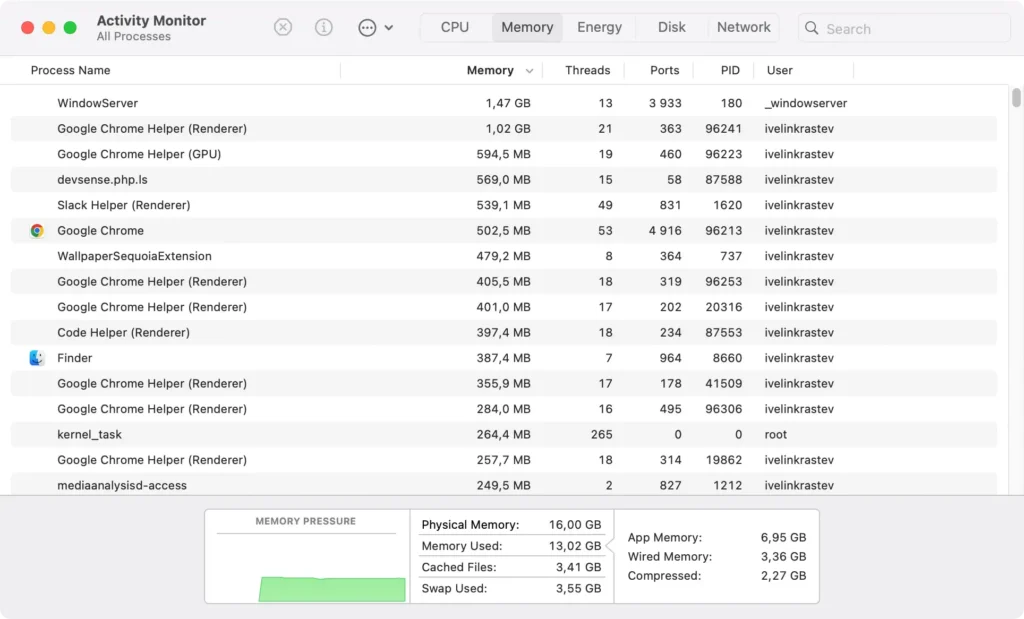
Freeing up RAM helps reduce the strain on your Mac’s CPU, improving battery performance.
2. Adjust screen brightness
Keeping your display at full brightness can significantly impact your battery performance.
Lowering the brightness is a simple yet effective way to conserve energy.
Follow these steps:
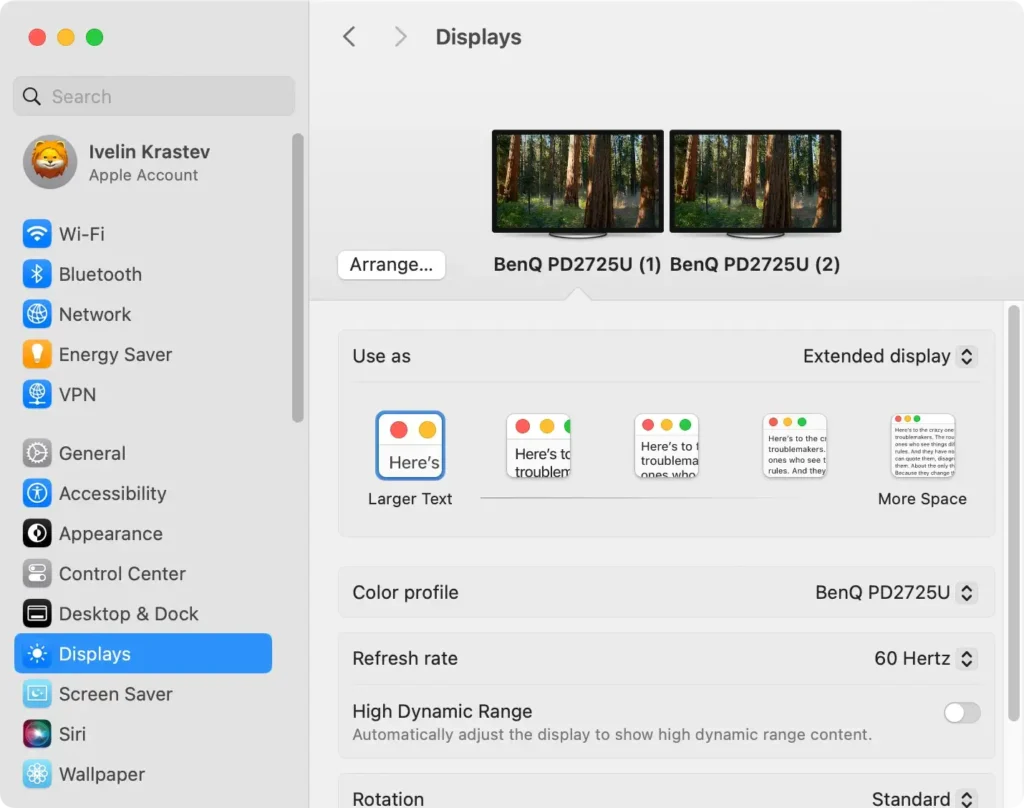
- Go to
System Settings > Displays. - Use the slider to reduce the screen brightness to a level that’s comfortable for your eyes but saves power.
- Alternatively, use the brightness keys on your keyboard to adjust the brightness quickly.
3. Close unused browser tabs
Having multiple unused browser tabs open in your web browser can quickly drain your battery life.
Each open tab consumes resources, even if you’re not actively viewing it.
Close any tabs that are no longer needed, especially those with media content like videos or animations.
You can also use extensions in some web browsers to suspend inactive tabs automatically.
4. Check login items and background extensions
Some apps and browser extensions start running automatically when you turn on your Mac, which can consume a lot of battery power.
To manage these:
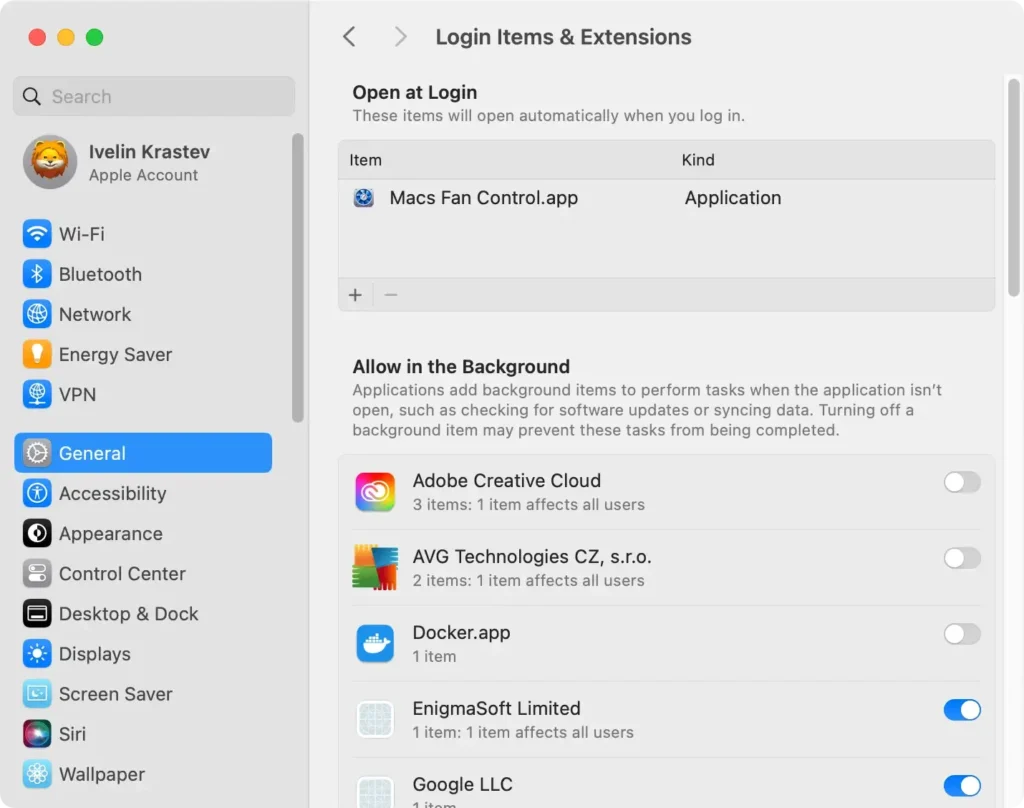
- Go to
System Settings > General > Login Items & Extensions. - Review the list of apps set to open at login. Click the minus (-) button next to any app you don’t need to run automatically.
- Also, check for active background browser extensions. Go to your web browser’s preferences and disable or remove unnecessary extensions.
5. Quit resource-intensive processes
Some apps and processes consume a lot of energy, which can significantly drain your battery.
To find and close these:
- Open the
Activity Monitorapp. - Click the
Energytab to monitor the energy use. - Look for processes with high
Energy Impactvalues. These are the ones draining your battery power. - Select any unnecessary processes and click the X button to quit them.
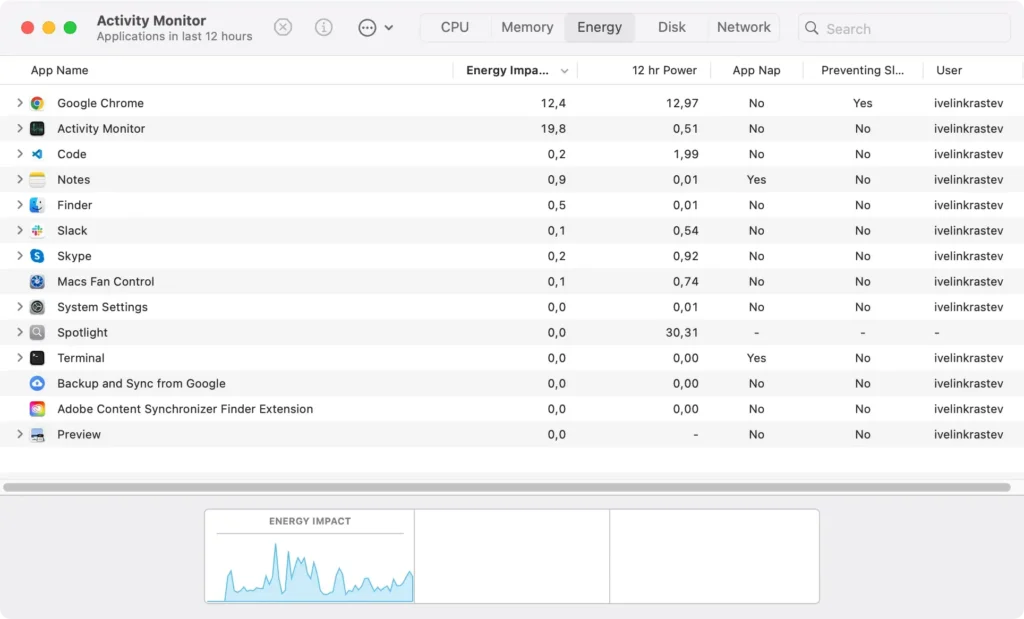
Keeping only essential processes running helps conserve energy and extend your battery cycles.
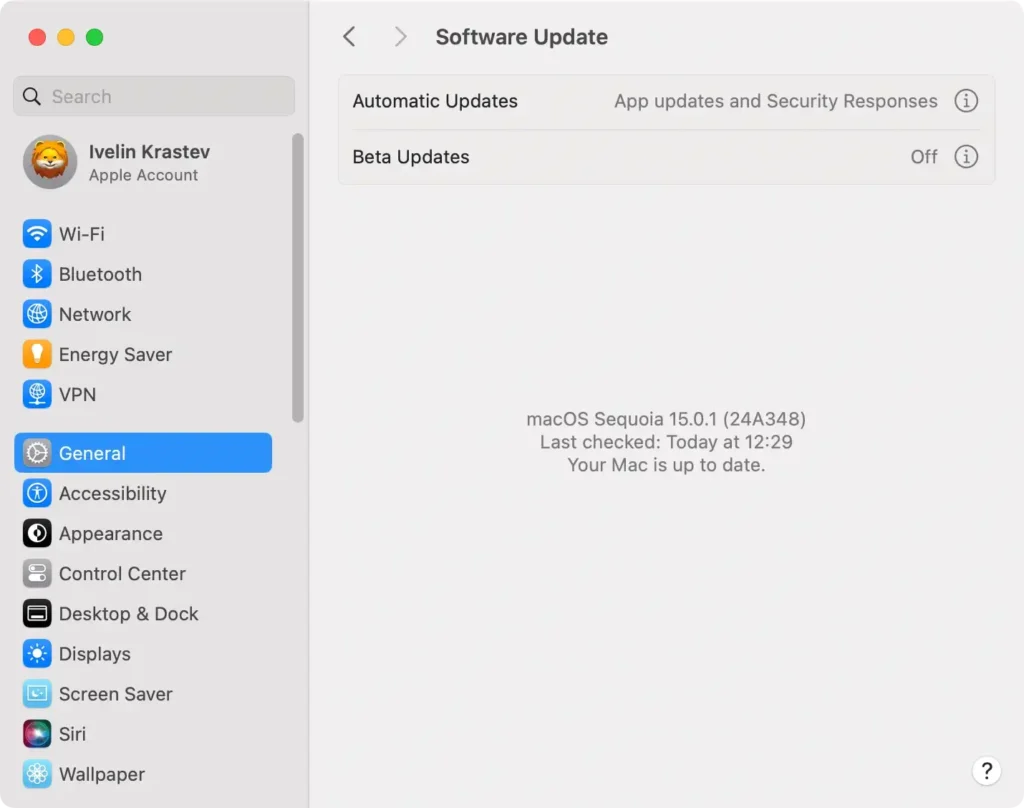
6. Check for macOS Sequoia updates
Running an outdated version of macOS Sequoia can cause those battery draining issues.
Apple regularly releases updates that include bug fixes and optimizations.
Here’s how to check for updates:
- Open
System Settings > General > Software Update. - If there are available updates, install them to update to the latest Sequoia version.
7. Use low power mode
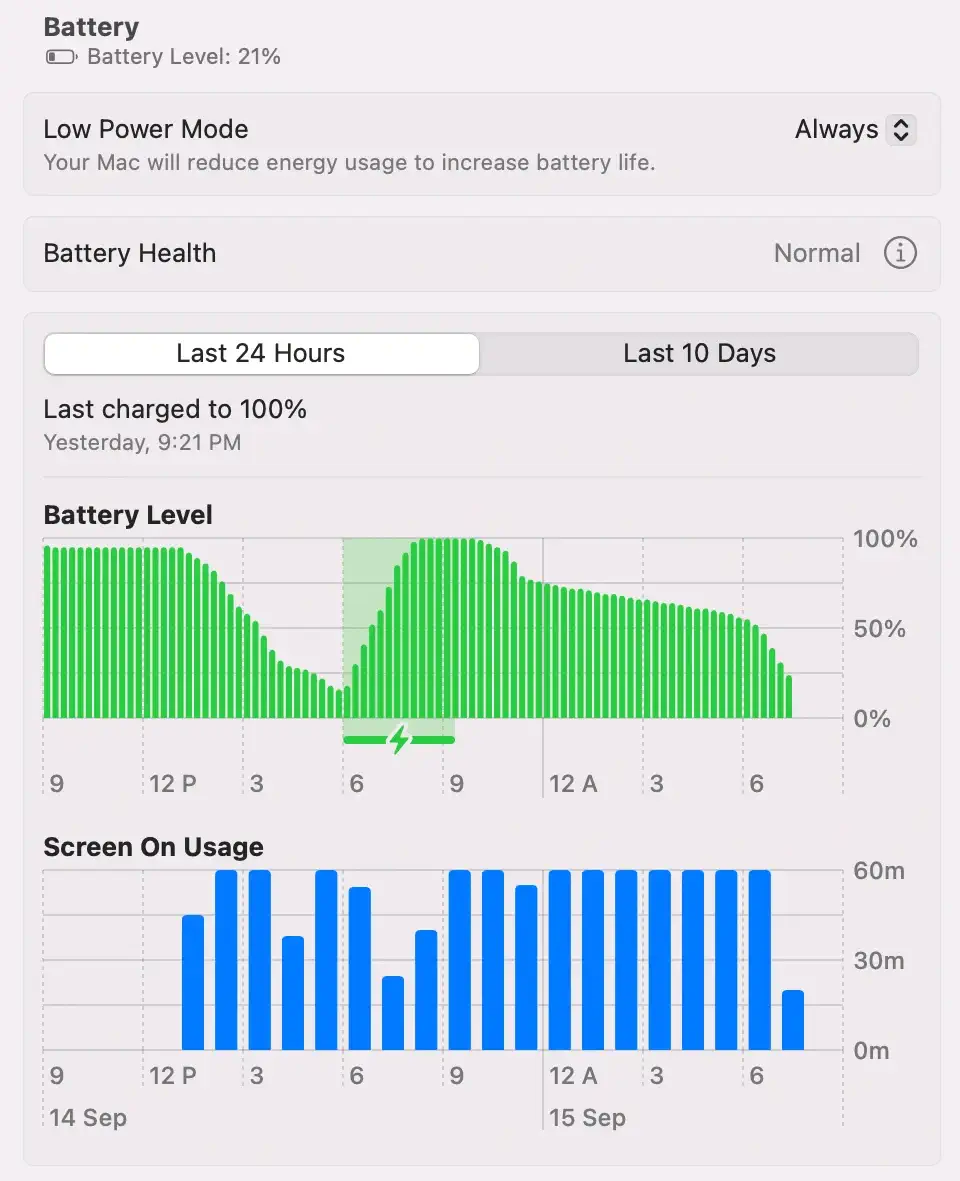
Activating Low Power Mode is an excellent way to reduce your Mac’s energy usage.
This mode dims the display, reduces CPU performance, and limits background activity to save battery life.
Here’s how to enable it:
- Open the
System Settingsapp. - Navigate to the
Batterytab. - Toggle on
Low Power Mode.
By following these steps, you can manage your macOS Sequoia battery life effectively while using your Mac.
Implementing these fixes will help you maximize battery power, improve performance, and ensure your Mac is running efficiently.
How to fix macOS Sequoia battery drain during sleep?
If you’ve noticed your Mac’s battery draining rapidly while it’s asleep or overnight, several factors could be at play.
Here’s how you can minimize battery drain during sleep:
1. Wait while Spotlight indexes
After upgrading to macOS Sequoia, Spotlight may need to reindex your entire system, which can temporarily drain your battery.
This indexing process helps Spotlight locate files quickly, but it can take several hours, depending on the amount of data on your Mac.
It’s normal to experience some battery draining during this time. Once the indexing is complete, your battery drainage should return to normal, and Spotlight will function more efficiently.
Be patient and allow this process to finish before troubleshooting further.
2. Turn off Wi-Fi and Bluetooth
Wi-Fi and Bluetooth can continue to use your battery even when your MacBook is asleep, which contributes to battery drain.
Turning off these features before closing your MacBook can help conserve battery life during idle periods.
Here’s how to do it:
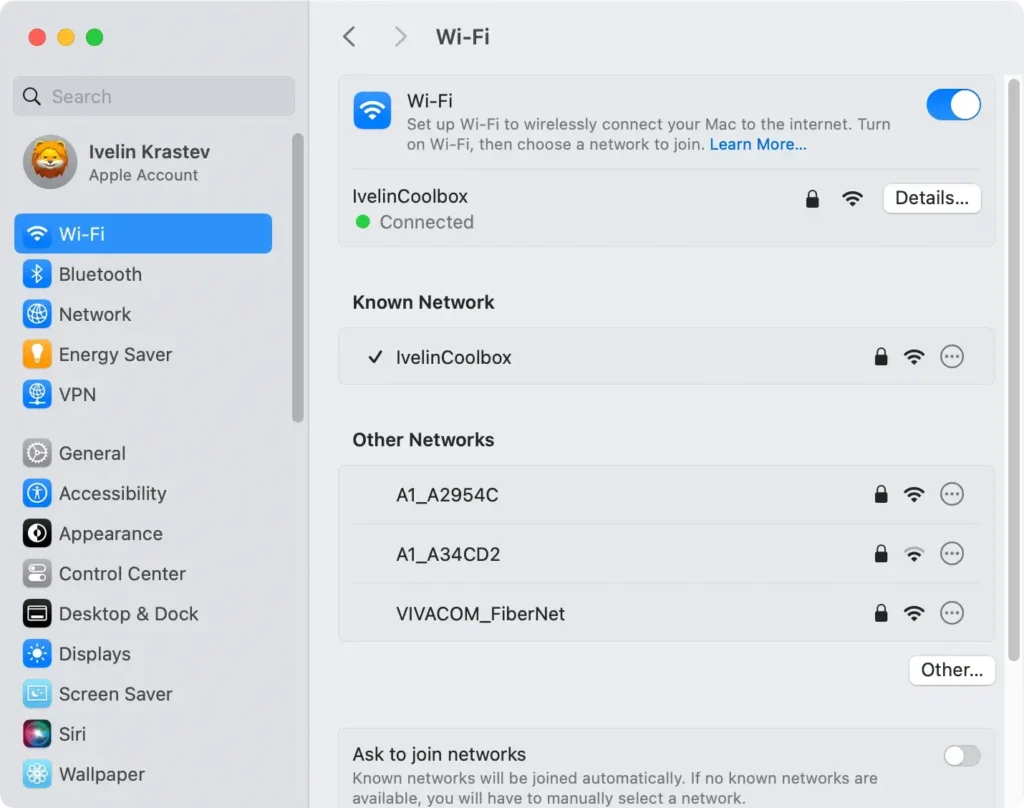
Steps to turn off Wi-Fi:
- Open
System Settingsfrom the Apple menu. - Select
Wi-Fifrom the left-hand sidebar. - Toggle the switch next to
Wi-Fito turn it off. - Alternatively, click the Wi-Fi icon in the menu bar and select Turn Wi-Fi Off.
Steps to turn off Bluetooth:
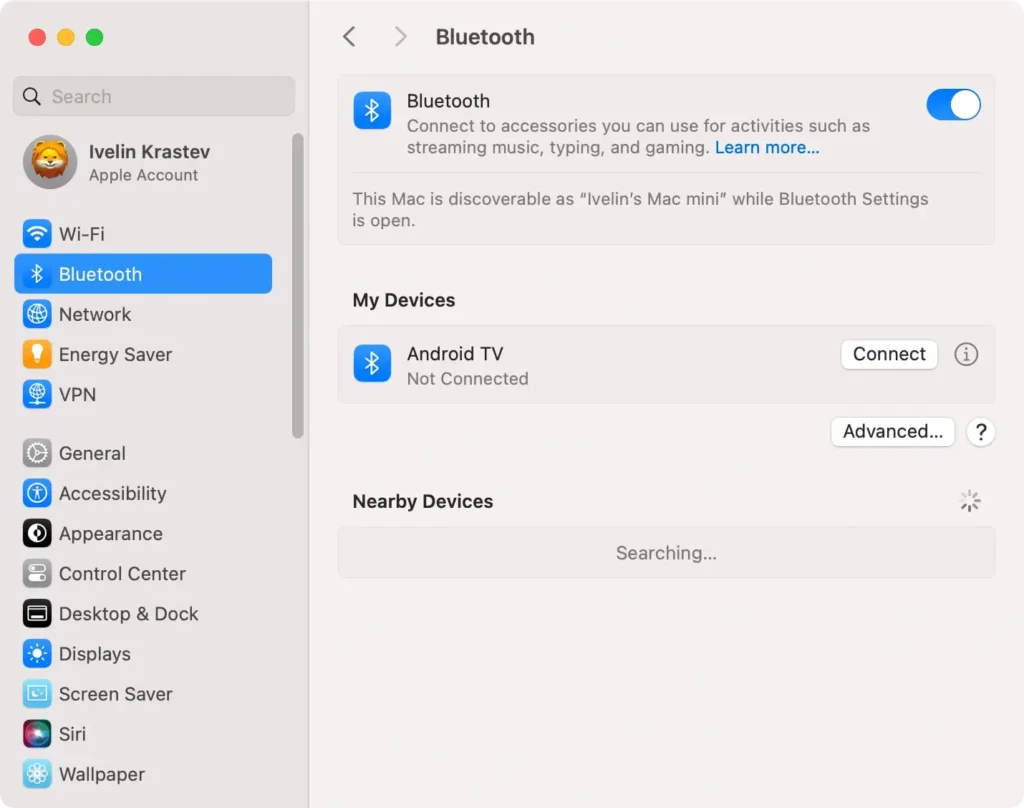
- Open the
System Settingsapp. - Navigate to
Bluetoothin the left-hand sidebar. - Toggle the switch next to
Bluetoothto turn it off.
3. Quit apps preventing sleep
Some apps may continue to run in the background and prevent your Mac from entering proper sleep mode, which leads to unnecessary battery drain.
To check which apps are preventing sleep, open Activity Monitor. In the Energy tab, look for apps marked with Preventing Sleep.
These apps are actively using power even when your Mac is idle. Select the app from the list, then click the X button in the top-left corner to quit it completely.
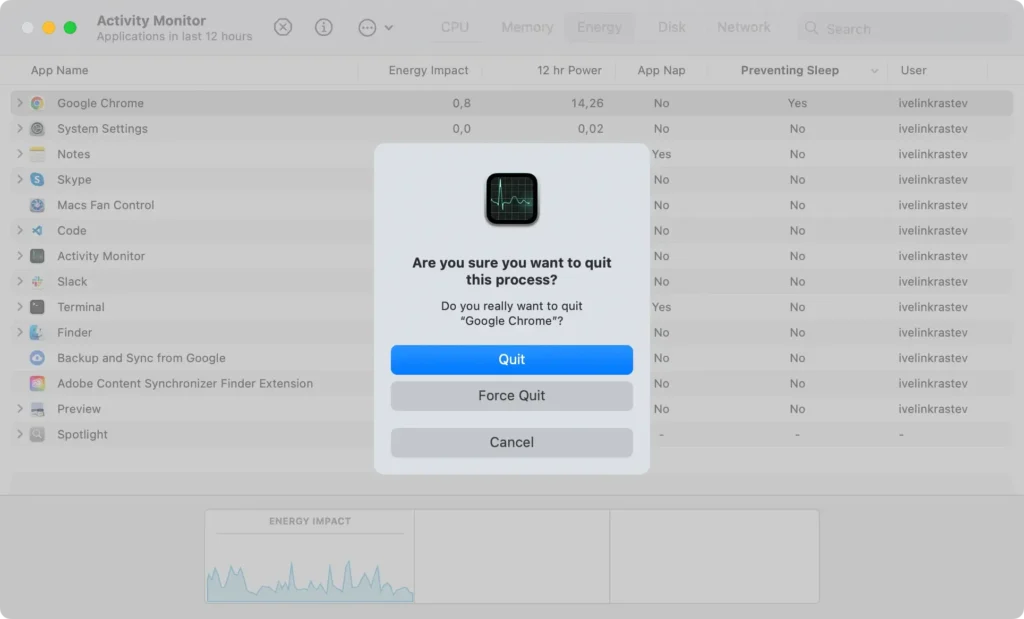
By closing these energy-consuming apps, you can ensure your Mac enters sleep mode correctly and conserves battery power.
4. Unplug unnecessary devices
External devices such as USB drives, external hard drives, or even a connected mouse or keyboard can drain your battery while your Mac is asleep.
Disconnect any unnecessary peripherals to prevent them from using up battery power overnight.
5. Shut down your Mac
If none of the previous solutions work, shutting down your Mac entirely before leaving it overnight can effectively prevent battery drain.
To do this, click the Apple menu and select Shut Down.
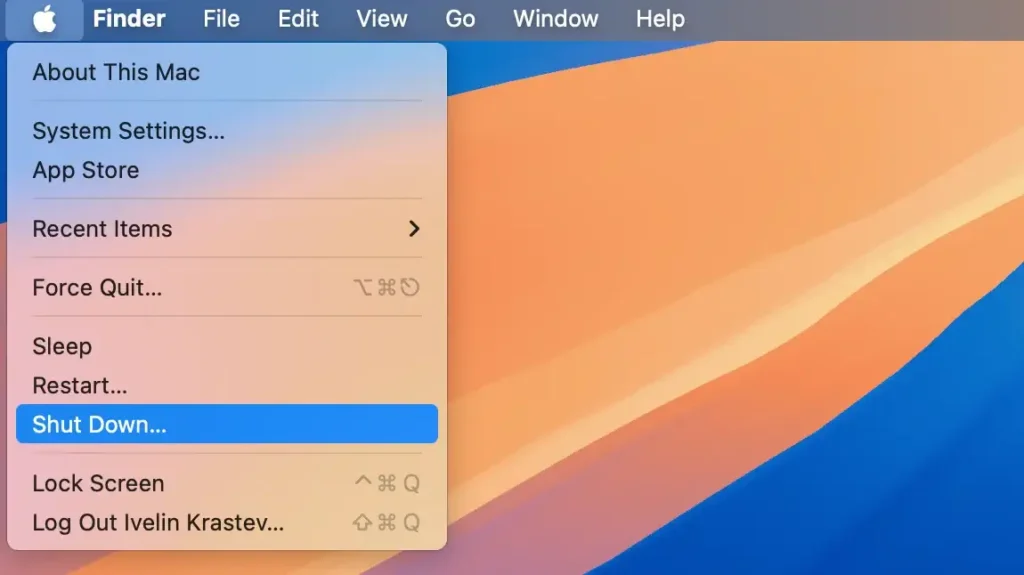
If you want your operating system to restore to its previous state when you restart, tick the box next to Reopen windows when logging back in.
This ensures that all your open apps and documents are reopened when you power your Mac back on, allowing you to pick up right where you left off without losing any work.
What to do if other solutions do not help?
If the above fixes don’t resolve the issue, some Mac users may need to try more advanced solutions to fix macOS Sequoia issues:
1. Reinstall macOS Sequoia
If your battery draining problems continue, it might be time to reinstall macOS Sequoia. If you clean install macOS Sequoia, it might resolve any software conflicts causing the battery drains.
Before proceeding, ensure you have enough free storage space and back up your data. You can reinstall Sequoia via Recovery Mode.
2. Downgrade macOS Sequoia
If reinstalling doesn’t help, or if you notice significant battery draining after upgrading to macOS Sequoia, you might consider downgrading to a previous macOS version.
This can be done by erasing your startup disk and installing an older macOS version from Recovery Mode or a bootable installer.
Please keep in mind that downgrading will remove any new features introduced in macOS Sequoia, but it may resolve the battery issues.
