

Not Enough Space To Install macOS Sequoia? 9 Quick Fixes

Before we dive in
Before we dive in, let's make sure you stay safe online. We created SpyHunter because your security matters to us.
Protect your computer today — download SpyHunter right here! Check out our top tips below to keep your computer safe and secure.

Running out of disk space while trying to install macOS Sequoia can be frustrating, especially when you’re eager to explore the new features of Apple’s latest Mac operating system.
If you’ve received the dreaded not enough space to install macOS Sequoia message, don’t worry—the fix is more straightforward than you might think.
This post will walk you through the practical steps to ensure you have enough space to install macOS Sequoia successfully.
Let’s get started!
How much free space is required to install macOS Sequoia?
Apple has yet to provide an official answer to the question, “How much space does macOS Sequoia need?”
However, based on recent versions of macOS, the macOS Sequoia installer should be around 12GB. But that’s not the whole story.
To successfully install macOS Sequoia, you will need roughly twice the size of the installer itself. This means the macOS Sequoia size is around 25GB.
In addition to the macOS Sequoia storage requirements, keep in mind that the OS is only supported on specific Mac models. Here’s a quick list of Macs that can run macOS Sequoia:
- MacBook Pro (2018 and later)
- MacBook Air (2020 and later)
- Mac mini (2018 and later)
- iMac (2019 and later)
- iMac Pro (2017 and later)
- Mac Pro (2019 and later)
- Mac Studio (2022)
Ensuring you have enough space to install macOS Sequoia will help avoid unnecessary delays and complications during the installation process.
How to check the free storage space on your Mac?
Before you start freeing up space to install macOS Sequoia, it’s essential to know how much storage your Mac has available.
Checking your disk space is simple and gives you a clear idea of whether you have enough space to install macOS Sequoia.
Follow these easy steps to check Mac storage:
- Click on the Apple menu in the top-left corner of your screen.
- Select
System Settingsfrom the dropdown. - In the sidebar, go to
General, then openStoragesettings. - At the top of the window, you’ll see a bar showing how much storage space is used and how much free space you have left on your Macintosh HD.
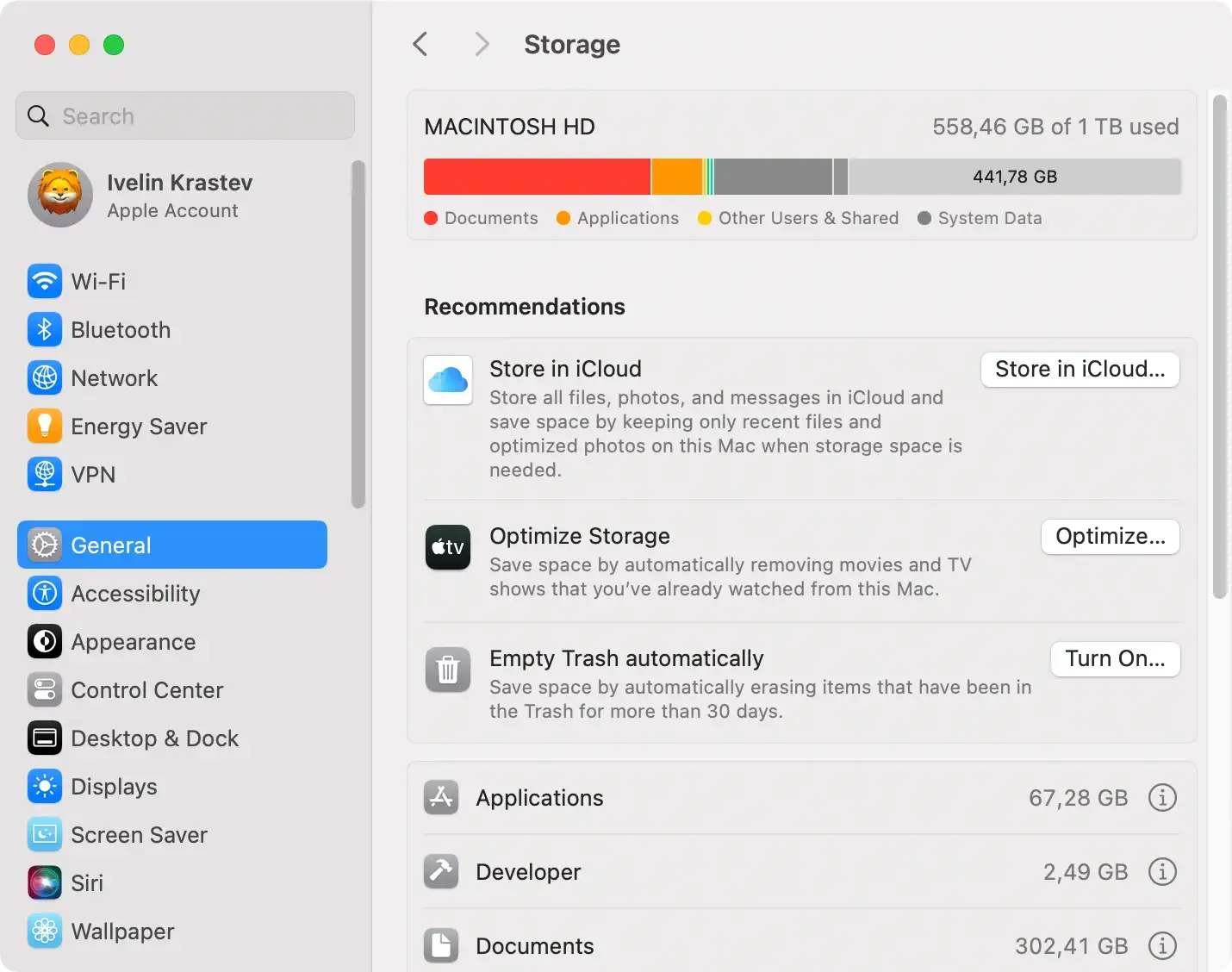
The bar clearly breaks down what’s taking up space, such as apps, mail, and system data. If you see that there’s not enough disk space to install macOS Sequoia, don’t worry—you can take steps to free up more disk space.
How to free up disk space for macOS Sequoia?
If you’re seeing a “not enough space” message when trying to install macOS Sequoia, don’t worry—there are a few things you can do.
Here’s how you can ensure you have enough disk space for the installation.
1. Empty the Trash
It’s easy to forget that files deleted from Finder still sit in the Trash, taking up space.
Make sure to empty the Trash to complete the deletion process and reclaim the free storage space:
- Right-click the Trash icon in the Dock.
- Select
Empty Trash.
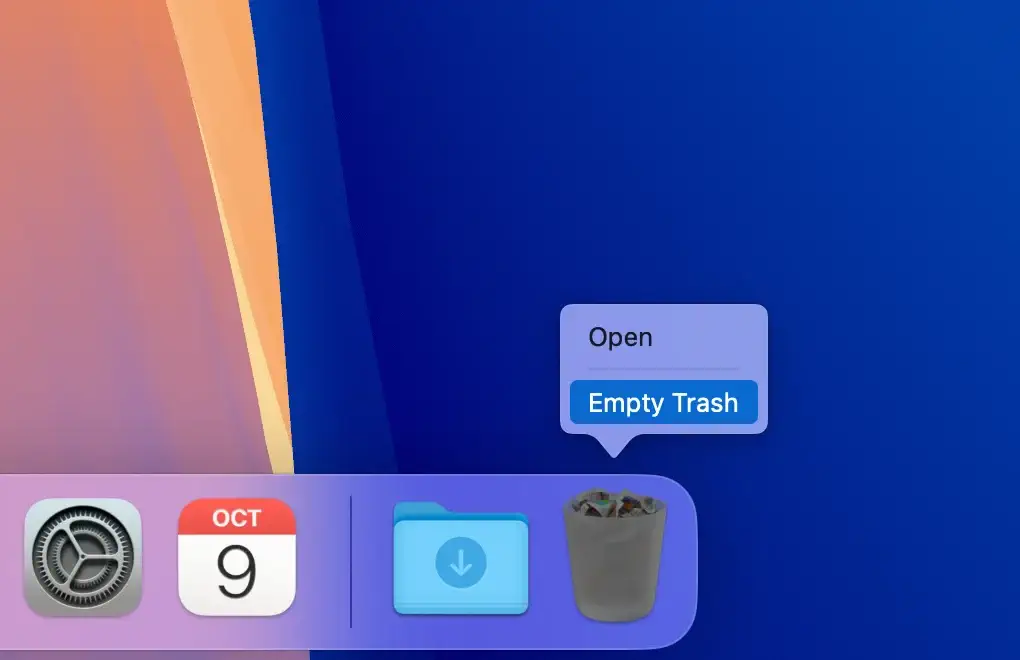
- Confirm the action when prompted in order to delete the files permanently.

2. Use macOS recommendations
The first step is to use your Mac’s native storage management toolkit. This tool offers personalized recommendations for clearing space.
Here’s how:
- Open the Apple menu and go to
System Settings > General > Storage. - Under the
Recommendationssection, enable features like:- Store in iCloud: Automatically store all your files in iCloud.
- Optimize Storage: Delete previously watched Apple TV movies and shows.
- Empty Trash Automatically: This will ensure that items in your Trash don’t sit there for more than 30 days, reclaiming precious space.
- Now, click the info icon next to items like
Applications,Documents, orPhotos, and delete anything you no longer need.
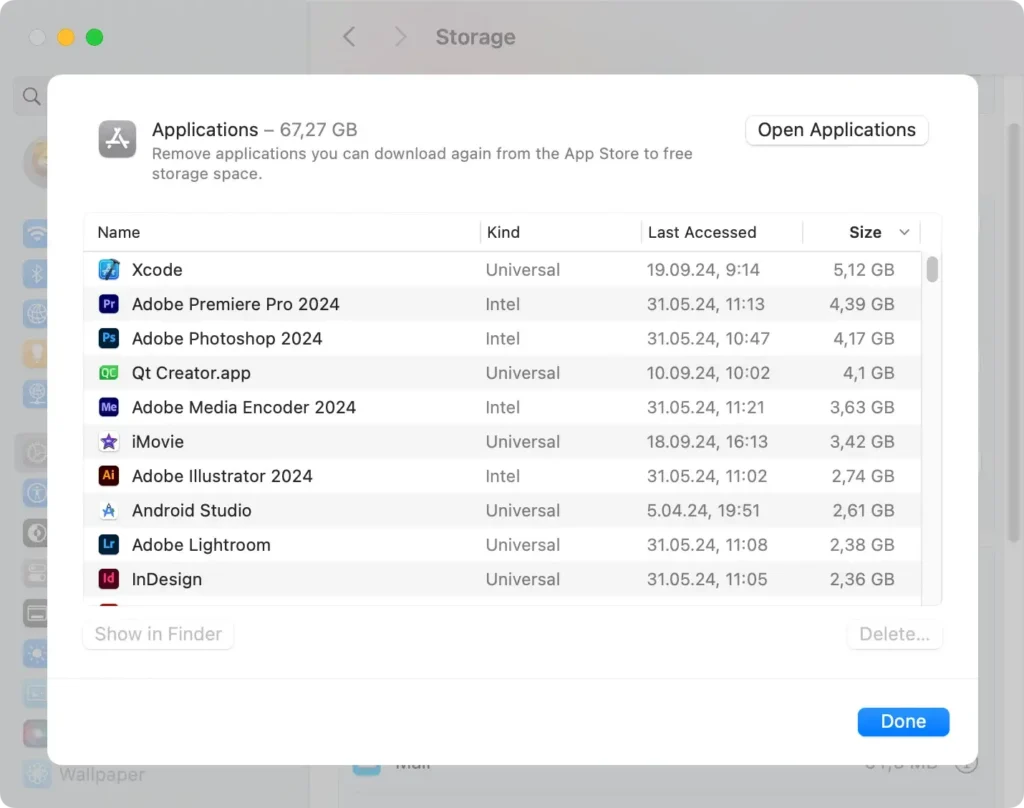
These simple steps can help quickly save space by managing unnecessary files that take up room.
3. Remove system junk
Your Mac accumulates system junk over time, including temporary files, old caches, and settings files for apps you no longer use. These files take up a surprising amount of storage space.
Instead of manually finding and deleting these junk files, you can use SpyHunter to automate the process. It scans your system and clears system junk in minutes:
- Download SpyHunter for free here and install it on your Mac
- Open SpyHunter and start scanning for system junk, including temporary files and cached data.
- Review the results and remove unnecessary files to free up storage space.
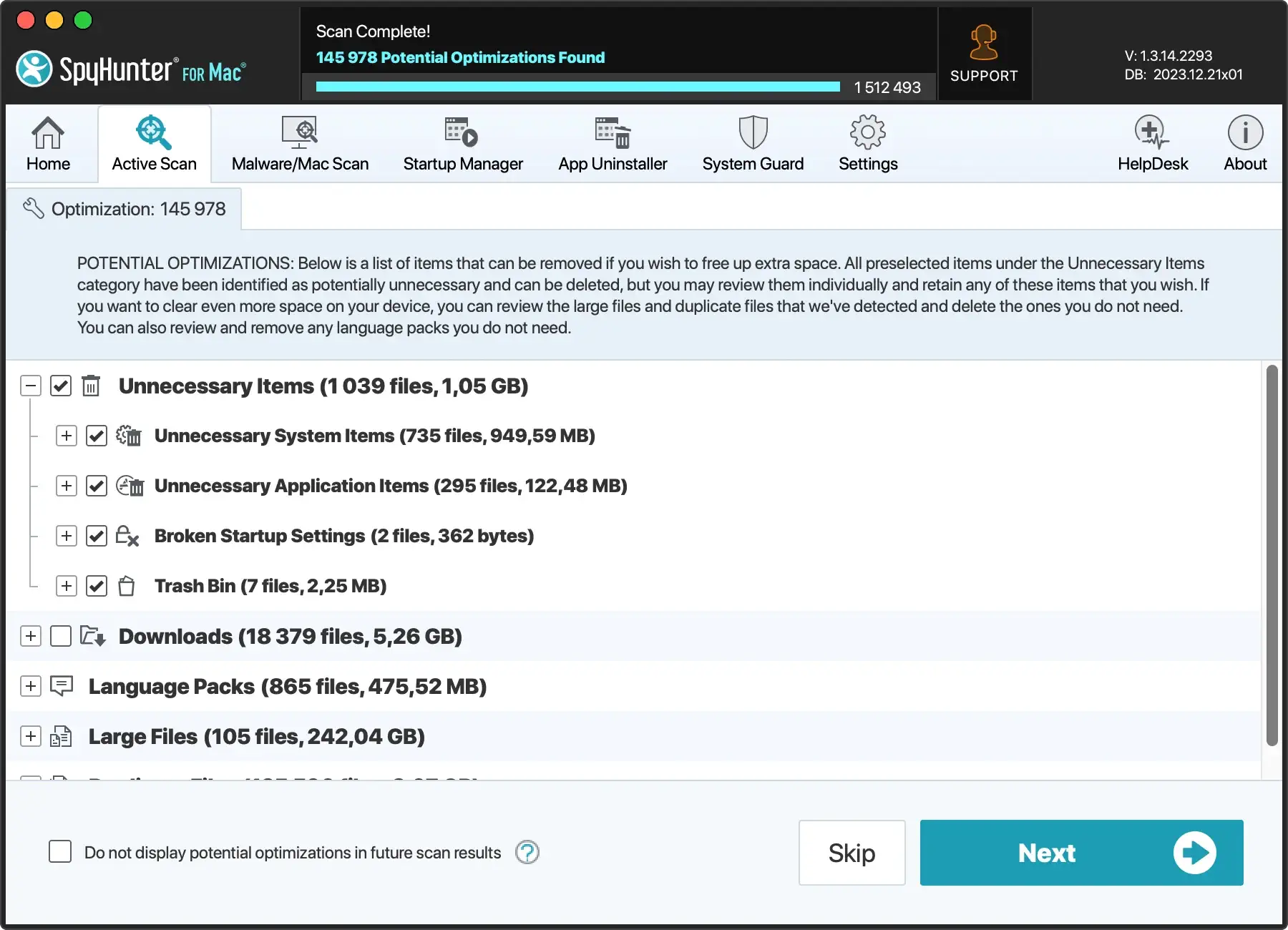
This helps ensure you have enough space to install Sequoia without losing any important files.
4. Delete old iPhone and iPad backups
Old iPhone or iPad backups stored on your Mac can take up a lot of space. Removing these backups is a simple way to free up space:
- Connect your iPhone or iPad to your Mac using a USB cable.
- Open
Finder, and under theLocationssection, select your device. - Click
Manage Backups. - Select any old backups and click
Delete.
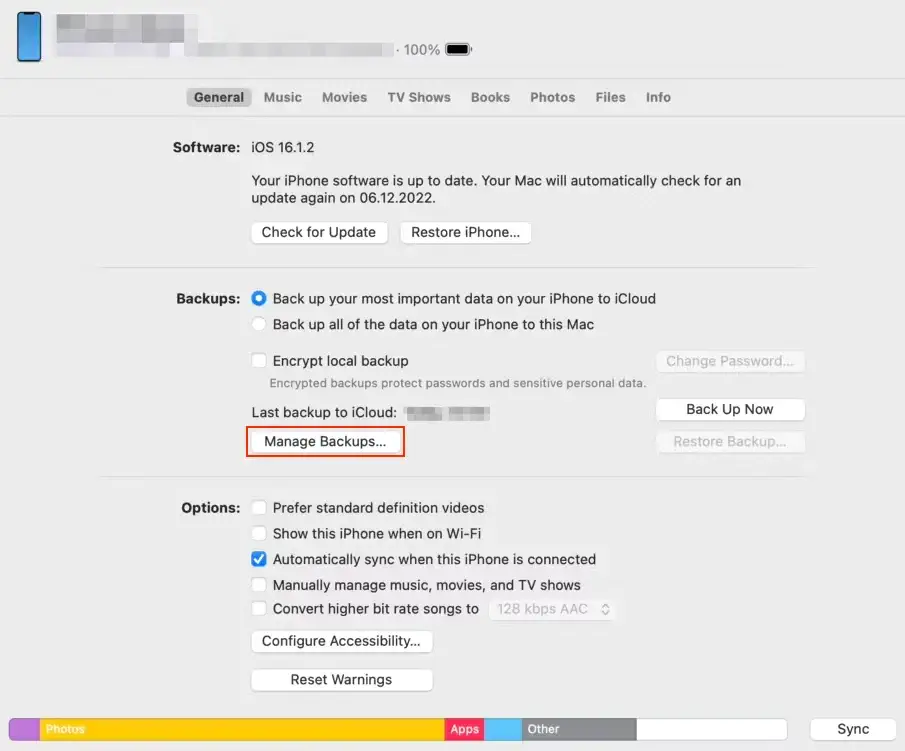
Clearing out these backups will free up a significant amount of space for your macOS Sequoia installation.
5. Get rid of large and duplicate files
Large and duplicate files can hog Mac storage. Instead of manually looking for these files, use SpyHunter’s scanner to identify and remove large and old files:
- Download SpyHunter here and run a scan for large and duplicate files.
- Delete unused large files or duplicate files.
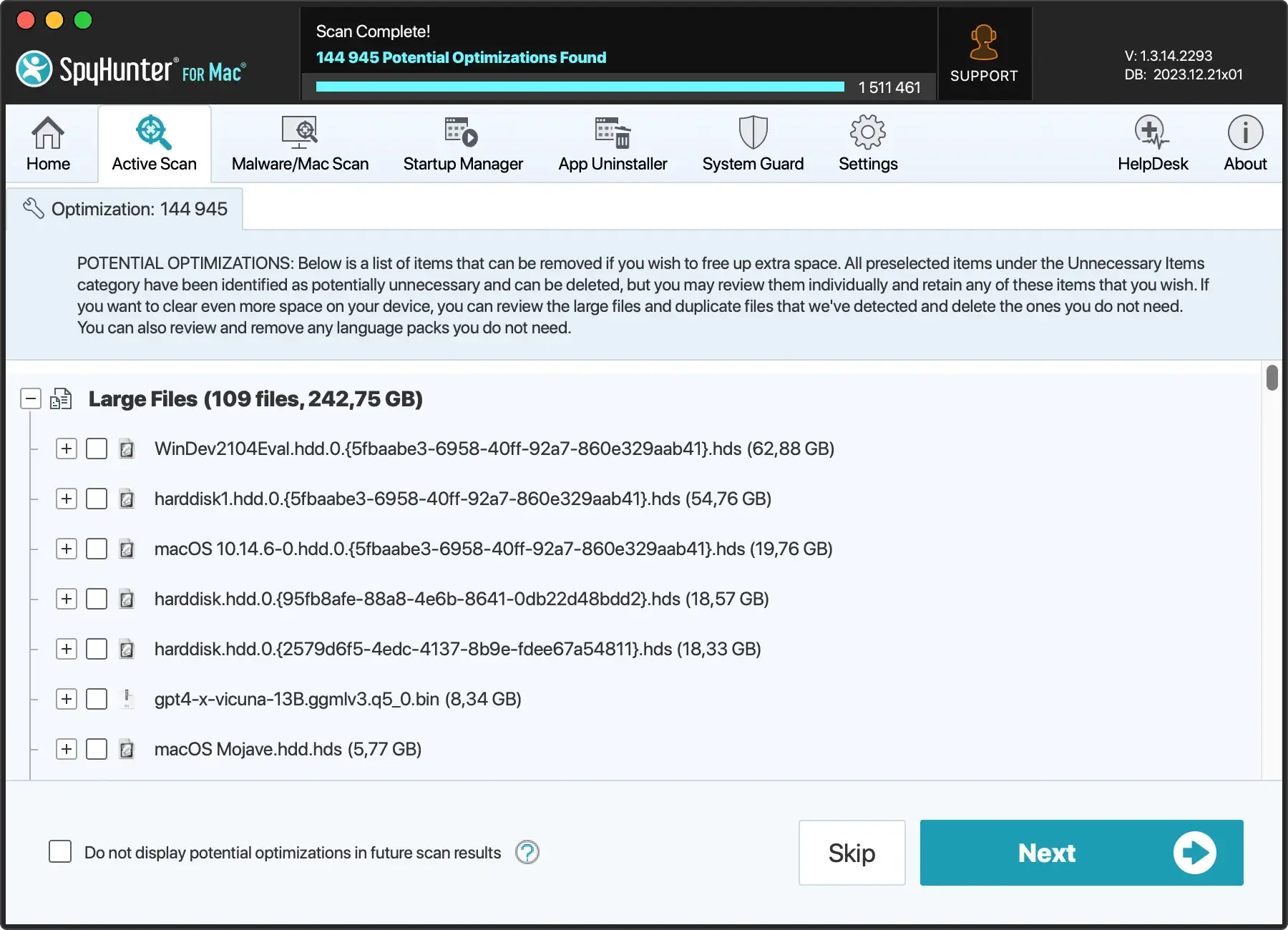
This step will help you reclaim a lot of space quickly, ensuring you have enough space to install the new Mac operating system.
6. Uninstall unused applications
Unused apps can take up valuable storage space and even use background resources. Here’s how to uninstall them manually:
- Open a new
Finderwindow and go to yourApplicationsfolder. - Drag any unused apps to the Trash.
- Empty the Trash.
- Now look for leftover files in all of the following directories:
~/Library/Application Support/~/Library/Caches/~/Library/Logs/~/Library/Internet Plug-Ins/~/Library/Preferences/~/Library/Application Support/CrashReporter/~/Library/LaunchAgents//Library/LaunchAgents//Library/LaunchDaemons/
- Empty your Trash again.
For a more thorough cleanup, including leftover app files, use SpyHunter’s App Uninstaller:
- Open SpyHunter and go to the
App Uninstallertab. - Once the application scan is complete, review the list for any apps you no longer need.
- Select them and instruct SpyHunter to remove them.

SpyHunter removes both the application and all its leftover files, maximizing your free disk space.
7. Clear your downloads folder
Your Downloads folder can quickly get cluttered with old files, large media files, or installers you no longer need.
Cleaning out this folder is a quick way to free up a lot of space at once:
- Open
Finderand navigate to yourDownloadsfolder. - Sort the files by size to quickly identify the largest ones.
- Select and delete any unwanted files. If you want to keep some files, move them to external or cloud storage.
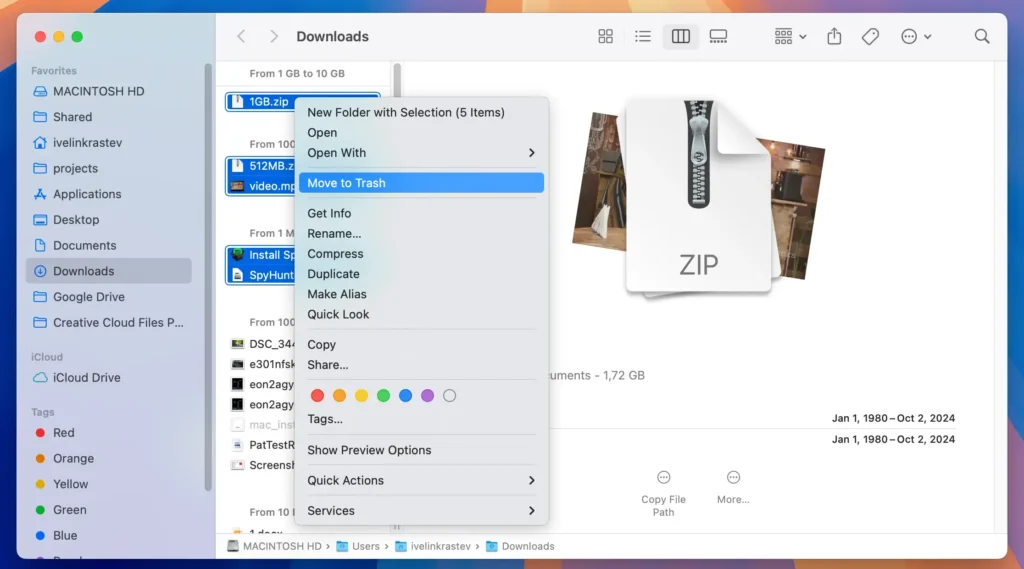
Make sure to empty the Trash afterward to fully reclaim the free space.
8. Delete viewed podcasts
Podcasts can quickly accumulate on your Mac, especially if you have automatic downloads turned on.
These downloaded episodes take up a lot of space, even after you’ve listened to them. To remove them:
- Open the
Podcastsapp. - In the sidebar, click on
Downloads. - Browse through the episodes you’ve already listened to or no longer need.
- Click the three dots next to an episode and select
Remove Download. - Repeat for any other podcasts you want to clear.
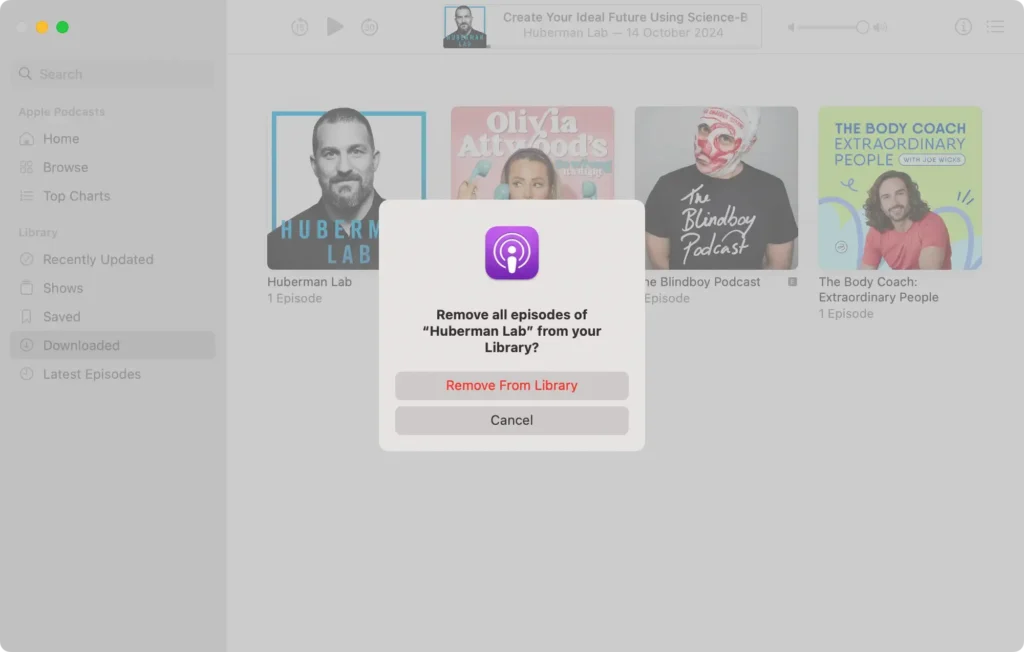
Clearing out these large media files will free up space for the Sequoia update.
9. Move files to external or cloud storage
If your Mac is running low on storage, a good option is to move large files, like videos, photos, or other media, to an external hard drive or a cloud storage service.
This frees up storage to install Sequoia while still keeping your files accessible.
This final step will free up the last bit of disk storage you need to successfully install macOS Sequoia.
By following these steps, you’ll ensure that your startup disk has enough storage to proceed with the macOS Sequoia installation.
Whether you’re using macOS’s storage management tools or SpyHunter to clear system junk, these methods will help you quickly free up more space for the new Sequoia.
