

How To Type Accents On Mac Easily [5 Easy Tips]

Before we dive in
Before we dive in, let's make sure you stay safe online. We created SpyHunter because your security matters to us.
Protect your computer today — download SpyHunter right here! Check out our top tips below to keep your computer safe and secure.

Typing accents and accented symbols on a Mac is essential for writing in several different languages like Spanish, French, or German, where these characters are commonly used.
Luckily, macOS offers several simple ways to add accents, whether you need them occasionally or frequently.
In this guide, we’ll walk you through various methods, from quick shortcuts to using built-in tools so you can easily type accented letters whenever you need them.
5 easy methods to type accented characters on Mac
Typing accents, diacritical marks and accented symbols on a Mac is simple once you learn the shortcuts.
This guide will show you several easy ways to add an accented letter, which can be useful when typing in languages like Spanish, French, or German.
Let’s explore different methods you can use.
1. Using the press-and-hold method
This is the easiest and most straightforward way to type letter accents on a Mac. Here’s how to do it:
- Press and hold the key for the letter you want to add an accent to. For example, if you want to type “
é,” press and hold theEkey. - The accent menu with different accent options will appear above the letter.
- Select the accent you need by either clicking on it with your mouse or typing the number shown underneath the accent.
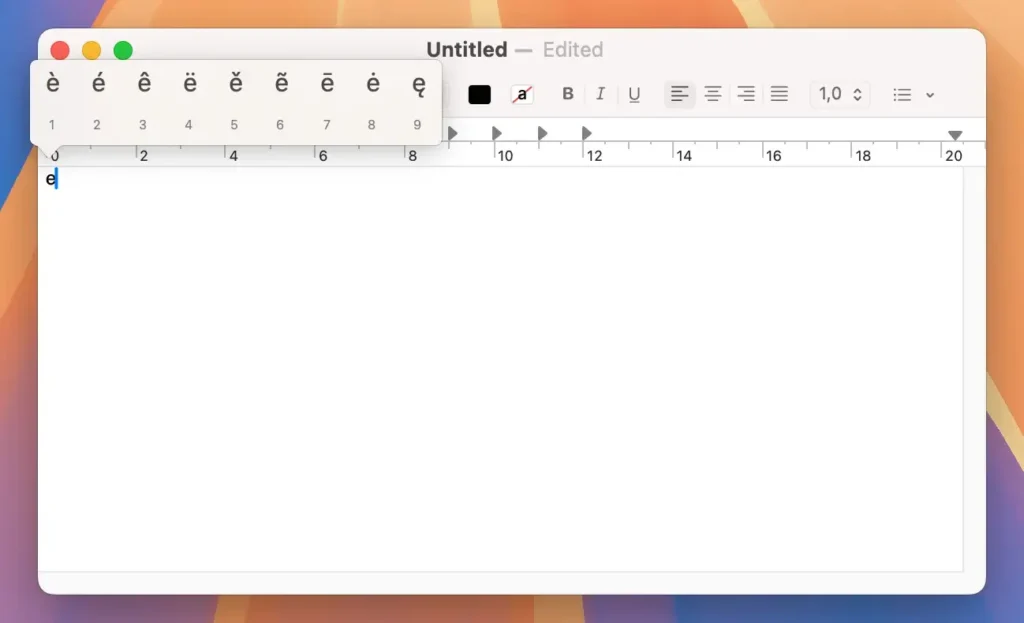
This method works with vowels and some consonants like n (to get ñ).
2. Using keyboard shortcuts (Option key method)
If you frequently type letter accents, you might find it quicker to use keyboard shortcuts. To type accents using shortcuts, follow these steps:
- Hold down the
Optionkey (⌥), then press one of the specific key combinations listed below for the type of accent you need. - After releasing both keys, press the letter key you want to accent.
Here are the key combinations for common accents:
- Acute accent (´):
Option + E, then type the letter (e.g., Option + E, then E = é). - Grave accent (`):
Option + `, then type the letter. - Circumflex (ˆ):
Option + I, then the letter. - Tilde (˜):
Option + N, then type the letter. - Umlaut (¨):
Option + U, then type the letter. - Cedilla (ç):
Option + C, then type the letter. - å:
Option + A, then type the letter. - ¿:
Shift + Option + ?, then type the symbol. - ¡:
Option + 1, then type the symbol.
If you don’t want to memorize those shortcuts, you can open the Keyboard Viewer app on your Mac and have a visual guide showing which key produces which accent when combined with Option, as described above.

To open the Keyboard Viewer, simply click the Input menu in your top menu bar, then select Show Keyboard Viewer.
3. Using the Character Viewer
For symbols and less common accent marks, the Character Viewer is a helpful tool:
- Open the
Character Viewerwhen you pressCommand + Control + Space. - A window with various symbols, emojis, and special characters will appear.
- You can search for the accented character or symbol you need and click to insert it into your text.
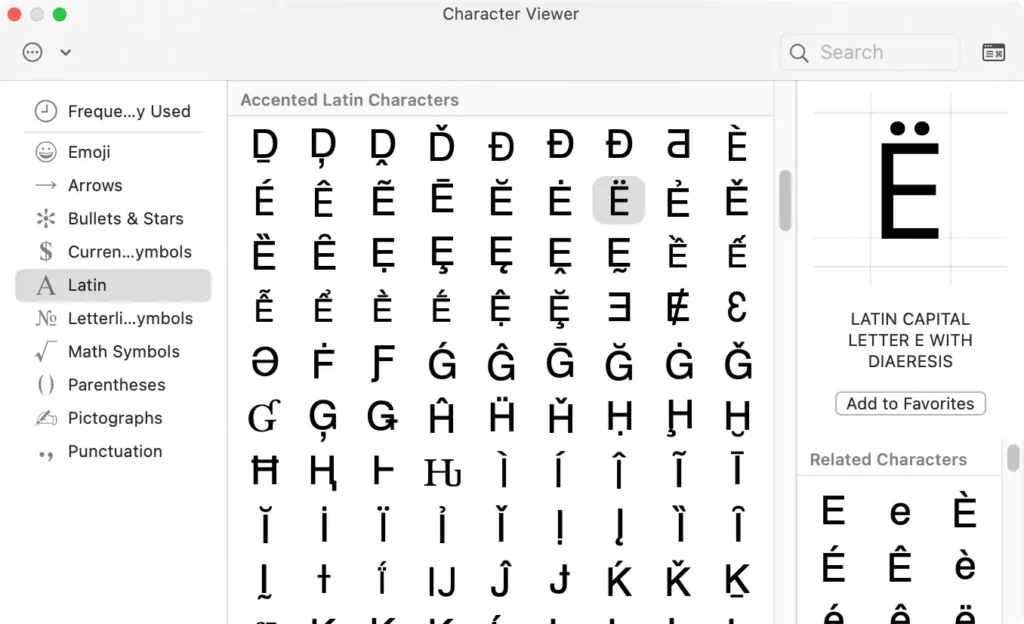
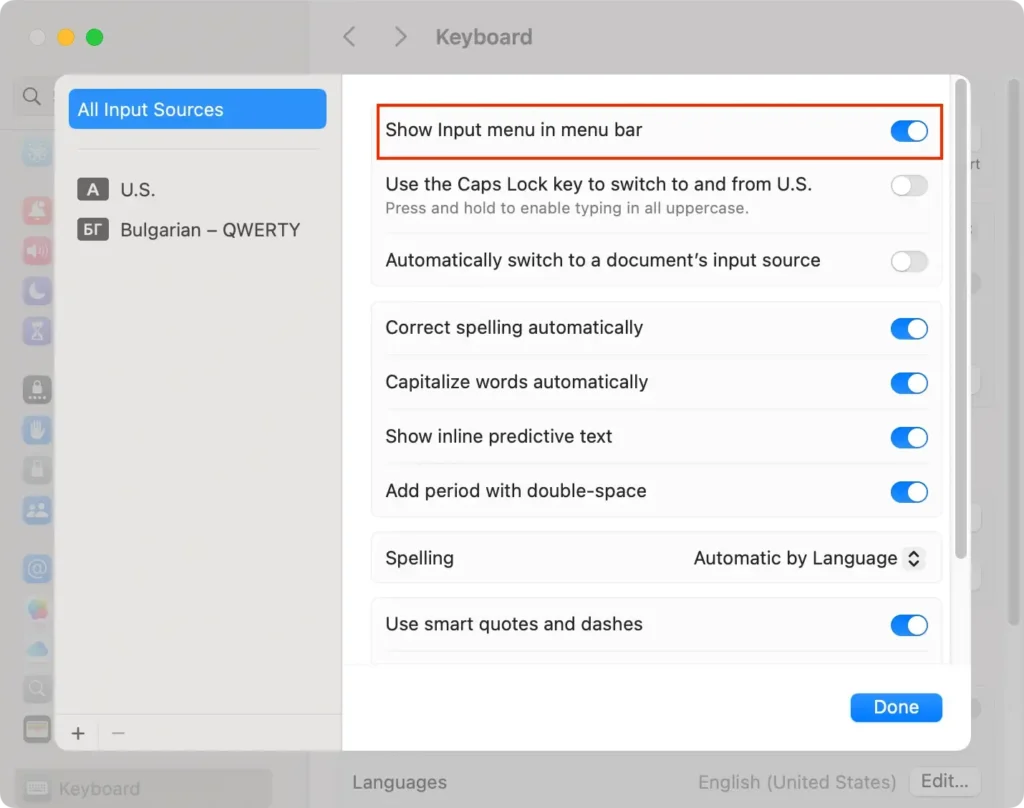
You can also access the Character Viewer through the menu bar:
- Click on the Apple menu in the top left corner of your screen.
- Select
System Settings > Keyboard > Input Sources. - Check the box next to
Show Input menu in menu bar. You’ll now see a flag icon in the menu bar, which you can click to open the Character Viewer.
4. Changing the keyboard layout
If you frequently type in a language that uses a lot of accented characters, switching to a different keyboard layout might be a good option.
Here’s how to change your keyboard layout:
- Go to
System Settingsand navigate to theKeyboardtab. - Click
Input Sourcesand then the plus button to add a new keyboard layout. - Select the desired language layout and click
Add.
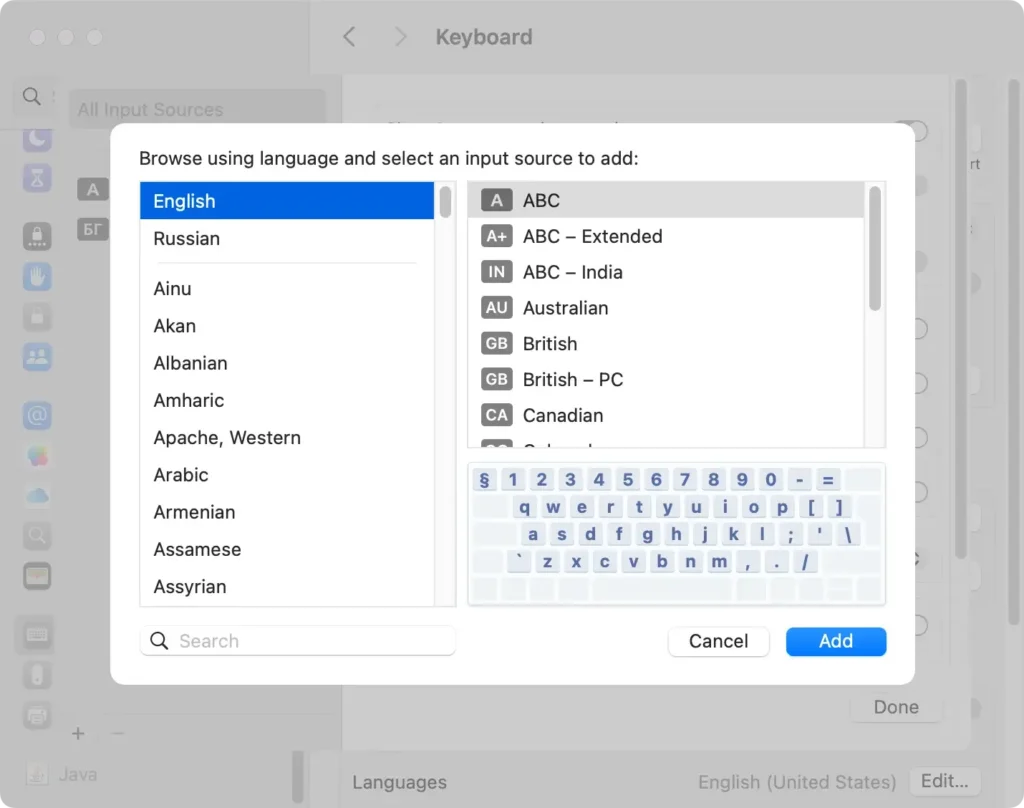
Now, when you type, the keyboard layout will match that language’s accents and symbols.
When you have multiple keyboard layouts installed, you can switch between them on the fly using Control-Space bar to switch to the next one.
5. Using Third-Party Apps
If you need even more options for typing accented symbols, there are third-party apps available that allow you to customize your keyboard for typing accents quickly.
While the options outlined above will generally be enough to suit your general needs, even if you type in a non-English language often, third-party apps are still an option and might cater to some niche needs you might have.
Remember to always source your applications from the official App Store, as the content there is properly vetted and approved by Apple first.
Use SpyHunter to clean up unused language packs
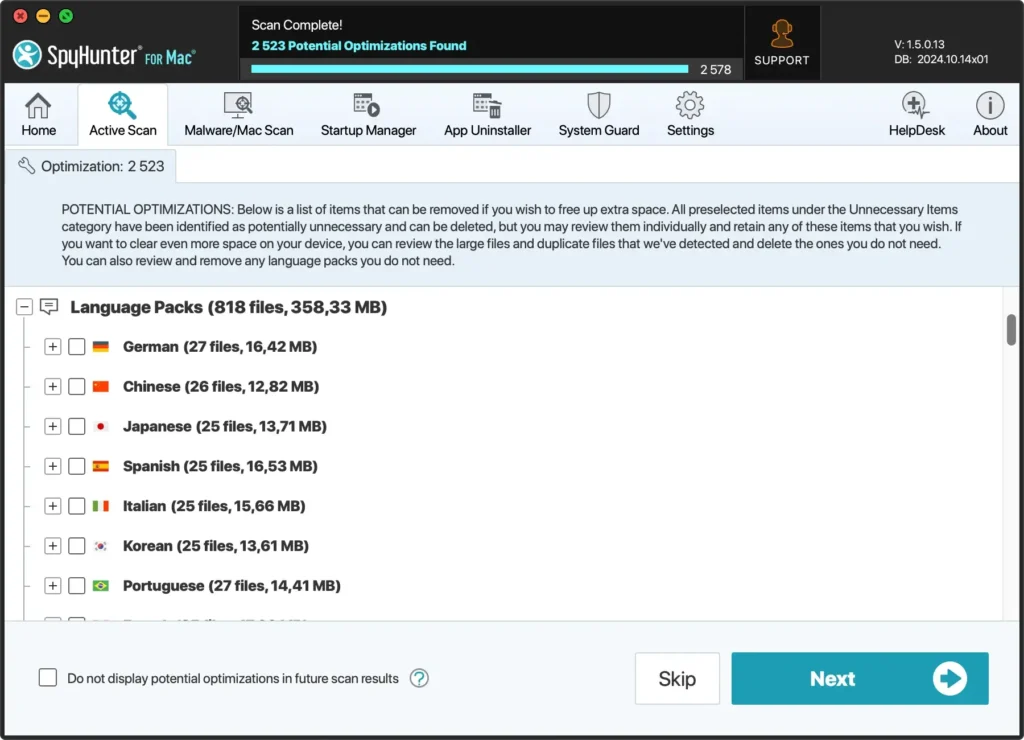
If you want to free up some additional space on your Mac, you can also make use of SpyHunter to automatically clean up any installed language packs for apps that you don’t need.
This process will only remove the localization language pack for the apps selected and will not impair the functionality of the app itself.
- Download the app from here and install it following the steps shown on your screen.
- Launch SpyHunter and perform a custom scan from the main menu and choose to scan for possible optimizations.
- Wait for the scan to finish, then you can manually select any language packs you don’t need for each app that has them installed at the moment.
- Remove the unnecessary language packs as you want and enjoy the additional free space on your drive.
Conclusion
Mastering how to type accents and accented symbols on a Mac can greatly improve your typing efficiency, especially when working in multiple languages.
Whether you prefer the quick press-and-hold method, keyboard shortcuts, or using the Character Viewer, macOS offers several convenient options.
By exploring these methods, you’ll find the one that fits your needs, making it easier to type accented characters whenever necessary.
