

10 Common macOS Sequoia Problems (And How To Fix Them)

Before we dive in
Before we dive in, let's make sure you stay safe online. We created SpyHunter because your security matters to us.
Protect your computer today — download SpyHunter right here! Check out our top tips below to keep your computer safe and secure.

Upgrading to macOS Sequoia brings new features and improvements, but it’s not always smooth sailing.
Many people have encountered issues such as installation failures, app crashes, slow performance, and connectivity problems after the update.
Additionally, various software applications, including web browsers, are known to have compatibility problems.
In this guide, we’ll explore the most common macOS Sequoia problems and provide simple, practical solutions to get your Mac running smoothly again.
Let’s dive in and fix your macOS Sequoia issues!
How to fix macOS Sequoia issues
Below are the most common issues that occur after a Sequoia update, along with ways to fix them.
1. macOS Sequoia won’t download or install
One of the most frequent complaints from Mac users is that they can’t even download or install the operating system.
Here’s how to troubleshoot and fix these issues:
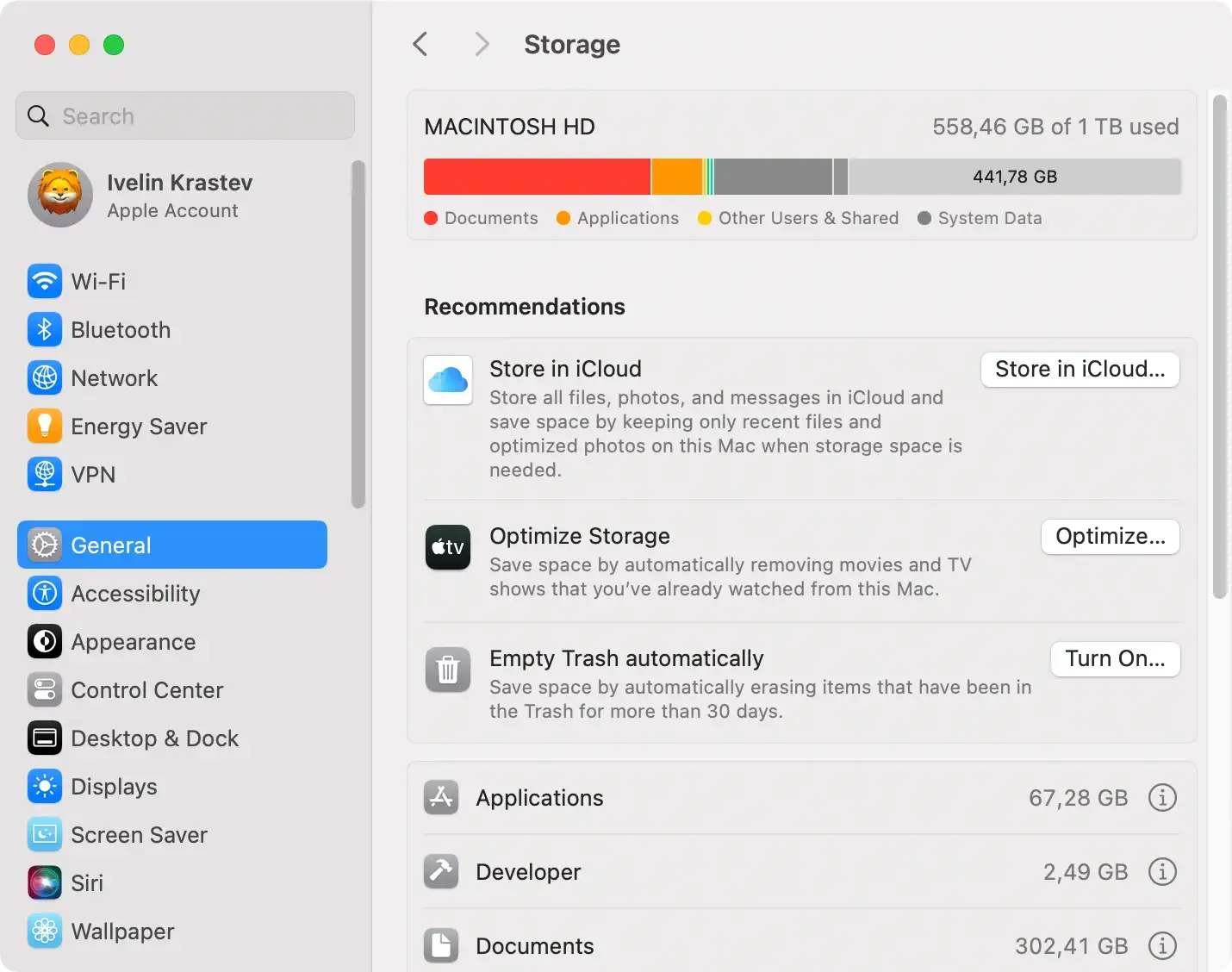
- Ensure you have enough free storage space to install macOS Sequoia. Typically, you’ll need at least 20 GB. To check, go to
System Settings > Storage.
- Downloading the update requires a reliable Wi-Fi network or Ethernet connection. Make sure you have a strong internet connection.
- Try restarting your Mac and attempting the installation again.
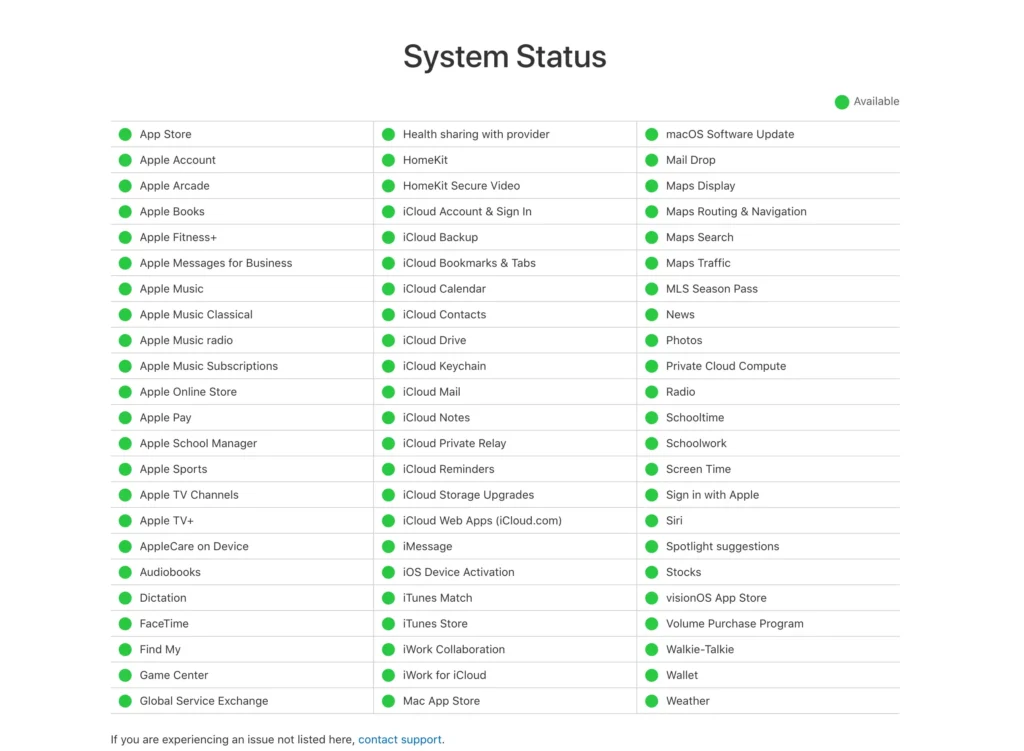
- Check whether Apple’s servers are working. You can visit Apple’s status page. Make sure there is a green dot next to
"macOS Software Update".
- If your Mac still refuses to install Sequoia, resetting the NVRAM or PRAM can help clear out the system settings that might be causing the problem.
- Check if your Mac is compatible with the latest OS version. If your Mac is not on the list, Sequoia will not install on it (for a complete list, visit the official Apple compatibility page):
- MacBook Pro 2018 and later
- MacBook Air 2020 and later
- iMac 2019 and later
- iMac Pro 2017
- Mac mini 2018 and later
- Mac Studio 2022 and later
- Mac Pro 2019 and later
2. Mac being slow after the update to Sequoia
If your Mac is slower after updating to macOS 15 Sequoia, you might be experiencing high CPU usage or RAM issues.
Here’s how to fix slow performance:
- Over time, unnecessary files like cache, logs, and temporary data can clutter your computer. One of the easiest ways to clear these is by using SpyHunter for Mac, which can quickly scan and remove system junk. You can download SpyHunter from here and free up valuable disk space now.
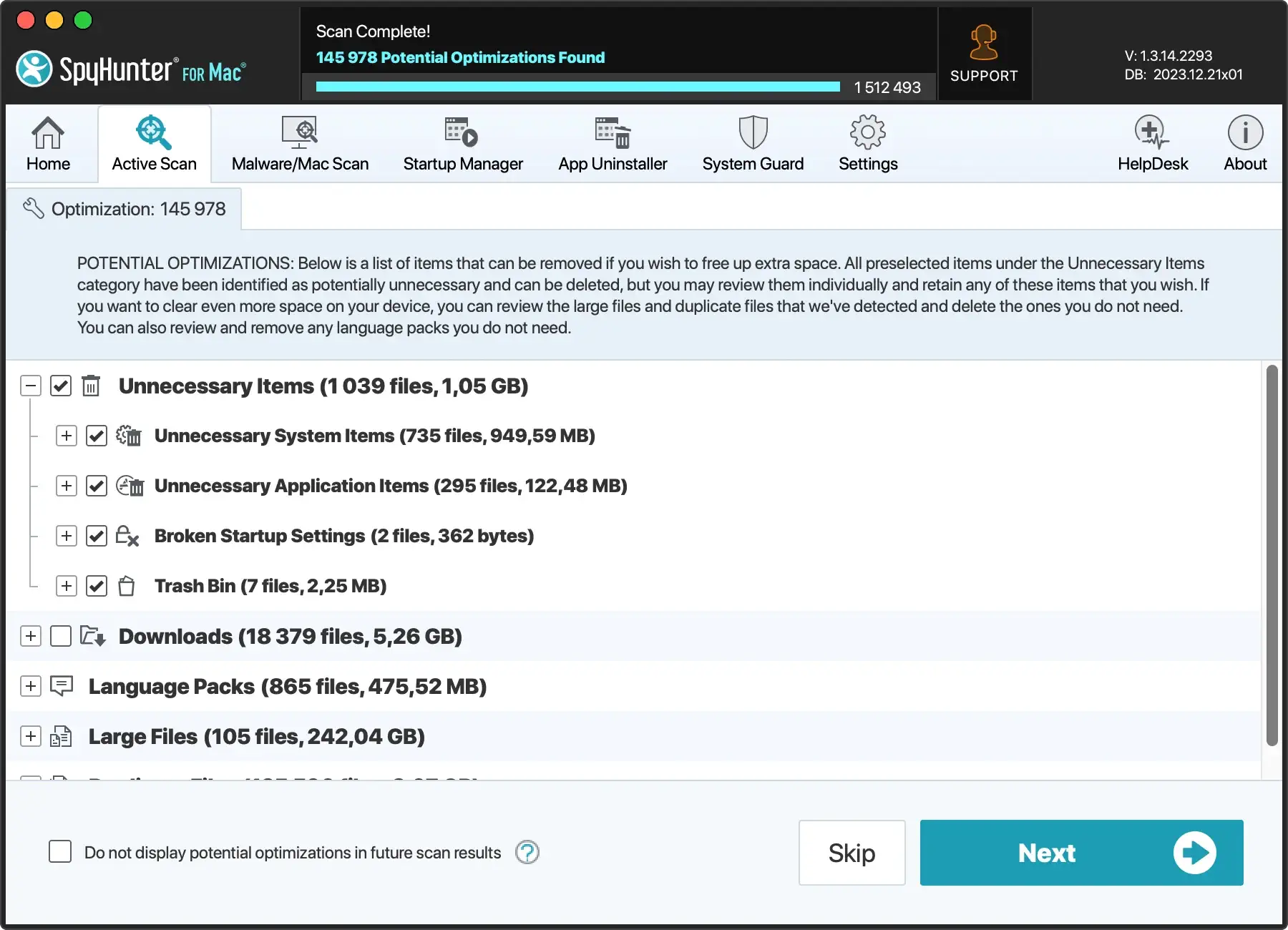
- Performing regular maintenance tasks like clearing old files and Spotlight reindexing can help maintain optimal performance.
- Too many apps launching at startup can significantly drag down your Mac’s speed. SpyHunter for Mac allows you to easily manage and turn off unnecessary startup items, ensuring that only essential apps load when you boot up your Mac, resulting in faster startup times.
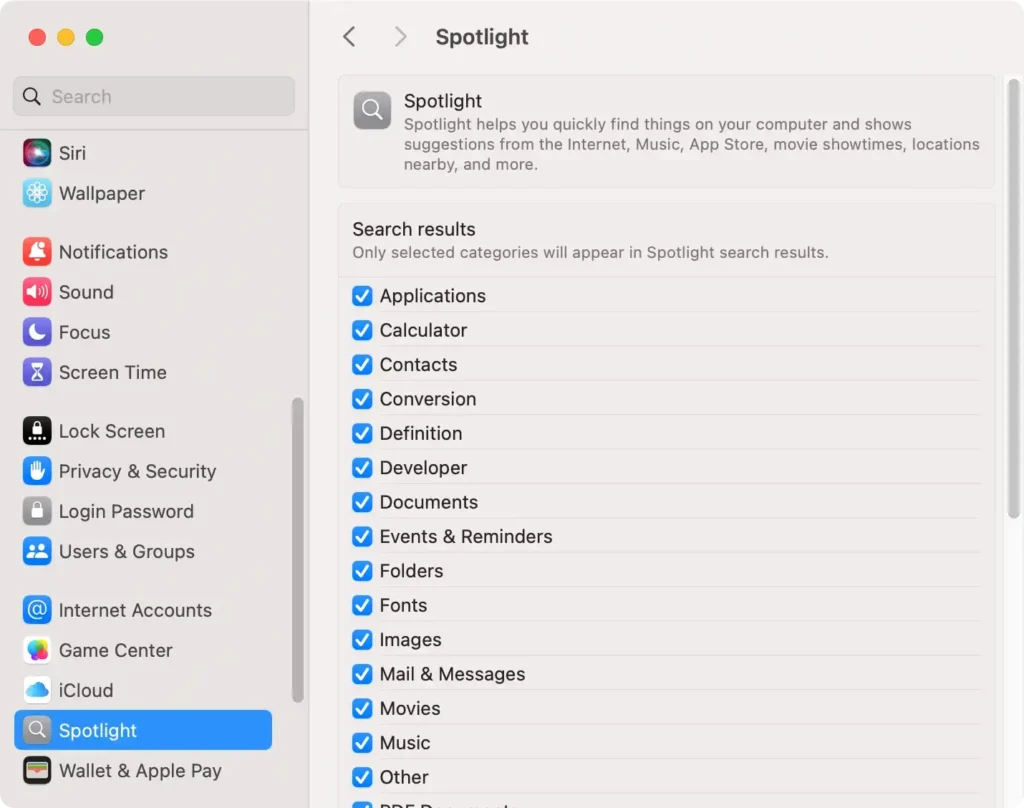
- After an update, Spotlight may begin reindexing your entire drive, which can slow down performance. Allow the process to finish, or manually manage which folders Spotlight indexes in
System Settings > Spotlight.
- Open
Activity Monitorto monitor your Mac’s CPU and RAM usage. Identify resource-heavy apps and close them to free up memory.
3. Wi-Fi or Bluetooth not working
Connectivity issues, particularly with Wi-Fi or Bluetooth, are common after upgrading to macOS Sequoia.
Here’s how to troubleshoot these problems:
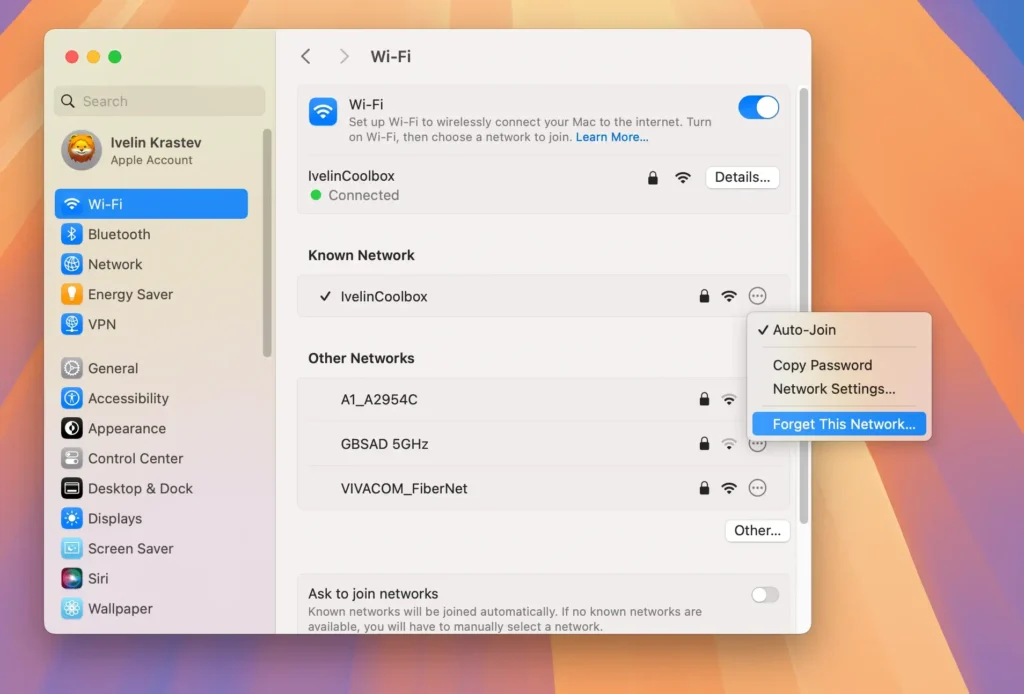
If your Wi-Fi network is slow or disconnects, try forgetting the network and reconnecting. Go to System Settings > Wi-Fi, click on your network, and select Forget This Network. Then reconnect to your Wi-Fi.
Additionally, the macOS firewall could be causing connectivity issues. Try turning it off temporarily to see if it resolves the problem.
If the issue is with Bluetooth, follow a similar process in the Bluetooth settings. Navigate to System Settings > Bluetooth.
Alternatively, navigate to the Bluetooth settings from the Control Center. Find the device you’re having trouble connecting to. Click Connect next to the device.
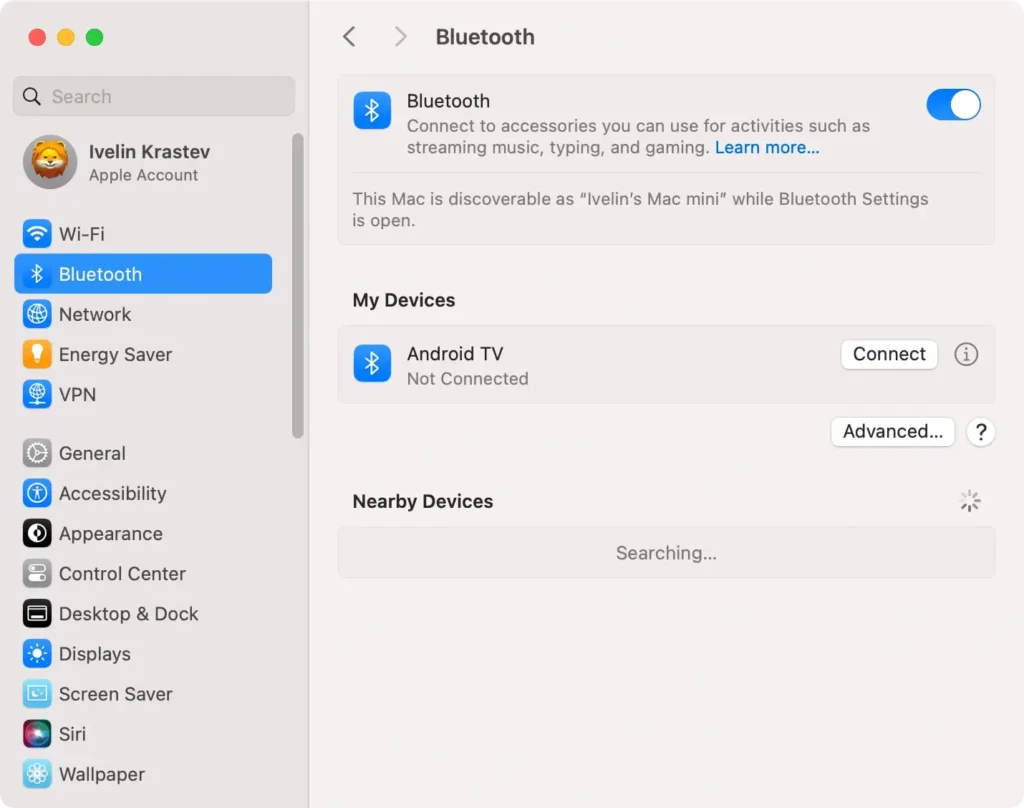
If it still doesn’t connect, click the ‘i’ icon and select Forget This Device. Then, reconnect the device by pairing it from scratch.
4. Apps crashing in macOS Sequoia
Some users report that certain apps crash or become unresponsive after the macOS Sequoia upgrade. Here’s how to address app-related crashes:
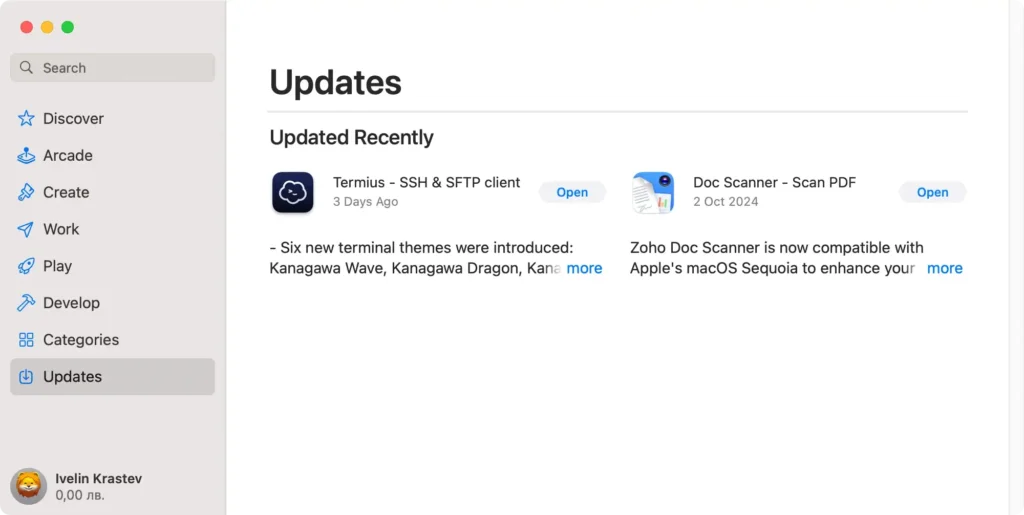
Ensure that all your apps are updated to their latest versions. For apps downloaded from the App Store, open the App Store app and click Updates. Install any available updates.
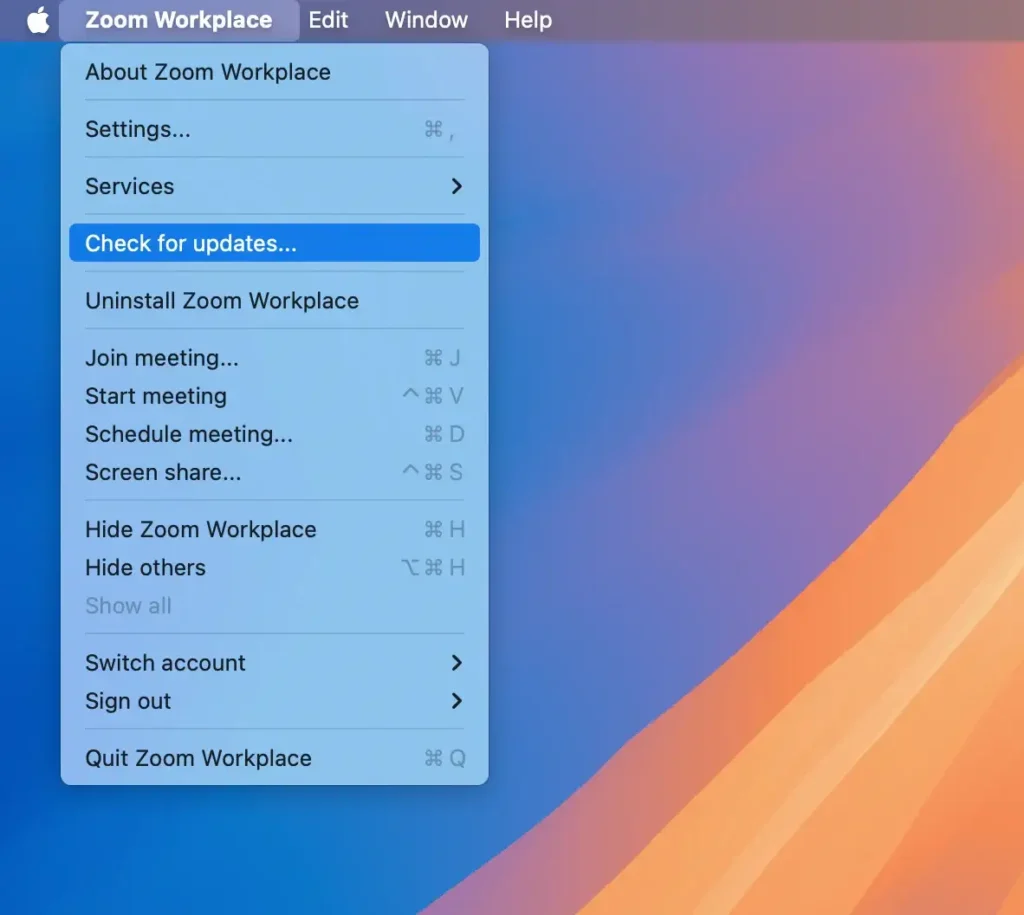
In case the app is not from the Apple Store, check the developer website for any new versions that support macOS Sequoia or click the app menu and press Check for Updates.
5. Battery draining faster in macOS Sequoia
After updating to macOS Sequoia, some users are reporting that their Macs’ battery drains more quickly. Here’s how to resolve this bug:
- Open
Activity Monitorand look for apps that are using too much CPU or RAM, which can drain the battery quickly. Close any unnecessary apps to conserve battery life. - Close unused browser tabs.
- Lower the screen brightness to preserve the battery power. You can adjust brightness from the settings or directly on your MacBook keyboard.
- Go to
System Settings > Batteryand enableLow Power Modeto extend your MacBook’s battery life.
6. Sequoia won’t boot
In rare cases, after moving to macOS Sequoia, your Mac may fail to boot. To solve this:
- Boot your Mac computer in safe mode. If everything looks normal, reboot your Mac as usual.
- If Safe Mode doesn’t work, try resetting the NVRAM or PRAM by restarting your Mac and holding down
Option (⌥) + Command (⌘) + P + Rfor 20 seconds. This can fix boot issues caused by misconfigured settings. - As a last resort, you can boot in
Recovery Modeby holdingCommand (⌘) + Rduring startup and choosing to reinstall macOS Sequoia from there. Be sure to back up any critical data before proceeding.
7. macOS Sequoia fails during setup
If macOS Sequoia fails during the initial setup process, you can try the following:
- Ensure that your power cable is connected correctly during the setup process. Power interruptions can cause setup failures.
- If the setup freezes, force restart your Mac by holding the power button until it shuts down, then power it back on and retry the setup.
- If the setup fails repeatedly, the installer might be corrupted. Try deleting the installation file and downloading Sequoia again from the
App Storeor Apple’s website.
This section covers the most common macOS Sequoia issues and provides straightforward solutions that will work for most users experiencing these problems.
Follow the tips to restore your Mac’s performance and stability.
Other macOS Sequoia bugs
1. macOS Sequoia cannot connect to VPN
Some users report issues with VPN connections after updating to Sequoia.
Here’s how to solve them:
- Make sure your VPN is properly configured. If needed, delete and re-add the VPN connection.
- Your firewall settings might be blocking the VPN. Go to
System Settings > Network > Firewalland temporarily turn off your firewall to see if that fixes the issue.
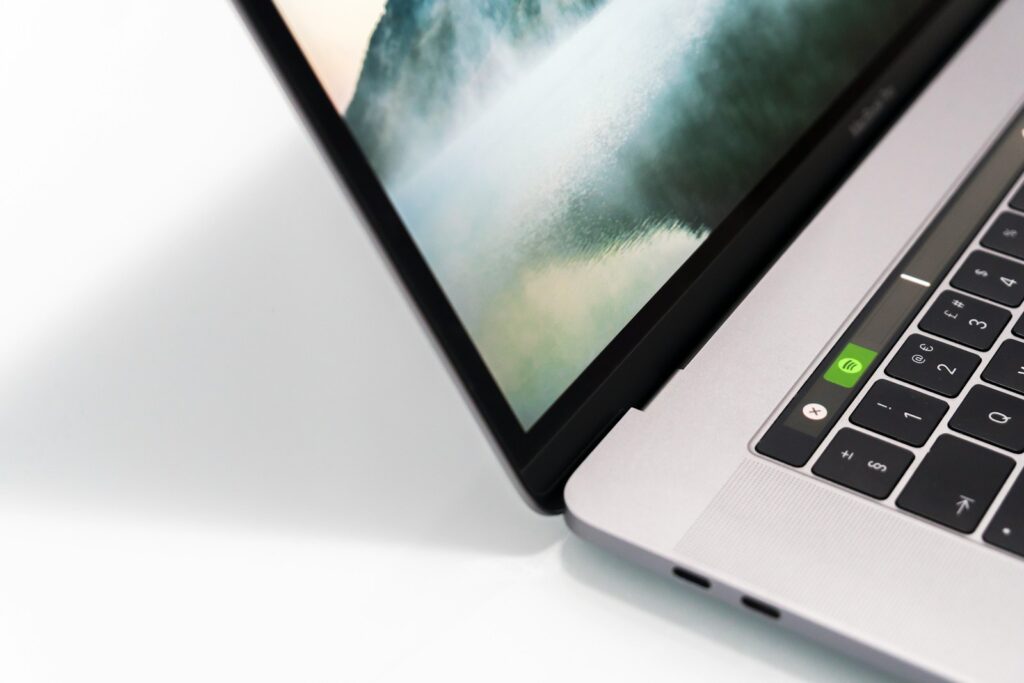
2. macOS Sequoia bricks the Touch Bar
If the Touch Bar becomes unresponsive or stops working after updating to macOS 15 Sequoia, you can try opening a Terminal window and running the following command:
sudo pkill TouchBarServerPress Enter to restart the Touch Bar. You may need to restart the computer as well.
3. macOS Sequoia causes web browser error message
After updating to macOS 15 Sequoia, some web browsers may experience slow performance or crashes.
To resolve these browser-related bugs, go to your browser settings and clear your cache and cookies to resolve performance issues.
Ensure that your web browser, whether Safari, Chrome, or Firefox, is up-to-date. Also, check its compatibility with macOS Sequoia.
Additionally, some browser extensions may not be compatible with the new update, so try turning off all extensions and re-enabling them one by one to identify any problematic ones.
