

Uninstall Steam On Mac (Ultimate Cleanup Guide)

Before we dive in
Trying to uninstall an app completely? SpyHunter for Mac includes an App Uninstaller that removes unwanted apps and their leftover files in just a few clicks.
Avoid clutter and save time — download SpyHunter right here and follow the steps to clean up your system.

If you want to free up space, fix performance issues, or clean up your Mac, removing Steam might help.
This guide shows you how to get rid of Steam and its data, whether you’re tidying up, solving a problem with Steam, or focusing on other gaming platforms.
We’ll cover both manual and automatic ways to completely remove Steam. Let’s get started on a neat and thorough cleanup.
What is Steam?
Steam is a leading digital distribution platform created by Valve Corporation. It revolutionizes how gamers access, purchase, and play video games. With its client application for Mac, Steam simplifies managing game downloads and play sessions.
It’s not only about games; Steam enhances the user experience with community forums, instant messaging, and streaming services, making it a comprehensive hub for gaming enthusiasts on macOS.
Reasons to uninstall Steam on Mac
Removing Steam from your Mac might be a good idea for a few reasons despite its popularity as a cloud-based gaming platform with a vast community.
Deciding to uninstall Steam can come down to:
- Freeing Up Space: Steam takes up around 1GB, which might limit space for other essential apps, especially on Macs with limited storage.
- Resolving Performance Issues: If Steam is not working right or won’t start, removing it could help your Mac run smoother.
- Prioritizing Other Apps: Sometimes, it’s necessary to remove apps like Steam to make way for others that better meet your needs for work or play.
Considering these reasons can help you decide whether keeping Steam is worth the space and resources it uses on your Mac.
How to uninstall Steam on Mac manually
Removing Steam from your Mac manually is straightforward, allowing you to control your system’s storage and performance.
This section will guide you through the steps to effectively delete Steam and its related files, ensuring a comprehensive cleanup. Follow along to reclaim space and tidy up your Mac’s digital landscape.
Step 1: Quit the Steam app
Before you start the uninstallation process, you must ensure that Steam is not running on your Mac.
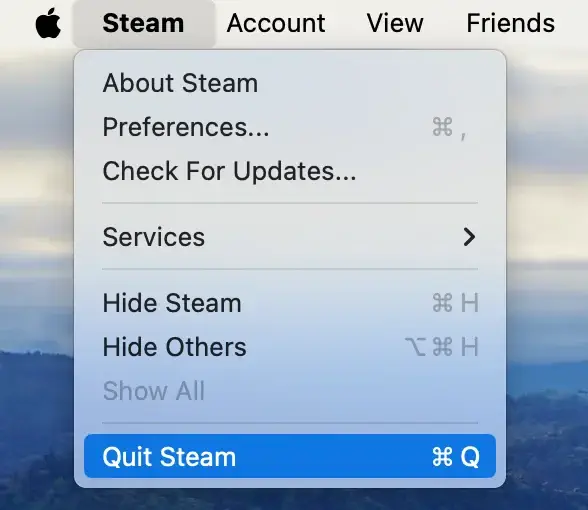
To quit the app, simply click on the Steam top menu bar in the left corner of your screen and select Quit Steam.
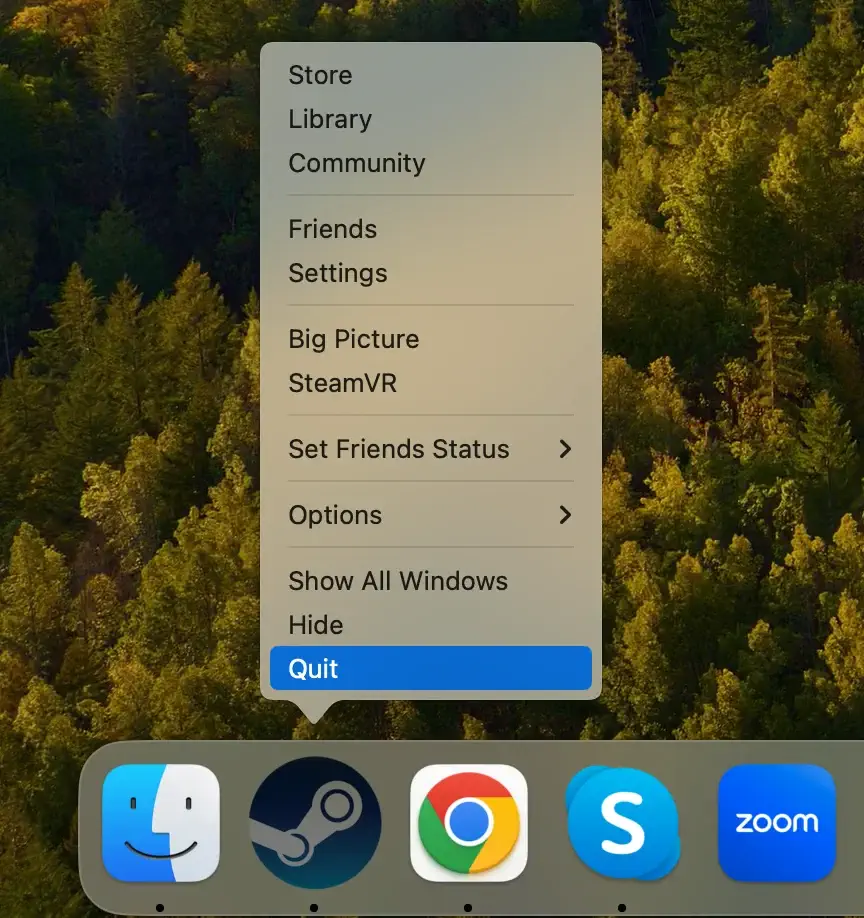
Alternatively, if Steam is in your Dock, right-click (or Control-click) the Steam icon and choose Quit from the context menu.
This step prevents any Steam processes from interfering with the removal process.
Step 2: Delete the Steam application
To remove Steam from your Mac, follow these steps:
- Open a new Finder window.
- Navigate to the
Applicationsfolder, or selectGo > Applicationsfrom the Finder’s top menu. - Scroll through the list to locate the Steam app.
- Drag Steam to the Trash in your Dock. Alternatively, right-click (or Control-click) on Steam and choose
Move to Trashfrom the dropdown menu. - Right-click on the Trash and select
Empty Trashto ensure the application is completely removed.
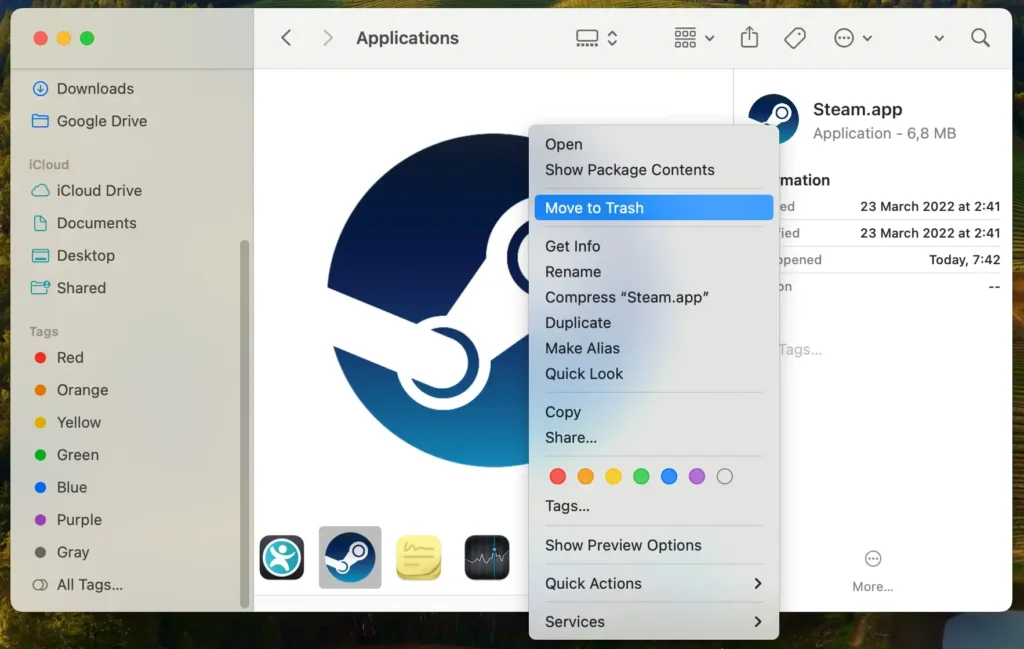
This removes the Steam application from your Mac. Remember, thoroughly clearing Steam from your system includes deleting related files in subsequent steps.
Step 3: Remove Steam files and leftovers
After uninstalling the Steam app, the next crucial step is eliminating any remaining files and leftovers to ensure a complete cleanup. Follow these steps:
- Open Finder: Launch Finder on your Mac
- Go to Folder: In the Finder menu at the top of the screen, click the
Gomenu and thenGo to Folder…or use the shortcutShift + Command (⌘) + G - Enter Paths: One by one, enter the following paths into the Go to Folder search box to locate and remove Steam’s associated files. For each path, look for a Steam folder or anything related to it, and move them to the Trash:
~/Library/Application Support/Steam~/Library/Preferences/com.valvesoftware.steam.plist~/Library/Caches/com.valvesoftware.steam
- Empty Trash: After moving all related files and folders to the Trash, right-click on the Trash bin and select
Empty Trashto permanently delete them
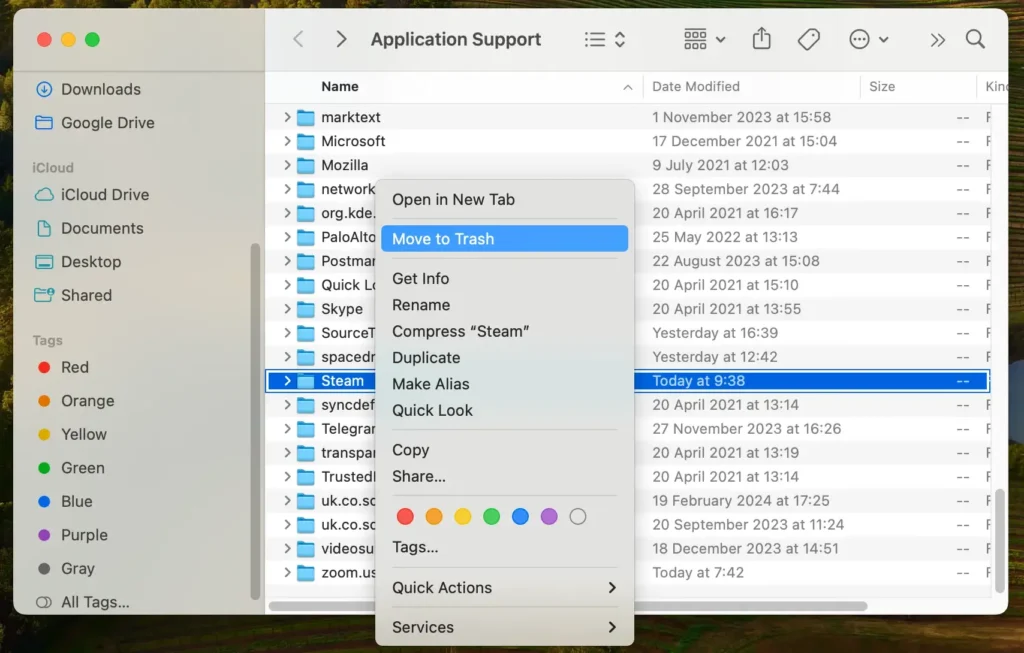
As you can see, removing apps involves more than just deleting the application itself. If delving into the Library folder seems daunting, don’t worry; a more straightforward method is ahead.
Continue to the following step for a straightforward solution.
Completely uninstall Steam with SpyHunter
SpyHunter’s App Uninstaller is the perfect tool for a hassle-free process to remove Steam, its data, saved files, and any lingering pieces.
This software acts as a powerful app cleaner, ensuring that not just the application but all related Steam data and saved files are thoroughly removed from your Mac.
Here’s how to use SpyHunter for complete Steam removal:
- Download SpyHunter from here and follow the installation instructions to set up SpyHunter on your Mac.
- Open SpyHunter and navigate to the App Uninstaller feature.
- After the scan, find Steam in the list of installed applications and select it for removal.
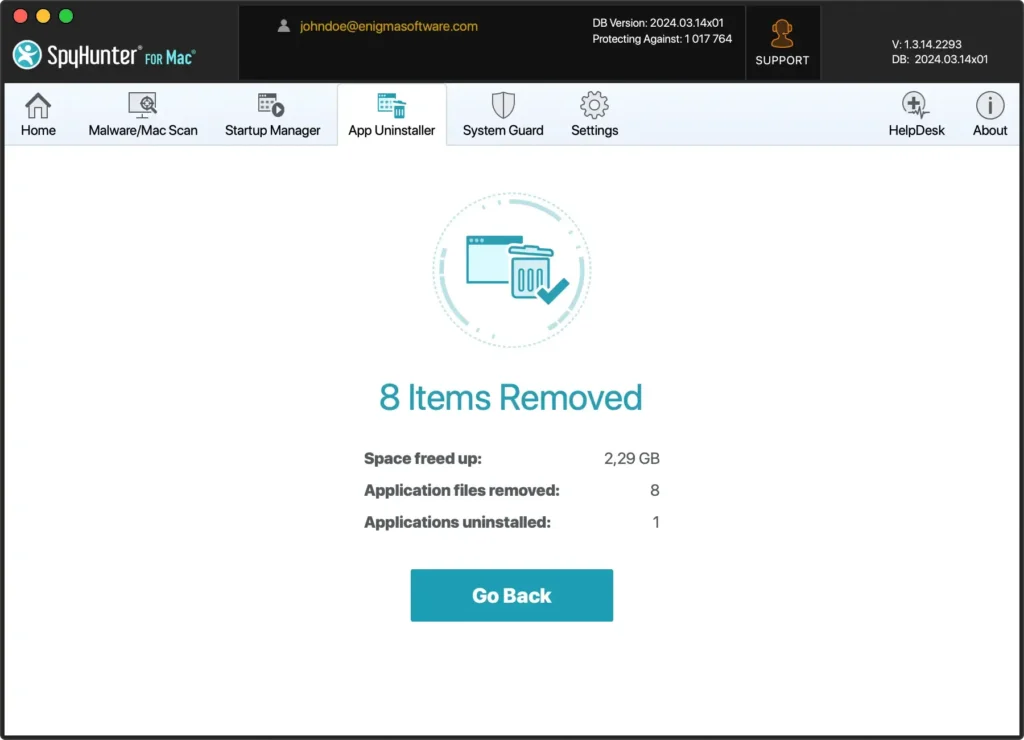
- Confirm the action, and SpyHunter will uninstall Steam, cleaning out all associated Steam data and saved files.
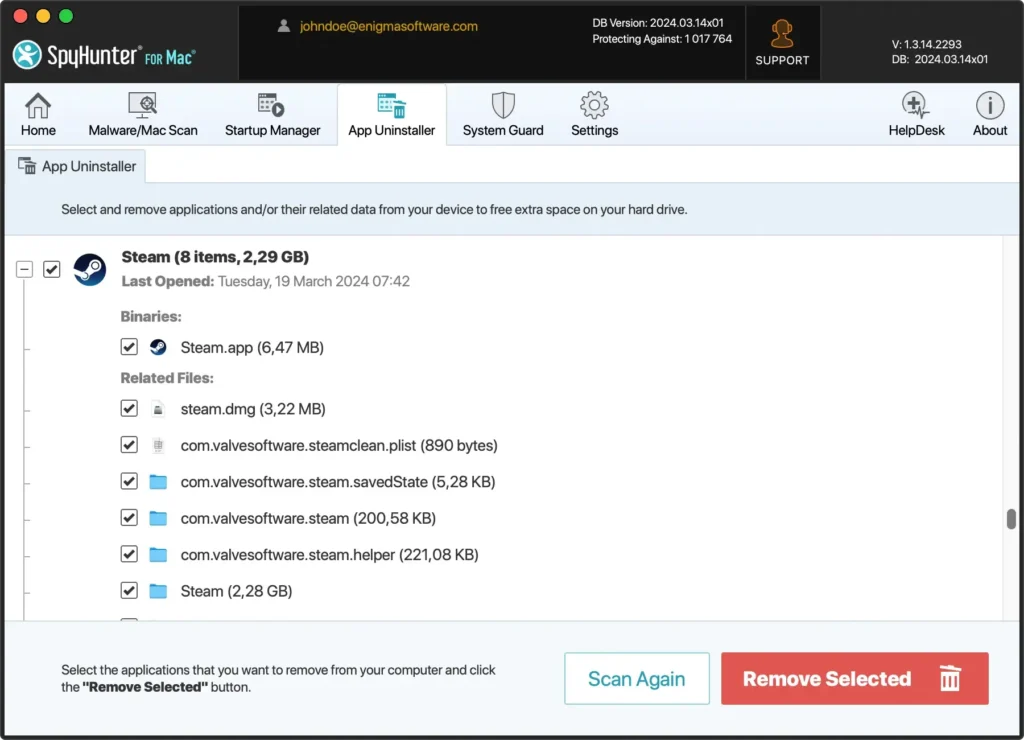
By using SpyHunter, you ensure that you not only uninstall Steam but also erase all traces it may have left behind, securing your Mac’s performance and storage space.
How to uninstall Steam games on Mac
Removing Steam games from your Mac can help you organize all your downloaded games and recover disk space.
This guide is designed to walk you through the steps to uninstall Steam games, ensuring you can quickly clear out all the games you no longer need.
Whether you’re looking to make room for new titles or want to tidy up all your games, we’ll show you how to free up valuable disk space effectively.
Remove Steam Games via the Steam Client
For those wanting to retain the Steam app but need to clear some disk space, here’s how to uninstall specific games:
- Start the Steam client on your Mac and log into your Steam account.
- Navigate to the
Librarysection, where all your games are listed. - Right-click on the game you want to remove.
- Select
Manage > Uninstallfrom the context menu.
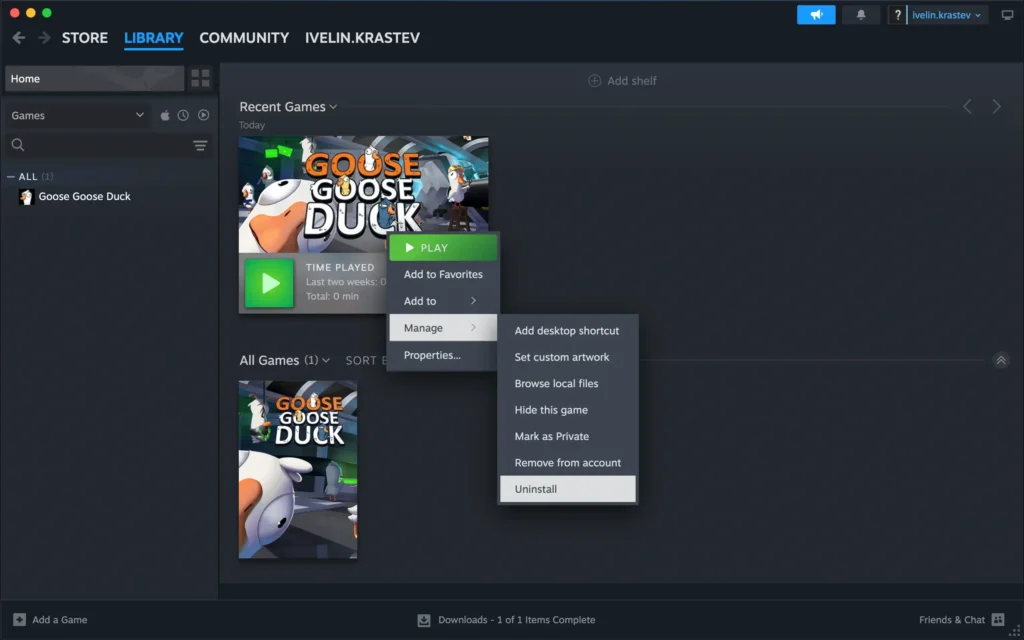
This approach deletes the selected game from your Mac, freeing up space while leaving the Steam client unaffected. If you want to play the game in the future, you’ll have to reinstall it.
Delete Steam games without the application
Even without accessing the Steam client, you can remove game files directly from your Mac.
Open a Finder window and head to the steamapps folder located in the Steam directory at ~/Library/Application Support/Steam/steamapps/. In the common subfolder, you’ll find a directory for each installed game.
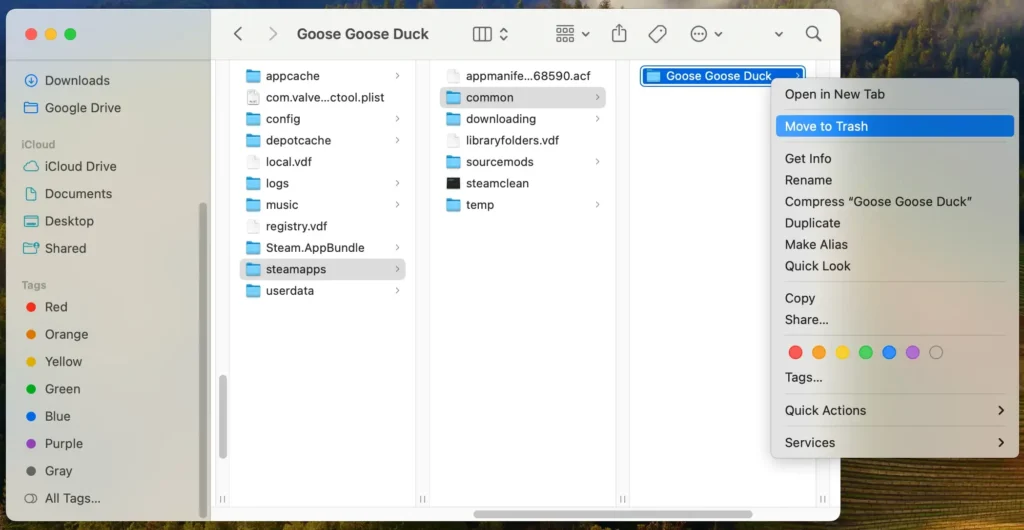
Deleting these folders will remove the game files, effectively uninstalling the games without requiring the Steam client.
FAQs about uninstalling Steam on Mac
How do I completely remove Steam from my Mac?
To remove Steam from your Mac, quit the Steam app, then drag it from your Applications folder to the Trash.
Next, remove any remaining Steam files and folders from your Library folder, including those in the Application Support folder, Caches, and Preferences.
For a comprehensive removal, consider using a specialized app like SpyHunter’s App Uninstaller to ensure all associated files are deleted.
Will uninstalling Steam delete games?
Yes, uninstalling Steam will delete all the games you have downloaded through the Steam client on your Mac.
While the games will be removed from your device, they will still be available in your Steam library online. You can reinstall Steam and re-download your games at any time without repurchasing.
Wrapping up
Following this guide, you’ve learned how to delete Steam and its related files from your Mac, ensuring a thorough cleanup.
Whether you aimed to free up disk space, reduce distractions, or fix specific problems, your Mac is now Steam-free and optimized for your current needs.
It’s important to note that deleting Steam isn’t permanent; you can always reinstall Steam to access its vast collection of games in the future. Enjoy a cleaner, more focused system that better supports your digital lifestyle.
For more detailed information on removing applications from your Mac, read our complete guide on how to uninstall apps on Mac.
