

Uninstall WhatsApp On Mac (Complete Removal Guide)

Before we dive in
Trying to uninstall an app completely? SpyHunter for Mac includes an App Uninstaller that removes unwanted apps and their leftover files in just a few clicks.
Avoid clutter and save time — download SpyHunter right here and follow the steps to clean up your system.

You can uninstall WhatsApp from your Mac in a few steps, whether doing it manually or looking for a more straightforward way. This guide will show you how to clear out WhatsApp and ensure no leftover bits are hiding on your computer.
Let’s start removing WhatsApp from your Mac step by step.
What is WhatsApp?
WhatsApp is a popular messaging application allowing users to send text messages, make voice and video calls, and share images, documents, and user locations.
Available across multiple platforms, the application has become a go-to communication tool for millions worldwide, offering end-to-end encryption to keep conversations private.
Whether for personal use or staying connected with work colleagues, WhatsApp provides a comprehensive and secure way to keep in touch.
Reasons to uninstall WhatsApp from your Mac
Choosing to uninstall WhatsApp on your Mac can be beneficial for several reasons:
- Frees up storage, potentially speeding up your Mac.
- Gets rid of possibly outdated apps and old files, lowering security risks.
- Cleans your digital area for better organization.
- Addresses glitches or problems with updates.
- Reduces overlap with other messaging apps for streamlined communication.

These points help you decide whether uninstalling WhatsApp on Mac aligns with your digital organization and security strategies.
Completely uninstall WhatsApp with SpyHunter
To uninstall the application completely from your Mac and ensure that all associated service files and remnants are removed, SpyHunter offers a robust solution.
SpyHunter’s App Uninstaller will not only uninstall WhatsApp but also eradicate additional files that could leave useless fragments on your system.

Here’s how to leverage SpyHunter for a comprehensive cleanup:
- Download SpyHunter for free here and install it on your Mac.
- After installation, launch SpyHunter and navigate to the App Uninstaller tab. The feature is designed to find all apps on your Mac and their related files.
- SpyHunter will identify all files installed by WhatsApp, including service files, media files, and chat history stored on your device, ensuring no remaining files are left behind.
- After the scan, find WhatsApp from all the apps. Select WhatsApp and its files for removal. SpyHunter will delete WhatsApp, leaving no trace of the application or its files on your Mac.
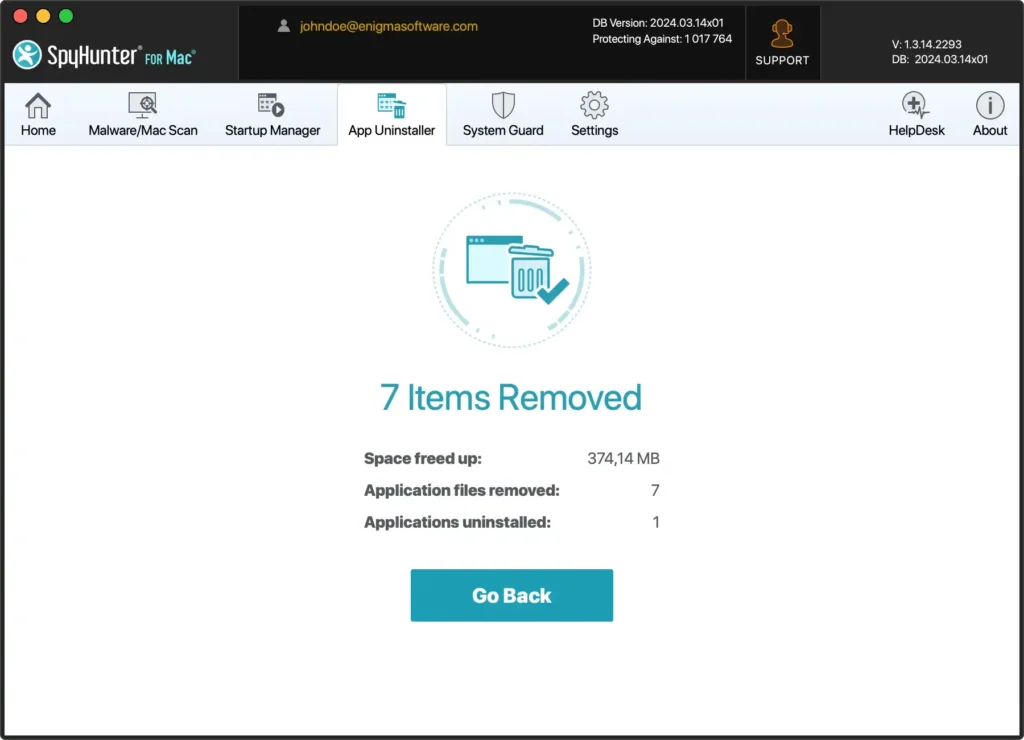
Using SpyHunter to uninstall WhatsApp simplifies the process, addressing potential security flaws and removing the app from your Mac.
Uninstall WhatsApp on Mac manually
The manual removal of WhatsApp from your Mac involves a few essential steps. From quitting the app to finding and deleting its leftover files, each action aims to ensure a complete removal.
This process requires attention to detail, as overlooking even a single file could mean WhatsApp isn’t fully uninstalled. Let’s walk through these steps to uninstall the app completely.
Step 1: Quit WhatsApp
Before removing the software from your Mac, ensure the application is completely closed. If WhatsApp is open, press Command (⌘) + Q to quit the app.
Alternatively, you can right-click (or Control-click) the WhatsApp icon in the Dock and click the Quit option in the menu.
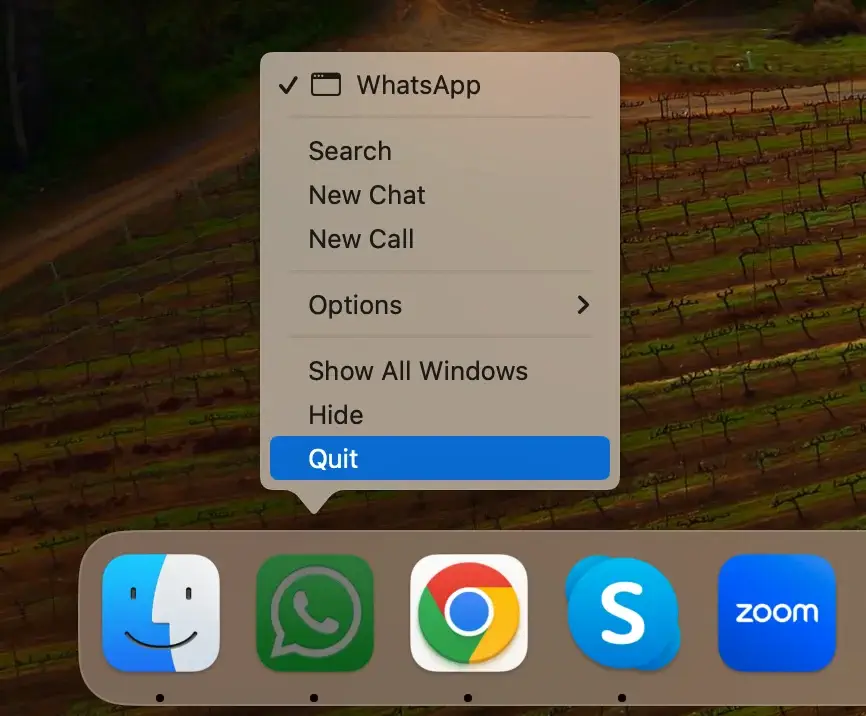
This step is essential to ensure all WhatsApp files are ready to be removed without being locked.
Step 2: Locate and remove the WhatsApp app
Removing WhatsApp from your Mac involves a few simple steps to ensure the application is entirely deleted:
- Start by launching Finder on your Mac.
- In Finder, click
Applicationsin the sidebar or use theGomenu at the top of the screen and selectApplicationsfrom the dropdown list. - Scroll through your Applications folder and locate WhatsApp.
- Simply drag the WhatsApp icon to the Trash bin at your Dock’s end. Alternatively, right-click (or Control-click) on the WhatsApp icon and select
Move to Trashfrom the context menu.
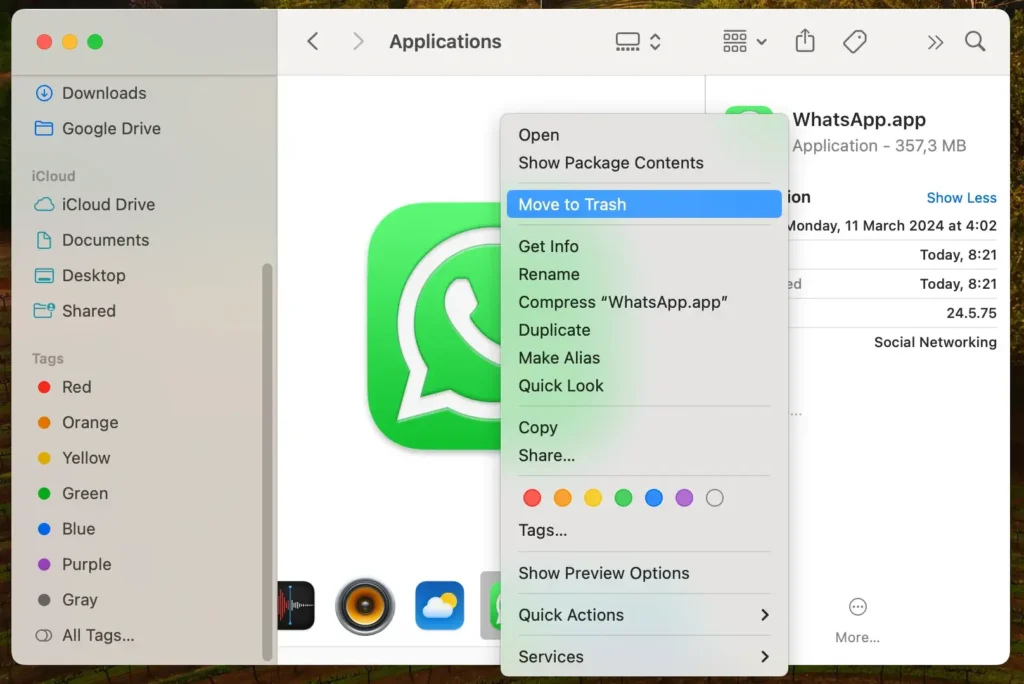
To complete the uninstallation process, right-click on the Trash in your Dock and select the Empty Trash option. Confirm the action if prompted to ensure WhatsApp is entirely removed from your Mac.
These steps will uninstall the application and prepare your system to remove any remaining associated files.
Step 3: Remove any WhatsApp service files
After uninstalling WhatsApp, the remaining service files must be located and removed.
These include cache, preferences, and other data files related to WhatsApp, which aren’t removed with the application itself.
To find these files, open a new Finder window and press Command (⌘) + Shift + G on your keyboard. Then enter ~/Library in the dialog box. Look for folders and files related to WhatsApp in the following locations:
~/Library/Group Containers/group.net.whatsapp.WhatsApp.private/~/Library/Group Containers/group.net.whatsapp.WhatsApp.shared/~/Library/Group Containers/group.net.whatsapp.WhatsAppSMB.shared/~/Library/Application Support/WhatsApp/~/Library/Caches/WhatsApp/~/Library/Saved Application State/WhatsApp.savedState/~/Library/Logs/WhatsApp/~/Library/Preferences/WhatsApp.plist~/Library/Preferences/WhatsApp.Helper.plist
Delete each file and folder you find. Be careful to delete only the items associated with WhatsApp to avoid accidentally removing essential system files that could affect the performance of your Mac.
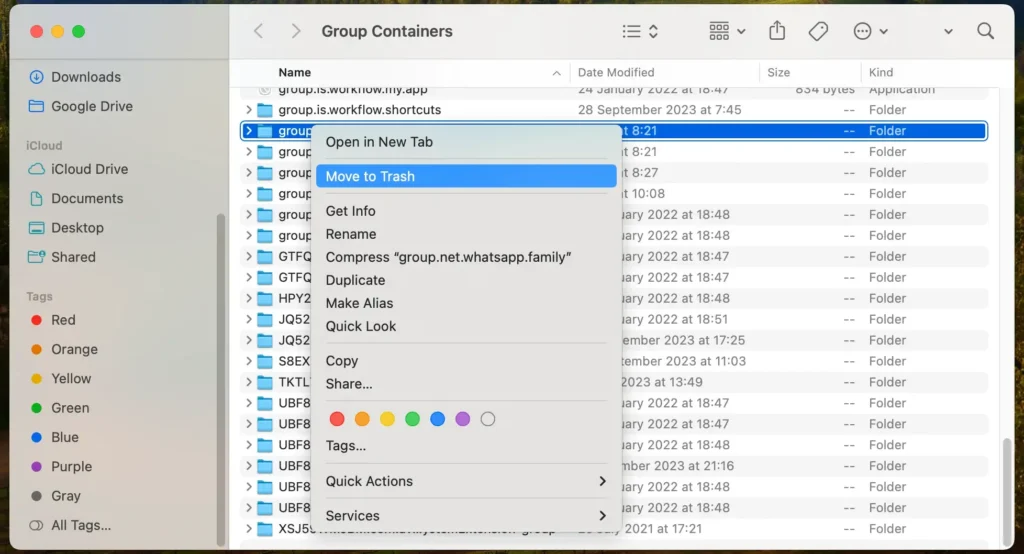
Completing these manual steps will uninstall WhatsApp from your Mac.
Troubleshooting common uninstall issues
While removing WhatsApp from your Mac, you might encounter several problems that could hinder the process. Addressing these challenges ensures a seamless and complete uninstallation.
WhatsApp doesn’t quit properly
If the application doesn’t quit when commanded, it could be due to it being frozen or experiencing an error.
Force quitting the app is a viable solution. To do this, open the Force Quit Applications window by pressing Command (⌘) + Option + Esc on your keyboard.
Select the application and force quit it. This action forcefully closes the application, making it possible to proceed with the uninstallation.
WhatsApp reappears after deletion
Sometimes, WhatsApp may still appear in your App folder or Dock even after you’ve removed it.
This situation typically arises from a failure to uninstall all associated support or cache files, leading the system to believe the app is still installed.
Revisiting the Library folder and ensuring that all WhatsApp-related files are removed can resolve this issue.
Restarting your Mac can also help refresh the system’s state, removing any lingering indicators of the app’s presence.
Conclusion: Uninstall apps completely
To uninstall an app on a Mac completely means going beyond just moving the application to the Bin. It’s about a clean sweep—removing the app and any associated files in your system.
This meticulous approach helps avoid issues related to unused storage, system conflicts, or security gaps.
Whether you opt for the manual method or leverage specialized software like SpyHunter, the goal is to ensure a thorough uninstallation.
Remember, a clutter-free Mac is a more efficient Mac, and ensuring all traces of the software are gone is crucial for maintaining the health and peace of mind of your macOS.
