

How To Uninstall Spotify On Mac (Step-By-Step Guide)

Before we dive in
Trying to uninstall an app completely? SpyHunter for Mac includes an App Uninstaller that removes unwanted apps and their leftover files in just a few clicks.
Avoid clutter and save time — download SpyHunter right here and follow the steps to clean up your system.

Removing Spotify from your Mac can refresh your system and free up essential space, whether streamlining your apps or encountering issues with Spotify.
The article will guide you through manual and automatic methods to uninstall Spotify completely.
Discover how to reclaim your Mac’s performance and tidy your digital workspace, starting with Spotify’s removal.
Reasons to uninstall Spotify from a Mac
Some users may decide to remove Spotify from their Mac for various reasons:
- App Crashes: Spotify is not opening or crashing frequently.
- Playback Issues: Inability to download music and play a podcast.
- System Stability: Mac system crashes following Spotify installation.
- Audio Quality: Poor audio quality or crackling sounds during playback.
- Battery Drain: Excessive battery usage while running the app.
- Storage Optimization: Freeing up system resources and disk space.
Removing Spotify can help ensure your Mac runs smoothly and is free from these potential disruptions.
This guide will walk you through the process of deleting Spotify from your system, including how to clear any leftover files.
Completely uninstall Spotify on Mac using SpyHunter
Uninstalling Spotify from your Mac doesn’t have to be complicated. Consider using SpyHunter’s App Uninstaller feature for a thorough and hassle-free removal.
SpyHunter offers a streamlined solution to remove the Spotify application and identify and eliminate all related files that could take up valuable space on your system.
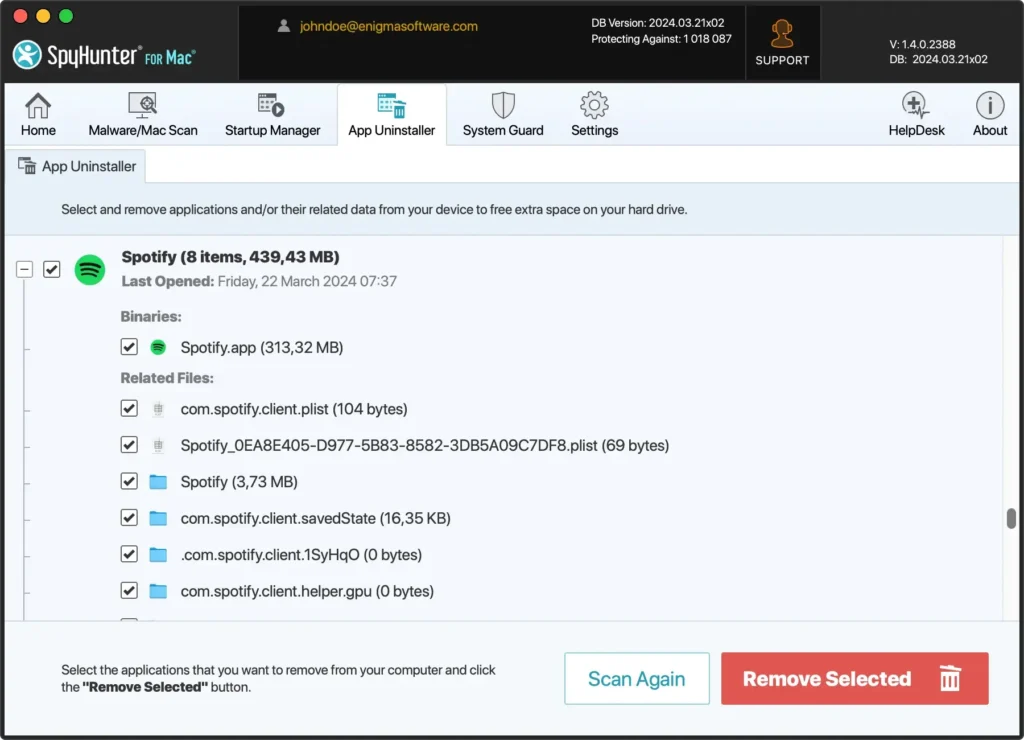
Here’s how to use SpyHunter for a complete uninstallation:
- Download SpyHunter now and follow the instructions to install it on your Mac.
- Once you install the app, launch it and navigate to the
App Uninstallertab. This specialized tool is designed to detect all applications installed on your Mac. - In the
App Uninstallersection, locate Spotify. SpyHunter will display the application along with any related files and folders. - Select Spotify and any associated data and click the remove button. SpyHunter will then delete Spotify from your Mac, ensuring a comprehensive cleanup.
- After SpyHunter has finished the uninstallation process, you may need to restart your Mac to complete the removal effectively.
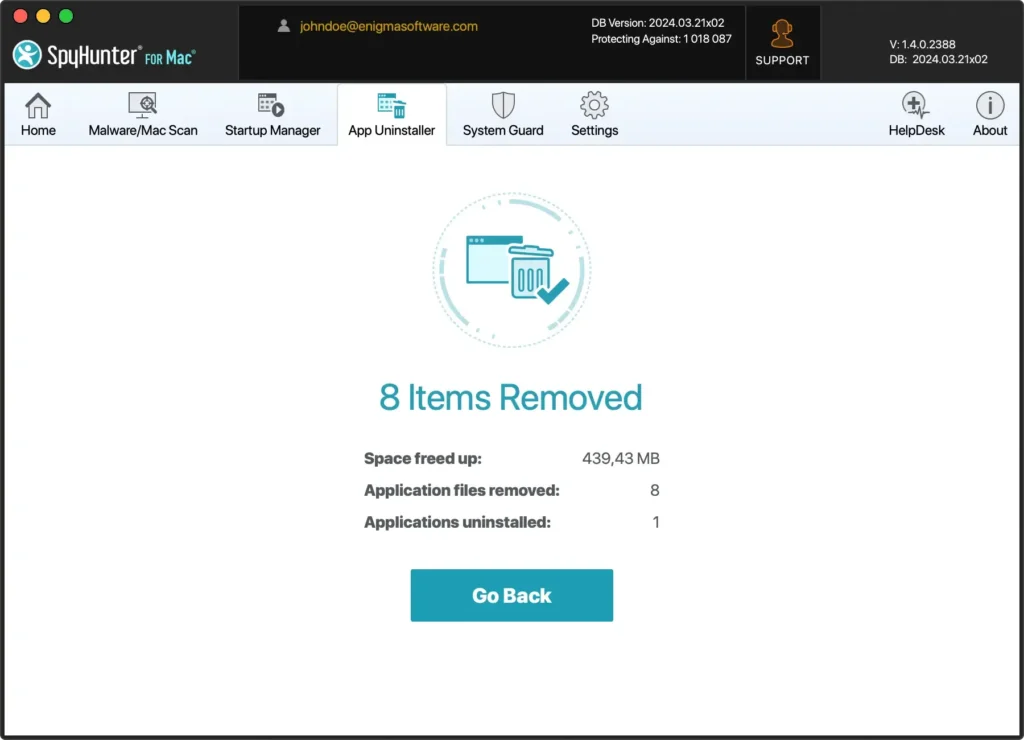
Using SpyHunter’s App Uninstaller not only simplifies the process of uninstalling Spotify but also ensures that your Mac is free from residual files that could impact performance.
Enjoy a cleaner, more efficient Mac with just a few clicks and the help of SpyHunter.
Manually uninstall Spotify on Mac
Removing Spotify from your Mac manually allows for a clean and thorough uninstallation.
This section will guide you through removing the Spotify app and all its files, ensuring your system is free from leftover data.
Step 1: Quit Spotify
Before proceeding with the uninstallation of Spotify, it is essential to ensure the app is not running. Follow these steps to quit the Spotify app:
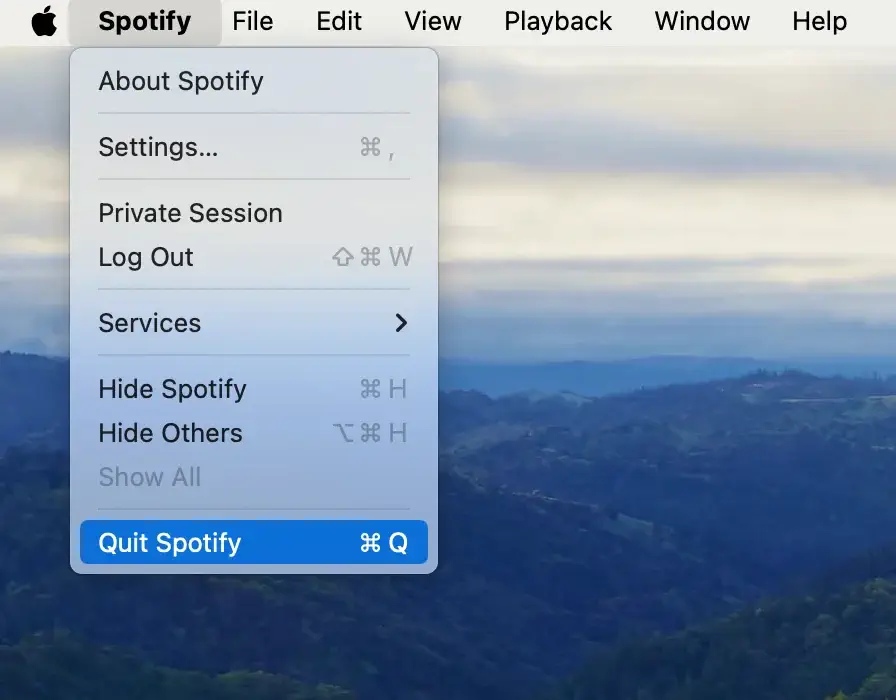
If Spotify is active, click on the Spotify menu bar at the top of your screen and select Quit Spotify.
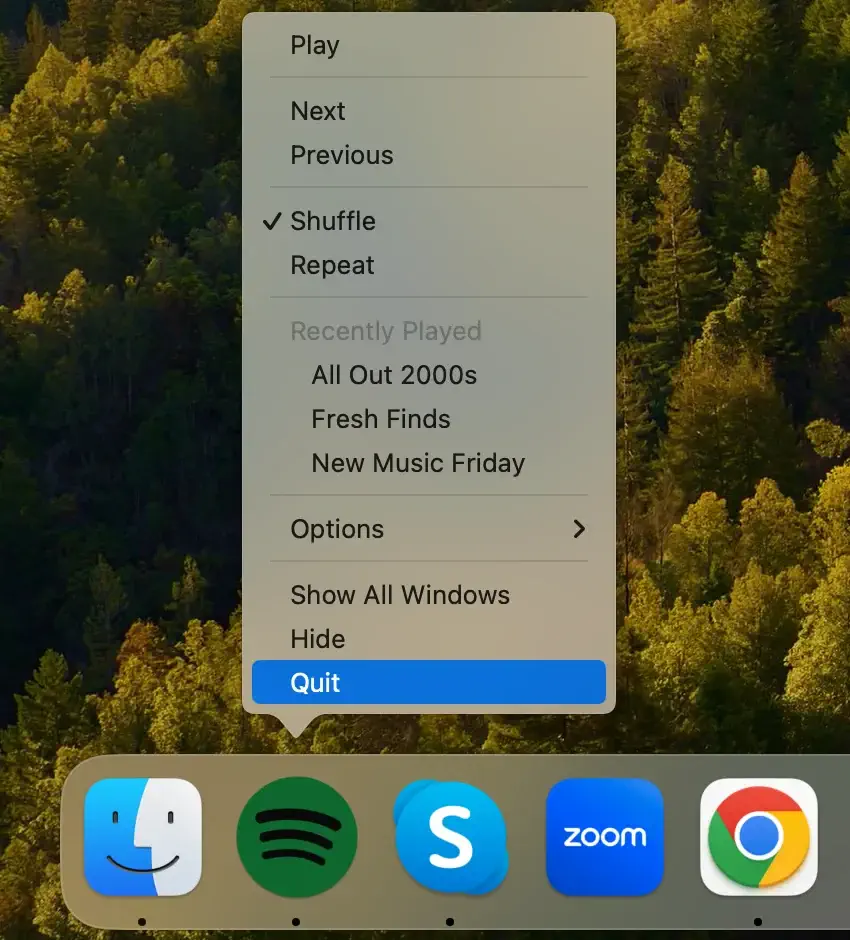
If you prefer using the Dock, locate the Spotify icon, right-click (or control-click) on it, and select Quit from the contextual menu that appears.
For a more forceful approach, open Activity Monitor from your Applications > Utilities folder. Search for Spotify in the list of processes, select it, and click the [X] button at the top of the window to close Spotify.
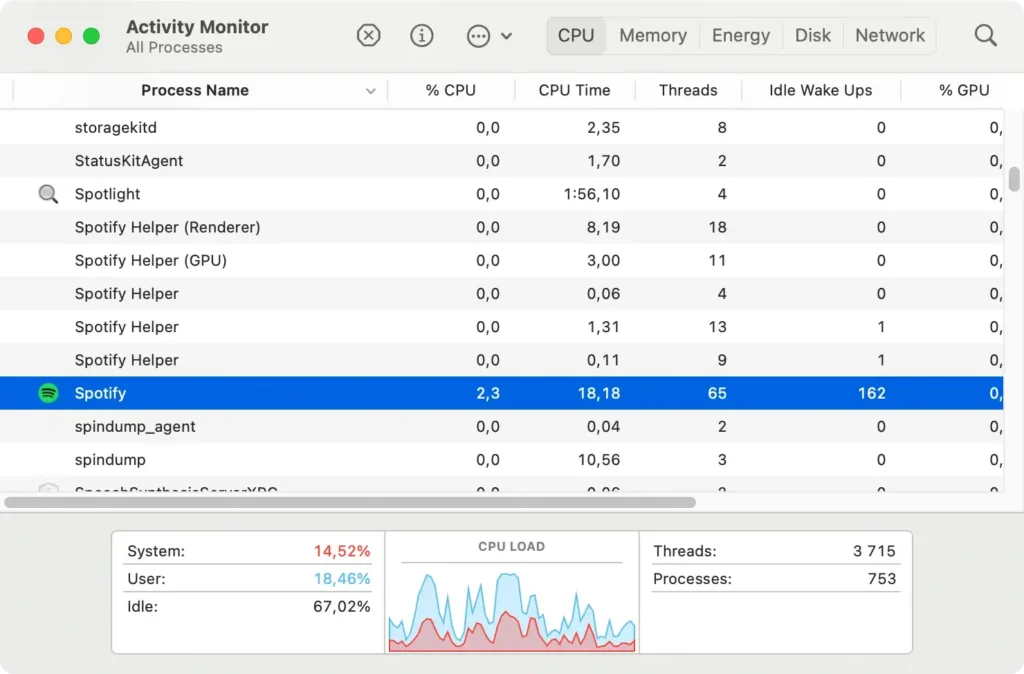
Ensuring that Spotify is completely shut down before removing it from your Mac is crucial to avoid any issues during uninstallation.
Step 2: Delete Spotify from the Applications folder
To manually uninstall Spotify from your Mac and ensure it’s completely removed, follow these straightforward steps:
- Open a new Finder window.
- In the left sidebar of the new window, click
Applicationsto view all installed applications on your Mac. - Scroll through the list or use the search function at the top right corner of the Finder window to find the Spotify app.
- Select Spotify and drag it to the Trash bin at the end of the Dock. Alternatively, you can right-click (or control-click) on the Spotify app to open the context menu and select
Move to Trash.
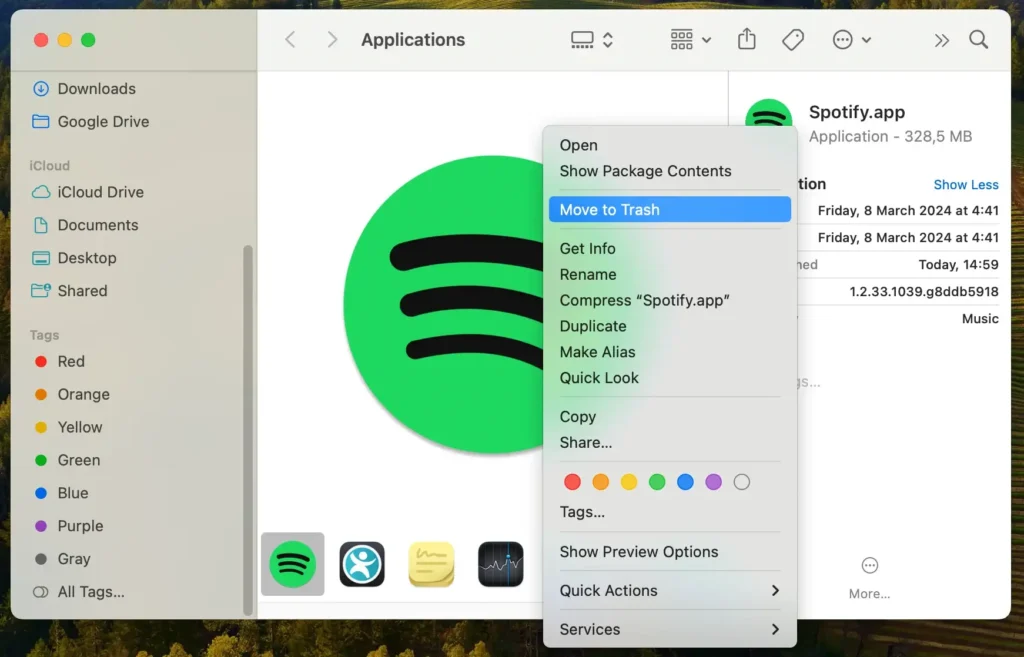
Removing the app is crucial, but it’s not enough for a complete uninstallation. Spotify may leave behind data and settings on your Mac.
To ensure a thorough removal, continue to the next steps.
Step 3: Remove Spotify-related files and folders
Even after deleting Spotify from the Applications folder, leftover files persist within your Mac’s system folders, necessitating their manual removal for a complete uninstall.
Use Finder’s Go to Folder option to navigate to the Library folder. Analyze and delete entries within the following directories:
~/Library/Application Support/Spotify/~/Library/Saved Application State/com.spotify.client.savedState/~/Library/Caches/com.spotify.installer and com.spotify.client~/Library/Preferences/com.spotify.client.plist and com.spotify.helper.plist~/Library/LaunchAgents/com.spotify.webhelper.plist
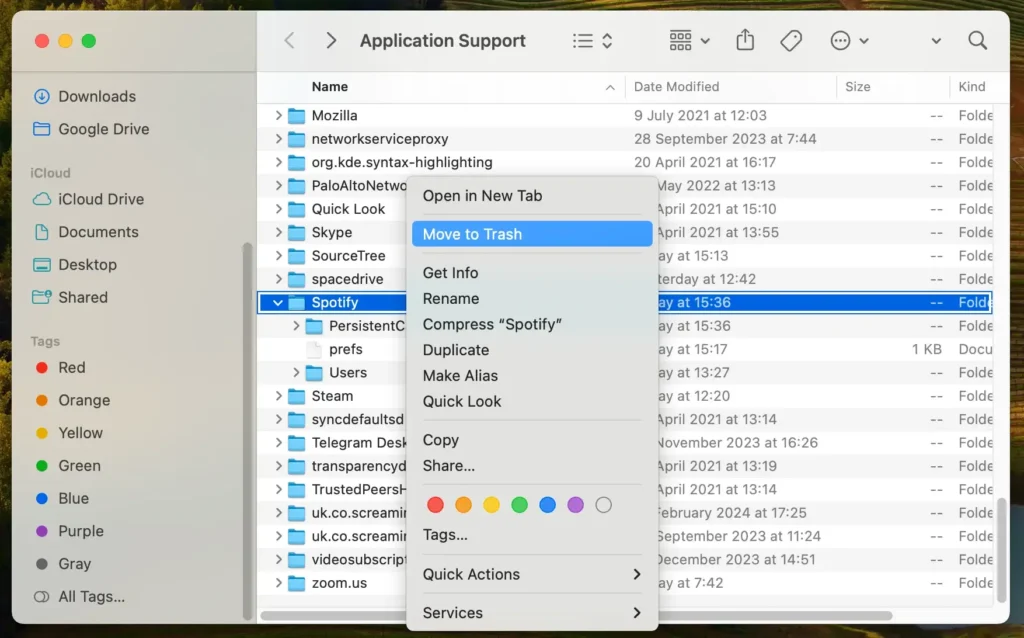
Be vigilant in locating all Spotify-related files and folders to prevent any potential issues from incomplete file removal.
Step 4: Empty the Trash to completely uninstall Spotify
Conclude the uninstallation by emptying the Trash. Right-click the Trash icon in your Dock and select Empty Trash from the context menu.
This action permanently removes Spotify and its related files from your Mac.
For a more general guide on removing applications from your macOS, check out our article on how to uninstall a Mac application.
Troubleshooting common uninstallation issues
Removing Spotify from your Mac can sometimes present challenges. Some common issues might arise during the uninstallation process.
This section addresses these problems, providing practical solutions to help you navigate the uninstallation smoothly.
Spotify app not quitting
If the Spotify application fails to quit, force quitting might be necessary to prevent its deletion.
To do this, open the Activity Monitor, find Spotify in the process list, select it, and click the [X] button in the toolbar to force quit.
This action should allow you to proceed with the uninstallation without interference from the application running in the background.
Unable to find Spotify files
If you’re having trouble locating Spotify files on your Mac, try using the search function in Finder.
Open Finder and navigate to your user Library folder, where many application files are stored. Look for folders named Spotify in Application Support, Caches, and Preferences.
Removing these folders will help in completely uninstalling Spotify.
Spotify Remains in Launchpad After Uninstallation
Sometimes, even after uninstalling Spotify and deleting its associated files, the app icon might still appear in Launchpad. This is a common issue due to the way Launchpad indexes applications.
To resolve this, use a command-line tool such as Terminal to reset Launchpad’s database or employ a third-party Launchpad manager to remove the icon manually.
Spotify Uninstallation FAQs
Why can’t I uninstall Spotify on Mac?
If you cannot uninstall Spotify on your Mac, it may be due to the app still running in the background or essential files being in use.
Ensure to quit Spotify entirely, including closing any background processes, before attempting to uninstall. Review any dependent files in the Library and Application folders to completely uninstall Spotify.
How do I reinstall Spotify on Mac?
To reinstall Spotify on Mac:
- Visit the official Spotify website.
- Download the latest version of the Spotify app that is suitable for MacOS.
- Open the downloaded file and follow the prompts to install Spotify on your Mac.
Reinstalling Spotify allows you to enjoy the latest features, create playlists, and download tracks for offline listening.
Is there a Spotify app for Mac?
Yes, there is a Spotify app specifically designed for Mac users.
The Spotify app for Mac offers a seamless music and podcast listening experience, enabling you to explore a vast library of songs, create your own playlists, and manage your Spotify accounts directly from your Mac.
You can download the Spotify app for Mac from the official Spotify website.
Conclusion
This guide has walked you through every necessary step to remove Spotify and reclaim your Mac’s performance.
From quitting Spotify and deleting it from the Applications folder to eradicating leftover files, a comprehensive approach ensures a clean uninstall.
If manual removal seems daunting, SpyHunter offers an efficient alternative, automating the process to uninstall Spotify on Mac, including erasing caches and other residual data.

Whether you chose the manual route or opted for software assistance, your Mac is now Spotify-free, opening up space for new apps, music platforms like Apple Music, or whatever suits your digital lifestyle.
Regular app management, including uninstallations like this, keeps your Mac running optimally, ready for whatever you choose to install next.
