

Remove Midogguide.com Pop-Ups (Detailed Instructions)

Before we dive in
Before we dive in, let's make sure you stay safe online. We created SpyHunter because your security matters to us.
Protect your computer today — download SpyHunter right here! Check out our top tips below to keep your computer safe and secure.

Midogguide.com pop-ups are a disruptive form of online advertising that can significantly hinder your browsing experience on both Mac and Windows systems.
These pop-ups often indicate adware infection, leading to unwanted redirects and potential privacy concerns.
This article delves into Midogguide.com pop-ups’ origins and impact on users and provides a detailed guide on effectively removing them from your device.
Understanding how to combat these intrusive pop-ups can restore your browser’s functionality and ensure a safer, more enjoyable online experience. Beginning our journey:
Understanding the Midogguide.com pop-up ads
The phenomenon of Midogguide.com pop-up ads is primarily a consequence of adware activities or compromised websites that redirect users to the Midogguide.com site.
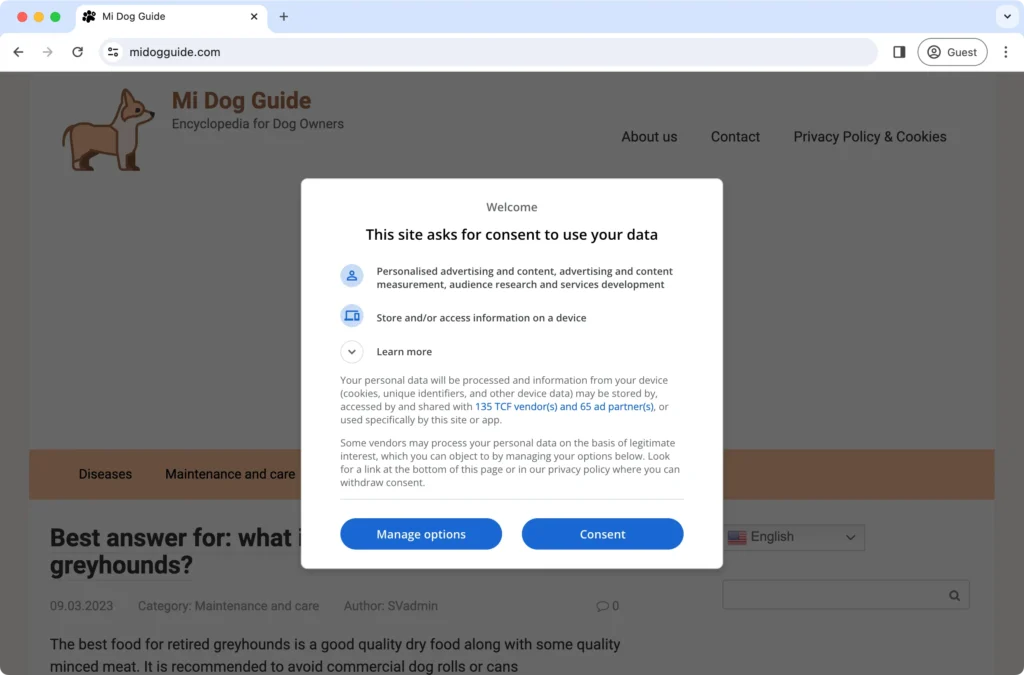
These pop-ups serve as a method for generating advertising revenue for the creators through dubious and often harmful advertisements.
Users encounter these intrusive advertisements due to malware infections on their devices or through shady website redirects.
Over time, these pop-ups can severely disrupt the user’s browsing experience, leading to potential security risks such as exposure to phishing scams, malware, and compromising personal and financial information.
Recognizing and addressing the root cause of these pop-ups is essential for restoring secure and uninterrupted internet usage.
What exactly is Midogguide.com?
Midogguide.com is a deceptive website that masquerades as a blog dedicated to dog lovers but primarily functions to monetize through suspicious and harmful advertising methods.
Utilizing push notifications, the website bombards users with unwanted advertisements, linking them to potentially dangerous content, including dating sites, gambling platforms, VPN services, and domains known for distributing malware.
The site’s strategy involves leveraging adware or browser hijacker infections to perpetuate its presence on user devices, ensuring a continuous stream of disruptive and potentially malicious ads.
How did my device get infected with Midogguide.com pop-ups?
Devices can become infected with Midogguide.com pop-ups through various methods malware distributors use. These include:
- Downloading Torrent Files: Risky and often harboring hidden malware.
- Software Bundling: Adware is packaged alongside legitimate software, slipping past unnoticed during installation.
- Deceptive Websites: Visiting and interacting with sites that trigger these ads.
- Enabling Notifications from Suspicious Sources: Accidentally allowing Midogguide.com to send notifications can cause persistent pop-ups.
Once infected, a device may continuously display these ads, disrupting the user experience and potentially leading to further security issues.
Preventing such infections requires careful online behavior, using trusted security solutions, and promptly removing malware or adware.
Remove Midogguide.com pop-up ads (step-by-step guide)
Step 1: Identify and remove Midogguide.com from your web browsers
Begin the removal process by focusing on the web browsers installed on your device, as these are the primary ways Midogguide.com pop-up ads infiltrate your internet usage.
Perform the necessary steps to identify and eliminate any Midogguide.com-related settings or extensions causing these unwanted ads to appear.
Detailed instructions for Google Chrome
- Open Google Chrome and navigate to the settings menu.
- Look for any suspicious extensions that could be linked to Midogguide.com and remove them.
- Clear your browsing history, cookies, and cached files to remove any residual data related to Midogguide.com.
Eliminate Midogguide.com from Mozilla Firefox
- Access Mozilla Firefox settings and proceed to the extensions section.
- Identify any extensions associated with Midogguide.com and take action to remove them.
- Reset Firefox settings to default to ensure all changes made by Midogguide.com are reverted.
Clear Midogguide.com from Microsoft Edge
- In Microsoft Edge, find and open the extensions menu.
- Search for extensions linked to Midogguide.com and eliminate them from your browser.
- Consider thoroughly resetting Microsoft Edge to its original settings to cleanse it of Midogguide.com’s influence.
Remove Midogguide.com ads from Safari
- For Safari users, check your extensions and remove any suspicious ones related to Midogguide.com.
- Clear Safari’s history and website data to eradicate all traces of Midogguide.com.
Step 2: Uninstall unwanted browser extensions
Removing unauthorized or unwanted browser extensions is crucial for maintaining the integrity and security of your web browsing experience, especially when dealing with Midogguide.com pop-ups.
These extensions can significantly impact your browser’s performance and compromise your online safety.
Clean Google Chrome extensions
- Access Extensions: Open the Chrome menu by clicking the three dots in the upper right corner, then navigate to
More Tools > Extensions. - Audit and Remove: Carefully review your list of extensions. Remove any you don’t recognize, no longer need, or find suspicious by clicking the
Removebutton associated with the specific extension.
Remove unwanted add-ons from Mozilla Firefox
- Open Add-ons Manager: Click the menu button (three horizontal lines), and select
Add-ons and Themes > Extensions. - Examine and Delete: Look through your extensions and themes. Delete anything that wasn’t installed by you or appears dubious.
Purge extensions from Safari
- Open Preferences: In Safari, go to
Safari > Preferences > Extensions. - Review and Uninstall: Browse the list of extensions. If you find any unnecessary or didn’t install, select and uninstall them.
Clear extensions from Microsoft Edge
- Access Extensions: Open Edge and click the three dots in the upper right corner to open the menu. Choose the extensions option.
- Remove Unwanted Extensions: From the list of installed extensions, remove any you don’t recognize or need.
By meticulously reviewing and removing unwanted extensions across all your browsers, you can enhance your browsing experience, reduce the risk of encountering Midogguide.com pop-ups, and improve your overall cybersecurity posture.
Step 3: Delete malicious programs from your computer
To entirely eliminate Midogguide.com pop-up ads, removing any malicious software that may have infiltrated your device is essential.
These unwanted programs can compromise your system’s security and contribute to the persistence of intrusive ads.
Instructions for Windows users
- Open Control Panel: Press the Windows key, type
Control Panel, and press Enter. - Uninstall Programs: In the opened window, navigate to
Programs and FeaturesorAdd or Remove Programs. - Identify and Remove: Scan the list for programs you don’t recognize, especially those installed when the pop-ups began. Select these suspicious programs, click the uninstall option, and follow the prompts to remove them.
Guide for Mac users
For Mac users aiming to enhance their system’s security by removing unwanted or suspicious applications, here’s a concise guide to help you through the process:
Start by opening Finder, which you can do by clicking on the Finder icon in your dock.
Next, navigate to the Applications folder. You’ll find this easily in the Finder sidebar; just click on Applications. Once you’re in the apps folder, take some time to look through the list for any applications that seem out of place or suspicious.

If you find an application you didn’t install knowingly or that looks dubious right-click (or control-click) on it and select “Move to Trash.” This action effectively uninstalls the application from your Mac.
The final step is to empty the trash to permanently remove the application and any associated files from your system. This ensures they can’t further risk your Mac’s security.
By thoroughly inspecting and cleaning your computer of malicious programs, you can enhance your system’s security and stop Midogguide.com pop-up ads from disrupting your browsing experience.
For both Windows and Mac users, staying vigilant about the applications installed on your device is critical to maintaining a secure and clean computing environment.
Step 4: Run a full malware scan on your system
To effectively combat and remove malicious programs associated with Midogguide.com pop-ups, utilizing advanced anti-malware tools like SpyHunter for Mac and SpyHunter 5 for Windows is highly recommended.
These sophisticated applications are designed to detect and eradicate a wide range of malware threats, ensuring your device remains secure and your browsing experience uninterrupted.
SpyHunter for Mac:
SpyHunter for Mac is tailored to address the unique security challenges macOS users face.
It offers a robust solution for identifying and removing malicious software, including adware that causes unwanted pop-up ads.

With its intuitive interface and powerful scanning engine, SpyHunter for Mac simplifies the process of protecting your system from threats like Midogguide.com.
SpyHunter 5 for Windows:
SpyHunter 5 is engineered to provide Windows users a proactive defense mechanism against malware infections.
It identifies hidden threats and offers automated capabilities to remove them efficiently. Whether dealing with adware, ransomware, or other malicious entities, SpyHunter 5 delivers a reliable security solution.
Key features of SpyHunter:
- Advanced scanning algorithms.
- Real-time protection against emerging threats.
- Customizable settings to fit your security needs.
- Regular updates to tackle the latest threats.
- User-friendly interface for ease of use.
Getting started with SpyHunter:
- Download SpyHunter for free here to ensure you have the latest app version tailored to your OS.
- Run the installer and follow the on-screen instructions to complete the installation process.
- Launch SpyHunter and perform a full system scan to detect malicious programs linked to Midogguide.com pop-ups.
- Review the scan results, and let SpyHunter remove any detected malware to clean your system effectively.

By incorporating SpyHunter into your malware removal strategy, you can thoroughly clean up your device, safeguarding it against the persistent threat of Midogguide.com pop-ups and other malicious software.
Step 5: Reset your browser to its default settings
As a final step in the removal process, reset your web browsers to their initial settings.
This action will remove any leftover changes made by Midogguide.com and restore your browser to a clean state, free from unwanted ads and pop-ups. However, remember that this step will also erase some personalized settings.
Preventative measures to avoid future adware infections
Regularly update your software and operating systems
Keeping your software and OS updated is one of the most effective ways to protect your device from new vulnerabilities.
Software developers frequently release updates that fix security loopholes and add new security features.
Enabling automatic updates can ensure that your system is always running the latest version, minimizing the risk of cyberattacks that exploit outdated software.
Use comprehensive antivirus protection and a firewall
Employing a combination of antivirus software and a firewall offers a robust defense mechanism against various malware and cyber threats.
Anti-malware programs scan your system for known threats and can often detect new variants of malware based on behavior.
Meanwhile, a firewall oversees network traffic, blocking unauthorized access and preventing malicious data packets from breaching your system.
Opt for antivirus solutions like SpyHunter that provide real-time scanning and automatic updates to ensure maximum protection – Download SpyHunter.

Regular scans are also recommended to catch any threats that may have slipped past real-time defenses.
Adopt safe browsing habits
Adopting safe browsing habits significantly reduces the risk of encountering malicious content online. This includes:
- Be skeptical of too-good-to-be-true offers.
- Avoid clicking suspicious links.
- Do not download files from untrusted sources.
- Pay attention to the URLs of websites you visit, and look for HTTPS.
- Educate yourself and others about the latest phishing techniques and scam trends.
Ad-blockers and privacy-centric browsers can also limit exposure to potentially harmful advertisements and tracking.
