

Remove Bingsp.com Redirects [5 Min Guide]

Before we dive in
Before we dive in, let's make sure you stay safe online. We created SpyHunter because your security matters to us.
Protect your computer today — download SpyHunter right here! Check out our top tips below to keep your computer safe and secure.

Bingsp.com is a browser hijacker that modifies your search engine and homepage settings without consent.
Often masquerading as a legitimate search tool, it redirects users to its page, leading to potential privacy concerns and security risks.
This article aims to shed light on the nature of Bingsp.com and how it infiltrates computers. It provides a comprehensive guide for removing it and securing your system against similar threats. Let’s dive in:
Understanding the Bingsp.com browser hijacker
The Bingsp.com browser hijacker is an invasive type of software that typically enters a user’s computer without their knowledge. Its main characteristic is altering browser settings such as the new tab, homepage, and search engine.
This hijacker can also add unwanted toolbars and extensions, display intrusive ads, and cause frequent redirects to sites the user has no intention of visiting.
What is Bingsp.com, and how does it affect your system?
Bingsp.com’s primary function is to manipulate web browsers to benefit its creators.
Once Bingsp.com takes hold, it might change your default homepage to its domain, redirect your search queries through its servers, and display altered search results that favor its sponsoring entities.
The implications of these changes extend beyond mere nuisance; they can compromise your browsing experience and impact the performance of your device.
Addressing the presence of browser hijackers like Bingsp.com can lead to several issues, including:
- The cluttering of your browser interface with unwanted toolbars and extensions.
- A drain on system resources which can significantly reduce your computer’s performance.
- A risk to your personal information, as these hijackers often employ data-tracking algorithms to monitor your online activities.
The risks associated with Bingsp.com infection
- Security Vulnerabilities: The browser hijacker may weaken your computer’s defenses, turning off built-in security software and features that protect against malware.
- Additional Malware Attacks: By opening up your system to Bingsp.com, you become more susceptible to dangerous malware, such as spyware, ransomware, and trojans.
- Data Privacy Concerns: Bingsp.com may harvest personal information, including browsing habits, which could be utilized for malicious purposes like identity theft and fraud.
- Degraded User Experience: The hijacker can lead to slower browser performance, frequent crashes, and an overall frustrating user interface cluttered with unwanted ads and toolbars.
In conclusion, Bingsp.com poses a multifaceted threat. Its activity can result in various security issues, from increased malware exposure to privacy breaches.
Tackling this browser hijacker promptly is crucial for maintaining your device’s performance and security.
Steps before removing Bingsp.com
Before proceeding with removing the Bingsp.com browser hijacker, taking specific preparatory steps ensures your data’s safety and the removal process’s effectiveness.
Prepare the instructions on a separate device
Having the removal instructions accessible on a separate device, such as a smartphone or tablet, can be incredibly helpful.
This allows you to follow the steps closely without switching back and forth between windows or potentially losing access to the instructions if your browser is compromised.
Back up important files
Securing your important files is crucial before starting the removal process. Back up your data to an external hard drive, cloud storage, or secure location.
Ensure your backup includes all essential documents, photos, videos, and other significant files to safeguard your data.
Disconnect from the Internet
Disconnecting your computer from the internet can prevent Bingsp.com from receiving further updates or transmitting data. This step reduces the risk of additional damage or data loss during removal.
By preparing thoroughly before attempting to remove Bingsp.com, you can navigate the removal process more safely and effectively.
These steps protect your files and provide a clear path to restoring your system’s integrity and security.
Remove Bingsp.com (step-by-step instructions)
Step 1: Identify and terminate Bingsp.com processes
First, to start addressing the Bingsp.com hijacker, ensure that any related process is not running in the background.
For Windows Users:
Windows users can do this through the Task Manager.
Press Ctrl + Shift + Esc to open Task Manager, look for any processes that seem suspicious or are related to Bingsp.com, select these processes, and click End Task to stop them.
This step is crucial to prevent the hijacker from interfering with the subsequent removal steps.
For Mac Users:
Mac users should open the Activity Monitor to search for and terminate any Bingsp.com-related processes.
Once the app has loaded, review the list for any processes that are out of the ordinary or that you identify as related to Bingsp.com.
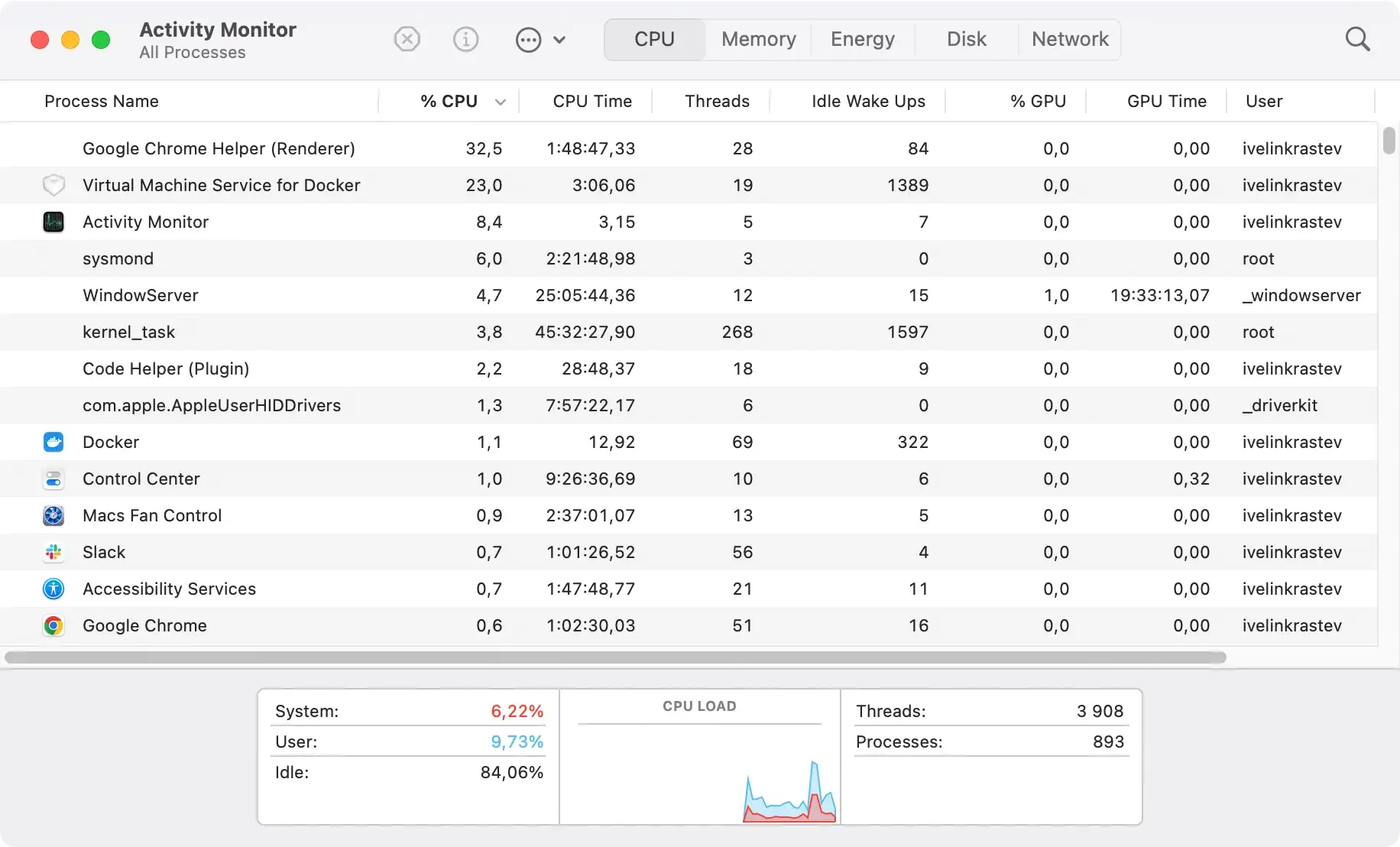
Select the suspicious process and choose to force them to quit, then confirm the action. This will halt any active interference from the hijacker during the removal process.
Step 2: Uninstall Bingsp.com and related software
For Windows Users:
Proceed to the Control Panel to begin uninstalling programs associated with Bingsp.com. Navigate to Programs and Features within the Control Panel, look for any recently installed software that seems unfamiliar or that you know is linked to Bingsp.com.
Select these programs and choose to uninstall them. This action is vital for removing the Bingsp.com hijacker from your system.
For Mac Users:
Mac users should open the Applications folder in Finder to locate and remove applications related to Bingsp.com.
Browse through your applications and identify any installed without your knowledge or that you recognize as part of the Bingsp.com hijacker.
Right-click on the suspicious application and select Move to Trash/Bin. Afterward, empty the Trash/Bin to remove the application from your system permanently.

This step is crucial in clearing your Mac of the Bingsp.com infection and any software it might have introduced.
Step 3: Eliminate Bingsp.com browser extensions
Remove Bingsp.com from Google Chrome
To clean Google Chrome, open the browser and type chrome://extensions/ in the address bar. Here, you can look for any extensions related to Bingsp.com and select the Remove button to delete them.
Additionally, reset the browser to its default settings to eliminate any hidden remnants of the hijacker.
Uninstall Bingsp.com Add-ons from Mozilla Firefox
For Firefox users, removing Bingsp.com entails typing about:addons in the browser’s address bar, locating any unwanted add-ons, and choosing the remove option.
It’s also wise to reset Firefox to its default state to ensure complete removal.
Clean Bingsp.com from Microsoft Edge
Microsoft Edge users can remove Bingsp.com by typing edge://extensions/ in the browser bar, scouting for suspicious extensions, and removing them.
The follow-up action is to revisit browser settings and reset Microsoft Edge to default settings.
Remove Bingsp.com from Safari
To remove Bingsp.com extensions from Safari, open the browser and select Preferences from the Safari menu.
Please navigate to the extensions tab, find any extensions linked to Bingsp.com, and uninstall them.
This action helps clean your Safari browser from the hijacker’s influence.
Delete Bingsp.com Extensions from Internet Explorer
To remove unwanted add-ons from Internet Explorer, go to the Settings gear icon, choose Manage Add-ons, and look for any Bingsp.com-related elements.
Removing these and resetting default settings can significantly aid in the cleanup process.
Step 4: Reset your browsers to remove traces of Bingsp.com
After removing malicious extensions, resetting your browser settings to their original state is wise to ensure any changes made by Bingsp.com are entirely reversed.
Restoring Google Chrome to original settings
You can use the built-in reset feature to revert Google Chrome to its default state and eliminate persistent extensions like Bingsp.com.
Start by opening Chrome and entering chrome://settings/reset into the address bar. A confirmation window will pop up; proceed by clicking the reset option.
This will remove all unwanted extensions and restore the browser’s settings to their original form. Remember that this action will not affect your saved bookmarks, passwords, and history.
Resetting Safari to its default settings
To restore Safari and remove any changes made by Bingsp.com or other unwanted software, follow these steps:
- Open Safari: Launch the Safari browser on your Mac.
- Clear History: Go to the Safari menu at the top, select the option to clear the history, and choose to remove all history.
- Reset Safari: After clearing the history, return to the Safari menu, navigate to the browser preferences, and locate the privacy tab. Click
Manage Website Dataand thenRemove Allto delete website data and cookies. - Extensions: Switch to the extensions tab. Review and uninstall any extensions you don’t recognize or that might be related to Bingsp.com.
- Homepage and Search Engine: Lastly, go to the general preferences tab, where you can reset your homepage to your preferred URL if it was changed. Also, ensure your preferred search engine is selected.
By completing these steps, you will have effectively reset Safari, removing hijacker-related alterations and restoring your browser to a clean state.
Resetting Mozilla Firefox after Bingsp.com
Firefox users can address Bingsp.com by resetting the browser to its default configuration.
Enter about:support in the Firefox address bar and look for the refresh option. Initiate the reset by clicking on it, and after a brief closure of the browser, Firefox will restart with a clean slate.
Significant data like bookmarks and passwords will be preserved, while Bingsp.com and other unwanted extensions will be eradicated.
Returning Microsoft Edge to its default configuration
Should Microsoft Edge be compromised by Bingsp.com, restoring it to default settings can help.
Type edge://settings/reset into the Edge address bar and select the pertinent reset option visible on the screen.
After confirming your choice in the prompt, Edge will remove unwanted add-ons and revert to its original state while safeguarding your data, such as favorites and browsing history.
Step 5: Use anti-malware software to remove Bingsp.com
Using a reliable anti-malware program is crucial to ensure the complete removal of Bingsp.com and to protect your computer from future threats.
SpyHunter for Mac and SpyHunter 5 for Windows
SpyHunter for Mac and SpyHunter 5 for Windows are designed to detect and remove malware like browser hijackers.
They offer real-time protection, scanning your system for malicious software and providing an easy-to-use interface to manage any threats found.

- Download SpyHunter for free here and follow the on-screen instructions to install the app on your computer.
- Launch SpyHunter and perform a full system scan to detect the presence of Bingsp.com or any other malicious entities.
- After the scan, follow SpyHunter’s recommendations to remove any detected malware from your system.

Following these steps and utilizing SpyHunter ensures your operating system is clean and safeguarded against future browser hijacker intrusions or other malware threats.
Preventive measures: How to avoid Bingsp.com in the future
Preventing browser hijackings like those caused by Bingsp.com comes down to understanding the threat and adopting safe browsing habits.
These threats often leverage cunning methods to infiltrate systems, such as bundling with legitimate software or exploiting security vulnerabilities.
Thus, staying vigilant when downloading and installing new software, updating your browser and operating system regularly, and using reliable antivirus and anti-malware tools form the basis of a solid defensive strategy against such unwanted programs.
Learn more about the nature of browser hijackers and how to prevent them by reading our thorough guide.
Best practices for browser security and privacy
Maximizing your browser’s security settings and maintaining strict privacy practices are necessary to stave off Bingsp.com hijackings. This includes:
- Inspecting permissions for websites and extensions.
- Opting for incognito or private browsing modes when necessary.
- Regularly reviewing your browser’s privacy settings.
- Clearing cookies, cache, and history periodically.
Recommended security tools to protect against Bingsp.com
Harnessing the power of comprehensive antivirus and anti-malware solutions provides a safety net against browser hijackers’ intrusion.
Regular full-system scans with SpyHunter can detect potential threats, including Bingsp.com before they take root (Download SpyHunter from here).

Employing browser security extensions and features, such as anti-tracking tools and script blockers, adds a layer of protection that can thwart hijacker attempts to modify browser settings or track your online behavior.
Bingsp.com Frequently Asked Questions
Can Bingsp.com steal personal data?
One of the significant risks associated with Bingsp.com is its ability to monitor and collect data on your browsing habits. This information can include
- Search queries;
- Browsing history;
- Personal details that are entered into web forms or captured through browser vulnerabilities.
While Bingsp.com is primarily designed to redirect your web traffic and generate ad revenue, the collected data can be mishandled or sold to third parties, risking identity theft and privacy breaches.
It’s essential to employ security measures to mitigate this risk.
How do you recognize signs of Bingsp.com infection early?
Detecting Bingsp.com early on can save you from many annoyances and risks to your system’s security.
Be on the lookout for telltale signs such as unsolicited changes to browser settings, an increase in pop-up ads, and slow browser performance.
If you observe these indicators or find that your search queries yield irrelevant results, you may have a browser hijacker.
Prompt action through a reputable antivirus program and a thorough cleanup of your browser extensions can help restore normal function and protect sensitive information.
