

Browser Hijacker Removal Mac: How To Do It [2025 Update]

Before we dive in
Before we dive in, let's make sure you stay safe online. We created SpyHunter because your security matters to us.
Protect your computer today — download SpyHunter right here! Check out our top tips below to keep your computer safe and secure.

Struggling with browser hijackers on your Mac? This post will explain how to identify and remove browser hijackers, safeguarding your online safety and privacy.
Discover the critical indicators of hijacking, including sudden homepage shifts and intrusive pop-ups, and learn effective strategies for browser hijacker removal and protection.
Our guide offers straightforward step-by-step instructions suitable for both beginners and experienced users.
We aim to enhance your online security and protect your browsing experience from these unwelcome intruders.
Jumping right in:
What is a browser hijacker?
A browser hijacker is a type of malicious software that alters your browser’s settings without your consent.
It normally changes your default homepage, installs suspicious extensions, and redirects your search engine results to unwanted or potentially harmful websites.
These hijackers often come bundled with free software or may sneak in through malicious programs.
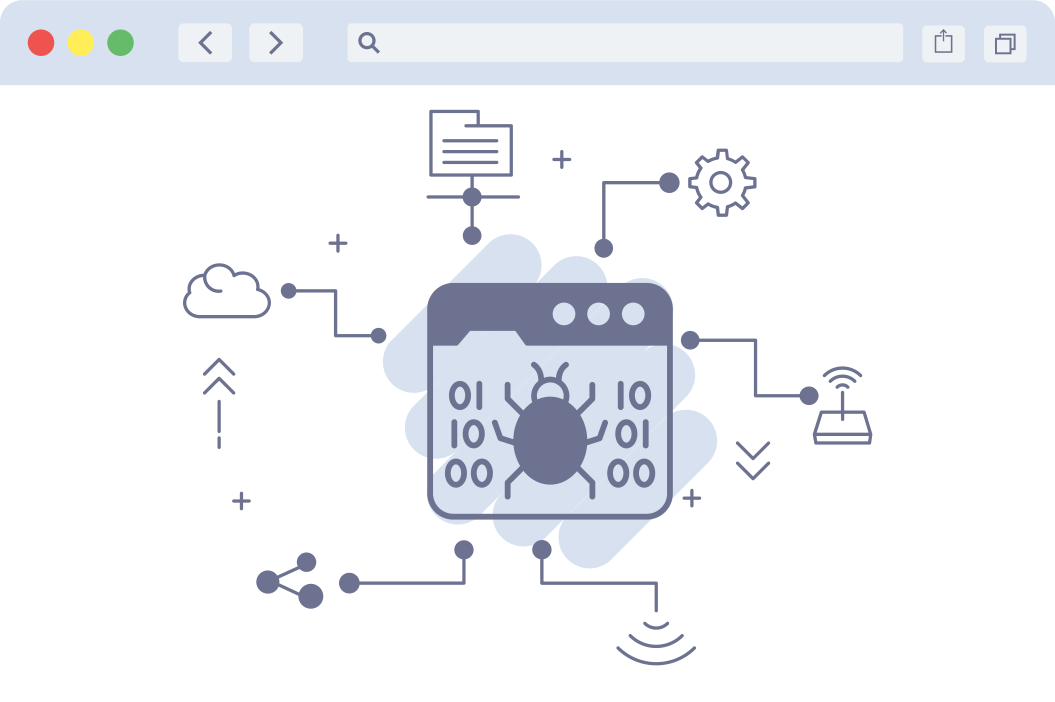
How browser hijacking works
Browser hijacking works by exploiting vulnerabilities in a user’s web browser or operating system. Attackers can use various techniques, such as phishing, drive-by downloads, or bundling malware with legitimate software, to infect a user’s device.
Once infected, the browser hijacker can modify the user’s browser settings, such as the default homepage, default search engine, or new tab URL, without their consent.
In addition to altering these settings, the hijacker can install suspicious extensions or toolbars that collect user data or display unwanted advertisements.
These modifications can lead to a frustrating browsing experience, with constant redirects to unfamiliar sites and an influx of intrusive ads.
Symptoms of a browser hijacker
- Slower web page loading: If your browser takes longer to load web pages, it may be because a browser hijacker is controlling your browsing activity and diverting you to malicious sites.
- Unintentionally installed toolbars: The sudden appearance of browser toolbars in your browser can indicate that bundled software has installed a browser hijacker without your consent.
- Redirected searches: If your searches are being redirected to different or suspicious websites, it’s a strong sign of browser hijacking, often leading to sites filled with advertisements or harmful content.
- Increased pop-up ads and unwanted advertisements: An unusual increase in pop-up ads and unwanted advertisements can signal a browser hijacker, which often generates unwanted ads to generate revenue or trick you into clicking on malicious links.
- Changed default search engine: If your default search engine has been replaced without your approval, a browser hijacker could be manipulating your search results and redirecting you to unsafe sites.
Note that not all browser hijackers are apparent. Some browser hijackers may operate covertly, spying on your browsing activity or stealing data, such as banking details and passwords, without obvious signs.
How to check for browser hijackers
Checking for browser hijackers is an essential step in maintaining your online security and preventing unwanted changes to your browser configuration.
Here’s how to do it:
Check browser settings and extensions
- Open your web browser and navigate to the preferences menu. Check if your homepage and default search engine have been altered without your consent. Unexpected changes here are a common sign of a browser hijacker.
- Go to the extensions or add-ons section of your browser. Look for any suspicious or unfamiliar extensions that you don’t remember installing. These could be responsible for the hijacking.
- Dive into your browser preferences to see if any other configurations have been modified. Pay close attention to settings related to your default search engine and homepage.
Check system login items
- Open
System Settings(System Preferenceson older macOS versions). - Go to the
Generaltab. - Click on
Login Itemsto see a list of programs set to launch automatically when you log in. - Look for any suspicious apps or programs that you don’t recognize.
- If you find any unwanted apps, select them and click the minus (-) button to remove them from the list. This prevents them from launching at startup and potentially causing further issues.
How to remove browser hijackers from Mac
Removing browser hijackers can be challenging, but it’s essential to restore your web browser settings to their default state.
Here’s how to remove browser hijackers manually:
Remove suspicious apps from Mac
- Open
Finderand navigate to theApplicationsfolder. - Look for any apps that seem suspicious or that you don’t remember installing.
- Before removing any app, check its reviews and ratings on the Chrome Web Store or other app stores. This can help you determine if other users have reported issues with the app.
- If you identify any suspicious apps, move them to the Trash. This action removes the app from your system.

- To complete the removal process, empty the Trash. This ensures that the app is completely deleted from your Mac.
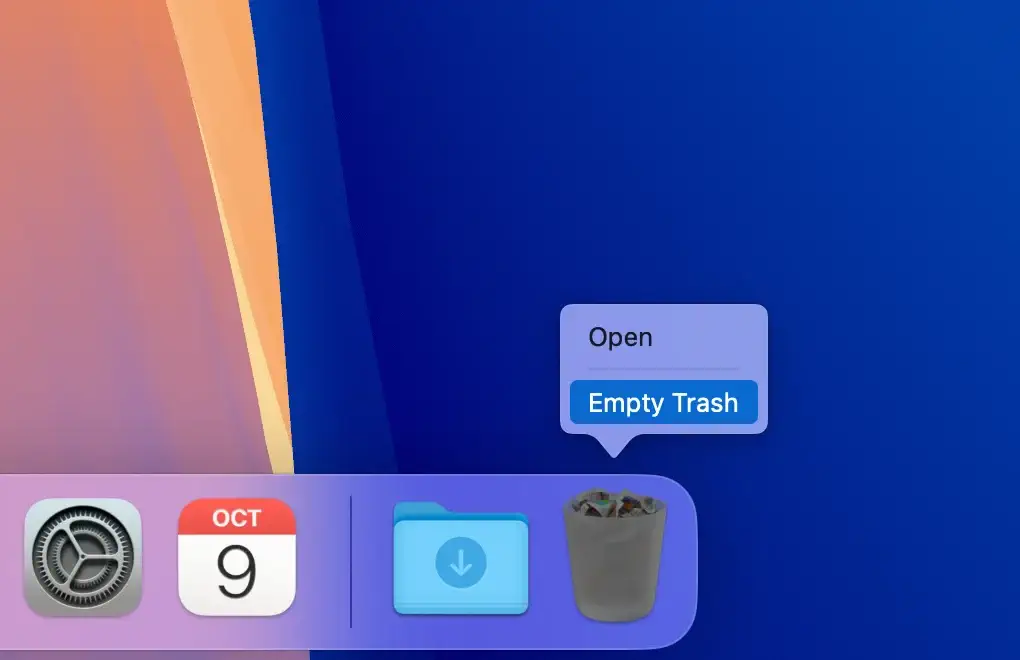
Note: Exercise caution when removing apps from your Mac. Some apps may be legitimate and necessary for your system to function properly. Always research the app before removing it to avoid unintended consequences.
Clear the DNS cache
One effective way to get rid of browser hijackers on your Mac is by clearing the DNS cache. A browser hijacker can manipulate your DNS settings to redirect you to malicious websites, even after you’ve removed the hijacker itself.
Flushing the DNS cache helps ensure your system uses updated network settings, restoring proper browsing functionality.
Here’s how to clear the DNS cache on your Mac:
- Open
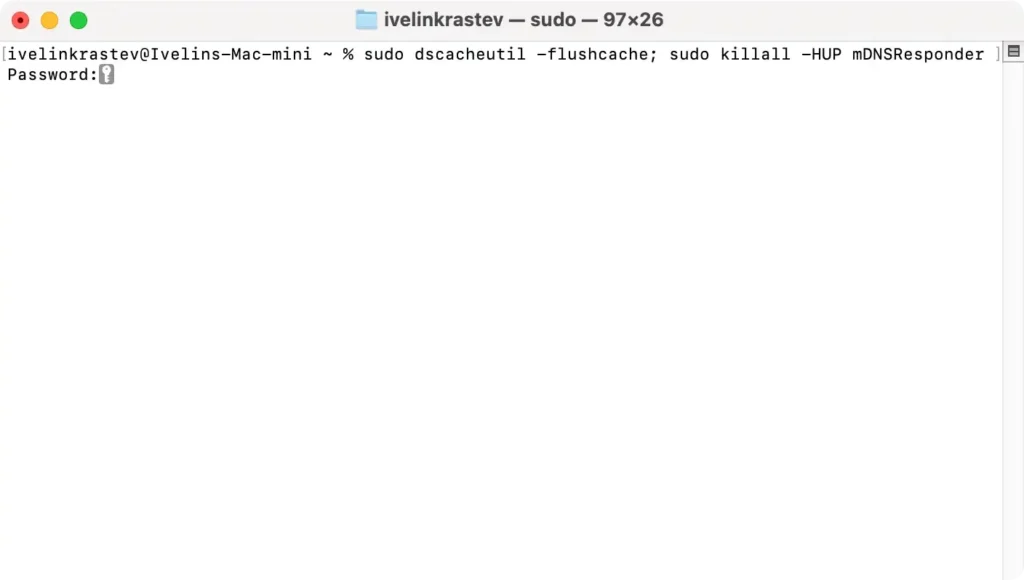
TerminalfromApplications > Utilities. - Type the following command:
sudo dscacheutil -flushcache; sudo killall -HUP mDNSResponder - Press
Return. - Enter your admin password when prompted and press
Returnagain. - Restart your browser.
Reset settings of web browsers
Resetting browser settings is crucial for regaining control of your browser after a hijacking. This step reverses the unauthorized changes made by a hijacker, restoring your browser’s main settings to their original state.
Here’s how to reset the settings for Google Chrome, Safari, and Mozilla Firefox:
Google Chrome:
- Open Chrome.
- Click the three-dot menu icon in the upper right corner.
- Select
Settingsfrom the dropdown menu to access the browser settings window. - In the
Appearancesection, toggle the switch next to theShow home button. - Under the
Show home button, enter your default homepage URL, or selectNew Tab pagefor the default Chrome browser start page. - Scroll down to
On startupand selectOpen the New Tab page, or specify pages to open on startup.
Safari:
- Open Safari.
- Click the Safari menu at the top of the screen and select
Preferences(orSettingsif using macOS Sequoia). - In the
Generaltab, find theHomepagefield. - Enter your default homepage URL or set it back to the default Safari start page.
- Check your search engine by clicking the
Searchtab in the same window. - Under
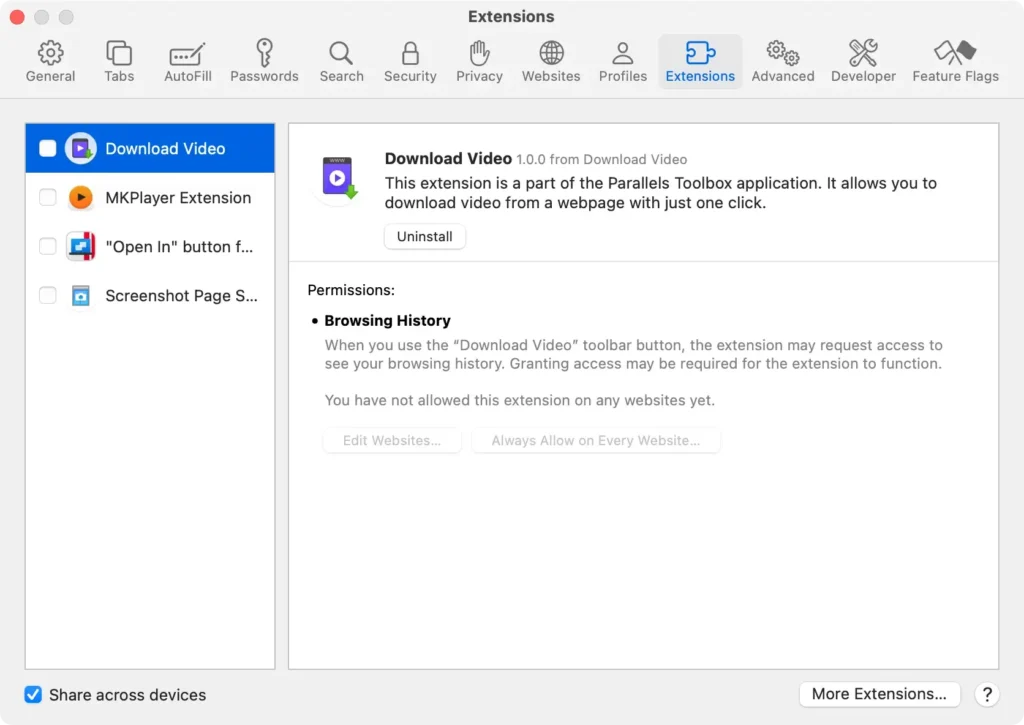
Search Engine, you will find a list of available search engines. Ensure the correct search engine is selected and change it if needed. - Check Safari extensions by navigating to the
Extensionstab. - Review and remove any suspicious extensions.
Mozilla Firefox:
- Open Mozilla Firefox.
- Click on the menu icon in the top right corner.
- Select
Preferencesfrom the menu. - In the
Homepanel, underNew Windows and Tabs, chooseFirefox Homefor the default start page, or enter a custom URL. - Select
Add-onsfrom the menu to review and turn off any unfamiliar extensions.
Following these steps for each browser, you can reclaim control and ensure your online browsing remains secure and personalized to your preferences.
Reinstall your browser
In more severe cases, reinstalling your browser may be necessary. This is a last resort when other cleaning efforts fail to remove a browser hijacker.
Completely removing the browser can substantially disrupt the hijacker’s influence, and reinstalling the browser ensures you have a clean, hijacker-free platform with which to browse.
Use SpyHunter to remove browser hijacker on Mac
Removing a browser hijacker manually can be challenging, but using a specialized removal tool like SpyHunter is the most effective way to get rid of it and restore your browser’s security.
SpyHunter is designed to detect and remove browser hijackers, along with other threats such as malware, spyware, adware, and Potentially Unwanted Programs (PUPs).
SpyHunter for Mac scans deep into your system to locate and isolate malicious content that has infiltrated your browser or operating system.
It doesn’t just address visible changes like modified search engines or unwanted extensions—it also targets hidden files and settings that may remain after a simple reset.
To remove browser hijackers effectively:
- Download SpyHunter from here and install it on your Mac.
- Click
Scan Nowto run a system scan that will detect any browser hijackers or malware. - Follow the on-screen instructions to remove all detected threats and restore your browser settings.

By using SpyHunter, you ensure a thorough cleanup of your Mac and eliminate any issues caused by browser hijackers.
How to prevent Mac browser hijackers?
Prevention is always better than cure, especially for software like browser hijackers. Here are a few preventive measures you can adopt to safeguard your system from browser hijackers.
Avoid suspicious links
One of the best safety practices is to avoid clicking on suspicious links in emails, text messages, or pop-up notifications. Such links can initiate the download of browser hijackers, exposing your system to potential threats.
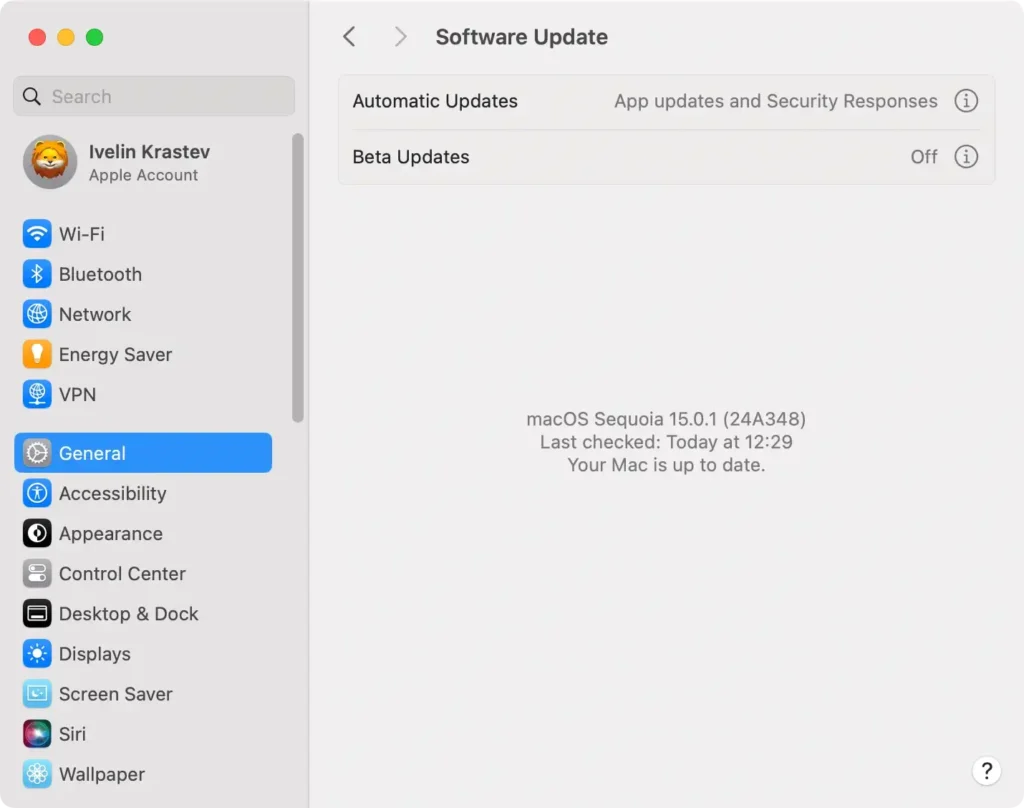
Keep your software updated
Regular updates to your operating system (OS) and browser are crucial to maintaining your system’s security.
Hijackers often exploit known vulnerabilities in the OS and browser, so keeping up-to-date with the latest security patches eliminates these weak points.
Install an antivirus software
Protecting your system with good antivirus programs is an effective defense against common browser hijackers and other malware.
Good antivirus software like SpyHunter for Mac helps detect and remove harmful software and provides real-time protection (Download SpyHunter now).

Avoid free software that unpack post-installation
Freeware programs that unpack additional software upon installation can be a security risk.
Be sure to understand the full scope of any software installation, including what will be downloaded and how it will interact with your system.
Opting for custom installation settings can also help you maintain control and avoid unintentional downloads.
Download Chrome extensions with caution
To prevent browser hijacking, it’s crucial to be careful when downloading extensions from the Chrome Web Store. While many Chrome extensions offer valuable features and enhancements, not all are created in your best interests.
Some might masquerade as legitimate tools while posing risks of hijacking or introducing other forms of malware.
Always research an extension thoroughly before installation: check its ratings, read user reviews, and verify the developer’s credibility.
Remember, adding Chrome extensions to your browser grants them various permissions, so only give access to trustworthy and necessary tools.
Being selective and vigilant can significantly reduce the risk of unintentional browser hijacking.
Summary
Removing a browser hijacker can be challenging, but antivirus software can help.
Here is a summary of the steps you can take to remove a browser hijacker:
- Check your browser settings and extensions for suspicious modifications.
- Check your system login items for any malware that may be modifying your browser settings.
- Check all recently modified applications for any suspicious activity.
- Check for suspicious auto-launch files that may be related to the browser hijacker.
- Use antivirus software to scan your Mac for malware and remove any detected threats.
- Reset your browser settings to the default values.
- Check the Chrome Web Store or other browser extension stores for any suspicious extensions.
By following these steps, you can remove a browser hijacker and protect your web browser settings from unauthorized modifications.
Remember to always be cautious when downloading software or clicking on links and to use strong passwords and two-factor authentication to protect your browser account.
