

macOS Sequoia Download Stuck? Here’s How To Fix It Fast

Before we dive in
Before we dive in, let's make sure you stay safe online. We created SpyHunter because your security matters to us.
Protect your computer today — download SpyHunter right here! Check out our top tips below to keep your computer safe and secure.

Downloading macOS Sequoia should be a straightforward process. Right?
But sometimes, things don’t go as planned. If you’re stuck watching that progress bar crawl—or worse, seeing no movement at all—it’s easy to get frustrated.
All Mac users can experience a stalled macOS update, whether due to connectivity issues, a lack of storage, or other unexpected hurdles.
In this post, we’ll walk you through the quick and effective solutions we found to get your macOS Sequoia update back on track and help you avoid unnecessary delays.
Let’s dive into the troubleshooting tips!
Signs your macOS Sequoia download is stuck
Here are some common signs that your macOS Sequoia update might be stuck:
- The download remains stuck at a certain percentage and doesn’t move.
- You receive a message like
"An error occurred while installing the selected updates." - A
"The macOS installation couldn’t be completed."error occurred. - Your screen shows a
"There is not enough free space on the selected volume to upgrade the OS."error message. - Or a
"macOS Sequoia cannot be installed on Macintosh HD"error. - The
"Checking for updates"message stays in System Settings and shows no movement.
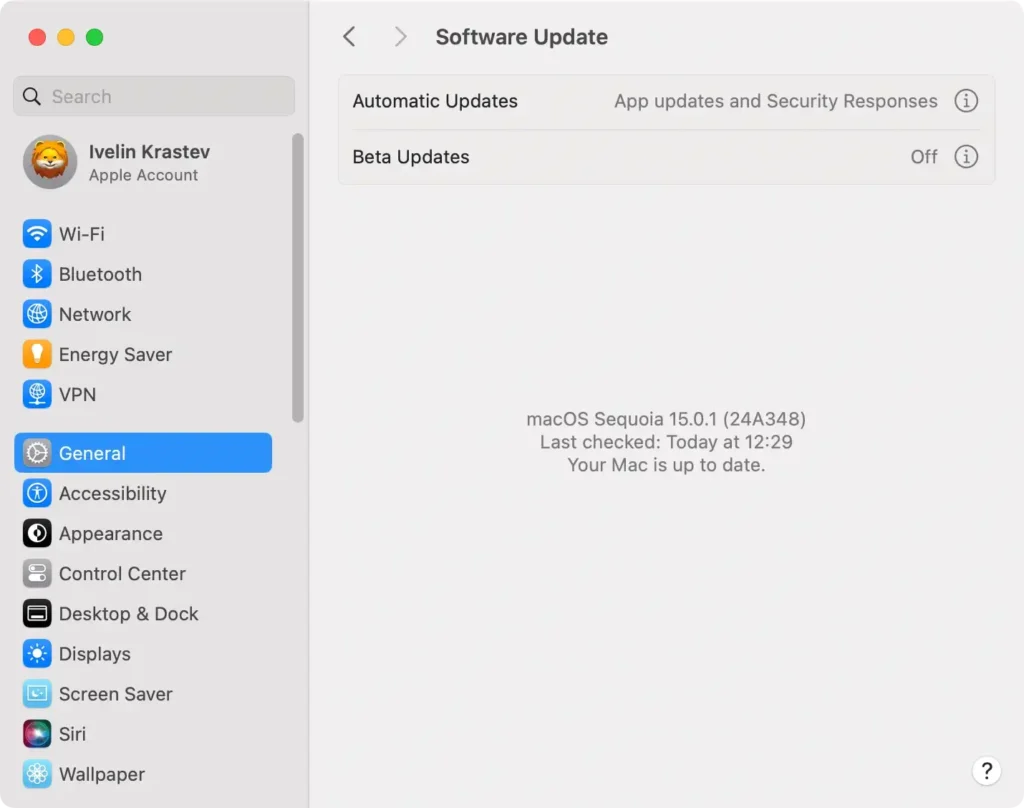
If you notice any of these signs, it’s time to start troubleshooting your macOS Sequoia software update.
Why is the macOS Sequoia download stuck?
When the macOS Sequoia download gets stuck, it can be frustrating. However, understanding the possible causes can help you fix the issue.
Here are a few reasons why your macOS Sequoia update stuck:
- One of the most common reasons for a stuck macOS Sequoia download is not having enough free disk space on your startup disk.
- A weak or unstable internet connection can cause the macOS update to freeze mid-download.
- During the release of a new macOS version, Apple’s servers can become overwhelmed by the number of users attempting to download the update simultaneously. This can result in slow downloads or a download that gets stuck entirely.
- If your Mac is running background processes or there are software conflicts, it could interfere with the macOS Sequoia installation.
- Your Mac might not be fully compatible with macOS Sequoia, especially if it’s an older model. MacOS Sequoia places higher demands on system resources than previous macOS versions, and some older Macs may not be able to handle the installation process.
By pinpointing the root cause, you can take the appropriate steps to resolve the issue and get your macOS Sequoia download moving again.
Tip: If you’re experiencing other issues with macOS Sequoia, check out our guide on common macOS Sequoia issues for more solutions.
How to fix macOS Sequoia not downloading?
If your macOS Sequoia update stuck in the download phase, don’t worry—there are several fixes you can try to get things moving again.
Here are a few troubleshooting tips to help resolve the issue:
1. Check if your Mac is compatible with macOS Sequoia
First, make sure your Mac is compatible with macOS Sequoia.
Apple’s servers check your Mac’s hardware to determine whether it’s eligible for the macOS Sequoia update. If your device isn’t compatible, you won’t be able to complete the download.
To check:
- Go to the Apple menu and select
About This Mac. - Compare your model with Apple’s list of supported devices for macOS Sequoia:
- iMac (2019 and later)
- iMac Pro (2017)
- MacBook Air (2020 and later)
- MacBook Pro (2018 and later)
- Mac mini (2018 and later)
- Mac Pro (2019 and later)
- Mac Studio (2022)
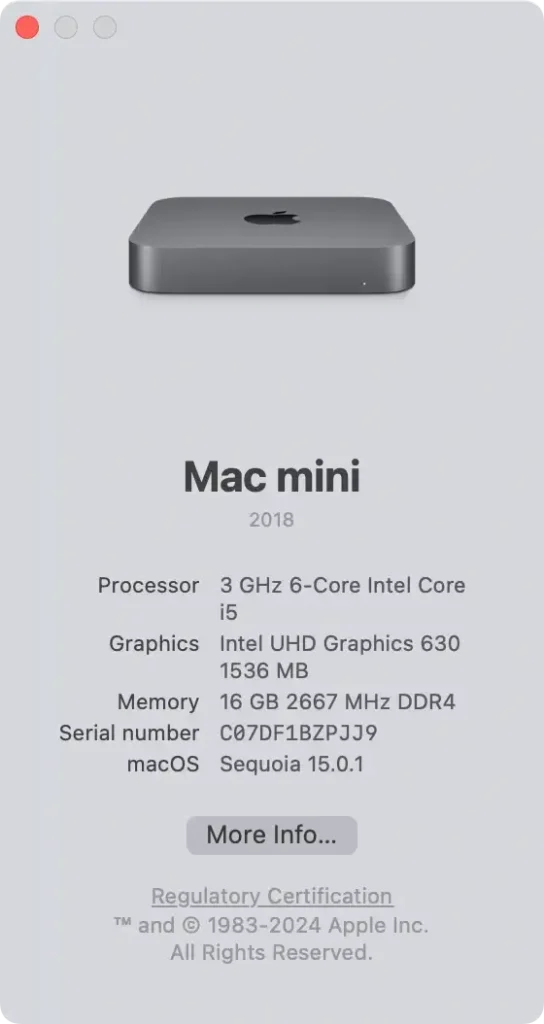
If your Mac isn’t on the list, you may need to look into installing macOS Sequoia on an unsupported Mac, which requires extra steps and tools.
2. Ensure your internet connection is stable
An unstable or weak internet connection is one of the most common reasons for a stuck macOS download.
Here’s what you can do to fix this:
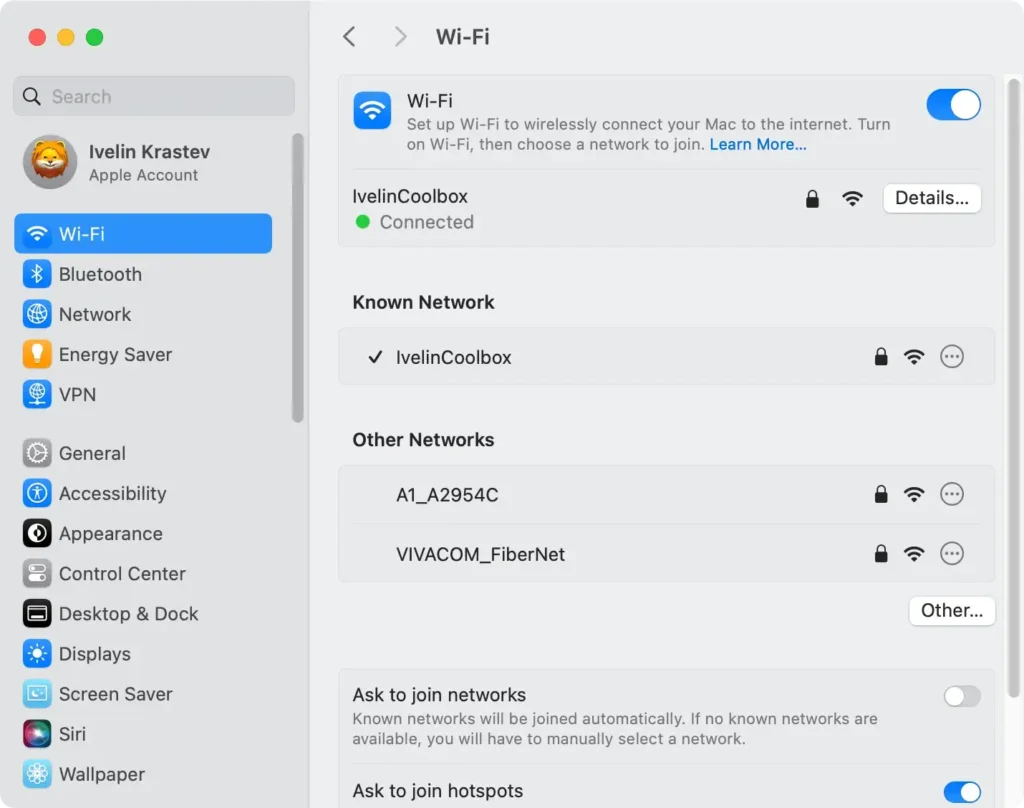
- Toggle Wi-Fi Off and On: Click the Wi-Fi icon in the menu bar or go to
System Settings > Wi-Fiand toggle the connection off, wait a few seconds, and turn it back on. This can refresh your connection. - Restart Your Mac and Router: Restarting your Mac and rebooting your router can often resolve connectivity issues. Unplug your router, wait about 30 seconds, and then plug it back in.
- Use a Wired Ethernet Connection: Connect your Mac directly with an Ethernet cable. A wired connection is more stable than Wi-Fi and may speed up the software update process.
3. Free up space on your Mac
If you encounter an error message saying there isn’t enough free space for the macOS installation, it’s time to clear some room. To do this:
- Open
System Settingsand go toGeneral > Storage. - Wait for the system to finish calculating the status of your Mac’s startup disk.
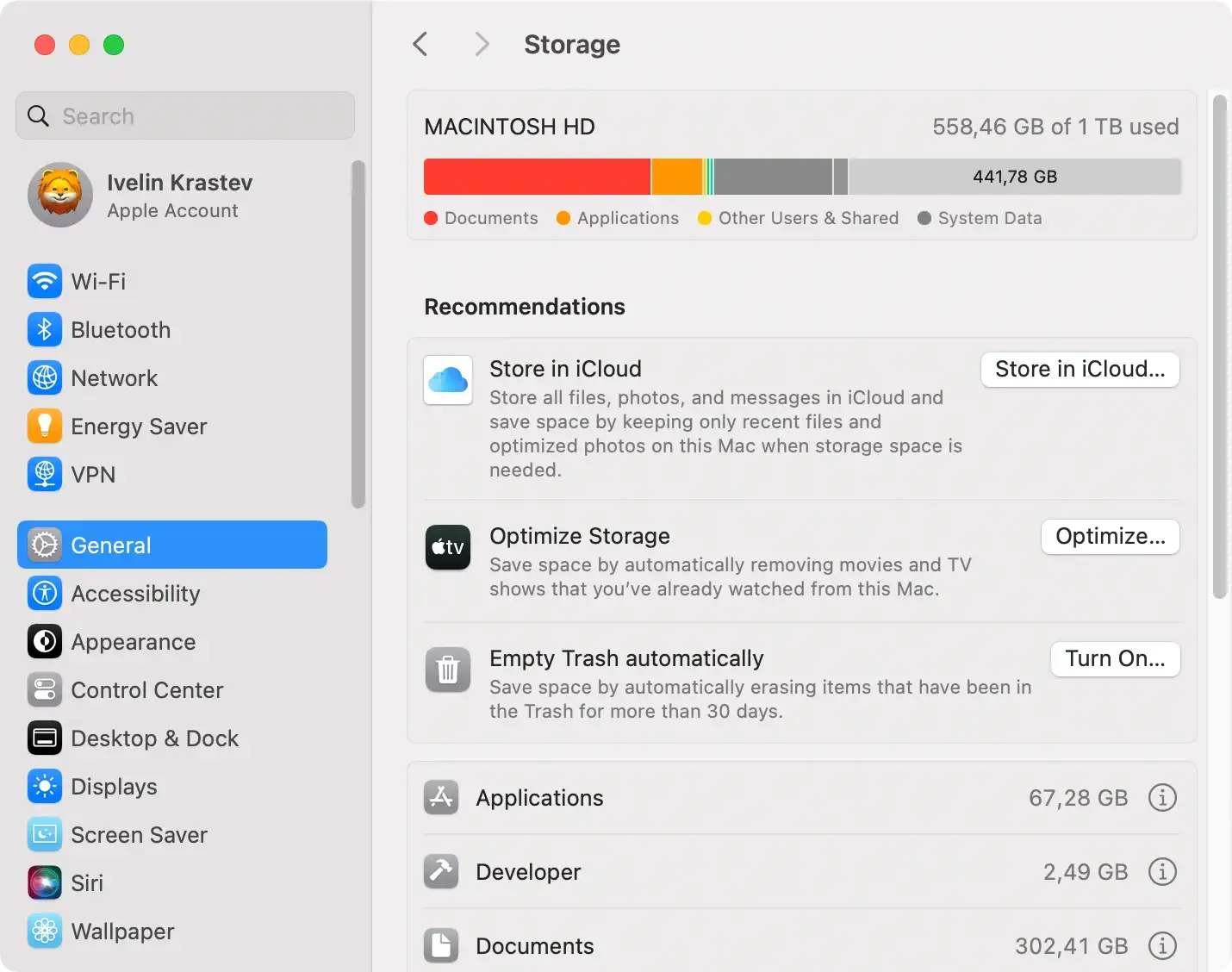
- Look at the recommendations and choose which ones to follow.
- Click the “i” next to items like
Applications,Books, orPodcasts, and delete anything you no longer need.
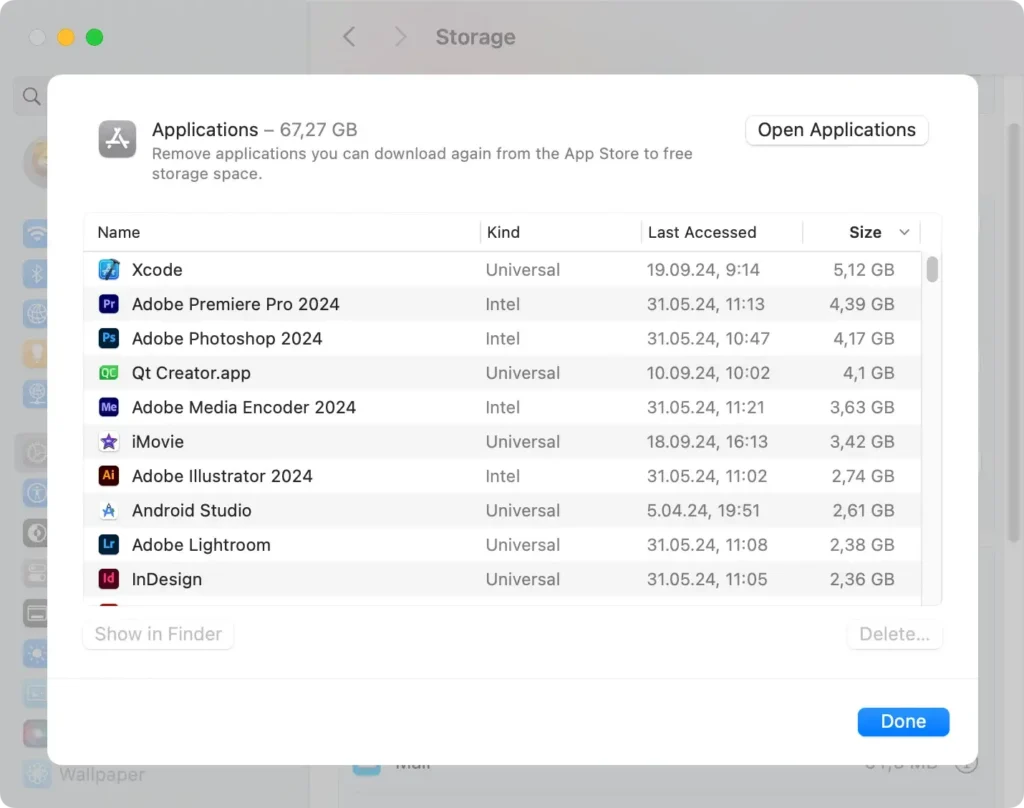
For a faster, more thorough cleanup, consider using SpyHunter to remove junk files, duplicates, and large files.
SpyHunter makes it easy to reclaim disk space with just a few clicks, helping ensure your Mac is ready for the macOS Sequoia installation.
You don’t have to manually dig up cookies, system caches, logs, language files, and more.
Download SpyHunter now to quickly scan and free up disk space, preventing future issues with macOS updates.
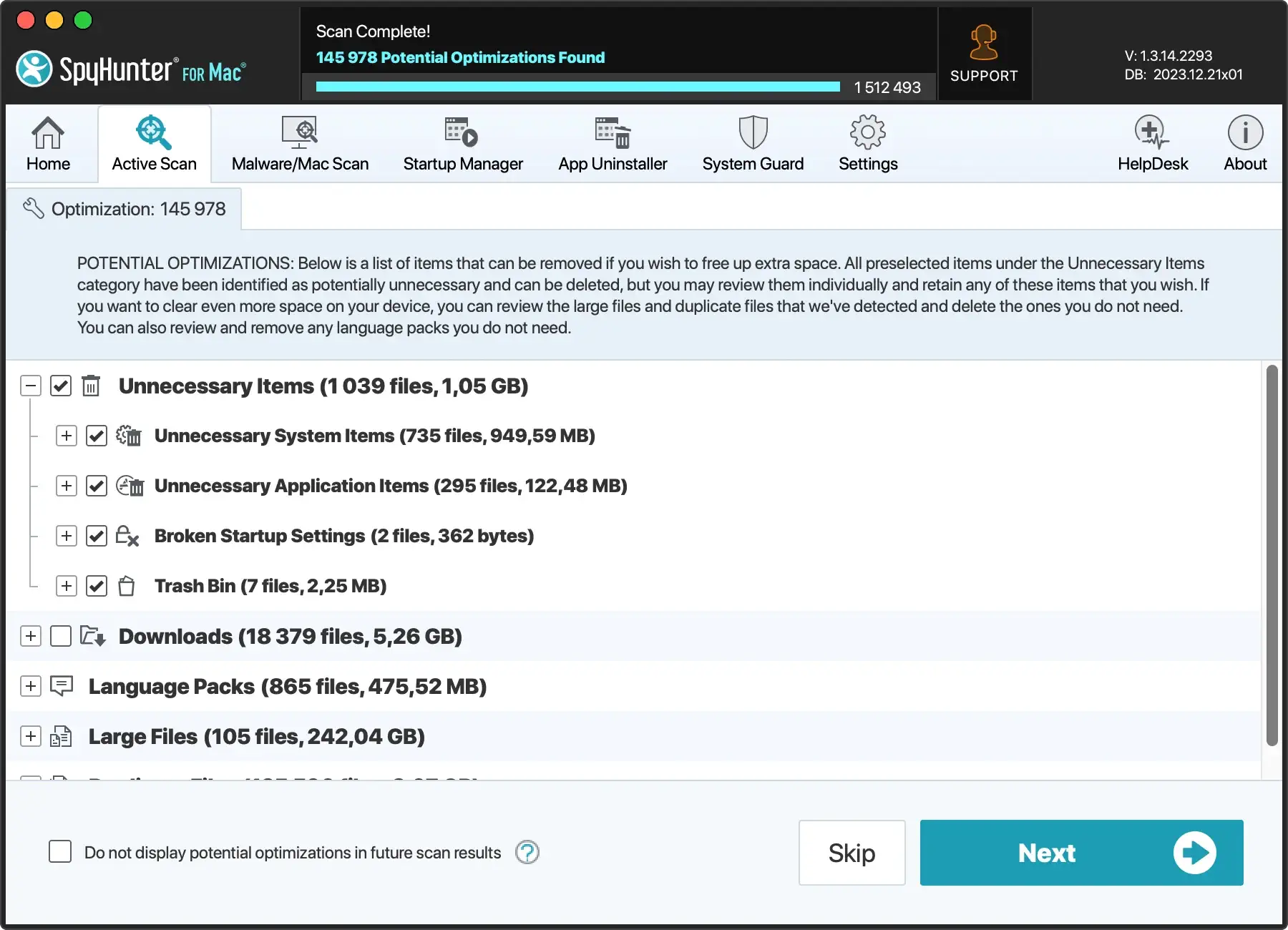
By freeing up disk space with SpyHunter, you can ensure your Mac has enough room to download macOS Sequoia.
4. Check the status of the Apple servers
Sometimes, the issue isn’t on your end—Apple’s servers may be temporarily down or experiencing high traffic, causing the download to stall.
To check the status:
- Visit Apple’s System Status page.
- Look for the
macOS Software Updatestatus on the list.
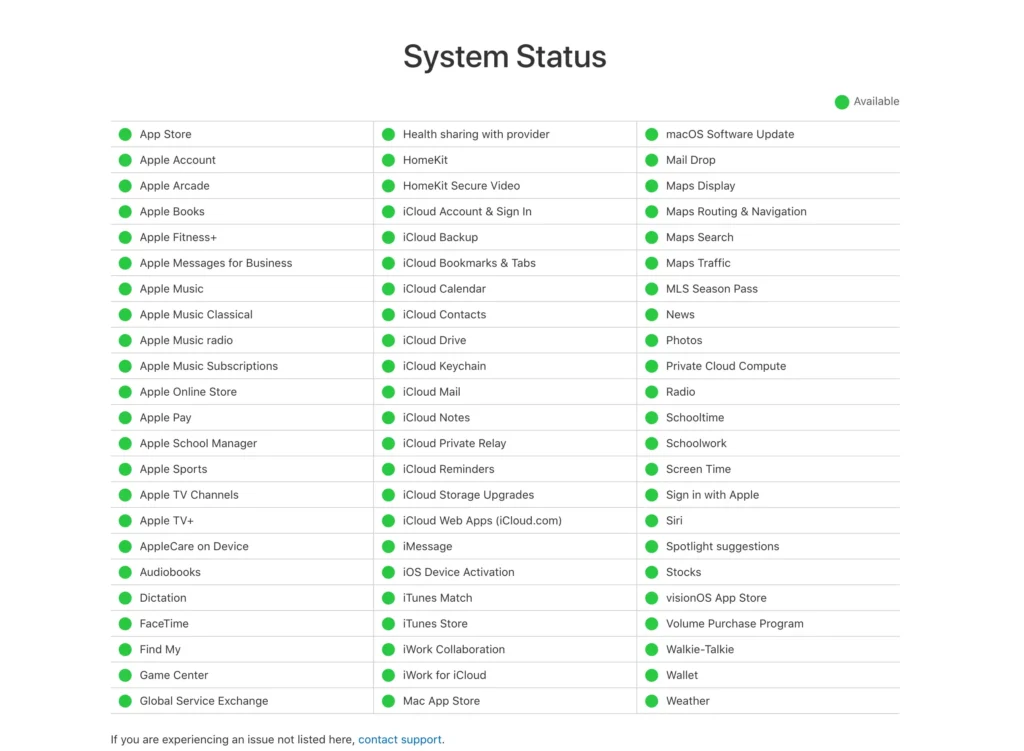
If the servers are down, all you can do is wait until they are back online and try again.
5. Be patient and give the update time
Large software updates like macOS Sequoia can take longer to complete.
Keep your Mac plugged in and let the update run for a few hours before assuming it’s stuck.
Sometimes, all it takes is a little extra time for the process to finish.
6. Reset PRAM and SMC
If you still can’t install Sequoia, resetting your Mac’s PRAM (Parameter RAM) or SMC (System Management Controller) can help resolve the issue.
Here’s how:
Apple Silicon Macs
Resetting PRAM and SMC isn’t possible on Apple silicon Macs, as these processes are automatically handled during startup.
Instead, shut down your Mac from the Apple logo, wait for 30 seconds, and start it again to refresh the system.
Reset PRAM on an Intel Mac
- Shut down your Mac.
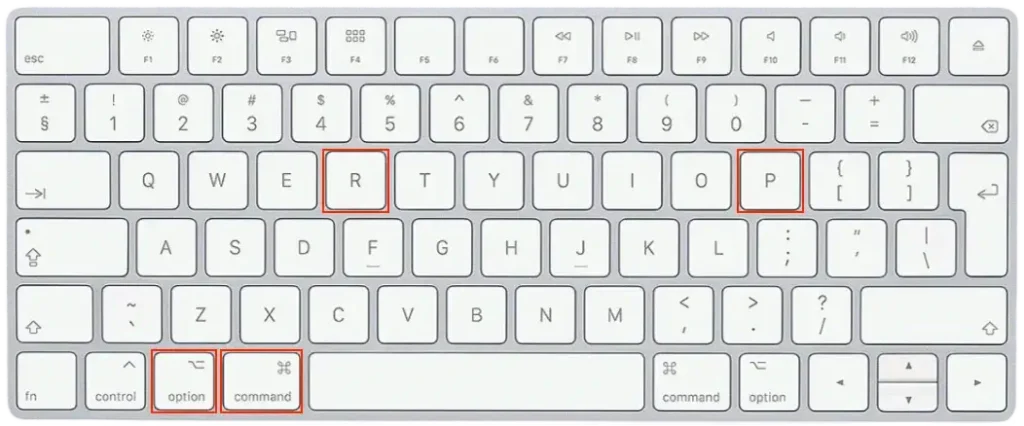
- Turn it back on and immediately press and hold
Command + Option + P + R. - Hold the keys for about 20 seconds, then release them.
Reset SMC on an Intel Mac
- Shut down your Mac.
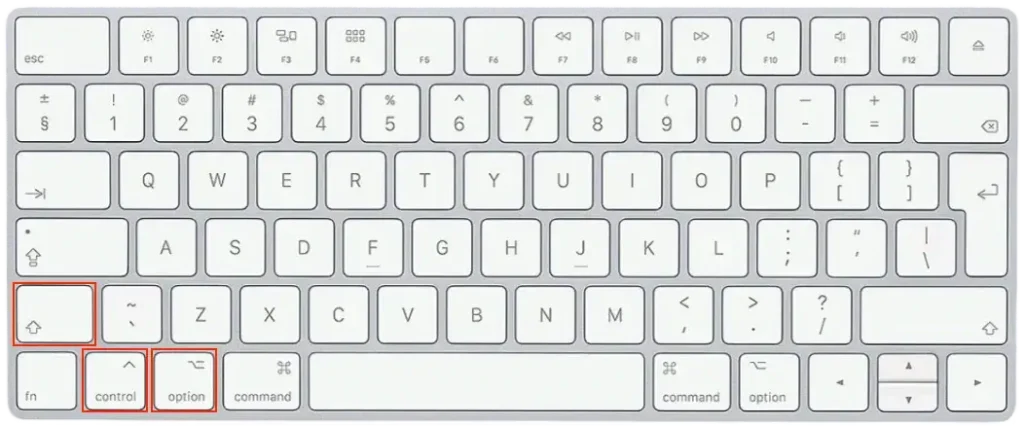
- Hold
Shift + Control + Optionalong with the power button for 10 seconds. - Release all keys and turn your Mac back on.
What to do if “Preparing macOS Sequoia” is stuck?
If the “Preparing macOS Sequoia” stuck, don’t panic—there are several steps you can try to get things moving again.
Here’s what you should do:
Download macOS Sequoia from the App Store
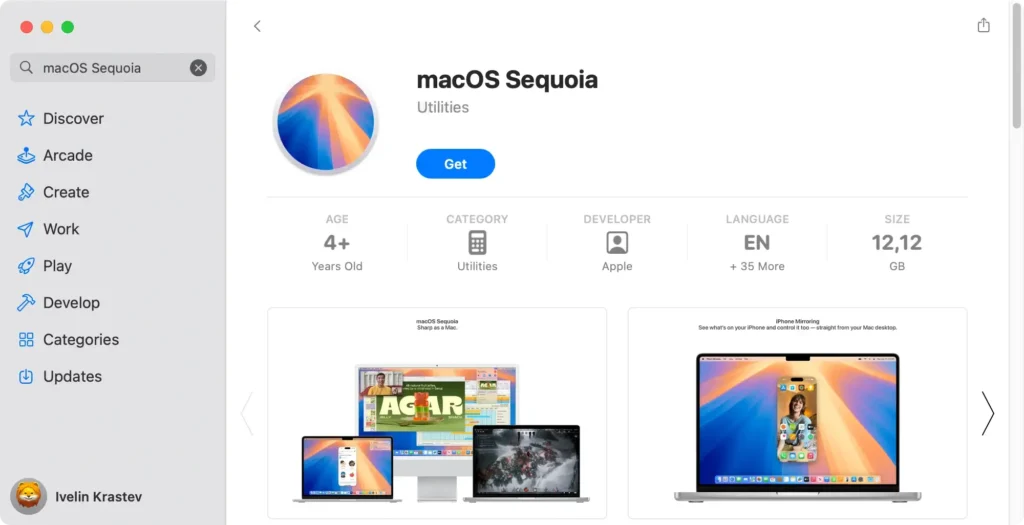
If the macOS Sequoia installer you’re using seems to be the issue, try re-downloading it from the Mac App Store.
Open the Apple Store, search for macOS Sequoia, and download the installer again. This fresh copy might help if your current installer file is corrupted.
Use Recovery mode to install macOS Sequoia
Recovery Mode can help resolve installation issues by allowing you to reinstall macOS Sequoia without affecting your personal data.
Restart your Mac and hold down Command + R until you see the Apple logo. From the menu, select Reinstall macOS and follow the on-screen instructions.
This can help bypass the “Preparing macOS Sequoia” stuck error messages.
Boot into Safe Mode
Safe Mode is a great tool to troubleshoot stubborn problems.
Restart your Mac and hold down the Shift key till you see the login window. Once in Safe Mode, try rerunning the installer.
Safe Mode turns off unnecessary software that could interfere with the installation process, which might help resolve the issue.
Install macOS Sequoia using a bootable installer
If none of the above methods work, consider using a bootable USB installer to install macOS Sequoia.
To create a bootable installer, you’ll need a USB drive (at least 16GB) and the macOS Sequoia installer file.
Open Disk Utility to format the USB drive as Mac OS Extended (Journaled), and then use Terminal to create the installer.
Once done, force restart your Mac, hold down the Option key, and select the USB stick to install macOS.
These steps should help resolve the issue if your “Preparing macOS Sequoia” is stuck.
Remember to have enough free space on your startup disk and ensure your Mac is compatible with the update to avoid future problems.
If the issue persists, it might be time to contact Apple Support for further assistance.
Bottom Line
If your macOS Sequoia update stuck, it’s usually due to issues like low disk space, unstable internet connection, or system conflicts.
You can troubleshoot most issues by following the steps outlined, including ensuring your Mac is compatible, freeing up disk space, and resetting PRAM or SMC on Intel-based Macs.
Staying up to date with the latest macOS versions will help keep your Mac running smoothly with the newest features.
