

How To Install macOS Sequoia On Unsupported Mac?

Before we dive in
Before we dive in, let's make sure you stay safe online. We created SpyHunter because your security matters to us.
Protect your computer today — download SpyHunter right here! Check out our top tips below to keep your computer safe and secure.

If you own an older Mac that isn’t on Apple’s official list for macOS Sequoia, you might think it’s time to upgrade to a newer model.
But what if we told you there’s a way to install macOS Sequoia on an unsupported Mac?
While Apple may have moved on, your Mac still has life left in it, and with a few extra steps, you can enjoy the latest features of macOS Sequoia.
In this post, we’ll explain how to use tools like OpenCore Legacy Patcher and create a bootable macOS Sequoia installer to get your Mac running the latest macOS version.
Ready to bring your older Mac back to life? Let’s dive in!
Is it safe to install macOS Sequoia on unsupported Mac?
Installing macOS Sequoia on an unsupported Mac can be a tempting option if you’re eager to experience the latest macOS features.
However, it’s not without risks. Since Apple officially drops support for older Mac models with each new macOS version, there’s a reason why some machines aren’t listed as compatible.
These older Macs might lack the resources to handle the demands of macOS Sequoia, leading to a system crash or performance issues.
The biggest concern is that installing macOS Sequoia on an unsupported Mac bypasses Apple’s safeguards, which means you won’t have access to official updates, patches, or technical support.
Some unsupported Macs may struggle with running resource-heavy tasks, and you could face instability issues like apps freezing, sluggish performance, or battery draining faster than usual.
Ultimately, the decision is yours. While installing macOS Sequoia on unsupported hardware might let you enjoy new features, you should only attempt this on a Mac you don’t rely on for critical tasks.
Treat it as an experiment, and make sure you’re prepared for possible complications along the way.
Disclaimer: Apple does not recommend installing macOS Sequoia on an unsupported Mac. Doing so can result in hardware or software problems, and you won’t receive assistance from Apple Support or authorized service providers. Proceed with caution and understand the potential risks before moving forward.
Prepare your Mac before installing macOS Sequoia
Before installing macOS Sequoia on an unsupported Mac, follow these essential steps to minimize potential issues:
- Back-Up Your Mac — Always start by backing up your data. Since installing macOS Sequoia on unsupported Macs can be unpredictable, use Time Machine or an external drive to create a full backup. This ensures you can recover your system if anything goes wrong.
- Free Up Space — Ensure your Mac has enough free storage space for the macOS Sequoia installation. A cluttered hard drive can lead to installation conflicts. Remove unnecessary files and unused apps and clear out old downloads to free up space.
- Optimize and Clean Your Mac — Use tools like SpyHunter to clear junk files and ensure your Mac is malware-free. This step helps prevent slowdowns or crashes during the installation process. Download SpyHunter now and clean your Mac with a few clicks.
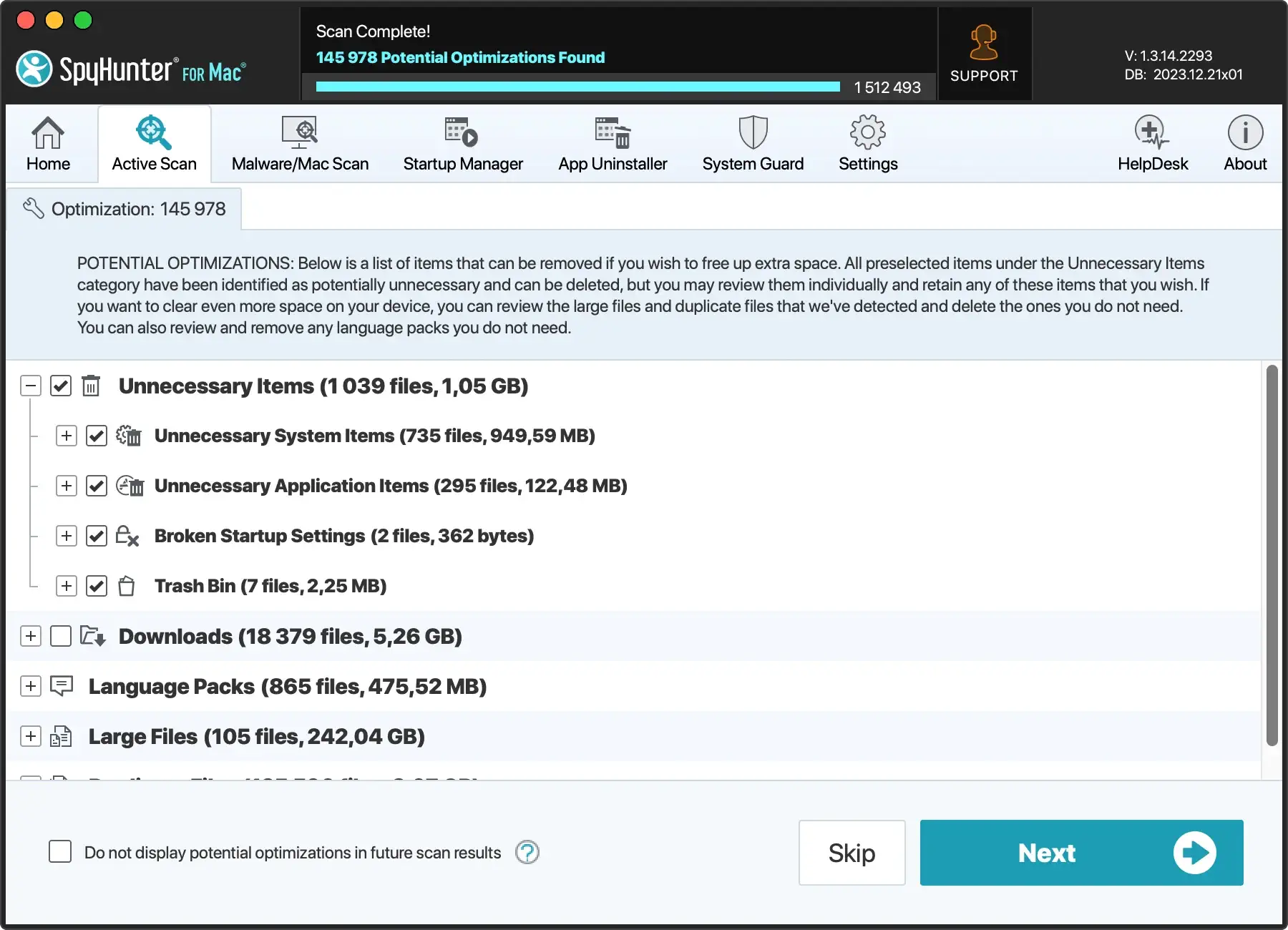
- Check Your Mac’s Resources — macOS Sequoia demands more resources than older macOS versions, so make sure your Mac’s CPU and memory are in good shape. Be prepared for possible performance issues on older models, and consider reducing animations or limiting the number of apps running to keep your Mac running smoothly.
By preparing properly, you can make the macOS Sequoia installation process much smoother and reduce the likelihood of problems later on.
How to install macOS Sequoia on an unsupported Mac
Now that your Mac is prepared, you’re ready to begin the installation process of macOS Sequoia on an unsupported Mac.
This requires using the OpenCore Legacy Patcher to bypass Apple’s hardware restrictions.
Follow these detailed instructions to install macOS Sequoia:
- Plug in a USB flash drive (minimum 16 GB, preferably 32 GB). You will use this drive to create a bootable macOS Sequoia USB installer.
- Go to the OpenCore Legacy Patcher website and download the app. Once the download completes, open the
OpenCore-Patcherapp from yourApplicationsfolder.
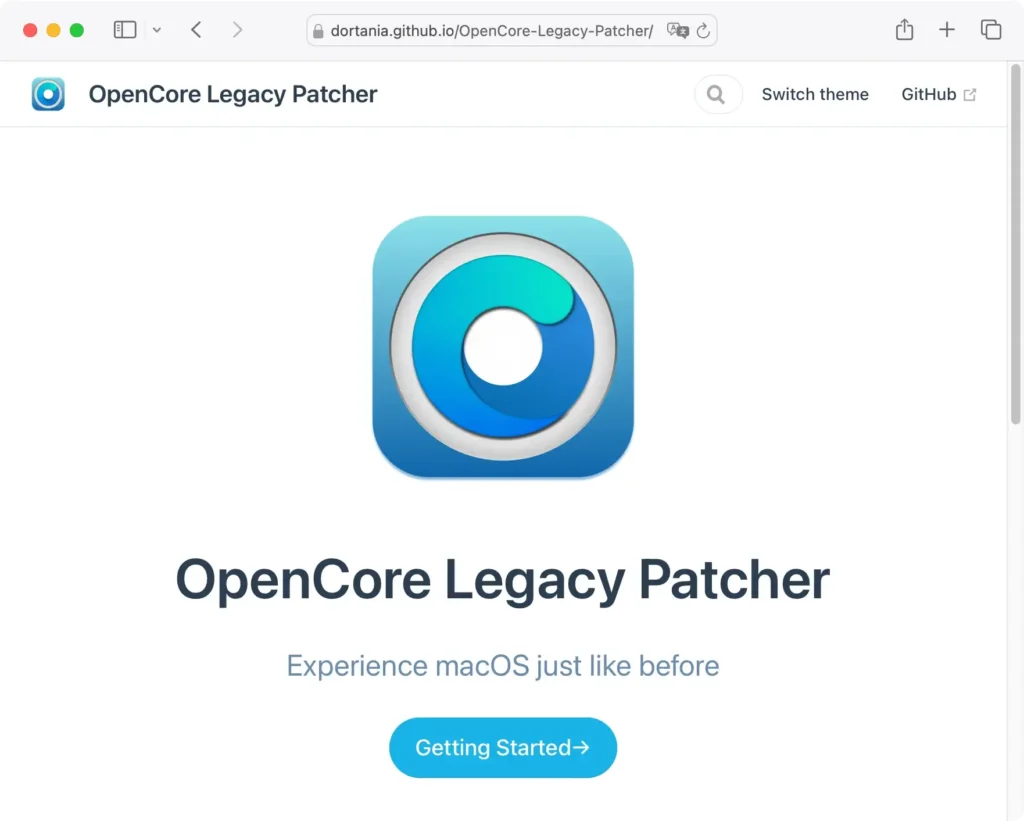
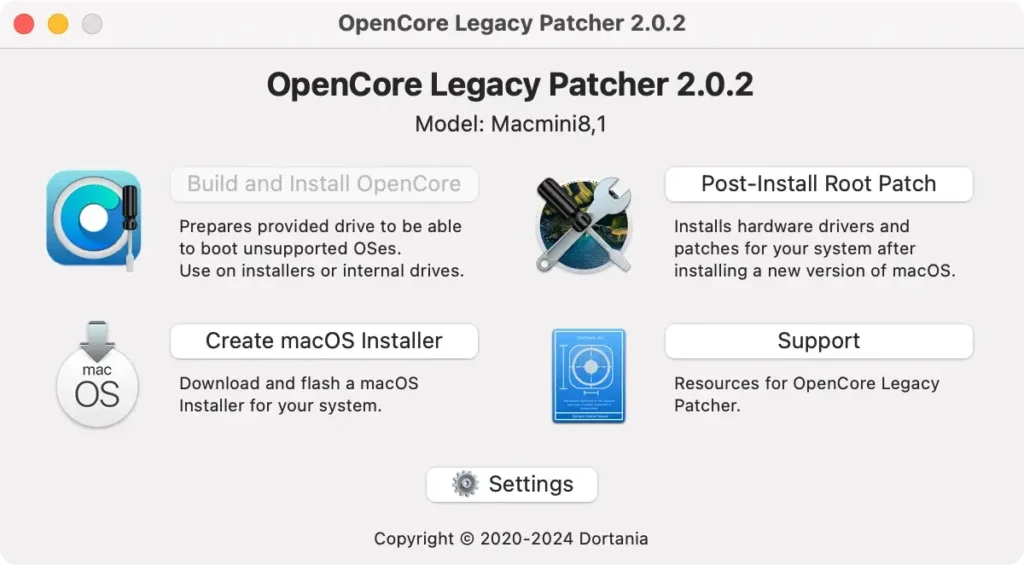
- After installing OpenCore Legacy Patcher on your Mac, you have to create a bootable macOS Installer. In the app’s main window, click Create macOS Installer.
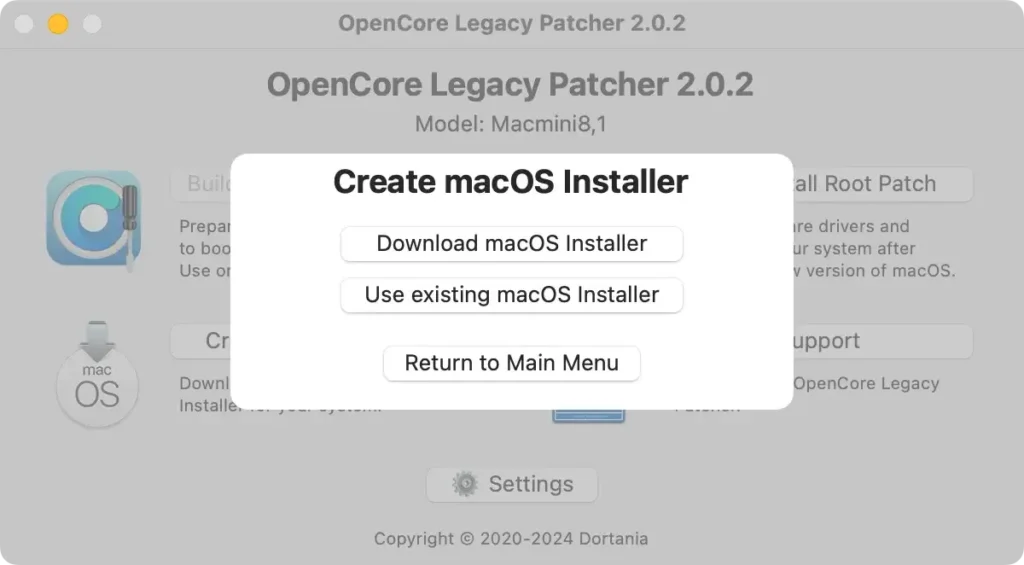
- Choose
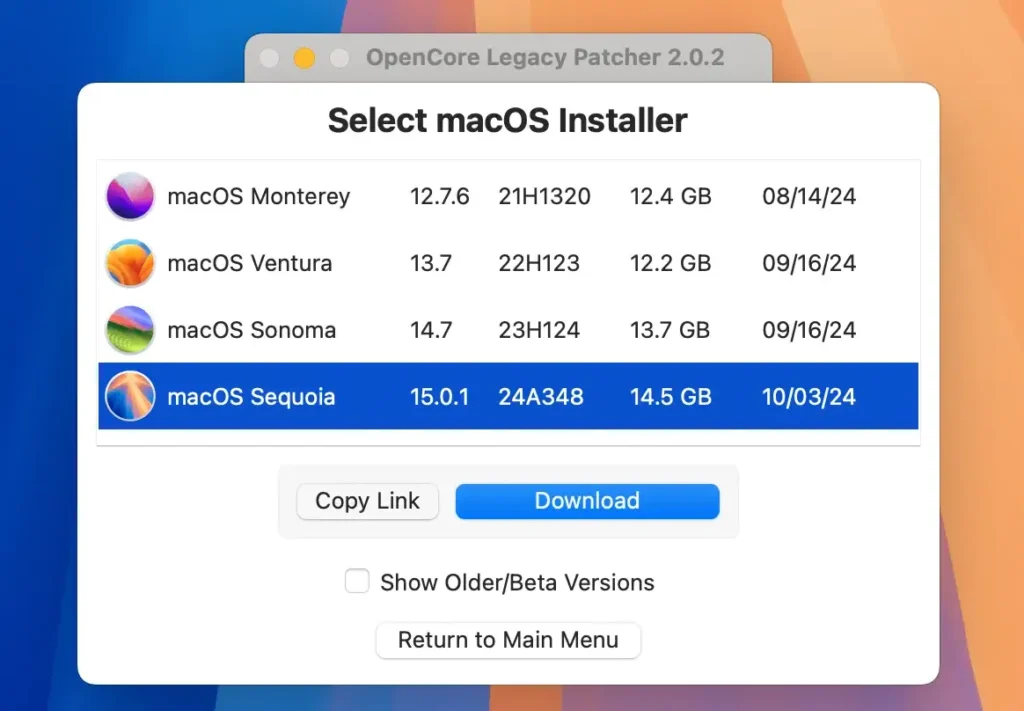
Download macOS Installerto download the macOS Sequoia installer.
- From the list of available macOS versions, choose the latest non-beta version of macOS Sequoia (near the bottom of the list)
- Next, in the OpenCore-Patcher app, click
Flash Installer. - Select the
Install macOS Sequoiaapp from yourApplicationsfolder. - Choose the USB drive you plugged in earlier. This will erase and format the drive, so ensure you’ve selected the correct disk.
- Once the process is complete, you’ll have a bootable macOS installer.
- Return to the main menu in OpenCore-Patcher and click
Build and Install OpenCore. - Click
Build OpenCoreto continue. - When the build is complete, click
Install OpenCore. - Select the USB drive again, then choose the
EFIpartition when prompted. - Plug the bootable installer into the unsupported Mac where you want to install Sequoia.
- Shut down the Mac, then restart it while holding the
Optionkey. - From the boot options, select the
EFI Bootoption with the OpenCore logo. - Now, use the arrow keys to select
Install macOS Sequoiafrom the options. - Your Mac will boot into the macOS installer. Then, you will see the following options: Restore from Time Machine, Install macOS Sequoia, Safari, and Disk Utility.
- In the
macOS Utilitieswindow, selectInstall macOS. - Choose your Mac’s internal drive (e.g., Macintosh HD) and follow the on-screen prompts to complete the installation process.
- Once your Mac restarts and the installation is complete, hold down the
Optionkey again and chooseEFI Boot, but this time, select themacOS Installeroption to finish the installation. - Once macOS Sequoia is fully installed, open the OpenCore-Patcher app again.
- This time, select your internal drive in the
Install OpenCorestep and follow the prompts to install OpenCore to your Mac’s internal drive. - To ensure macOS Sequoia works properly with your Mac’s older hardware, apply the
Post-Install Root Patch. In the OpenCore-Patcher app, clickPost-Install Root Patchand thenStart Root Patching. Follow any prompts to finish the patching process. - Once patching is complete, eject the bootable USB installer and restart your Mac one last time. Hold
Optionand select the internal drive’sEFI Boot. - Your unsupported Mac is now running macOS Sequoia!
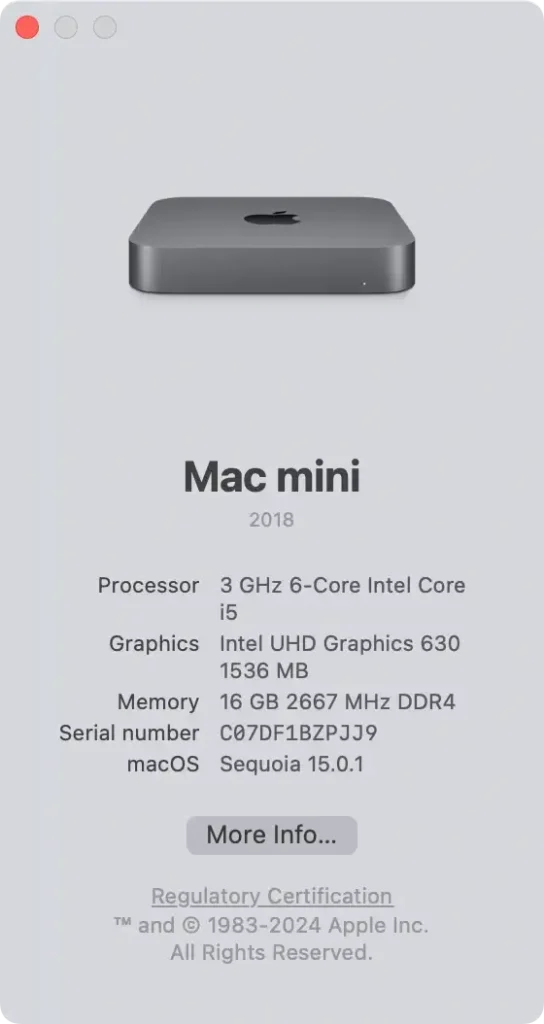
By following these steps, you can successfully install Sequoia on your unsupported Mac.
Remember, this method relies on the OpenCore Legacy Patcher to bypass hardware restrictions. While it allows older Macs to run macOS Sequoia, it may have performance limitations.
FAQs
What Macs can run macOS Sequoia unofficially?
While macOS Sequoia isn’t officially supported on certain older Macs, some models can still run it using a workaround like the OpenCore Legacy Patcher.
These unofficially supported Macs include:
- MacBook (Late 2008 through 2019)
- MacBook Air (Late 2008 through 2017)
- MacBook Pro (Early 2008 through 2017)
- iMac (Mid 2007, after a CPU upgrade)
- iMac (Early 2008 through 2018)
- Mac mini (Early 2009 through 2017)
- Mac Pro (Early 2008 through 2018)
Although these Macs can support macOS Sequoia, it may require extra steps and caution due to potential performance limitations.
What should I do if my Mac crashes during the macOS Sequoia installation?
If your Mac crashes during the installation process, restart it while holding down the Option key and select the bootable USB drive with the macOS Sequoia installer.
Follow the instructions to restart the installation. If issues persist, you might need to troubleshoot by checking Disk Utility or running the Post-Install Root.
Final thoughts
In conclusion, installing macOS Sequoia on an unsupported Mac can extend the life of your older device and allow you to experience the latest features and updates.
However, it’s essential to understand the risks, such as possible performance issues or system instability. By following the steps outlined in this guide and using tools like OpenCore Legacy Patcher, you can bypass the hardware restrictions and successfully run macOS Sequoia.
Just remember to back up your data, prepare your system carefully, and be aware that not all features may work perfectly on older hardware.
If you’re willing to take the leap, your older Mac could be running macOS Sequoia in no time!
