

4 Ways To Clean Other Storage On Mac [Easy Guide]

Before we dive in
Before we dive in, let's make sure you stay safe online. We created SpyHunter because your security matters to us.
Protect your computer today — download SpyHunter right here! Check out our top tips below to keep your computer safe and secure.

Ever wondered what the ‘Other’ storage on your Mac is all about and why it keeps filling up?
This category is where macOS tucks away files that don’t fit into typical labels like Photos or Applications. From system caches to old backups, these files can hog valuable space, slowing down your Mac.
In this article, we’ll show you what accumulates in that storage category, how to clear ‘Other’ storage on Mac, and the tools that can help you keep your system running smoothly.
Whether you’re looking to reclaim disk space or optimize your computer’s performance, we’ve got practical advice and simple solutions tailored just for your needs.
What exactly is ‘Other’ storage on a Mac?
‘Other’ storage on a Mac is a category used by macOS to classify files that do not belong to well-known categories like Photos, Applications, Music, and Documents.
This category includes a variety of files such as system cache, logs, extensions, disk images, and various types of documents like PDFs or temporary files created by apps and services.
As software and applications run and update, they generate temporary data and logs, which are stored here.

This section of storage can become a space hog, leading to less free space available on your Mac for new files and applications.
Managing and minimizing ‘Other’ storage is crucial for maintaining your computer’s efficiency and ensuring seamless performance.
On more recent versions of macOS, the label ‘Other’ storage was renamed to System Data. We have an article with tips on how to clear System Data as well that you can check out.
The only major difference, apart from the name, is that system-related files were shown under Other storage before, and on newer versions of the OS, they are in their separate category.
Identify what accumulates in ‘Other’ storage
The content of ‘Other’ storage can be diverse, making it a bit of a mystery box for Mac users. It primarily consists of the following:
- Cache files: Includes user, browser, and system caches that store temporary data to speed up processes and app launches.
- App plugins and extensions: These are additional files that enhance app functionality but often consume considerable space.
- Disk images and archives: Files with extensions like .dmg and .zip, which are often leftovers from app installations or downloads.
- Temporary files and system logs: Data created by macOS and apps during operation, intended for short-term use but sometimes not deleted properly.
- Old device backups: These are backups from iOS or macOS devices that may no longer be needed but still occupy space.
Identifying these files can be the first step toward reclaiming storage space and optimizing your Mac’s performance.
Regularly reviewing and cleaning up these files can prevent ‘Other’ storage from becoming bloated and ensure your system runs smoothly.
Steps to free up ‘Other’ storage effectively
Managing the ‘Other’ storage on your Mac entails dealing with files and data that don’t fit easily into obvious categories like applications or media files. This section will guide you through several effective steps to clean up those elusive ‘Other’ storage spaces that tend to accumulate over time.
1. Start with deleting large, old files
One of your first steps should be to locate and dispose of large, old files that are unnecessarily occupying space.
You can search for sizeable files and outdated data that you no longer need.
- Press
Command-Fon your desktop. - Click
This Mac. - Set the dropdown menu to
Other. ChooseFile SizeandFile Extensionin theSearch Attributeswindow. - Type in various file types like .pdf or .pages, specify the size, and start the search.
- Review the items and delete as necessary to free up space.
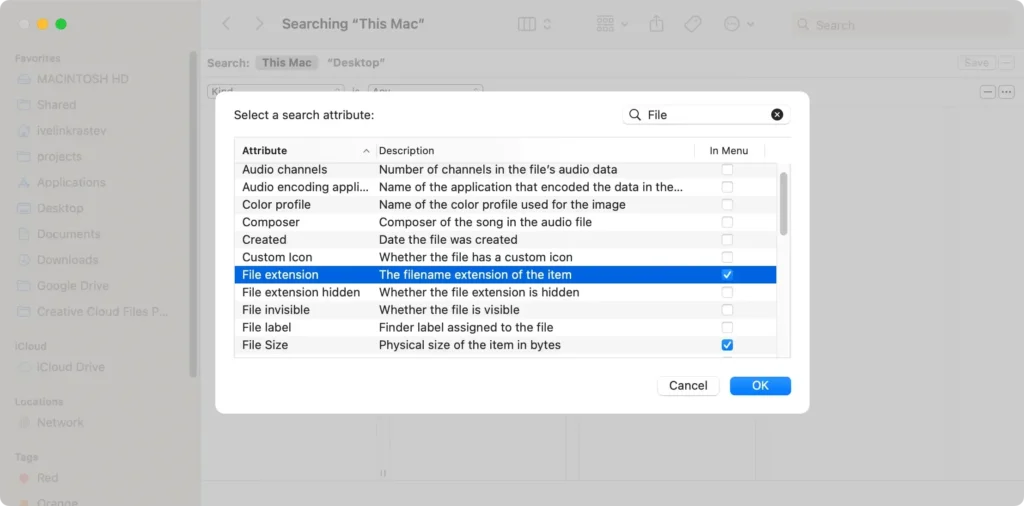
This manual review not only helps reclaim storage but also gives you a better overview of your data usage.
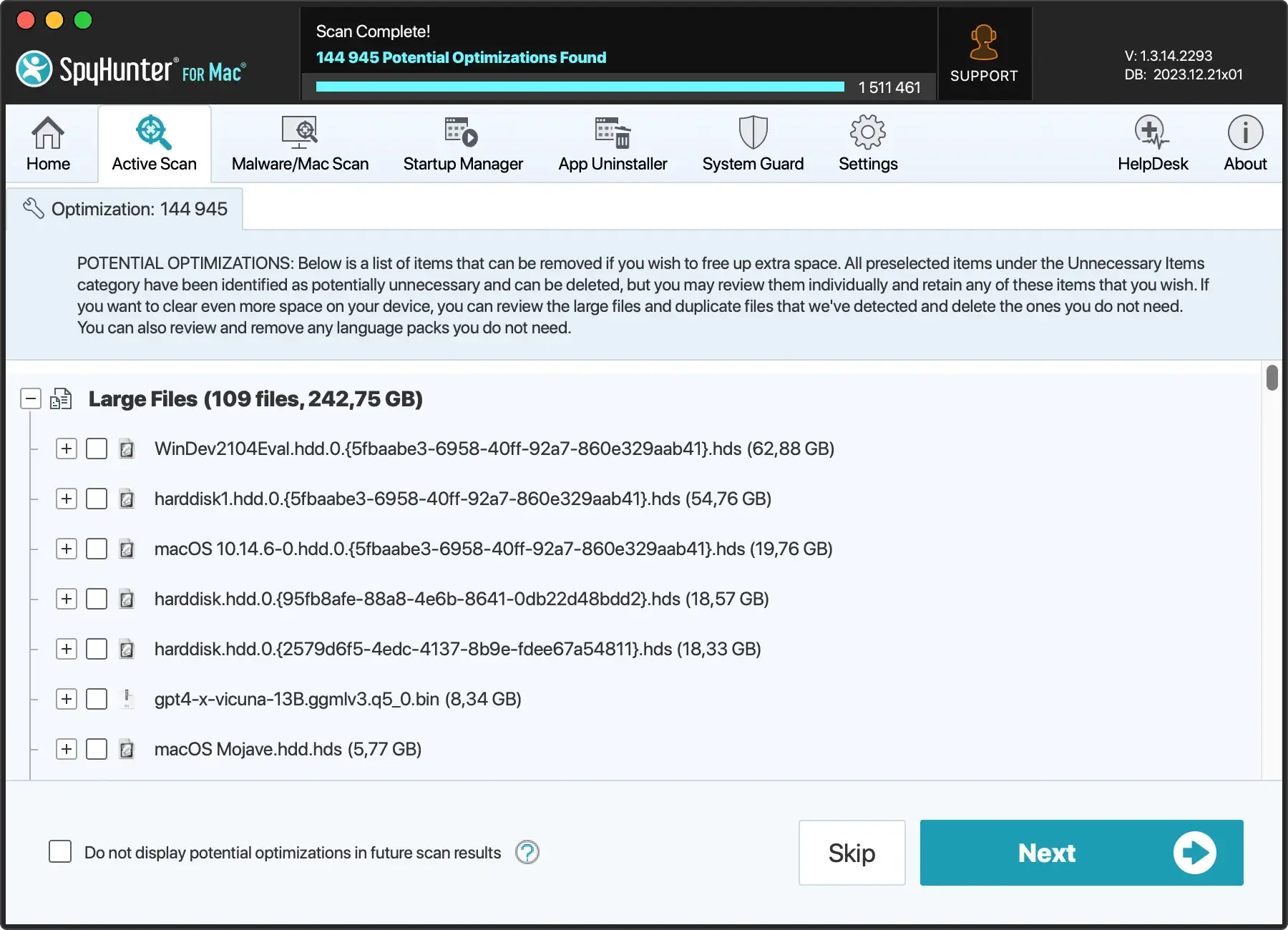
For this step, you could also use a helpful automated tool like SpyHunter. You can download SpyHunter and use its integrated module that can detect and automatically remove large and duplicate files for you.
2. Clear your cache
Clearing cache is another effective method to free up ‘Other’ storage.
Cache files are temporary data stored to speed up processes, but over time they can consume significant space.
Reviewing browser cache in different browsers
Each browser stores its cache, which can grow rapidly. Here’s how to clear the cache in the most commonly used browsers on Mac:
- Safari: Go to
Safari > Preferences > Advanced. Enable theShow Develop menuin menu bar. Then selectDevelopand clickEmpty Caches. - Chrome: Use the shortcut
⌘ Command+⇧ Shift+Del. Check the boxes next toCookies and other site dataandCached images and files. ClickDelete data. - Firefox: Similarly, with
⌘ Command+⇧ Shift+Del, selectCacheandCookies, then chooseClear Now.
This step not only frees up storage but also can lead to improved browser performance.
3. Manage Time Machine backups and snapshots
Time Machine backups can also take up a part of ‘Other’ storage. Managing these can free up considerable space.
- Go to
System Preferences > Time Machine. - Choose to
Stop Backupsor adjust the settings to reduce the frequency of backups. - Remove old backups by selecting them in the
Time Machineinterface and choosingDelete Backup.
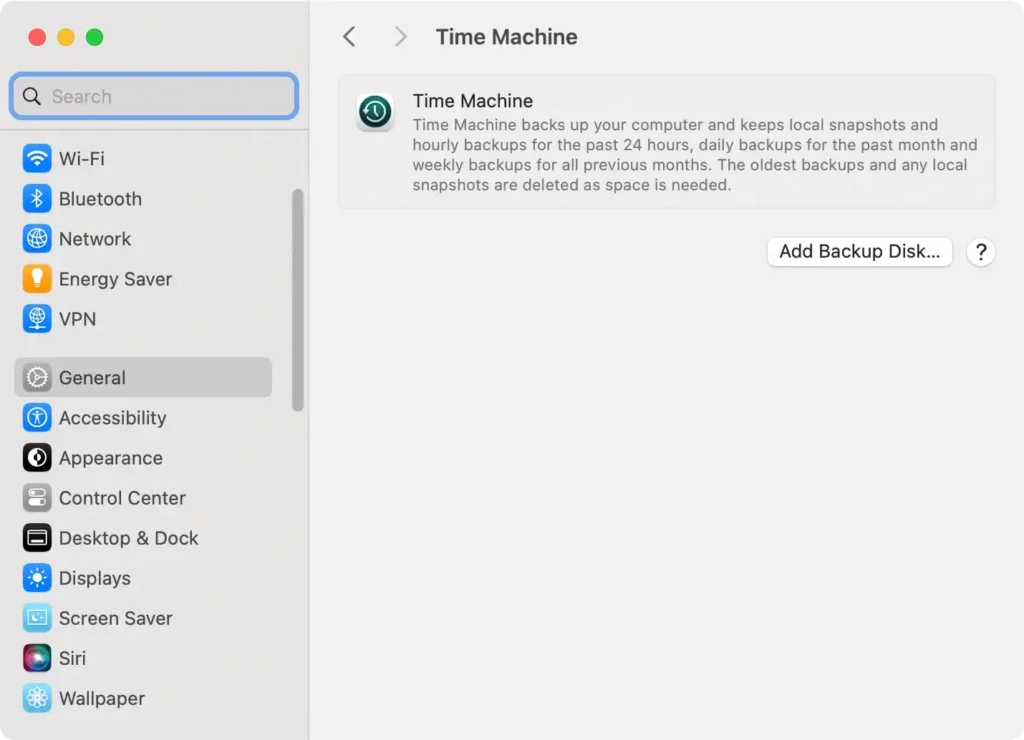
Reducing the burden of old backups helps regain storage without sacrificing important recent backup data.
4. Tackle app plugins and extensions with ease
- Safari: Go to
Preferences > Extensions. In theExtensionstab, Uninstall unnecessary extensions by clickingUninstall. - Chrome and Firefox: Access extensions via the browser’s menu and remove those that are seldom used.
Regular management of extensions not only frees up space but can also enhance the performance and security of your web browsers.
Understanding extensions impact on storage
Plug-ins and extensions may seem small, but they can accumulate substantial cache and settings data over time.
Assessing which extensions you actually need and removing the rest can have a noticeable effect on the space occupied in ‘Other’ storage.
Using SpyHunter to manage storage space
SpyHunter is primarily an anti-malware tool, but it also includes several features that make it a great assistant in maintaining a clean and efficient system.
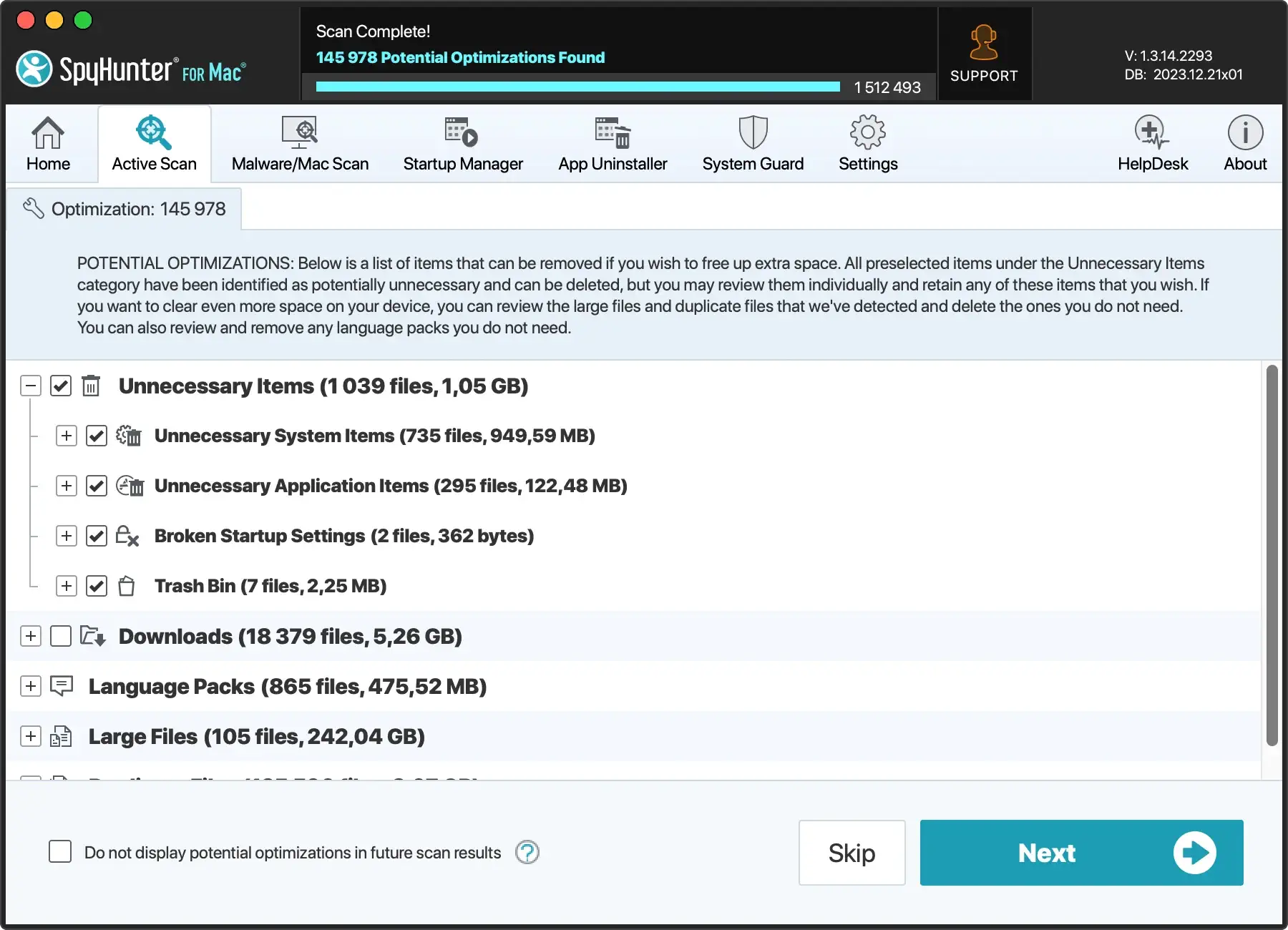
Those features include an optimization scanner that can scan your Mac for duplicate, large, and junk files and make suggestions to save space.
You can download the app from here and install it on your Mac to check this functionality for yourself.
Simply install the app following the on-screen prompts, then run an optimizations scan and see how much valuable storage space you can regain in just a few clicks, without having to manually hunt down and delete files.
Advanced tips to keep ‘Other’ storage minimal
Maintaining minimal ‘Other’ storage on your Mac not only frees up disk space but also improves overall system performance.
One effective method is to regularly review and clear out old documents, downloads, and media files that you no longer need.
Additionally, pay attention to app data that accumulates over time, which can often be cleared without affecting the functionality of the apps.
Setting up regular clean-ups
To keep your Mac’s ‘Other’ storage in check, it’s prudent to schedule regular clean-up sessions. This can be done manually by setting reminders every month to delete unnecessary files and clear caches.
Alternatively, you could use calendar apps to automate reminders, ensuring you don’t forget to maintain your device’s health.
Common questions about Mac ‘Other’ storage
Why does ‘Other’ storage become so large?
‘Other’ storage on Macs often becomes large due to the accumulation of files that don’t fit neatly into the standard categories of Documents, Apps, Photos, etc.
This includes temporary files, cache files, system logs, and even old backups. As you use various applications, they generate temporary data and logs for diagnostics, which can accumulate if not regularly cleared.
Additionally, if you perform frequent software updates or downloads, these often leave behind residual files that contribute to the size of ‘Other’ Mac storage.
How can you prevent ‘Other’ storage from filling up?
Regularly managing the ‘Other’ storage on your Mac can prevent it from filling up and ensure your system runs smoothly. Here are a few steps to help maintain it:
- Regularly clear your cache files. You can do this manually through the Library folder or use a specialized tool like SpyHunter that safely removes unnecessary or temporary files.
- Safely delete old device backups that are no longer needed. This includes old iOS and macOS backups that can take up substantial space.
- Organize and delete large downloaded files that you no longer need, such as large and unneeded documents, archive files, and especially large media files that take up too much space. Delete .dmg files and installation files you no longer need.
- Maintain your system by uninstalling apps that you no longer use. This not only helps reduce ‘Other’ storage but also improves overall system performance.
