

How To Check Storage On Mac: 5 Simple Ways To Do It

Before we dive in
Before we dive in, let's make sure you stay safe online. We created SpyHunter because your security matters to us.
Protect your computer today — download SpyHunter right here! Check out our top tips below to keep your computer safe and secure.

Have you ever wondered why your Mac seems to slow down or run out of storage unexpectedly?
This article dives into why understanding your Mac’s storage is essential for its performance and longevity, offering practical tips and solutions to ensure your device runs smoothly.
From built-in macOS tools to the benefits of checking storage regularly, we cover everything you need to know to keep your Mac in top condition.
Why managing your Mac’s storage space is essential
Understanding the amount of storage space available on your Mac is crucial for maintaining its performance and ensuring that your device runs smoothly.
We save an increasing number of files, photos, videos, and applications, which all consume valuable disk space.
Knowing how much storage you have available can help you avoid running into issues that might slow down your Mac or even cause it to malfunction.

Moreover, with the trend of Macs having solid-state drives (SSDs) with generally lower storage capacities compared to traditional hard drives, managing your available space becomes even more important.
Benefits of regularly checking your storage
Regularly monitoring your Mac’s storage space offers several advantages that contribute to a better computing experience. Here are some key benefits:
- Improved performance: Your Mac requires a certain amount of free space to operate effectively. Regular checks can help ensure that your system has the necessary breathing room to run efficiently, thus maintaining optimal performance.
- Prevention of data loss: If your Mac runs out of storage space, it increases the risk of losing important data. You might find yourself unable to save files, or in worse cases, it could lead to system instability. Keeping an eye on storage lets you take action before these problems arise.
- Efficient file management: By understanding how your storage is being used, you can make informed decisions about which files or applications to keep and which to remove. This can also reveal opportunities to archive old files externally, clearing up space for new data.
In conclusion, the habit of checking your Mac’s storage is a simple yet effective practice that can lead to a more organized, secure, and high-performing computer.
Whether it’s through built-in tools or third-party applications, maintaining awareness of your storage situation is a step towards a better digital life on your Mac.
How to check storage on Mac
Let’s explore some user-friendly methods to keep tabs on your Mac’s disk space without diving into technical complexities.
1. How to check your Mac’s Storage through About This Mac
One of the easiest ways to check how much disk space you have left is by using the About This Mac feature.
This method provides a comprehensive overview of your used and available space, categorized by file types such as documents, apps, and system data.
Here’s how you can access this information:
- Click on the Apple icon at the top left of your screen.
- Choose
About This Macfrom the drop-down menu. - Click on
More Infoand scroll down until you see theStoragetab. - Click
Storage Settingsto see a more detailed view.
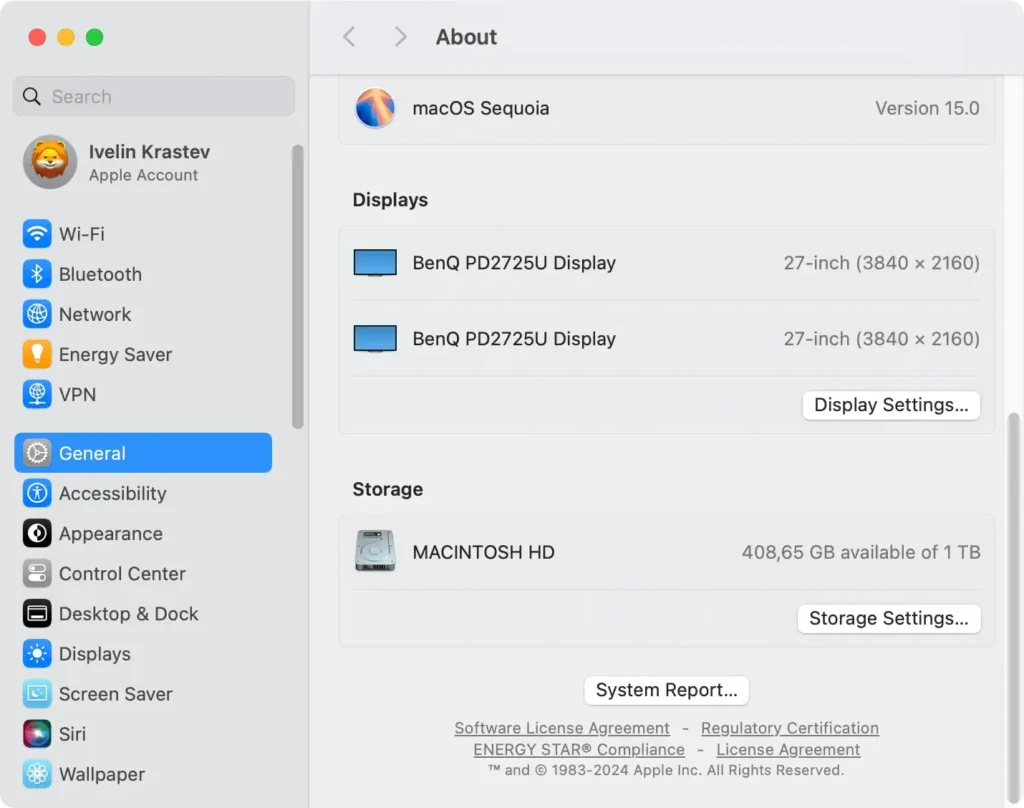
This section visually presents your storage usage in a color-coded bar graph, making it easy to see how space is allocated.
For a deeper dive into how much space each app or category of files is taking up, click on the Storage Settings button.
This opens the storage system settings for optimizing disk space, such as removing unnecessary files or employing cloud storage solutions.
2. How to use Finder to access storage details
The Finder application, at the heart of macOS, serves as the gateway to all your files and folders and offers a straightforward method for viewing how much storage space is being used.
This approach gives a quick snapshot of the current storage status without providing the detailed breakdown available in About This Mac.
Here’s how to utilize Finder for checking storage:
- Open a
Finderwindow. - From the sidebar under
Locations, selectMacintosh HD. - Press
Command + Ito open theInfowindow.
In the General section of the Info window, you’ll find details about capacity, available space, and space used.
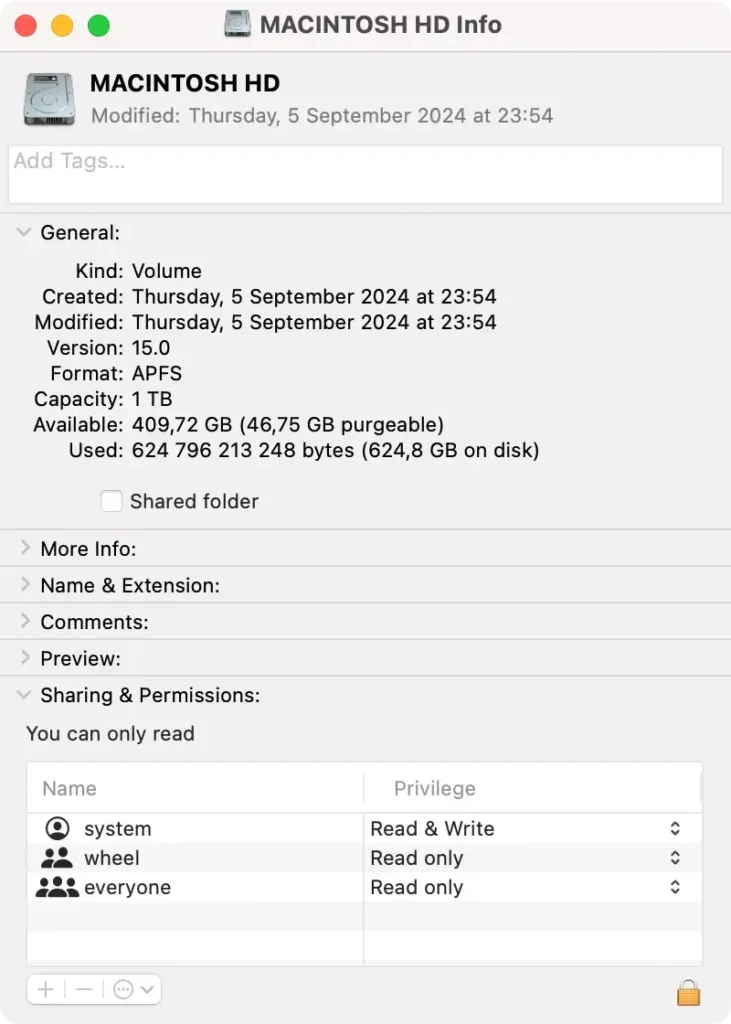
For a quicker view, you can also right-click on Macintosh HD in the sidebar and select Get Info.
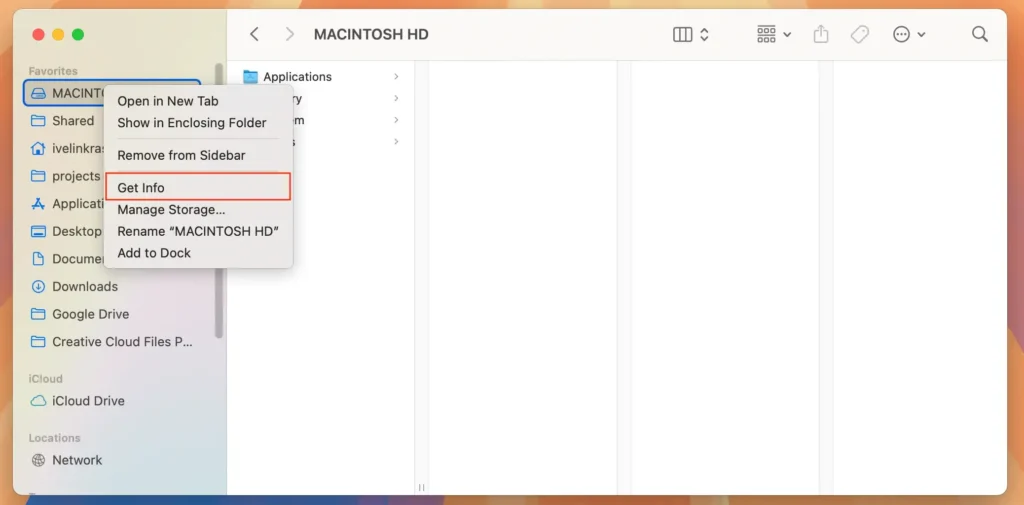
While this method doesn’t offer the detailed categorization of files, it’s a quick way to get a general overview of your Mac’s storage situation.
3. How to check Mac storage space using Disk Utility
To check storage space on a Mac using the Disk Utility app, follow these simple steps.
- Open
Disk Utilityby navigating toApplications > Utilities. - Once the app is open, you’ll see a list of all storage devices connected to your Mac on the left-hand side. Select your primary drive, which is usually named
Macintosh HD. - At the bottom of the window, you’ll find a summary of your storage, including
usedandavailablespace, alongside information on the drive’s overall capacity.
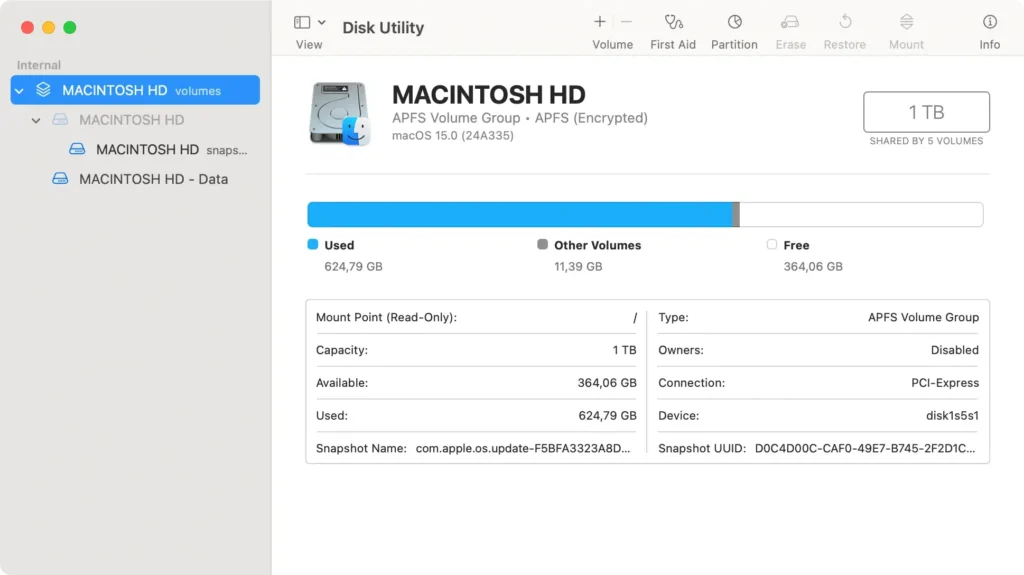
This method provides a clear overview of your current storage, helping you manage disk space more efficiently.
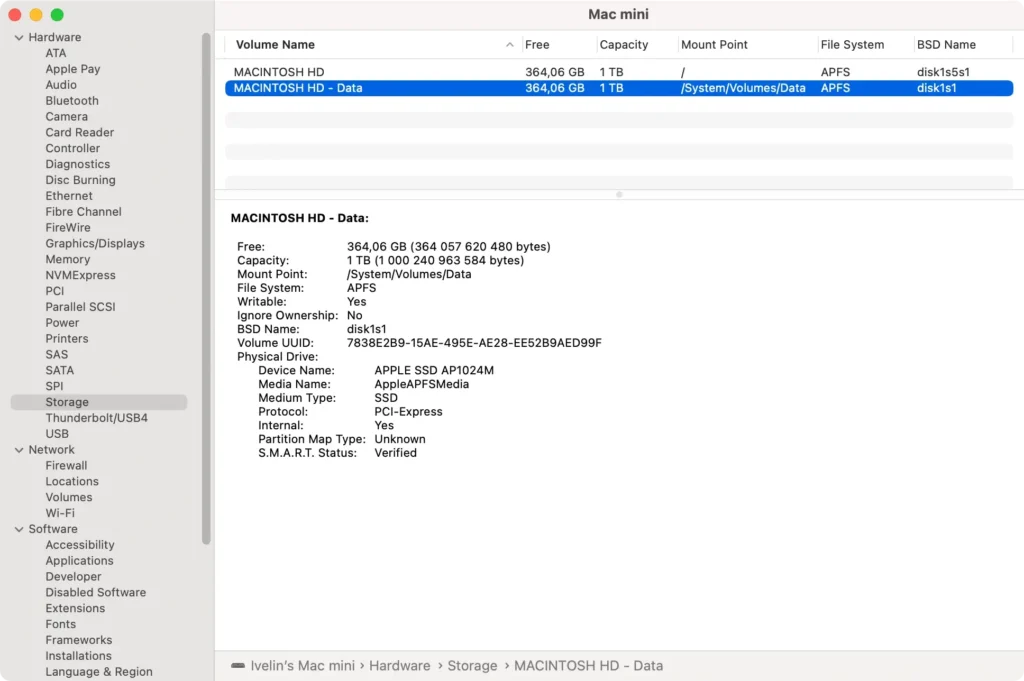
4. How to use the System Information app to check disk space
The System Information app provides detailed information about your Mac’s hardware and software, including storage devices. To check storage space through System Information, do the following:
- Open
Finder. - Navigate to
Applications > Utilities > System Information. - In the sidebar, under
Hardware, click onStorage. - You’ll see detailed information about all storage devices connected to your Mac.
5. How to check storage space using a Terminal command
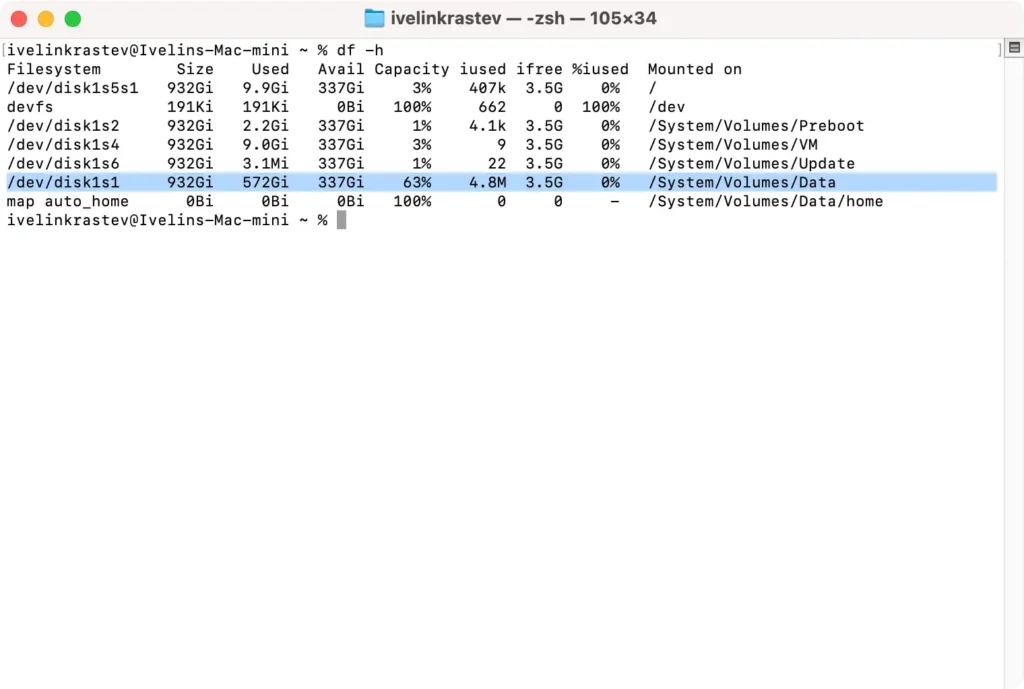
To check how much free space you have using the Terminal app found in the Utilities folder, follow these steps.
- Open the
Terminalapplication by navigating toApplications > Utilities. - Once
Terminalis open, type the commanddf -hand pressReturn. - Look for the row that corresponds to your primary disk, usually labeled
/System/Volumes/Dataor/dev/disk1s1, under theFilesystemcolumn. TheUsed,Available, andCapacitycolumns show how much space is taken up, free, and the overall percentage of space used, respectively.
Knowing how to efficiently check and understand your Mac’s storage capacity is vital.
Regularly monitoring your storage not only helps keep your system running smoothly but also aids in data management, ensuring that your Mac remains at optimal performance.
Using SpyHunter to optimize storage space on your Mac
SpyHunter is a versatile tool that is primarily tailored towards malware detection and removal. However, the application comes with several features that can help with managing disk space on your Mac.
The optimization scanner included in SpyHunter can detect both large files and duplicate files and offers several different solutions for clearing up space, including a thorough app uninstaller.
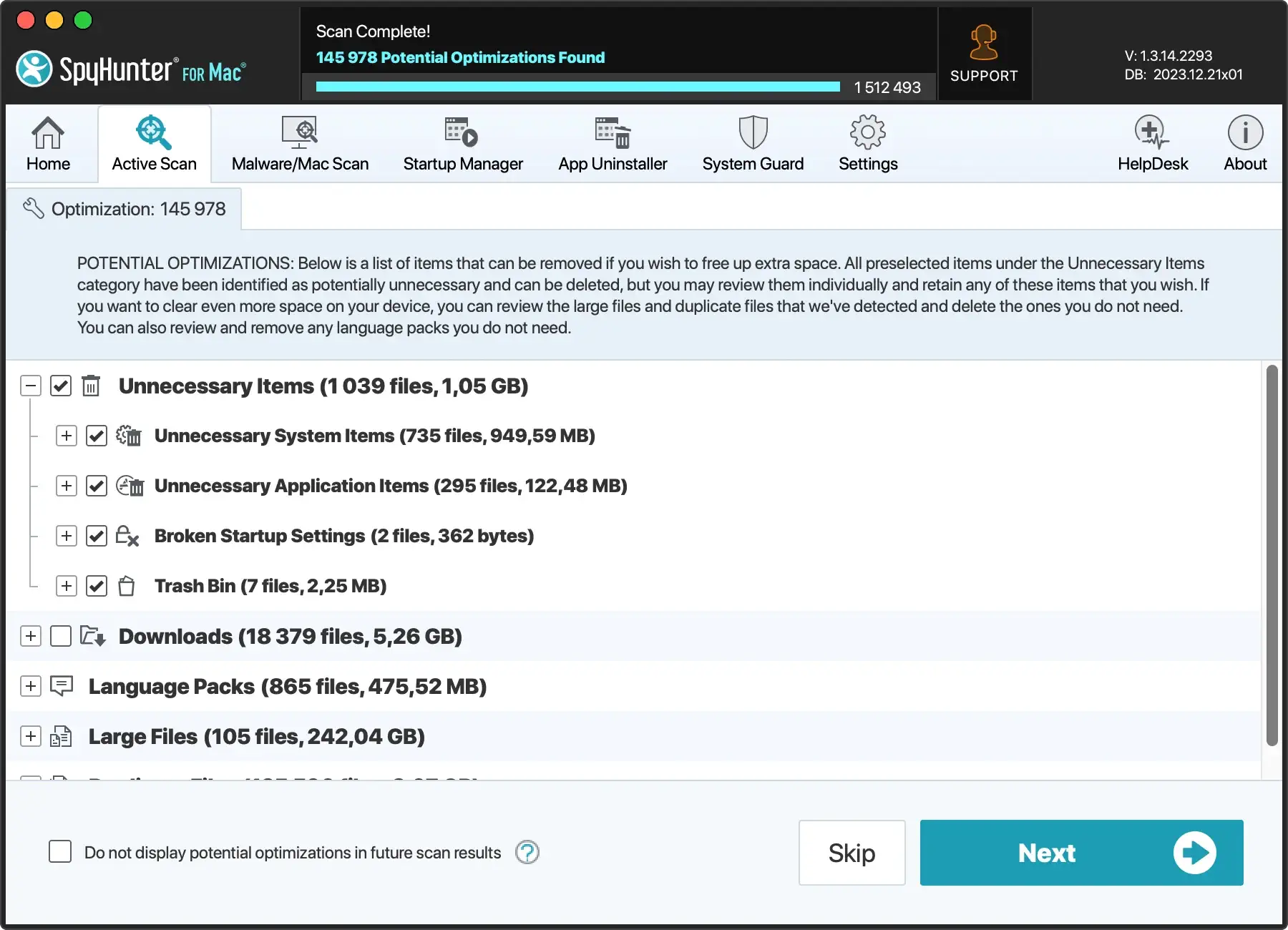
You can significantly speed up the process of managing your storage space using SpyHunter, and will also enjoy the additional layer of protection that the main anti-malware component of the application offers.
Effective tips to free up Mac storage space
To maintain optimal performance, regular maintenance of your Mac’s storage is crucial.
Begin by deleting files you no longer need, such as old documents, downloads, and duplicates.
The Optimize Storage feature is particularly helpful, as it automatically removes watched iTunes movies and TV shows and sets the Trash to empty every 30 days.
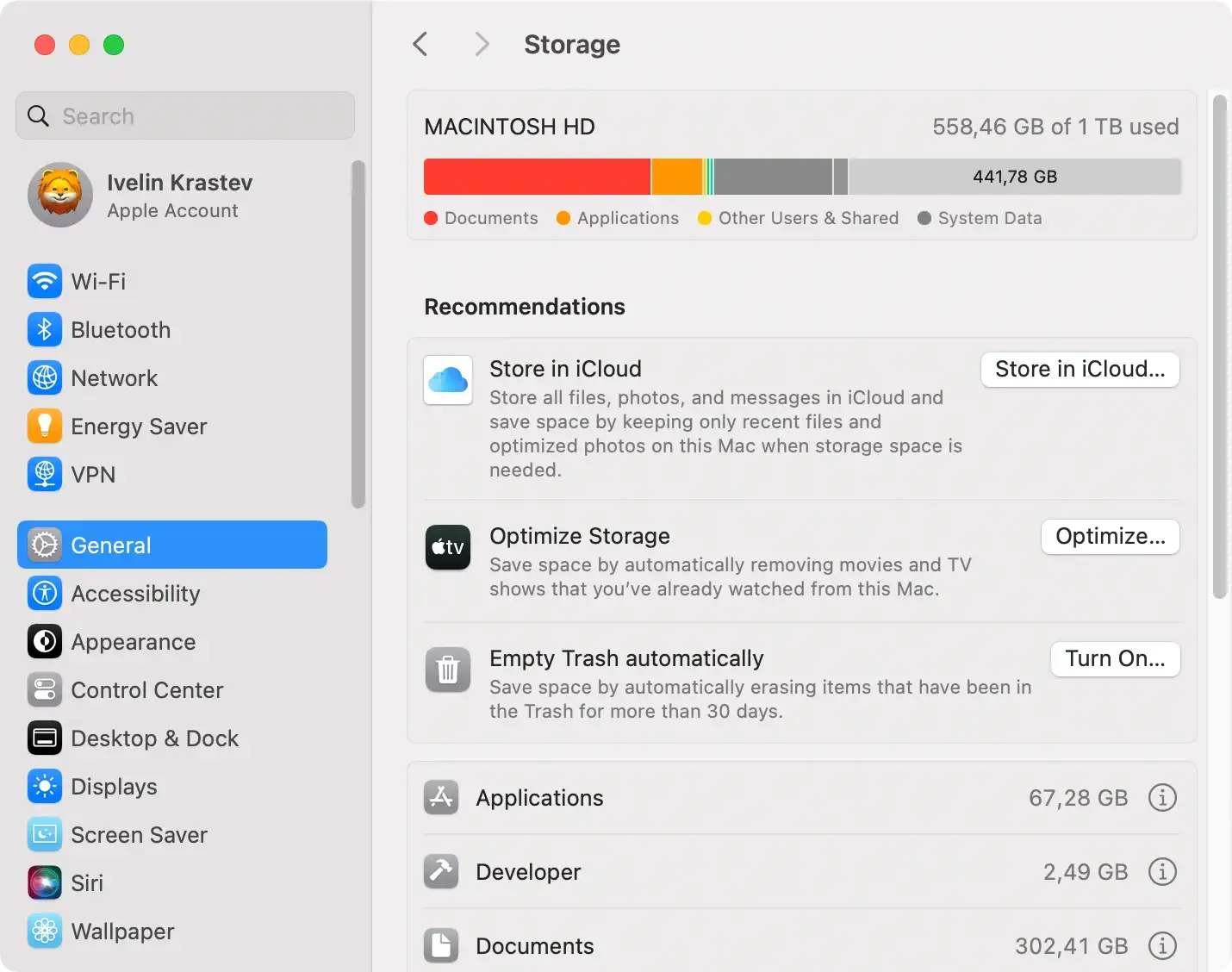
Consider the following ideas when looking to free up disk space on Mac:
- Manage applications: Uninstall apps you no longer use. Applications can take up considerable space, and many go unused after initial installation.
- Clear cache files: Cache files accumulate over time and can take up unnecessary space. Clearing these, especially from web browsers and large applications, can free up significant storage.
- Utilize cloud storage: For files you access infrequently, consider using cloud services like iCloud, which offers convenient access across devices while saving space on your Mac.
If you are looking for even more ways to reclaim storage space, you can check our article on how to clear system data on your Mac.
Exploring external storage devices
When internal cleaning isn’t enough to solve your storage needs, external storage becomes a practical option.
External hard drives, SSDs, and even flash drives offer immediate relief by providing extra space for files, especially large media files like videos and high-resolution photos.
Consider using an external drive for Time Machine backups too, ensuring your data is secure without taking up valuable space on your Mac.
Always select a drive compatible with macOS and consider size and speed according to your needs.
For those with a more flexible budget, cloud storage subscriptions provide a scalable and convenient way to store files without the need for physical devices accessible from anywhere with internet access.
