How To Zoom In And Out On Mac (All The Ways Explained)

Before we dive in

Before we dive in, let's make sure you stay safe online. We created SpyHunter because your security matters to us.

Protect your computer today — download SpyHunter right here! Check out our top tips below to keep your computer safe and secure.

Download SpyHunter

Have you ever had trouble seeing the fine print on your Mac screen or want to get a closer look at a digital design?

You’re not alone.

Mac’s zoom features are here to help you see better, so your screen time is more comfortable and productive.

Whether you have visual impairments or not, knowing how to zoom in and out on a Mac can change your user experience.

This guide will walk you through all the zoom options your Mac has, from keyboard shortcuts and trackpad gestures to Accessibility settings.

Get ready to master your Mac’s zoom capabilities, ensuring everything on your Mac screen is just the right size. But first:

What does zoom in and out mean?

On a Mac, zooming in and out means making things bigger or smaller on your screen. It’s great for readability, looking at details, or for those with visual impairments.

When you zoom in, text, icons, and images get bigger and easier to see. Zooming out gives you a broader view of the content, which is helpful for big documents or spreadsheets.

You can use this feature on your Mac for:

  • Improving readability: Enlarge text and images to reduce eye strain.
  • Detail work: Zoom in on intricate designs or photos for precision editing.
  • Accessibility: Assist users with visual impairments by adjusting content size.

Your Mac offers multiple ways to adjust zoom levels, catering to different preferences and needs. By understanding these options, you’ll be able to fully customize your viewing experience.

How to zoom in and out on Mac

Zooming on a Mac is super flexible and has many built-in options. Below, we’ll go through each one step by step.

How to zoom in and out on Mac using keyboard shortcuts

Keyboard shortcuts are a quick way to zoom in and out on a Mac. It is ideal for users who prefer not to shift their hands from the keyboard.

To activate these shortcuts:

  1. Open System Settings from the Apple icon.
  2. Go to the Accessibility section, then click on Zoom in the sidebar.
  3. Enable the option labeled Use keyboard shortcuts to zoom.
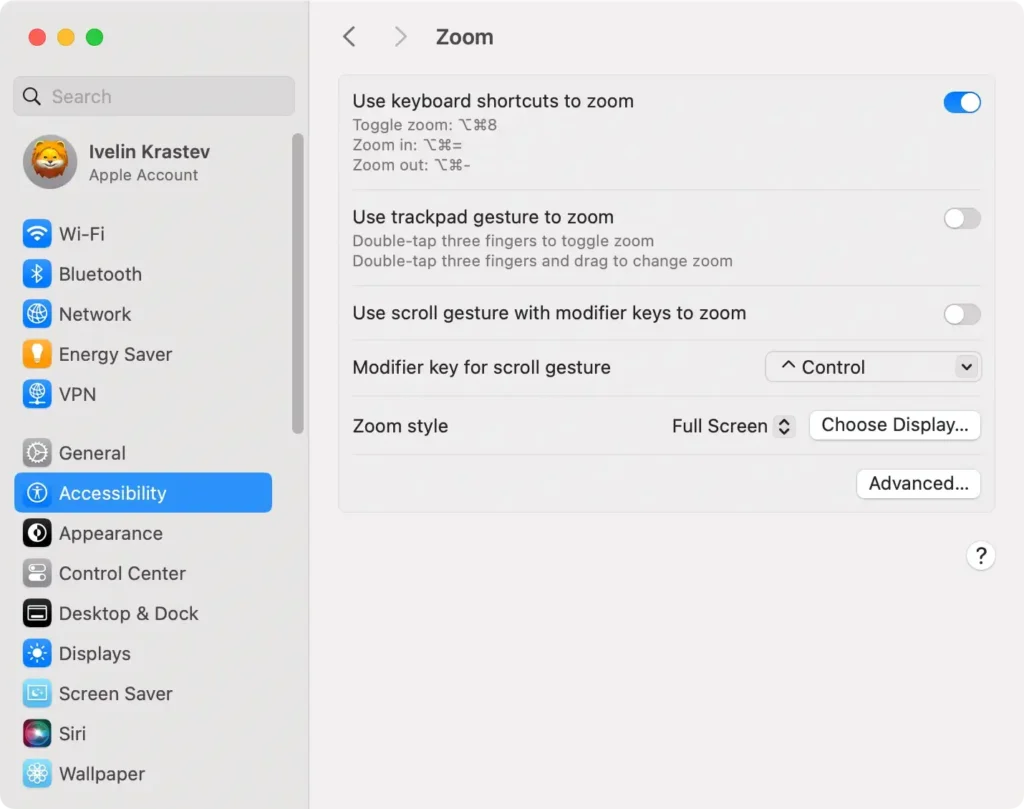
enable keyboard shortcuts to zoom on mac

Once the keyboard shortcuts are enabled, you can:

  • Press Option (⌥) + Command (⌘) + Equals (=) on your keyboard to zoom in.
  • Press Option (⌥) + Command (⌘) + Minus (-) on your keyboard to zoom out.
  • Press Option (⌥) + Command (⌘) + 8 to quickly toggle zoom.

Using keyboard shortcuts is handy for quickly adjusting zoom levels, especially during tasks that require frequent changes in magnification.

How to zoom in and out on Mac using trackpad

For those who navigate primarily through their trackpad, MacBooks offer a convenient gesture-based zooming feature:

  1. Head to the System Settings via the Apple menu.
  2. Navigate to the Accessibility section and click Zoom.
  3. Check the option Use trackpad gesture to zoom.
  4. To zoom in or out, double-tap with three fingers and drag up or down accordingly.
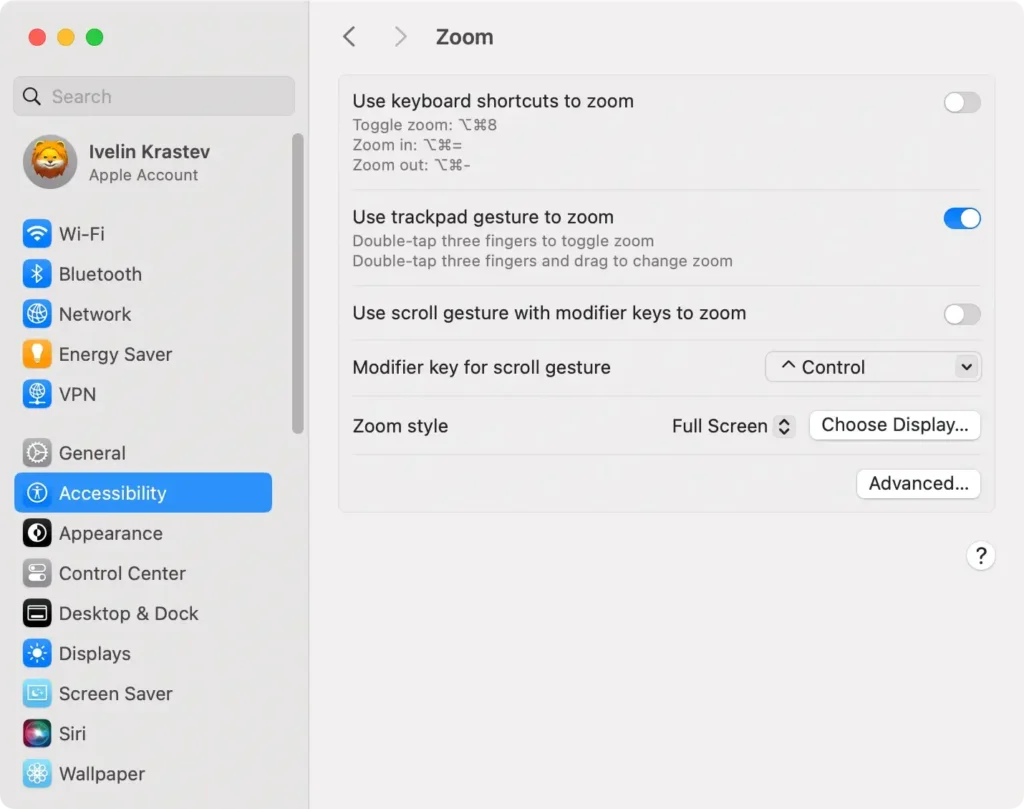
use trackpad gesture to zoom on mac

Alternatively, you can enable the option to zoom while scrolling. To do that:

  1. Click on the Apple menu and select System Settings.
  2. Navigate to Accessibility > Zoom.
  3. Toggle the box for Use scroll gesture with modifier keys to zoom.
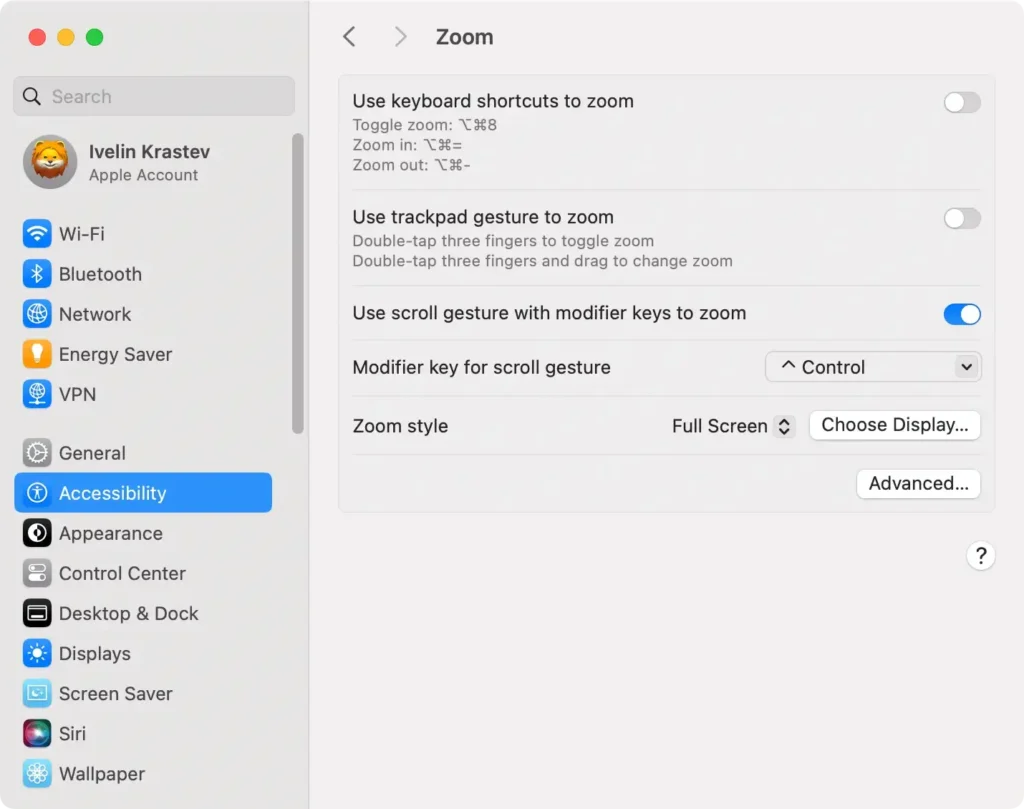
use scroll gesture with modifier keys to zoom on mac
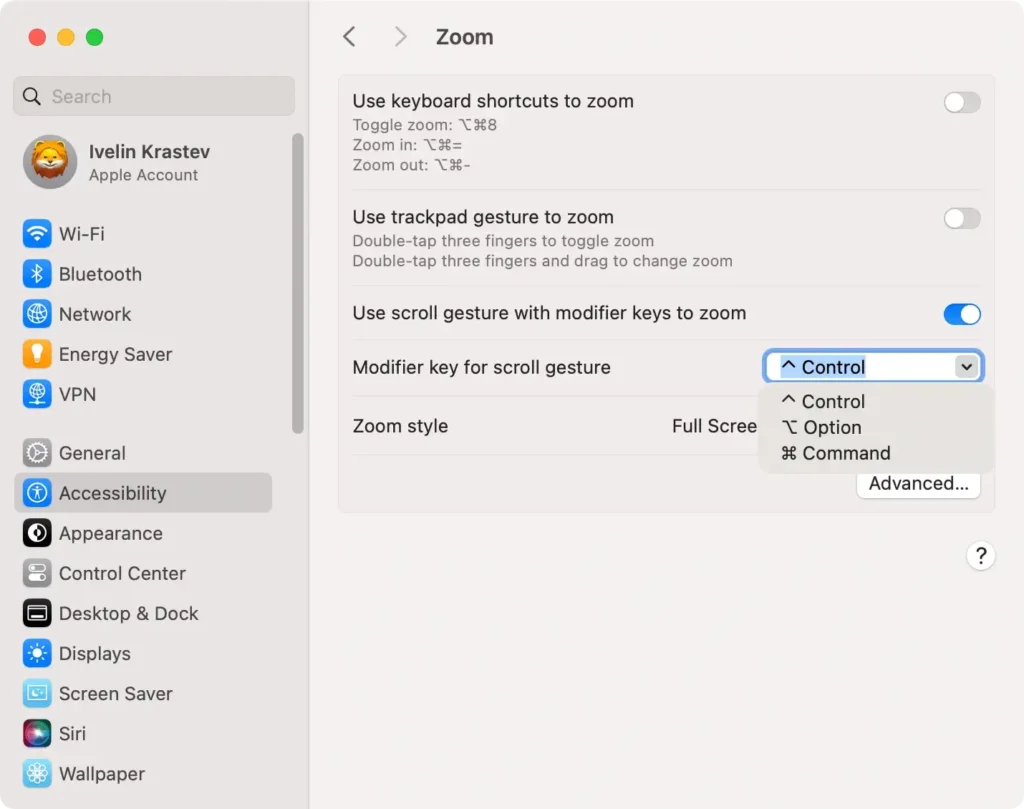
  1. Choose a modifier key from the options (Control, Option, or Command).
choose modifier key for scroll gesture to zoom

Now, simply scroll while holding the chosen modifier key in order to zoom in or out.

This method is perfect for users looking for a seamless and intuitive way to control zoom, leveraging the familiar gesture controls of the trackpad.

How to zoom in and out using Magic Mouse

The Apple Magic Mouse does not support the typical pinch-to-zoom gesture found on most trackpads. However, it does accommodate zooming differently.

You can double-tap with one finger on the mouse’s surface (known as the “smart zoom” feature), which is perfect for quickly zooming into text or images. Yet, this does not allow for incremental changes in zoom.

For complete control over the zoom level, you can combine the Apple Magic Mouse with the “scroll gesture with modifier keys” option described above.

How to zoom with Touch Bar

If your Mac comes equipped with a Touch Bar, you can use it to zoom in and out.

Even if your Mac doesn’t have a physical Touch Bar, you can enable a virtual version on your screen to use as a convenient zoom control.

Here’s how to zoom with Touch Bar:

  1. Open System Settings (or System Preferences) from the menu bar.
  2. Click Zoom within Accessibility.
  3. Toggle the box next to Enable Touch Bar zoom.

Now, slide your finger across the Touch Bar to quickly zoom in and out on your Mac.

This technique provides a fast and intuitive way to adjust zoom levels.

How to set advanced zoom options using Accessibility features

For those who want to customize their zoom experience further, macOS has advanced options within the Accessibility settings.

These features allow you to fine-tune how zoom works on your Mac, enhancing readability and tailoring it to your specific needs.

  1. Click on the Apple menu located in the top-left corner of your screen.
  2. Select System Settings (previously System Preferences) from the dropdown menu.
  3. Scroll down and open the Accessibility section.
  4. Click Zoom to view all zoom-related options.
  5. Select your preferred zoom style from the Zoom style options:
    • Full-Screen Zoom: Magnifies the entire Mac screen rather than a single window.
    • Split Screen Zoom: Displays the zoomed area alongside the normal view.
    • Picture-in-Picture Zoom: Shows a resizable zoom window that follows your cursor.
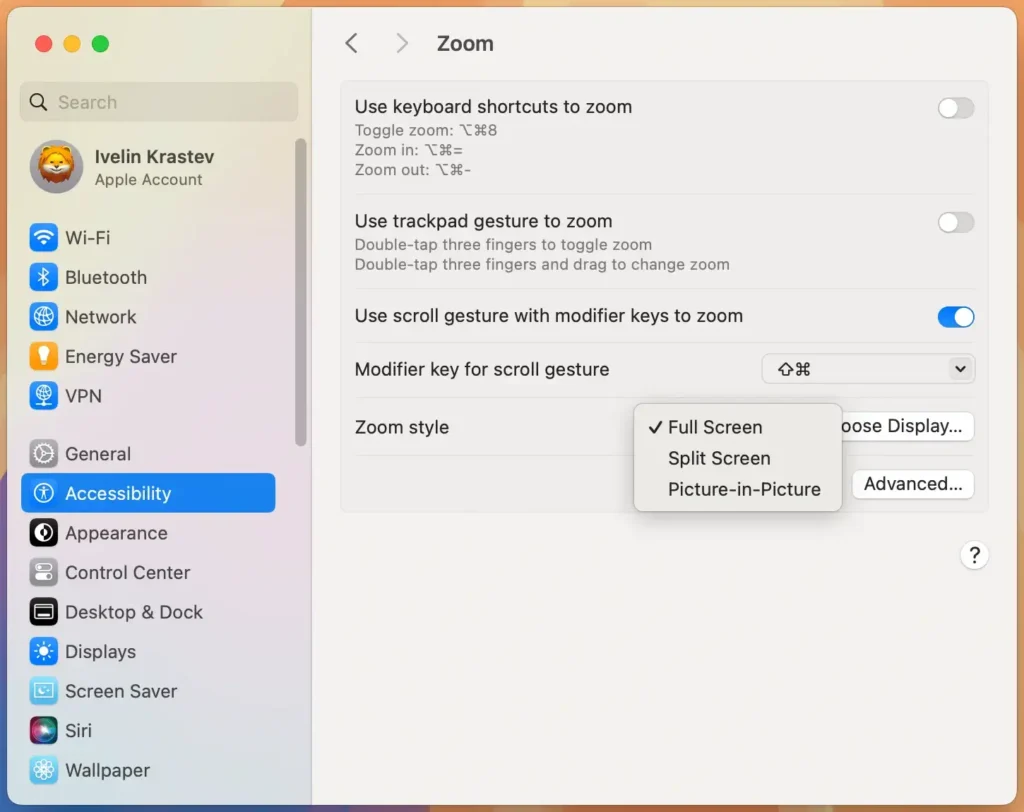
accessibility zoom style settings
  1. If you have multiple displays, you can zoom each screen independently without affecting the zoom on the others. To show a zoomed version of the content from one display on another one, click Choose Display, then select the second display.
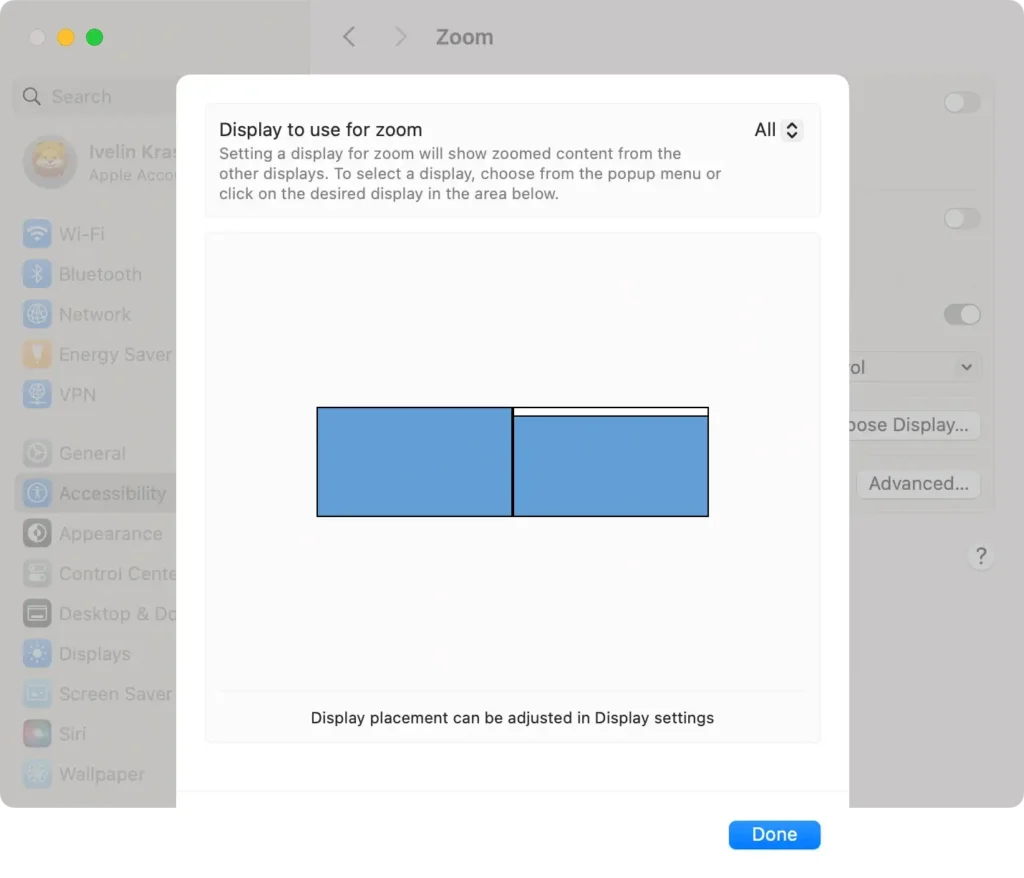
choose display to use for zoom
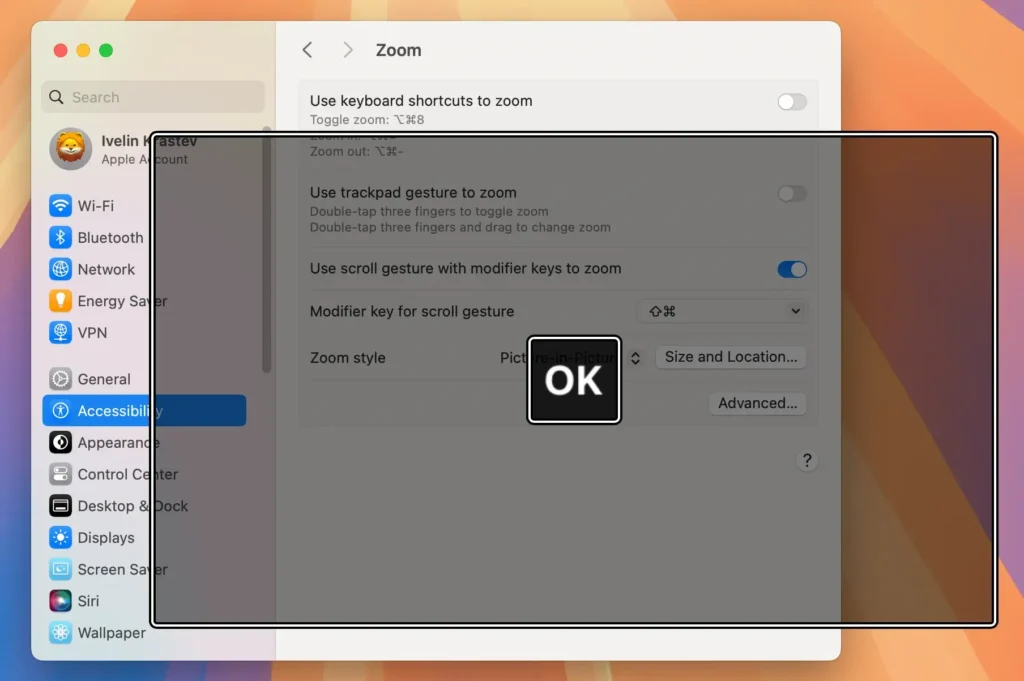
  1. For Split Screen and Picture-in-Picture modes, you can modify the size and position of the zoom window:
    • Click on Size and Location.
    • Resize the zoom window and move it to your desired location on the screen.
picture in picture zoom settings
  1. Click on the Advanced button to furtne your zoom settings.
  2. He furtherre, you can adjust additional features such as:
    • Decide whether the entire screen moves continuously with the cursor or only when the cursor reaches the edge.
    • Allow temporary zooming when a specific modifier key is held down.
    • Control how quickly the zoom function responds when activated.
    • Enhance the clarity of magnified text and images.
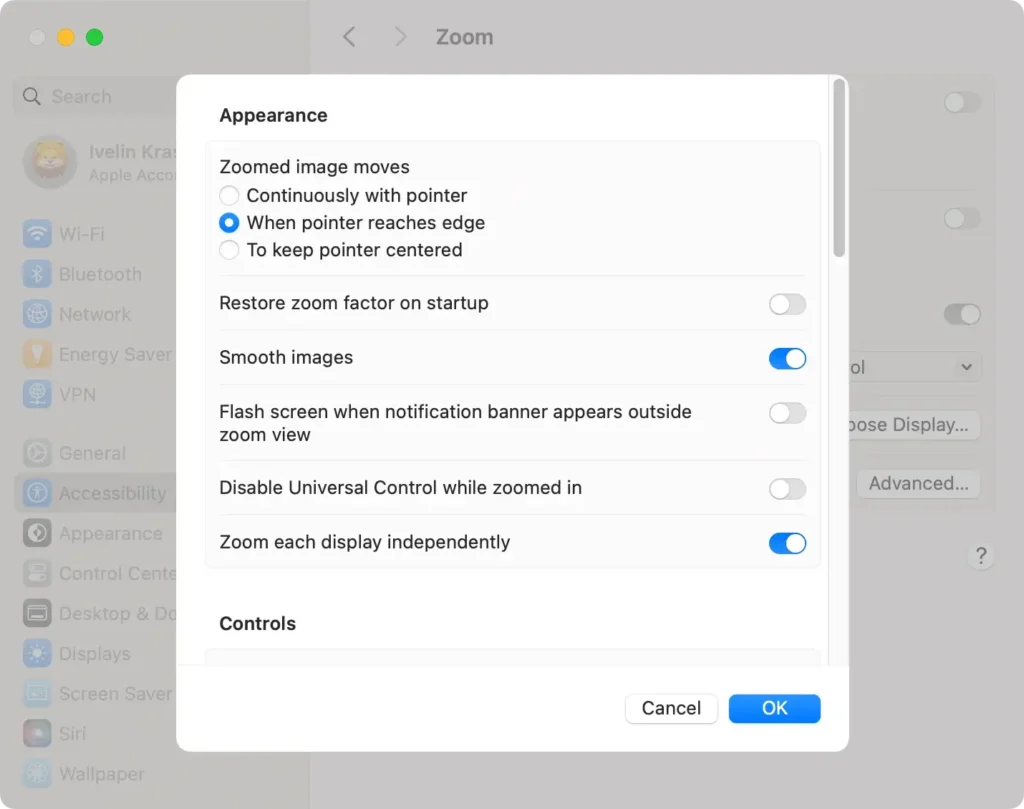
accessibility feeatures advanced zooming settings window

By exploring these options, you can personalize how zoom operates on your Mac, making it more intuitive and aligned with your workflow.

Whether you’re focusing on detailed design work or improving general readability, these settings provide greater control over your viewing experience.

Tip: Don’t hesitate to experiment with different combinations of settings to find what works best for you. Adjusting these advanced options can enhance your productivity and comfort when using your Mac.

Share this post on your favorite social media
Keep Your Mac Fast and Secure
Optimize your Mac and stay malware-free with SpyHunter

For a better understanding of our policies, please review our Free Trial Offer below, EULA, and Privacy/Cookie Policy.

SpyHunter Free Trial: Important Terms & Conditions

The SpyHunter Trial version includes, for one device, a one-time 7-day Trial period for SpyHunter 5 Pro (Windows) or SpyHunter for Mac, offering comprehensive malware detection and removal functionality, high-performance guards to actively protect your system from malware threats, and access to our technical support team via the SpyHunter HelpDesk. You will not be charged upfront during the Trial period, although a credit card is required to activate the Trial. (Prepaid credit cards, debit cards, and gift cards are not accepted under this offer.) The requirement for your payment method is to help ensure continuous, uninterrupted security protection during your transition from a Trial to a paid subscription should you decide to purchase. Your payment method will not be charged a payment amount upfront during the Trial, although authorization requests may be sent to your financial institution to verify that your payment method is valid (such authorization submissions are not requests for charges or fees by EnigmaSoft but, depending upon your payment method and/or your financial institution, may reflect on your account availability). You can cancel your Trial by contacting EnigmaSoft’s payment processor (identified in your confirmation email) or EnigmaSoft directly no later than two business days before the 7-day Trial period expires to avoid a charge coming due and being processed immediately after your Trial expires. If you decide to cancel during your Trial, you will immediately lose access to SpyHunter. If, for any reason, you believe a charge was processed that you did not wish to make (which could occur based on system administration, for example), you may also cancel and receive a full refund for the charge any time within 30 days of the date of the purchase charge. See FAQs.

At the end of the Trial, you will be billed upfront immediately at the price and for the subscription period as set forth in the offering materials and registration/purchase page terms (which are incorporated herein by reference; pricing may vary by country per purchase page details) if you have not timely canceled. Pricing typically starts at $72 for 3 months (SpyHunter Pro Windows) and $42 for 3 months (SpyHunter for Mac). Your purchased subscription will be automatically renewed in accordance with the registration/purchase page terms, which provide for automatic renewals at the then applicable standard subscription fee in effect at the time of your original purchase and for the same subscription time period, provided you’re a continuous, uninterrupted subscription user. Please see the purchase page for details. Trial subject to these Terms, your agreement to EULA/TOS, Privacy/Cookie Policy, and Discount Terms. If you wish to uninstall SpyHunter, learn how.

For payment on the automatic renewal of your subscription, an email reminder will be sent to the email address you provided when you registered before your next payment date. At the onset of your trial, you will receive an activation code that is limited to use for only one Trial and for only one device per account. Your subscription will automatically renew at the price and for the subscription period in accordance with the offering materials and registration/purchase page terms (which are incorporated herein by reference; pricing may vary by country per purchase page details), provided that you are a continuous, uninterrupted subscription user. For paid subscription users, if you cancel, you will continue to have access to your product(s) until the end of your paid subscription period. If you wish to receive a refund for your then current subscription period, you must cancel and apply for a refund within 30 days of your most recent purchase, and you will immediately stop receiving full functionality when your refund is processed.

For CALIFORNIA CONSUMERS, please see the notice provisions:
NOTICE TO CALIFORNIA CONSUMERS: Per the California Automatic Renewal Law, you may cancel a subscription as follows:

  1. Go to www.enigmasoftware.com and click the "Login" button at the top right corner.
  2. Log in with your username and password.
  3. In the navigation menu, go to "Order/Licenses." Next to your order/license, a button is available to cancel your subscription if applicable. Note: If you have multiple orders/products, you will need to cancel them on an individual basis.

Should you have any questions or problems, you can contact our EnigmaSoft support team by phone at +1 (888) 360-0646 (USA Toll-Free) / +353 76 680 3523 (Ireland/International) or by email at support@enigmasoftware.com.
How do you cancel a SpyHunter Trial? If your SpyHunter Trial was registered via MyCommerce, you can cancel the trial via MyCommerce by logging into the MyAccount section of MyCommerce (see your confirmation email for further details). You can also contact MyCommerce by phone or email to cancel. To contact MyCommerce via phone, you can call +1-800-406-4966 (USA Toll-Free) or +1-952-646-5022 (24x7x356). You can contact MyCommerce by e-mail at ordersupport@mycommerce.com. You can easily identify if your trial was registered via MyCommerce by checking the confirmation emails that were sent to you upon registration. Alternatively, all users may also contact EnigmaSoft Limited directly. Users can contact our technical support team by emailing support@enigmasoftware.com, opening a ticket in the SpyHunter HelpDesk, or calling +1 (888) 360-0646 (USA) / +353 76 680 3523 (Ireland/International). You can access the SpyHunter HelpDesk from SpyHunter's main screen. To open a support ticket, click on the "HelpDesk" icon. In the window that appears, click the "New Ticket" tab. Fill out the form and click the "Submit" button. If you are unsure of what "Problem Type" to select, please choose the "General Questions" option. Our support agents will promptly process your request and respond to you.

———

SpyHunter Purchase Details
You also have the choice of subscribing to SpyHunter immediately for full functionality, including malware removal and access to our support department via our HelpDesk, typically starting at $42 for 3 months (SpyHunter Basic Windows) and $42 for 3 months (SpyHunter for Mac) in accordance with the offering materials and registration/purchase page terms (which are incorporated herein by reference; pricing may vary by country per purchase page details). Your subscription will automatically renew at the then applicable standard subscription fee in effect at the time of your original purchase subscription and for the same subscription time period, provided you’re a continuous, uninterrupted subscription user and for which you will receive a notice of upcoming charges before the expiration of your subscription. Purchase of SpyHunter is subject to the terms and conditions on the purchase page, EULA/TOS, Privacy/Cookie Policy and Discount Terms.

———

General Terms
Any purchase for SpyHunter under a discounted price is valid for the offered discounted subscription term. After that, the then applicable standard pricing will apply for automatic renewals and/or future purchases. Pricing is subject to change, although we will notify you in advance of price changes.
All SpyHunter versions are subject to your agreeing to our EULA/TOS, Privacy/Cookie Policy, and Discount Terms. Please also see our FAQs and Threat Assessment Criteria. If you wish to uninstall SpyHunter, learn how.