

How To Uninstall Docker Desktop Mac (4 Different Ways)

Before we dive in
Trying to uninstall an app completely? SpyHunter for Mac includes an App Uninstaller that removes unwanted apps and their leftover files in just a few clicks.
Avoid clutter and save time — download SpyHunter right here and follow the steps to clean up your system.

Deciding to uninstall Docker Desktop from your Mac might initially seem counterintuitive, given its prowess in streamlining development.
However, significant disk space consumption and a shift in development needs or preferences can prompt a reevaluation of its utility.
This article explains the rationale for removing Docker Desktop, highlights when it might be time for uninstallation, and outlines the steps to ensure a clean and efficient removal process.
Let’s get started!
Reasons to remove Docker Desktop from your Mac
Uninstalling Docker Desktop from your Mac comes down to several practical considerations, each aiming to optimize your computing experience:
- Disk Space Management: Docker Desktop is known for its significant disk space requirements. For those with limited storage capacity or aiming to free up space, removing Docker Desktop can provide immediate relief and improve system performance.
- Evolving Development Requirements: Development tools must evolve with your projects. If Docker Desktop no longer aligns with your current development practices or project requirements, finding a more suitable tool becomes necessary.
- Personal Preferences and Simplification: A shift in personal preferences towards different development environments or pursuing a simplified digital workspace might lead you to reconsider the necessity of Docker Desktop on your Mac.
Making an informed decision to uninstall Docker Desktop involves assessing these aspects and considering the overall impact on your Mac’s efficiency and productivity.
Steps to manually uninstall Docker Desktop on Mac
Uninstalling Docker Desktop from your Mac can seem like a daunting task.
Below is a simple, step-by-step guide to remove Docker Desktop, including its application files and entities.
Follow these detailed steps for a thorough uninstallation process:
Step 1: Quit the Docker Desktop app
Ensure that Docker Desktop is not running before beginning the uninstallation:
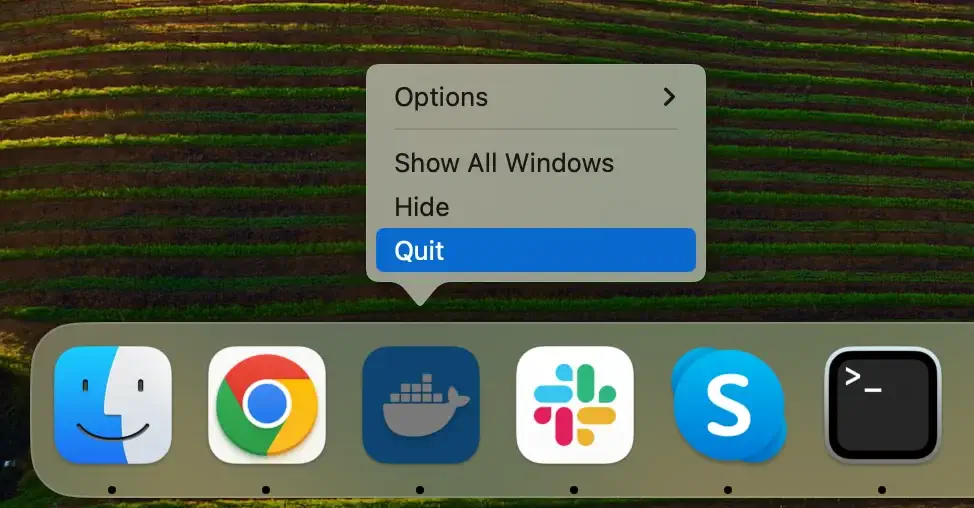
If the Docker icon is visible in the Dock and has a dot underneath, it’s currently running. Right-click on it and select Quit from the contextual menu.
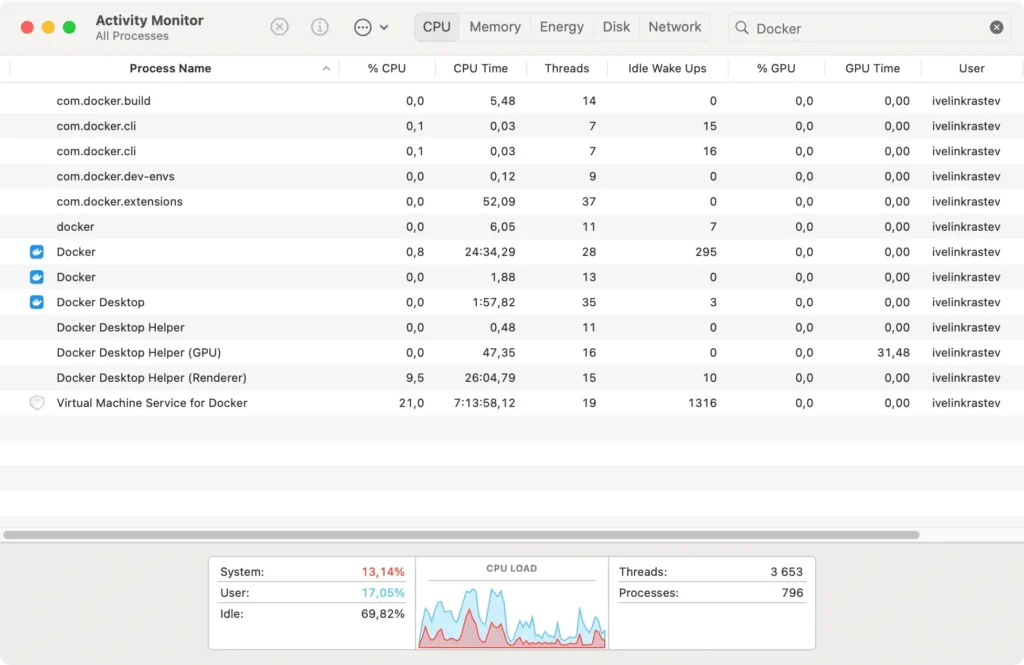
If Docker doesn’t quit this way, proceed to force quit. Launch Activity Monitor and search for Docker in the search bar. Select any running processes related to the app and then click the [X] button at the top to quit the process.
Step 2: Remove Docker entities
Before proceeding to uninstall Docker Desktop, it’s essential to address the entities created by the app, as they can significantly occupy space on your Mac even after the application is removed.
Here’s how to clear them out:
- Launch
Terminal - In the
Terminalwindow, execute each of the following commands. Each command targets a specific component of Docker:- Remove All Docker Images: Enter
docker rmi -f $(docker images -a -q)and press Return. - Remove All Docker Containers: Type
docker rm -f $(docker ps -a -q)and press Return. - Remove All Docker Volumes: Input
docker volume rm $(docker volume ls -q)and press Return.
- Remove All Docker Images: Enter
Note: These commands will irreversibly delete all your Docker images, containers, and volumes. Ensure you have backups of any data you wish to keep before proceeding.
Step 3: Remove the Docker Desktop application
Once Docker Desktop is closed and all of its components are erased, you can remove the application from your system:
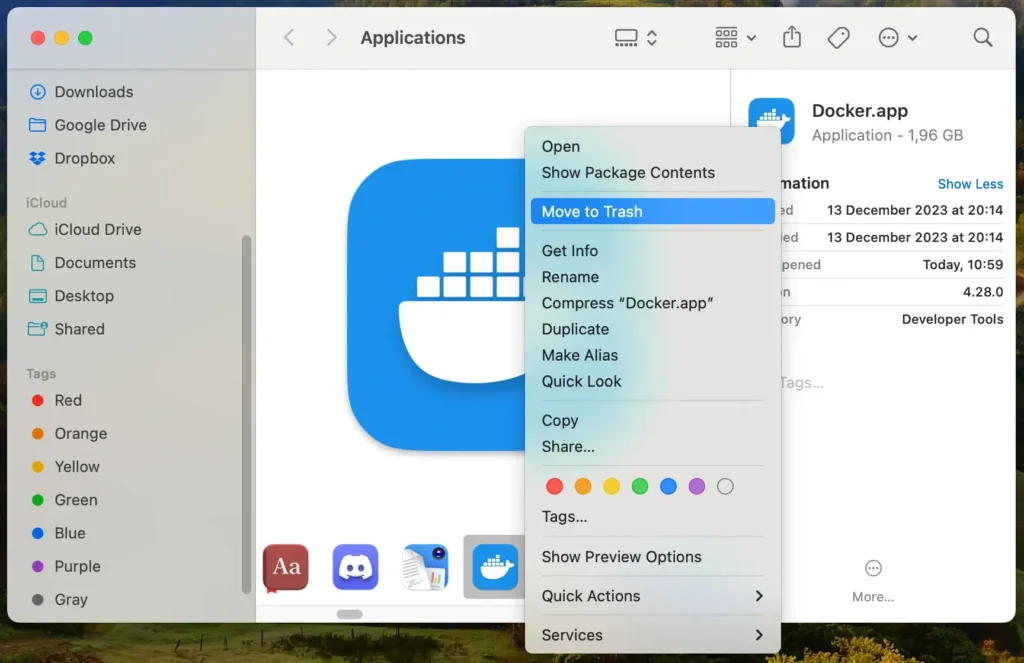
- Click on the Finder icon in your Dock to begin the removal process.
- Locate and click on the
Applicationsfolder within Finder. - Locate Docker and drag it to the Trash. You can also right-click (or control-click) on the app icon and select
Move to Trashfrom the dropdown menu. - Right-click on the Trash bin and choose
Empty Trashto remove the Docker Desktop app from your Mac permanently.
Step 4: Delete Docker Desktop-related files and folders
Docker Desktop stores additional files that need to be removed to complete the uninstallation:
- In Finder, press
Command + Shift + .to reveal hidden files and folders. - From the
Gomenu, clickGo to Folder, and navigate to the following folders.~/Library/Application Support/Docker Desktop/~/Library/Caches/Docker Desktop/~/Library/Logs/Docker Desktop/~/Library/Preferences/com.docker.docker.plist~/Library/Containers/com.docker.docker/~/Library/Saved Application State/com.electron.docker-frontend.savedState~/.docker/
- Delete any Docker Desktop-related files.
- Ensure you empty the Trash once more to remove all Docker Desktop files from your Mac altogether.
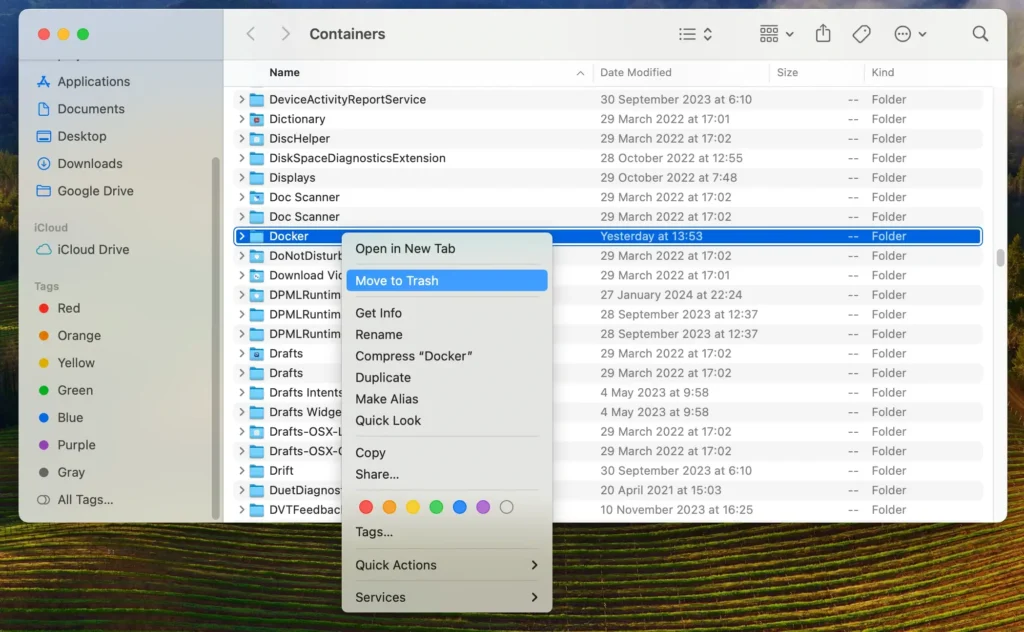
By following these steps, you’ll remove the Docker Desktop app and the associated files, containers, and volumes, thus reclaiming a substantial amount of disk space.
Completely uninstall Docker Desktop using SpyHunter
For an efficient and thorough removal of Docker from your Mac, SpyHunter offers a streamlined solution with its App Uninstaller feature.
SpyHunter simplifies the uninstallation by scanning for installed apps and their associated files and folders, ensuring a comprehensive cleanup.
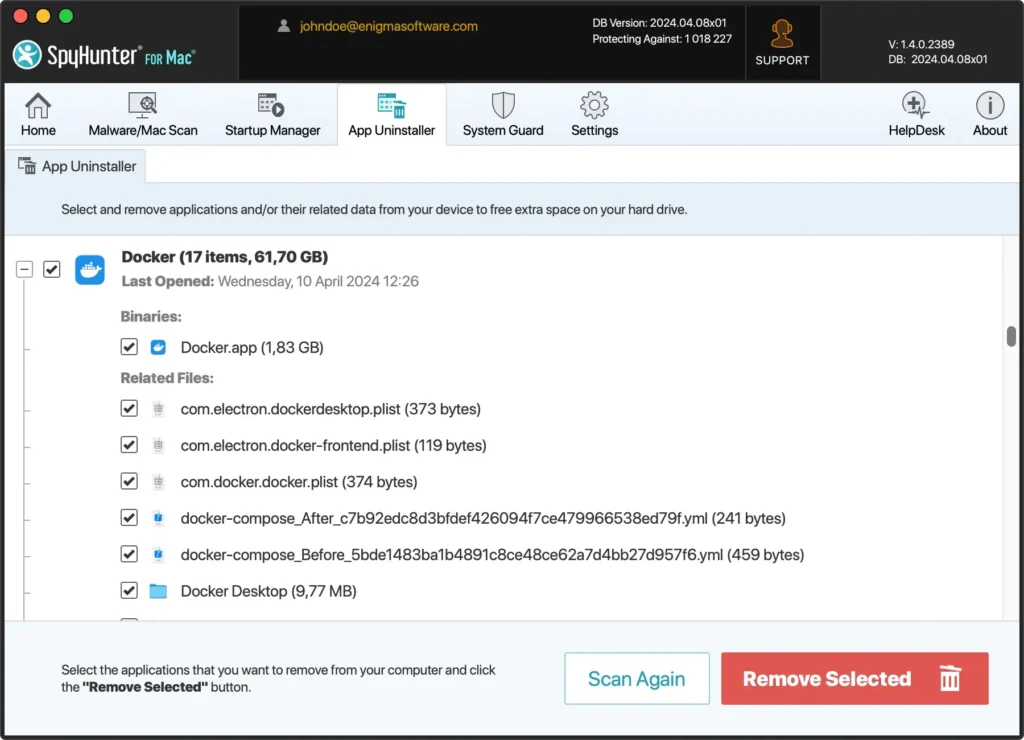
Here’s how you can use SpyHunter to fully uninstall Docker Desktop:
- Download SpyHunter for free here and follow the prompts to install it on your Mac.
- Open SpyHunter and navigate to the App Uninstaller tab. This triggers SpyHunter to scan your Mac for all installed applications and related files and folders.
- SpyHunter will display a list of applications once the scan is completed. Locate the Docker app in this list.
- Select Docker Desktop and any related files detected by SpyHunter.
- Initiate the uninstallation process. SpyHunter will remove Docker Desktop and its residues from your system, ensuring a clean and thorough deletion.
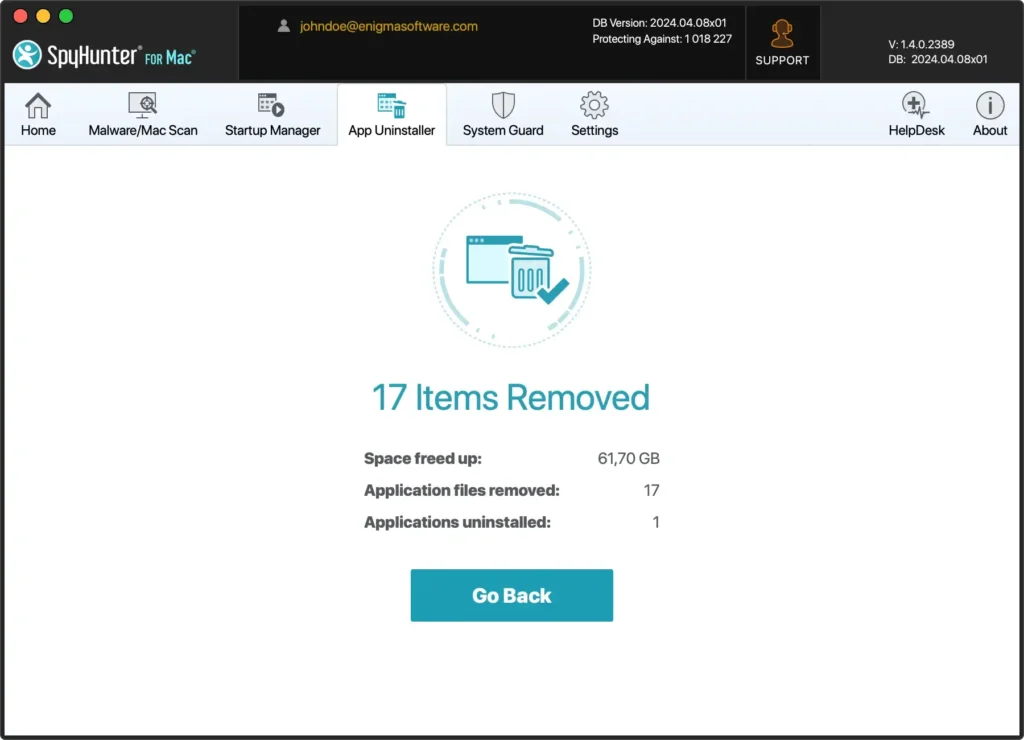
By leveraging SpyHunter’s App Uninstaller feature, you benefit from an automated and detailed approach to uninstalling the Docker app from your Mac.
This method saves time and enhances your Mac’s performance and security by ensuring that no leftover files remain to clutter or compromise your system.
Remove Docker Desktop using the Terminal
For users comfortable with command-line tools, the Terminal offers a powerful method to uninstall Docker Desktop from your Mac.
This approach ensures a thorough removal of the application along with its components.
To remove Docker Desktop from your Mac using Terminal, enter the commands listed below into the Terminal window one by one, pressing the Return key after each command:
sudo rm -rf /Applications/Docker.app
sudo rm -rf ~/Library/Containers/com.docker.docker
sudo rm -rf ~/Library/Group\ Containers/group.com.docker
sudo rm -rf ~/Library/Application\ Support/Docker\ Desktop
sudo rm -f ~/Library/Preferences/com.docker.docker.plist
sudo rm -f ~/Library/Preferences/com.electron.docker-frontend.plist
sudo rm -rf ~/Library/Saved\ Application\ State/com.electron.docker-frontend.savedState
sudo rm -rf ~/.docker
sudo rm -f /usr/local/bin/docker
sudo rm -f /usr/local/bin/docker-compose
sudo rm -f /usr/local/bin/docker-compose-v1
sudo rm -f /usr/local/bin/docker-machine
sudo rm -f /usr/local/bin/docker-credential-desktop
sudo rm -rf /usr/local/lib/docker
sudo rm -f /usr/local/bin/hub-tool
sudo rm -f /usr/local/bin/hyperkit
sudo rm -f /usr/local/bin/kubectl.docker
sudo rm -rf ~/Library/Caches/Docker\ Desktop
After executing each command, restart your Mac to ensure all changes take effect and the Docker Desktop app is completely removed.
Using Terminal to remove Docker Desktop removes the application and cleans up any lingering files, ensuring a comprehensive cleanup.
This method is particularly beneficial for users seeking to maintain a lean and efficient system free from unused applications and their residuals.
Uninstall Docker Desktop using the Docker native uninstaller
Docker Desktop provides a built-in uninstallation option that simplifies the process directly within the application.
This method ensures that Docker Desktop and its components are removed efficiently.
Here’s how to use the Docker native uninstaller:
- Open the Docker Desktop app.
- Once Docker Desktop is open, look for the Bug icon at the window’s top-right corner. Click on this icon to access the settings and options.
- Select
Uninstallin the troubleshoot menu that appears. Confirm that you want to proceed with the uninstallation when prompted.
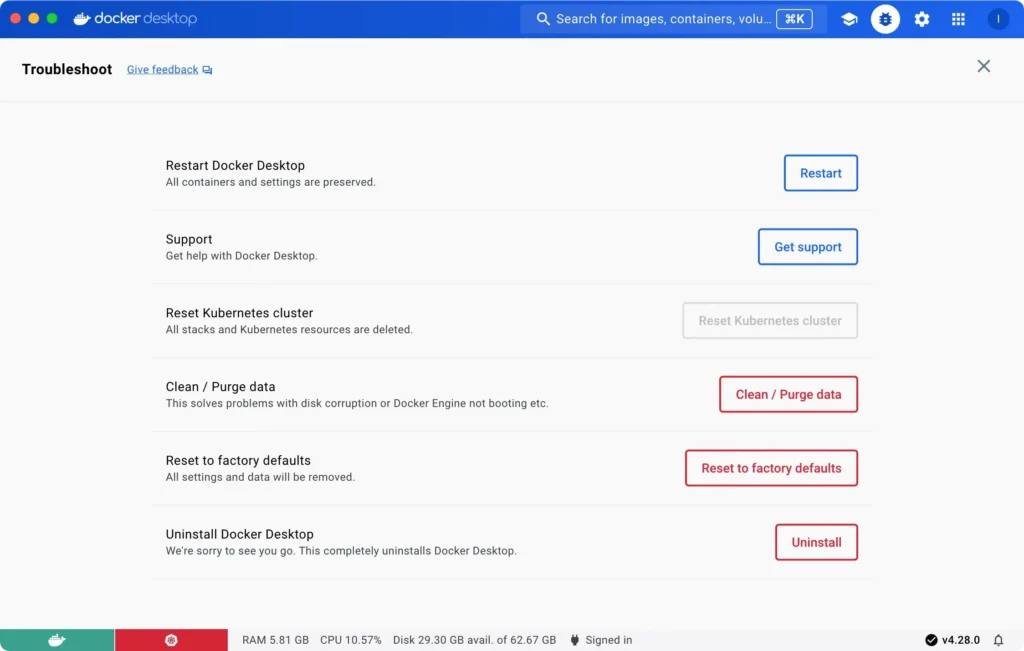
Using Docker Desktop’s native uninstaller is a straightforward and effective way to remove the application without manually searching for and deleting residual files and folders.
This method ensures that Docker Desktop is uninstalled cleanly, helping maintain your macOS’s overall health and efficiency.
Troubleshooting and FAQs
Here are some common issues and frequently asked questions related to uninstalling Docker Desktop on a Mac:
Why can’t I uninstall Docker Desktop from the Applications folder?
Docker Desktop is a complex application that installs additional components and files on your system. Simply dragging the app to the Trash may not completely remove all associated files and folders.
How do I remove residual Docker files and folders?
You can use the Terminal app to remove residual Docker files and folders. Use the sudo rm command to delete the Docker folder and its contents.
What is the difference between uninstalling Docker Desktop and removing Docker files and folders?
Uninstalling Docker Desktop removes the application while removing Docker files and folders deletes any residual files and folders left behind after uninstallation.
Can I reinstall Docker Desktop after uninstalling it?
Yes, you can reinstall Docker Desktop after uninstalling it. Simply download the latest version from the official website and follow the installation instructions.
Final thoughts
Congratulations, you have successfully deleted the Docker Desktop from your Mac!
By thoroughly following the steps outlined in the article, you ensure a complete removal without leaving behind residual files that could impact system performance.
For those seeking an extra layer of assurance, utility software like SpyHunter’s App Uninstaller can be invaluable. It offers deep scans to identify and eliminate any remnants or potential security risks.
Ultimately, the aim is a clean, optimized computer ready for your development needs.
