

How To Right Click On Mac (Tips & Tricks For Beginners)

Before we dive in
Before we dive in, let's make sure you stay safe online. We created SpyHunter because your security matters to us.
Protect your computer today — download SpyHunter right here! Check out our top tips below to keep your computer safe and secure.

Learning how to right-click on a Mac can be quick and easy.
This article will show you how to enable right-clicking with a trackpad, Magic Mouse, or any other mouse in just a few steps.
Discover these simple methods to enhance your Mac experience.
Key takeaways
- A right-click on Mac can be done in several ways: using the control critical method, two-finger trackpad taps, a corner click, and multi-touch gestures on the Apple Magic Mouse.
- A non-Apple mouse can also provide precise right-click functions on Macs through system adjustments and third-party software for pointer control and button programming.
- Mac offers many accessibility options for right-clicking, including Mouse Keys, virtual point-and-click features, and the advanced Force Touch trackpad for additional input options.
How to enable right-click on Mac
New Mac users often find right-clicking puzzling, but it is straightforward once familiarized. Contrary to popular belief, you’re not confined to a single button on your Mac mouse or trackpad.
Various techniques can be used to access the right-click menu. Performing a right-click on a Mac is just a matter of knowing the proper methods.

This guide will describe the control critical method, trackpad tricks, and corner clicking. Are you prepared to master right-clicking on a Mac?
The Control key method
Imagine a world where you could access myriad options with a simple combination of keys – welcome to the Control critical method.
Holding down the Control button and either clicking with the trackpad or a mouse, you can perform a secondary click, commonly known as a right click.
This method is supported across most applications on a Mac, making it a versatile solution for those who prefer to press control over using the mouse.
The Ctrl key method mimics a right click, granting you access to context-specific menus, including drop-down menu options. The control click can be your secret weapon for quick and efficient navigation, from copying and pasting text to previewing files.
Trackpad tricks: Two fingers to success
If you prefer a trackpad, the two-finger tap or click gesture will easily enable right-clicking. This intuitive gesture, built right into your Mac trackpad, is the default method for simulating a right click.
To turn on this feature, follow these steps:
- Open
System Settingsand go to theTrackpadsettings. - Under the
Point & Clicktab, selectClick with two fingersfor the Secondary click option. - You can customize the two-finger tapping functionality according to your right-click preferences, opening up a world of convenience.
Corner clicking: Customizing your trackpad experience
Corner clicking might be a good fit for those who like a more tactile experience. Mac trackpads can be customized to use the right or bottom corner as a default option for a right-click button, offering an alternative method for invoking the secondary click.
To set up corner clicking, follow these steps:
- Go to
System Settingsand locate theTrackpadsection. - Look for the Secondary click options.
- Here, you can set either
Click in bottom right cornerorClick in bottom left corneras your preferred right-click method.
Activating corner clicking provides a straightforward and accessible way to execute a right-click without requiring multi-finger gestures.
In your journey to mastering your Mac, especially if you’re new to its ecosystem, safeguarding your device against threats is crucial. As you learn the basics, like how to right-click, don’t overlook the importance of security.
We recommend SpyHunter for Mac. It is a powerful tool that protects your device from malware and other cyber threats. It is also user-friendly, perfect for those familiar with Macs.

Download SpyHunter from here and secure your Mac today. This will ensure your exploration of Mac’s capabilities remains safe and uninterrupted, allowing you to enjoy the full breadth of what your device offers.
Right-click with Apple Magic Mouse
If you own an Apple Magic Mouse, there are exciting features to explore. This nifty device offers a plethora of multi-touch gestures, making it a powerhouse of productivity.
Some of the gestures you can use with the Magic Mouse include:
- Scrolling through pages
- Zooming in and out
- Swiping between full-screen apps
- Accessing the right-click menu
- Navigating between desktops
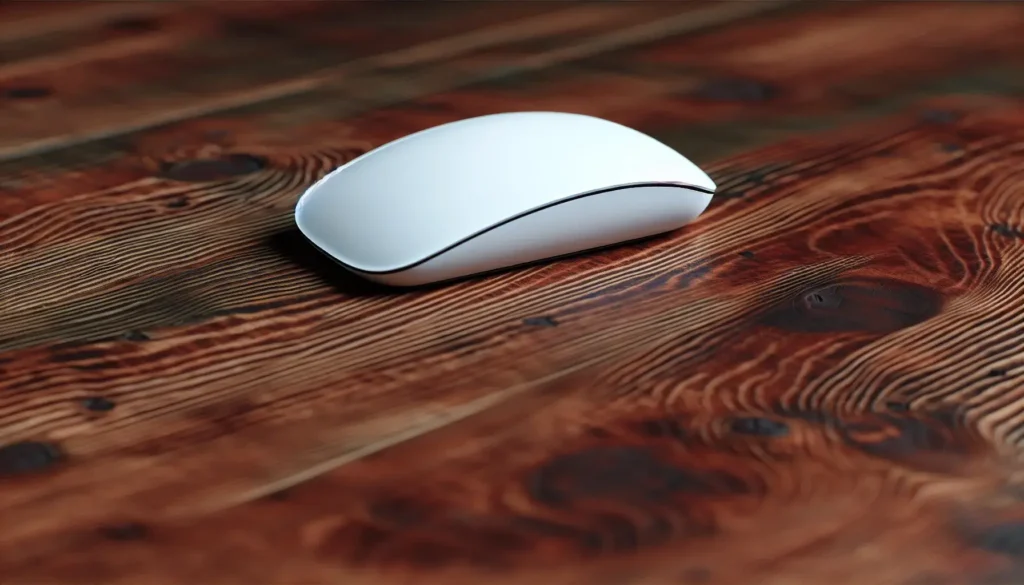
With these gestures, the Magic Mouse has got you covered.
Personalizing Magic Mouse settings
The Magic Mouse’s charm lies in its customizability. To tailor your Magic Mouse settings, head to System Settings and click Mouse in the sidebar.
Here, you can enable or customize gestures such as the 360º scroll by brushing one finger along the mouse’s surface or a two-finger swipe to navigate through pages and photos.
Moreover, you can adjust tracking and scrolling speed to fine-tune your motion sensitivity and precision.
Personalizing your Magic Mouse settings can optimize your experience for secondary clicking and overall navigation, enhancing your productivity and ease of use.
Enhancing right-click functionality on non-apple mice
Not an Apple mouse owner? Don’t worry! You can still enhance right-click functionality on your non-Apple mice connected to a Mac.
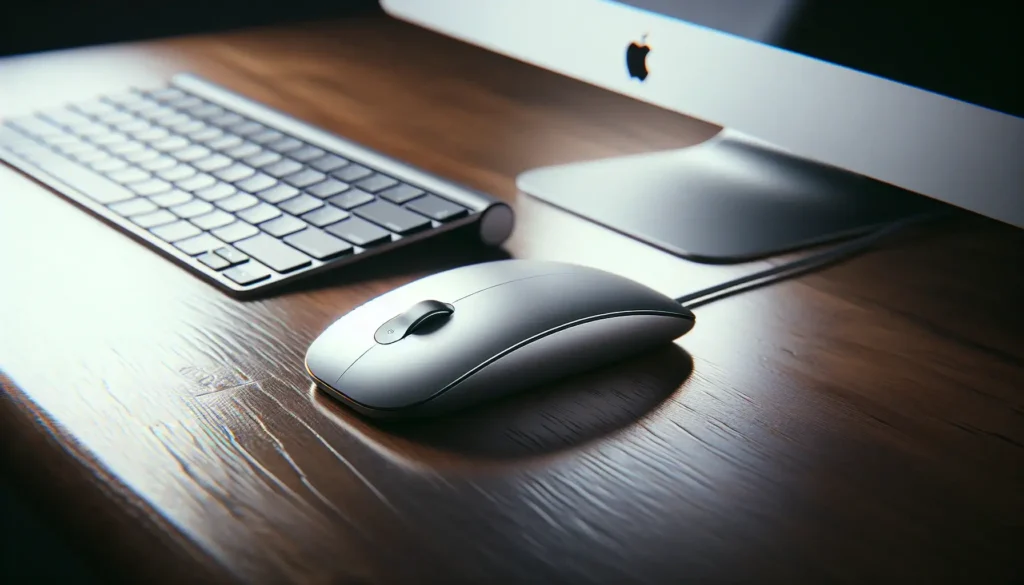
By customizing a few settings, you can achieve better control and precision, making your non-Apple mouse just as powerful.
Here’s how to adjust pointer control to increase accuracy.
How to customize alternative pointer actions
Customizing alternative pointer actions on a Mac allows you to tailor how your trackpad or mouse responds to gestures and clicks, enhancing your productivity and making your interactions more intuitive.
Here’s how you can personalize these settings:
- Click on the Apple menu () in the top-left corner of your screen.
- Select
System Settingsfrom the contextual menu (orSystem Preferenceson macOS versions before Ventura). - Navigate to the
Accessibilitytab. - Scroll to
Pointer Controland select it. - Toggle the
Alternate pointer actionsbutton on the right side and enter your password if prompted.
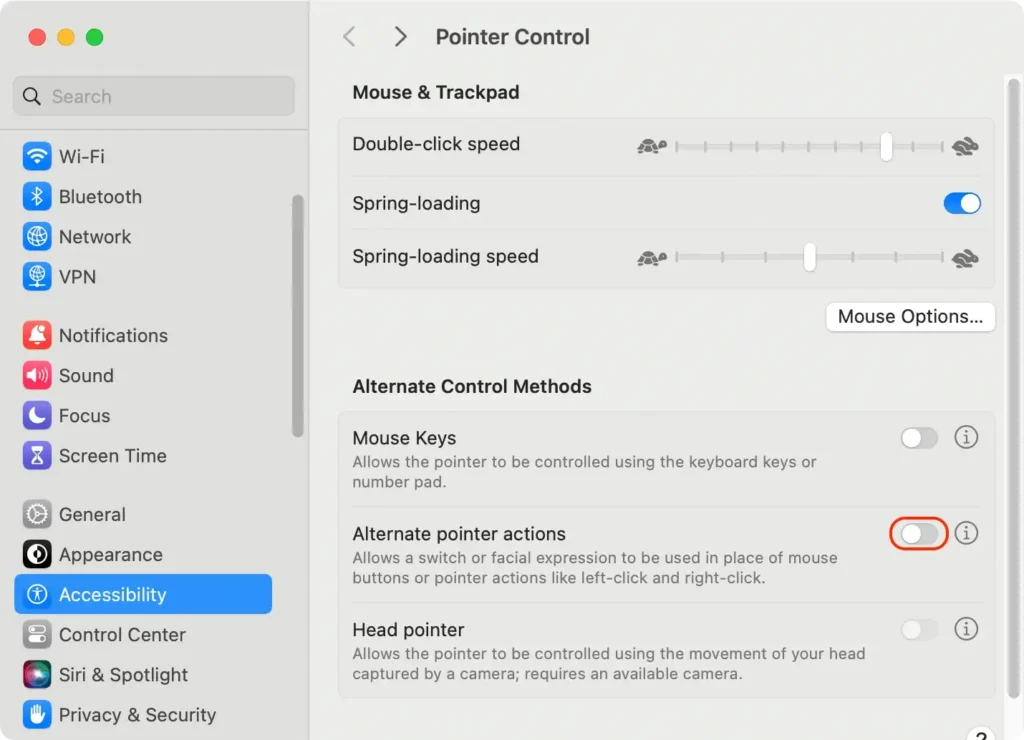
From there, you can change the keys associated with each Mac mouse action.
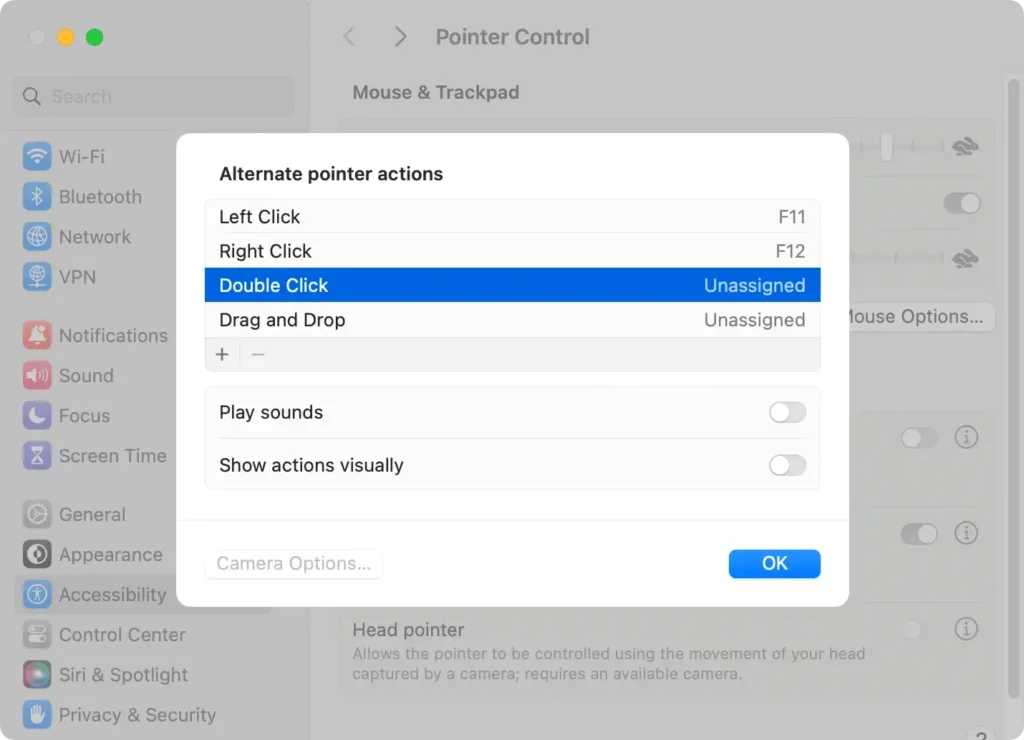
Accessibility features: Right-click without strain
Accessibility features on a Mac aren’t just for users with specific needs; they can help all users perform a right-click action without strain.
There’s a range of options, from enabling Mouse Keys for one-finger clicking to utilizing virtual point-and-click solutions.
Let’s examine these valuable features in more detail.
Enabling mouse keys for one-finger clicking
Mouse Keys is a fantastic accessibility feature on a Mac that allows you to control the pointer and click buttons using keyboard keys. It enables functionality for one-finger or single-button clicking, even when using a two-button mouse.
To enable Mouse Keys, navigate through System Settings to Accessibility settings, where you can find and activate the Mouse Keys feature. This is particularly useful for those who prefer using the keyboard over the mouse or trackpad, making contextual clicking a breeze.
Virtual point-and-click solutions
Right-click without a physical mouse or trackpad can be extremely useful, particularly when mobile. Mac offers a host of virtual point-and-click solutions to cater to these needs.
For instance, the Accessibility Keyboard on a Mac can perform a right-click by clicking the Control key on the virtual keyboard and then clicking the desired location with the mouse.
You can even turn your iPhone into a virtual mouse for your Mac computer, providing point-and-click capabilities at your fingertips. To access these features and learn how to connect on a Mac, navigate to the Apple menu on your Mac.
Other features, such as the head pointer, allow you to control the pointer by moving your face or head, adding a new level of convenience.
Force Touch Trackpad: Deep click for advanced options
If your Mac laptop has a Force Touch trackpad, you can access many of the same multi-touch gestures as with an Apple mouse.
This type of trackpad uses pressure sensors to distinguish different levels of force, providing additional input methods.
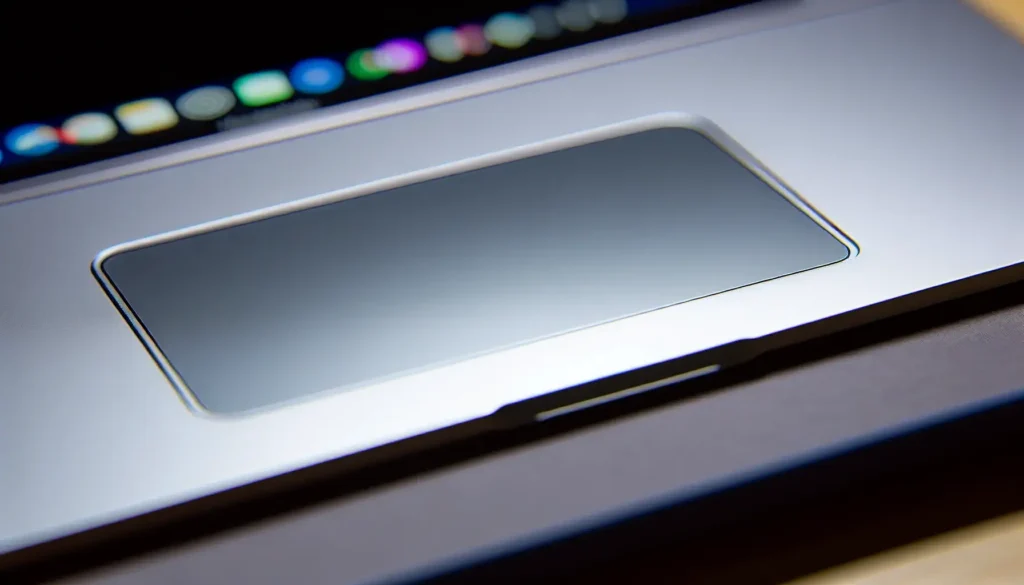
Force clicking on the trackpad enables you to access advanced features such as:
- Looking up information
- Previewing content
- Editing file names
- Accessing App Exposé for specific applications
Additionally, you can customize Force Click settings in the Point & Click tab under Look up & data detectors to turn the Force click with one finger functionality on or off.
Frequently Asked Questions
How do you right-click on a Mac?
To right-click on a Mac, press the Control key on your keyboard, then click your trackpad or mouse. This action will reveal a context menu similar to a right-click on a Windows PC.
How do you right-click on a Mac with two fingers?
Tap the trackpad using two fingers simultaneously to execute a secondary click on a Mac. Alternatively, you can press and hold the Control key on your keyboard while performing a standard click with your mouse or trackpad.
Why is right-click not working on Mac?
If your right-click is not working on your Mac, go to System Preferences, then to Trackpad/Mouse, uncheck Secondary click, and re-enable it. This should fix the issue.
How can I improve pointer accuracy on a two-button mouse?
To improve pointer accuracy on a non-Apple mouse, turn off Pointer acceleration in your System Settings and consider using third-party mouse software for more refined adjustments. Give it a try and see if it helps!
Summary
In this guide, we’ve delved into the various methods to master the secondary-click functionality on a Mac, from mimicking a right-click with the Control key to more advanced customization of gestures and pointer actions for enhanced productivity.
Whether using a Magic Trackpad, Magic Mouse, or a traditional mouse, these tips are designed to help you navigate your Mac more efficiently and precisely.
By unlocking these hidden features and tailoring them to your unique needs, you can elevate your Mac experience to an entirely new level.
Whether you’re a casual user or a power user, these techniques offer something for everyone, enabling you to work smarter, faster, and more comfortably.
So, don’t hesitate to explore these settings, experiment with the options, and see how they can transform your interaction with your Mac.
Give these tips a try, and discover how a few simple adjustments can unlock the full potential of your Mac, making it a more intuitive and powerful tool in your daily life.
