

Set Parental Controls On Mac [Ultimate Guide For 2025]

Before we dive in
Before we dive in, let's make sure you stay safe online. We created SpyHunter because your security matters to us.
Protect your computer today — download SpyHunter right here! Check out our top tips below to keep your computer safe and secure.

Mac Parental Controls offers a robust suite of tools to help guardians manage and monitor their children’s computer usage, ensuring a safe and appropriate online experience.
This feature allows for customizing accessible content, application usage, and browsing times, effectively safeguarding young users from the vast and sometimes hazardous digital landscape.
This article explores what Mac Parental Controls are and their key benefits. Read our step-by-step guide on setting them up. Let’s create a secure and child-friendly computing environment on your Mac together.
Introduction to Mac Parental Controls
The Internet is essential for learning, creativity, and communication. Macs are known for their performance, ease of use, and educational features.
However, the Internet also has risks like inappropriate content, cyberbullying, and screen addiction. Nowadays, Mac’s parental controls offer advanced tools for children’s online safety.
The evolution of parental controls
Apple has updated macOS with better parental controls. These controls balance safety with a child’s curiosity and learning.

They filter content and encourage talks about using the Internet responsibly. This approach teaches digital literacy and respectful online behavior.
Tailoring controls to family needs
The latest macOS parental controls are intuitive and flexible. Parents can set up child accounts and customize the app and website access.
Family sharing and time management are easy to use from parents’ devices. This makes keeping children safe online more accessible than ever.
Empowering safe online experience
Apple focuses on safe and educational online experiences for kids. Understanding and using Mac’s parental controls is the first step. These controls protect and empower children in the digital world.
How do you create a child account on macOS?
Establishing a child account on MacOS is the cornerstone of implementing adequate parental controls. This process ensures that your child’s digital environment is safe, secure, and tailored to their age and maturity level.
The following steps simplify setting up a user account for your child using macOS Catalina (and later versions) or macOS Mojave (and earlier versions).
For macOS Catalina and later versions:
- Select
System Preferences(namedSystem Settingson new macOS versions )and navigate to theUsers & Groupssection. - Click on the button to add a new user.
- Unlock the settings by entering the password of your administrator account.
- Fill in the account name and password, including a hint if necessary.
- Select
Standardfrom the account type options. - Click on
Create Userto finalize the setup and create a new account.

For macOS Mojave and earlier versions:
- Open
System Preferencesand selectParental Controls. - Follow the prompt to create a child’s account by entering the required details.
- If prompted, ensure you select the option to create a new user account with parental controls.
- Name the account, select an age category, and establish a unique password.
After creating a child account and following these steps, you are set to customize the settings to fit your child’s safety needs.
Why setting up a child account is essential for Parental Controls
Creating a dedicated child account on MacOS is more than just an administrative step; it’s a necessary measure for implementing adequate parental control. Here’s why:
- Personalization: Child accounts allow for the customization of restrictions based on the child’s age, maturity, and your family’s values.
- Independence within boundaries: They offer children a sense of autonomy and ownership over their digital space but within safe limits.
- Safety from inappropriate content: These accounts help shield children from potentially harmful and inappropriate online content.
- Screen time limits: Managing your child’s screen time is more straightforward, promoting a healthier digital lifestyle.
- Education and communication limits: Setting up these accounts provides an opportunity for educating children about responsible internet usage and the rationale behind certain limitations.
A child account is integral to leveraging the full scope of macOS parental control. It establishes a secure and controlled environment for children to explore, learn, and play, reassuring parents that their child’s access to the Internet is safe and enriching.
Even with robust parental controls in place, it’s crucial to bolster your child’s Mac with additional layers of security. Antivirus software is a vital shield against malware and cyber threats that bypass parental settings.
We recommend SpyHunter for Mac, a comprehensive antivirus solution to protect against the latest cyber threats, ensuring your child’s digital environment remains safe.

Download SpyHunter from here and add an essential layer of cybersecurity to your parental control efforts.
Implementing Family Sharing for enhanced parental supervision
As parents navigate the complex landscape of digital parenting, Apple’s introduction of Family Sharing marks a significant stride toward simplifying this journey.
Family Sharing goes beyond merely connecting family members; it is a powerful tool for parental supervision, promoting a safe and shared digital environment.
With this system, up to five family members can access purchased apps, books, iCloud storage, and more under one umbrella account.
This consolidation offers convenience and cost savings and provides parents with unparalleled oversight over their children’s digital activities.

Setting up Family Sharing is a seamless process. It requires one family member, the organizer, to invite others to join the family group.
Each member needs to have their own Apple ID. For children, such can be created under the organizer’s account, ensuring everyone stays connected.
This unified approach fundamentally changes how families interact with their devices and each other, laying a foundation for responsible digital behavior and fostering a sense of accountability among young users.
Benefits of Using Family Sharing in Parental Controls
Integrating Family Sharing into parental controls provides benefits aimed at enhancing online safety and ensuring a harmonious digital experience for the entire family. Here’s how Family Sharing makes a difference:
- Unified purchases: It eliminates the need for multiple purchases of the same app or content, saving money and streamlining access across all family members’ devices.
- Shared subscriptions: Whether it’s iCloud storage or a family entertainment subscription, sharing these services means everyone can enjoy the benefits without additional costs.
- Ask to Buy feature: A standout for parental peace of mind, the Ask to Buy feature requires children to get approval for app purchases and downloads, allowing parents to review and approve or decline these requests.
- Location sharing: This feature provides reassurance about family members’ whereabouts, encouraging openness and safety without intrusive tracking.
- Screen time and app limits: Configuring settings for children’s accounts, including Screen Time and app restrictions, can be directly managed from a parent’s device, making it easier to enforce healthy digital habits.
In the modern digital age, where technology profoundly influences our lives and relationships, Family Sharing stands out as a comprehensive tool that aligns with the needs of contemporary families.
It fosters a collaborative approach to device management and internet activity, ensuring children grow up with a balanced and safe engagement with the digital world.
With these functionalities, parents can rest easier, knowing they have a robust system to safeguard their children’s online interactions.
Setup Parental Controls on Mac
Navigating the setup of parental controls on macOS can vary depending on whether you’re utilizing the Family Sharing feature.
Both pathways offer robust options for managing and monitoring your child’s device use.
This section delves into configuring parental control settings, ensuring you have the tools to tailor a safe and healthy digital environment for your children regardless of your chosen method.
Detailed instructions to enable Parental Controls
Setting up parental control on a Mac requires a few steps, whether you’re using Family Sharing or not. The following instructions will guide you through both processes, ensuring you can effectively manage your child’s digital experience.
Using Family Sharing:
Family Sharing simplifies the process of implementing parental controls across devices. To enable these settings:
- Ensure you’re logged into your Apple ID and have Family Sharing set up.
- Go to
System Preferences(namedSystem Settingson newer macOS versions) and find theScreen Timesettings. - Make sure to check the
Share across devicesoption for managing settings universally. - Choose your child’s account from the dropdown menu beneath your profile picture.
- Activate Screen Time by clicking
Turn On. - Explore further options for customizing controls to your preferences.
Without Family Sharing:
If Family Sharing doesn’t fit your needs, parental controls can still be set directly on the child’s Mac account as follows:
- Log into your child’s Mac user account.
- For macOS Catalina and later, go to
System Preferences > Screen Time. - Enable Screen Time and consider setting up a Screen Time passcode for control.
- On macOS Mojave and earlier, opt for
Parental Controlsin theSystem Preferenceswindow instead, recognizing that Screen Time options won’t be available. - Regardless of the macOS version, further customize your settings from the options presented. Restrict access to apps, content, privacy, and more.
The customization and flexibility macOS offers in setting up parental controls reflect Apple’s commitment to providing children with a safe and controlled digital environment.
By following these operational instructions, parents can effectively limit unwanted exposure, encourage healthy device usage, and tailor digital experiences that align with their family’s values and expectations.
Customizing macOS Parental Controls for your child’s safety
Parental controls on MacOS provide a comprehensive suite beyond simple content restrictions. They offer a detailed array of settings to ensure your child’s digital experience is safe and suitable.
From limiting time spent on the device to controlling access to specific apps and filtering web content, Apple has structured macOS to empower parents to create a balanced and secure online environment for their children.
Limit screen time and app access
Excessive screen time and unrestricted access to apps can adversely affect children, ranging from disrupted sleep patterns to decreased physical activity. Here’s how to strategically limit screen time and app access:
Navigate to the Screen Time settings through System Preferences where you can specify daily limits for device use, designating allowed hours for study, play, and downtime.
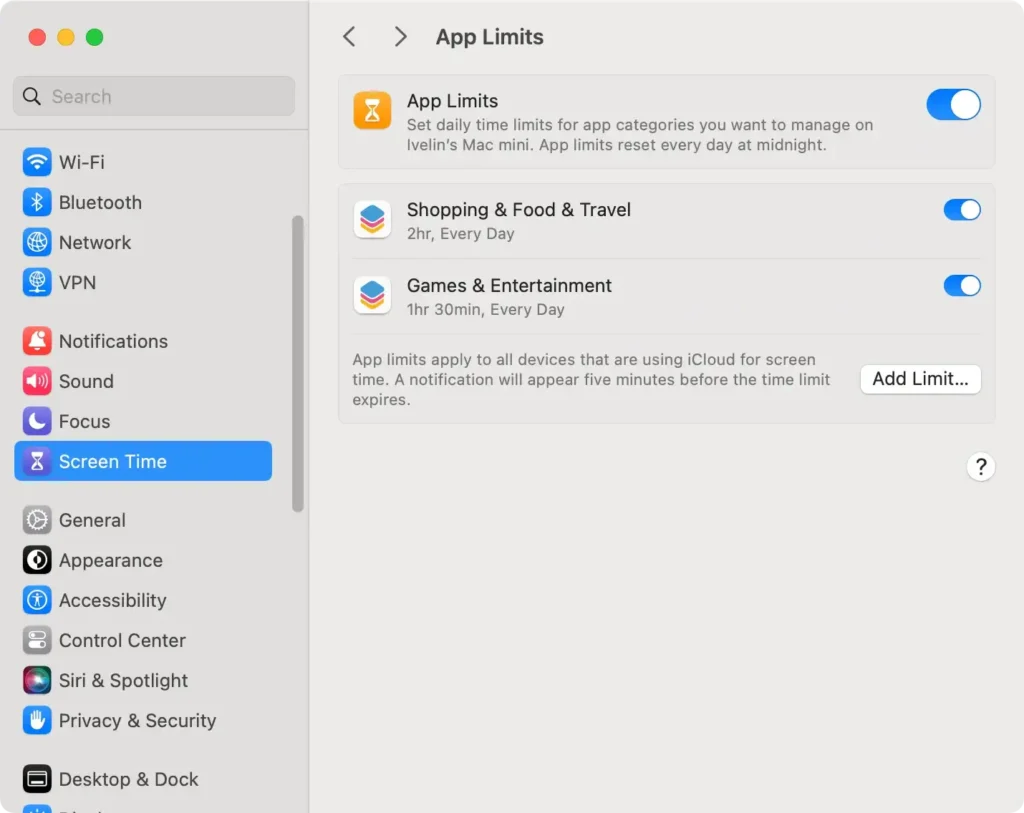
The App Limits feature lets you set daily or weekly time limits for specific apps or categories, ensuring children spend their digital time constructively.
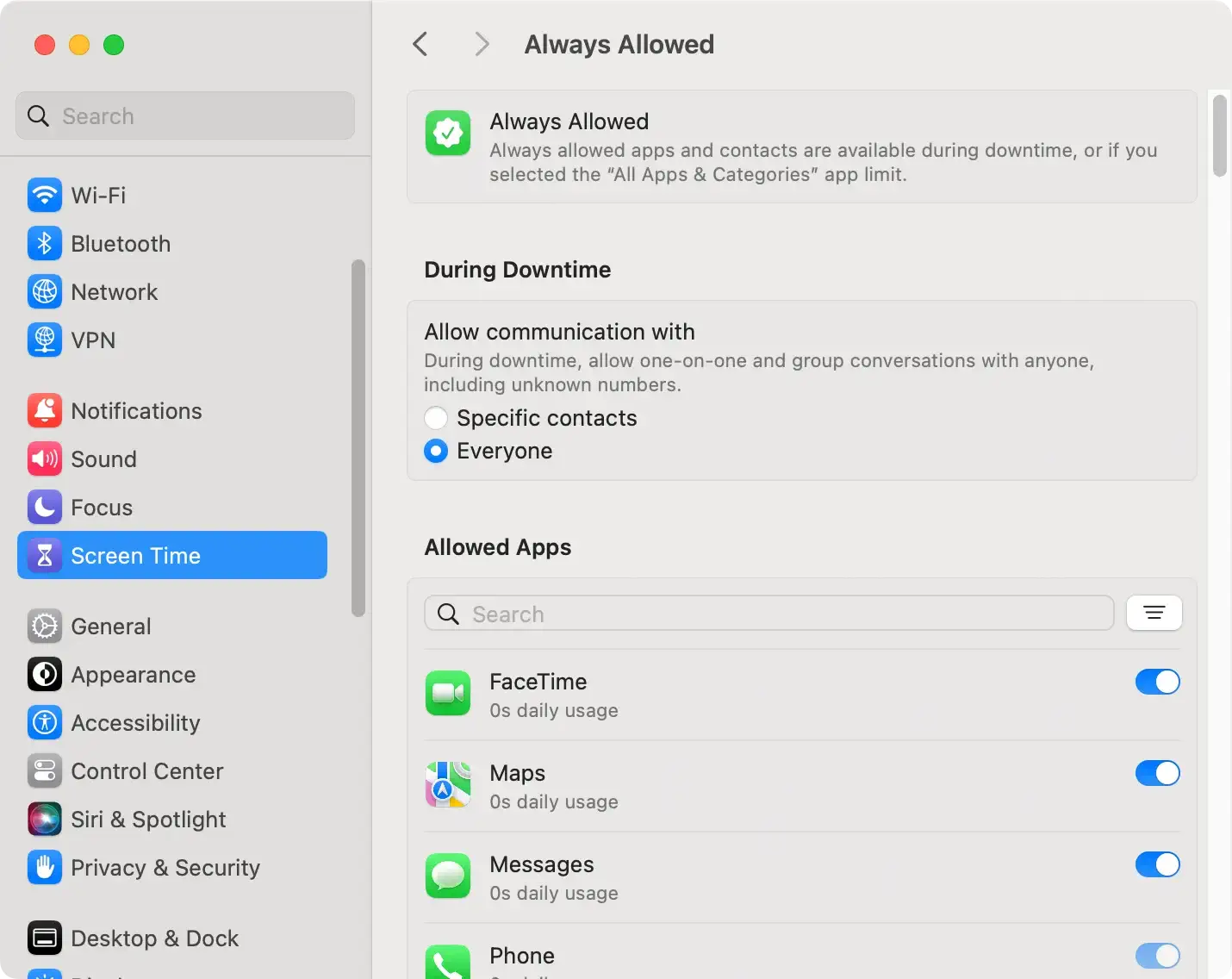
With the Always Allowed section, parents can select vital apps like educational tools or communication apps with family members exempt from downtime rules.
Implementing scheduled downtime during night hours or homework time can help inculcate disciplined device usage habits among children.
By customizing these settings, you can guide your child towards a healthy balance between the virtual and real world, encouraging productive habits and reducing potential digital distractions.
Setting up web content filters and site bans
The web is a vast repository of information with both enriching and harmful content. Here’s how MacOS enables you to filter web content and ensure your child accesses only appropriate websites:
In the Content & Privacy section of Screen Time, select Web Content. macOS offers three levels of filtering:
- Unrestricted access;
- Limit access to adult websites;
- Allowing access only to specific websites you choose.
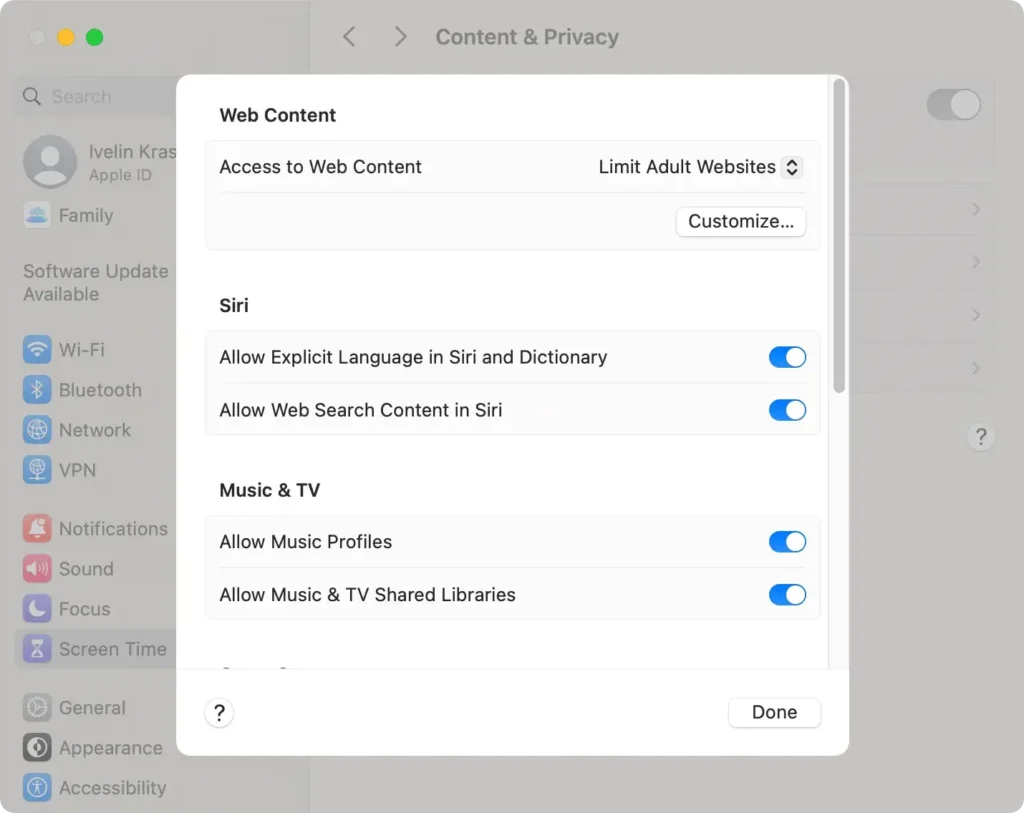
The Limit Adult Websites option provides an automatic filter against inappropriate content. It allows for adding specific sites to an ‘always allow’ or ‘never allow’ list, allowing parents to tailor web access according to their child’s needs.
For younger children, choosing the Allowed Websites Only option offers more granular control. It restricts web access except for the specific websites added by the parent.
Protecting your children from harmful online content requires active involvement and occasional adjustments as they grow and their interests change.
MacOS parental controls offer the flexibility and depth needed to adapt these settings over time. With just a few clicks, you ensure your child’s online interactions are always safe, productive, and aligned with your family’s values.
FAQs about Parental Controls on Mac
As parents delve into digital parenting, several questions and concerns arise regarding the effectiveness and reliability of Mac parental controls.
Dealing with tech-savvy kids: Can they bypass parental control?
One common concern among parents is whether their tech-savvy children might find ways to bypass the parental controls on their Macs. Given the rapidly evolving digital landscape and ingenuity of curious minds, it’s an understandable worry.

For instance, these controls and apps are equipped with password protection and uninstall protection, and they cannot bypass restrictions using Virtual Private Network (VPN) or changing device settings.
However, parents need to recognize that while these tools are highly effective, open communication and education about the reasons behind using parental controls play a crucial role in ensuring compliance and understanding.
Teaching children about the dangers of the online world and fostering a relationship of trust and openness can significantly enhance the effectiveness of the technical measures.
Conclusion: Ensuring a safe online environment for your child
In navigating Mac’s parental control settings and enhancing them with third-party parental control apps, we’ve outlined a strategy to ensure a secure online space for our children.
The Internet offers vast opportunities for learning and entertainment, and parents must use parental control features effectively to foster a safe environment. With tools to restrict access to inappropriate content, manage screen time limits, and monitor app usage, parents can create a balanced digital experience.
Balancing technological measures with education and trust is critical to empowering them to navigate the Internet responsibly.
As digital landscapes evolve, staying informed and adaptable is essential. Parents can confidently guide their children in a constantly changing digital realm by utilizing parental controls, app limits, and web filtering, ensuring a positive and safe online experience.
