

Remove STOP/DJVU Ransomware (Decryption Methods Included)

Before we dive in
Before we dive in, let's make sure you stay safe online. We created SpyHunter because your security matters to us.
Protect your computer today — download SpyHunter right here! Check out our top tips below to keep your computer safe and secure.

STOP/DJVU is a widespread ransomware family known for its malware attacks. It encrypts victims’ files and demands payment for their release.
This article will uncover the origins, operation, and widespread impact of STOP/DJVU, offering insights into prevention and recovery strategies. Learn how to protect your data and respond to this pervasive cyber threat.
Introduction to STOP/DJVU ransomware
Ransomware attacks have become increasingly common, targeting both individuals and organizations globally.
Among these threats, the STOP/DJVU ransomware family has emerged as a notable rival since its appearance in 2018.
This family includes variants such as LKFR, LKHY, MOIA, MAAS, and FATP, known for encrypting files on Windows and Mac computers and demanding ransom for decryption keys.

The STOP/DJVU variants typically enter systems through deceptive downloads. This includes software cracks and pirated content from questionable online sources.
They encrypt user files—like documents, photos, and videos—applying extensions like .djvu, .lkfr, .lkhy, .moia, and .fatp, and then demand a ransom through a note left on the desktop.
This ransomware uses public key cryptography, encrypting up to 5MB of files to keep the system usable for payment processing.
With new variants constantly appearing, staying informed and practicing good cybersecurity is essential to protect against STOP/DJVU and its evolving threats.
Understanding STOP/DJVU ransomware
STOP/DJVU ransomware is a type of malware that locks files on your computer and asks for money to unlock them.
First found in 2018, it’s become widely known for attacking users by sneaking in through unsafe software downloads. It targets various file types, making it a severe risk to people and organizations.
How STOP/DJVU spreads
It mainly comes from downloading cracked software or adware from unreliable websites. Once inside, it encrypts files and demands a ransom, putting users under pressure to pay to get their data back.
The evolution of STOP/DJVU
Since 2018, STOP/DJVU has constantly changed, releasing new versions that alter how it encrypts files and asks for ransom.
These changes make it harder to fight against, as it finds new ways to attack users, even targeting specific groups like Discord communities.
Fighting STOP/DJVU ransomware
- Early versions of this ransomware could sometimes be unlocked with special tools, but newer ones are tougher to crack.
- Keeping software updated and staying informed are vital in protecting against these attacks.
STOP/DJVU’s constant evolution shows why it’s crucial to stay vigilant and use strong cybersecurity practices to keep safe from such threats.
How to identify and isolate STOP/DJVU
Recognizing and managing a ransomware infection early can mitigate its impact on your devices.
When dealing with STOP/DJVU ransomware, it is vital to identify its presence accurately. The next step is to swiftly isolate the infected device from other networks and devices to prevent the ransomware from spreading further.
STOP/DJVU infection signs
Identifying a STOP/DJVU ransomware infection promptly is critical to limit damage. Several signs indicate your device may be compromised:
- File Extension Changes: Your files have a new extension, such as .djvu or another variant-specific extension, appended to them. This indicates the files are encrypted and inaccessible.
- Ransom Note: A ransom note, usually as a readme.txt file, appears on your desktop or in the encrypted file folders. It demands payment for decryption keys.
- Inability to Open Files: Attempts to open files lead to errors, or the files open in a cluttered, unreadable format, showing that the data within has been encrypted.
- System Performance Issues: A noticeable slowdown in computer performance, as the ransomware consumes system resources during the encryption process.
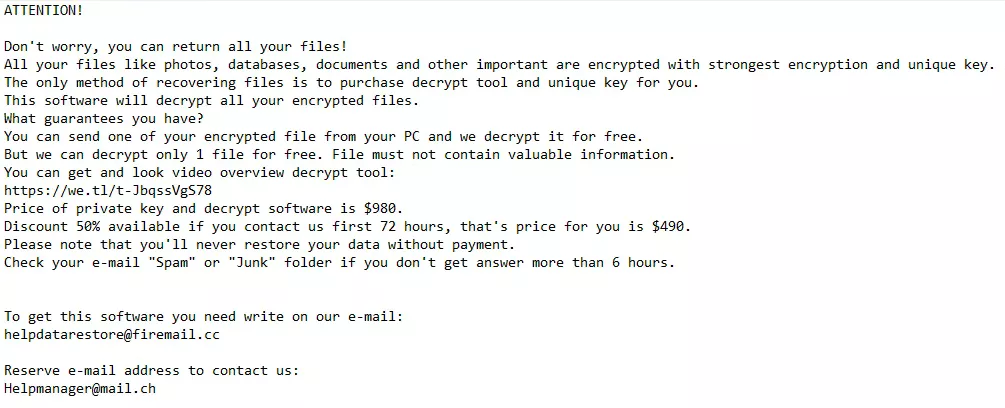
Upon noticing these signs, immediate action is necessary to prevent further damage and potential spread to connected networks and devices.
Isolating the infected device
The moment you suspect an infection, isolating the device is crucial. Here’s how to effectively isolate and secure the infected machine:
- Disconnect from the Internet: Immediately remove the Ethernet cable or disable Wi-Fi to sever any connections to the Internet. This action will prevent the ransomware from transmitting data to the attackers or spreading to cloud networks.
- Unplug External Devices: Disconnect all external storage devices, such as USB drives and external hard drives, to avoid further ransomware spreading.
- Sign out of Cloud Storage: If possible, log out of any cloud storage accounts to prevent the ransomware from accessing and encrypting files stored in the cloud. Consider temporarily uninstalling cloud storage software until the infection is fully resolved.
- Limit Network Connectivity: If part of a local network, disconnect the infected device from it to prevent the ransomware from spreading to other devices connected to the same network.
Following these steps will help contain the ransomware, preventing it from infecting other devices while you proceed with further remediation.
Remove STOP/DJVU ransomware
Removing the STOP/DJVU ransomware from an infected computer is crucial to regain access to encrypted files and restore the device’s integrity.
The removal process can be complex and may differ based on the specific ransomware variant and the system’s condition.
Below, we outline three primary methods to tackle this malicious software: manual removal, anti-ransomware tools, and system restore options.
Method 1: Manually remove STOP/DJVU
Manual removal is best suited for users with technical expertise due to the risk of accidental system damage. Here’s how to approach it on Mac and Windows:
For Windows Users:
- Enter Safe Mode with Networking: Restart your PC. As it reboots, tap F8 (or the key assigned for your PC) to access Advanced Boot Options and select “Safe Mode with Networking.”
- Find and Delete Malicious Files: Use Windows Explorer’s search function to find files associated with STOP/DJVU. Typical locations include:
%AppData%%Temp%%LocalAppData%
- Remove Registry Entries: Open the Registry Editor by typing “regedit” in the Start menu search. Then, navigate to the entries made by the ransomware. Exercise extreme caution; incorrect edits can cause system damage.
For Mac Users:
- Start in Safe Mode: Restart your Mac and immediately press and hold the Shift key. Hold it until the login window appears. Log in to proceed in Safe Mode, which limits what runs on your system.
- Locate and Delete Files: Use Finder to search for any suspicious files related to STOP/DJVU. Focus on directories like:
/Library/LaunchAgents/~/Library/LaunchAgents//Library/LaunchDaemons//Library/StartupItems//Library/Application Support//Applications/~/Downloads/
Unlike Windows, Mac doesn’t have a registry, so this step is not applicable. However, remove all related malware components from system settings and application support files.

Manual removal requires careful identification of ransomware components without affecting essential system files.
If unsure, consider seeking professional help or using dedicated anti-malware tools to ensure thorough cleanup without risking system health.
Method 2: Automatically remove STOP/DJVU with SpyHunter
For those seeking a safer, more straightforward approach to eliminating the STOP/DJVU ransomware, using SpyHunter provides an efficient and reliable solution.
SpyHunter is designed to detect and remove malware threats with minimal user intervention, making it an ideal choice for users of all technical levels.
For Windows Users: SpyHunter 5
SpyHunter 5 is tailored for Windows users. It has advanced malware detection and removal capabilities. SpyHunter 5 simplifies eradicating STOP/DJVU by scanning for and isolating ransomware and other threats.
- Download SpyHunter and follow the installation guide to set up SpyHunter 5 on your Windows PC.
- Open SpyHunter 5 and initiate a scan to find ransomware and other harmful software on your device.
- Follow SpyHunter’s prompts to remove any detected threats, safeguarding your PC from further attacks.
For Mac Users: SpyHunter for Mac
SpyHunter for Mac addresses the unique cybersecurity challenges faced by Mac users.
It offers comprehensive protection against ransomware like STOP/DJVU, adapting to the evolving malware landscape to keep your Mac secure.

- Download SpyHunter for free here and complete the setup process by following the instructions.
- Launch SpyHunter for Mac and run a full system scan to detect STOP/DJVU ransomware and associated malicious components.
- Use SpyHunter’s recommendations to eliminate any identified threats efficiently.

Choosing SpyHunter for automatic malware removal ensures that the STOP/DJVU ransomware is thoroughly eradicated from your system without the risks associated with manual removal.
With SpyHunter, you can confidently protect your digital environment against various cybersecurity threats.
Method 3: System restore and recovery
When STOP/DJVU ransomware impacts your system, restoring it to a prior state can be an effective recovery strategy.
This approach aims to undo the ransomware’s changes but may lead to losing some recent files. Consider backing up encrypted files beforehand, as future decryption tools might recover them.
For Windows Users:
- Windows System Restore: This feature will revert your system to an earlier restore point before the ransomware attack. This can remove changes made by the malware without affecting personal files.
- System Recovery or Clean Reinstall: In cases where the damage is extensive, a complete system recovery or a clean reinstall of Windows may be necessary. This drastic measure can erase all data, so it’s seen as a last resort.
For Mac Users:
- Time Machine Backup: Mac users should regularly use Time Machine for backups. If infected, you can restore your system to a pre-infection state from a Time Machine backup. To do this, restart your Mac and hold down the
Command + Rkeys to enter macOS Recovery. ChooseRestore From Time Machine Backupand follow the on-screen instructions. - macOS Recovery: If a Time Machine backup isn’t available, consider using macOS Recovery to reinstall macOS. This won’t affect personal data if performed correctly, but following Apple’s guidelines is crucial to ensure a smooth process.
- Clean Install: As with Windows, a clean install is a more drastic step for Macs. It involves erasing the hard drive and installing a fresh version of macOS. While this can effectively remove ransomware, it also results in losing all data on the device.
Removing STOP/DJVU ransomware requires a cautious and methodical approach.
Whether opting for manual removal, using anti-ransomware software, or restoring the system, it’s crucial first to isolate the infected device to prevent further spread of the malware.
Following successful removal, implementing robust cybersecurity practices, and maintaining regular data backups are essential to safeguard against future infections.
Techniques to decrypt STOP/DJVU files
After a STOP/DJVU ransomware attack, victims face the challenge of regaining access to their encrypted data. Understanding the decryption process is vital for adequate recovery.
There are distinct methods for decrypting files, depending on whether they were encrypted with an online or offline key.
Knowing the specific encryption type can significantly influence the approach to decryption and the likelihood of recovering the files without paying the ransom.
The difference between online and offline keys
STOP/DJVU ransomware utilizes two main types of encryption keys – online and offline.

Understanding the difference between these two is crucial for determining the approach for decryption:
- Online Keys: When the ransomware communicates with its remote server during the infection, it uses a unique encryption key for each victim. This key is known as an online key. Files encrypted with online keys are more challenging to decrypt, as each key is distinct and known only to the attackers.
- Offline Keys: In scenarios where the ransomware cannot connect to its remote server, it resorts to using a pre-defined offline key hard-coded within the malware. The advantage here is that this offline key is the same for all victims affected during the deployment of a specific ransomware version. This makes it possible for cybersecurity researchers to develop a universal decryptor once the offline key is obtained.
The type of key used for encryption plays a pivotal role in the feasibility of decryption.
Identifying whether your files were encrypted with an online or offline key is a critical first step, often discernible through specific markers or IDs within the ransom note or file metadata.
Free Decryptor Tools Available for STOP/DJVU Victims
Hope is not lost for STOP/DJVU ransomware victims, thanks to the availability of free decryptor tools developed by cybersecurity researchers.
These tools primarily benefit victims whose files were encrypted using offline keys. Decryption becomes significantly more challenging for those affected by variants using online keys due to the unique encryption key used for each victim.
It’s essential to approach the decryption process with realistic expectations, especially for those affected by newer or online key-encrypted STOP/DJVU ransomware variants.
While not all files may be recoverable immediately, preserving encrypted data and regularly checking for decryptor updates can eventually yield positive outcomes.
Alternative decryption methods and tools may also emerge over time, highlighting the importance of staying informed about developments in cybersecurity resources and community efforts to combat ransomware.
How to prevent STOP/DJVU ransomware attacks
With STOP/DJVU ransomware on the rise, taking steps to protect your digital life is essential. Simple, proactive measures can significantly reduce your risk of an attack. Here’s how to keep your data safe:
Back up your data
- Use Local and Cloud Storage: Combine backups on physical devices and online to cover all bases.
- Follow the 3-2-1 Rule: Keep three copies of your data on two different media, with one backup offsite for extra security.
- Encrypt and Check Backups: Ensure your backups are encrypted and regularly check them for integrity.
Keep software updated
- Patch Regularly: Stay on top of your software and operating system updates. Developers fix security holes that could let ransomware in.
- Turn on Automatic Updates: This ensures you’re always running the latest software version, closing gaps that hackers could exploit.

Use security tools
Invest in trusted antivirus and anti-malware solutions to bolster your digital defenses.
Effective security software, such as SpyHunter, is a crucial line of defense, detecting and blocking ransomware before it can cause harm.

SpyHunter offers comprehensive protection to identify and neutralize threats like STOP/DJVU ransomware.
Download SpyHunter and enhance your security today. Ensure your system is safeguarded against ransomware and other cyber threats.
Incorporating SpyHunter into your cybersecurity toolkit can provide peace of mind, knowing you have robust protection against a wide range of digital threats.
Invest in trusted antivirus and anti-malware solutions such as SpyHunter. They act as a first line of defense by detecting and blocking ransomware.
Stay informed
Understanding what STOP/DJVU ransomware is and how it spreads can help you avoid common traps, like clicking on suspicious links or downloading unsafe software.
Integrating these practices into your daily digital routine can create a strong defense against ransomware. Regular backups, software updates, and good security tools are your best bet for keeping your data safe and sound.
Final thoughts
Recovering from a STOP/DJVU attack involves removing the malware, attempting data recovery, and improving security measures.
Although challenging, understanding recovery options and when to seek professional help can increase the chances of success. Not all encrypted files may be recoverable; thus, maintaining regular backups is crucial for data security.
When to consult cybersecurity experts
- Expertise: Professionals offer specialized knowledge and experience in ransomware recovery.
- Resources: They have access to advanced tools for effective malware removal and data restoration.
- Strategic Guidance: Experts can advise on enhancing security to prevent future attacks.
Deciding to seek professional help depends on the attack’s complexity and the affected entity’s technical capacity. Prompt, informed actions are essential for navigating recovery and bolstering defenses against future threats.
