

Remove FATP Ransomware (Recover Your Lost Files Today)

Before we dive in
Before we dive in, let's make sure you stay safe online. We created SpyHunter because your security matters to us.
Protect your computer today — download SpyHunter right here! Check out our top tips below to keep your computer safe and secure.

FATP is the name of an emerging ransomware threat. It is part of the notorious STOP/DJVU family. FATP locks all of your files and demands payment for access.
This guide unveils FATP’s methods, impacts, and defense tactics, offering critical insights on combatting and recovering from this digital menace. Let’s dive in:
Understanding FATP ransomware and its mechanisms
FATP is a harmful software from the STOP/DJVU ransomware family. It encrypts files on a victim’s computer, making them inaccessible without a decryption key.
It’s known for its forceful encryption tactics, targeting primarily personal files. FATP searches for and locks specific file types, including images, videos, and documents (.doc, .docx, .xls, .pdf). It then changes file extensions to .fatp, indicating encryption.

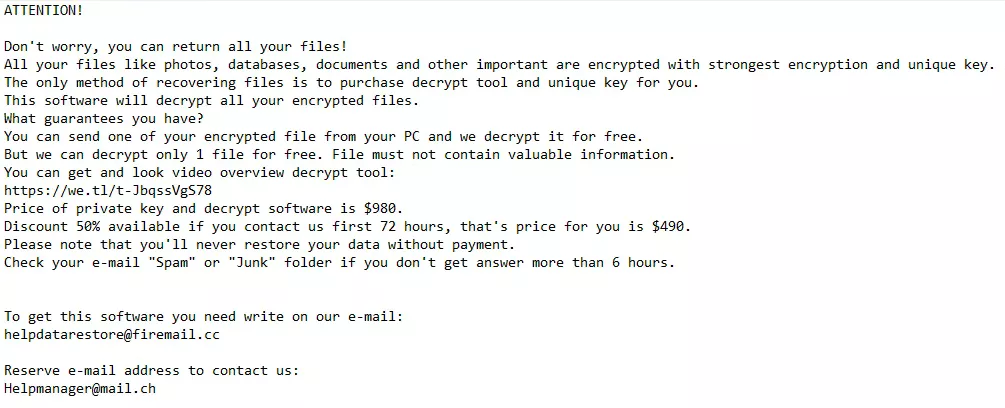
Finally, FATP places a “_readme.txt” note in affected folders detailing payment instructions for file recovery.
FATP ransom demands
- Payment in Bitcoin: FATP Requires ransom in cryptocurrency, citing amounts and offering a “discount” if paid by a deadline.
- Contact Information: FATP provides email addresses where victims can negotiate or complete the payment process.
The psychological game behind FATP
The strategy behind FATP isn’t just technical encryption but also psychological manipulation, using urgency and fear to pressure victims into paying. However, paying the ransom is risky:
- No Guarantee: Paying does not assure receipt of a decryption key.
- Risk of Additional Demands: Victims might face further payment requests.
- Potential Permanent Data Loss: Decryption keys may fail, leading to irreversible loss of files.
Recognizing how FATP operates is crucial for crafting effective defense and recovery plans, emphasizing the importance of caution and preparation for overpayment to attackers.
FATP ransomware infection signs
Detecting an infection by FATP ransomware is straightforward, given its distinct encryption pattern. Here are some primary indicators that your system has fallen victim to this ransomware:
- Modified File Extensions: The most evident sign of FATP ransomware infection is altering your file extensions to “.fatp.” This means if you had a file named “photo.jpg,” it would now appear as “photo.jpg.fatp,” rendering it inaccessible.
- Ransom Note Appearance: FATP ransomware displays its demands through a ransom note named “_readme.txt,” which is found in every folder containing encrypted files. These notes generally include instructions on how to pay the ransom and often provide contact details for the attackers.
- Inability to Open Files: An attempt to open any affected files will fail because the encryption makes them unreadable without the correct decryption key. This sudden inability to access your personal or work-related documents indicates a ransomware infection.
- System Performance: While not as overt as the other indicators, some victims have reported a noticeable slowdown in their system’s performance. This can be attributed to the ransomware’s background processes as it encrypts files or communicates with its server.
- Unexpected Software Behavior: Observing unusual behavior from your file management software could indicate that your system is compromised. Ransomware like FATP often tries to disable or evade detection by security programs.
Recognizing these initial signs of a FATP ransomware infection can be crucial in taking immediate steps to mitigate its impact.
The sooner you detect such an infection, the better your chances of minimizing data loss and preventing the spread of the ransomware.
It’s essential to act swiftly and consider professional advice on addressing the infection, as attempting to resolve the issue without sufficient knowledge can lead to further data corruption or loss.
Remove FATP ransomware from your computer
Step 1: Boot your PC into Safe Mode with Networking
If you are a Windows user, booting your computer in Safe Mode with Networking minimizes the processes running on your computer. This will help identify and remove FATP and any other malware.
To enter Safe Mode with Networking, restart your computer and press the F8 key (or the appropriate key for your system) before Windows starts. Select Safe Mode with Networking from the menu.
Step 2: Remove FATP ransomware automatically with SpyHunter
An automatic removal approach is highly recommended for those facing the FATP ransomware threat. It ensures thorough cleansing without the complexities of manual intervention.
SpyHunter offers a robust solution tailored for Windows and Mac users, providing a streamlined process to detect and eradicate this malware efficiently.
For Windows Users: SpyHunter 5
SpyHunter 5 is designed to offer comprehensive malware detection and removal capabilities specifically for Windows environments. It excels in identifying ransomware like FATP and other sophisticated threats.
- Download SpyHunter and follow the straightforward installation instructions.
- Launch SpyHunter 5 and conduct a full system scan to identify FATP ransomware components.
- Allow SpyHunter 5 to remove the ransomware and any related malicious entities.
For Mac Users: SpyHunter for Mac
SpyHunter for Mac is engineered to tackle malware threats in macOS, adapting to the unique challenges posed by Mac-specific ransomware and malware.

- Download SpyHunter from here and complete the installation with the guided setup process.
- Perform a comprehensive scan to detect the presence of FATP ransomware.
- Let SpyHunter for Mac remove FATP ransomware from your system automatically.

Why choose SpyHunter:
SpyHunter simplifies malware removal, ensuring users can effectively address the FATP ransomware threat without deep technical knowledge. By opting for automatic removal:
- Efficiency: Quickly identifies and removes ransomware with minimal user input.
- Safety: Reduces the risk of accidental damage to system files during removal.
- Convenience: Offers a user-friendly interface suitable for all experience levels.
SpyHunter provides a secure and reliable method to remove FATP ransomware and protect your system from future threats.
Step 3: Restore your operating system to a previous state
After removing the FATP ransomware using advanced tools like SpyHunter, the next crucial step is to restore your operating system to its condition before the infection.
This process can reverse many of the changes made by the ransomware, potentially recovering some system settings and functionality. Here’s how to approach system restoration for both Windows and Mac users:
For Windows Users:
- Access System Restore:
- Type “System Restore” in the Windows search bar and select “Create a restore point” from the results.
- In the System Properties window, click the “System Restore” button.
- Select a Restore Point:
- Follow the instructions to choose a restore point created before the FATP ransomware infection. Windows automatically creates restore points before significant system changes.
- Initiate the Restoration:
- Start the restoration process. Your computer will reboot and revert to the selected restore point, undoing changes made by the ransomware.
For Mac Users:
- Use Time Machine:
- If you’ve been using Time Machine for backups, you can restore your Mac to a point before the ransomware infection.
- Restart your Mac and hold the
Cmd + Rkeys to enter Recovery Mode. - Choose
Restore From Time Machine Backupin the macOS Utilities window and select a backup date before the infection.
- Reinstall macOS:
- You can reinstall macOS if a suitable Time Machine backup isn’t unavailable.
- In Recovery Mode, select
Reinstall macOSand follow the instructions to install a clean version of the OS without affecting your files.
Important considerations:
- Backups: Always ensure you have recent backups of your files, especially if you need to reinstall the OS.
- Data Loss: While these restoration methods aim to revert system changes, they might not recover encrypted files. Decryption or backup recovery is needed for affected files.
- Prevention: Implementing regular backups and updating your system are crucial steps to prevent future ransomware infections.
Restoring your operating system to a pre-infection state can help mitigate some of the damage caused by FATP ransomware.
Whether through System Restore on Windows or Time Machine on Mac, taking action to revert your system can aid in regaining standard functionality.
Decrypt your files: Techniques to recover lost data
Using available decryption tools
For FATP and similar ransomware variants, decryption tools may be available. Visit legitimate security websites for the latest available decryption tools.
Alternative solutions: Data recovery software
If a decryption tool is not available for your particular ransomware variant, data recovery software can be used in an attempt to restore files. Such programs perform deep scans of your hard drive to recover deleted or lost files.
Restoring files from a backup
The safest and most effective method to recover from a ransomware attack is restoring your files from a backup.
Ensure your backups are current and stored on an external device or cloud storage disconnected from your network.
When restoring, verify that the ransomware is completely removed from your system to prevent re-encryption of restored files.
Implementing preventive measures, rapid response to an infection, and a robust backup and recovery strategy are critical factors in protecting your data from FATP ransomware and minimizing its potential impact.
Safeguard your system against FATP ransomware
Protecting your system from ransomware attacks requires a comprehensive approach that combines technology, vigilance, and best practices in cyber hygiene.
Here are essential preventive measures you can take to shield your computer and data:
- Regular Software Updates: Keep your operating system and all software updated. This ensures that vulnerabilities are patched, reducing the risk of exploitation by ransomware attacks.
- A Robust Antivirus Solution: Use reliable antivirus software and ensure it’s always up-to-date. Set it to run regular scans and real-time protection against malware threats.
- Email Vigilance: Be cautious with emails from unknown sources, especially those that contain attachments or links. Ransomware is often spread via phishing emails that trick users into initiating the infection.
- Backup Data Frequently: Regular backups to external drives or cloud storage can be your safety net. Ensure backups are performed consistently and test them to guarantee they can be restored.
- Enable Firewall: A firewall can prevent unauthorized access to your computer. Ensure it’s enabled on your computer and configured to block potential threats.
- Ad Blockers and Security Extensions: Utilize ad blockers and security extensions on your web browsers to minimize the risk of drive-by downloads or malicious scripts running without your knowledge.
- User Education: Educate yourself and others who use the computer about the dangers of ransomware and the importance of following online best practices to avoid infection. Awareness is a powerful tool against cyber threats.
Implementing these measures provides significant protection against FATP ransomware and other malicious software, creating multiple layers of defense that can deter or minimize the impact of an infection.
FAQs about FATP ransomware
How does FATP ransomware infect my computer?
FATP ransomware infiltrates systems through compromised websites, phishing emails, or exploits vulnerabilities in outdated software.
It can also be distributed via pirated software installers, deceptive downloads from the internet, and attachments or links in spam emails.
Users activate the ransomware by clicking on these malicious links or downloading and installing infected files.
Should I pay the ransom to get my files back?
Paying the ransom is strongly discouraged. There is no guarantee that the attackers will provide you with a working decryption key.
Instead, focus on removing the ransomware from your system and exploring alternative data recovery options.
Can FATP ransomware be removed with antivirus software?
Yes, reputable antivirus software such as SpyHunter can detect and remove FATP ransomware from your system.
However, removing the ransomware does not decrypt your files but prevents further encryption and the potential spread of ransomware to other systems.
What are the chances of recovering my files without paying the ransom?
The likelihood of recovering your files without paying the ransom depends on several factors, including the type of encryption used and whether backups and a working decryption tool are available.
In many cases, recovery is possible through backups or official decryption tools for known ransomware variants.
How can I protect my computer from future ransomware attacks?
Protect your computer by maintaining up-to-date antivirus software, regularly backing up your data, practicing cautious online behavior, and avoiding clicking suspicious links or downloading unverified software.
Keeping your operating system and apps updated can also help close security gaps that ransomware could exploit.
When to contact cybersecurity experts
In the face of a FATP ransomware attack, individuals and organizations may be overwhelmed and unsure of the best action.

While preventive measures and self-help guides offer significant aid, there are scenarios where the complexity of the attack necessitates professional intervention.
Understanding when to seek help from cybersecurity experts is crucial in effectively combating ransomware and mitigating its impact.
Complex or large-scale infections
If the ransomware infection has spread across multiple systems or networks, resulting in a large-scale compromise, it’s time to contact cybersecurity experts.
Professionals have the right tools and expertise to conduct thorough investigations, contain the spread of the ransomware, and begin the recovery process on a larger scale.
When data is of high value
If the encrypted data is of high value—be it sensitive personal information, proprietary business data, or irreplaceable personal memories—consulting with cybersecurity experts can increase the chances of successfully decrypting your files without succumbing to ransom demands.
For legal and forensic purposes
Cybersecurity professionals can provide the necessary expertise in cases where legal action against the perpetrators is considered or a forensic investigation is needed to understand the breach’s extent.
Their findings can aid in legal proceedings and help formulate a more robust defense against future attacks.
How to choose a cybersecurity expert
When seeking professional help, select experts or companies with a proven record in dealing with ransomware incidents.
Look for certifications, testimonials, and case studies as indicators of their capability.
It’s also essential to ensure they offer the specific services you need, such as incident response, digital forensics, or ransomware negotiation and recovery.
