

How To Fix Preferences Error On Mac (Quick Fixes)

Before we dive in
Before we dive in, let's make sure you stay safe online. We created SpyHunter because your security matters to us.
Protect your computer today — download SpyHunter right here! Check out our top tips below to keep your computer safe and secure.

Ever struggled with a Mac that just won’t cooperate, especially when you’re trying to change settings? You’re not alone.
Preferences errors on MacOS can throw a wrench into your day, from slow response times to outright crashes.
This article dives into simple, actionable solutions to diagnose, troubleshoot, and protect your Mac from these frustrating hitches.
What causes preferences error on Mac?
Various factors can lead to errors in the preferences on a Mac. Some of the most common culprits include software conflicts, outdated system software, and corrupted preference files.
The error message can manifest itself in different ways. Some users are repeatedly asked for their Apple ID and password while trying to access the settings app.
Corrupted files can be the result of sudden shutdowns, system crashes, or malware attacks.
Additionally, conflicts between newly installed applications and the system’s existing settings can disrupt the normal functioning of system preferences files.
Common triggers for preferences issues on macOS
Identifying what triggers preference errors on your Mac can help in formulating an effective resolution strategy. Some frequent triggers include:
- Running an older version of macOS that can cause compatibility issues with more recent applications or features, leading to preference errors.
- Corrupted user preference files that store individual settings for various applications and system components.
- Sometimes, software from third-party developers can interfere with the normal operation of System Preferences, especially if they require high levels of system access or modify system files.
- Inadequate permissions can prevent preferences from saving changes or accessing certain files, resulting in errors.
- High CPU usage or insufficient RAM can cause your Mac to struggle with executing commands in System Preferences, potentially causing errors to occur.
Addressing these triggers often involves updating software, checking for software conflicts, restoring permissions, or optimizing your system’s resources.
How to diagnose preferences error on your Mac
If you’re experiencing issues with System Preferences on your Mac, it’s important to diagnose the problem accurately to find a solution. Two effective methods include checking system logs and using Activity Monitor to identify problematic applications or processes.
Check system logs for clues
System logs can provide valuable insights into what might be causing preference errors on your Mac. To check these logs:
- Open the
Finderand selectApplications > Utilities > Console. - Within the console, you can explore system log queries to pinpoint errors related to system preferences. Look for warning messages or repetitive errors that occur around the time you noticed the issue.
This analysis could reveal issues with specific software or system components needing updates or reconfiguration, guiding you to a more targeted troubleshooting process.
How to fix system preferences errors on Mac?
If you’re unable to load preference panes or experiencing unresponsive settings when opening system preferences, the following step-by-step guide can help you troubleshoot and resolve these common issues quickly and efficiently and restore system preferences or system settings.
Solution 1: Delete problematic .plist files
Preference (.plist) files store your settings for different system applications. Sometimes, these files become corrupted and can cause errors in System Preferences.
- Open
Finderand selectGo > Go to Folder. - Type
~/Library/Preferencesand pressReturn. - Locate problematic .plist files such as
com.apple.systempreferences.plist. - Move the .plist file to the
Trash. - Restart your Mac.
- After the restart, try accessing
System Preferencesagain to see if the issue is resolved.
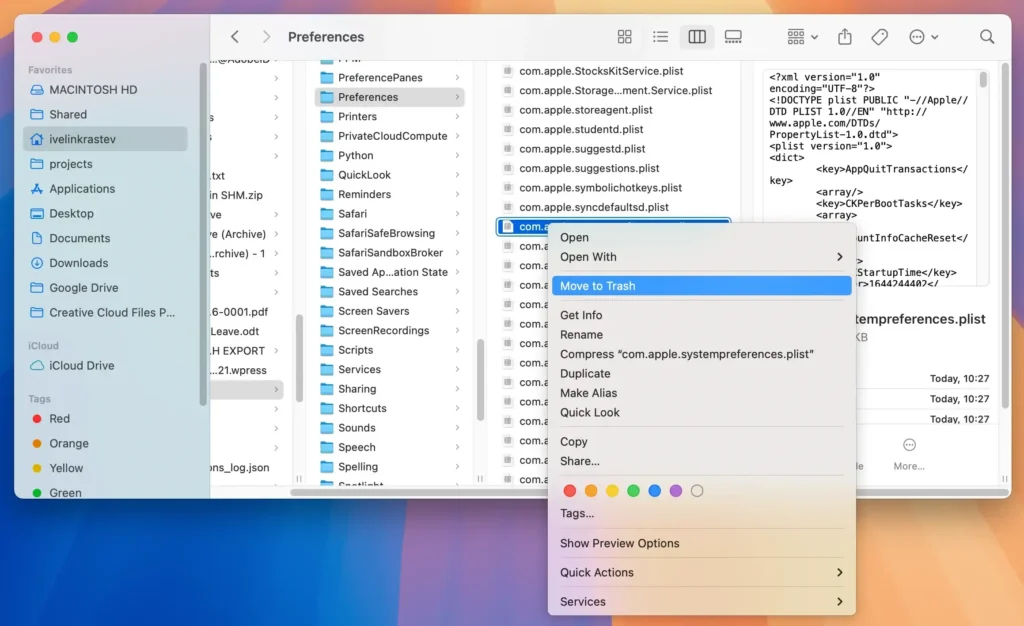
Deleting the com.apple.systempreferences.plist file will reset the system preferences app settings. The system will recreate these files with fresh settings when you modify your preferences again and you can select system preferences once again.
Solution 2: Repair disk permissions to prevent system errors
Disk permissions ensure that your Mac’s files and folders have the correct settings allowing your system to operate securely. Incorrect permissions can lead to preference errors.
Disk Utility can help you verify and correct these permissions, potentially resolving many common system issues and disk errors.
- Open
Finderand proceed toApplications > Utilities > Disk Utility. - Select the startup disk from the sidebar.
- Click on the
First Aidbutton. - Click
Runto start the repair process.
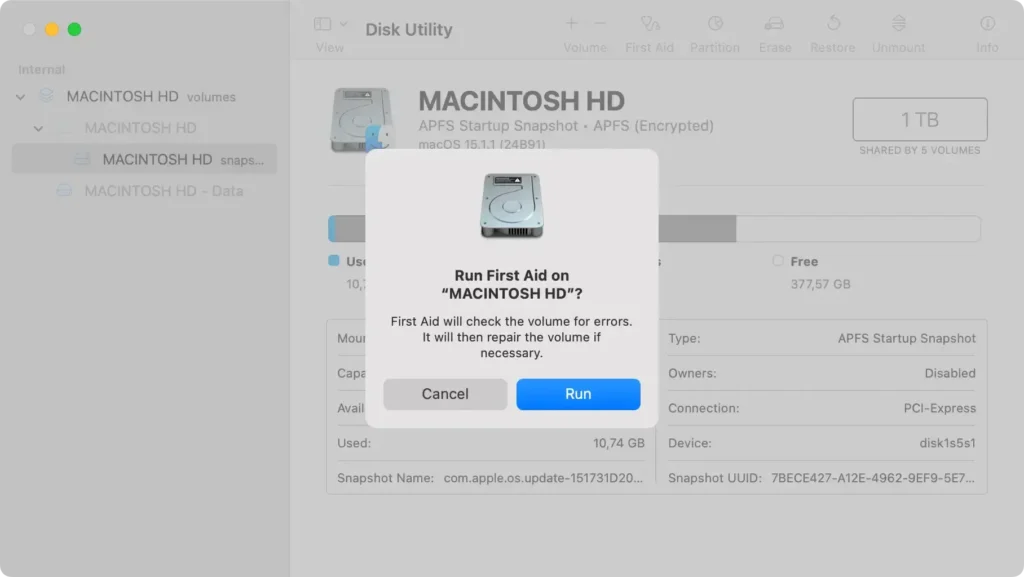
This process can find and correct problems related to improper file or folder permissions. It is a vital step to ensure your system runs smoothly and without errors.
If the issue persists even after using Disk Utility, it may be helpful to check for updates or consult with a professional for further diagnosis.
Solution 3: Restore with Time Machine
This method can reverse any unwanted changes by reinstating the system state from a previous backup when everything worked smoothly.
- Connect your
Time Machinebackup drive to your Mac. - Open
Migration Assistantfrom theApplications > Utilitiesfolder. - Select
From a Mac, Time Machine backup, or Startup diskoption, then clickContinue. - Choose the correct
Time Machinedisk when prompted. - Locate and select the
System & Networkfolder, then clickContinue.
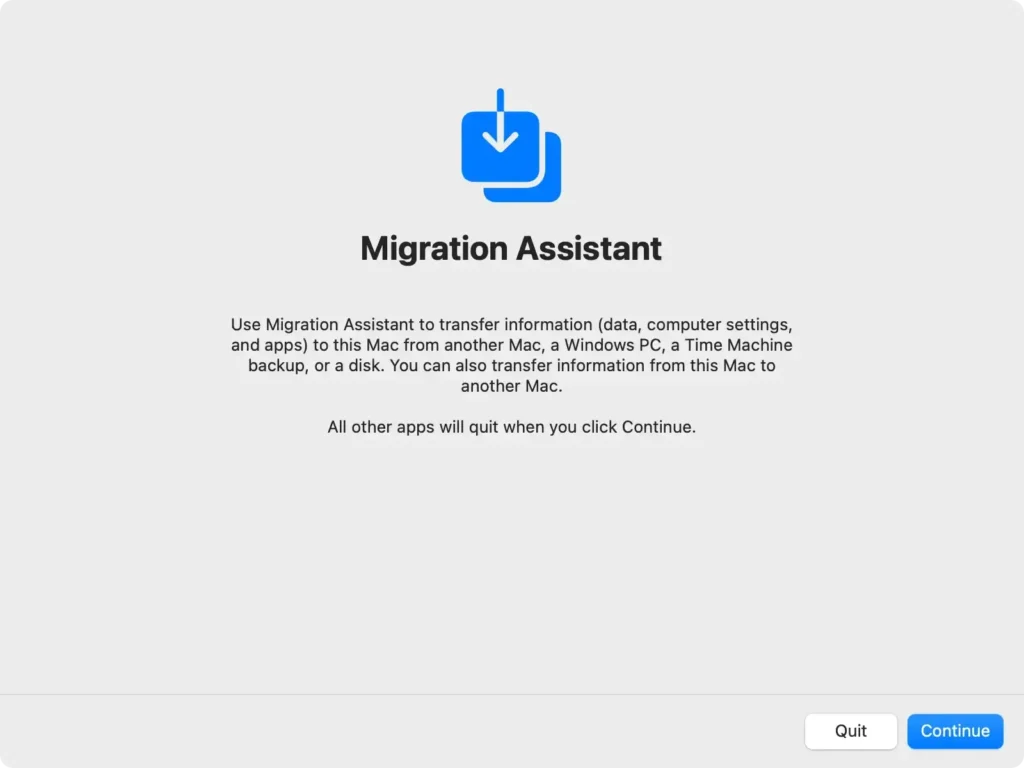
This process can take some time, depending on the size of your backup and the speed of your backup drive.
Once completed, your system preferences should be restored to the state of the last backup, hopefully resolving any issues.
Protect your Mac from preferences errors with SpyHunter
If you’ve struggled with Mac preference errors, SpyHunter offers a proactive solution to safeguard your system against similar issues in the future or eliminate any issues currently caused by existing malware.
Regular maintenance and monitoring of your Mac’s health can prevent these mishaps, and SpyHunter is designed to streamline this process effectively.
- Download SpyHunter for free and install it.
- Launch the SpyHunter app and scan your system for malware.
- Examine the list of possible detections once the scan is complete to make sure everything is selected for removal.

- Proceed to clean up your Mac and enjoy a smoother user experience.

Advanced troubleshooting: Safe Mode and other user accounts
Boot in Safe Mode to resolve persistent preferences errors
When your Mac encounters system preferences errors that don’t resolve with regular troubleshooting, booting into Safe Mode may help.
Safe Mode starts your Mac with only the essential software and services. This mode can help to isolate any issues caused by third-party software or corrupted data.
- Turn off your Mac completely.
- Press the power button, then immediately press and hold the
Shiftkey. - Release the
Shiftkey once you see the login window. - Test the system preferences to see if the error persists. If it does, issues may be deeper within the macOS or hardware.
- If the preferences work as expected, restart your Mac normally and remove recently added software or login items that could be causing the issue.
Test with a new user account to isolate issues
This method checks whether the issue is specific to user settings or system-wide.
Follow these steps to test with a new user account:
- Shut down your Mac and turn it back on.
- Login with a different user account, or create a new test account if needed.
- Try to access the problematic system preferences to see if the issue reoccurs.
- If the issue does not occur, transfer essential files from your original account to this new account and begin using it as your primary.
If the problem persists even under the new user account settings, it might be related to deeper system errors or corrupted operating system components, potentially warranting a reinstall of macOS or a consultation with a certified technician.
When all else fails: Consider reinstalling macOS
If troubleshooting methods like restarting your Mac or repairing the disk haven’t resolved the issue, reinstalling macOS could be the solution.
This process refreshes your system, potentially fixing persistent errors with System Preferences or other problems that resist simpler fixes.
Remember, this step should be your last resort, as it involves erasing all the data on your device.
