

How To Remove Pipidae Malware From Mac (Complete Guide)

Before we dive in
Before we dive in, let's make sure you stay safe online. We created SpyHunter because your security matters to us.
Protect your computer today — download SpyHunter right here! Check out our top tips below to keep your computer safe and secure.

Pipidae is a malicious application that presents a significant threat to your computer.
Adware programs like Pipidae not only display intrusive advertisements but also pose risks such as the potential download of additional malware and personal data theft, ultimately degrading the performance of the affected devices.
It is crucial to understand the nature of this adware to deal with it effectively. Learn how to remove Pipidae altogether by reading this thorough guideline. Let’s get started!
What is Pipidae adware?
Pipidae is a form of adware that hijacks your browser and shows you spam notifications. It belongs to the Pirrit adware family.
Additionally, Pipidae acts as a browser hijacker that:
- modifies browser settings
- redirects searches to fake engines
- and delivers intrusive adverts.
Further, it’s essential to understand that Pipidae may not only display unwanted ads but might also have other potentially harmful capabilities that can degrade the functionality of your computer system.
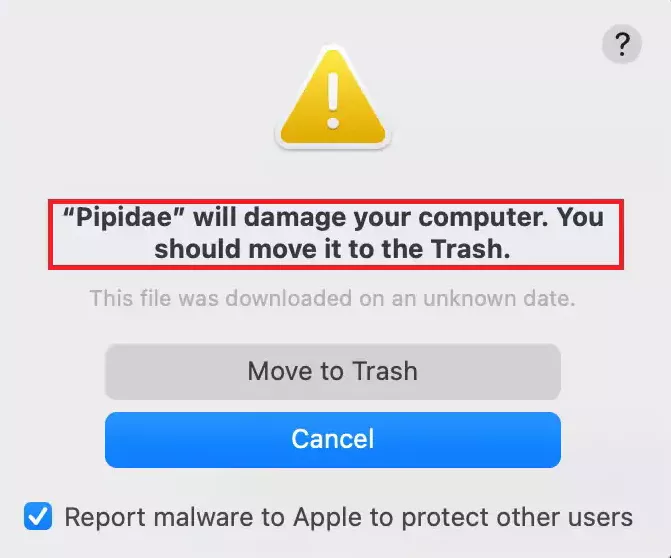
Symptoms of Pipidae malware infection
As Pipidae falls into the adware category, detecting signs of infection without security software can be challenging. However, built-in security features in MacOS might reveal this threat.
If you notice any of these symptoms, promptly addressing your computer’s unusual behavior is crucial to prevent further damage.
Pipidae infection symptoms:
- An alert message indicating
Pipidae will damage your computer. - Undesired alterations in the homepage and search tool settings.
- Altered or redirected search queries.
- Slow Mac performance due to resource consumption.
- A malicious profile on your Mac to maintain Pipidae’s presence.
Pipidae installation methods
Pipidae often infiltrates Macs through bundled free apps or software downloaded from unofficial websites.
It can also disguise itself as updates for popular software, luring users into unintentionally installing it. Users often install Pipidae by clicking on malicious links, such as pop-up links on unsafe websites or phishing emails with malicious attachments.
Additionally, suspicious browser extensions can modify settings and introduce Pipidae, while files from peer-to-peer platforms may carry hidden threats.
Steps to remove Pipidae from your Mac
Removing Pipidae can be challenging due to its ability to create multiple files across the system.
You have to remove not just the adware itself but also cleaning up the traces it left behind.
Follow the simple steps below for a complete removal:
1. Delete malicious profiles
Pipidae may create malicious profiles on your system, enabling it to run or respawn even after uninstalling the malicious app.
Therefore, for a start, you must remove any suspicious profiles that might be traced back to Pipidae. This is usually the first step to breaking its foothold in your system.
- Open the Apple menu in the top-left corner of your screen and select
System Settings(namedSystem Preferenceson older macOS versions). - Look for the
Profilesicon in theSystem Settingswindow. No configuration profiles are installed if there’s no such icon.

- Analyze the installed profile list and pinpoint any suspicious ones. Please pay attention to the profile names and the organizations associated with them. They might give you more clues as to whether the profile is related to Pipidae.

- Select a profile and click the “Minus” (-) button to remove it.
- Confirm that you want to remove the selected profile by providing your administrative password.
- Restart your Mac to ensure the changes take effect.
2. Remove Pipidae from Applications
To stop Pipidae from affecting your system, it’s crucial to uninstall its application from the Applications folder.
Follow these steps:
- Open the
Finderand click on theApplicationsfolder in the sidebar. - Scroll through the list and look for any suspicious apps, including those named “Pipidae” or similar.
- Right-click on the unwanted app and select
Move to Trash. - Right-click the Trash icon in the Dock and select
Empty Trash.

3. Delete Pipidae files and folders
Pipidae often leaves behind files in hidden folders. These need to be manually removed:
- Open Finder and press
Shift + Command + Period (.)to reveal hidden files and folders. - Click
Go > Go to Folderfrom the menu bar. Navigate to each of the following directories:/Library/LaunchAgents//Library/LaunchDaemons//Library/StartupItems/~/Library/LaunchAgents/~/Library/Application Support/
- Search for all the files or folders related to Pipidae, such as
com.pipidae.*.plist, and move them to the Trash. - Empty the Trash.
- Restart your Mac to finalize the removal process.
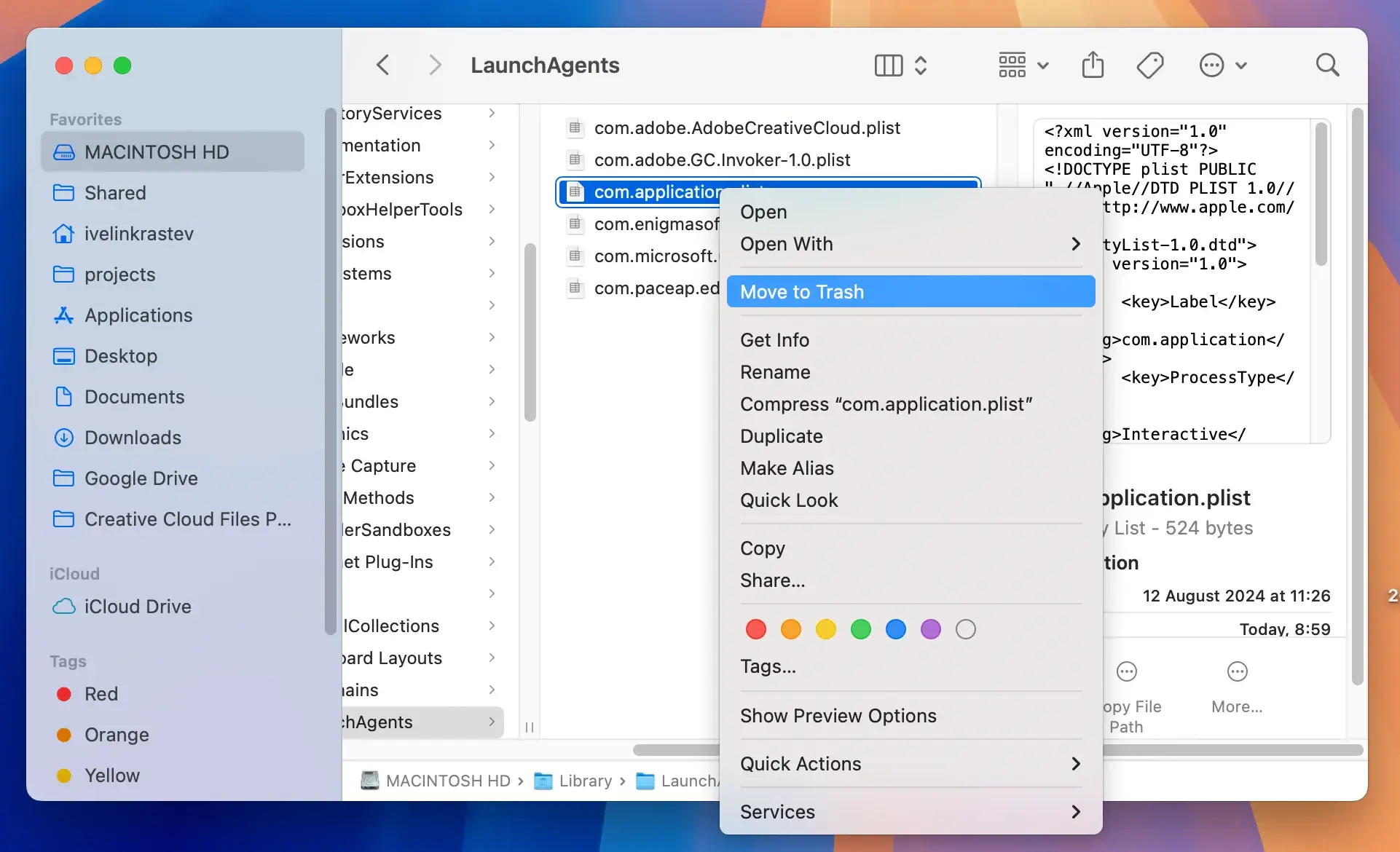
This will help eliminate all leftover Pipidae files and ensure your system is free of its influence.
4. Remove Pipidae from your web browsers
Adware like Pipidae often rearranges your browser settings and installs extensions that facilitate its operation. Therefore, resetting your browsers back to their default settings becomes necessary.
Moreover, inspect your browser extensions and settings for irregular additions.
The Pipidae virus can hijack your browser settings to set itself as the default search engine, redirecting you to malicious sites and compromising user privacy and security.
Instructions for Safari
- Before initiating any changes, ensure Safari is completely closed.
- Navigate to the
Applications/Utilitiesfolder and open theTerminalapplication. - Execute the following commands one by one in Terminal. Copy and paste each line separately, then press Enter after each command:
defaults write com.apple.Safari IncludeInternalDebugMenu 1defaults write com.apple.Safari IncludeDevelopMenu 1defaults write com.apple.Safari WebKitDeveloperExtras -bool truedefaults write com.apple.Safari com.apple.Safari.ContentPageGroupIdentifier.WebKit2DeveloperExtrasEnabled -bool truedefaults write com.apple.Safari QASDashboardEnabled 0defaults write com.apple.Safari DebugSnapshotsUpdatePolicy -1killall Safari
- Reopen Safari and check if the browser has been successfully reset to its default state.
- After the reset, review your Safari extensions for any irregular additions. Remove any extensions that you don’t recognize or recall installing.
Following these comprehensive steps, you can effectively remove Pipidae from Safari and restore your browser to its original, secure state.
Instructions for Google Chrome
To remove Pipidae from Chrome, follow these steps for a thorough reset:
- Click on the three vertical dots at the upper-right corner of Chrome to open the menu
- Choose
Settingsfrom the menu options - Scroll down and click the
Advancedoption on the screen’s left side - In the expanded menu, find and select
Reset settings - Click
Restore settings to their original defaultsin the dropdown menu - A window will appear; confirm the reset by clicking the
Reset Settingsbutton - Allow Chrome to reset all settings, turn off extensions, and erase configuration information
These steps will remove Pipidae from Chrome and restore the browser to its default, secure state.
Instructions for Mozilla Firefox
To eradicate Pipidae from Firefox, use the following thorough instructions for a complete browser reset:
- Click on the three horizontal lines at the upper-right corner to open the menu
- From the dropdown menu, select
Helpand then chooseTroubleshooting Information - On the right side of the
Troubleshooting Informationpage, locate and click theRefresh Firefoxbutton - A confirmation window will appear; confirm the reset
- Allow Firefox to complete the refreshing process. This will remove all add-ons and customizations while restoring the browser to its original configuration.
- Once the operation finishes, Firefox should automatically restart.
These detailed steps will help you remove Pipidae from Firefox and return the browser to its default state, ensuring a clean and secure browsing experience.
5. Remove Pipidae with SpyHunter
SpyHunter is a reliable solution to detect and remove Pipidae and other malware. Follow these straightforward steps for a complete cleanup:
- Download SpyHunter here.
- Follow the instructions to install it on your device.
- Launch SpyHunter after installation. If it’s your first time using the app, it will automatically initiate a system scan to detect threats.
- Once the scan completes, review the detected threats.

- Click
Nextto quarantine and remove the malicious files from your system. - Restart your computer to finalize the removal process and ensure Pipidae is completely eradicated.

By following these steps, you can ensure your Mac is clean and protected against Pipidae and similar threats. For persistent issues, use SpyHunter’s Spyware HelpDesk for professional assistance.
Steps to prevent future Pipidae adware infections
Follow these simple steps to ensure your system stays protected and free from malware:
- Keep your operating system, applications, and antivirus software up to date to ensure the latest security patches are applied.
- Do not click on unverified links in emails, messages, or pop-ups to prevent malware downloads.
- Only install software from reputable developers or official app stores.
- Run regular scans with a trusted antivirus tool to detect and remove threats.
- Activate your Mac’s firewall to block unauthorized access and incoming connections.
- Regularly review and remove unwanted or unknown browser extensions.
- Use a VPN when accessing the internet over public networks to secure your data.
- Check and remove any suspicious items in your Mac’s Login Items to prevent unwanted programs from launching at startup.
- Do not download cracked or pirated applications, as they often bundle malware.
- Use Time Machine or cloud storage to secure your files in case of an infection.
By following these proactive measures, you can reduce the risk of Pipidae infections and maintain your Mac’s health and security.
