

Remove GuardFlares Redirect (Quick Virus Removal Guide)

Before we dive in
Before we dive in, let's make sure you stay safe online. We created SpyHunter because your security matters to us.
Protect your computer today — download SpyHunter right here! Check out our top tips below to keep your computer safe and secure.

Have you recently noticed unexpected ads popping up frequently while browsing the internet, or unwanted changes to your browser settings?
You might be dealing with GuardFlares, a form of adware that not only annoys you with ads but can potentially harm your device and compromise your privacy.
Understanding how GuardFlares infiltrates your device and the steps to remove it is crucial for maintaining your digital safety.
Moreover, learning about the broader security impacts will prepare you to better safeguard your information against such invasive software.
Keep reading to uncover effective strategies for removing GuardFlares and defending your device against future adware attacks.
What is GuardFlares?
GuardFlares is categorized as adware due to its behavior and capabilities. Primarily, it functions by displaying a variety of advertisements on the user’s browser.
During the investigation, it became evident that GuardFlares can manipulate browser settings. This includes activating the Managed by your organization feature on browsers like Google Chrome.
Such changes allow the adware to exert more control over the browser, ranging from injecting unwanted extensions to removing user-installed ones.
The way GuardFlares is distributed is also noteworthy.
It typically comes bundled with other freeware or shareware, which users might download from less reliable sources.
There is also a link between GuardFlares and the QuickFind extension, often included in the same installer package.
How does GuardFlares impact your device?
GuardFlares affects your device through various means, primarily as it operates as adware.
Its activities not only disrupt your browsing experience but also pose a risk to your device’s security and privacy.
- Alters browser settings: GuardFlares can change your default homepage, search engine, and new tab to its own domain without your consent. This can severely hamper your ability to navigate the internet as you normally would.
- Reduces browsing speed: The adware can display excessive pop-up advertisements, which consume system resources and slow down your browser performance significantly.
- Privacy concerns: GuardFlares has capabilities to track your browsing activities, logging details such as ISP, the websites you visit, and your IP address. This data might be used for targeted advertising or worse, sold to third parties.
- Security risks: By redirecting you to untrusted sites and potentially malicious domains, GuardFlares increases the likelihood of your system being exposed to malware and other cyber threats.
- Persistent and difficult to remove: The software manipulates browser settings to make it difficult for users to remove or change back to their original settings. Special tools or detailed instructions are often needed to completely get rid of such hijackers.
Steps to remove GuardFlares from your device
Step 1: Stop GuardFlares processes
- Open
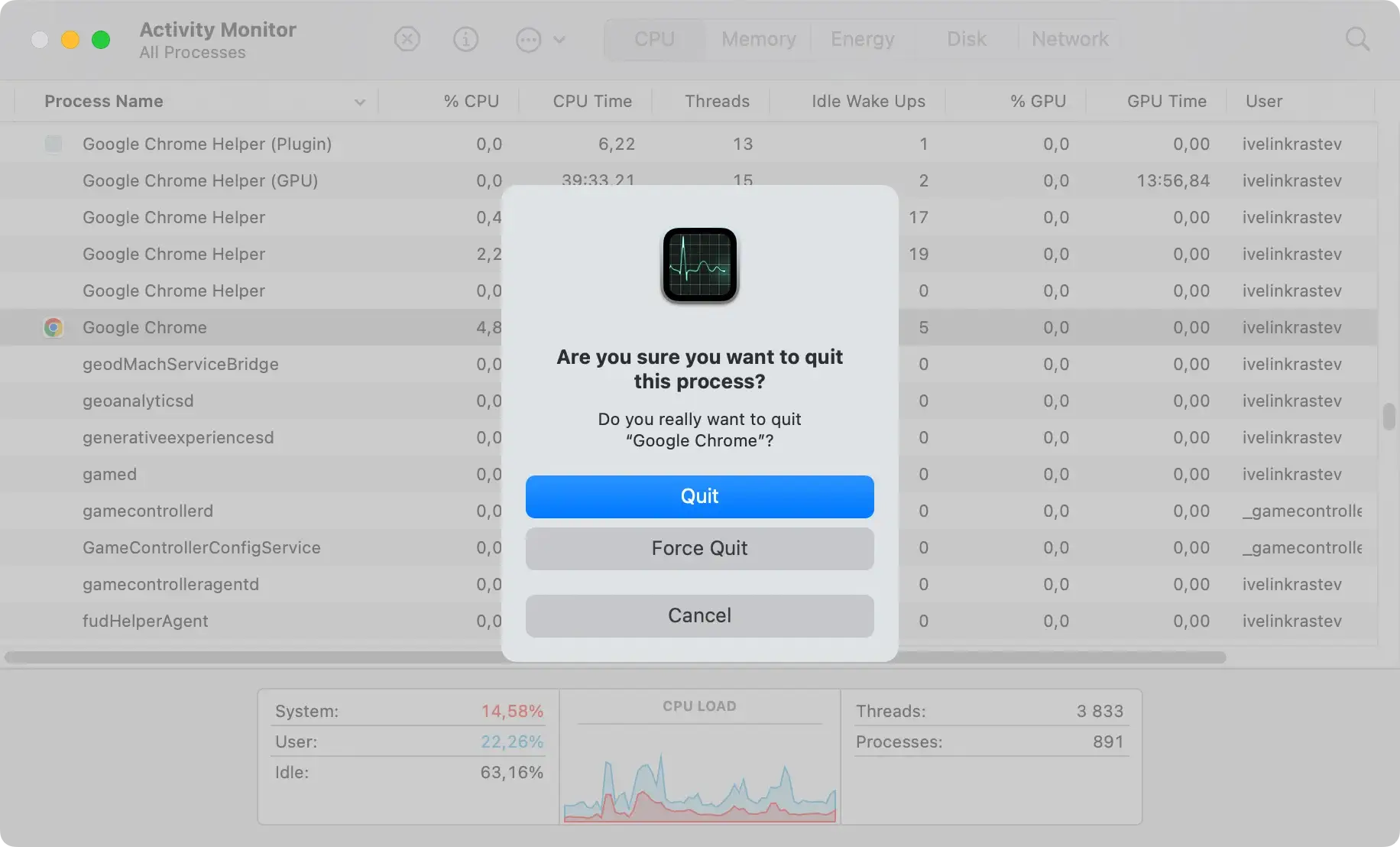
Activity Monitor: Go toApplications>Utilities>Activity Monitor. - Search for suspicious or unknown processes related to GuardFlares (e.g., unusual names or those you do not recognize).
- Select the process and click the Stop (X) button in the toolbar to quit it.
Step 2: Remove GuardFlares from Applications
- Open the
Applicationsfolder: Go toFinder>Applications. - Look for GuardFlares or any unknown/suspicious apps.
- Drag them to the
Trash. - Empty the
Trash: Right-click theTrashicon and selectEmpty Trash.

Step 3: Remove launch items
GuardFlares may install files in system directories to re-enable itself. Remove these files:
- Open
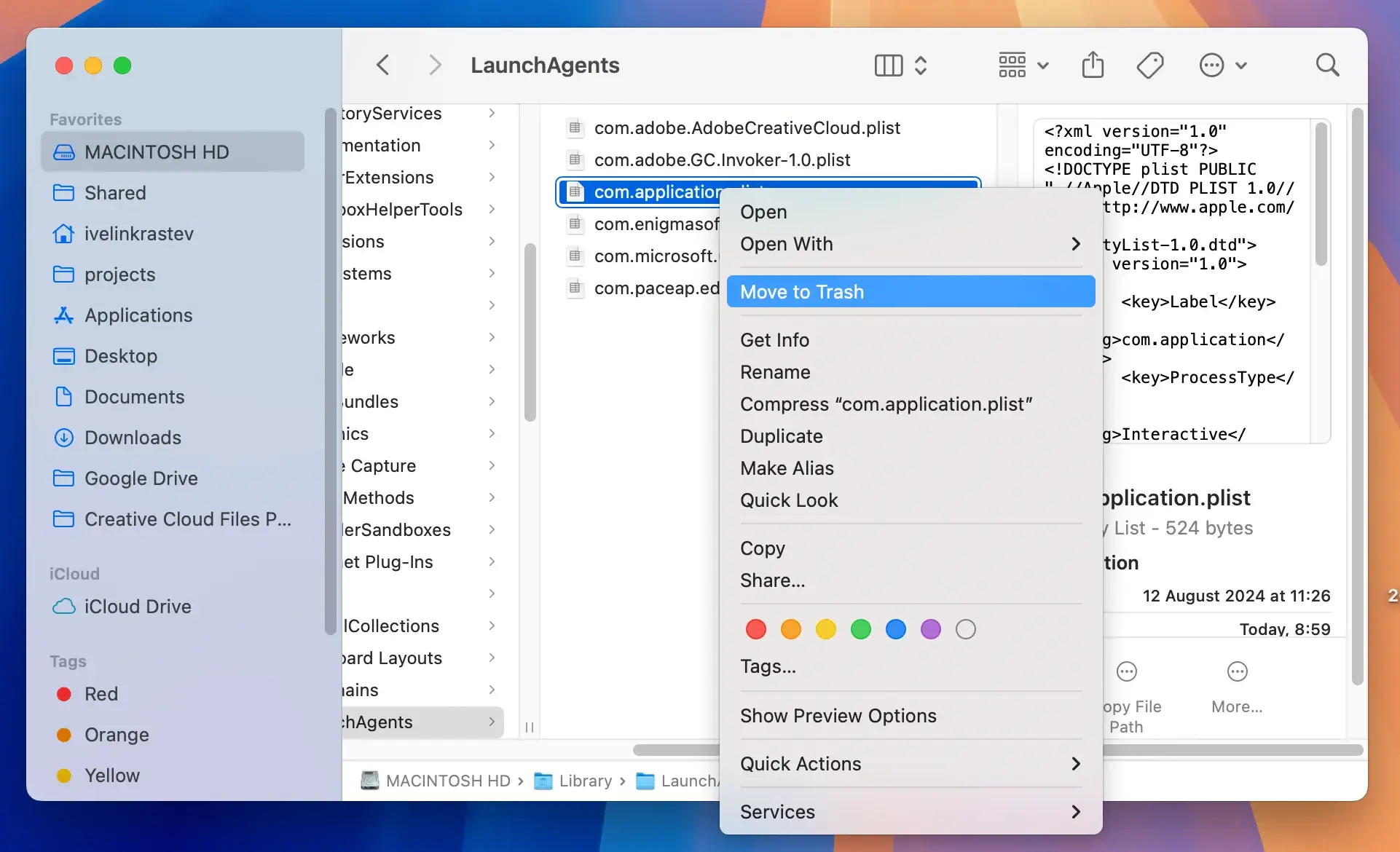
Finder, then go toGo>Go to Folder. - Check the following directories for suspicious files or folders related to GuardFlares:
~/Library/LaunchAgents//Library/LaunchDaemons//Library/LaunchAgents//Library/Application Support/
- Look for files with suspicious names (e.g., containing “GuardFlares” or random strings). Example filenames:
com.GuardFlares.plist,com.randomname.plist. - Delete these files: Drag them to the Trash.
- Empty the Trash.
Step 4: Reset web browsers
Adware like GuardFlares often hijacks web browsers. Reset your browsers to remove unwanted extensions, homepage changes, or search engines.
For Safari:
- Open
Safariand go toSafari>Preferences.
Check the following tabs: - Extensions: Uninstall unknown or suspicious extensions.
Search: Reset the default search engine to your preferred choice.
General: Reset the homepage and new tab settings. - Clear cache: Go to
Safari>Clear Historyand selectAll History.
For Chrome:
- Open
Chromeand go tochrome://extensions/. - Remove unknown or suspicious extensions.
- Reset
Chromesettings: Go tochrome://settings/resetand click Restore settings to their original defaults.
For Firefox:
- Open
Firefoxand go toabout:addons. - Remove unknown or suspicious extensions.
- Reset
Firefox: Go toabout:supportand click RefreshFirefox.
Step 5: Check for remaining files
- Open
Finder, then go toGo>Go to Folder. - Look in these locations for leftover files:
~/Library/Caches/~/Library/Application Support/~/Library/Preferences/
- Delete any folders or files associated with GuardFlares.
Step 6: Use SpyHunter to ensure complete removal
After manual removal steps, it’s wise to use a specialized tool like SpyHunter to scan for any hidden malware or remnants that manual cleaning might miss.
- Download SpyHunter for free here.
- Run a full system scan to detect any lurking threats. SpyHunter will assess the deep corners of your system for any suspicious activities or files.
- Follow the on-screen prompts to remove any detected threats, ensuring a thorough cleanup of your system.

Important Safety Precautions to Prevent Future Infections
Maintaining your device’s safety from malicious software and cyber threats requires implementing proactive security measures.
By adopting the following safety precautions, you can reduce the risk of future infections and protect your personal information from cyber threats.
- Regularly update your antivirus software to ensure you have the latest protection against new malware and security threats.
- Keep your operating system and all installed applications up to date. Manufacturers often release updates to patch security vulnerabilities.
- Use strong, unique passwords for all your accounts and enable two-factor authentication to add an extra layer of security.
- Back up your data regularly. This way, if your system does become compromised, you can restore your files from a backup rather than losing them permanently.
- Be cautious about the links you click and the downloads you initiate. Always ensure that the sources are reputable.
- Configure your web browsers to block pop-ups and disable scripts from untrusted websites.
- Avoid using unsecured public Wi-Fi networks for accessing sensitive personal information.
- Monitor your accounts and device for any unusual activities, such as unknown applications being installed or unauthorized access to your information.
