

How To Fix “Accountsd Wants To Use The Login Keychain”

Before we dive in
Before we dive in, let's make sure you stay safe online. We created SpyHunter because your security matters to us.
Protect your computer today — download SpyHunter right here! Check out our top tips below to keep your computer safe and secure.

If you’re seeing the persistent “accountsd wants to use the login keychain” message, you’re not alone.
This prompt typically appears on macOS when your login keychain password is out of sync with your user password.
When passwords are mismatched, apps that rely on Keychain Access may have trouble accessing stored data, which triggers this message.
Let’s review what causes this issue and the best ways to resolve it and regain access to your login keychain.
What are accountsd and callservicesd?
Accountsd is a system daemon (background process) on macOS that belongs to the Accounts Framework. This framework starts login credentials for apps and services to authenticate access on your Mac.
It enables app developers to integrate account access without giving them direct access to your usernames and passwords. For this to work, accountsd requires access to your login keychain, which securely stores your login credentials for different accounts on macOS.
If the system detects that your login password and keychain password are out of sync, you may see the “accountsd wants to use the login keychain” message.
On the other hand, callservicesd is another daemon that focuses on managing the call state. This daemon is involved in coordinating services like FaceTime, Contacts, and certain third-party video-calling apps.
It accesses the Keychain to verify log in credentials and facilitate seamless calling experiences across your Apple devices.
The message “callservicesd wants to use the login keychain” may appear when your Mac attempts to sync these services, especially if your login password and keychain passwords don’t match.
Why does the “accountsd wants to use the login keychain” message appear?
This message appears when macOS is unable to access your login keychain due to a password mismatch.
When you change your user password—for example, after a system update or a reset—the password for the login keychain doesn’t automatically sync.
As a result, macOS prompts you with the “accountsd wants to use the login keychain” message as it attempts to authenticate access to your saved account details and stored passwords.
Common reasons include:
- Changing your Mac login password without updating the keychain password.
- Issues with iCloud Keychain syncing settings.
- A corrupted or locked login keychain file.
Below, we’ll walk you through several steps to resolve this issue quickly.
How to fix “accountsd wants to use the login keychain”
If you’re seeing the “accountsd wants to use the login keychain” prompt repeatedly, it usually means your login keychain password and user password are out of sync.
This guide will walk you through simple steps to fix the issue and regain smooth access to your login keychain.
1. Resync Keychain password with Mac login password
Start by ensuring your keychain password matches the password used to log in.
- Navigate to
Applications > Utilitiesand launchKeychain Accessapp. - In
Keychain Access, go to theEditmenu and selectChange Password for Keychain "login". - When prompted, enter your previous user password under
Current Passwordand your new login password underNew PasswordandVerify. - Click
Saveto confirm. This will synchronize your login keychain password with your Mac’s current login password.
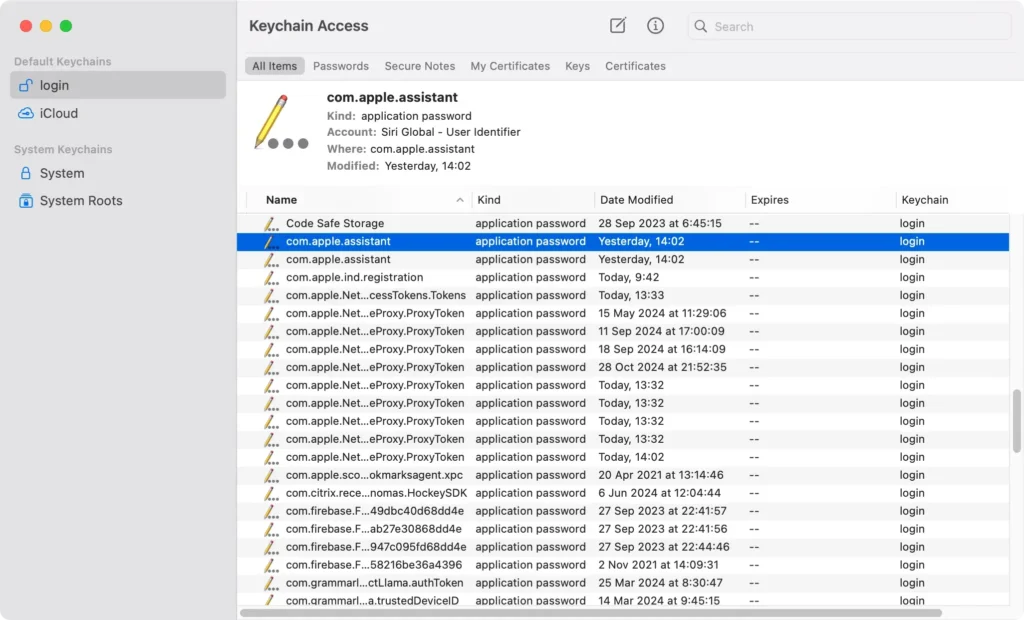
This should remove the “accountsd wants to use” message. However, if the message persists, continue to the next steps.
2. Turn Keychain auto-lock off
Sometimes, Keychain auto lock can cause frequent prompts, especially if you’re using iCloud Keychain.
- Double-click the
Keychain Accessapp. - Select the login keychain in the left sidebar.
- Click on
Editfrom theKeychain Accessmenu and chooseChange Settings for Keychain "login".
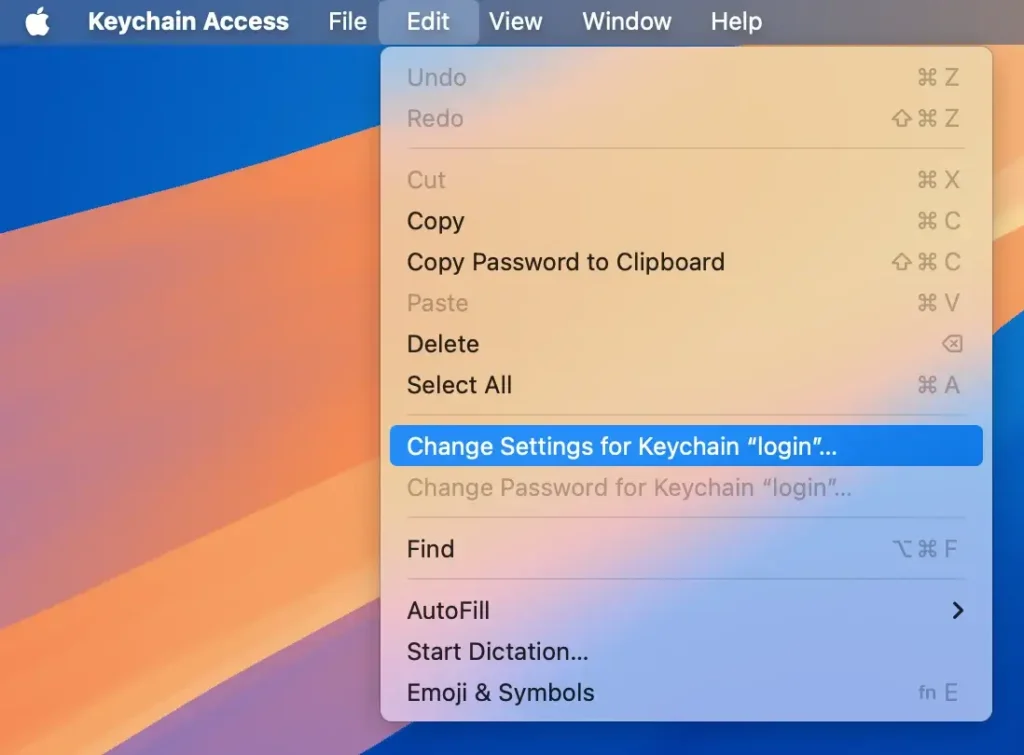
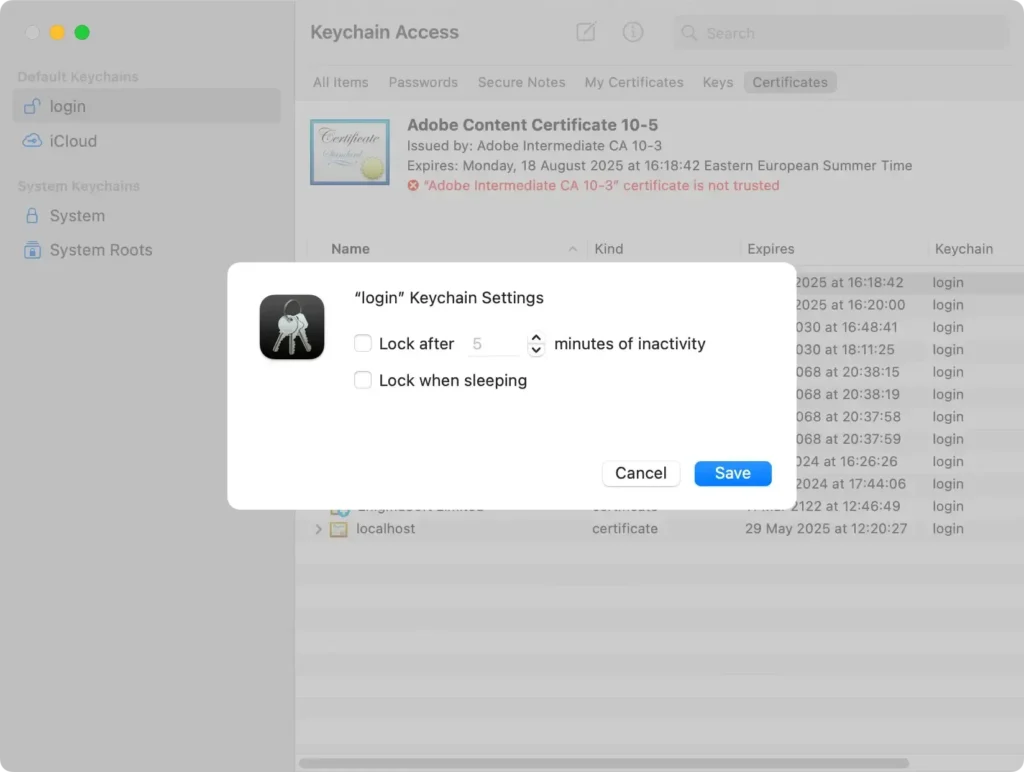
- Deselect both
Lock after… minutes of inactivityandLock when sleepingoptions. - Click
Saveto update your settings.
3. Create a new login keychain
If resyncing doesn’t resolve the issue, creating a new default keychain can be a more comprehensive solution.
Follow these steps carefully:
- Open
Finder, select theGomenu and chooseGo to Folder. - Type
~/Library/Keychainsand clickGoto get in the keychains folder.
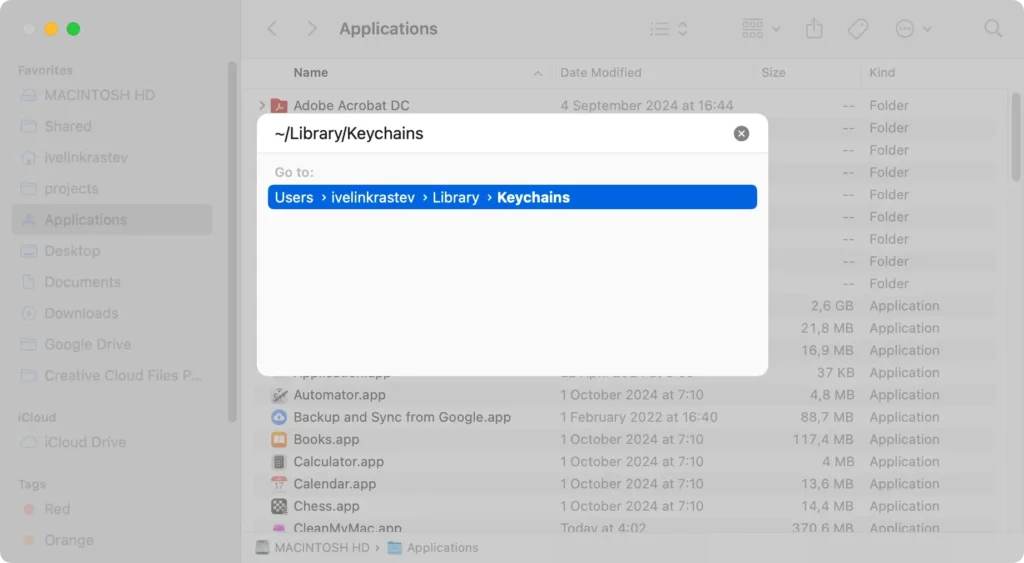
- Locate the keychain, hold down
Option, and drag it to yourDesktopto create a backup of the existing login keychain. - Go back to
Keychain Accessand openKeychain Access > Settings. - Click
Reset My Default Keychainsto create a new keychain.
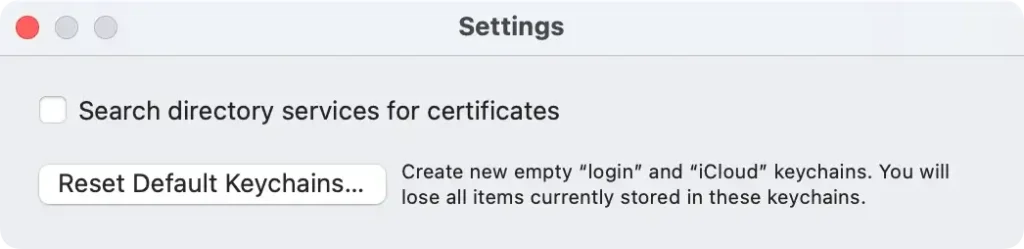
Note that when you create a new keychain, it will have the same password as your user account.
With a new keychain created, you can add necessary items from the old keychain by following the steps in the next section.
4. Import items from the old keychain
If you need passwords or login credentials from your old keychain file, you can import these manually:
- In
Keychain Access, go toFile > Add Keychain. - Navigate to your
Desktop, select the saved keychain, and clickAdd. - To move items to the new login keychain, right-click any item, choose
Copy, then paste it into the new keychain.
This process allows you to transfer specific items without needing to remember each password.
Note: You cannot add entries to the iCloud keychain directly, so only the local keychain is applicable here.
5. Use Keychain First Aid (for macOS Mojave and older)
If you’re on an older macOS version that supports Keychain First Aid, this feature can fix permission errors in Keychain Access:
- In
Keychain Access, click onKeychain Accessin the top menu and selectKeychain First Aid. - Enter your admin password, choose
Repair, and clickStart. - Let
Keychain First Aidcomplete the process.
For users on newer macOS versions, skip this step, as Keychain First Aid has been removed from recent macOS updates.
6. Remove the pop-up from your browser
If the “accountsd wants to use the login keychain” notification appears in your browser, it may indicate an issue with the iCloud Keychain or cached data in your web browser.
Clearing your browser’s cache and resetting its settings can often resolve these pop-ups.
Here’s how to handle this in popular browsers like Safari, Chrome, and Firefox.
In Safari
- Go to
Safari > Settings. - Open the
Advancedtab and checkShow Develop menu in menu bar. - In the menu bar, go to
Develop > Empty Caches. - Navigate to
History > Clear Historyand confirm you want to clearAll History. - Back in
Settings, select thePrivacytab. - Click
Manage Website Dataand chooseRemove All > Done.
After completing these steps, relaunch Safari and see if the message reappears.
In Google Chrome
- Open Chrome and go to the menu (three dots).
- Select
Delete browsing data. - Checl all options (Browsing history, Cookies and other site data, Cached images and files), then click
Delete. - Go to the menu again and choose
Settings. - Scroll down to
Reset and clean upand chooseRestore settings to their original defaults, then confirm.
Once done, restart Chrome and verify if the prompt still appears.
In Firefox
- Open Firefox, then click on the menu (three lines) and click
Help. - Select
More troubleshooting information. - On the right side, click
Refresh Firefoxand confirm to reset.
Restart Firefox to check if the accountsd notification has been resolved.
What is iCloud Keychain and how does it relate to accountsd?
iCloud Keychain is a feature that securely stores your login credentials, credit card information, and Wi-Fi passwords across all your Apple devices.
When enabled, it synchronizes your keychain data, ensuring seamless access to saved passwords and account details across your Mac, iPhone, and iPad.
When the “accountsd wants to use the login keychain” message appears, iCloud Keychain may also be affected, especially if the passwords for your login keychain and iCloud Keychain are out of sync.
To resolve this, you might need to check your iCloud Keychain settings:
- Go to
Apple menu > System Settings > Apple ID > iCloud. - Make sure
iCloud Keychainis enabled. - If necessary, re-enter your Apple ID and iCloud password to resync iCloud Keychain.
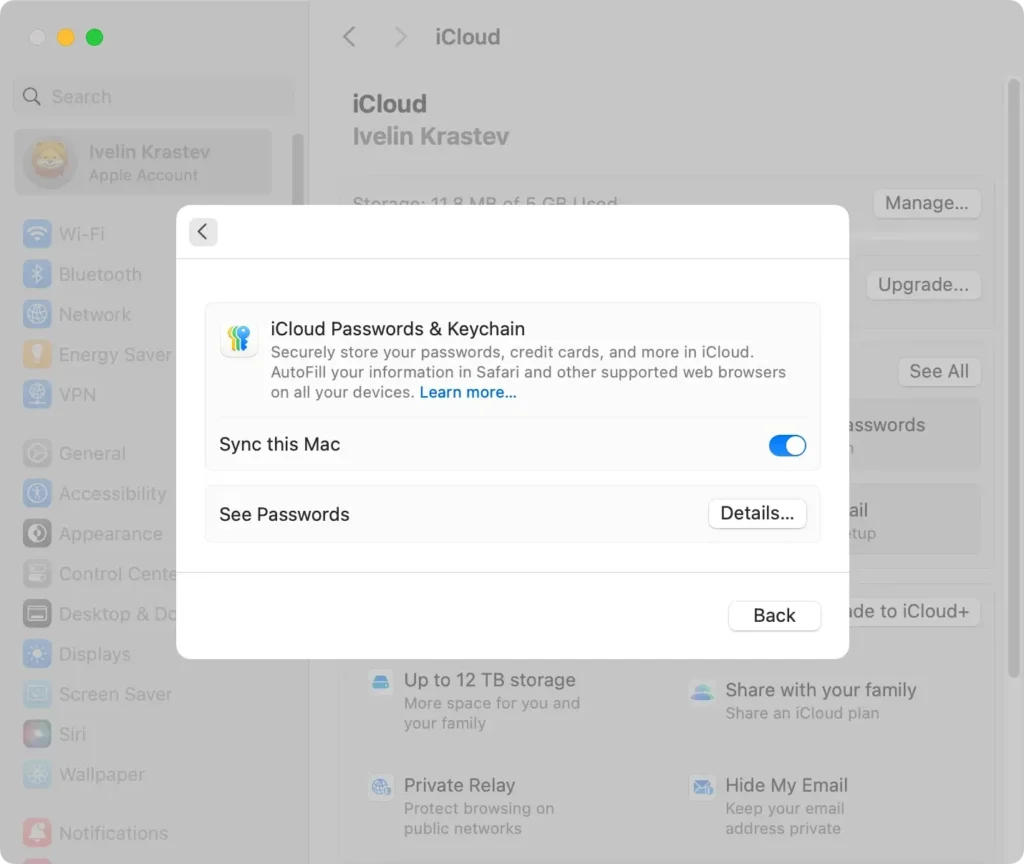
This ensures your keychain access works smoothly across devices, allowing for uninterrupted access to all of your stored passwords, bank account details, and other credentials.
Use SpyHunter to protect your Mac
In some instances, persistent keychain alerts may indicate the presence of malware or unwanted software trying to access sensitive information.
Protecting your Mac with reliable cybersecurity software like SpyHunter can mitigate these risks.
SpyHunter excels in identifying and removing malware, protecting your personal information, and enhancing your computer’s performance.
Download the app from here and follow the instructions on your screen to install the app properly.
Once installed, launch SpyHunter and use its main menu to initiate a full scan of your Mac. The application will soon display a list of all malware that potentially exists on your system.

Select all malicious items and use the interface buttons to proceed with the automated removal of threats. If required, reboot your Mac and enjoy a safer experience and a more stable system.

Conclusion
Resolving the “accountsd wants to use the login keychain” notification can seem daunting, but it’s usually a matter of syncing your keychain password with your user password or making small adjustments in Keychain Access.
By following these steps and securing your stored passwords through iCloud Keychain or manual backups, you can ensure smoother login experiences on your Mac.
If you continue to face issues, consider consulting Apple Support or performing a full system check to keep your macOS running smoothly.
