

Remove “Ask You” Pop-Up Virus On Mac (Easy Guide)

Before we dive in
Before we dive in, let's make sure you stay safe online. We created SpyHunter because your security matters to us.
Protect your computer today — download SpyHunter right here! Check out our top tips below to keep your computer safe and secure.

Have you ever clicked on a seemingly harmless ad only to be bombarded by endless pop-ups or noticed your Mac acting weird?
You’re not alone.
This frustrating experience could be due to the “Ask You” pop-up virus, a type of adware that targets Mac users. This virus can make your online life a tad more challenging.
This article explains the “Ask You” pop-up virus, from how it sneaks onto your Mac to step-by-step removal guides and how to prevent future infiltrations.
Whether you’re dealing with pesky ads or want to shield your Mac from potential threats, we’ve got you covered.
Let’s get your Mac back to its optimal state, shall we?
What is the “Ask You” pop-up virus exactly?
The “Ask You” pop-up virus is a form of adware specifically targeting Mac users, characterized by the sudden appearance of intrusive ads and pop-up messages.
Unlike simple online advertisements, this virus aggressively hijacks your web browsing experience, displaying ads that can be misleading, harmful, or unwanted.
The primary aim of these pop-ups is to trick users into clicking on them, which can lead to the download of more malware or the compromise of sensitive personal information.
In addition to flooding your screen with pop-ups, the “Ask You” virus can also track your online activities. This tracking encompasses your browsing history, searches, and even the bookmarks you save.

Based on this gathered data, the adware tailors the intrusive advertisements to align with your interests or search history, making it more likely that you’ll click on them.
This capability poses a significant privacy risk and jeopardizes your Mac’s security, as interacting with these ads can lead to further infections or data breaches.
Step-by-step guide to manually remove “Ask You” virus from your Mac
If your Mac has been acting up due to the “Ask You” virus, manually removing the invasive software is crucial. Follow this comprehensive guide to clean your system and restore its performance. It’s time to reclaim control over your Mac.
Locate and delete suspicious applications
Begin the cleanup by targeting the root of the problem: suspicious applications. These could be masquerading as legitimate software, but hidden agendas lie beneath their facade.
Your task is to unveil and eliminate them. Here’s how:
- Open
Finderby selecting its icon from the Dock. - Choose
Applicationsfrom the sidebar to see all installed applications. - Look for applications related to “Ask You”, which might not carry the exact name but appear out of place or unfamiliar. Right-click and choose
Move to Trashfor each suspicious app.

After discarding the unwelcome apps, don’t forget to empty the Trash.
This action permanently removes the files and prevents the virus from reactivating. Right-click the Trash icon and select Empty Trash, then confirm your decision to make your Mac cleaner and safer.
Sweep your browser clean of “Ask You” traces
After eliminating the malicious apps from your Mac, the next critical step is to clean your web browser from all “Ask You” pop-up traces.
These steps will ensure that your online experience returns to normal, free from unwanted pop-ups and redirects.
Cleaning “Ask You” pop-ups from Safari
- Open Safari and head to the
Safari menu, then selectPreferences. - Switch to the
Privacy taband click onManage Website Data. From here, you can remove the stored data of suspicious websites. - To completely reset Safari, go back to the Safari menu, choose
Clear History, and selectall history. This will also clear any cached data that could be causing issues. - Finally, restart Safari to ensure the changes take effect.
Resetting Safari will remove custom settings, so you may need to reconfigure some preferences afterward.
Removing “Ask You” notifications in Google Chrome
- Open Chrome and navigate to the settings by clicking the three dots at the top right corner and selecting
Settings. - Scroll down to the bottom and click on
Advanced. Find and selectReset settingsto restore Chrome to its default setup. - Confirm the reset and restart Chrome. This action will eliminate all “Ask You” traces from Chrome, improving your browsing experience.
Eradicating “Ask You” pop-ups from Mozilla Firefox
- Open Firefox and go to
Help>Troubleshooting Information, or typeabout:supportin the address bar and press Enter. - On the Troubleshooting Information page, click the
Refresh Firefoxbutton. - Confirm your choice, and Firefox will reset to default settings, eliminating any lingering traces of the “Ask You” virus.
- Restart Firefox to complete the process.
By refreshing Firefox, you’ll remove extensions and themes, website permissions, and other customizations, but your bookmarks, history, and passwords will be preserved.
Remove “Ask You” automatically with SpyHunter
Confusing viruses and malware, like the “Ask You” pop-up virus, often require more than a keen eye and manual removal techniques.
This is especially true given how sophisticated modern malware can get, hiding deep within system files and masquerading as legitimate processes.
In these circumstances, it becomes essential to leverage professional-grade antivirus software that’s designed to deep-scan, identify, and remove these pesky invaders efficiently.
That’s where SpyHunter for Mac comes into play.
SpyHunter for Mac is tailored specifically to tackle the breadth of threats that target macOS, from adware and browser hijackers like the “Ask You” virus to more severe forms of malware and ransomware.

Designed with advanced technology at its core, SpyHunter goes beyond traditional antivirus routines. It employs a specialized scanning algorithm to uncover and address the complex threats that manual removal cannot.
Moreover, SpyHunter is constantly updated, ensuring it can detect and neutralize the latest malware threats, safeguarding your Mac against potential future invasions.
Download the app now and scan your Mac for the “Ask You” virus.

Preventing future infections: Tips to safeguard your Mac
Ensuring your Mac stays free of viruses and malicious software involves a combination of good practices, the right tools, and an awareness of what risks might be lurking online.
Here, we’ll dive into effective strategies to keep your Mac secure.
Adjust your browsing habits
Refining your browsing habits is one of the simplest yet most powerful adjustments you can make to protect your Mac. Cyber threats often infiltrate through seemingly benign activities online.
Start by scrutinizing the websites you visit. If a site looks suspicious or offers pirated software, steer clear. Be wary of clicking on pop-up ads, which can lead to malicious websites or initiate unwanted downloads.
Keep your Mac updated
Staying on top of software updates is crucial for security. Apple frequently releases updates for macOS that patch security vulnerabilities and enhance system performance.
You ensure your Mac has the latest defenses against threats by enabling automatic updates.
To enable automatic updates, go to System Settings > Software Update and check the box for Install macOS updates.
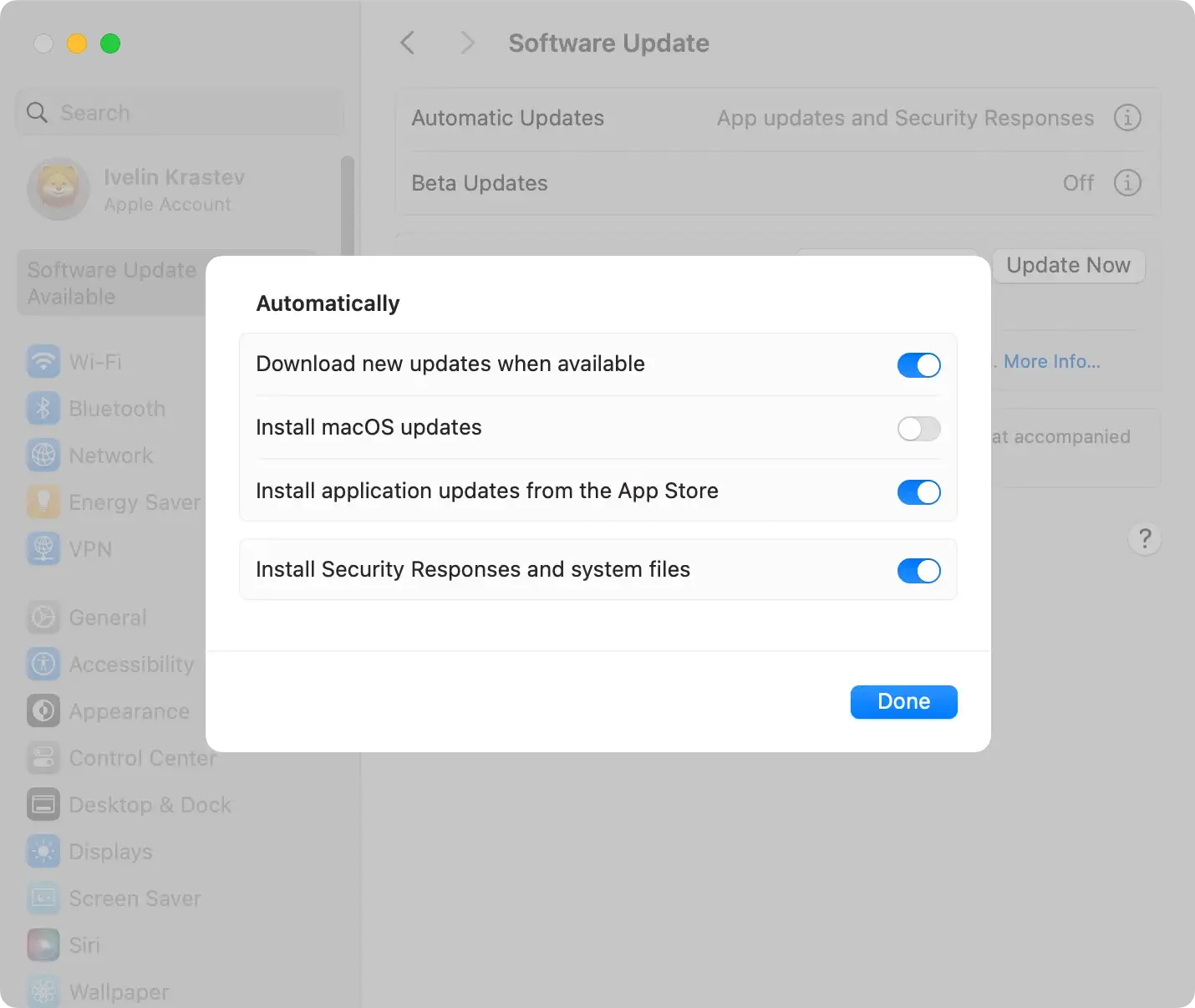
This includes macOS updates and updates for installed apps from the App Store, closing potential security loopholes.
When to seek professional help with “Ask You” virus removal
Professional assistance can come from various sources, including dedicated cybersecurity providers or reliable antivirus software like SpyHunter.
Such software is designed to penetrate the system more deeply, identifying and eradicating hidden components of the “Ask You” virus that manual steps might miss.
If your attempts at removal have not yielded the desired virus-free state of your Mac, here’s what professional help or advanced tools can offer:
- Comprehensive system scans that pinpoint and neutralize threats that manual removal can overlook.
- Real-time protection to automatically block and remove incoming threats before they settle into your system.
- Regular malware definition updates to ensure protection against the latest threats.
- User support for troubleshooting complex issues that might be beyond the scope of manual fixes.
Professional tools often provide a straightforward process for dealing with stubborn malware.
For instance, with SpyHunter, you typically just need to download and install the software and then let it scan and clean your system.
Here’s a quick guide to get you started:
- Download SpyHunter from here.
- Locate the downloaded file and double-click to start the installation process, following the on-screen instructions to complete setup.
- Once installed, open SpyHunter and select ‘Scan Now’ to comprehensively search for the “Ask You” virus and any other malicious files.
- After the scan, follow the prompts to remove detected threats from your Mac.
The key advantage of using professional help or software is the peace of mind it brings.
Knowing that not only the visible symptoms but also the underlying risks are being addressed can give you confidence in your Mac’s safety and efficiency.
Remember, the sooner you tackle the “Ask You” virus, the better your chances of preventing serious privacy breaches or system damage. If manual removal hasn’t fixed the problem, don’t hesitate to escalate the solution.
