

Apple Cannot Check It For Malicious Software [Error Solved]

Before we dive in
Before we dive in, let's make sure you stay safe online. We created SpyHunter because your security matters to us.
Protect your computer today — download SpyHunter right here! Check out our top tips below to keep your computer safe and secure.

Have you ever struggled with app installations on your Mac or run into the “Can’t be opened because Apple cannot check it for malicious software” warning when working with a file or app?
Understanding app verification on Mac, including how it works and its impact, is crucial for both your system’s integrity and your workflow efficiency.
This article examines the warning message, specifically focusing on macOS’s security feature, Gatekeeper, and its role in safeguarding your computer from untrusted applications. We’ll also explore ways to modify these settings for enhanced usability while balancing security needs.
What is the “can’t be opened because Apple cannot check it for malicious software” message?
The error message in question is triggered by a feature of macOS called ‘app verification’.
App verification on Mac, primarily managed by a security feature called Gatekeeper, plays a crucial role in maintaining the integrity and security of macOS.

Whenever you download and attempt to install an application, macOS uses Gatekeeper to ensure the software is from a trusted developer and hasn’t been tampered with. This process helps prevent malware and unapproved software from compromising your system.
The importance of this verification can’t be overstated. It acts as the first line of defense against potential security threats by controlling access to your system.
App verification is particularly vital because it reassures users that the apps they’re using adhere to the stringent security authorized app standards set by Apple.
Understanding the role of Gatekeeper in macOS security
Gatekeeper is a core component of macOS security, designed to ensure that only trusted software runs on your Mac.
It works by verifying that each application has been signed with an Apple-issued certificate. If the app is downloaded from the App Store, Gatekeeper’s checks are quite stringent, offering a higher level of security and peace of mind.
For apps downloaded from other sources, Gatekeeper uses a less intensive verification method but still ensures basic checks are met before allowing an application to run.
Step-by-step guide to disabling app verification
Disabling Gatekeeper through Terminal
If you find macOS persistently verifying apps and slowing down your workflow, disabling this feature might prove useful.
Although this action reduces certain security checks, it can significantly speed up application launches.
Here’s a concise guide on how to disable app verification on your Mac using Terminal commands.
- Open the
Terminalapplication. You can find this in theUtilitiesfolder, which is inside theApplicationsfolder. - Type the following command:
sudo spctl --master-disable - Press
Return. You’ll be prompted to enter your administrator password. Type your password and pressReturnagain. - This command disables Gatekeeper, which is responsible for the app verification process. Please note, with Gatekeeper disabled, your Mac will allow apps from any source, which could pose security risks.
If you decide to re-enable app verification for increased security, simply open Terminal again and use the following command: sudo spctl --master-enable.
This will turn Gatekeeper back on, restoring the verification checks.
Accessing System Settings for security adjustments
To modify security settings on your Mac without using Terminal, you can make adjustments through the System Preferences.
This method doesn’t disable app verification entirely but allows you to manage which apps can run on your machine.
To adjust your security settings to allow applications downloaded from identified developers, follow these straightforward steps:
- Click on the Apple icon in the upper-left corner of your screen and select
System Settings. - Go to
Privacy & Security. - Look for
Allow applications downloaded from
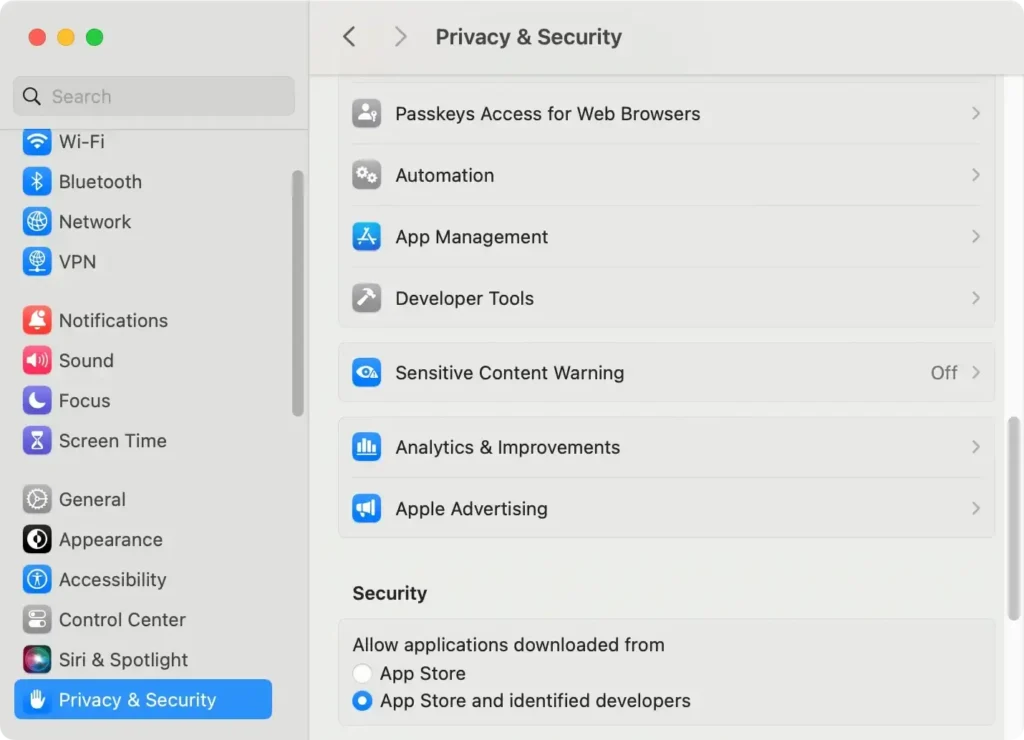
- Here, you have the option to select:
App Store,App Store and identified developers, or even revert back to allowing apps fromanywhereif you used the Terminal command to disable Gatekeeper.
This modification will demand your administrator password to unlock these settings, so ensure you have the necessary credentials.
Changing this setting lets you control the balance between security and convenience based on your needs and the trustworthiness of the applications you wish to use.
Using SpyHunter to enhance security when turning off app verification
If you find that disabling app verification even partially is best suited to your needs, you will benefit greatly from the additional protection provided by an anti-malware tool like SpyHunter for Mac.
SpyHunter features a robust anti-malware scanner and a real-time guard that will both scan your system to remove existing malware and protect it from future threats.
This additional layer of security is particularly helpful when you’ve opted to turn off app verification and need to work with apps that trigger the “Apple cannot check it for malicious software” warning.
You can download the app for free and install the app.
Once installed, run a full scan of your Mac from SpyHunter’s main menu. The scan will take a short while and then display a list of any potential threats that may be on your system.

Use the interface to select and automatically remove any malware found and enjoy a safer, more stable Mac.

Common issues during app verification and how to resolve them
App verification on macOS can run into several issues, causing frustration and delays in accessing necessary software.
Understanding these common problems is your first step towards a smoother user experience.
Dealing with the “app can’t be opened because it is from an unidentified developer” message
One typical issue is the “cannot open because it’s from an unidentified developer” error.
This is part of macOS’ security protocol intended to protect your Mac from potentially malicious software.
- First, open
System Settingsfrom the Apple menu. - Select
Security & Privacy. - At the bottom, you’ll see a section related to app downloads. Look for
Allow apps downloaded fromand you’ll see the blocked app listed with an option toOpen Anyway. - Click
Open Anywayto confirm your intent to open or install the app.
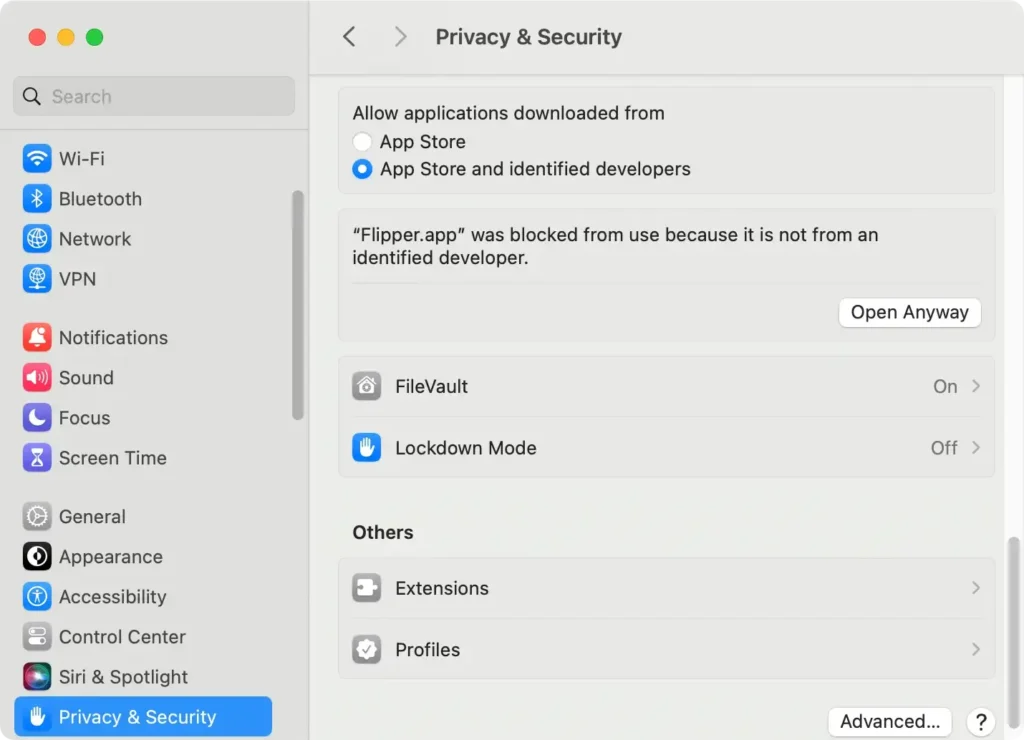
This should help resolve the issue, but if it persists, you might consider checking if your macOS needs updating or if there are permissions issues with your user profile.
Troubleshooting verification errors after macOS updates
Another common challenge is dealing with verification errors following an update to macOS.
Sometimes, updates reset some of the system’s security settings or disrupt app compatibility.
- Ensure that your applications are current. Developers often release patches and new versions of software to maintain compatibility with the latest OS.
- If a particular app consistently fails to verify, try uninstalling and then reinstalling it. This action often replaces corrupted files and resolves minor errors that cause verification problems.
A proactive approach to maintaining your macOS and applications updated will typically mitigate most verification errors encountered during and after a system update.
We have an additional guide that examines working with apps from unidentified developers you can also consult if you run into that error message.
Pros and cons of turning off app verification
Turning off app verification on your devices can have notable implications for usability and security.
While this feature is designed to protect your device from untrusted software, disabling it can lead to a smoother and less interrupted experience, especially for users who frequently install software from various sources.
On the downside, disabling app verification removes a critical layer of security, exposing the device to potentially harmful apps that could compromise personal data or system integrity.
Users must weigh these factors based on their personal or organizational security protocols and their tolerance for risk.
