How To Fix “Assistantd Wants To Use The Login Keychain”

Before we dive in

Before we dive in, let's make sure you stay safe online. We created SpyHunter because your security matters to us.

Protect your computer today — download SpyHunter right here! Check out our top tips below to keep your computer safe and secure.

Download SpyHunter

Have you ever encountered the perplexing “assistantd wants to use the login keychain” notification on your Mac?

This alert can be confusing, but understanding its purpose and learning how to address it can help you keep your Mac functioning smoothly.

In this article, we will look at what exactly assistantd is and how you can stop that alert from popping up again.

What does the “assistantd wants to use the login keychain” alert mean?

This message usually appears when your Mac is trying to access secure information stored in your keychain—a built-in password management system—without the necessary permissions.

Essentially, it’s your Mac’s way of asking for authorization to access specific credentials.

arafed laptop with a blue and black shield on the screen

In the specific case of the message “assistantd wants to use the login keychain”, the process trying to access password data is called “assistantd”.

What is “assistantd” on your Mac?

The assistantd process in macOS is a background service associated with Siri and dictation features.

It plays a crucial role in handling the requests and commands given to Siri, managing voice recognition, and processing natural language inputs.

When you use Siri to perform a task like setting reminders, searching the web, or sending a message, assistantd is actively involved in interpreting your speech and executing the related actions.

This process ensures that Siri can communicate with various system components to deliver the results of your requests accurately.

In addition to Siri, assistantd is also responsible for handling dictation services, converting spoken words into text across different applications, such as Messages, Notes, and any app that supports voice input.

As a system process, it runs continuously in the background and is automatically triggered when voice input is detected or when you activate Siri.

Why does this alert appear?

Several common scenarios can trigger the “assistantd wants to use the login keychain” alert:

  • macOS updates: System updates can sometimes reset settings, causing the keychain to become desynchronized from your current login credentials.
  • Password changes: If you’ve recently changed your Mac’s login password, your keychain password may no longer match, leading to access issues.
  • Software glitches: System or application bugs can also prompt this alert, indicating a miscommunication between the keychain and the app trying to access it.
  • Malware infection: The message is usually a legitimate prompt, but in some cases, malware can also cause it to come up repeatedly. In this case, you should scan your Mac with a reliable anti-malware tool.

Understanding these triggers helps in diagnosing the root cause of the problem rather than just dismissing the alert.

How to fix the “assistantd wants to use the login keychain” alert

Fix 1: Turn off keychain auto-lock

Disabling the keychain’s auto-lock feature can help eliminate frequent prompts.

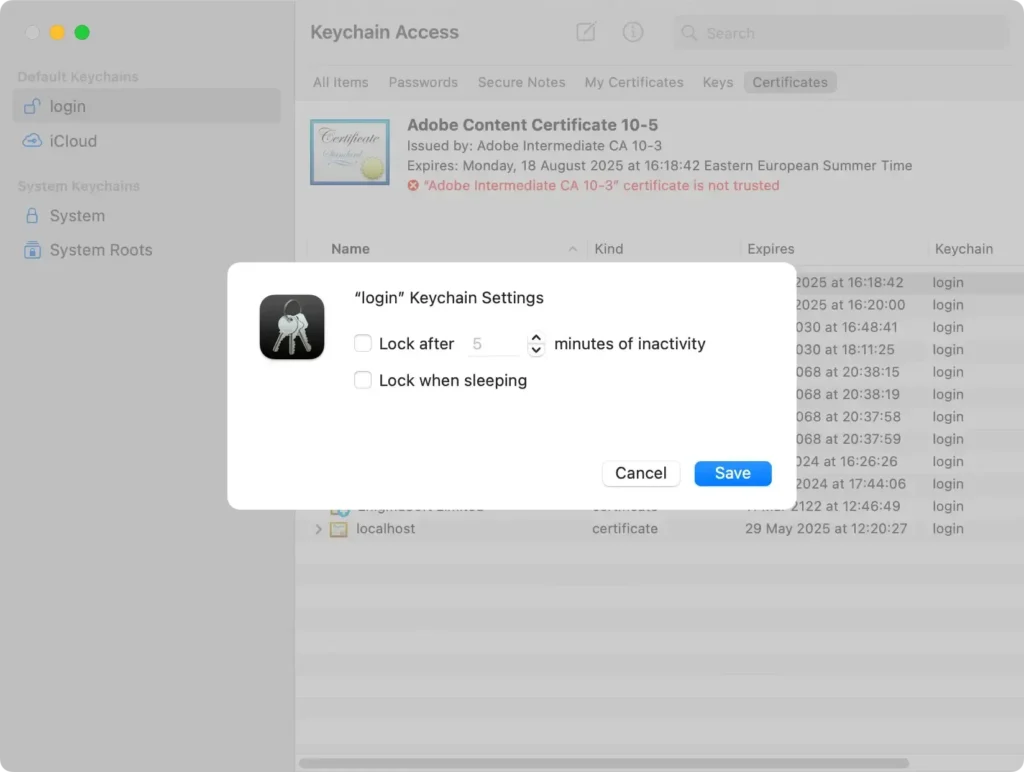
  1. Open Keychain Access from Applications > Utilities.
  2. Right-click the login keychain in the sidebar and select Change Settings for Keychain "login".
  3. Uncheck Lock after and Lock when sleeping options, then click Save.
keychain auto lock menu

This will keep your keychain unlocked, reducing the need for constant authentication.

Fix 2: Reset to default keychain settings

If issues persist, resetting your keychain can provide a fresh start.

  1. Open Keychain Access and go to Keychain Access > Preferences in the menu bar.
  2. Click Reset My Default Keychain and enter your login password when prompted.

This action removes saved credentials, so make sure to back up important passwords first.

Fix 3: Make a new login keychain

Creating a new login keychain can also resolve persistent access issues.

  1. Navigate to ~/Library/Keychains/ in Finder using Go > Go to Folder.
  2. Move your existing keychain files to the Trash, but do not empty it.
  3. Restart your Mac, and you’ll get a prompt to create a new keychain during login.

This allows you to set up a fresh keychain and recover any needed passwords from the trashed files. In case you need to, you can recover keychain files that are still in the Trash.

Fix 4: Update macOS to the latest version

Keeping your Mac updated can resolve many system glitches, including keychain issues.

  1. Click the Apple menu and select About This Mac.
  2. Choose Software Update and install any available updates.

Updating often includes bug fixes that can address the assistantd keychain prompt.

Use SpyHunter to check for malware

Continuing keychain alerts, despite trying the steps above, can sometimes signal the presence of malware or unwanted software on your system

Using robust cybersecurity software like SpyHunter can help significantly reduce these risks.

SpyHunter’s advanced scanner can detect and eliminate malware, safeguarding your personal data, and improving your Mac’s overall performance.

Download the app for free here and finish the installation following the prompts on your screen.

Launch SpyHunter and opt for a complete system scan from the app’s main menu. The scan will display a list of every malicious file and app discovered on your Mac.

remove malware, trojans, and other threats with spyhunter

Select everything the malware scanner discovered and use the application’s interface to automatically clean all threats from your Mac.

remove malware, viruses, and potentially unwanted programs with spyhunter for mac

Frequently asked questions

What is the login keychain, and why does my Mac need it?

The login keychain is a built-in password manager on macOS that securely stores your passwords, certificates, and other sensitive information.

It allows apps and system services to access saved credentials without requiring you to re-enter them each time. When your Mac requests access to the keychain, it’s usually because an app or service needs to authenticate to perform its functions.

If the keychain is locked or misaligned with your Mac’s current login credentials, you’ll see an alert asking for access.

What should I do if I accidentally reset my keychain and lost my saved passwords?

If you’ve reset your keychain and lost access to your saved passwords, you may be able to recover data from a Time Machine backup or another backup method you’ve used.

Unfortunately, if no backup exists, the passwords are lost permanently, as resetting the keychain erases all stored credentials.

To avoid this in the future, consider regularly backing up your keychain data or using a third-party password manager.

How can I tell if malware is causing the keychain alerts?

Keychain prompts due to malware are rare but possible. Signs that malware might be at play include unusual behavior like repeated keychain access requests, system performance issues, or unknown apps appearing in your system settings.

Running a thorough scan using trusted security software like SpyHunter can help identify and remove any threats. Keeping your system updated and reviewing app permissions regularly also minimizes the risk of unauthorized access.

Share this post on your favorite social media
Keep Your Mac Fast and Secure
Optimize your Mac and stay malware-free with SpyHunter

For a better understanding of our policies, please review our Free Trial Offer below, EULA, and Privacy/Cookie Policy.

SpyHunter Free Trial: Important Terms & Conditions

The SpyHunter Trial version includes, for one device, a one-time 7-day Trial period for SpyHunter 5 Pro (Windows) or SpyHunter for Mac, offering comprehensive malware detection and removal functionality, high-performance guards to actively protect your system from malware threats, and access to our technical support team via the SpyHunter HelpDesk. You will not be charged upfront during the Trial period, although a credit card is required to activate the Trial. (Prepaid credit cards, debit cards, and gift cards are not accepted under this offer.) The requirement for your payment method is to help ensure continuous, uninterrupted security protection during your transition from a Trial to a paid subscription should you decide to purchase. Your payment method will not be charged a payment amount upfront during the Trial, although authorization requests may be sent to your financial institution to verify that your payment method is valid (such authorization submissions are not requests for charges or fees by EnigmaSoft but, depending upon your payment method and/or your financial institution, may reflect on your account availability). You can cancel your Trial by contacting EnigmaSoft’s payment processor (identified in your confirmation email) or EnigmaSoft directly no later than two business days before the 7-day Trial period expires to avoid a charge coming due and being processed immediately after your Trial expires. If you decide to cancel during your Trial, you will immediately lose access to SpyHunter. If, for any reason, you believe a charge was processed that you did not wish to make (which could occur based on system administration, for example), you may also cancel and receive a full refund for the charge any time within 30 days of the date of the purchase charge. See FAQs.

At the end of the Trial, you will be billed upfront immediately at the price and for the subscription period as set forth in the offering materials and registration/purchase page terms (which are incorporated herein by reference; pricing may vary by country per purchase page details) if you have not timely canceled. Pricing typically starts at $72 for 3 months (SpyHunter Pro Windows) and $42 for 3 months (SpyHunter for Mac). Your purchased subscription will be automatically renewed in accordance with the registration/purchase page terms, which provide for automatic renewals at the then applicable standard subscription fee in effect at the time of your original purchase and for the same subscription time period, provided you’re a continuous, uninterrupted subscription user. Please see the purchase page for details. Trial subject to these Terms, your agreement to EULA/TOS, Privacy/Cookie Policy, and Discount Terms. If you wish to uninstall SpyHunter, learn how.

For payment on the automatic renewal of your subscription, an email reminder will be sent to the email address you provided when you registered before your next payment date. At the onset of your trial, you will receive an activation code that is limited to use for only one Trial and for only one device per account. Your subscription will automatically renew at the price and for the subscription period in accordance with the offering materials and registration/purchase page terms (which are incorporated herein by reference; pricing may vary by country per purchase page details), provided that you are a continuous, uninterrupted subscription user. For paid subscription users, if you cancel, you will continue to have access to your product(s) until the end of your paid subscription period. If you wish to receive a refund for your then current subscription period, you must cancel and apply for a refund within 30 days of your most recent purchase, and you will immediately stop receiving full functionality when your refund is processed.

For CALIFORNIA CONSUMERS, please see the notice provisions:
NOTICE TO CALIFORNIA CONSUMERS: Per the California Automatic Renewal Law, you may cancel a subscription as follows:

  1. Go to www.enigmasoftware.com and click the "Login" button at the top right corner.
  2. Log in with your username and password.
  3. In the navigation menu, go to "Order/Licenses." Next to your order/license, a button is available to cancel your subscription if applicable. Note: If you have multiple orders/products, you will need to cancel them on an individual basis.

Should you have any questions or problems, you can contact our EnigmaSoft support team by phone at +1 (888) 360-0646 (USA Toll-Free) / +353 76 680 3523 (Ireland/International) or by email at support@enigmasoftware.com.
How do you cancel a SpyHunter Trial? If your SpyHunter Trial was registered via MyCommerce, you can cancel the trial via MyCommerce by logging into the MyAccount section of MyCommerce (see your confirmation email for further details). You can also contact MyCommerce by phone or email to cancel. To contact MyCommerce via phone, you can call +1-800-406-4966 (USA Toll-Free) or +1-952-646-5022 (24x7x356). You can contact MyCommerce by e-mail at ordersupport@mycommerce.com. You can easily identify if your trial was registered via MyCommerce by checking the confirmation emails that were sent to you upon registration. Alternatively, all users may also contact EnigmaSoft Limited directly. Users can contact our technical support team by emailing support@enigmasoftware.com, opening a ticket in the SpyHunter HelpDesk, or calling +1 (888) 360-0646 (USA) / +353 76 680 3523 (Ireland/International). You can access the SpyHunter HelpDesk from SpyHunter's main screen. To open a support ticket, click on the "HelpDesk" icon. In the window that appears, click the "New Ticket" tab. Fill out the form and click the "Submit" button. If you are unsure of what "Problem Type" to select, please choose the "General Questions" option. Our support agents will promptly process your request and respond to you.

———

SpyHunter Purchase Details
You also have the choice of subscribing to SpyHunter immediately for full functionality, including malware removal and access to our support department via our HelpDesk, typically starting at $42 for 3 months (SpyHunter Basic Windows) and $42 for 3 months (SpyHunter for Mac) in accordance with the offering materials and registration/purchase page terms (which are incorporated herein by reference; pricing may vary by country per purchase page details). Your subscription will automatically renew at the then applicable standard subscription fee in effect at the time of your original purchase subscription and for the same subscription time period, provided you’re a continuous, uninterrupted subscription user and for which you will receive a notice of upcoming charges before the expiration of your subscription. Purchase of SpyHunter is subject to the terms and conditions on the purchase page, EULA/TOS, Privacy/Cookie Policy and Discount Terms.

———

General Terms
Any purchase for SpyHunter under a discounted price is valid for the offered discounted subscription term. After that, the then applicable standard pricing will apply for automatic renewals and/or future purchases. Pricing is subject to change, although we will notify you in advance of price changes.
All SpyHunter versions are subject to your agreeing to our EULA/TOS, Privacy/Cookie Policy, and Discount Terms. Please also see our FAQs and Threat Assessment Criteria. If you wish to uninstall SpyHunter, learn how.