

How To Fix “Commcenter Wants To Use The Login Keychain”

Before we dive in
Before we dive in, let's make sure you stay safe online. We created SpyHunter because your security matters to us.
Protect your computer today — download SpyHunter right here! Check out our top tips below to keep your computer safe and secure.

Ever found yourself getting repeatedly annoyed by your Mac bringing up a message that “commcenter wants to use the login keychain” ?
It’s one of those common yet puzzling issues that can leave even the savviest Mac users scratching their heads.
This guide isn’t just about the ‘whys’ behind those persistent “commcenter wants to use the login keychain” alerts, but also about how to fix them once and for all.
Whether it’s a misconfiguration, a recent update, or a more concerning cause like malware, we’ll dive into ways to address the issue.
What triggers the “commcenter wants to use the login keychain” alert on Mac?
When Mac users are continuously prompted with the “commcenter wants to use the login keychain” alert, it’s crucial to understand the triggers behind this notification.
Generally, this alert appears when the commcenter system process requires access to the keychain to retrieve saved passwords and account information for various applications and services.
There are a few common scenarios that prompt this alert. One such instance is when the Mac has recently undergone a software update.

Updates, while essential for system security and efficiency, can sometimes alter system configurations or reset permissions, leading to the keychain becoming locked or inaccessible to the commcenter process.
Another trigger is a change in the user’s account password. If the login keychain password does not automatically update to match the new account password, inconsistencies arise, prompting the system to request access through the alert.
What is the “commcenter” process on your Mac?
The commcenter process on macOS (and iOS) is a system daemon responsible for managing various communication services on Apple devices. It’s primarily involved in handling cellular functions, including:
- Cellular network communication: It manages cellular data connections, phone calls, and text messages on devices with cellular capabilities (e.g., iPhones, iPads with cellular, and Macs with cellular support).
- SIM card management: It handles interactions with the SIM card, including reading carrier settings, updating network configurations, and managing carrier-related tasks.
- Voicemail and call services: Commcenter helps manage voicemail services and integrates call services with the system, such as managing call logs and settings.
- Push notifications: It may also play a role in managing push notifications related to communication apps.
- Security and encryption: It ensures secure communication over cellular networks, often interfacing with other system components to maintain security standards.
The commcenter process runs in the background and is essential for the normal operation of cellular services on Apple devices.
Disabling or interfering with this process can cause issues with cellular connectivity, messages, calls, and other related services.
Step-by-step guide to resolve the “commcenter keychain” issue
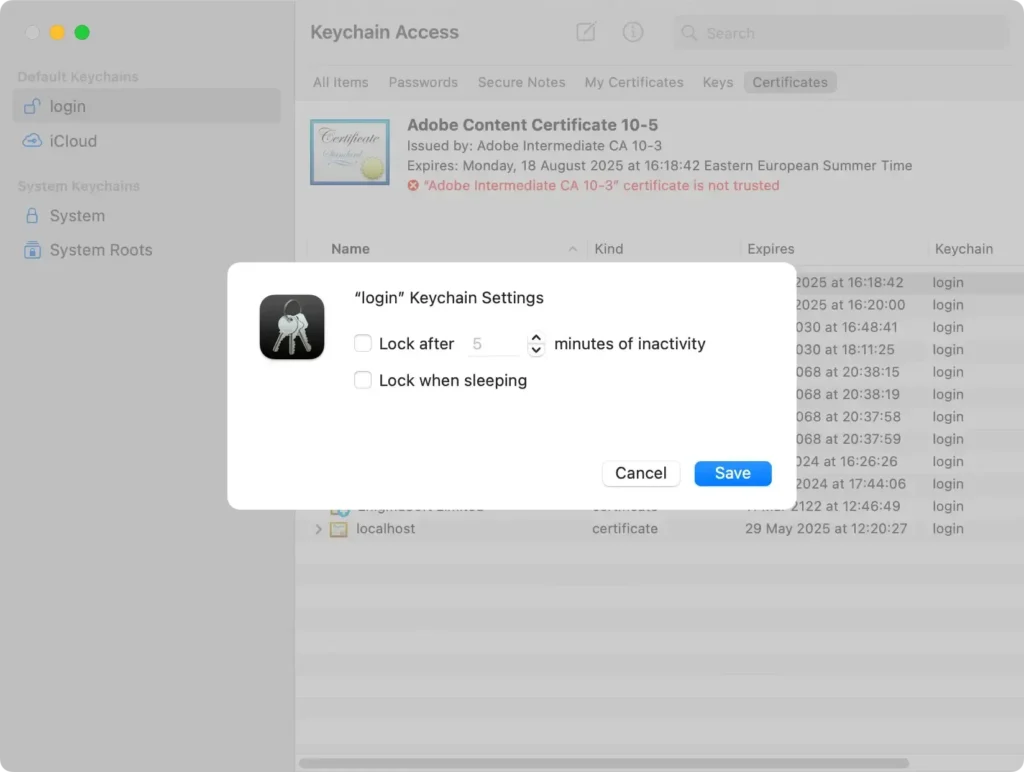
Disabling keychain auto-lock
If you’re encountering the persistent prompt of “commcenter wants to use the login keychain” on your Mac, one potential quick fix is to disable the Keychain auto-lock feature.
Disabling it can help avoid these prompts without compromising your overall security for devices that remain in a secure location. Here’s how to do it:
- Open the
Applicationsfolder and navigate toUtilities. - Double-click on
Keychain Accessto open the application. - In the sidebar under
Keychains, right-click on theloginkeychain and selectChange Settings for Keychain 'login'. - Uncheck the options for
Lock after [number] minutes of inactivityandLock when sleeping. - Click
Saveto apply the changes.
Creating a fresh login keychain
If the issue persists, creating a new login keychain may be the solution.
This step is particularly useful if your keychain password has become desynchronized from your login password, a common cause of the “commcenter” message.
Creating a new login keychain resets this synchronization and ensures your passwords are saved and accessible without the annoyance of constant prompts. To create a new login keychain, follow these steps:
- Go to
Keychain Accessusing the pathApplications > Utilities. - From the menu bar, select
File > New Keychain. - Give the new keychain a name and set a password that matches your Mac login password.
- Click
Create. You’ll now have a new login keychain, which should resolve synchronization issues.
Resetting your Mac’s default keychain
If the above steps do not resolve the “commcenter wants to use the login keychain” issue, resetting your Mac’s default keychain might be necessary.
This process will remove all the saved passwords in your keychain, requiring you to enter them anew, but it often fixes the problem once and for all.
Remember, this step should be your last resort due to its potential inconvenience, as you will lose all stored passwords. Here’s how to reset:
- Within the
Keychain Accessutility, from the top menu, chooseKeychain Access > Preferences. - Click the button for
Reset My Default Keychain. - Authenticate with your Mac login password when prompted and click
OK. - Your default keychain will now be reset, and you should no longer see the “commcenter” prompts.
After completing these steps, your Mac should have a clean slate in terms of keychain access, and the synchronization between your login details and keychain should be restored.
Use SpyHunter to deal with commcenter keychain alerts caused by malware
Persistent keychain alerts that won’t stop showing up, even after trying the steps outlined above, may indicate the presence of malware or unwanted software on your system.
Using reliable cybersecurity tools like SpyHunter can help remove such malware and restore your Mac to a stable and clean state.
SpyHunter can detect and remove malware that may be causing the continuing keychain alerts. Having a reliable security tool protects your data and enhances your Mac’s performance and stability.
Download SpyHunter here and then follow the on-screen instructions to complete the installation.
Open SpyHunter and choose to perform a full system scan from the main menu. The scan will identify all threats that potentially exist on your Mac.

Select the detected items and use the app’s interface to automatically remove all threats from your system, so you can enjoy a safer, smoother experience on your Mac.

Tips to avoid future keychain alerts
To avoid regular encounters with keychain alerts like “commcenter wants to use the login keychain,” it’s crucial to maintain your Mac’s health.
One effective way to do so is by regularly updating your macOS to the latest version. Apple continuously releases updates to enhance security features and fix bugs that could lead to keychain problems.
To update your macOS, head to the Apple Menu, select About This Mac, and click Software Update. If there’s an available update, follow the prompts to install it.
Another preventive measure is to monitor and manage the applications that request access to your keychain. Occasionally, applications may malfunction or request unnecessary access, which could trigger these alerts.
You can review these permissions in your Keychain Access application under the Applications folder. If you find an application that shouldn’t have access or you no longer use, consider revoking its permissions or uninstalling the app.
Cleaning internet clutter
Cleaning up the internet clutter on your Mac not only frees up valuable disk space but also reduces the risk of encountering annoying pop-ups or malicious software that could mess with your keychain settings.
Begin by regularly clearing your browser history, cookies, and cache. This can usually be done within the browser settings—look for a section labelled Privacy or History and select the option to clear browsing data.
It’s also wise to manage your browser extensions by removing any that you no longer use or that seem suspicious. Unused or malicious extensions can slow down your browser or compromise your computer’s security.
