

How To Uninstall Slack On Mac (Complete Cleanup Guide)

Before we dive in
Trying to uninstall an app completely? SpyHunter for Mac includes an App Uninstaller that removes unwanted apps and their leftover files in just a few clicks.
Avoid clutter and save time — download SpyHunter right here and follow the steps to clean up your system.

Have you ever considered uninstalling Slack from your Mac but weren’t sure why or how to do it effectively?
This guide will provide a straightforward process to remove Slack and its associated files from your system, ensuring your Mac remains optimized for your current needs.
Let’s dive into the steps to efficiently uninstall Slack, freeing up space and potentially improving your Mac’s performance.
Reasons to uninstall Slack on Mac
There are several compelling reasons to consider removing Slack from your Mac:
- Performance Optimization: Slack can consume significant system resources, potentially slowing down your Mac.
- Space Conservation: Uninstalling Slack frees up valuable disk space, which is especially important for users with limited storage.
- Privacy Concerns: Some users may uninstall Slack due to privacy considerations or a desire to limit data sharing.
- Workflow Simplification: Removing unused or redundant apps, including Slack, can simplify your digital workspace and reduce distractions.
- Alternative Solutions: Switching to a different communication platform that fits your team’s needs or preferences might require Slack’s removal.

Deciding to uninstall Slack can enhance your Mac’s efficiency, safeguard privacy, and better tailor your digital environment to suit your workflow and communication preferences.
Uninstall Slack manually from your Mac
Follow these manual uninstallation steps for a clean and thorough removal of Slack from your Mac.
This process removes the application and any related files and folders that might linger on your system.
Step 1: Quit Slack
Before proceeding with the uninstallation, make sure Slack is not running.
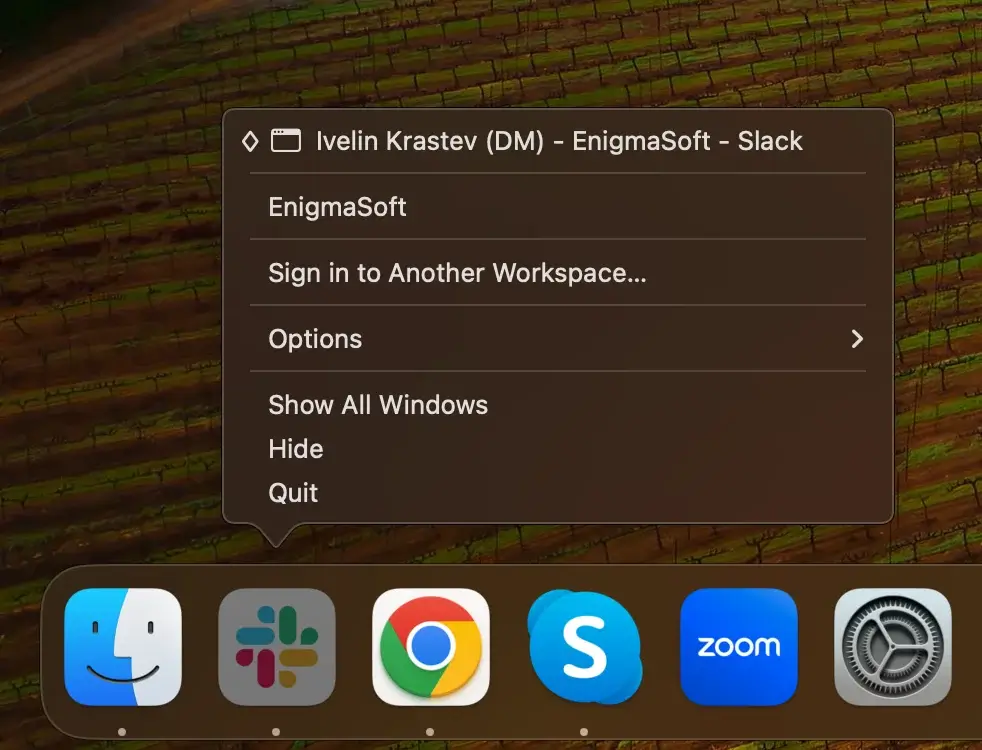
- Check if Slack is active in your Dock. If there’s a dot beneath the Slack icon, it indicates the app is open.
- Right-click (or control-click) on the Slack icon in the Dock and choose
Quitfrom the contextual menu.
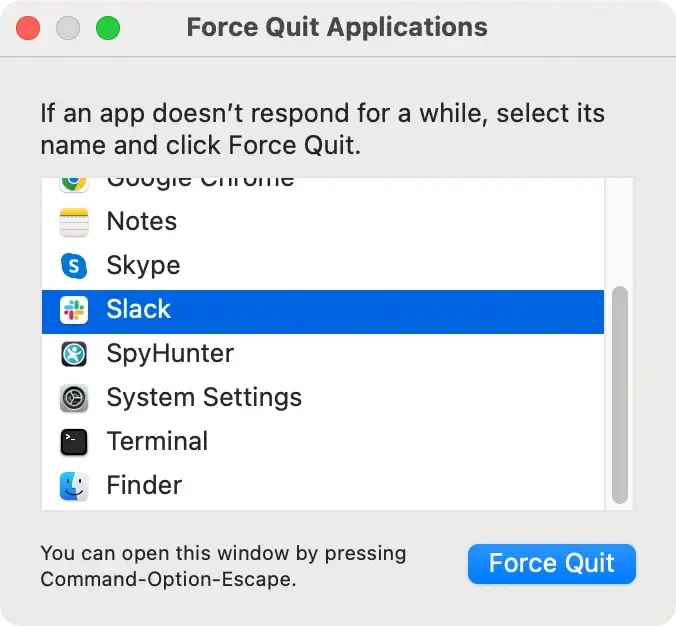
If Slack doesn’t quit as expected, use the Force Quit option: press Command + Option + Esc and select Slack from the list. Then click the Force Quit button.
Step 2: Delete the Slack app
After ensuring Slack is completely shut down, the next step involves removing the application from your Mac.
This action clears space and prepares your system for a clean reinstall of Slack, should you choose to do so later.
- Open Finder: Navigate to the Finder to begin the uninstallation process.
- Access the Applications Folder: In Finder, locate the
Applicationsfolder from the sidebar to find all apps installed on your Mac. - Find Slack: Within the apps folder, search for Slack. This can be done by scrolling through the list or using the search feature at the window’s top right corner.
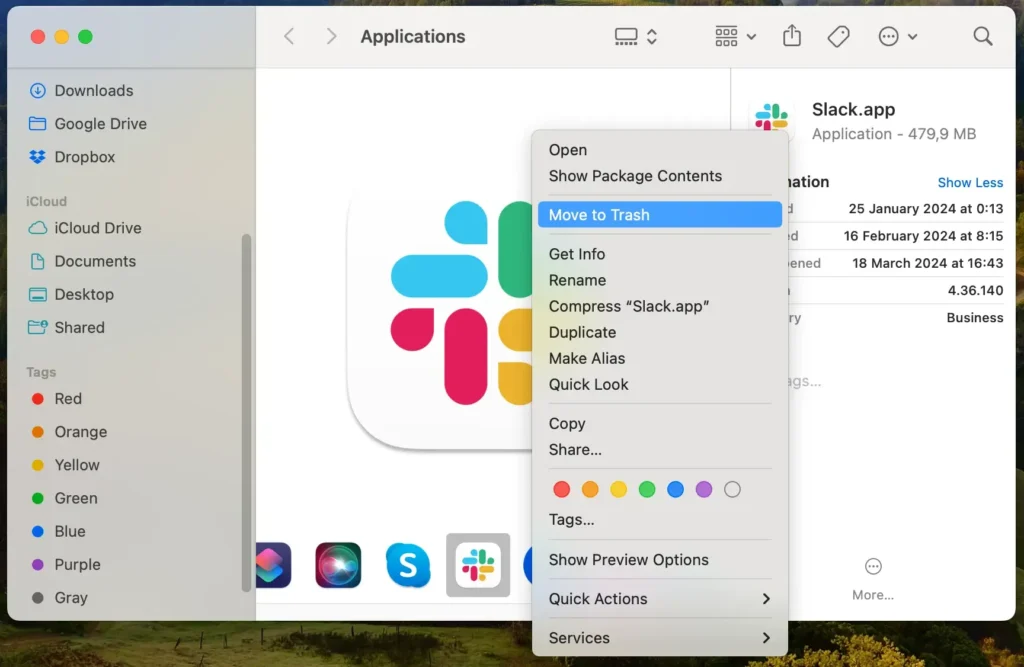
- Move to Trash: Once you’ve found Slack, drag it to the Trash bin located in your Dock. Alternatively, you can right-click (or control-click) on the Slack app and select
Move to Trashfrom the dropdown menu. - Empty the Trash: Right-click on the Trash bin and select
Empty Trashto ensure you can permanently delete the app.
Step 3: Remove Slack-related files and folders
After uninstalling the Slack app, it’s crucial to eliminate any remaining Slack-related files and folders to ensure your Mac is thoroughly cleansed.
These files can include chat history, account settings, and various data that Slack stores outside the main application folder.
- Launch Finder: Start by opening a new Finder window to search for residual files.
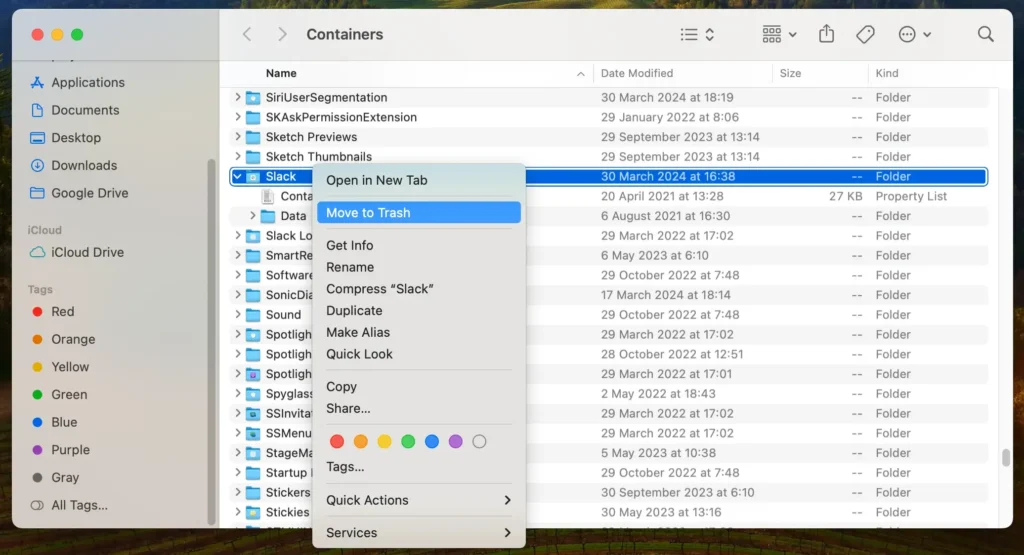
- Go to Folder: Use the Go > Go to Folder option from the Finder menu bar. This lets you navigate directly to specific directories where Slack may have stored files.
- Check Common Locations: Enter the following paths into the
Go to Foldersearch box, looking for and removing any Slack-related directories or files:~/Library/Application Support/for Slack support files and data.~/Library/Caches/to remove Slack’s cache, which can take up space.~/Library/Preferences/for any Slack preference files.~/Library/Logs/for logs that Slack might have generated.~/Library/Cookies/for Slack-related cookie files.
- Delete Related Files: For any Slack files you find, move them to the Trash and empty it to permanently remove these files from your Mac.
- Restart Your Mac: Restart your Mac to ensure all changes take effect and all Slack residues are fully cleared from the system.
By thoroughly following these steps, you can effectively remove all traces of Slack from your Mac.
This frees up valuable disk space and safeguards your privacy by ensuring that residual data is erased.
Whether you’re planning to reinstall Slack or shift to a different communication tool like Microsoft Teams or Discord, these actions contribute to a more organized and efficient computer.
Completely uninstall Slack using SpyHunter
For a thorough and effortless uninstallation of Slack from your Mac, leveraging SpyHunter’s advanced capabilities offers a streamlined solution.
SpyHunter can detect and eliminate the Slack app and any lingering files and associated data that manual removal might miss.
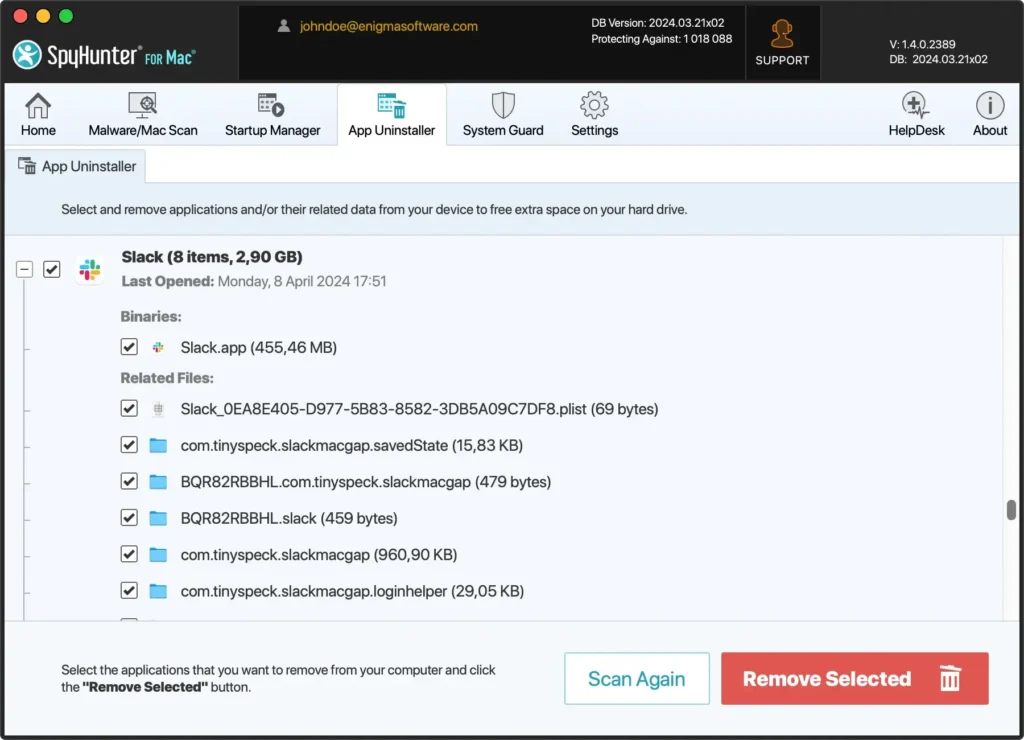
Here’s how to utilize SpyHunter for a complete Slack removal:
- Download SpyHunter from here and follow the on-screen instructions to install the app on your Mac. Administrator permissions may be required.
- With SpyHunter installed, navigate to the App Uninstaller tab to initiate an application scan. SpyHunter will search for Slack and any related files or leftovers across your system.
- After the scan, SpyHunter will display a list of detected items. Find Slack in the list of apps and select it for removal.
- Follow SpyHunter’s prompts to remove Slack from your Mac completely.
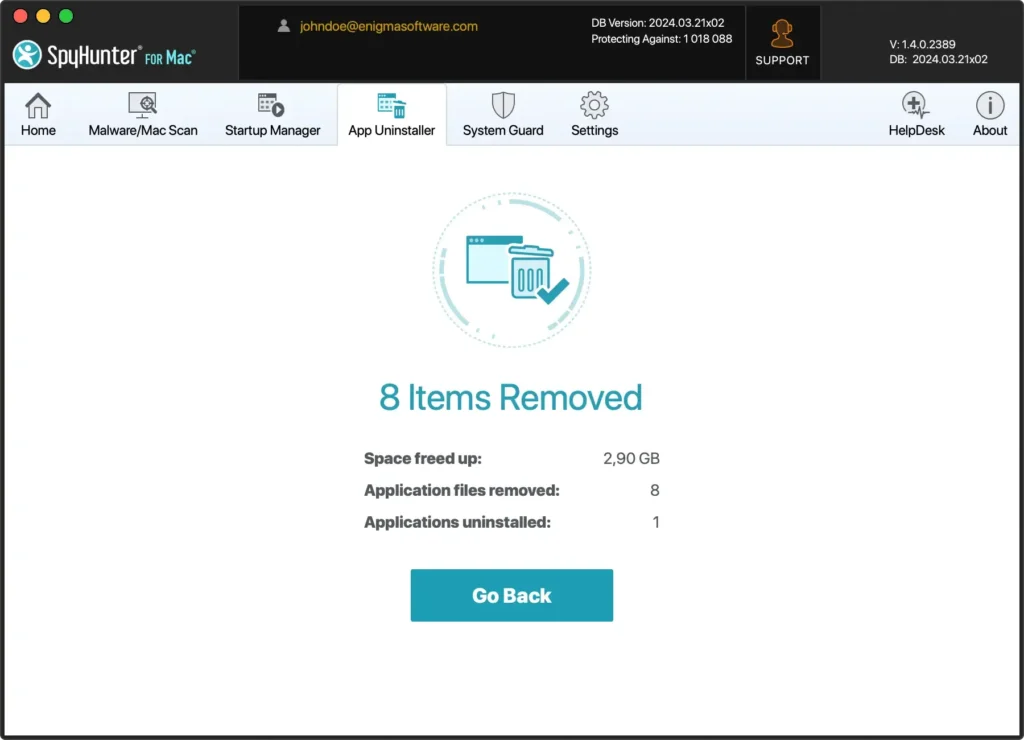
By using SpyHunter to uninstall Slack, you benefit from an automated, in-depth cleaning process that safeguards your Mac against incomplete removals and enhances your device’s overall health and efficiency.
Transfer Slack workspace ownership
When managing a Slack workspace, there might come a time when you need to transfer ownership to another member.
This could be due to organizational changes, role adjustments, or personal decisions to step down from managing the workspace.
Transferring ownership is a significant action that ensures the continuous, smooth operation of the workspace administration.
Preparation steps
Before initiating the transfer, it’s crucial to prepare both the workspace and its members for the transition:
- Confirm New Owner’s Account: The intended new owner must already be a workspace member with an active Slack account.
- Check Permissions: Ensure the new owner has the necessary permissions to accept ownership.
- Inform the Team: Communicate the upcoming change to the team members to maintain transparency and prepare them for the transition.
How to transfer ownership
- The current owner should log into Slack, visit the Slack website, and go to the workspace’s
Settings & Permissionsvia theSettings & Administrationoption. - In the
Manage Memberssection, locate the future owner’s profile. - Click on the three dots next to the member’s name and click
Transfer Workspace Ownershipfrom the menu. Then, follow the on-screen instructions to complete the process.
Final thoughts
Successfully uninstalling Slack from your Mac optimizes device performance and frees up valuable storage space.
By carefully removing Slack and its associated files, users can achieve a more efficient and clean operating system.
Utilizing tools like SpyHunter for Mac enhances this cleanup process by effectively removing app residues and safeguarding against potential security threats, streamlining the maintenance of your Mac’s health.
The transition to a new communication platform can be seamlessly navigated, with various options available to suit different workflows and preferences.
The aim is to foster a streamlined, secure digital workspace on your Mac, enhancing performance and organization.
