

How To Uninstall Firefox on Mac (Complete Removal Guide)

Before we dive in
Trying to uninstall an app completely? SpyHunter for Mac includes an App Uninstaller that removes unwanted apps and their leftover files in just a few clicks.
Avoid clutter and save time — download SpyHunter right here and follow the steps to clean up your system.

Are you facing persistent issues with Firefox? Uninstalling Firefox might be the refresh your system needs. Whether it’s to reclaim disk space or transition to another browser, removing Firefox can significantly enhance your Mac experience.
This article will walk you through the quick, straightforward process to uninstall Firefox, ensuring a smooth transition to your next browsing choice.
Discover how easy it is to give your Mac extra breathing room and possibly boost its performance.
Reasons to uninstall Firefox from your Mac
Uninstalling Mozilla Firefox from your Mac might be considered for several reasons:
- Performance Issues: Firefox, like any browser, can sometimes slow down your Mac, especially if it consumes excessive system resources.
- Preference for Another Browser: You might find another browser better suited to your needs, prompting a switch.
- Storage Space: Removing Firefox can free up valuable disk space taken up by the browser and its data.
- Troubleshooting: Removing and reinstalling Firefox is a common troubleshooting step to fix issues related to crashes or glitches.
- Privacy Concerns: If you’re seeking a browser with different privacy features, deleting Firefox could be the first step towards using a platform that aligns more closely with your preferences.

These reasons highlight the various motivations behind the decision to uninstall Mozilla Firefox, whether for performance, space, or personal preference considerations.
Manually uninstall Firefox from your Mac
Removing Firefox manually from your Mac ensures not only the deletion of the application but also the eradication of any residual files and folders, keeping your system clean and optimized.
Follow these steps to accomplish a thorough uninstallation:
Step 1: Quit Firefox
Before proceeding with the uninstallation, make sure Firefox is not running:
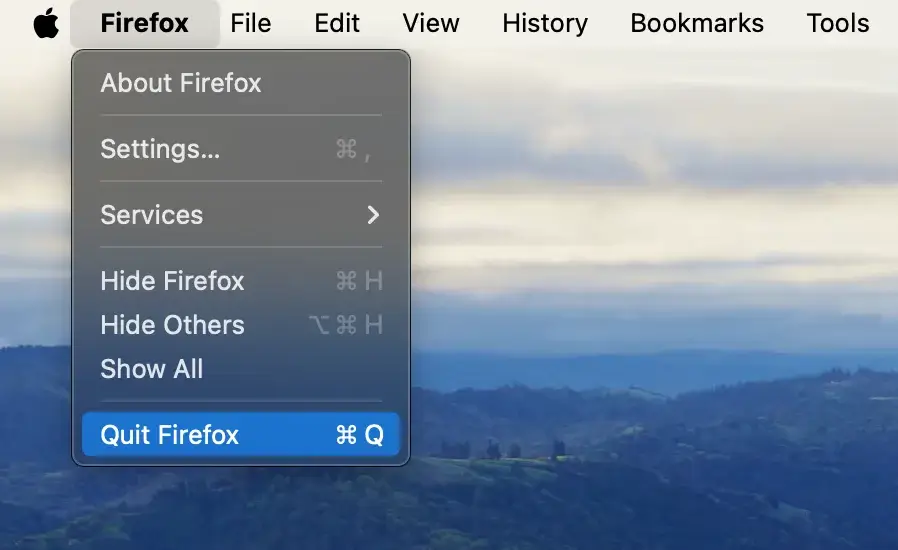
If Firefox is open, click the Firefox menu and select Quit Firefox from the drop-down menu.
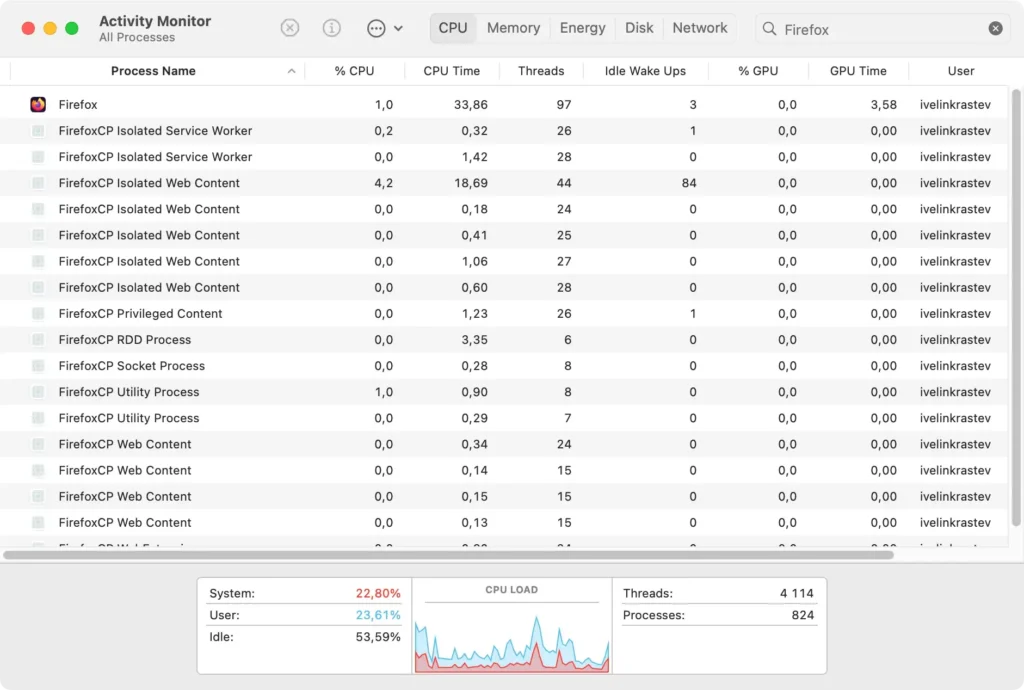
If Firefox is not responding, open the Activity Monitor app and search for Firefox. Select all the processes related to Firefox and click the [X] button at the top to quit them. Confirm by clicking Force Quit in the dialog box that appears.
Step 2: Remove the Firefox app
Once Firefox is closed, you can remove the application from your system:
- Open
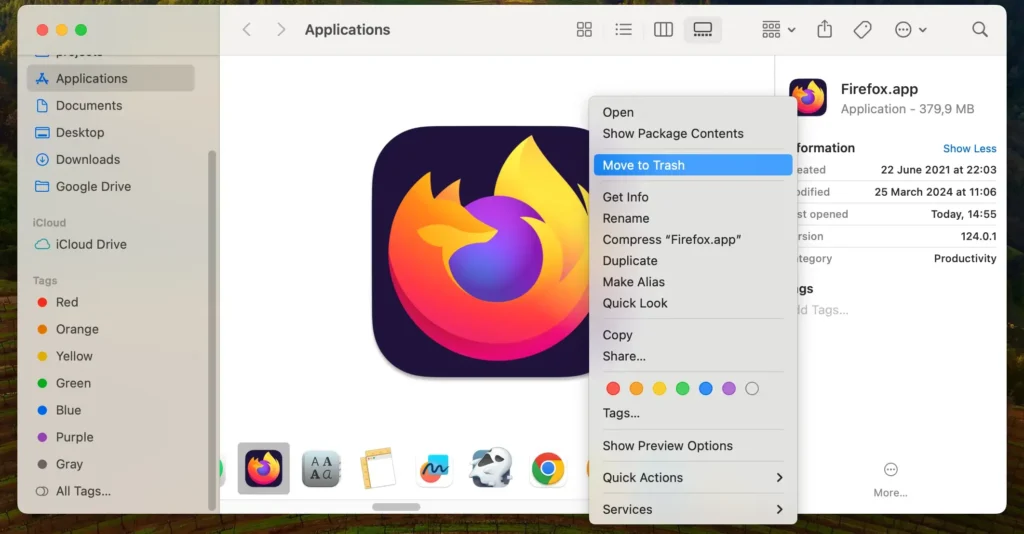
Finderand navigate to theApplicationsfolder. - Locate the Firefox application. You can use the search bar in Finder for convenience.
- Drag the Firefox icon to the Trash, or right-click (control-click) on it and select
Move to Trashfrom the drop-down menu. - Empty the Trash to remove Firefox permanently.
Step 3: Delete files and folders related to Firefox
After uninstalling the Firefox application, removing any leftover files and folders is essential. These files are usually stored within the Library folder and can include application support files, cache, and preferences.
Here’s how to completely remove them:
- With Finder open, click the
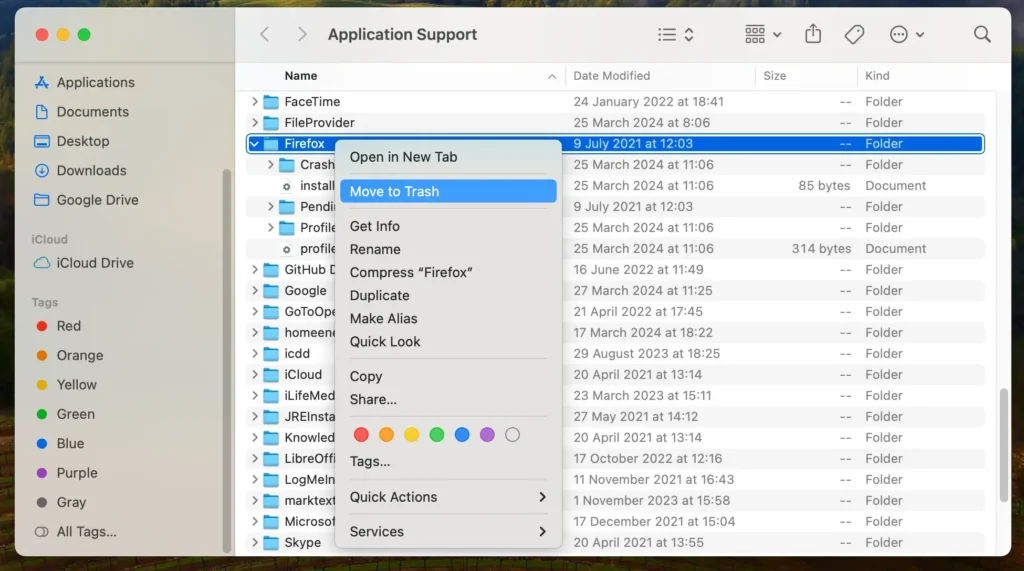
Gomenu in the menu bar and selectGo to Folderfrom the contextual menu. Type in each of the following paths in the search bar:~/Library/Application Support/Firefox/~/Library/Caches/Firefox/~/Library/Preferences/org.mozilla.firefox.plist~/Library/Firefox/
- Look for files or folders related to Mozilla Firefox and move them to the Trash. Be cautious not to remove any system files, as mistakes can damage your operating system.
- Empty the Trash again to ensure these files are permanently deleted from your device.
Following these steps, you can manually uninstall Mozilla Firefox from your Mac, removing both the application and any associated files to keep your system clean and running efficiently.
Completely remove Mozilla Firefox with SpyHunter
Using a specialized tool like SpyHunter streamlines the process for a comprehensive and effortless removal of Firefox from your Mac.
SpyHunter can detect and eliminate remnants that manual uninstallation might miss, ensuring a thorough cleanup.
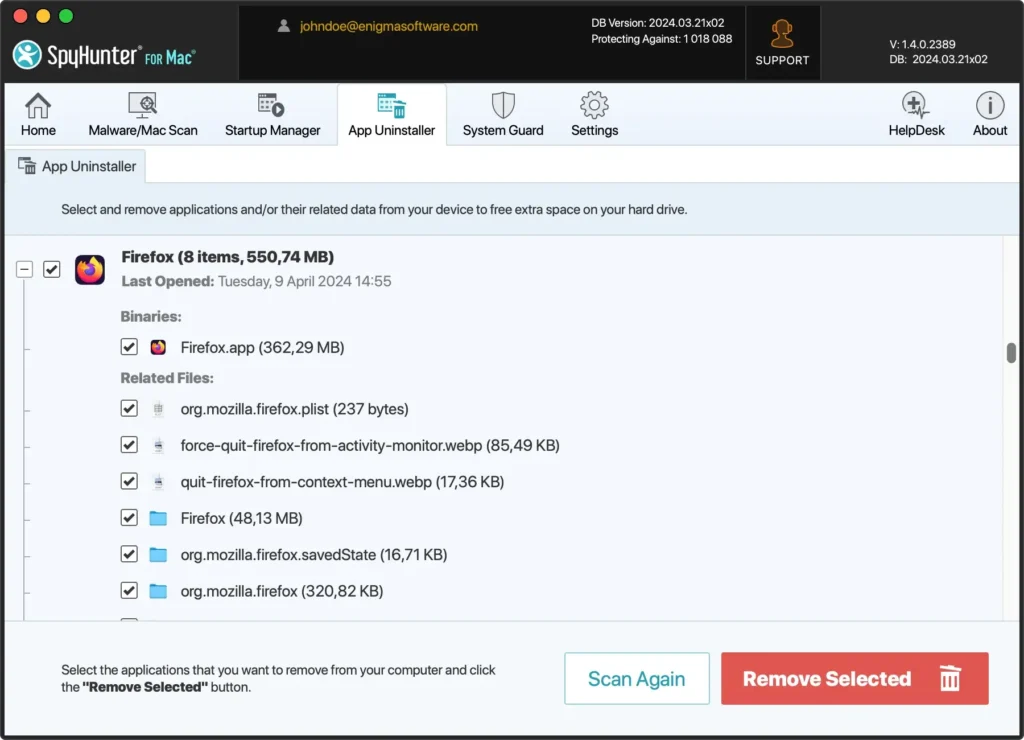
Here’s how to use SpyHunter to remove Firefox:
- Download SpyHunter for free here and follow the on-screen instructions to install the app. You may need to enter your administrator password to authorize the installation.
- Open SpyHunter and navigate to the App Uninstaller tab, initiating an automatic application scan.
- After the scan, SpyHunter will list all detected apps. Find Firefox in the list of results and select it for removal.
- Completing the removal process may require a system restart. If prompted, restart your device to finalize the cleanup.
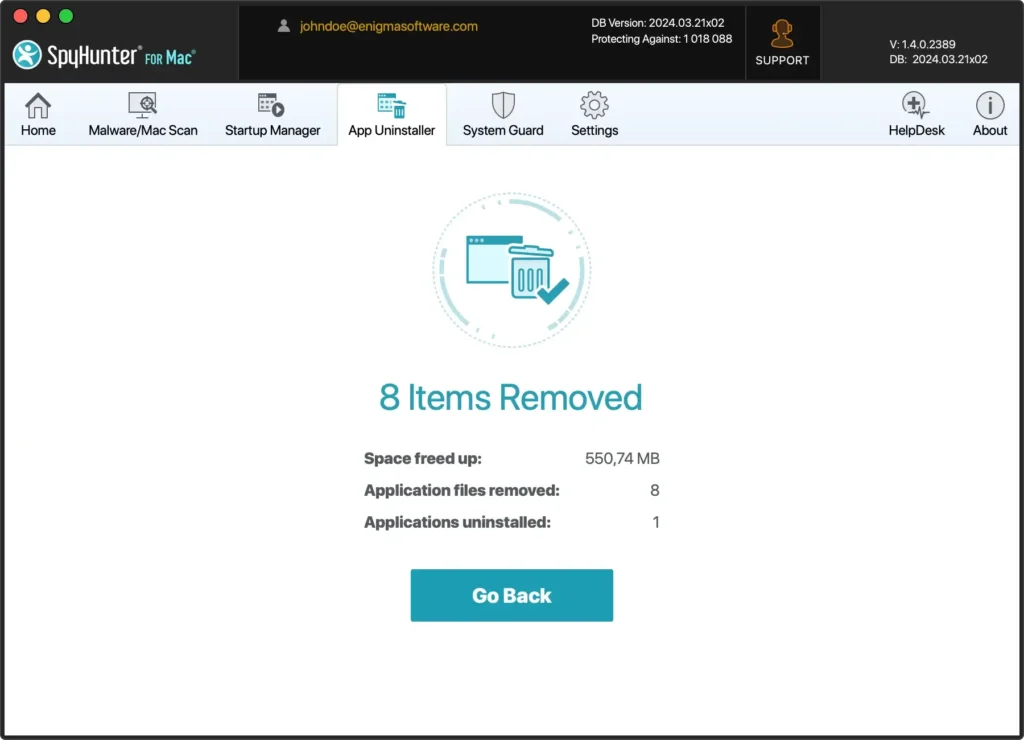
Using SpyHunter ensures the complete removal of Firefox from your Mac and helps maintain your system’s health by clearing out any lingering files.
FAQs: Uninstalling Mozilla Firefox on Mac
Will uninstalling Firefox delete my bookmarks and browser history?
Yes, removing Firefox from your Mac will remove your bookmarks, browsing history, and offline website data stored on the computer. To preserve this information, consider backing it up or exporting it before the uninstallation process.
What are some alternative browsers I can use on my Mac?
Several excellent browsers are available for macOS, including Safari, Google Chrome, and Brave. Each offers unique features and functionalities, such as enhanced privacy settings, extensive extension libraries, and integration with other services like Google Drive.
Is it safe to use third-party software to uninstall Firefox?
Using reputable third-party uninstallation software like SpyHunter can make the process easier and more thorough, especially when removing residual files. Download SpyHunter from here to avoid potential security risks.
Conclusion
Congratulations on having successfully uninstalled Firefox from your Mac! This achievement is a crucial step toward optimizing your device’s performance, freeing up valuable disk space, and opening up the possibility to enhance your browsing experience with a web browsing program that better suits your needs.
Now that Firefox is uninstalled, you’re well-positioned to declutter your digital workspace and consider alternative web browsers, each with unique features that might better align with your preferences.
To further assist you in maintaining an efficient and secure system, our comprehensive guide on how to uninstall a Mac application offers broader insights and tips for managing your applications effectively.
