

How To Uninstall Opera On Mac (Complete 2025 Guide)

Before we dive in
Trying to uninstall an app completely? SpyHunter for Mac includes an App Uninstaller that removes unwanted apps and their leftover files in just a few clicks.
Avoid clutter and save time — download SpyHunter right here and follow the steps to clean up your system.

Are you considering uninstalling Opera from your Mac?
Whether you’re looking to free up space, switch to a different browser, or resolve issues with Opera itself, this comprehensive guide will walk you through the process step by step.
Removing a browser can seem daunting, but with the proper instructions, you’ll find it straightforward and quick.
Follow along to completely uninstall Opera from your Mac, leaving you with a cleaner, more streamlined system.
Reasons to remove Opera from Mac
Choosing to uninstall Opera from your Mac can be driven by various factors, each reflecting personal preferences or system requirements.
Here are some common reasons why you might consider removing Opera:
- Performance Issues: Opera, like any browser, can consume a significant amount of system resources, particularly if you have many tabs or extensions running. Uninstalling Opera can help enhance your Mac’s performance, especially if you’re experiencing slowdowns or crashes.
- Switching Browsers: You may switch to another browser that better meets your needs. Uninstalling Opera can make way for a new browser that aligns more closely with your browsing habits.
- Storage Space Concerns: Browsers can occupy considerable disk space, especially with cached files and extensive browsing histories. Removing Opera can free up space on your Mac, which is particularly useful if you’re working with limited storage.
- Security and Privacy Issues: If you have concerns about how Opera handles your data or privacy, or if you’ve encountered security issues with the browser, you might opt to uninstall it as a precautionary measure.
- Infrequent Use: If Opera is not your go-to browser and you rarely use it, uninstalling it could declutter your system and simplify your software management.
These reasons might prompt you to reassess the utility of keeping Opera on your Mac.
Removing the browser could free up system resources and ensure your device remains tailored to your specific needs and preferences.
Completely uninstall Opera on Mac with SpyHunter
Using SpyHunter’s App Uninstaller feature is an effective solution to remove Opera from your Mac and ensure that no residual files are left behind.
Here’s how to utilize SpyHunter to completely uninstall Opera on Mac:
- Download SpyHunter from here and follow the instructions to install it on your Mac.
- Open SpyHunter and navigate to the App Uninstaller tab. This will automatically scan all installed applications and their associated files.
- Once the scan is complete, find and select Opera for removal. Ensure all Opera-related files are also selected to guarantee a comprehensive cleanup.
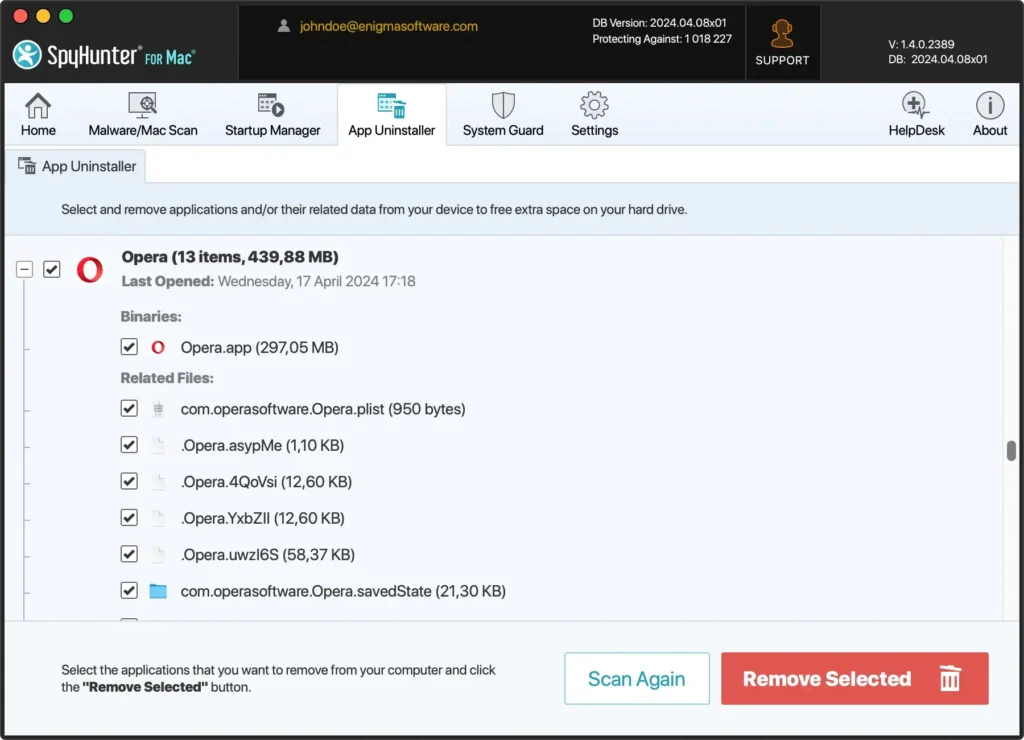
- Proceed with the uninstallation by following the prompts within SpyHunter. This will effectively remove Opera and all its components from your system.
- Reboot your Mac to finalize the removal and ensure all changes take effect, leaving your system clean and Opera-free.
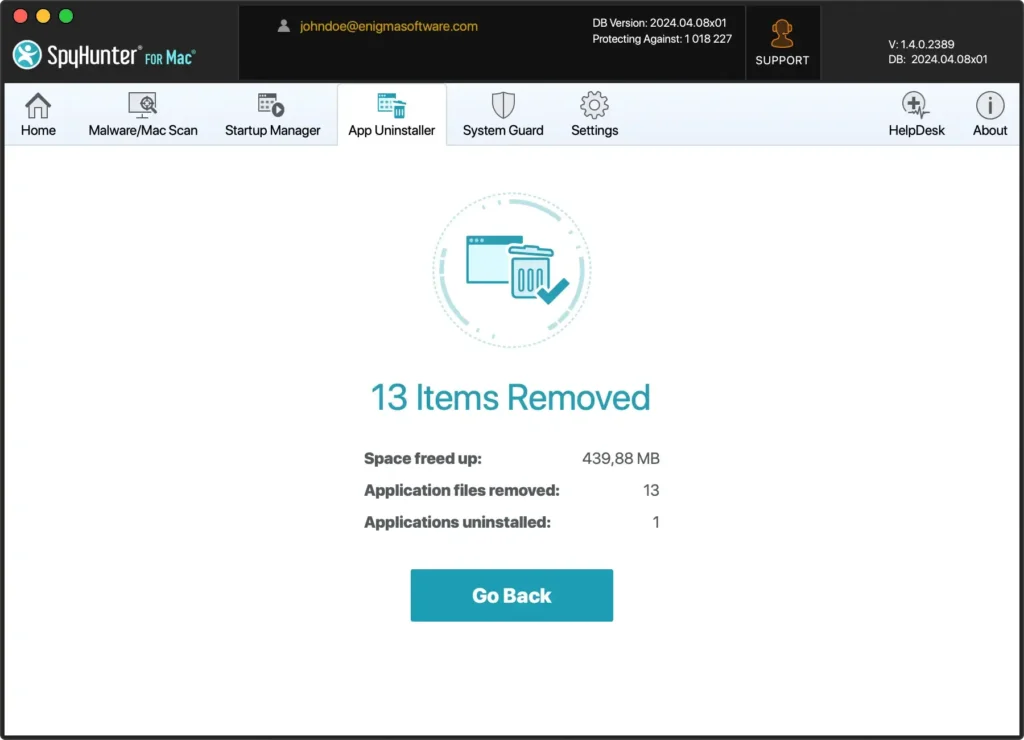
SpyHunter’s App Uninstaller simplifies the process and provides a thorough cleanup, ensuring your Mac remains optimized and free of leftover files that could impact performance.
Manually uninstall Opera on Mac
Removing the Opera Browser manually from your Mac involves a few essential steps to ensure that the application and all its junk files are eliminated.
Here’s how to do it effectively:
Step 1: Quit Opera
Before you start the uninstallation process, make sure Opera is not running.
Right-click on the Opera icon in the Dock and select Quit to close the application.
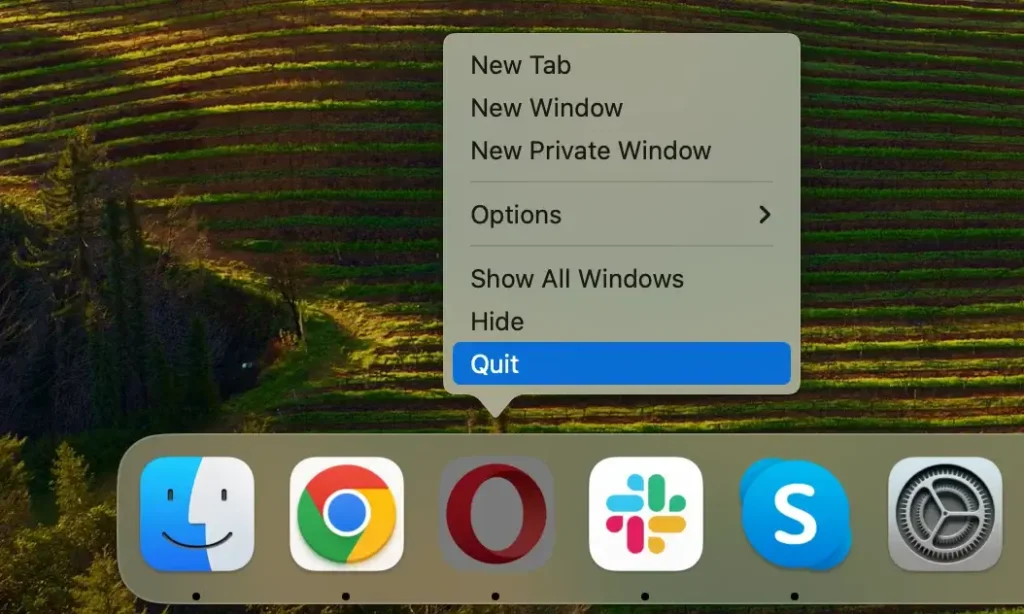
If the app is not responsive, you must force quit it.
Open Activity Monitor from Applications > Utilities and type “Opera” in the search bar to locate any running processes.
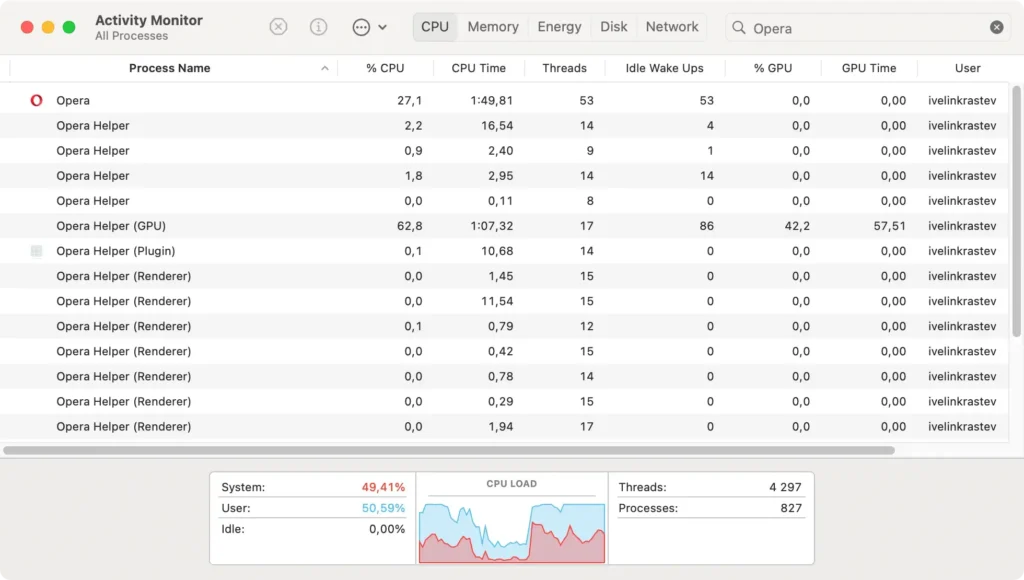
Select any active Opera processes, then click the [X] button in the top left of the Activity Monitor window. Choose the Force Quit option to ensure the application is completely shut down.
Step 2: Remove the Opera app
Once you’ve confirmed Opera is fully closed, proceed with uninstalling the application itself:
- Open Finder: Click on the Finder icon in your Dock to start.
- Navigate to the Applications Folder: From the Finder sidebar, select
Applicationsto view all apps installed on your Mac. - Locate Opera: Type “Opera” in the search field at the top-right of the Finder window to quickly find the Opera application.
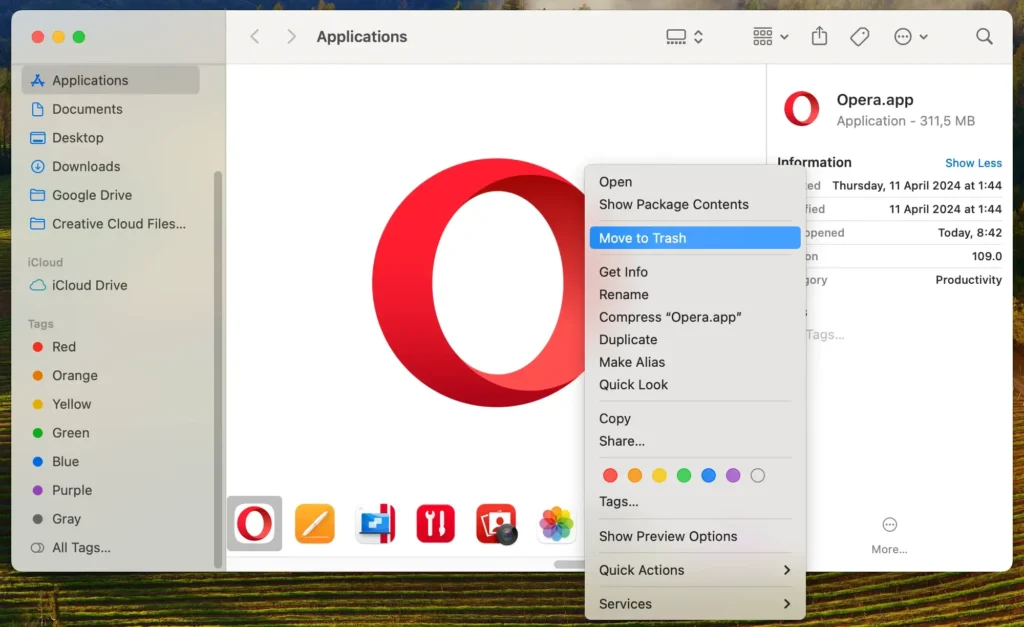
- Remove Opera: Drag the Opera icon to the Trash. Alternatively, right-click the Opera icon and choose
Move to Trashfrom the contextual menu to initiate the removal. - Empty the Trash: Right-click the Trash icon and select
Empty Trashto actually delete the app from your Mac.
Step 3: Delete Opera-related files and folders
To ensure all leftover files related to Opera are removed:
- Open Finder: Launch a new Finder window for file search.
- Navigate to Specific Folders: In the Finder menu bar, click the
Gomenu and selectGo to Folderfrom the drop-down to open the search field. Then:- Enter
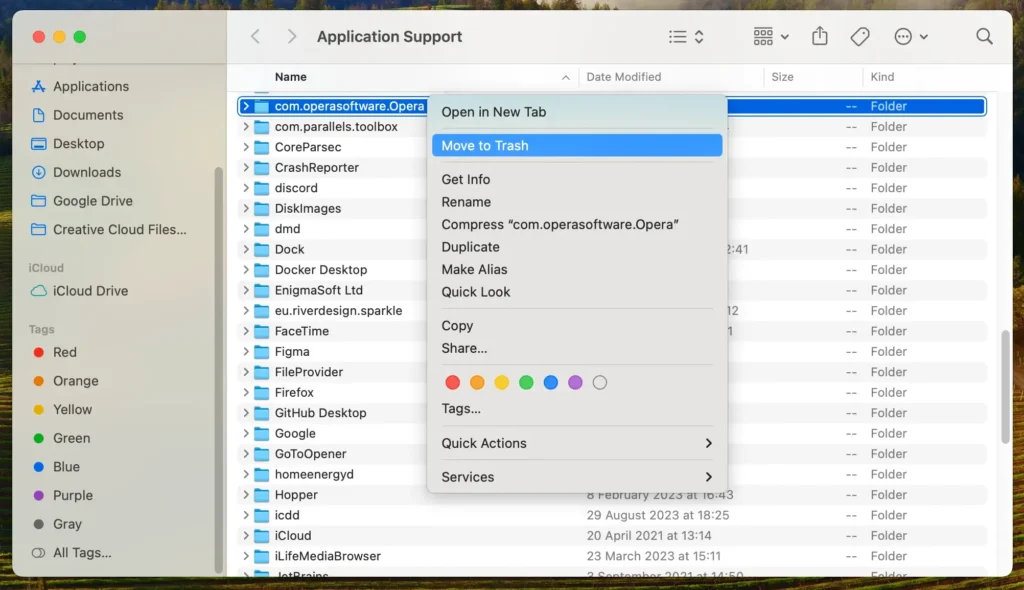
~/Library/Application Support/com.operasoftware.Opera/and press Return. - Type in
~/Library/Caches/com.operasoftware.Opera/and press Enter. - Navigate to
~/Library/Preferences/com.operasoftware.Opera.plist - Go to
~/Library/Saved Application State/com.operasoftware.Opera.savedState
- Enter
- Identify and Remove Opera-related Files: Look for files and folders associated with the Opera Browser in each directory. Move each pinpointed entity to the Trash.
- Empty the Trash: Right-click the Trash icon and select
Empty Trashto remove these files from your Mac altogether.
Following these steps, you will completely remove Opera from your Mac, ensuring that the application and its junk files are thoroughly removed.
This manual removal method helps maintain your system’s cleanliness and performance by eliminating unnecessary software.
Alternatives to Opera on Mac
If you’re considering replacing Opera with another web browsing tool, here are some popular browsers that integrate well with Mac systems:
Safari: As Apple’s default browser, Safari is optimized for all Apple products, offering fast performance and energy efficiency. It seamlessly syncs with your iCloud account and other Apple apps, making it a top choice for Mac users.
Google Chrome: Chrome is well-known for its speed and extensive library of extensions. It’s a popular choice among users who need a browser that performs well across multiple platforms, including syncing effortlessly with Google’s suite of apps and services.
Mozilla Firefox: Known for its robust privacy features, it is a great alternative, allowing extensive customization through themes and extensions. It’s a solid choice for users looking for a secure, user-friendly browser that stands apart from other browsers.
FAQs about Opera
Here, we answer some of the most common questions about Opera.
What is Opera?
Opera is a web browser developed by the Opera Software Norwegian company. It is known for its sleek interface and various built-in features, including a VPN, ad blocker, and battery saver mode.
Opera is designed for efficiency and innovation, offering users a unique browsing experience with extensive customization options through extensions and themes.
How to reinstall Opera on Mac?
To reinstall Opera on your Mac, follow these steps:
- Download the latest version of Opera from the official Opera website.
- Once the download is complete, open the downloaded file to start the installation process.
- Follow the on-screen instructions to install Opera on your Mac.
- Once you have installed Opera, you can open the browser from your Applications folder and start browsing.
Will uninstalling Opera delete my bookmarks and saved passwords?
Yes, uninstalling Opera from your Mac will remove all associated data, including bookmarks and saved passwords.
It’s important to export or save your data before uninstallation. Most browsers, including Opera, offer an option to export bookmarks and passwords, which you can then import into your new browser of choice.
How to completely remove Opera from my Mac?
While dragging Opera into the Trash bin seems like a straightforward way to uninstall it, this method doesn’t remove all associated files from your Mac.
Like many other applications, Opera leaves behind cache files, preference files, and other leftover data that can take up valuable space and potentially slow down your system.
A dedicated removal tool like SpyHunter is designed to navigate your system and ensure the thorough removal of the application and all related files.
Conclusion
Congratulations, you have successfully managed to uninstall Opera on Mac!
As a Mac user, navigating the process of Opera removal, whether through the manual method or SpyHunter’s App Uninstaller tool, is crucial for optimizing your device.
Now that Opera is uninstalled, you’re well-positioned to declutter your Mac and consider alternative web browsers, each with unique features that might better align with your preferences.
To further assist you in maintaining an efficient Mac device, our comprehensive guide on how to uninstall a Mac app offers broader insights and tips for managing your applications.
