

Uninstall Discord From Mac (Step-by-Step Removal Guide)

Before we dive in
Trying to uninstall an app completely? SpyHunter for Mac includes an App Uninstaller that removes unwanted apps and their leftover files in just a few clicks.
Avoid clutter and save time — download SpyHunter right here and follow the steps to clean up your system.

Discord has revolutionized how we connect in virtual communities, becoming an essential tool for gamers and various online groups. However, there might come a time when you need to uninstall Discord from your Mac.
Whether you need to solve technical issues or declutter your digital space, our guide provides a comprehensive walkthrough on how to successfully uninstall Discord.
We have covered manual and automatic methods to ensure the complete removal of the app and its associated files.
Let’s dive into how you can remove Discord on Mac, freeing up space and keeping your system organized.
Common reasons to uninstall Discord
Discord is a famous communication platform for gamers and various online communities.
However, there are several reasons why you might consider uninstalling it from your Mac.
- Performance Issues: Discord can potentially use many of your system’s resources. This might lead to reduced performance of your Mac, particularly while gaming or handling multiple tasks simultaneously.
- Privacy Considerations: Some users might reassess their app choices due to concerns about handling and securing their data online.
- Limited Usage: If Discord is not frequently used, or you prefer alternative communication methods, uninstalling it can help declutter your digital space.
- Technical Problems: Encountering bugs, crashes, or connectivity issues with Discord can hinder your experience, making uninstallation a viable solution.
- Streamlining Applications: To simplify and optimize your device’s performance, removing apps that are not essential to your daily activities can be beneficial.
Understanding these common motivations helps clarify why uninstalling Discord, despite its popularity, might be a prudent decision for some Mac users.
Completely uninstall Discord on Mac with SpyHunter
Removing Discord from your Mac doesn’t have to be a daunting task. For those seeking a straightforward and thorough method, SpyHunter offers an efficient solution.
This powerful tool is designed to tackle stubborn applications like Discord, ensuring every associated file and leftover is meticulously cleared from your system.
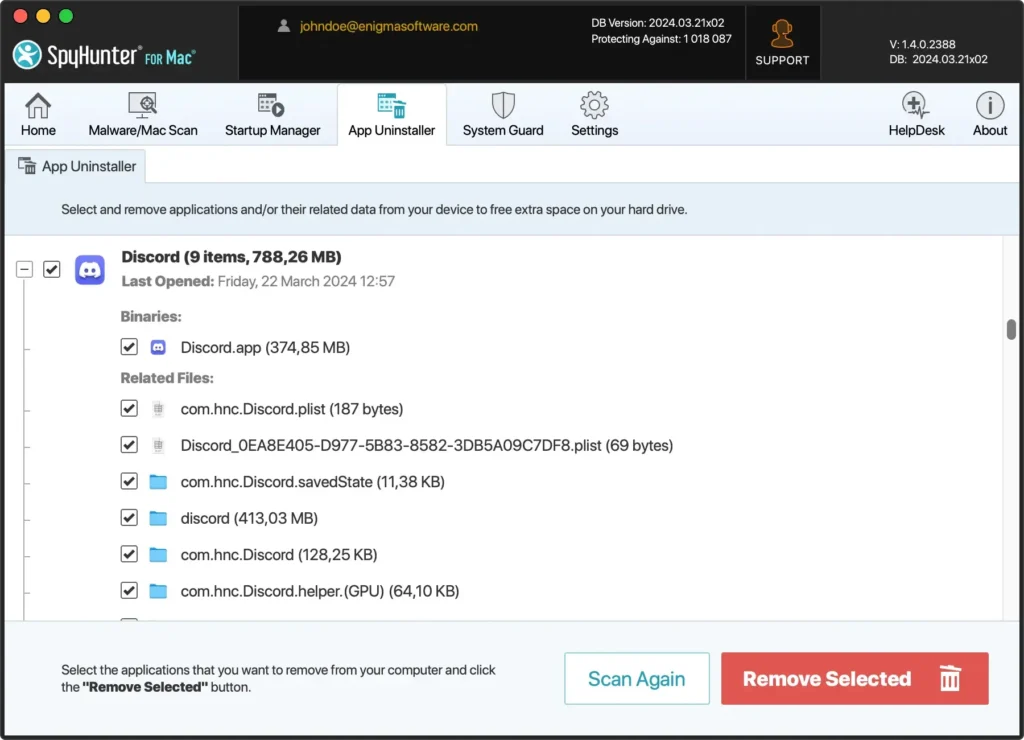
Here’s how to use SpyHunter to delete Discord from your Mac:
- Download SpyHunter for free here and follow the on-screen instructions to install SpyHunter on your Mac.
- Open the application and navigate to the ‘App Uninstaller’ feature.
- Conduct a scan to locate Discord among the installed applications.
- Select Discord for removal, and SpyHunter will automatically handle the uninstallation, eradicating the app and all related files from your system.
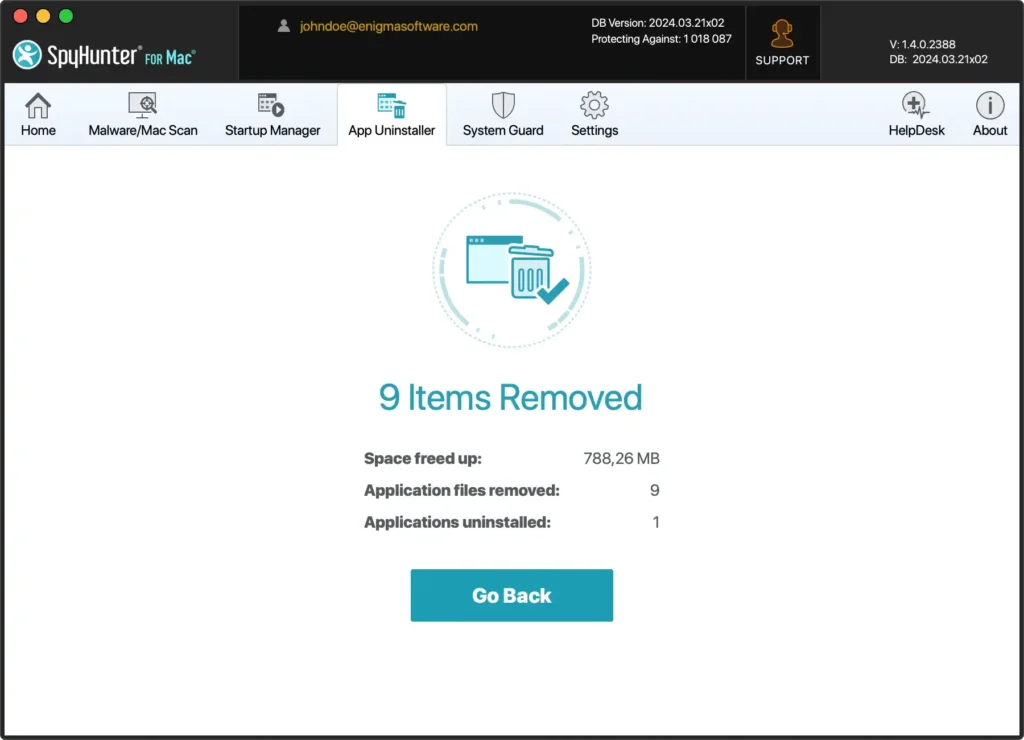
Utilizing SpyHunter to uninstall Discord on your Mac streamlines the uninstall process.
It also ensures a clean and optimized computing environment by thoroughly removing every trace of the app.
Manually uninstall Discord on Mac
Removing Discord from your Mac doesn’t have to be a complex task. This guide will walk you through a straightforward and effective manual process to uninstall Discord.
Following a few simple steps, you can ensure that Discord and all its related files are completely removed from your device, helping to declutter your Mac and optimize its performance.
Step 1: Quit Discord
Before proceeding with the uninstallation process, it’s essential to ensure Discord is not running on your Mac. You can quit it in several ways:
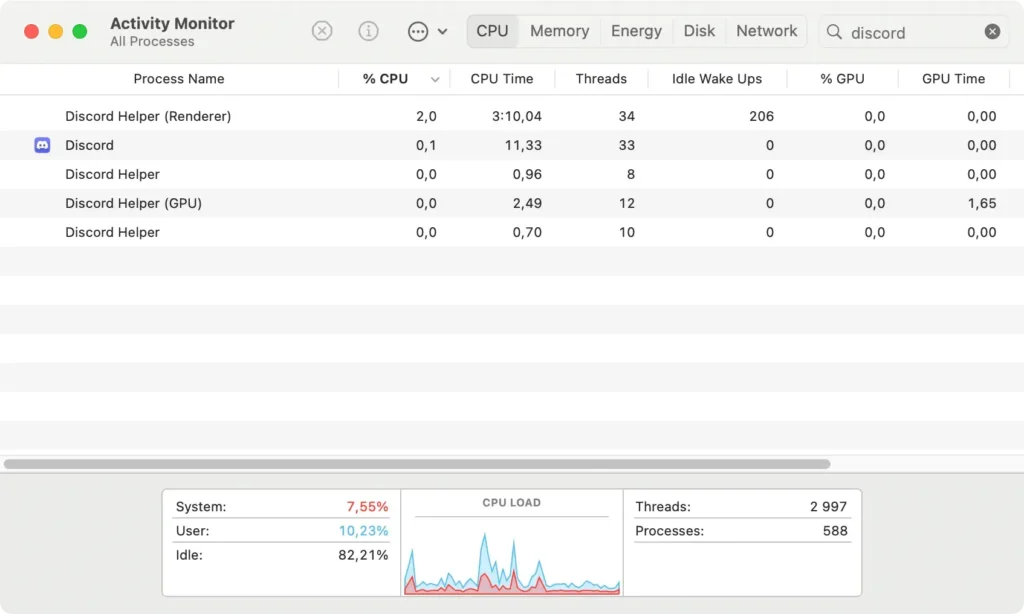
Through the Activity Monitor:
- Open Activity Monitor from the Utilities folder.
- Locate Discord in the list of processes. You can type Discord in the search bar at the top right to filter the list.
- Please select all the processes related to the app and click the [X] button at the top to force quit.
From the top menu bar:
- Click on the Discord icon in the top menu bar.
- Choose
Quit Discordfrom the dropdown menu.
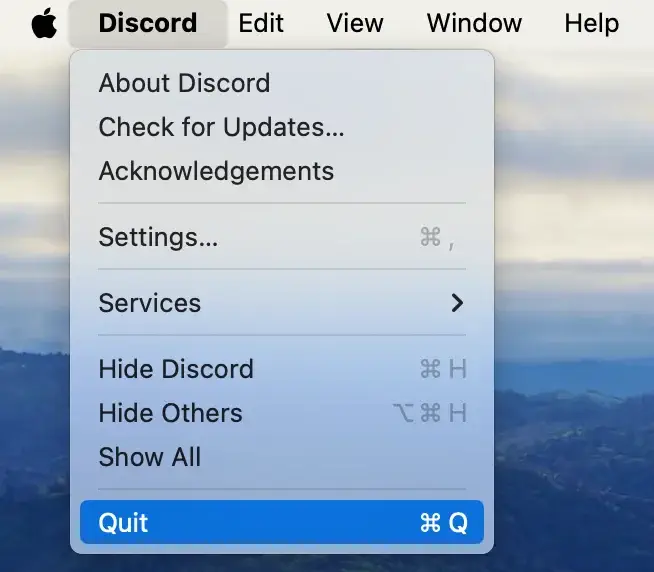
Quitting Discord ensures that all its processes are terminated, allowing for a smooth application removal in the following steps.
Step 2: Remove the Discord application
After ensuring Discord is closed, the next step involves removing the Discord app from your Mac.
This action removes the main application but not the files related to i, which we’ll address in subsequent steps.
- Start by opening a
Finderwindow on your Mac to access your files and applications. - In the Finder sidebar, click
Applicationsto view all installed applications on your Mac. - Scroll through your Applications folder or use the search feature in the Finder window to locate Discord.
- Drag the Discord icon to the Trash, or right-click (control-click) on the Discord app and select
Move to Trashfrom the contextual menu.
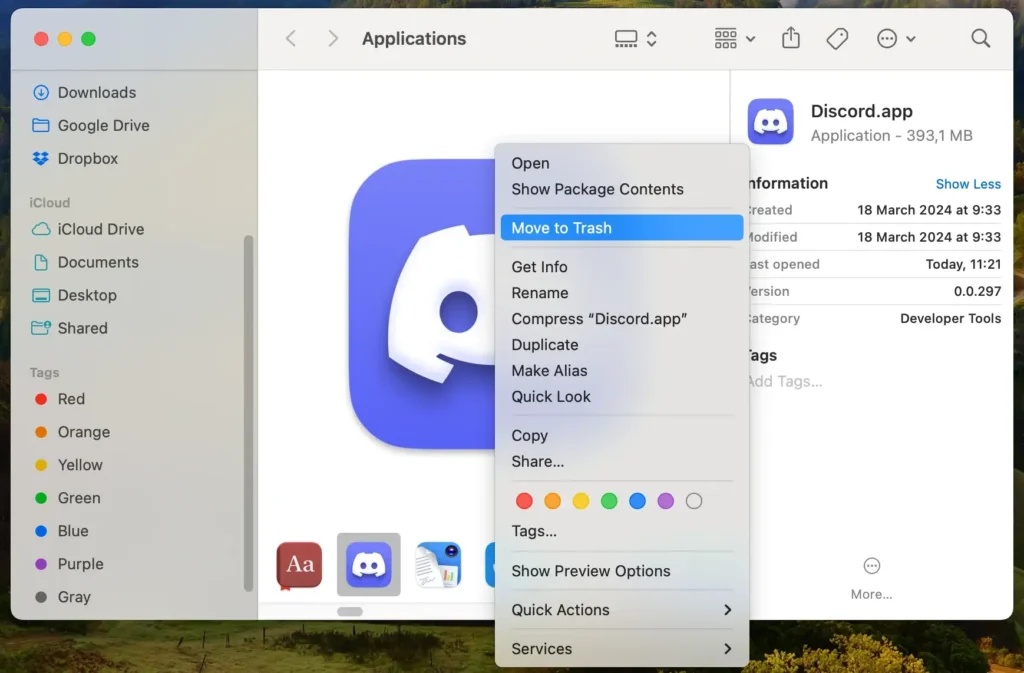
Following these instructions will remove the primary Discord application from your Mac.
However, to completely uninstall Discord and free up your system from leftover files, continue with the next steps in this guide.
Step 3: Remove Discord-related files and folders
After removing the Discord app, the next step is to locate and remove any files related to it. These files can take up unnecessary space and may contain settings or data related to your use of Discord.
- Open a Finder window and choose the
Go to Folderoption from theGomenu. - Enter each of the following directories one at a time. Look for all the files and folders with Discord in their names:
~/Library/Application Support/~/Library/Caches/~/Library/Preferences/~/Library/Logs/
- Delete the Discord files or directories in these locations by moving them to the Trash.
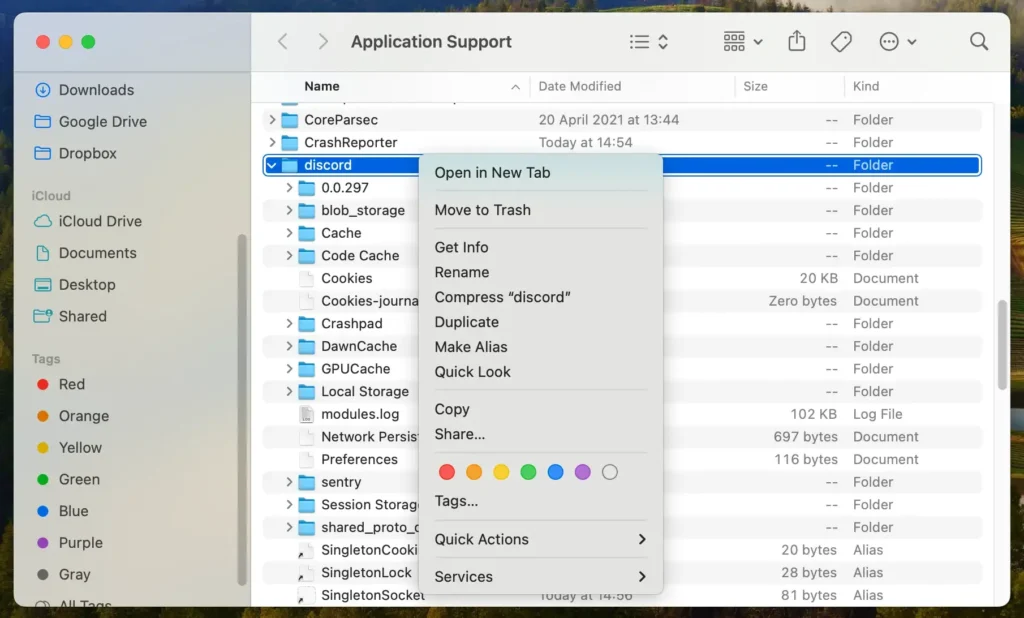
Completing this step ensures that all Discord-related data is removed from your Mac. This prevents leftover files from taking up unnecessary space or causing conflicts with other applications.
You maintain a cleaner and more organized digital space by thoroughly clearing out these remnants.
Step 4: Empty the Trash
With all Discord-related applications and files moved to the Trash, the next step is to empty it:
- Right-click on the Trash bin icon in your Dock.
- Select
Empty Trashto remove the files permanently.
Step 5: Restart your Mac
Finally, restart your Mac to ensure all changes take effect and any temporary files are cleared:
- Click on the Apple menu in the top left corner of your screen.
- Select
Restartfrom the dropdown menu.
Following these steps, you will thoroughly uninstall Discord from Mac, including the main app and any associated files, ensuring a clean and optimized system.
Remember, you can install Discord again if you need to use it again.
FAQs on how to uninstall Discord
How do I remove Discord from my Mac without deleting my account?
Removing Discord from your Mac affects only the app, not your account. Your account, friends list, and chat history remain intact and accessible from any device you log in to Discord.
What happens if I delete Discord? Will I lose my data?
Deleting the Discord app from your Mac doesn’t erase your Discord account or data. You can reinstall Discord anytime and log back into your account to access all your data.
Can I reinstall Discord after I uninstall it?
Yes, reinstalling Discord is simple. Download the latest version from the official Discord website and install it on your Mac to continue enjoying its features.
Conclusion
Uninstalling Discord can be a pivotal step towards optimizing your device’s functionality and managing your digital space more efficiently.
Whether you’re looking to alleviate performance issues, make room for new applications, or simply declutter your digital environment, following the steps outlined in this guide is essential.
These steps ensure the complete and clean removal of Discord and Discord-related files.

While removing Discord might seem like closing a chapter, it’s worth remembering that this action doesn’t affect your account.
Should your needs or preferences change, reinstalling Discord is quick and straightforward, allowing you to dive back into the vast world of community and communication that Discord offers.
This guide on uninstalling Discord on Mac, alongside our broader tips for app management, aims to empower you as a user to take control of your digital landscape, ensuring it serves your current needs and preferences to the fullest.
As always, for more insights on managing applications and optimizing your Mac, don’t hesitate to explore our extensive guides and resources to help you navigate your digital world confidently and efficiently.
