

How To Uninstall AnyDesk On Mac (Full Guide)

Before we dive in
Trying to uninstall an app completely? SpyHunter for Mac includes an App Uninstaller that removes unwanted apps and their leftover files in just a few clicks.
Avoid clutter and save time — download SpyHunter right here and follow the steps to clean up your system.

Are you contemplating uninstalling AnyDesk from your Mac? As remote work becomes more common, tools like AnyDesk have become integrated into our daily activities. However, issues such as decreased system performance, security vulnerabilities, or the need for more storage space may prompt the removal of such applications.
In this article, we explore the reasons for uninstalling AnyDesk, examining not just the impact on your Mac’s efficiency but also on its security, and guiding you through the complete removal process.
Why consider uninstalling AnyDesk from your Mac?
As we embrace remote work, the tools we use daily, like AnyDesk, become ingrained in our routines. Yet, there comes a time when removing such applications may be beneficial.
The reasons range from the need to free up storage space, resolve compatibility issues, enhance device security, or simply because the tool is no longer necessary. Addressing these concerns can lead to a smoother, more efficient, and secure computing experience.

While AnyDesk is a legitimate and widely used remote access tool, it’s not immune to security risks. Unauthorized access can be a significant concern, where malicious entities might exploit vulnerabilities to gain control of your Mac.
How to manually remove AnyDesk from your Mac
Removing AnyDesk from your Mac involves a few steps in addition to simply dragging the app to the Trash. Follow precisely the steps below to remove AnyDesk and its leftover components from your Mac.
Step 1: Quit AnyDesk
Ensure that AnyDesk is not running to avoid any issues during the uninstallation process.
You can quit the application by right-clicking the AnyDesk icon in your Mac’s Dock and then selecting Quit from the context menu that appears.
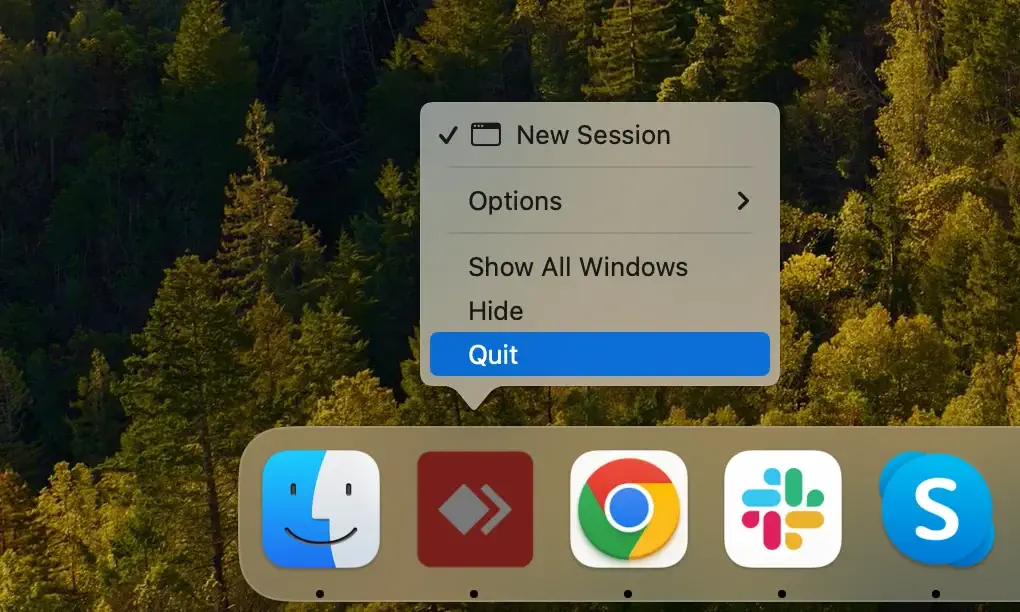
If you find the app unresponsive, you may need to force-quit it using the Activity Monitor app, which you can find in your Mac’s Applications under Utilities. Inside Activity Monitor, review the list of active processes and find all that have “AnyDesk” in their names.
Select those processes, then use the [X] button near the top-left to quit them and confirm with the Force Quit button in the pop-up window that comes up.
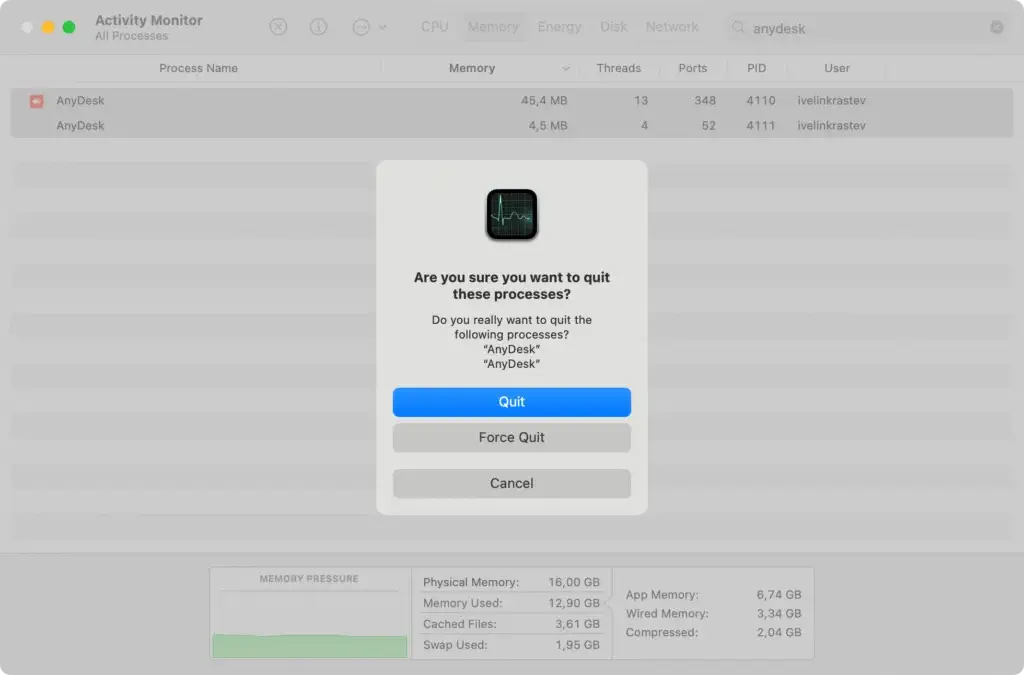
Now, you can be certain the application has been properly shut down, and the uninstallation can go smoothly.
Step 2: Delete AnyDesk from your Applications
To uninstall AnyDesk follow these simple steps:
- Open
Finderand navigate to theApplicationsfolder. - Search your list of applications for AnyDesk.
- Right-click the app icon and select
Move to Trashor simply drag it to theTrashbin on yourDock. - Don’t forget to clean your
Trashby right-clicking it and selectingEmpty Trashfrom the context menu.
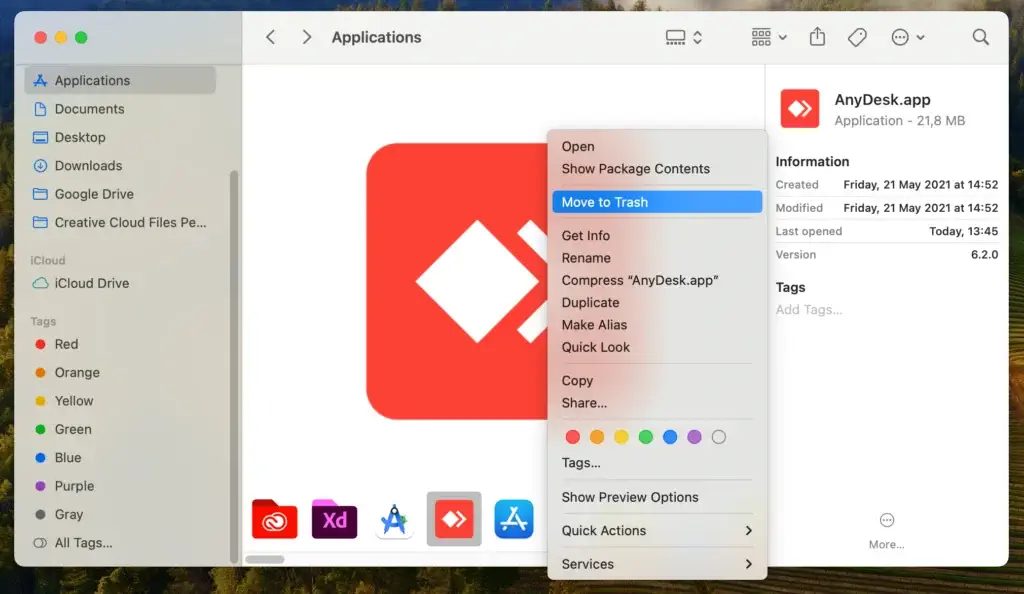
This is the main uninstall step, but there are still a few leftovers you will need to clean up manually.
If you are using the non-portable, installed version of the AnyDesk app, you can also uninstall it from the app’s own menus. With AnyDesk running and focused, click Menu > About AnyDesk and then hold the Option/ALT key on your keyboard. Click Uninstall in the top-right corner of the window to remove the app.
Step 3: Clean AnyDesk leftover files
The final manual removal step involves finding the trace files left behind by the AnyDesk application and deleting them. Here is a simple step-by-step process for this task:
- Open
Finderand selectGo > Go to Folderin the top menu bar. - Type in or paste the following locations inside the text box of the
Go to Folderwindow and delete them and their contents:~/.anydesk//etc/anydesk/
- If you know that you are using a custom client version of AnyDesk, repeat this process for the following locations:
~/.anydesk-ad_<prefix>//etc/anydesk-ad_<prefix>/
- Empty your
Trashto completely delete all traces of AnyDesk leftovers.
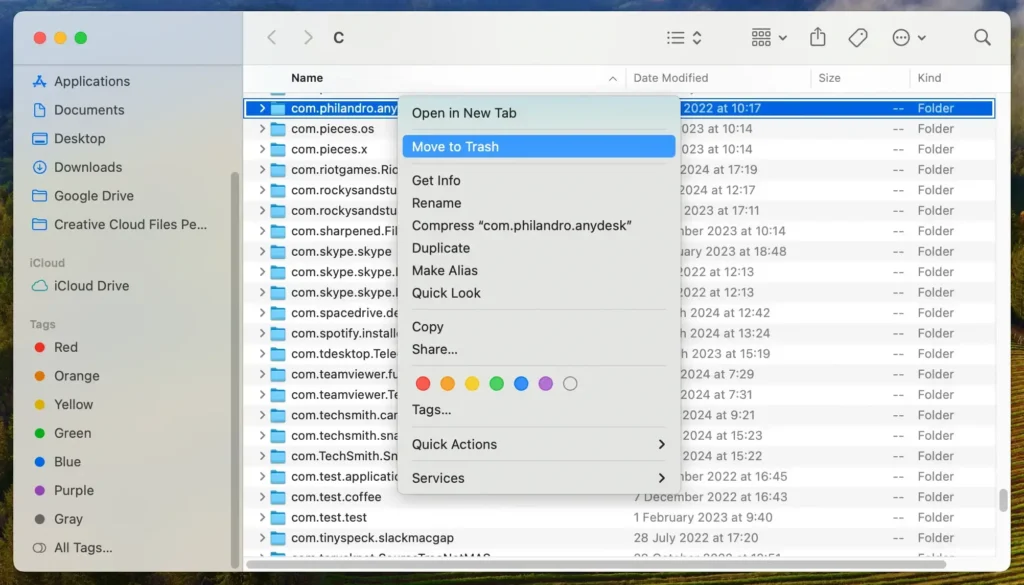
By following these straightforward steps, you can permanently remove AnyDesk remnants from your computer. Keeping your system clean of unused applications and related files is a great way to keep your Mac working efficiently.
Fully uninstall AnyDesk from your Mac with SpyHunter
You can save yourself time and use SpyHunter’s automated App Uninstaller module to uninstall AnyDesk thoroughly and securely. Follow this simple but comprehensive guide and the following steps to complete the process using SpyHunter:
- Download SpyHunter and install the application by following the simple on-screen prompts.
- Start SpyHunter and click on its main menu tab labeled
App Uninstaller. This will start an automated scan of all installed apps. - Once the scan finishes, you will see a list of installed apps and their associated files under the app. Scroll through the list and find AnyDesk.
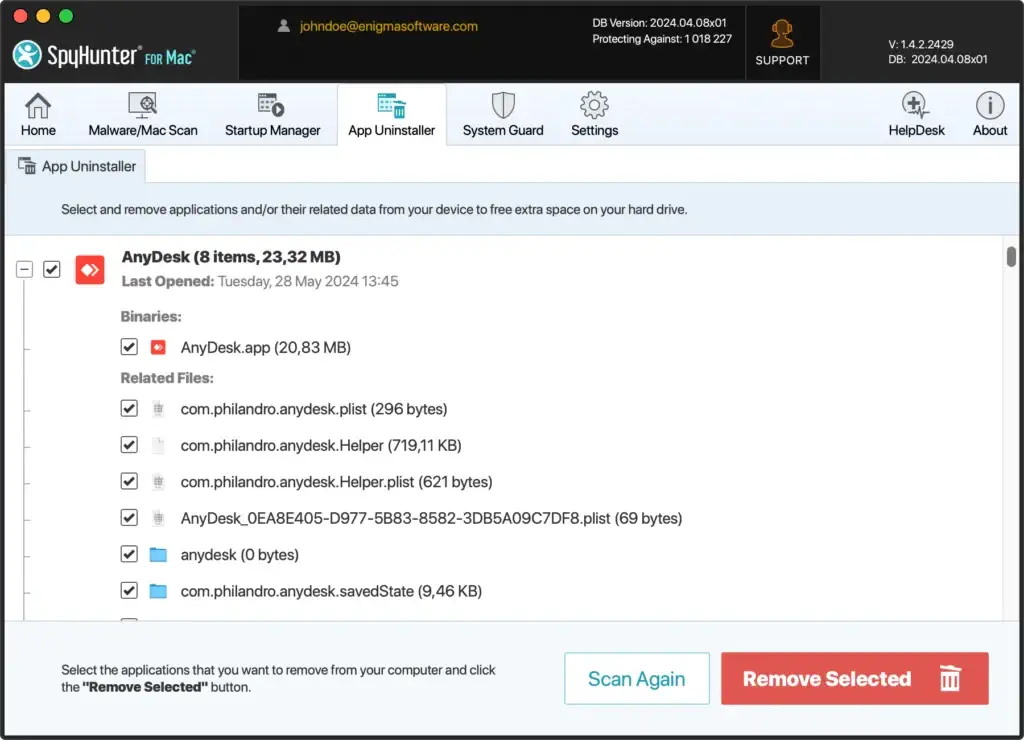
- Select AnyDesk and make sure all items listed under
Related Filesare also selected for removal. - Use the
Remove Selectedbutton to complete the uninstall process. Once SpyHunter has finished removing AnyDesk, restart your Mac to finalize this step and make sure there are no leftover files.
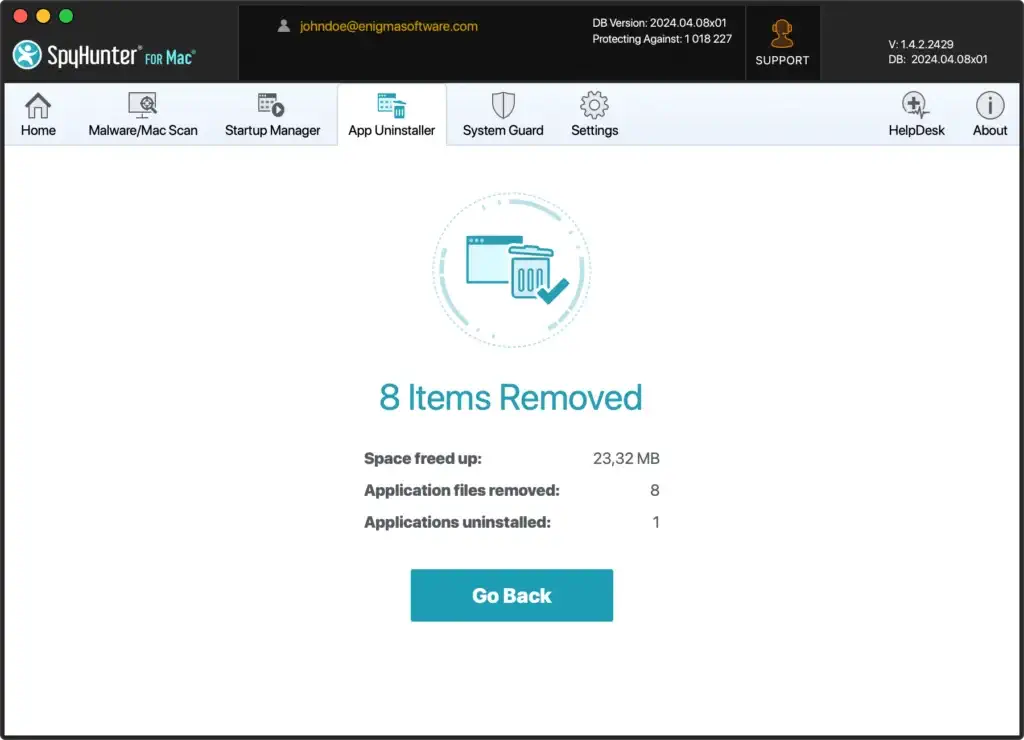
Using SpyHunter’s automated uninstall tool helps you save time and avoid potentially deleting the wrong leftover files during manual uninstall, regardless of what app you decide to remove. A third-party uninstaller tool can greatly help users who are not completely confident in their actions.
Alternatives to AnyDesk for Mac
If you are simply uninstalling AnyDesk because you intend to explore other remote access tools offering similar functionality, you can consider the following options and research each further to find the one that perfectly suits your needs:
- TeamViewer: TeamViewer offers cross-platform compatibility, working seamlessly on Mac, Windows, Linux, iOS, and Android. Its user-friendly interface is simple and intuitive, making it accessible even to non-technical users. Security is a major focus, with end-to-end encryption and two-factor authentication ensuring safe remote connections. Additionally, TeamViewer offers comprehensive features like file transfer, remote printing, session recording, and wake-on-LAN, making it a robust choice.
- LogMeIn: LogMeIn provides robust performance with high-quality, reliable remote access that minimizes latency. It offers extensive file management capabilities, including 1TB of file storage and easy file transfers between computers. The platform has advanced collaboration tools such as remote sound, multi-monitor display, and remote printing. Security is another strong point, with SSL/TLS encryption and multi-factor authentication ensuring enterprise-grade security for all remote sessions.
- Chrome Remote Desktop: Chrome Remote Desktop stands out for its ease of use, especially for users already familiar with the Chrome browser. It is completely free for personal use, making it a cost-effective solution. The service supports cross-platform access, allowing connections from any device running the Chrome browser, including Macs, Windows PCs, and mobile devices. With minimal setup required, Chrome Remote Desktop operates as a browser extension, eliminating the need for extensive software installations.
Closing thoughts
Uninstalling AnyDesk from your Mac computer is a relatively straightforward process that helps maintain a clean and efficient system.
Ensuring that leftover files and associated data are thoroughly removed not only frees up valuable disk space but also enhances system performance and security. A clean system is less prone to conflicts and errors, leading to a smoother, more reliable computing experience.
If you are looking for more information on securely and thoroughly uninstalling other apps from your Mac, you can also check out our exhaustive guide on how to uninstall apps on Mac for additional details.
