

How To Remove Watch-video.net (Ultimate Guide)

Before we dive in
Before we dive in, let's make sure you stay safe online. We created SpyHunter because your security matters to us.
Protect your computer today — download SpyHunter right here! Check out our top tips below to keep your computer safe and secure.

In the digital landscape, encountering unwanted pop-ups, redirects, or invasive advertisements can be extremely annoying.
Watch-video.net is one such entity that may disrupt your online activities, affect your browsing experience, and potentially pose security risks.
This article delves into the intricacies of Watch-video.net, exploring its characteristics and potential risks. Read on to better understand the methods to remove Watch-video.net.
Whether you’re seeking to eliminate this intrusive element manually or considering automated solutions, we’ve provided step-by-step instructions and insights to help you regain control of your online environment.
Read on to safeguard your browsing sessions and enhance your overall cybersecurity.
Watch-video.net malicious site details
Watch-video.net is a harmful online site that tries to deceive you into enabling its browser notifications by displaying fake error messages.
Examples of these misleading messages include “Press Allow to verify that you are not a robot” or “Click Allow to download your file”.
The primary purpose of this trickery is for the website to get permission to send you unwanted notifications.
Fake error messages
The website cleverly captures users’ fears and curiosity by showing false error messages.
Typical messages are crafted to look like standard prompts, compelling you to click the ‘Allow’ button with claims like needing to validate that you aren’t a robot or permission to download a file.
Users must note that these messages are deceptive and should not fall for them as it will lead to unwanted pop-up ads.
Consequences of clicking “Allow”
When users are tricked into pressing the ‘Allow’ button, they unintentionally permit the malicious site to bombard their computer or phone with spam pop-ups.
These pop-ups can occur even when the browser is closed. They mainly advertise adult websites, online games, fake software upgrades, or unwanted applications.
Reasons for redirections to Watch-video.net
There could be several reasons why you are redirected to Watch-video.net.
Some web browsers may be hijacked by cybercriminals using rogue browser extensions and other unwanted software, resulting in unwanted redirection.
Another possibility is infection by adware, a type of malware that redirects your browser to sites like Watch-video.net without your express consent.
Common indicators of malicious programs on the computer
Recognizing the presence of malicious programs on your computer is crucial for maintaining a secure and smooth computing experience.
Here are some common indicators that can serve as red flags, alerting you to potential compromises:
- Increased pop-up ads: If you find yourself bombarded with an unusual surge of pop-up ads, it could signal the presence of unwanted intruders.
- Homepage alterations: Sudden changes to your web browser’s homepage without your permission may indicate malicious activity.
- Rogue browser extensions: The presence of extensions you didn’t intentionally install is a warning sign worth investigating.
- Unfamiliar apps: The sudden appearance of unknown applications on your system could mean unauthorized software installations.
In the following sections, we’ll explore these common indicators more thoroughly and guide you through the steps to effectively check for malware, ensuring your computer remains free from potential threats.
General malware removal guide
If you suspect that your computer is infected with malware, particularly intrusive pop-up ads like Watch-video.net, you can take a systematic approach to identifying and removing it manually.
Despite the potential complexity, the following instructions are designed with clarity to accommodate users of all levels of expertise.
Identify your operating system
Before starting the removal process, it’s crucial to determine your device’s operating system. Whether you’re using Windows or Mac, specific procedures tailored to each platform should be followed.
Manual removal process
For users who prefer a hands-on approach to removing adware or malware, several manual steps can be undertaken.
Start by uninstalling any suspicious or unwanted applications from your device, as these may be the source of the intrusive ads.
Navigate to your system’s Applications or Programs folder, locate the suspect apps and uninstall them.

Additionally, reset your web browsers to eliminate any unwanted extensions or changes made by the adware.
Access the browser settings or preferences, find the extensions or add-ons section, and remove any unfamiliar or suspicious entries. Clearing browser caches and cookies can also contribute to a cleaner browsing environment.
Lastly, thoroughly search for any remaining adware-related files or folders throughout your system.
Check directories like
LaunchAgentsLaunchDaemonsApplication Support
for hidden files associated with Watch-video.net. Remove these files and empty the trash to ensure a comprehensive cleanup.
Remember, while manual removal can be effective, it requires attention to detail, and users should exercise caution to avoid unintentional deletion of essential system files.
If uncertainties persist or the issue remains unresolved, consider utilizing professional anti-malware tools like SpyHunter for a more thorough and efficient solution.
Use SpyHunter for Mac
For Mac users, SpyHunter for Mac combats adware and ensures system security. Download SpyHunter and install it.
The app is a trusted tool known for its effectiveness in identifying and eliminating various types of malware, including any traces of Watch-video.net.
SpyHunter for Mac provides a user-friendly interface and powerful scanning capabilities, making it an invaluable resource for maintaining a secure and optimized Mac experience.
Use SpyHunter 5 (Windows)
- Download SpyHunter from here
- Launch the program and initiate a scan by clicking
Start Scan - Wait for the scan to complete and review the detections related to Watch-video.net adware
- Click
Nextto quarantine and isolate the malware - Reboot your Windows system after all adware detections are moved to quarantine
Seek assistance
If you encounter challenges or uncertainties during removal, seeking assistance is crucial.
You can contact SpyHunter’s Spyware HelpDesk, where professionals are ready to provide personalized guidance for your malware-related concerns.
This collaborative approach ensures a more thorough and effective resolution to your malware problems.
Remove Watch-video.net pop-up ads
Persistent Watch-video.net pop-up ads can be annoying, but fear not—here’s a detailed breakdown of steps tailored to your operating system and web browser.
For macOS users
MacOS users experiencing Watch-video.net pop-ups should focus on removing these ads directly from the browser. Identify the browser displaying the pop-ups and follow the browser-specific removal guide. This typically involves adjusting the browser settings to block all Watch-video.net pop-ups.
Note: Be careful when changing system settings, especially in the Terminal. Making incorrect changes can affect your Mac’s stability.
Delete malicious configuration profiles
Configuration profiles are settings that can control various aspects of your Mac. Adware might exploit these profiles to maintain persistence. To check and remove any unwanted configuration profiles:

- Open
System Settings - Navigate to
Profiles(if available) - If you find any suspicious profiles, select and remove them
- Confirm the action if prompted

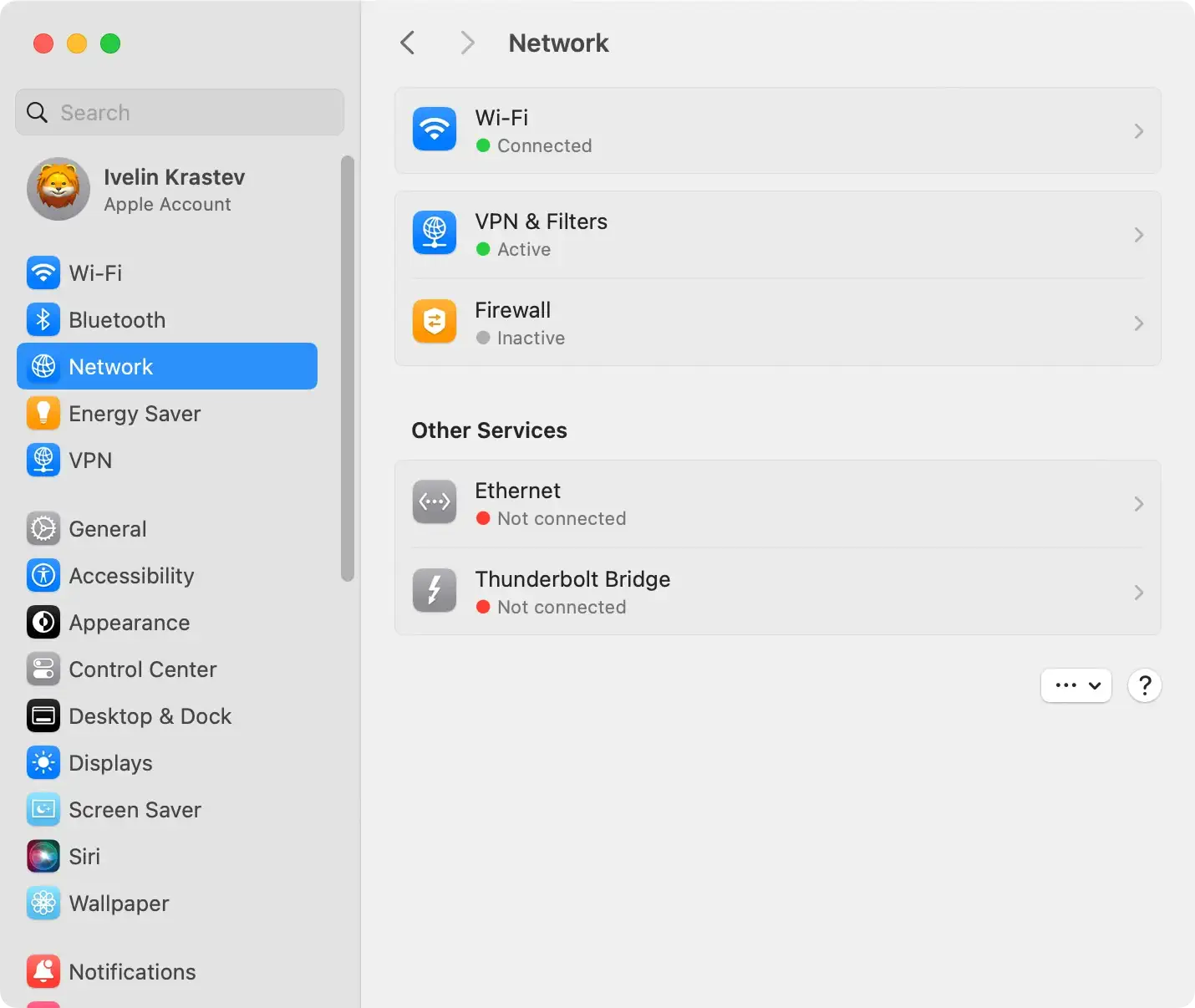
Review network proxies
- Open
System Settingsand thenNetwork - Select your network connection (Wi-Fi or Ethernet) and click
Advanced - In the
Proxiestab, uncheck any boxes the malware may have altered - Click
OKto save the changes
Utilize SpyHunter for Mac
To ensure a thorough cleanup of your Mac and eliminate any hidden adware, consider using SpyHunter for Mac.

- Download SpyHunter for free here
- Follow the installation instructions provided by the installer.
- Run a comprehensive scan to detect and remove adware from your MacOS.
Remove Watch-video.net from browsers
Regardless of your browser preference—be it Chrome, Internet Explorer, Firefox, Safari, or others—specific steps can help remove Watch-video.net pop-up ads.
Here’s a brief overview:
Safari:
- Open Safari preferences
- Navigate to
Websites > Notifications - Block Watch-video.net from sending notifications
Google Chrome:
- Access Chrome settings
- Navigate to
Site Settings > Notifications - Remove Watch-video.net’s permission to send notifications
Mozilla Firefox:
- Reset browser settings to default
- Clear any Watch-video.net-related data from the browser
Internet Explorer:
- Manage add-ons and remove any related to Watch-video.net
- Reset browser settings
Remember to meticulously follow these steps to ensure the thorough removal of Watch-video.net pop-up ads from your system. Stay vigilant, and enjoy an ad-free browsing experience!
Post-removal and future protection
After successfully removing the Watch-video.net pop-up ads, it’s crucial to enforce proactive measures to protect your device from future cyber threats.
This requires a mix of dependable antivirus software and wise online behavior.
Use SpyHunter to protect your device
An effective antivirus program is the foundation of your device’s digital security. One such recommended app is SpyHunter.
It offers comprehensive protection against various security threats and fills in any gaps left by your traditional antivirus software. Regularly updating your antivirus software keeps you ahead of the latest cyber threats.

Top 10 basic security tips
To ensure a safe online experience, here are ten crucial security tips:
- Keep your antivirus software up to date.
- Regularly update your operating system and apps to benefit from the latest security patches and bug fixes.
- Be discerning when installing new software, noting the details of license agreements and installation screens.
- Use a browser-based content blocker to prevent malicious ads and phishing attempts.
- Be cautious when downloading new apps; many are disguised malware.
- Exercise vigilance when responding to unfamiliar emails, messages, and phone calls.
- Ensure regular backup of your data and verify it can be restored easily.
- Always use strong, unique passwords and enable two-factor authentication whenever possible.
- Do not click on links or download attachments from unknown sources.
- Avoid pirated software and dodgy platforms for sharing files.
Following these guidelines minimizes the risk of being a victim of cyber attacks and helps to guarantee a more secure online experience.
