How To Optimize macOS Sequoia: 11 Performance Tips

Before we dive in

Before we dive in, let's make sure you stay safe online. We created SpyHunter because your security matters to us.

Protect your computer today — download SpyHunter right here! Check out our top tips below to keep your computer safe and secure.

Download SpyHunter

Upgrading to macOS Sequoia can bring exciting new features, but some Mac users may notice their system running slower than before.

Newer macOS versions often demand more CPU, GPU, and memory resources, which can impact performance, especially on older Mac models.

The good news is that optimizing macOS Sequoia can make a real difference and help you improve your efficiency.

In this guide, we’ll cover practical steps to keep your Mac running at its best, from managing system junk and clearing cache files to fine-tuning system preferences and maximizing battery performance.

11 tips to optimize macOS Sequoia

Here are detailed tips to help you optimize macOS Sequoia and get the best performance out of your Mac.

1. Close unused browser tabs

Every open browser tab uses RAM and CPU resources, which can slow down your Mac. By closing tabs you’re not actively using, you free up resources for other apps.

Open your browser and review all open tabs. Close any tabs you no longer need. For frequently visited sites, consider bookmarking rather than keeping them open.

Using a tab management extension that automatically suspends inactive tabs can further help improve RAM usage.

2. Turn off visual effects

The visual effects in macOS Sequoia are designed to enhance the user experience, but they can also consume significant CPU and memory resources, slowing down your Mac.

Turning off these effects can help speed things up.

  1. Go to System Settings > Accessibility > Display.
  2. Toggle on Reduce Motion to minimize animation effects.
  3. Next, toggle on Reduce Transparency to eliminate visual transparency in windows and menus.
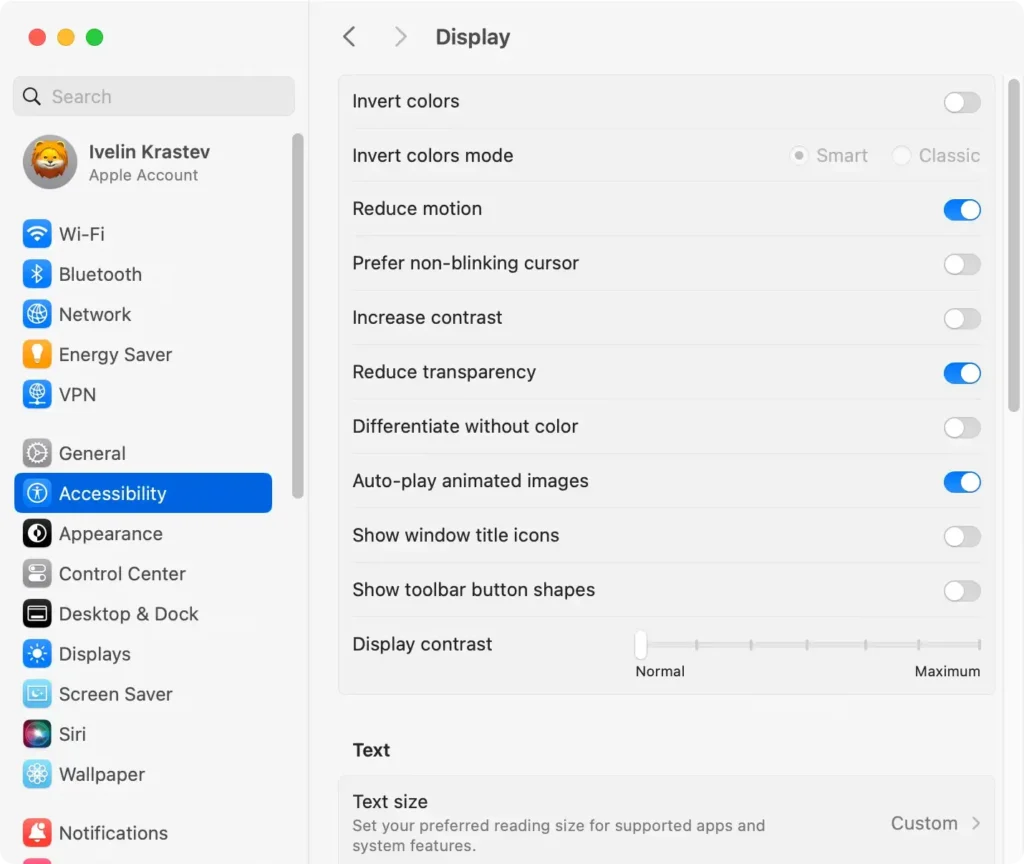
optimize macos sequoia display settings

These adjustments not only improve performance but can also make your Mac feel more responsive.

3. Clear system junk and cache files

Junk files can build up over time, taking up valuable space and slowing down your Mac. Regularly cleaning these files is essential for optimal performance.

To clear junk files manually:

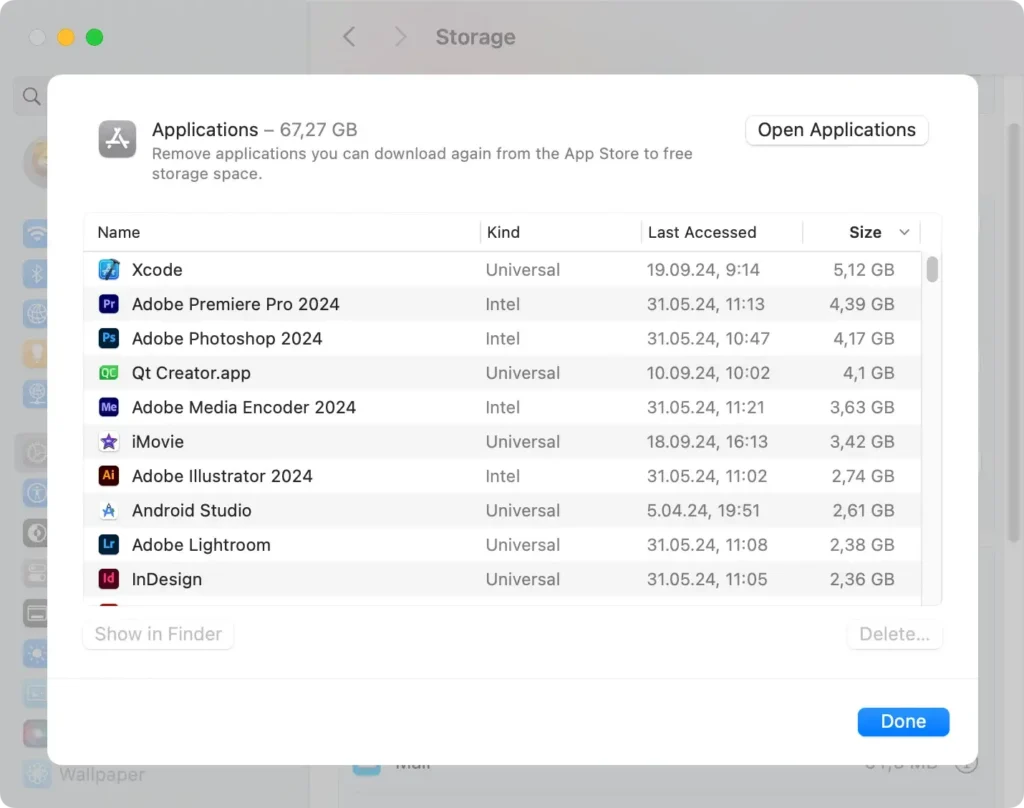
  1. Open System Settings > General > Storage.
  2. Review the recommendations and follow the on-screen instructions to delete unnecessary files.
  3. Select items under Storage Management and remove unneeded files and apps.
clean system junk files from system settings

For a deeper, more comprehensive cleanup, use an all-in-one tool like SpyHunter.

SpyHunter’s Optimization Scan locates and removes unwanted files that can be hard to identify manually, freeing up valuable storage and improving overall performance.

Download SpyHunter now and optimize Sequoia effectively.
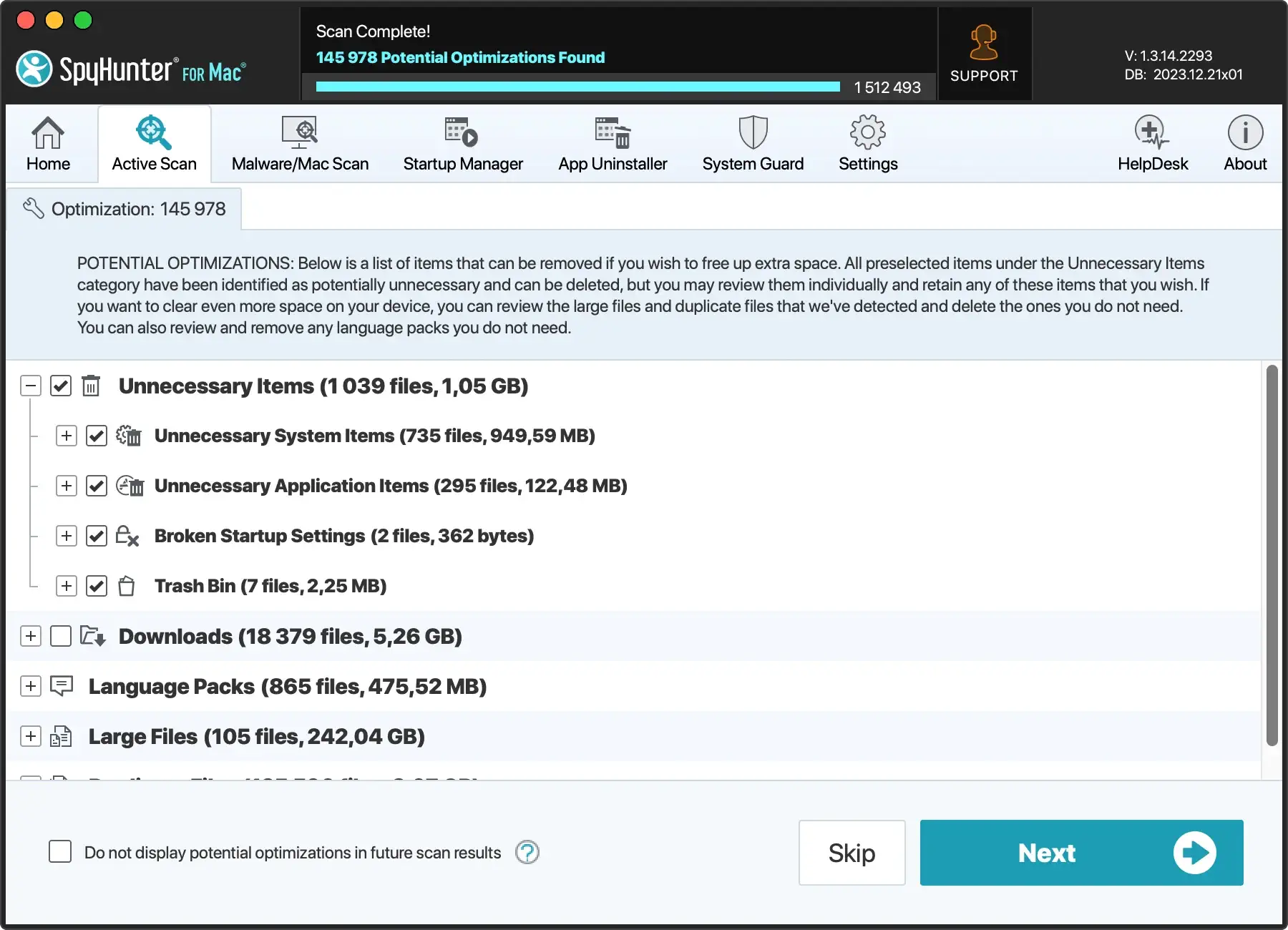
delete junk files from your mac with spyhunter

4. Remove desktop clutter

A cluttered desktop can slow down your Mac, as Sequoia has to redraw each icon every time the desktop refreshes. Reducing the number of icons improves performance and keeps your workspace organized.

Here are two effective ways to clean it up:

  1. Move or Delete Files: Review all files and folders on your desktop. Move important items to organized folders, such as Documents. Delete any files you no longer need to minimize clutter and free up space.
  2. Use Stacks to Organize Files: Right-click anywhere on your desktop and select Use Stacks. This feature arranges items into stacks, grouping files by type to reduce visible icons. Stacks allow macOS to redraw fewer icons, improving performance without fully clearing your desktop.
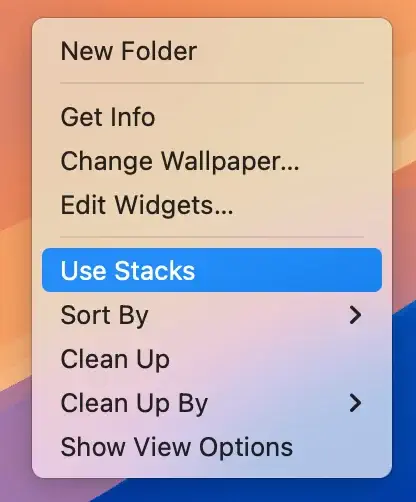
use stacks in desktop menu

5. Disable FileVault (When not needed)

FileVault encrypts your hard drive for added security, but it can slow down your device if it doesn’t have sufficient resources. Temporarily disabling FileVault may boost performance, especially on older Mac models.

  1. Go to System Settings > Privacy & Security.
  2. Scroll down to FileVault and click Turn Off.
  3. Follow the on-screen steps to confirm your choice.
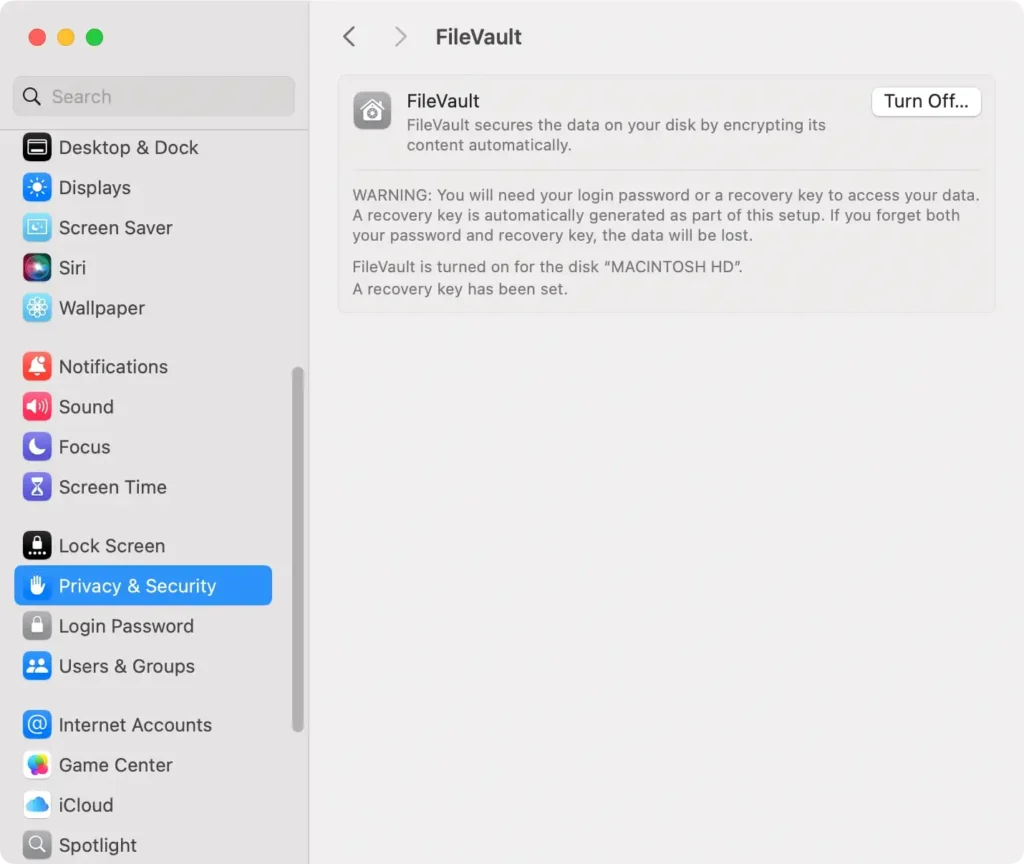
disable file vault

Disabling FileVault can reduce system load, but it also reduces data encryption, so only turn it off if you feel comfortable doing so.

6. Optimize battery power on a MacBook

For MacBook users, optimizing battery settings can help improve performance and extend battery life.

  1. Go to System Settings > Battery.
  2. Enable Low Power Mode to reduce power consumption during heavy use.
  3. Adjust Display Brightness to a lower setting, which saves both power and resources.
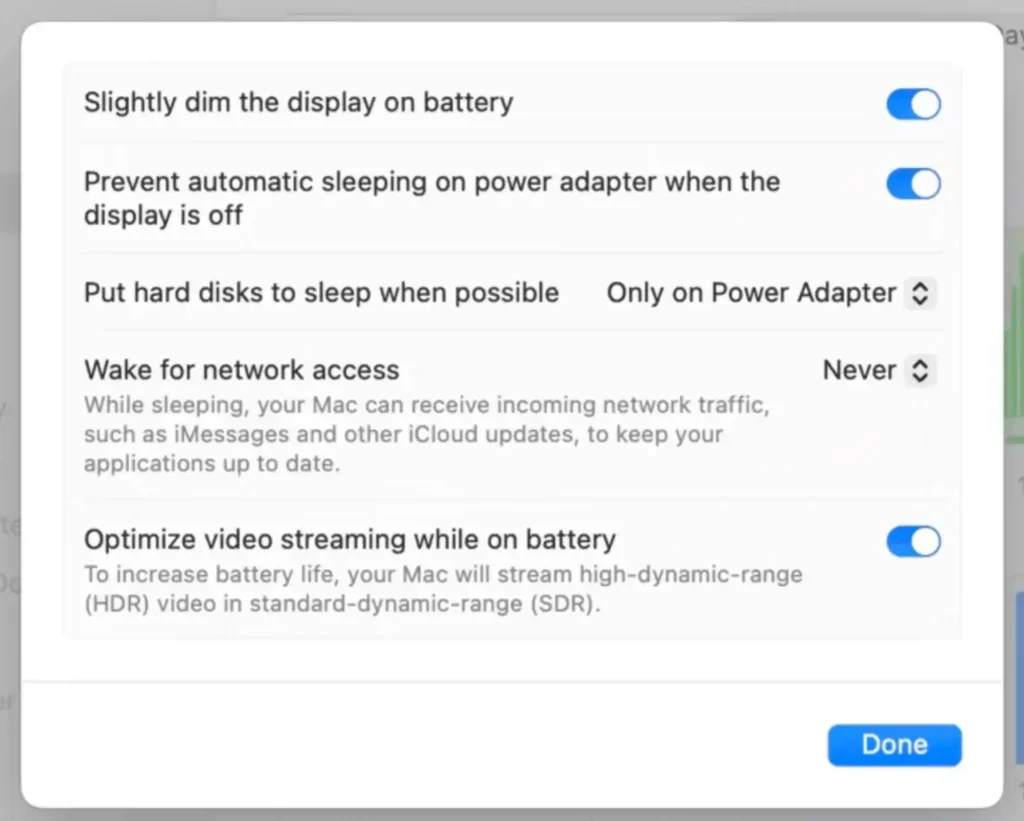
  4. Also, toggle Optimize video streaming while on battery on.
optimize macos sequoia battery settings

Battery optimization not only saves power but can also prevent performance issues caused by low system resources.

7. Quit unused applications

Running too many apps at once can slow down Mac and use up both RAM and CPU resources. Quit any applications you’re not actively using.

  1. Open Activity Monitor from Applications > Utilities.
  2. In the CPU tab, review all running processes and quit the ones you are not using.
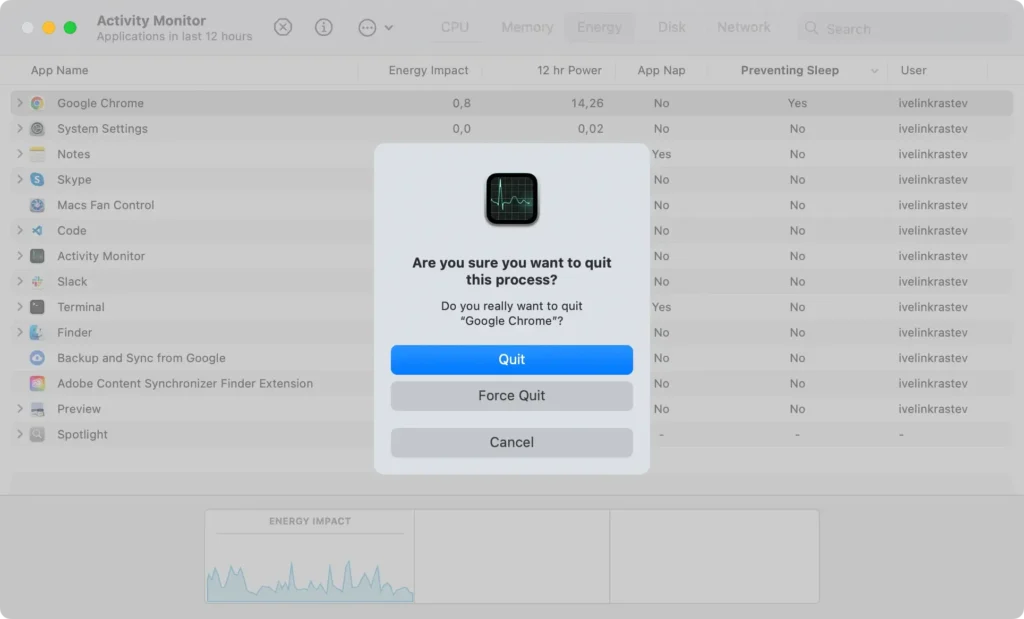
quit unused apps

This keeps your Mac running efficiently by preventing inactive apps from consuming resources.

8. Disable unnecessary background processes

Background processes, including startup items and hidden services, can consume more resources on macOS Sequoia. Turning off these unnecessary processes can help improve system performance, especially if they start automatically every time you boot up your Mac.

  1. Go to System Settings > General > Login Items.
  2. Review the list of apps that launch at startup.
  3. Select any apps you don’t need to run automatically and click the “-“ button to remove them from startup.
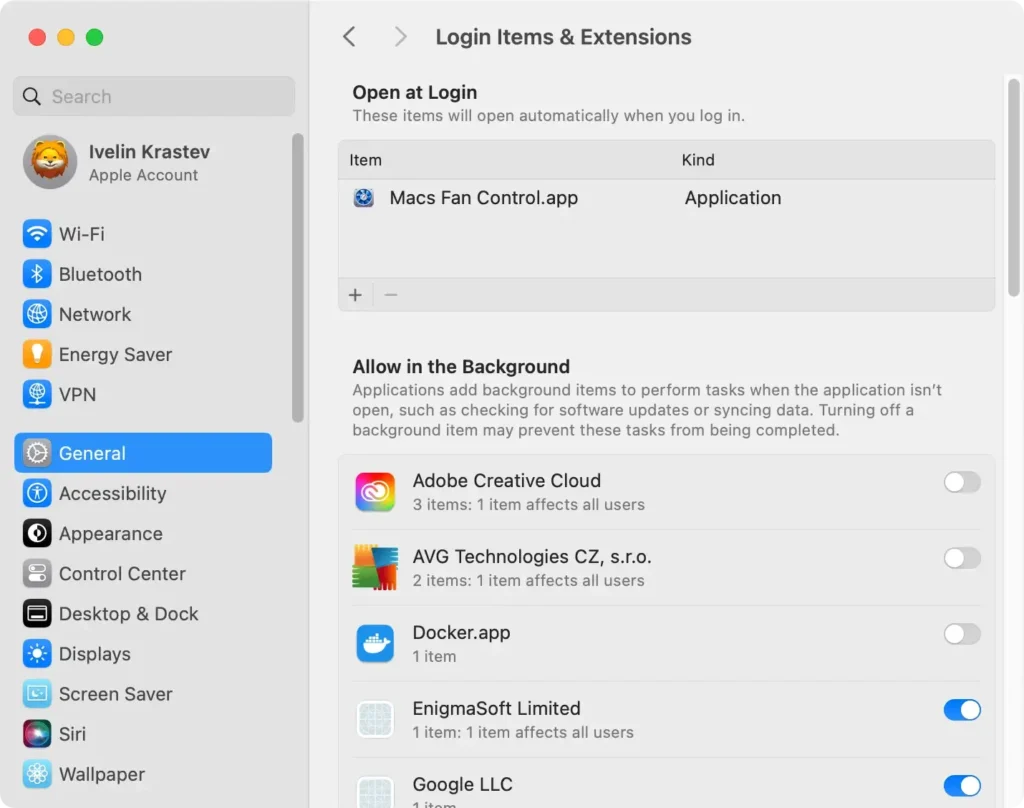
login items and extensions panel

9. Keep your Mac cool

Keeping your Mac cool prevents it from slowing down due to overheating. Overheating can cause macOS Sequoia to throttle CPU performance, impacting overall speed.

  • Place your Mac on a flat, hard surface to improve ventilation.
  • Avoid blocking air vents, especially during intensive tasks.
  • Consider using a cooling pad for added airflow if you regularly use resource-intensive apps.

10. Run regular maintenance

Regular maintenance helps you optimize macOS Sequoia, reducing lag and improving overall performance. Performing these tasks manually can take time, but each one can make a noticeable difference.

Essential maintenance tasks to include:

  • Reindex Spotlight
  • Run regular scans with SpyHunter
  • Flush DNS cache
  • Clear system logs
  • Reset network settings
  • Repair disk permissions

Completing these tasks weekly or bi-weekly helps ensure that your macOS remains responsive and efficient. Regular maintenance minimizes clutter and frees up resources, enhancing performance.

11. Restart your Mac regularly

Regular restarts help clear RAM and close background processes, contributing to better macOS performance.

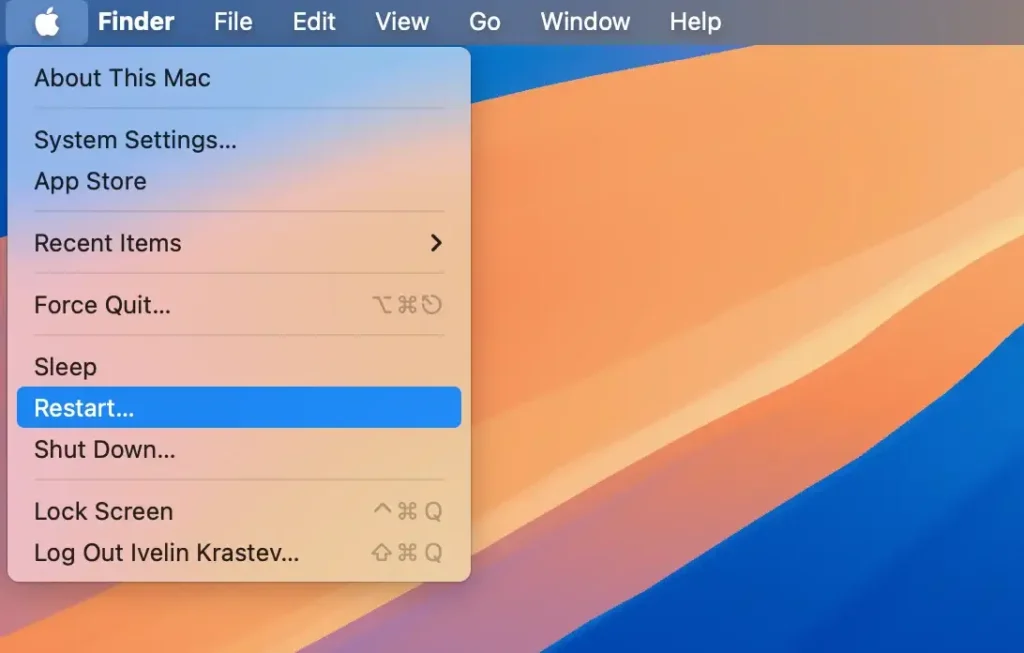
  1. Click the Apple menu and select Restart.
  2. Confirm by clicking Restart again in the prompt.
reboot macos from apple menu bar

Restarting weekly or after extensive system usage helps prevent memory leaks and resource overload, keeping your Mac running smoothly.

By following these steps, you’ll effectively optimize macOS Sequoia for smoother performance, reduced clutter, and improved responsiveness on your Mac.

These simple maintenance tasks and settings adjustments help you get the most out of your device.

Share this post on your favorite social media
Keep Your Mac Fast and Secure
Optimize your Mac and stay malware-free with SpyHunter

For a better understanding of our policies, please review our Free Trial Offer below, EULA, and Privacy/Cookie Policy.

SpyHunter Free Trial: Important Terms & Conditions

The SpyHunter Trial version includes, for one device, a one-time 7-day Trial period for SpyHunter 5 Pro (Windows) or SpyHunter for Mac, offering comprehensive malware detection and removal functionality, high-performance guards to actively protect your system from malware threats, and access to our technical support team via the SpyHunter HelpDesk. You will not be charged upfront during the Trial period, although a credit card is required to activate the Trial. (Prepaid credit cards, debit cards, and gift cards are not accepted under this offer.) The requirement for your payment method is to help ensure continuous, uninterrupted security protection during your transition from a Trial to a paid subscription should you decide to purchase. Your payment method will not be charged a payment amount upfront during the Trial, although authorization requests may be sent to your financial institution to verify that your payment method is valid (such authorization submissions are not requests for charges or fees by EnigmaSoft but, depending upon your payment method and/or your financial institution, may reflect on your account availability). You can cancel your Trial by contacting EnigmaSoft’s payment processor (identified in your confirmation email) or EnigmaSoft directly no later than two business days before the 7-day Trial period expires to avoid a charge coming due and being processed immediately after your Trial expires. If you decide to cancel during your Trial, you will immediately lose access to SpyHunter. If, for any reason, you believe a charge was processed that you did not wish to make (which could occur based on system administration, for example), you may also cancel and receive a full refund for the charge any time within 30 days of the date of the purchase charge. See FAQs.

At the end of the Trial, you will be billed upfront immediately at the price and for the subscription period as set forth in the offering materials and registration/purchase page terms (which are incorporated herein by reference; pricing may vary by country per purchase page details) if you have not timely canceled. Pricing typically starts at $72 for 3 months (SpyHunter Pro Windows) and $42 for 3 months (SpyHunter for Mac). Your purchased subscription will be automatically renewed in accordance with the registration/purchase page terms, which provide for automatic renewals at the then applicable standard subscription fee in effect at the time of your original purchase and for the same subscription time period, provided you’re a continuous, uninterrupted subscription user. Please see the purchase page for details. Trial subject to these Terms, your agreement to EULA/TOS, Privacy/Cookie Policy, and Discount Terms. If you wish to uninstall SpyHunter, learn how.

For payment on the automatic renewal of your subscription, an email reminder will be sent to the email address you provided when you registered before your next payment date. At the onset of your trial, you will receive an activation code that is limited to use for only one Trial and for only one device per account. Your subscription will automatically renew at the price and for the subscription period in accordance with the offering materials and registration/purchase page terms (which are incorporated herein by reference; pricing may vary by country per purchase page details), provided that you are a continuous, uninterrupted subscription user. For paid subscription users, if you cancel, you will continue to have access to your product(s) until the end of your paid subscription period. If you wish to receive a refund for your then current subscription period, you must cancel and apply for a refund within 30 days of your most recent purchase, and you will immediately stop receiving full functionality when your refund is processed.

For CALIFORNIA CONSUMERS, please see the notice provisions:
NOTICE TO CALIFORNIA CONSUMERS: Per the California Automatic Renewal Law, you may cancel a subscription as follows:

  1. Go to www.enigmasoftware.com and click the "Login" button at the top right corner.
  2. Log in with your username and password.
  3. In the navigation menu, go to "Order/Licenses." Next to your order/license, a button is available to cancel your subscription if applicable. Note: If you have multiple orders/products, you will need to cancel them on an individual basis.

Should you have any questions or problems, you can contact our EnigmaSoft support team by phone at +1 (888) 360-0646 (USA Toll-Free) / +353 76 680 3523 (Ireland/International) or by email at support@enigmasoftware.com.
How do you cancel a SpyHunter Trial? If your SpyHunter Trial was registered via MyCommerce, you can cancel the trial via MyCommerce by logging into the MyAccount section of MyCommerce (see your confirmation email for further details). You can also contact MyCommerce by phone or email to cancel. To contact MyCommerce via phone, you can call +1-800-406-4966 (USA Toll-Free) or +1-952-646-5022 (24x7x356). You can contact MyCommerce by e-mail at ordersupport@mycommerce.com. You can easily identify if your trial was registered via MyCommerce by checking the confirmation emails that were sent to you upon registration. Alternatively, all users may also contact EnigmaSoft Limited directly. Users can contact our technical support team by emailing support@enigmasoftware.com, opening a ticket in the SpyHunter HelpDesk, or calling +1 (888) 360-0646 (USA) / +353 76 680 3523 (Ireland/International). You can access the SpyHunter HelpDesk from SpyHunter's main screen. To open a support ticket, click on the "HelpDesk" icon. In the window that appears, click the "New Ticket" tab. Fill out the form and click the "Submit" button. If you are unsure of what "Problem Type" to select, please choose the "General Questions" option. Our support agents will promptly process your request and respond to you.

———

SpyHunter Purchase Details
You also have the choice of subscribing to SpyHunter immediately for full functionality, including malware removal and access to our support department via our HelpDesk, typically starting at $42 for 3 months (SpyHunter Basic Windows) and $42 for 3 months (SpyHunter for Mac) in accordance with the offering materials and registration/purchase page terms (which are incorporated herein by reference; pricing may vary by country per purchase page details). Your subscription will automatically renew at the then applicable standard subscription fee in effect at the time of your original purchase subscription and for the same subscription time period, provided you’re a continuous, uninterrupted subscription user and for which you will receive a notice of upcoming charges before the expiration of your subscription. Purchase of SpyHunter is subject to the terms and conditions on the purchase page, EULA/TOS, Privacy/Cookie Policy and Discount Terms.

———

General Terms
Any purchase for SpyHunter under a discounted price is valid for the offered discounted subscription term. After that, the then applicable standard pricing will apply for automatic renewals and/or future purchases. Pricing is subject to change, although we will notify you in advance of price changes.
All SpyHunter versions are subject to your agreeing to our EULA/TOS, Privacy/Cookie Policy, and Discount Terms. Please also see our FAQs and Threat Assessment Criteria. If you wish to uninstall SpyHunter, learn how.