

macOS Sequoia Freezing? Here Are 12 Ways To Fix It

Before we dive in
Before we dive in, let's make sure you stay safe online. We created SpyHunter because your security matters to us.
Protect your computer today — download SpyHunter right here! Check out our top tips below to keep your computer safe and secure.

You’re not the only one who’s been dealing with a freezing Mac after upgrading to macOS Sequoia.
Many users have reported similar issues, from slow performance to full system lock-ups, often requiring a hard reboot.
Whether it’s during startup, while using specific apps, or randomly, these freezing issues are a real workflow killer.
In this guide, we’ll cover why macOS Sequoia is freezing and provide a series of solutions to get your Mac running again.
Let’s get started!
Why is my Mac freezing after macOS Sequoia update?
There are several reasons why your Mac might be freezing after upgrading to Sequoia:
- Some apps may not be fully compatible with macOS Sequoia.
- Your Mac lacks RAM memory or disk storage.
- Your Mac may be infected with hidden malware that hogs system resources.
- Running an older version of Sequoia or outdated apps.
- Too many login items or background processes.
- High CPU usage from running too many tasks at once.
Identifying the root cause is the first step in solving your Mac’s freezing problem. Now, let’s move on to fixing the issue.
How to fix macOS Sequoia freezing issues
If your Mac is freezing after updating to macOS Sequoia, the good news is that there are several ways to resolve the issue.
Let’s go through the most effective solutions to get your system running smoothly again.
1. Restart your Mac
A simple restart can often clear out temporary system glitches that are causing macOS Sequoia to freeze. To restart your Mac:
- Click the Apple menu in the menu bar at the top left of the screen, then select Restart. Confirm when prompted, and your Mac will reboot, refreshing system processes.
- If your Mac is completely unresponsive, press and hold the power button until it shuts down. Afterward, press the power button again to restart.
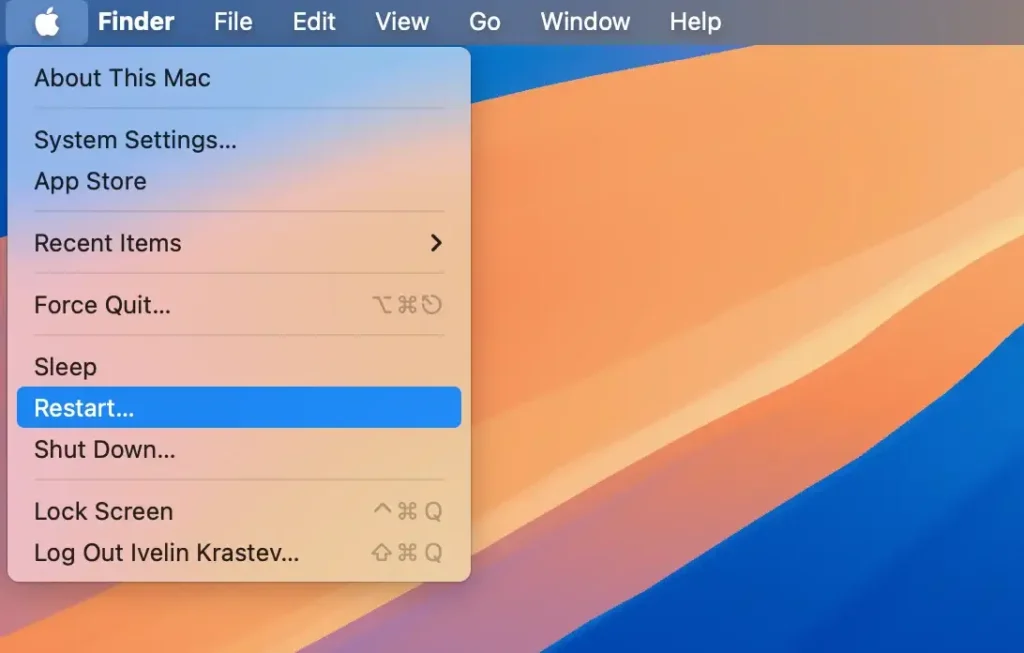
This refreshes your system and may fix any temporary freezing issues.
2. Check for macOS Sequoia updates
Running the latest version of macOS Sequoia is crucial for maintaining system stability and avoiding bugs that can cause your Mac to freeze.
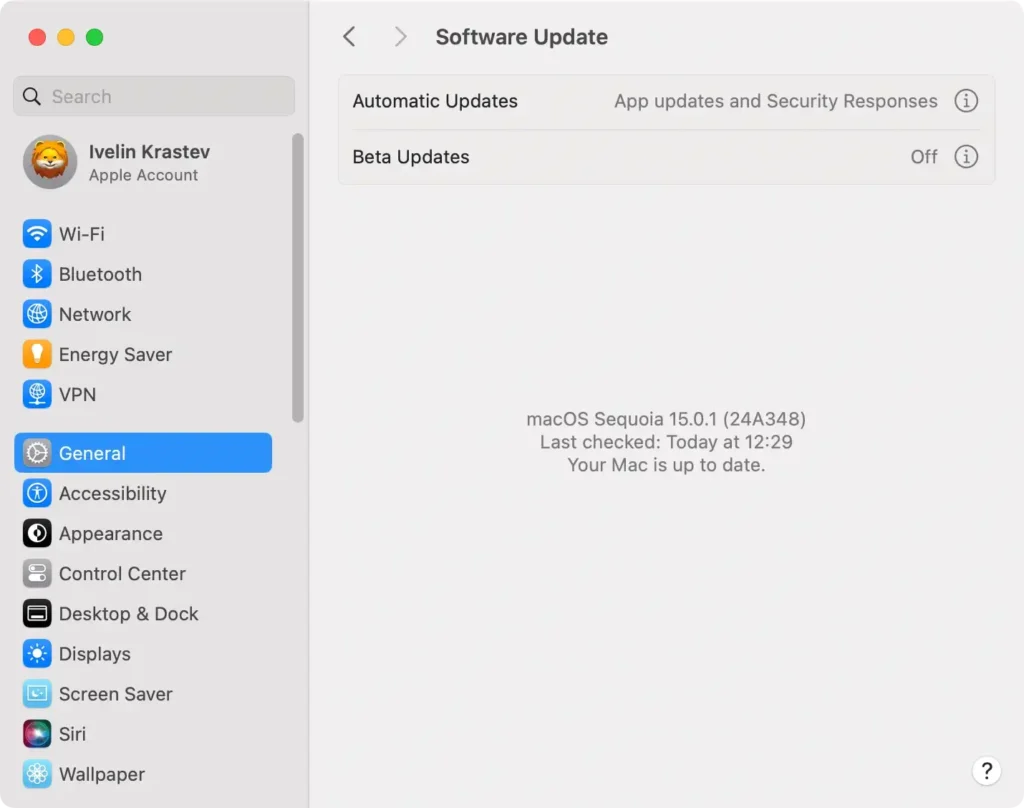
Here’s how to check for and install macOS Sequoia updates:
- Click the Apple menu in the top left corner of the screen and select
System Settings. - Scroll to
Generaland clickSoftware Update. - If an upgrade is available, you’ll see an option to
Download and Installthe latest version of Sequoia. - Follow the on-screen instructions, and let your Mac boot once the process is complete.
3. Scan your Mac for malware
Malware can significantly impact your Mac’s performance, causing it to freeze or slow down.
Running a malware scan helps detect and remove any harmful software that could be behind the macOS Sequoia freezing issues.
We recommend using SpyHunter for an effective and thorough scan. Here’s how to scan your Mac for malware using SpyHunter:
- Download the app from here.
- Install SpyHunter by following the on-screen instructions.
- Open SpyHunter and initiate a full system scan.
- Once the scan is complete, review the results and follow the prompts to remove any detected malware.

Regular malware scans with SpyHunter can help keep your Mac running smoothly and prevent freezing caused by harmful software.
This simple step can make a big difference in improving system stability.

4. Update any outdated apps
Outdated applications can also cause system freezes, especially if they are not fully compatible with macOS Sequoia. It’s essential to keep all your programs up to date.
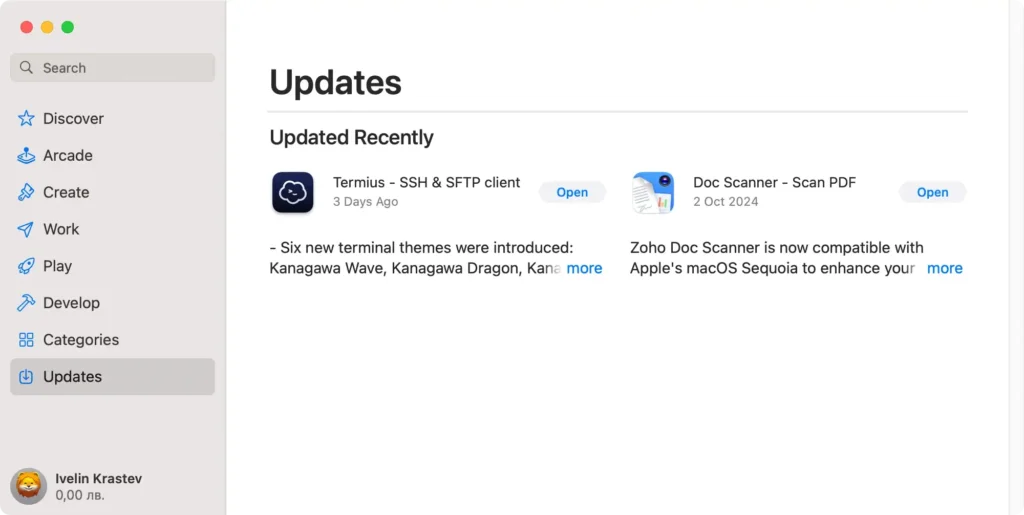
For programs from the Mac App Store, open the App Store, click on Updates in the sidebar, and install any available app updates.
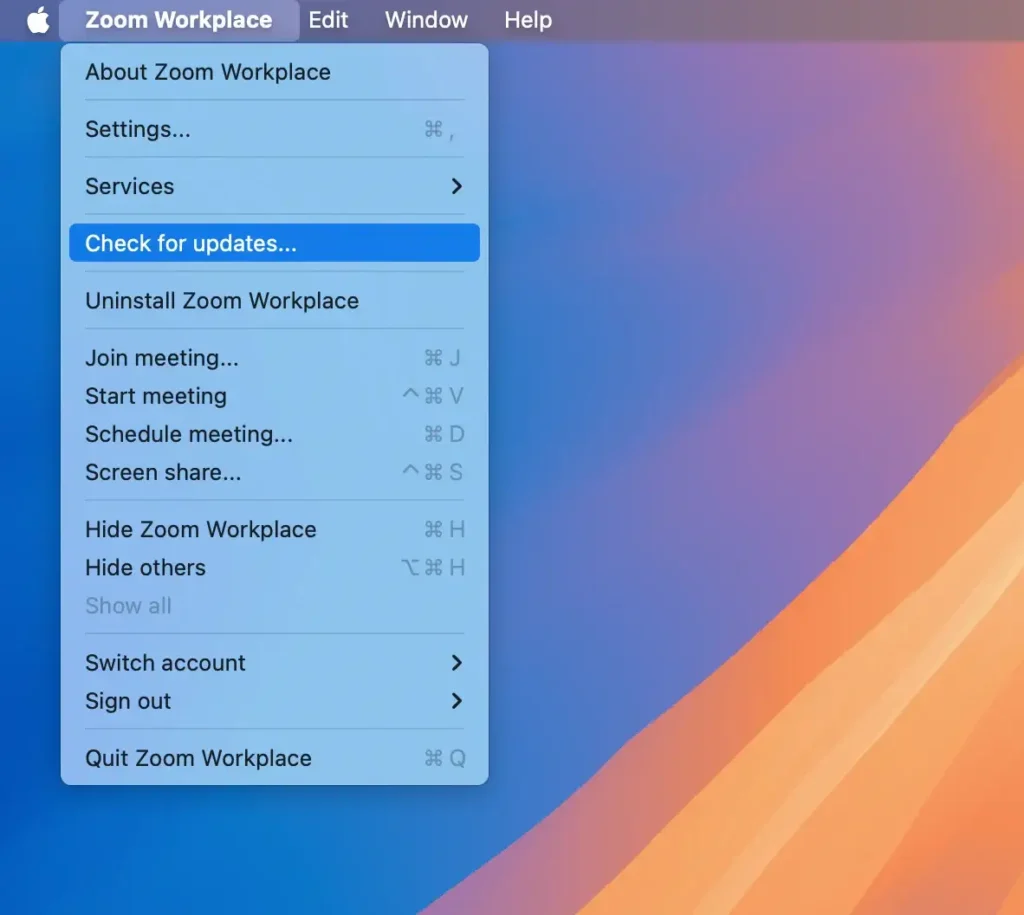
For apps downloaded directly from the developer, open the app and check its Preferences or Help menu for an option like Check for Updates. Follow any prompts to download and install the latest version.
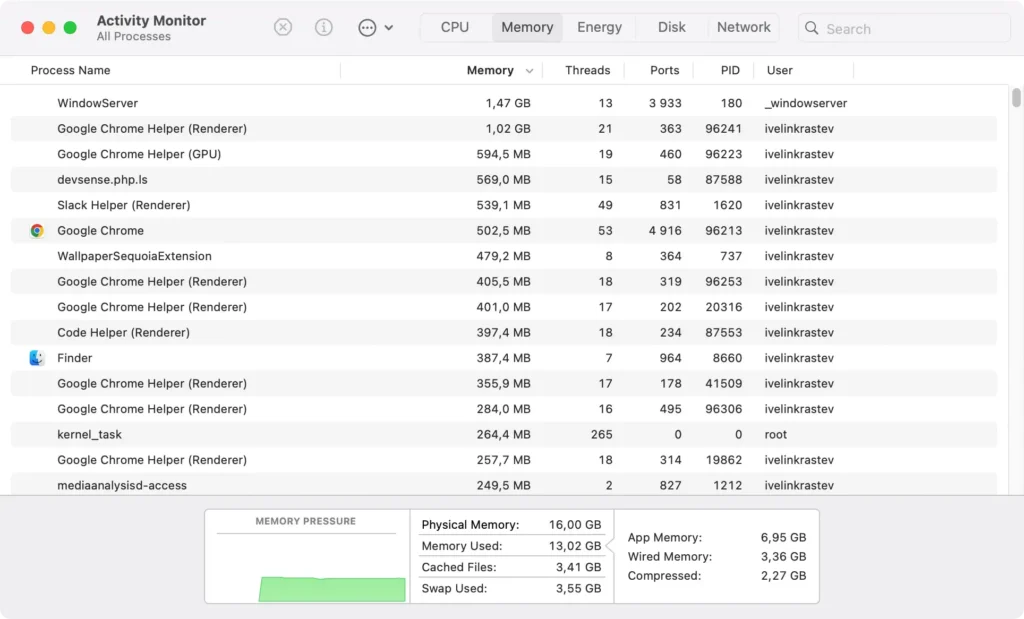
5. Investigate performance with Activity Monitor
If your Mac is still freezing, you can check which processes are using excessive CPU or memory.
- Open
Activity MonitorfromApplications > Utilities. - Sort by
CPUorMemoryusage to see which processes are consuming the most resources. - If any app is hogging resources, select it and click the [X] button to force quit.
6. Free up memory and close unnecessary browser tabs
If your Mac computer is running low on RAM, closing unnecessary apps and browser tabs can help free up resources. Too many tabs open in Safari or other browsers can slow down performance.
Go through your open programs and tabs and close those you don’t need. Consider clearing your browser’s cache to improve performance.
7. Disconnect USB and external devices
Sometimes, external devices like USB drives or other peripherals can cause macOS Sequoia to freeze.
Disconnect any non-essential devices and check if the freezing stops. If the problem is solved, one of the external devices may be faulty or incompatible.
8. Force quit and uninstall problematic apps
If certain applications are causing frequent crashes or freezes, it’s best to force quit and remove them.
To make this process easier, you can use SpyHunter’s App Uninstaller to uninstall problematic apps and their leftover files fully.
Download SpyHunter from here and install it. Use the App Uninstaller feature to quickly remove unwanted applications along with their leftover files and folders.

This helps prevent future freezes and keeps your system running efficiently.
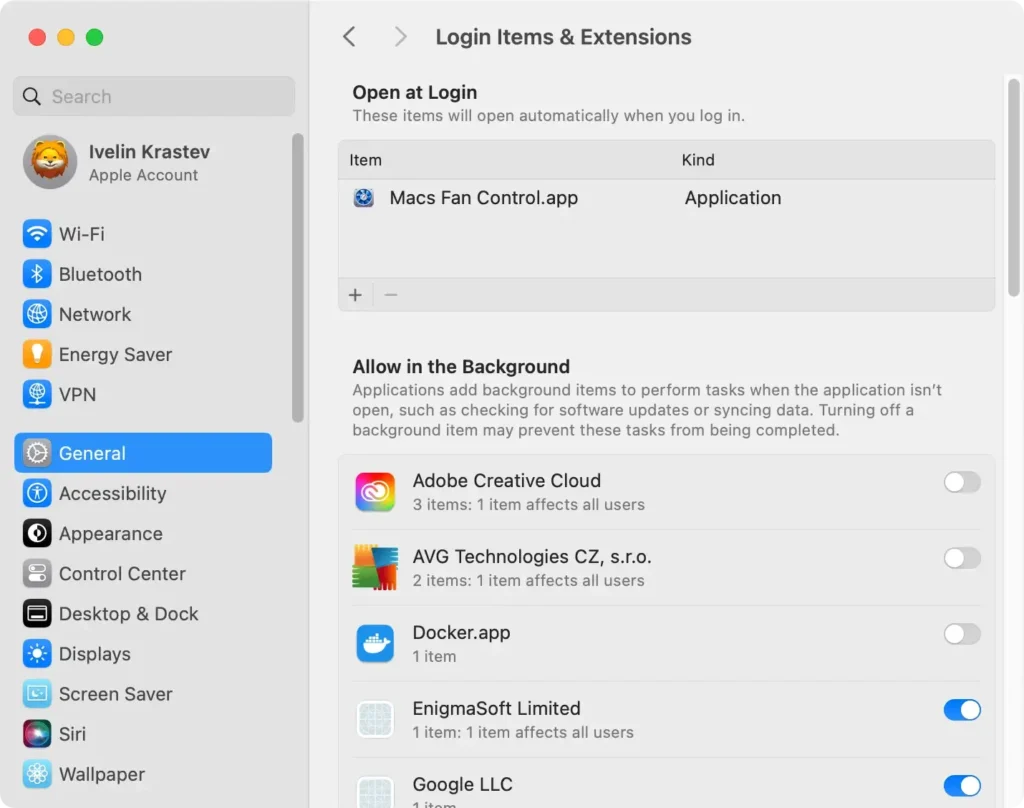
9. Disable unwanted login items
If too many startup items launch when your Mac boots, it can slow down your system and cause freezes or crashes.
- Go to
System Settings > General > Login Items. - Review the list and turn off any unnecessary items by selecting them and clicking the minus (-) button.
10. Boot your Mac in Safe Mode
Starting your Mac in Safe Mode can help you identify and fix issues that cause freezing.
Safe Mode disables all extensions except those necessary for booting. It also performs checks on your startup disk, automatically fixing any problems it finds.
- For Apple Silicon Macs, shut down your Mac, press and hold the power button until you see the startup options, and then choose Safe Mode.
- For Intel-based Macs, restart your Mac and hold down the
Shiftkey while it boots.
Once in Safe Mode, see if the freezing persists. If it doesn’t, the issue may be related to a third-party app or extension that loads at startup.
Following these steps should resolve most macOS freezing issues, allowing you to return to a smooth and reliable Mac experience.
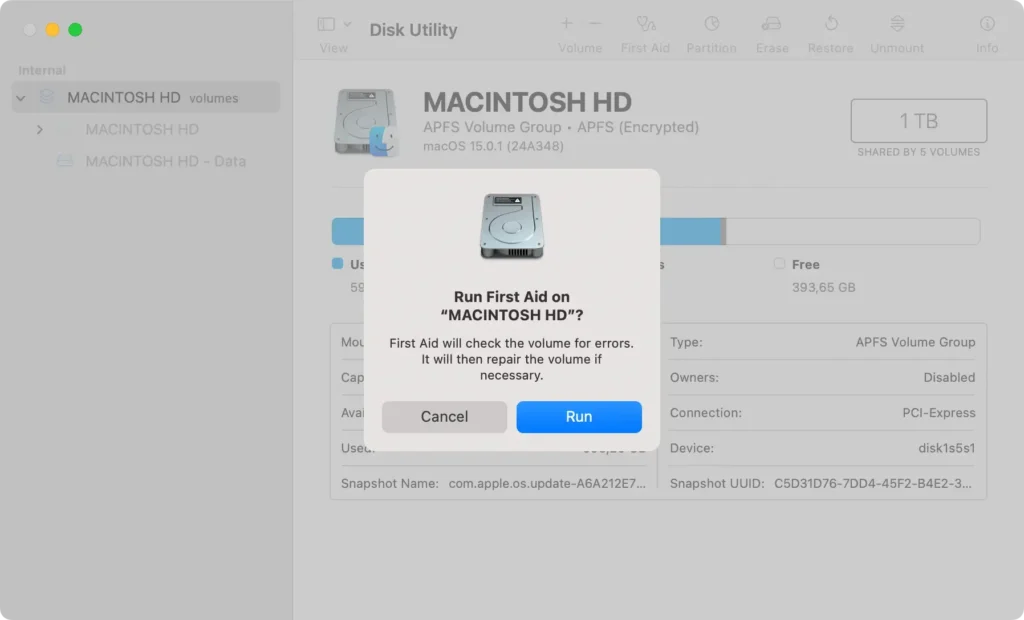
11. Run First Aid to check the Startup Disk
If your Mac is freezing after upgrading to macOS Sequoia, your startup disk may have errors that are causing the issue. Running First Aid in Disk Utility can help detect and repair these errors.
- Open
Disk UtilityfromApplications > Utilities. - Select your startup disk (usually named Macintosh HD) in the sidebar.
- Click
First Aid, then clickRunto allow your Mac to scan and repair any disk errors.
Additionally, running Apple Diagnostics can help troubleshoot frequent system crashes after upgrading to macOS Sequoia. This hardware test mode can identify any faulty components in both Apple Silicon and Intel-based Macs.
12. Reinstall macOS Sequoia
If your Mac is still freezing or crashing frequently, even after trying all the solutions mentioned above, the issue may be caused by a macOS bug or error that occurred during the installation process.
In this case, updating or reinstalling Sequoia can help resolve these problems.
- Check for updates by going to
System Settings > Software Updateand install any available updates. - If the freezing persists, you may need to reinstall macOS Sequoia using Recovery Mode. This will ensure that any corrupted files or bugs are fixed without erasing your data.
Updating to the latest macOS Sequoia not only fixes bugs but also ensures you benefit from any new features included in the upgrade.
How to keep your Mac from not responding
To prevent your Mac from freezing or becoming unresponsive after a macOS update:
- Update macOS and Apps: Keep your OS and all your programs up to date to get the latest fixes and performance improvements.
- Monitor System Resources: Check your CPU and memory usage regularly. Also, look for resource-hogging programs and close them before they slow down your system.
- Free-Up Disk Space: Clean out junk files and delete unnecessary data to ensure you have enough free space.
- Don’t Overload with Startup Items: Occasionally, review and turn off unnecessary startup items in System Settings.
