

How To Find Your Mac IP Address: 3 Different Ways

Before we dive in
Before we dive in, let's make sure you stay safe online. We created SpyHunter because your security matters to us.
Protect your computer today — download SpyHunter right here! Check out our top tips below to keep your computer safe and secure.

Ever wondered why you might need to know your Mac’s IP address? Whether you’re troubleshooting a connection issue, setting up a home network, or ensuring your online activities are hidden, understanding your IP address could be your first step.
This article will guide you through why it can be helpful to know your IP address on Mac, how to easily find it, and methods to protect it.
Why do you need to know your Mac IP address?
Understanding your Mac’s IP (Internet Protocol) address is crucial for a variety of network tasks.
Whether you’re setting up a secure network environment or trying to resolve connectivity issues, knowing your IP address can be fundamentally important.
Additionally, if you’re working remotely or need to ensure your internet connection is secure, your IP address acts as a gateway for these configurations.
For those engaged in more technical roles, such as network administrators or software developers, knowing the IP address can help in managing network permissions, setting up servers, or developing applications that communicate across the network.
Furthermore, if you’re concerned about privacy, your IP address is pivotal in understanding how your online activity can be tracked and how to mask your presence using tools like VPNs.
Public vs. private IP address
Every device connected to a network needs an IP address, and these come in two basic types: public and private. While both serve critical roles in networking, they differ distinctly in terms of visibility and use.
A public IP address, or external IP, is assigned by your Internet Service Provider (ISP) and is used to identify your network on the wider internet. This is the address websites see when you access them.
In contrast, a private IP address, or internal IP, is assigned within your local network. Private IP addresses allow communication between devices in your home or office network.
Benefits of knowing your IP address
One primary benefit of knowing your IP address on a Mac is improved network troubleshooting. If you encounter internet connectivity problems, knowing your IP can help isolate whether the issue is with your device, router, or larger network.
It also aids in setting up devices within the same network to ensure seamless communication between your gadgets.
How to get IP address on Mac?
Below, we offer three quick and simple methods to help you locate the IP address on your Mac.
1. Use System Settings to find your IP address
- Click the Apple icon at the top left corner of your screen.
- Select
System Settings(System Preferenceson older Mac versions) from the drop-down menu. - Click on
Networkfrom theSystem Settingswindow. - In the
Networkwindow, choose the network service you are using depending on your network connection (e.g., Wi-Fi for wireless connections or Ethernet for wired / cable connections) from the list on the left-hand side.
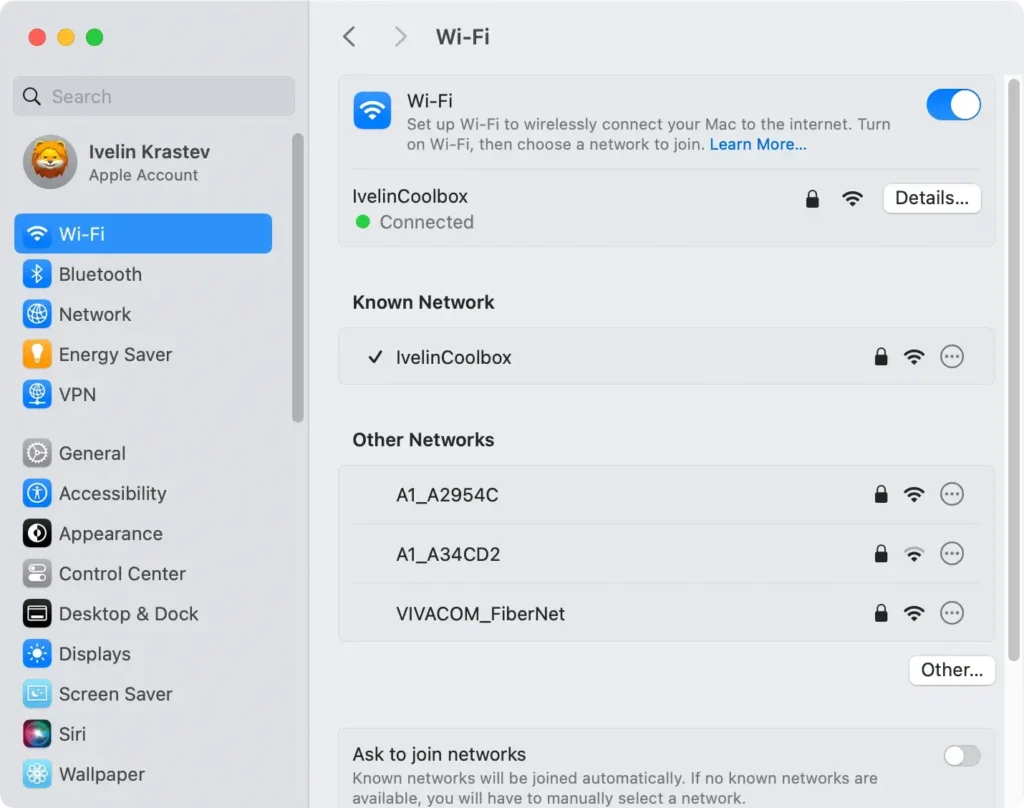
- Once the service is selected, click
Detailson the right and you will see your IP address listed on the right-hand side.
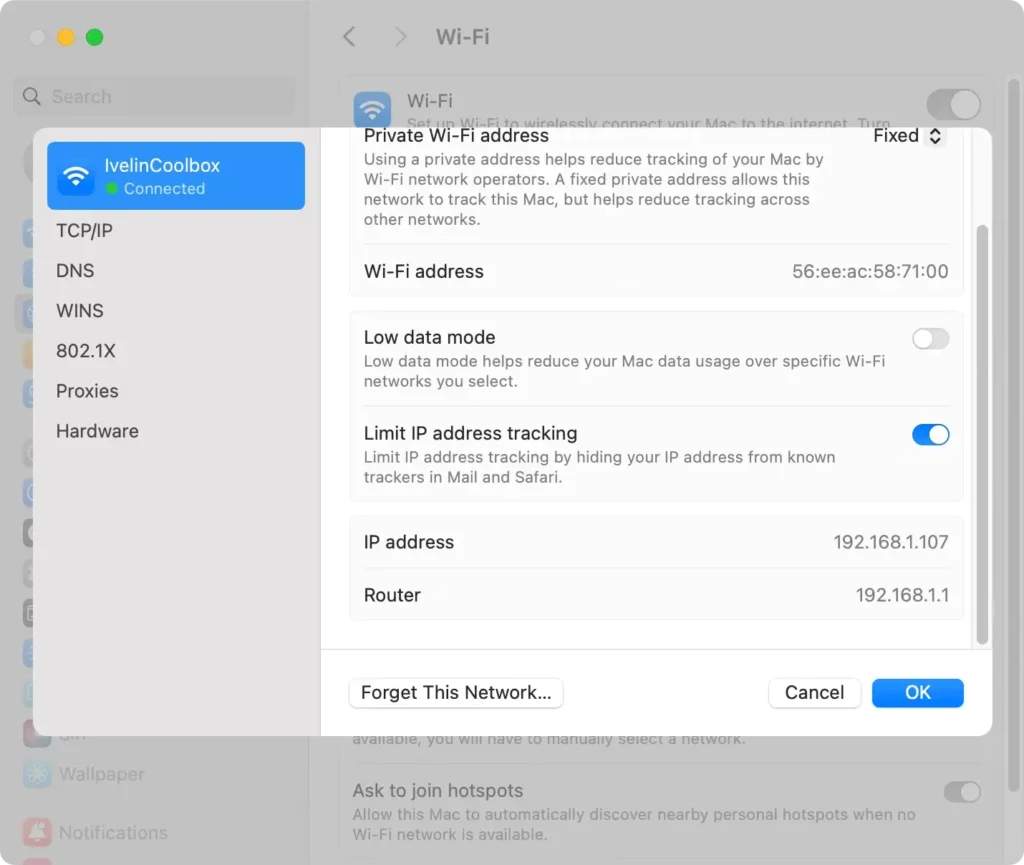
This method allows users to easily see both IPv4 and IPv6 addresses if available.
2. Use Terminal to locate your IP address
For those comfortable with command-line interfaces, the Terminal app on Mac offers a quick way to find your IP address:
- Open
Terminalby going toApplications, selectingUtilities, and thenTerminal. - To find the local IP address of your network’s Wi-Fi connection, type in
ipconfig getifaddr en0if you are connected using Wi-Fiipconfig getifaddr en1if you are connected using a wired ethernet connection
- Press
Return, and you will see your Mac’s local IP address displayed in the command prompt.
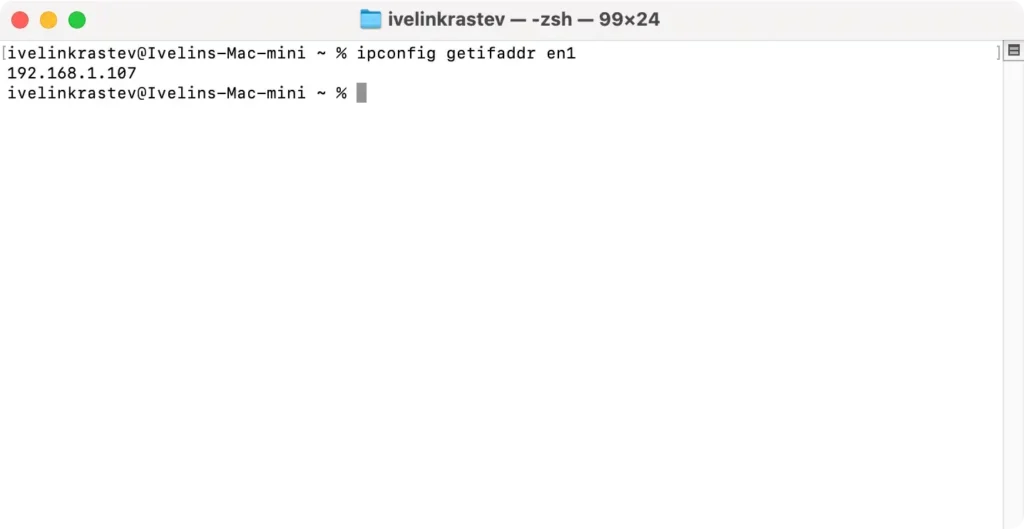
If you need to find your public IP address through Terminal, use the following command and hit Return after the input: curl ifconfig.me
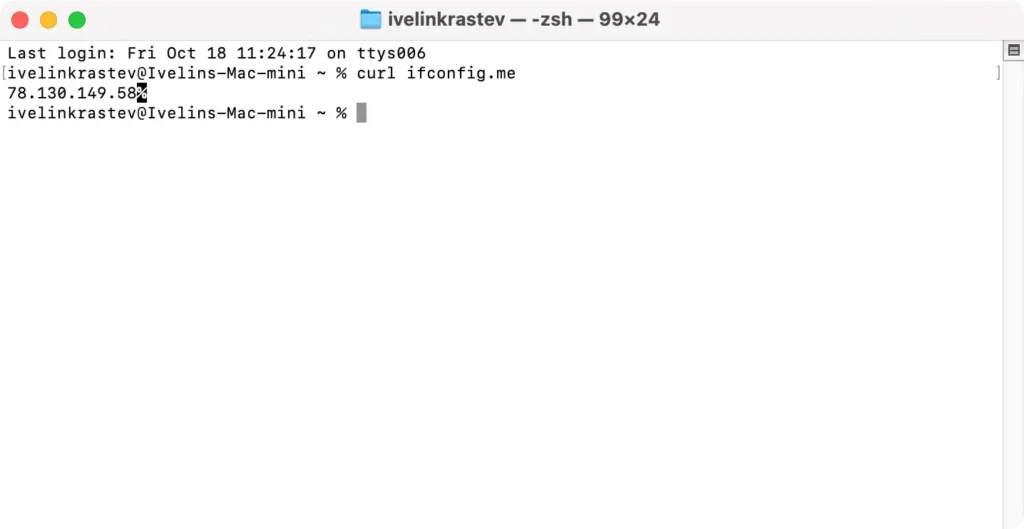
Using Terminal provides a fast and effective method of retrieving both private and public IP addresses. It can be particularly useful for troubleshooting or advanced configuration settings.
3. Find your IP using a website
You can also use one of several dedicated websites that can display your public IP address.
Since your public IP is, as the name implies, an external IP address that is publicly visible, there are several different online websites you can visit that will directly display your IP address on the screen for you.
Use your web search engine of choice and simply search for “What is my IP” and then pick one of the sites in the results. Your actual IP address will be displayed on the website’s page, in an easily visible location.
Which IP address is more secure?
A private IP address offers more security compared to a public IP address. This is primarily because private IPs are not directly accessible from the internet.
They are used internally within home or business networks for devices like laptops, printers, and smartphones to communicate with each other and the router.
For example, if you set up a local gaming server, you’d use your private IP address, which external entities cannot see unless they gain access to your network.
Public IP addresses, however, can expose your network to potential external risks. They act as a gateway for your device to interact with the internet and are visible to websites you visit, which can collect data or track online behavior.
Because of this visibility, public IPs can be targeted by cyber threats and attacks. Therefore, it’s essential to secure your public IP address, possibly by using tools like VPNs to enhance your security while surfing the web.
Elevate your Mac’s privacy and security with SpyHunter
If you are worried about spyware apps snooping around your system or data collection concerning your browsing habits that browser hijackers may carry out, consider a reliable anti-malware tool like SpyHunter.
SpyHunter can detect and securely remove a huge range of potentially unwanted and malicious apps from your system. The application also has an active guard that will ensure any future encounters with potentially malicious websites or files online will not cause any harm.
- Download SpyHunter from here and follow the guide on your screen to install it.
- Launch the SpyHunter app from your dock and choose a full system scan from the main menu.
- Wait for the app to finish scanning and check the list of potential detections and make sure all threats are selected for removal.

- Proceed with the automatic removal process and clean your system.

Tips to ensure your IP privacy
Ensuring the privacy of your IP address is critical to keep your online activity private and protect your personal information. Here are some additional tips to maintain your IP privacy:
- Regularly update software: Keep your operating system and all installed software up to date to protect against vulnerabilities that could expose your IP address.
- Avoid suspicious links: Do not interact with suspicious links in emails or on websites. These can be traps set by cybercriminals to extract personal information.
- Use anti-virus software: Invest in reputable anti-virus software. This software can detect and block malware that could be used to compromise your IP address.
- Check website security: Before entering personal information, ensure the website is secure. Look for URLs that begin with “https://” and a padlock icon near the address bar.
