

How To Fix Error Code 50 On Mac [Quick Tips]

Before we dive in
Before we dive in, let's make sure you stay safe online. We created SpyHunter because your security matters to us.
Protect your computer today — download SpyHunter right here! Check out our top tips below to keep your computer safe and secure.

Ever faced a moment when your Mac just refuses to copy files or delete them? If you’ve encountered Mac error code 50, you know the frustration.
This article delves into the reasons behind Mac error code 50, from hardware issues to outdated software, and offers you practical solutions to get your system back on track.
Whether it’s a simple reboot or using tools like Disk Utility, we’ll guide you through the steps to resolve this issue.
What exactly is Mac error code 50?
Mac error code 50 is a notification that macOS cannot complete a file operation.
This could involve copying, moving, or deleting files, typically between the computer and an external storage device like a USB or an external hard drive.
The full error message usually reads: “The operation can’t be completed because an unexpected error occurred (error code -50).” This message indicates a problem with either input/output processes or file handling by the system.
This error can be linked to several technical issues. It might show up when there is a physical failure of the storage device, such as an aging or damaged hard drive.
Alternatively, it could stem from corruption within the file system, which disrupts the normal reading and writing processes that macOS tries to perform.
In some cases, the error might also point towards issues with the macOS itself, especially if there have been recent changes to the system’s configuration or updates.
Top reasons why you might see Mac error code 50
Understanding why error code 50 pops up on your Mac can save you from unnecessary frustration and help you find an effective solution.
This error often relates to issues within the system, such as hardware malfunctions and outdated software, affecting the smooth operation of your device.
Could hardware issues be triggering your Mac’s error code 50?
One major culprit behind Mac error code 50 could be hardware-related problems.
This includes failures of your internal hard drive, problems with external storage devices, or even aging SSDs reaching their end of life.
When hardware starts failing, it can lead to multiple system errors, of which error code 50 is just one manifestation.
Such issues can prevent your Mac from performing simple tasks like writing or moving files, significantly disrupting your workflow.
Assessing the health of your hardware is critical. For internal devices, running a diagnostics test available from the Mac utilities can help identify any failures.
For external devices, connecting to a different machine can determine if the issue persists, pointing to a problem with the external drive itself.
Regular maintenance and early detection of hardware problems can extend the longevity of your device and maintain its working efficiency.
Is outdated software contributing to the error?
Another significant factor to consider is outdated software. Older versions of macOS or third-party applications can lead to compatibility issues, resulting in various errors, including error code 50.
These might arise from not keeping up with necessary updates, which often include fixes for bugs that impact system performance and file management capabilities.
It is advisable to regularly check for updates on your Mac. You can open System Settings and click on Software Update to ensure your operating system is up-to-date.
For third-party applications, visit their official websites or use the update function within the app.
Ensuring your system’s software is current can enhance performance, provide new features, and fix existing errors, contributing to a more stable and efficient environment for your Mac.
Step-by-step solutions to fix Mac error code 50
1. Restart your Mac to resolve error code 50
Often, the fix is a simple restart of your machine. This clears temporary files and gives your system a fresh start, potentially resolving error code 50.
- Click the Apple logo at the top-left corner of your screen.
- Select
Restartfrom the dropdown menu. - If needed, uncheck
Reopen windows when logging back into start fresh. - Confirm by clicking
Restartagain.
If the issue persists after a regular restart, consider starting your Mac in Safe Mode to further isolate the issue.
2. Scan and repair disk permissions using Disk Utility
Error code 50 may also stem from permission issues on your Mac’s storage disk. Disk Utility can help you verify and repair disk permissions.
Follow these steps:
- Open Finder and select
Applications > Utilities. - Double-click to open
Disk Utility. - In the sidebar, select the volume you wish to repair.
- Click the
First Aidtab, thenRunto check and repair the disk’s permissions.
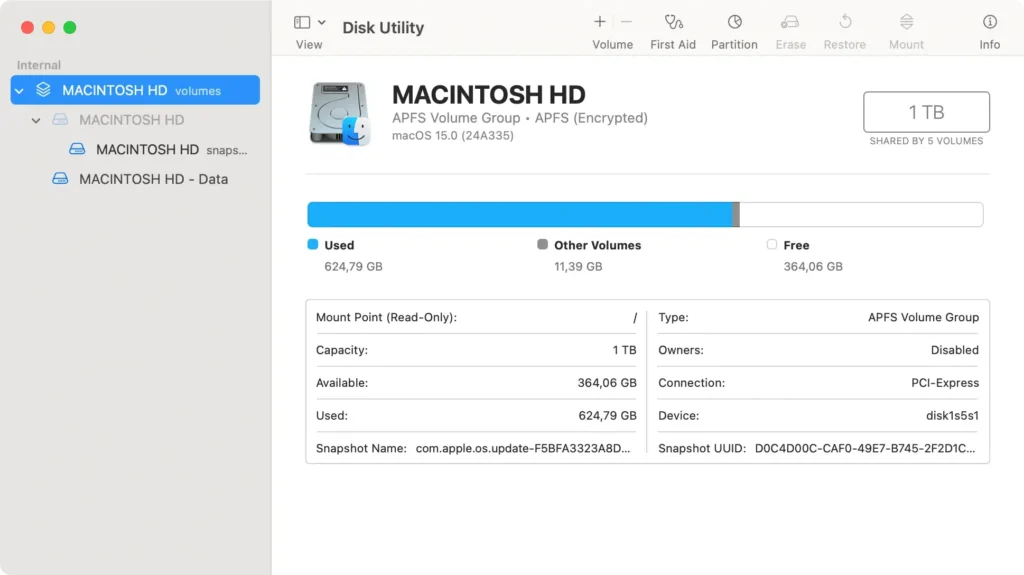
This tool will automatically fix permission problems and other disk-related issues that could be causing the error.
3. How to ensure your files aren’t causing the issue
Sometimes, the error code 50 is specific to certain files. To isolate the problem, try copying or moving different files.
If only specific files cause the error, it might indicate a corrupted file or an incompatible format:
- Attempt to open the files with different applications to check for corruption.
- Ensure the files are in a format fully supported by your Mac.
- Check the file names for any unusual or special characters that macOS might not recognize.
If you confirm that specific files are problematic, it’s best to back them up and consider converting or recreating them if possible.
4. Remove problematic files with care
When certain files consistently trigger error code 50, and are neither needed nor can be repaired, removing them might be the best option:
- Navigate to the file location using
Finder. - Right-click on the problematic file.
- Select
Move to Trash. - Empty the
Trashto permanently remove the file from your Mac.

Be cautious and ensure backing up important data before deleting files, as this action is irreversible.
Using SpyHunter to safeguard your Mac from malware-induced errors
Macs, while known for their security, are not immune to malware which can instigate various system errors like the dreaded error code 50.
A reliable way to shield your Mac from such disruptions is by employing comprehensive antivirus software. SpyHunter boasts robust malware detection and removal capabilities, offering a great solution to keep your system clean and secure.
- Download SpyHunter from here and install it.
- Launch the SpyHunter app from your dock and start a full system scan from the main menu.
- Wait for the scan to complete and examine the list of any potential detected malware to make sure everything is selected for removal.

- Proceed with automated removal using the interface buttons.

FAQs about resolving Mac error code 50
How often should you check your Mac for potential error triggers?
To maintain the health of your Mac and prevent issues like error code 50, it’s advisable to routinely check your system for potential triggers.
A good rule of thumb is to perform a thorough check whenever you install new software or monthly as part of regular maintenance.
This could include scanning for malware, checking for software updates, and verifying the health of your hard drive.
What preventive measures can minimize the risk of getting error code 50?
Preventive measures are crucial in minimizing the risk of experiencing error code 50 on your Mac.
Here are some practical steps you can take:
- Regularly update your macOS to ensure you have the latest security patches and system improvements.
- Monitor your hard drive’s health, especially if it’s older, to catch early signs of failure. Tools like Disk Utility can help you diagnose and address minor issues before they escalate.
- Avoid abrupt shutdowns and improper ejections of external storage devices to prevent file system corruption.
- Use antivirus software like SpyHunter to scan for and remove malware that could corrupt your files and systems. To download SpyHunter, simply visit their website and follow the installation instructions.
- Regularly back up your data. Time Machine is a useful tool in macOS that can automate this process, safeguarding your files against potential data loss.
By following these practices, you can reduce the likelihood of encountering Mac error code 50 and ensure your system runs smoothly.
