

How To Fix macOS Sequoia Bluetooth Issues (10 Solutions)

Before we dive in
Before we dive in, let's make sure you stay safe online. We created SpyHunter because your security matters to us.
Protect your computer today — download SpyHunter right here! Check out our top tips below to keep your computer safe and secure.

Having Bluetooth problems on macOS Sequoia is a real pain, especially when your Apple keyboard or other Bluetooth devices won’t connect.
Don’t worry. We’ve got you covered!
Here are 10 easy fixes to restore smooth connectivity.
In this post, we’ll cover the basics, like restarting your Mac, and more advanced troubleshooting, like resetting the Bluetooth module.
Let’s get started and get you connected!
How to spot common macOS Sequoia Bluetooth problems?
Bluetooth issues on macOS Sequoia can sneak up on you, affecting everything from your Apple mouse to non-Apple devices.
But how do you know if you’re dealing with Sequoia Bluetooth issues?
Here are the most common problems:
- Bluetooth not working — The Bluetooth icon might disappear from your menu bar, or you can’t connect to any external devices.
- Connectivity problems — Your Bluetooth devices, like headphones or keyboards, frequently disconnect on macOS Sequoia.
- Slow response from devices — Devices such as your Mac mini or Apple keyboard are slow to respond or lag when in use.
- Bluetooth devices not showing up — When trying to connect, your Mac’s Bluetooth settings fail to detect available devices, especially non-Apple devices.
- Pairing issues — You’re unable to pair new devices or re-pair ones you’ve used before, even after restarting your Mac.
- Interference with other connections — Your Bluetooth device might interfere with your Wi-Fi network, causing performance issues for both.
- Bluetooth device battery draining faster — After connecting to your Mac, you notice the battery life of your Bluetooth devices drops significantly quicker than usual.
Recognizing these issues is the first step toward resolving them.
With the proper fixes, you’ll get your Bluetooth connection running smoothly again on macOS Sequoia.
10 ways to fix macOS Sequoia Bluetooth issues
Now that you know what macOS Sequoia Bluetooth issues look like, it’s time to explore some simple yet effective ways to repair them.
Whether your devices aren’t connecting or your Mac is struggling with other common macOS Sequoia issues, we’ve got you covered.
Let’s jump into the solutions and tackle those macOS Sequoia problems head-on!
1. Restart your Mac
Sometimes, the simplest solutions are the most effective.
A quick restart can clear temporary glitches in your system, including Bluetooth connectivity issues.
This process closes all running programs and can eliminate any software conflicts that may be causing Bluetooth problems.
To restart your Mac:
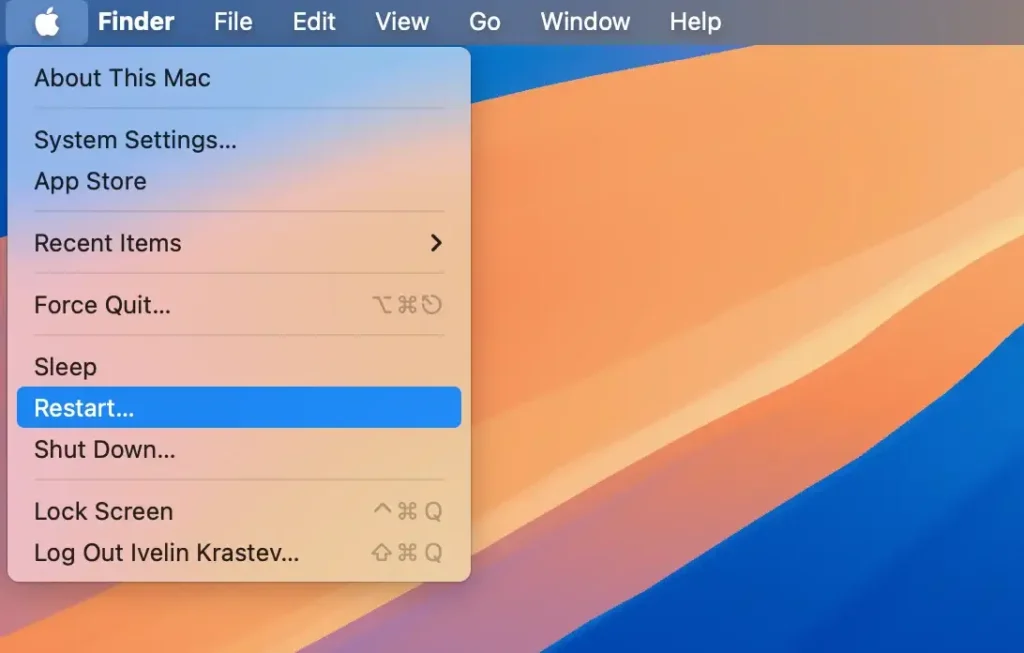
- Click on the Apple menu at the top left corner of your screen.
- Select
Restart. - Wait for your Mac to reboot, and then try connecting your Bluetooth device again.
2. Update your macOS
Keeping your Mac up to date can prevent common issues like Bluetooth problems.
Apple regularly releases macOS software updates that address bugs and improve overall system performance.
Updating your macOS to the latest Sequoia update can resolve existing bugs and improve overall Bluetooth functionality.
To check for updates:
- Open
System Settings. - Click on
General > Software Update. - If there is an update, click
Update Nowto install the latest version of macOS.
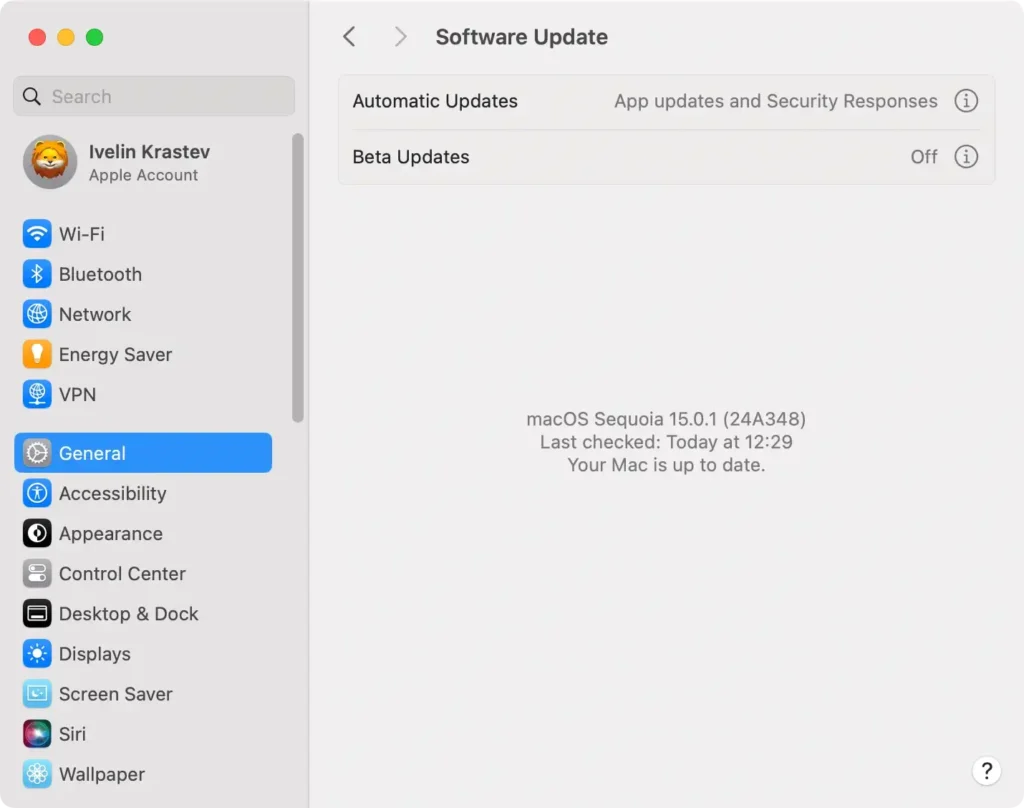
This may be all you need to fix macOS Sequoia issues with Bluetooth.
Tip: If you’re facing other challenges beyond Bluetooth, check out our guide on common macOS Sequoia issues for more troubleshooting tips.
3. Scan your Mac for malware
Malware can cause unexpected performance issues, including problems with your Bluetooth module.
Running a malware scan helps ensure your Mac stays free of threats that may interfere with your Bluetooth devices.
SpyHunter for Mac is a powerful solution for identifying and removing malware.
Here’s how you can download, install, and use it to keep your system safe:
- Download SpyHunter for free here and install it by following the instructions.
- Open SpyHunter and run a full system scan to detect any malware.
- After the scan is completed, review the results and follow the instructions to remove any threats.

- Restart your Mac and check if the Bluetooth connectivity issues are resolved.

SpyHunter helps clear malware that could impact your Mac’s performance, ensuring your Bluetooth works smoothly.
4. Toggle Bluetooth off and on again
Sometimes Bluetooth just needs a quick reset. To do this:
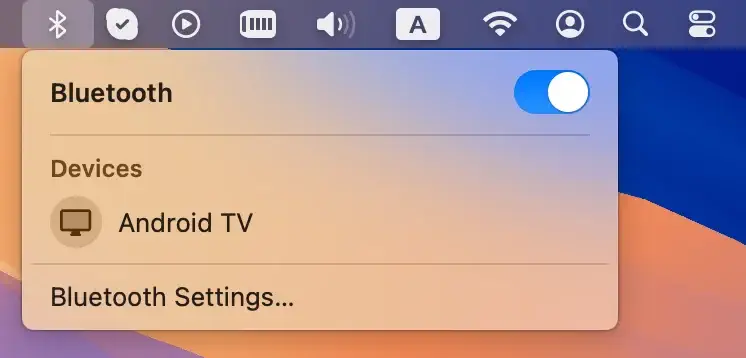
- Click the Bluetooth icon in the menu bar.
- Select
Turn Bluetooth Off. - Wait a few seconds, then turn it back on and attempt to reconnect your device.
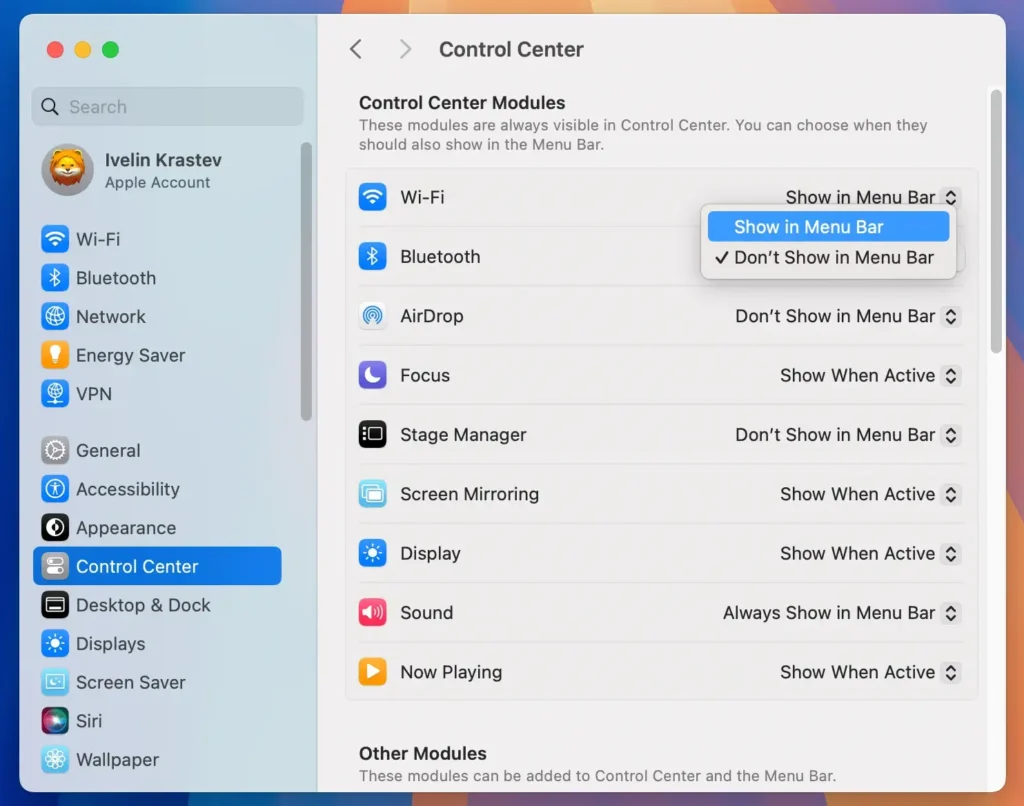
Note: In case the Bluetooth icon is not visible in the menu bar, go to System Settings > Control Center and toggle the switch next to Bluetooth.
This simple step refreshes your Mac’s connection to your devices and may fix connectivity problems.
5. Turn the Bluetooth device off and on
Just like your Mac, the Bluetooth device itself may need a reset.
Turn off your Bluetooth device (whether it’s an Apple mouse, keyboard, or another peripheral) and then turn it back on. Once powered back up, try reconnecting it to your Mac.
This can help fix Bluetooth issues related to the device itself.
6. Unpair and then re-pair the device
If toggling Bluetooth didn’t work, it might help to unpair the problematic device and then re-pair it.
- Go to
System Settings > Bluetooth. - Find the device in question and click the
Forget this devicenext to its name to remove it. - Put the device back in pairing mode and reconnect.
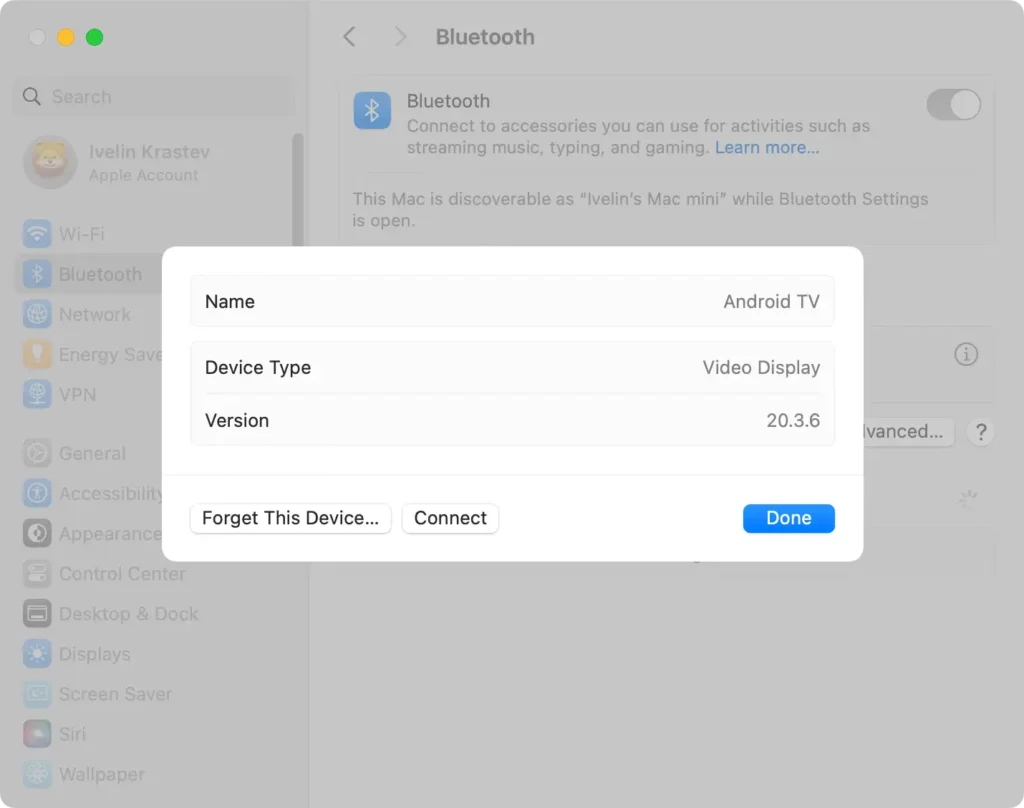
This can refresh the connection and resolve any lingering device issues.
7. Boot your Mac in Safe Mode
Booting in Safe Mode is a great way to troubleshoot system-wide issues, including those related to Bluetooth.
Safe Mode turns off unnecessary processes, giving you a cleaner environment to test your Bluetooth connections.
- Restart your Mac and immediately press and hold the
Shiftkey. - Release the key when you see the login window.
- Test Bluetooth functionality in Safe Mode. If it works, software conflicts might be the cause.
8. Ensure your device is charged
It may seem obvious, but checking if your Bluetooth device has enough battery power is an easy way to avoid connection problems.
Low battery levels can cause intermittent connectivity issues or even prevent your device from connecting altogether. Charge the device fully, and then try reconnecting it to your Mac.
9. Investigate potential interference
Bluetooth operates on a wireless frequency that can be easily disrupted by other devices or even nearby Wi-Fi networks.
Try moving your Mac or Bluetooth device to a different location to see if the connection improves.
Also, make sure there is no physical interference, such as metal objects or walls, between your Mac and the device.
10. Reset your Mac’s Bluetooth module
If all else fails, resetting the Bluetooth module on your Mac may do the trick.
This can help resolve deeper connectivity problems with Bluetooth devices.
- Navigate to
Applications > Utilitiesand open theTerminalapp. - Type the following command in the Terminal window:
sudo pkill bluetoothd
- Press
Enter. - Enter your admin password if requested.
- Restart your Mac.

By following these steps, users can troubleshoot and fix most Bluetooth connectivity issues.
With regular maintenance and tools like SpyHunter, your Mac will stay in top shape, ensuring smooth connections to all your devices.
As a final resort, if none of the previous troubleshooting steps resolve your Bluetooth issues, you may need to reinstall macOS Sequoia. Reinstalling macOS can help fix persistent problems by restoring your system to a clean state without affecting your files. To do this, restart your Mac in Recovery Mode, select Reinstall macOS, and follow the setup process. If you’re still experiencing issues after reinstalling, consider reaching out to Apple Support for further assistance.
