

How To Clean Junk Files On Mac [Easy Guide]

Before we dive in
Before we dive in, let's make sure you stay safe online. We created SpyHunter because your security matters to us.
Protect your computer today — download SpyHunter right here! Check out our top tips below to keep your computer safe and secure.

Do you find your Mac running slower than it used to?
It might be time to clear out the digital clutter. Junk files, from outdated caches to unused language packs, are more than just space hogs; they can significantly impact your Mac’s performance and security.
In this article, we’ll guide you through the why and how of cleaning up these unwanted files, enhancing your Mac’s speed and efficiency. Get ready to give your Mac the breath of fresh air it deserves, ensuring it runs smoothly.
Why should you clean up junk files on your Mac?
Cleaning up junk files on your Mac is more than just a housekeeping task; it’s a necessary step to ensure your computer runs smoothly and efficiently.
Over time, as you use your Mac, it accumulates files that you no longer need — these can include system logs, cache files, app leftovers, and even large, outdated documents or project files.
These unnecessary files take up valuable disk space, which can slow down your Mac’s performance, making tasks take longer than they should. By regularly removing these files, you free up space, which can help your Mac run faster and more efficiently.
Additionally, cleaning up junk files can help prevent system errors and improve the stability of your Mac, making for a better overall user experience.
Moreover, decluttering your Mac can enhance your computer’s security. Some junk files, if left unattended, might harbor malware or expose vulnerabilities that can be exploited by cyber threats.
Regularly removing these files decreases the risk of potential security breaches. In essence, cleaning these files not only boosts your computer’s performance but also acts as a preventative measure against possible security threats.
Identifying the different types of junk files on your Mac
Junk files on your Mac can come in various forms, each taking up unnecessary space and potentially hindering your Mac’s performance.
One common type of junk file is cache files. These are files created by apps and websites to help your Mac load them faster. However, over time, these files can accumulate and take up a considerable amount of space.
Log files are another type, recording system and application activities. While useful for troubleshooting, they can quickly become obsolete and unnecessarily occupy space.
Other junk files include app leftovers, which are remnants of applications you have uninstalled but haven’t been completely removed from your system.
Duplicate files can also clutter your Mac, especially if you have a habit of downloading or creating copies of documents, photos, and other media.
Large, old files that you no longer need can also be considered junk, such as old videos, outdated documents, and unused applications.
Finally, unused language files from apps that support multiple languages can also take up space without offering any benefit to you.
Identifying and removing these files can free up a significant amount of space on your Mac and improve its overall performance.
Top strategies to find and remove junk files from Mac
Keeping your Mac clean of junk files is crucial for its performance and longevity.
Let’s explore the most effective strategies to locate and eliminate these unnecessary files, ensuring your Mac runs smoothly.
- Use built-in storage management tools: macOS comes equipped with tools that can help you identify large files and unused apps. You can find these options under the
About This Macsection, by clicking onStorageand thenManage. This offers a straightforward way to see what’s taking up space and suggests ways to clean it up. - Clean out the cache: Cache files speed up software by storing temporary data, but they can grow out of control. Manually clearing out these files or using a dedicated app can free up space and potentially resolve software hiccups.
- Find and remove duplicate files: Duplicates of documents, photos, and music can take up more space than you might expect.
- Uninstall unused apps: Apps that you no longer use can take up considerable space. Don’t just drag them to the Trash, as that can leave behind associated files. Instead, use an app uninstaller that also cleans out related data, such as the app uninstalled included with SpyHunter.
Can you really improve your Mac’s performance by removing junk files?
Yes, cleaning out junk files from your Mac can significantly improve its performance.
As these unwanted files accumulate, they take up essential storage space and can bog down your Mac’s system, leading to slower boot times, delayed app launching, and sluggish overall performance.
When you delete junk files, you ensure that your Mac has enough free space to operate efficiently, leading to a smoother and faster user experience.
What impact do junk files have on your Mac’s speed and storage?
Junk files can have a more significant impact on your Mac’s speed and storage capacity than you might initially think.
When your Mac’s hard drive becomes cluttered with unnecessary files, its system needs to work harder and longer to locate the files you do need.
This extra effort can cause your Mac to run slower. Moreover, significant chunks of storage space are wasted on data you don’t use or need, limiting the space available for new apps and documents.
The removal of these files not only frees up storage space but also helps in enhancing the overall performance by allowing the system to access and process necessary data more efficiently.
Step-by-step guide to deleting junk files on a Mac manually
Let’s dive into a hands-on approach for tidying up your Mac by manually removing junk files.
This process involves a few easy steps that can significantly enhance your Mac’s performance.
Where to start
Finding and eliminating hidden junk files is the first step towards a cleaner and faster Mac.
Start by checking the Downloads folder, where many unwanted files tend to accumulate over time.
Next, inspect the Library and Application Support folders for any applications you no longer use or need. Often, these locations harbor files that consume unnecessary space.
How to spot and eliminate large and old files
Large and outdated files can take up considerable space on your Mac, slowing it down.
To identify these, use the Finder to search for files by size, focusing on those larger than 100MB. Review these files and delete any that are no longer necessary.
Remember to check for old documents, movies, and music, which can quickly accumulate and occupy valuable storage space.
Proper techniques to clear cache files on a Mac
Cache files, designed to speed up processes, can become burdensome. To clear them:
- Open
Finderand pressShift + Command + G. - Enter
~/Library/Cachesin the dialog box and pressReturn. - Go into each folder and delete its contents. However, you may want to back up these files beforehand, just in case.
Deleting leftover app files
Even after you uninstall an app, it can leave behind residual files. To fully remove these leftovers:
- Navigate to the
~/Library/directory usingFinder. - Look for folders named after the uninstalled apps in
Application Support,Caches, andPreferences, then delete these folders.
This step is vital for reclaiming space and ensuring that unneeded files don’t consume system resources.
Removing duplicate files to free up space
Duplicate files can clutter your system and waste space. To locate and remove these:
- Use the
Smart Foldersfeature inFinderto search for files with similar names, sizes, or dates. - Carefully review the search results for any duplicates and delete them accordingly.
While manual methods work, they can be time-consuming and may miss some duplicates.
In these cases, consider using a specialized tool like SpyHunter, which can help identify and remove not just duplicate files but also malware and unwanted programs, ensuring your Mac stays clean and secure.
Using SpyHunter to keep your Mac clean
Keeping your Mac clean and free of junk files is crucial for its performance and longevity.
While there are many tools available aimed at maintaining the cleanliness and efficiency of your Mac, SpyHunter brings something unique to the table.
SpyHunter is designed to deal with various types of malware that could be slowing down your Mac, in addition to cleaning out unnecessary files.
This dual capability makes it a versatile tool in both maintaining your Mac’s health and ensuring its security.
It’s a common misunderstanding that Macs don’t need malware protection; however, SpyHunter challenges this notion by providing robust defence mechanisms against malware, thus ensuring that your Mac stays clean on all fronts.
- Download the app and install it following the onscreen prompts.
- Launch the app from the icon on your Dock and explore the main menu ribbon to find the options you need for your specific case.
Customizing SpyHunter’s cleanup to your needs
SpyHunter offers several options for unnecessary file cleanup.
First of all, you can use the duplicate file cleaner tool that will scan your Mac and display a list of all identical files. You can then automatically delete all duplicate copies and free up drive space.
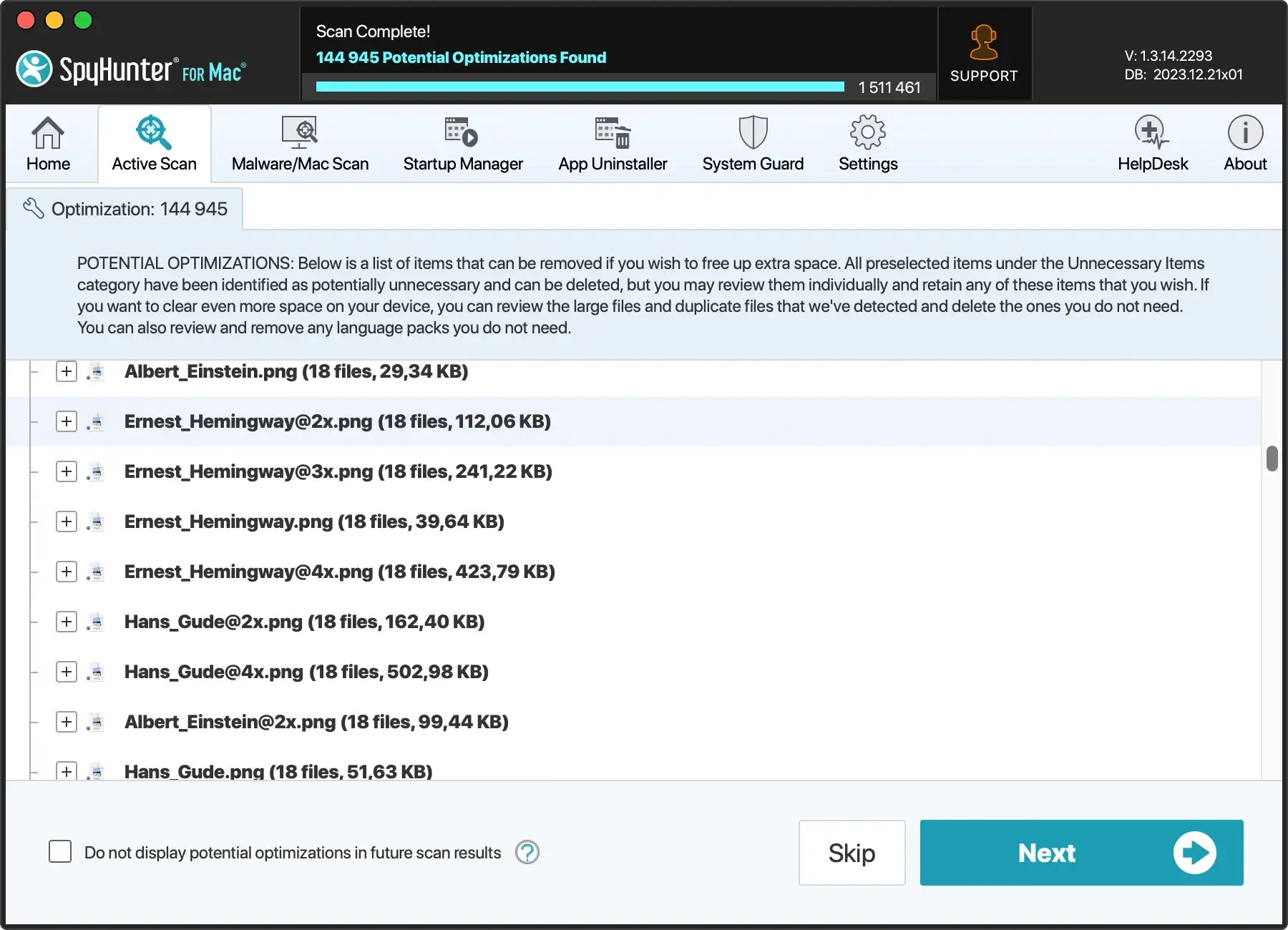
The application can also scan your system for large files and display a list. You can manually select which large files to delete before executing this cleanup task.
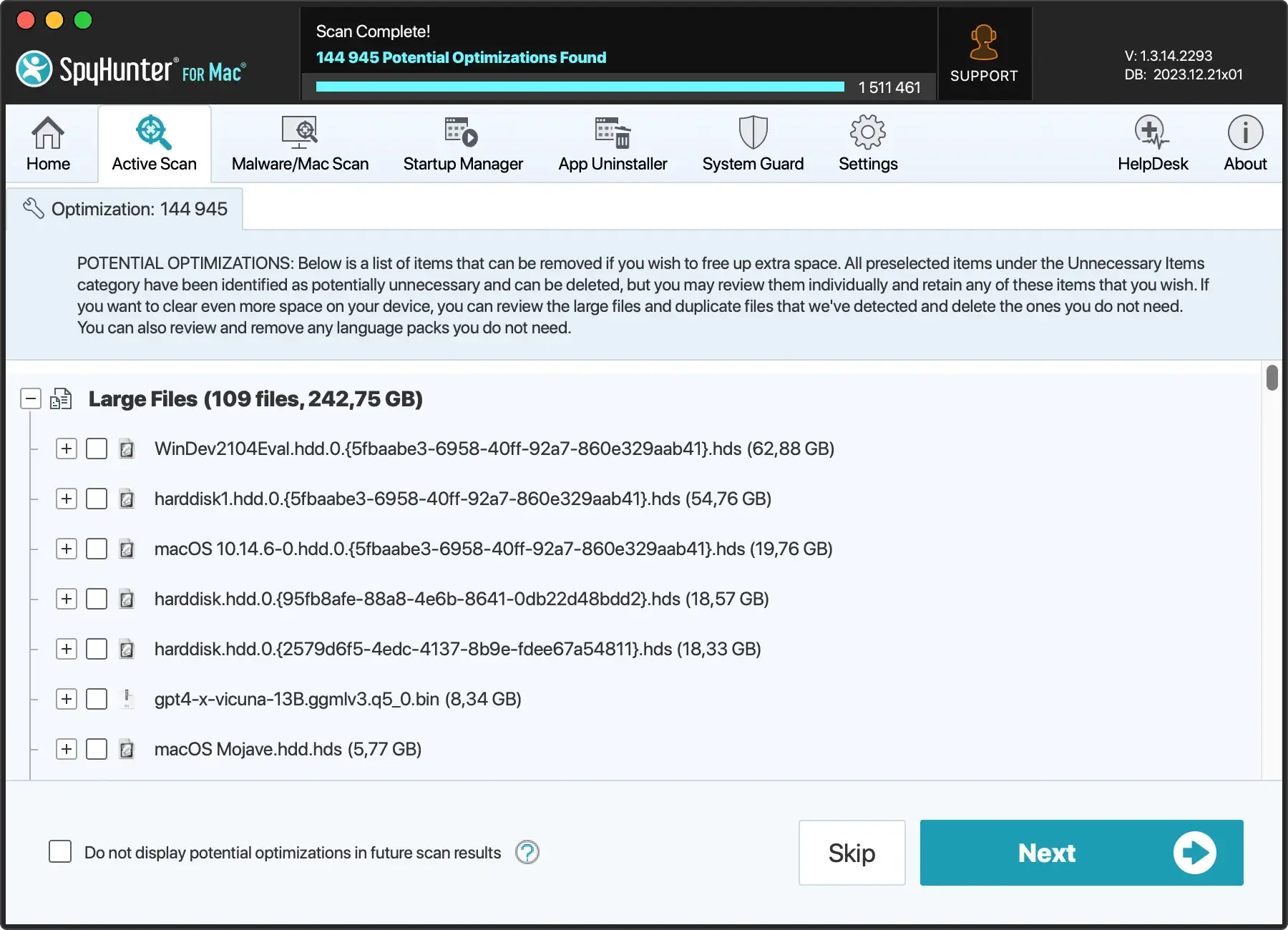
Finally, you can use the optimizations scan that will display a range of potential junk you can clean from your system, with each category of files listed separately, giving you more granularity and choice.
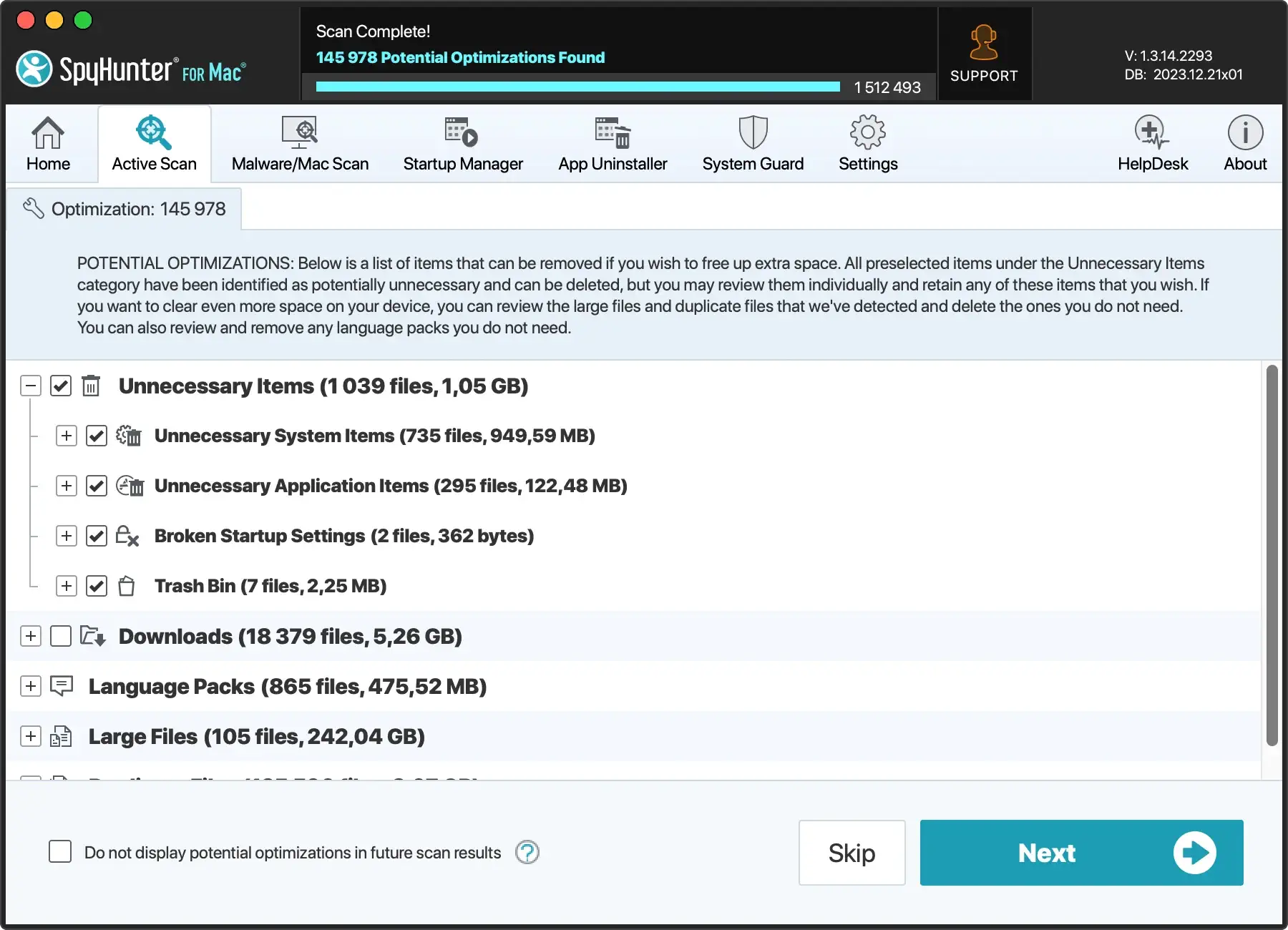
Once you have performed the cleanup that best suits your needs, SpyHunter will give you a summary of the cleanup task performed and you can enjoy the newly freed space on your drives.
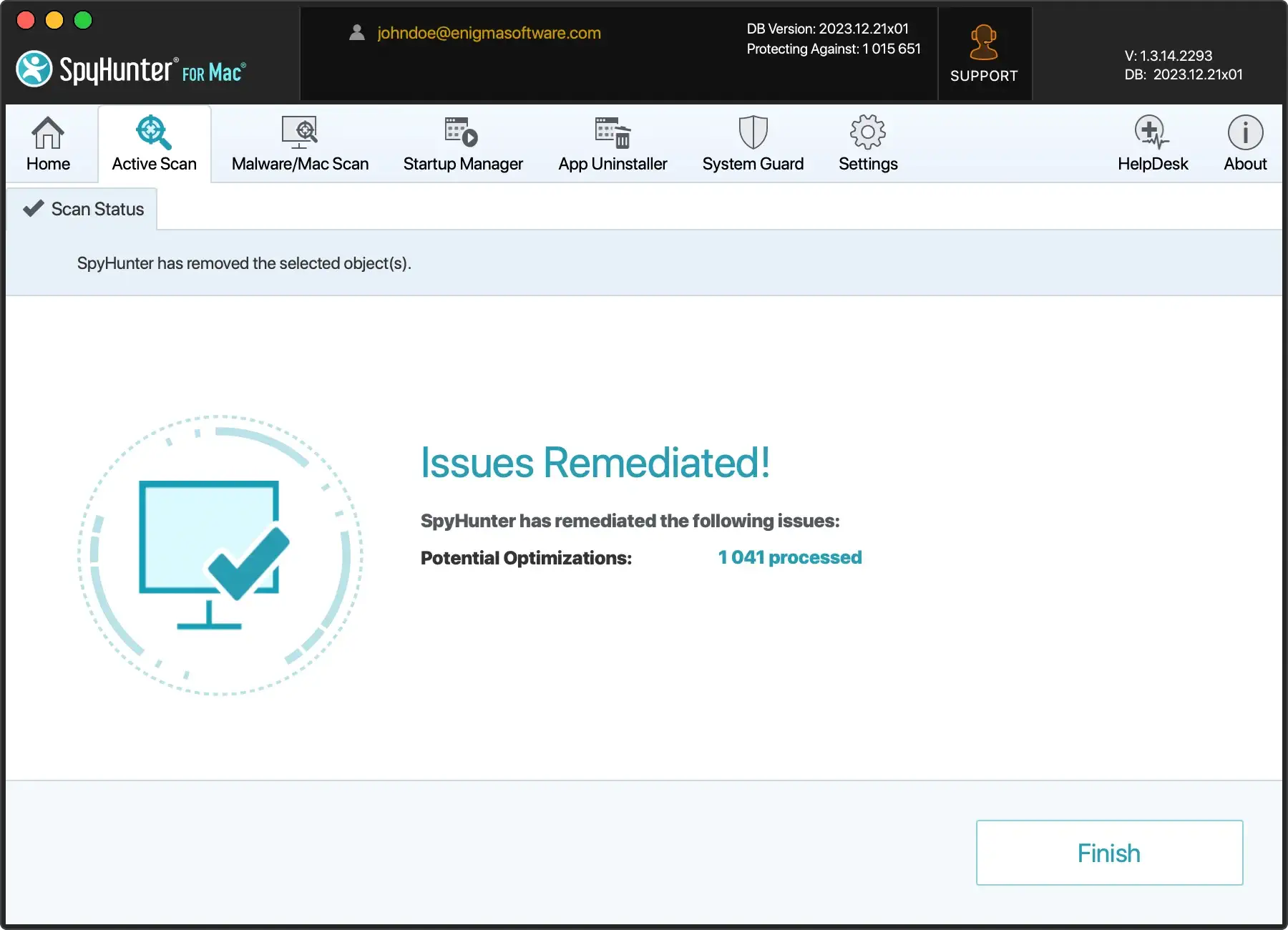
By using SpyHunter’s cleanup tools, you can take control of your Mac’s performance and drive space without having to dive deep into system settings or manually remove files.
SpyHunter’s ease of use, combined with powerful cleaning capabilities, makes it an excellent choice for anyone looking to maintain a healthy Mac environment.
Tips to keep your Mac junk-free
Keeping your Mac clutter-free requires a bit more than occasional cleanups; it involves integrating good habits into your daily use.
This not only helps in maintaining your Mac’s performance but also extends its lifespan by preventing unnecessary wear and tear.
Adopting habits to prevent future junk file accumulation
To avoid a buildup of junk files, start by being mindful of what you download and install. Every new app or download contributes to the files that can eventually become unnecessary or obsolete.
Actively managing your downloads and installations by regularly assessing what you use and removing what you don’t can significantly reduce the accumulation of these files.
- Regular check-ups: Schedule a monthly cleanup to go through your files and apps, removing those you no longer need or use.
- Download wisely: Think twice before downloading anything new. Ask yourself if you really need it or if it will end up unused after a few weeks.
- Streamline your apps: Keep only the apps you use regularly. For the ones you use less frequently, consider alternatives that take up less space or can be accessed online.
By incorporating these simple habits and checks into your routine, you can take significant steps toward keeping your Mac running smoothly and staying free of junk files.
FAQ on cleaning Mac junk files
Is it safe to remove all junk files found on your Mac?
Yes, generally, it is safe to remove junk files from your Mac.
Junk files include temporary files, system cache, app cache, and other files that are created as part of normal operations but are not necessary for your Mac to function.
However, it’s important to approach cleaning with caution to avoid deleting files crucial for system and applications to work properly.
Can removing junk files affect installed applications?
Generally, removing junk files should not affect installed applications if done correctly.
Junk files are typically files that are no longer in use or needed by your Mac or any applications.
However, caution is needed when identifying what to delete. Accidentally removing important files can lead to application errors or system stability issues.
It’s advisable to use trusted cleaning software like SpyHunter, which is designed to identify and remove only unnecessary junk files, ensuring your applications and system continue to run smoothly.
