

“Your System Has Run Out Of Application Memory” [Mac Guide]

Before we dive in
Before we dive in, let's make sure you stay safe online. We created SpyHunter because your security matters to us.
Protect your computer today — download SpyHunter right here! Check out our top tips below to keep your computer safe and secure.

Ever faced the dreaded “Your system has run out of application memory” alert on your Mac?
It can be a real headache, slowing down your computer or even causing it to freeze. This common issue arises when your Mac’s RAM and additional swap space are overwhelmed by too many active processes.
In this article, we’ll dive into what triggers this memory overload, from multitasking with heavy apps to simply having too many browser tabs open.
We’ll also explore practical steps you can take to manage your Mac’s memory better, keep it running smoothly, and avoid these frustrations.
What triggers “Your system has run out of application memory” on Mac?
The error message “Your system has run out of application memory” on Mac occurs when your computer’s RAM (Random Access Memory) and swap space become insufficient to handle all the active processes.
There are several common triggers for this issue:
- Disk space: macOS uses swap files to manage memory. If your hard drive is nearly full, there’s not enough space to create swap files, leading to the error.
- Multitasking: Running multiple applications simultaneously puts heavy demand on RAM, especially if they are resource-intensive apps.
- Browser overload: Keeping many browser tabs open or using numerous browser extensions can consume a significant amount of memory.
- Memory-intensive apps: Certain applications, like video editing or graphic design software, require a lot of memory which can quickly deplete available resources.

This error can significantly impact your Mac’s performance, leading to slowed down processes or, in worst-case scenarios, causing the system to freeze.
Understanding application memory on Mac
Application memory on Mac involves RAM and virtual memory, working together to support the operation of applications and system processes. Here’s a simplified explanation:
- RAM: This is the primary storage your Mac uses to run applications and processes. It’s fast but limited in capacity.
- Virtual memory: When RAM is full, macOS uses your boot drive to create virtual memory (or swap files). This allows the system to continue operating by moving data between the RAM and the hard drive.
Keeping your Mac’s memory from being overloaded involves regular maintenance like closing unneeded apps and clearing unnecessary data stored on your hard drive.
Monitoring and managing these can help avoid the “system has run out of application memory” error and keep your Mac running smoothly.
How can you check your Mac’s application memory?
Checking your Mac’s application memory is essential for maintaining optimal performance and understanding how apps utilize system resources.
The built-in tool for this task is the Activity Monitor, which provides comprehensive details about memory usage.
To access Activity Monitor, navigate through Finder > Applications > Utilities and launch Activity Monitor. Select the Memory tab to view a list of all processes and the amount of memory they’re consuming.

Key information to observe includes App Memory, which shows the memory used by applications, and the Memory Pressure graph, which indicates if the system is running low on memory based on color-coded feedback.
Using Activity Monitor to monitor memory usage
Using Activity Monitor is straightforward and provides real-time insight into your Mac’s memory usage.
Open Activity Monitor from Applications > Utilities. In the Memory tab, you’ll see various items including Wired Memory, Compressed, and Swap Used.
Close any application or stop processes that consume significant memory by selecting the process and clicking the X button to help manage and optimize your Mac’s RAM effectively.
Regular checks can prevent memory overflow issues and keep your Mac running smoothly.
Using SpyHunter to eliminate memory issues caused by malware
While a lot of the time, memory issues are caused by more mundane reasons such as too many open browser tabs, malware is another big factor in modern Mac computers running out of memory.
Malicious applications and potentially unwanted software can be real hardware hogs and strain both your processor and memory without making their presence visible in any other way.
In such cases, SpyHunter can help you by detecting and eliminating the malware on your Mac and restoring it to good working order.
You can download the app for free here and follow the visual instructions to install it.
Once installed, launch SpyHunter and perform a full system scan. After a short time, you will see a list of any threats discovered on your Mac.

Use the app’s interface to select and remove any threats detected and deal with any potential malware that is quietly eating up system memory.

Step-by-step guide to resolve memory shortage on Mac
Restart your Mac to refresh system memory
One of the simplest yet most effective ways to manage system memory issues on your Mac is by restarting it.
This clears the cache and other temporary files, effectively freeing up resources that may have been overutilized or stuck due to system errors.
This action should be your first go-to method when experiencing any form of lag or memory alert.
Quit applications you’re not actively using
Open applications can consume a significant amount of memory.
Proactively managing your memory usage involves closing any applications that are not in use. This can prevent system slowdowns and reduce the likelihood of running into memory errors.
To force quit applications, go to Activity Monitor via Applications > Utilities and manually close programs that are taking up an unnecessary amount of memory.
Clear up your disk space for better performance
Having insufficient disk space on your Mac can affect overall performance, leading to memory shortage errors. Ideally, maintain at least 10% of your disk space free.
This not only helps in improving performance but also in managing application and system memory more efficiently.
If you’re struggling to clear disk space manually, consider using tools like SpyHunter that offer system junk removal and optimization features.
Reduce the number of open browser tabs
Modern web browsing can place a heavy load on your system’s memory due to media-rich content such as videos, images, and scripts running in the background.
To help manage memory better, limit the number of concurrently open browser tabs.
This can significantly reduce memory strain and prevent the “Your system has run out of application memory” error.
Consider uninstalling rarely used applications
Review and uninstall applications that you rarely use or no longer need. Each application, especially those that start automatically on login, can consume a portion of your memory, cumulatively leading to memory shortage.
Removing these applications can free up memory, enabling better performance for daily tasks and essential applications.
Adjust Finder preferences to use less memory
The Finder application can also impact memory usage. Optimize Finder’s settings by reducing the number of preview features enabled and minimizing window animations. Go to Finder Preferences and adjust to economize on memory usage, tailoring it more towards functionality rather than aesthetic appeal.
Preventing future memory issues on your Mac
To prevent memory issues on your Mac, establish a routine that includes consistent software updates and system maintenance. This proactive approach can help manage the memory more efficiently and extend your computer’s lifecycle.
Regular updates and system maintenance tips
Keeping your macOS updated is crucial for ensuring all components are running the latest software, which often includes patches for bugs that can affect memory usage. To check for updates:
- Open the Apple menu
- Select
About This Mac - Click on
Software Update
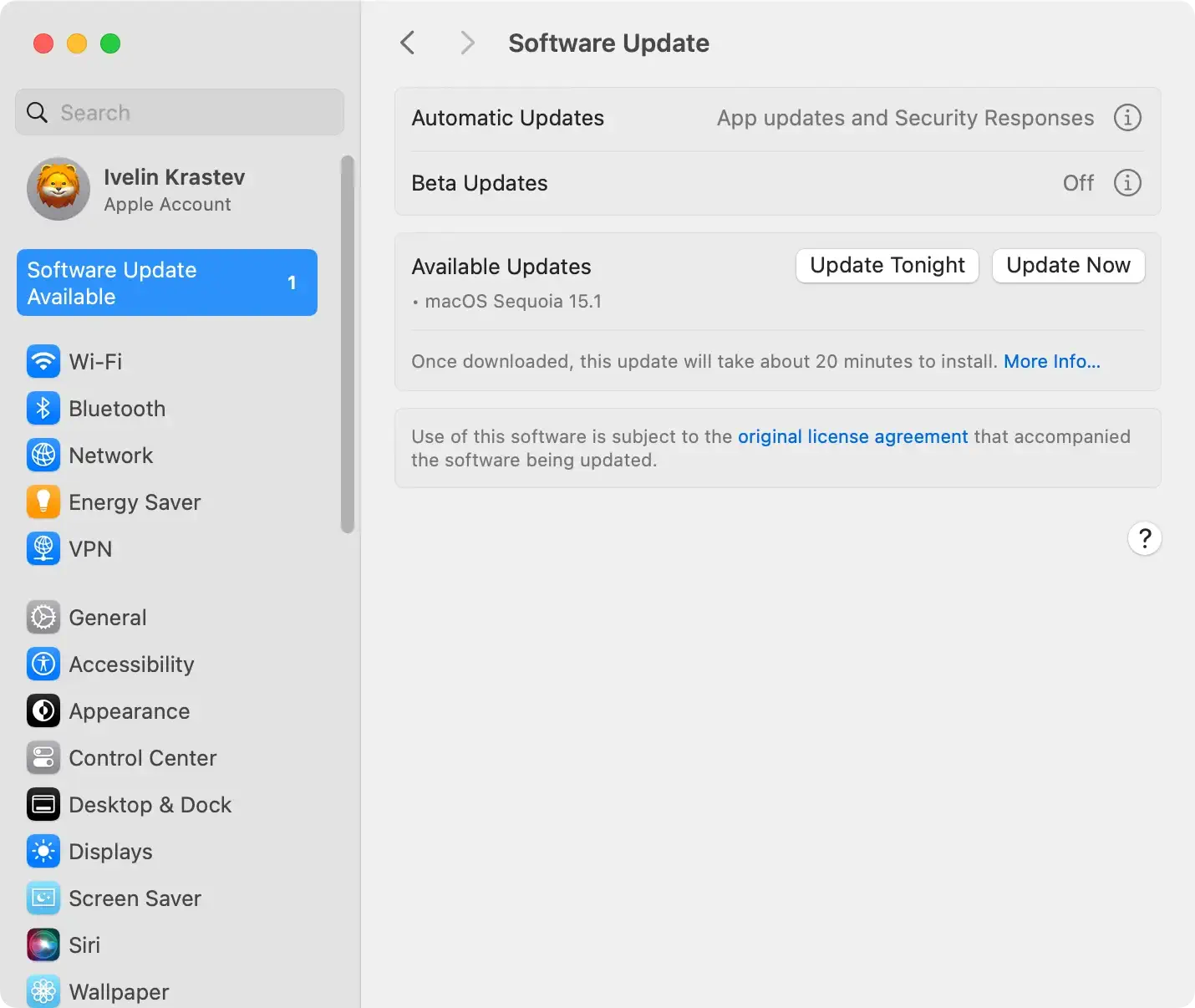
- Follow the on-screen instructions to install any available updates.
Upgrade your RAM or switch to SSD for enhanced performance
If you find your Mac struggling with memory issues frequently, consider upgrading the RAM.
More RAM allows your Mac to handle more applications simultaneously and reduces reliance on virtual memory.
If your model supports it, switching from a traditional hard drive to an SSD can also significantly boost performance, as SSDs have faster read-write speeds.
How often should you restart your Mac to keep it smooth?
Restarting your Mac regularly can significantly impact its performance by freeing up memory and closing unused applications.
As a general rule, aim to restart your Mac at least once a week. This routine helps to maintain optimal performance and prevents the slowdown typically caused by prolonged system uptime.
