

Mac “Rp2 Quit Unexpectedly” Alert [Quick Removal Guide]

Before we dive in
Before we dive in, let's make sure you stay safe online. We created SpyHunter because your security matters to us.
Protect your computer today — download SpyHunter right here! Check out our top tips below to keep your computer safe and secure.

Have you ever encountered an "rp2 quit unexpectedly" alert on your Mac and wondered what it meant for your system’s security and performance?
This warning is a telltale sign that a potentially unwanted application (PUA), known as rp2, might be compromising your device.
Rp2 often infiltrates systems without consent, designed to mimic legitimate software, leading to unwanted ads, slowdowns, and privacy breaches.
In this article, we delve into the origins, impacts, and removal of rp2 alerts from macOS, providing you with a comprehensive guide to safeguarding your device from such intrusive software.
Whether you’re dealing with current rp2 issues or aiming to protect your Mac from future threats, our insights and step-by-step solutions will help you maintain a clean, efficient, and secure system.
What is the Mac “rp2 quit unexpectedly” alert?
The Mac "rp2 quit unexpectedly" alert is a warning that users may encounter on their macOS systems, indicating an issue with a potentially unwanted application (PUA) known as rp2. This alert typically appears when your Mac detects abnormal behavior or threats posed by this application.
The rp2 app often masquerades as legitimate software but can disrupt your computer’s normal operations, leading to unexpected shutdowns or performance issues.
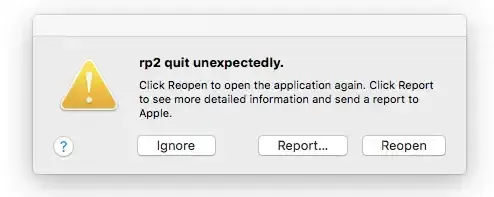
Understanding the nature of this alert is the first step in addressing the potential security and usability concerns it raises.
How the “rp2 quit unexpectedly” alert impacts your Mac
The appearance of the "rp2 quit unexpectedly" alert on your Mac is more than just a nuisance; it’s a sign that your system’s integrity may be at risk.
This alert signifies that the rp2 application could be performing various harmful activities, such as:
- Displaying incessant advertisements that disrupt your browsing experience.
- Causing unexpected redirects to suspicious websites, potentially exposing you to further malware.
- Slowing down your system by consuming significant resources.
- Collecting personal information without consent poses a risk to your privacy.
Furthermore, the rp2 alert impacts your Mac’s overall performance and security, leading to a degraded user experience.
Identifying and promptly removing the alert’s source can help restore your system’s functionality and safeguard your personal information from potential threats.
Identify if your Mac is affected by rp2
Understanding whether your Mac has been compromised by the rp2 virus is crucial for maintaining your digital hygiene.
The rp2 virus is known for its adware characteristics, which means your device might exhibit several symptoms indicating its presence.
Recognizing these signs early can help you swiftly mitigate any potential harm to your system and personal data.
Common signs of a rp2 compromise
If you suspect your Mac might be affected by rp2, there are common indicators to watch out for.
An immediate red flag is a significant increase in the number of pop-up ads and unexpected redirects while browsing the internet.
These ads are often intrusive, covering the content you’re trying to view and redirecting you to other websites without your consent.
Another symptom to be aware of is your Mac’s performance. If your device has become noticeably slower or suffers from frequent application crashes, it could be due to the unwanted software burdening your system’s resources.
Additionally, if new applications or toolbars that you don’t remember installing appear on your device, this could also suggest that the rp2 adware has made its way onto your Mac.
Checking your Mac for rp2: a step-by-step guide
To confirm the presence of rp2 on your Mac and take the necessary steps for removal, follow this straightforward guide:
- Check your Applications folder: Navigate to your
Applicationsfolder to look for any programs you don’t recall installing. Unfamiliar applications may have been installed alongside the rp2 adware. - Review your browser extensions: Adware like rp2 often installs unwanted extensions to your web browser. Check the extensions or add-ons list in your browser settings and remove any that seem suspicious or unfamiliar.
- Monitor system performance: Use your Mac’s
Activity Monitorcheck for any unusual activity or processes consuming excessive system resources. High CPU or memory usage by unknown applications could indicate malicious activity. - Conduct a malware scan: Use reliable anti-malware software, such as SpyHunter for Mac, to perform a comprehensive system scan. It can detect and remove hidden files associated with the rp2 adware, ensuring your system is clean.
- Examine login items: Go to
System Preferences>Users & Groups, and then click on your username. Check theLogin Itemstab for any applications you don’t recognize. If you find any, select them and click the minus (-) button to remove them from startup.
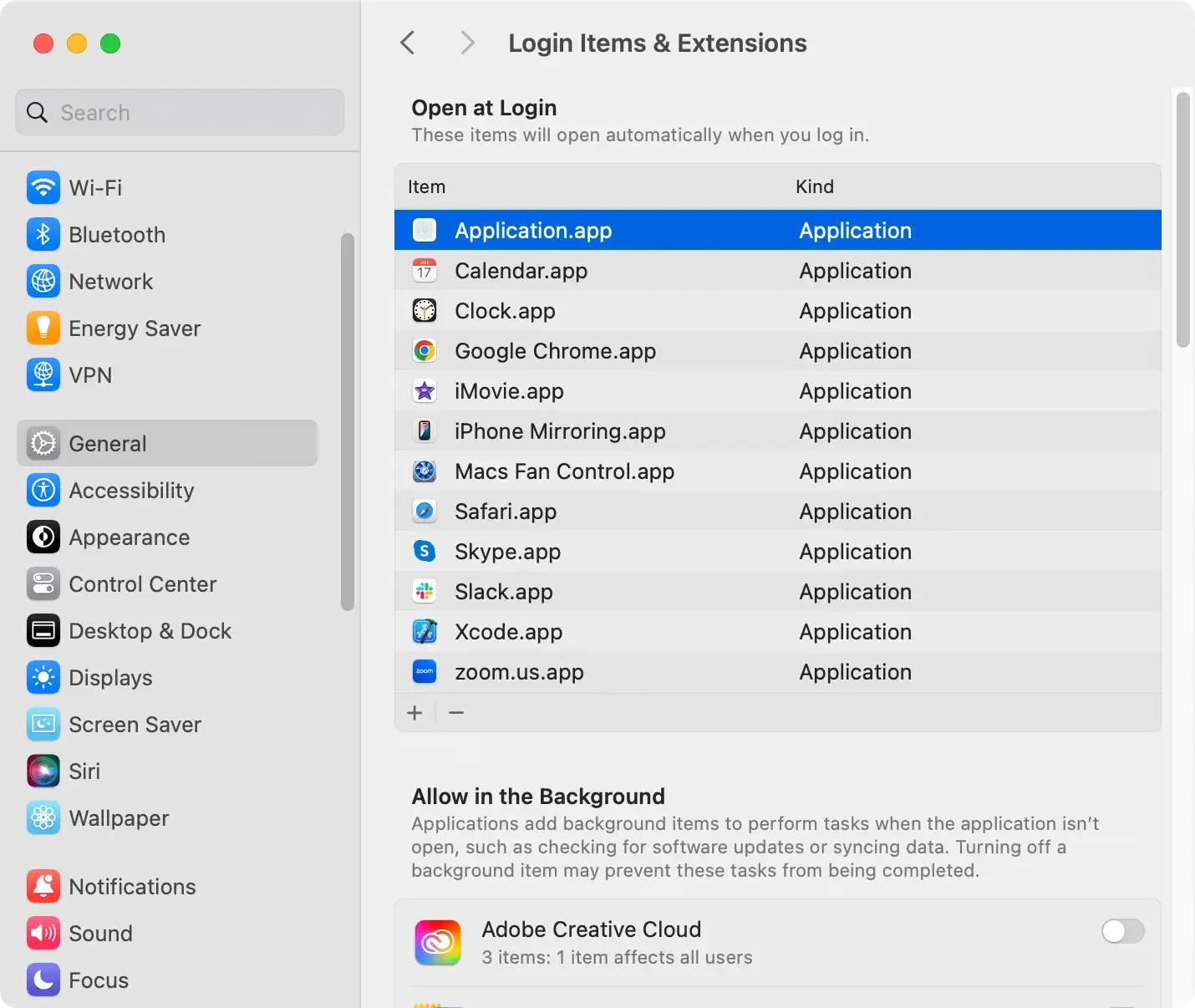
Following these steps diligently should help you identify if your Mac is compromised by the rp2 virus.
Early detection and removal are key to maintaining system integrity and protecting your personal information from potential exploitation.
Step-by-step rp2 removal guide
Dealing with unwanted software like rp2 on your Mac can be frustrating and challenging.
However, with a systematic approach, you can remove rp2 and enhance your system’s security.
This guide will walk you through the process of rp2 removal, ensuring that your Mac gets cleaned up effectively. We will cover everything from preparation to the use of specialized software to ensure that rp2 is fully eradicated from your system.
Step 1: Locate and close active rp2 processes
The first step involves identifying and terminating active rp2 processes that are running on your Mac. To do this, follow these instructions:
- Open
"Utilities"by pressing the ⇧+⌘+U keys simultaneously or navigating throughFinder>Go>Utilities. - Launch
"Activity Monitor"and look for any processes related to rp2. - If you find any, select them and click on the
"Force Quit"button to stop them from running.
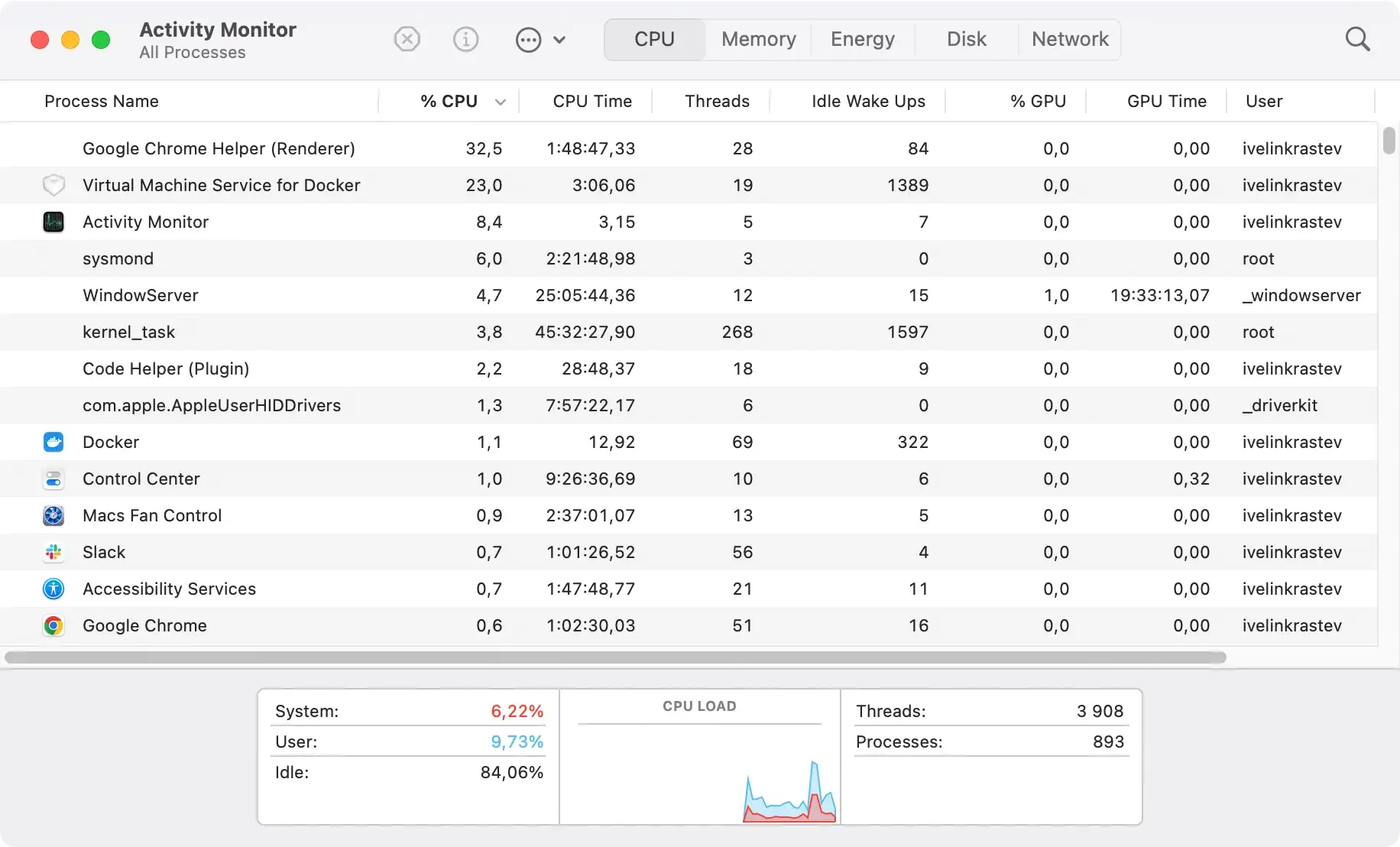
This step is essential to prevent rp2 from interfering with the removal process.
Step 2: Uninstall rp2 and related files
After stopping rp2 processes, the next step is to uninstall the program and remove related files from your Mac. Here’s what you need to do:
- Go to Finder and open the
"Applications"folder. - Search for any applications related to rp2. If you find any, right-click on them and choose
"Move to Trash."

- To remove leftover files, go to
Finder>Go, and enter the following paths one by one, removing any related files you find:/Library/Application Support//Library/LaunchAgents/~/Library/LaunchAgents/
- Empty your Trash to permanently remove the files.
This ensures that all components of rp2, including hidden files, are removed from your system.
Step 3: Use SpyHunter to detect and remove rp2 files
For a thorough cleanup and future protection, using a reliable anti-malware tool like SpyHunter for Mac is recommended.
SpyHunter can scan your system for any traces of rp2 and other malicious software that manual removal may have missed. Here’s how to use it:
- Download SpyHunter from here and install it on your Mac.
- Run a system scan to detect any Rp2 files and other malicious entities.

- Follow the prompts to remove any detected threats, ensuring your Mac remains secure.

SpyHunter not only helps remove rp2 but also offers real-time protection against future threats, keeping your Mac safe.
By following this step-by-step guide, you can remove the rp2 malware from your Mac and take decisive steps to protect it from future infections. Remember, regular scans and staying aware of the software you download can significantly reduce the risk of malware infections.
What to do after removing rp2?
Upon successful removal of the rp2 adware from your Mac, it’s crucial to take the necessary steps to restore your system to its pre-infection state and monitor it for any potential threats that might emerge in the future.
These proactive measures can significantly enhance your Mac’s resilience against malware and ensure a safer browsing experience.
Restoring your system to its pre-infection state
After eradicating the rp2 virus, restoring your Mac’s system to its original condition is vital.
This process involves checking for any changes the adware might have made to your settings and fixing them. Here’s how to go about it:
- Check your homepage and search engine settings: Adware often alters these settings. Make sure to revert any changes to your preferred homepage and search engine.
- Review installed applications: Go through your Applications folder. If you find any unknown software installed when you notice the rp2 infection, consider removing it.
- Examine browser extensions: Sometimes, adware installs malicious browser extensions. Remove any extensions that you did not willingly download or that seem suspicious.
- Update your software: Ensure all your applications, especially your browser and operating system, are up to date. This helps fix vulnerabilities that malware might exploit.
Restoring these elements can restore your system to normalcy and prevent similar threats in the future.
Monitoring your Mac for potential threats
Continuous vigilance is key to protecting your Mac from future infections. Here are steps you can take to keep potential threats at bay:
- Use reputable antivirus software: Keeping SpyHunter or a similar trusted anti-malware solution active on your Mac ensures continuous monitoring and protection against malware.
- Perform regular scans: Schedule regular scans with your antivirus software to detect and remove any threats early.
- Stay informed: Keep abreast of the latest malware threats targeting Macs. Awareness can help you avoid common pitfalls.
- Practice safe browsing habits: To reduce the risk of adware and malware infections, avoid downloading software from unverified sources and clicking on unknown links or pop-up ads.
Following these post-removal steps ensures that your Mac remains secure, minimizes the risk of future infections, and maintains your system’s integrity and performance.
Final thoughts on handling Mac rp2 alerts
Dealing with the rp2 virus on your Mac can be challenging, but with the correct approach, it’s entirely manageable.
The key to effectively addressing this issue is understanding that quick and decisive action can significantly mitigate the impacts of this adware.
By following a comprehensive removal process, such as the one suggested with the use of security software like SpyHunter for Mac, you can ensure that your system is not only cleared of rp2 but also better protected against future threats.
It’s crucial to remember that the digital safety environment constantly evolves, with threats becoming more sophisticated over time.
Therefore, maintaining your Mac’s security isn’t a one-time task but a continuous process of vigilance and regular scans. Utilizing SpyHunter for Mac can simplify this task by automating scans and updates, ensuring that your defenses are always up-to-date.
