

Remove MyPrivateSearch Redirect From Mac (Complete Guide)

Before we dive in
Before we dive in, let's make sure you stay safe online. We created SpyHunter because your security matters to us.
Protect your computer today — download SpyHunter right here! Check out our top tips below to keep your computer safe and secure.

MyPrivateSearch.com, bundled with freely downloadable software from the internet, operates as a browser hijacker.
Upon installation, this hijacker alters your web browser’s homepage and search engine to myprivatesearch.com.
Follow the specific steps in this guide to remove MyPrivateSearch and eliminate any remnants associated with this browser hijacker.
Introduction to MyPrivateSearch
The Private Search browser hijacker, specifically the MyPrivateSearch adware, is a rogue software often categorized as a potentially unwanted program (PUP) due to its malicious behavior.
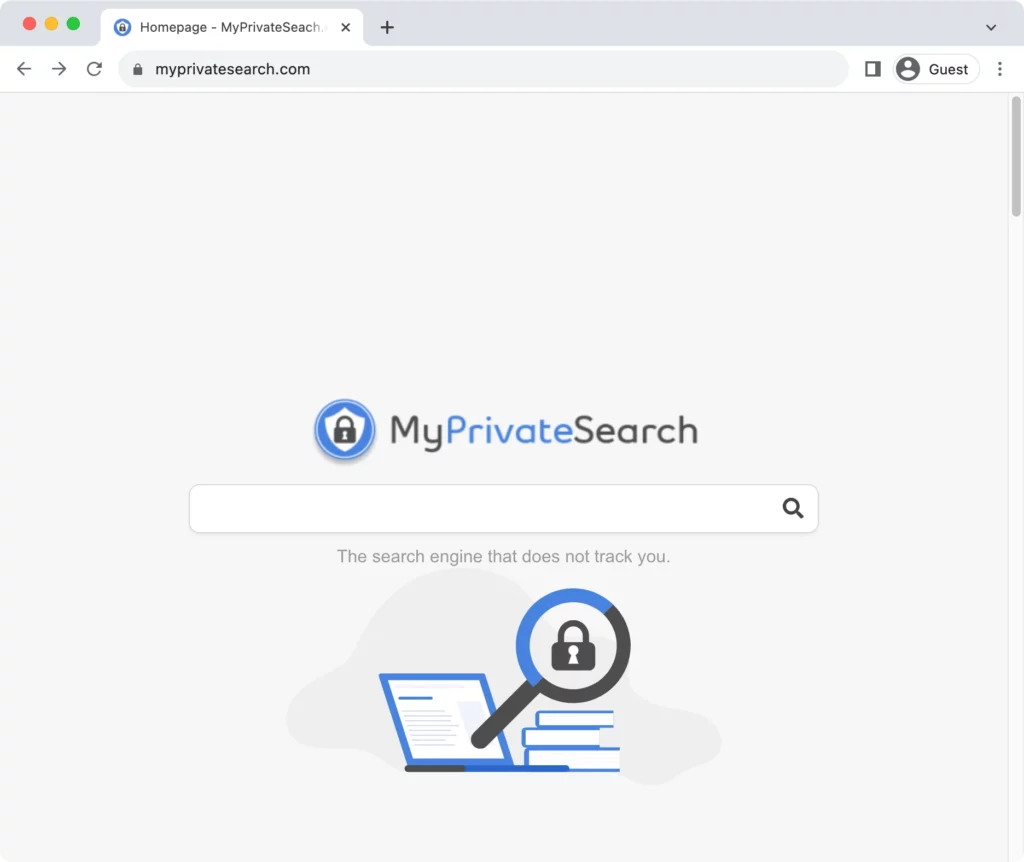
Once installed on a user’s computer, it alters the browser settings, such as the default search engine, homepage, and new tab URL.
The main goal of this browser hijacker is to redirect users to myprivatesearch.com, a fake search engine.
Besides the significant disruption for the user, this malware can also bring an array of privacy issues, including data tracking and sharing.
Overview of MyPrivateSearch
MyPrivateSearch presents itself as a legitimate and convenient search engine. However, it is far from being a reliable tool.
Instead of providing organic search results, the platform redirects users to various sponsored websites, some of which may carry potential risks.
The purpose behind these constant redirects is to boost the traffic on those websites and thereby generate advertisement revenue.
Distribution methods
The MyPrivateSearch browser hijacker primarily uses deceptive methods for distribution, such as “software bundling.”
This tactic involves embedding the software within another program’s installation process. Unwary users may accidentally install the browser hijacker while installing a different software without noticing.
Downloading software from unofficial or unauthorized sources further increases the risk of running into such unwanted programs.
Integration with popular browsers
The MyPrivateSearch malware can integrate with popular web browsers, including Google Chrome, Safari, Mozilla Firefox, and Internet Explorer.
Once installed, it may change the existing settings, embed additional ads, and promote the use of the fake search engine.
How MyPrivateSearch affects users
The MyPrivateSearch malware significantly interferes with the user’s online activities by modifying browser settings and tracking browsing activities, involving severe data tracking issues.
The overall user experience is disrupted, and personal data may be jeopardized.
Unwanted browser changes
One of the earliest and most noticeable effects of the MyPrivateSearch adware is the unwanted alteration of crucial browser settings.
Such changes include setting MyPrivateSearch.com as the browser’s home page, default search engine, or new tab page.
Often, users cannot reverse these changes, as the malware reinstalls itself after each removal attempt, hindering an everyday browsing experience.
Tracking of browsing activities
MyPrivateSearch is designed to track users’ search queries, visited websites, and other interactions made in the browser.
Disguised as a helpful tool, it collects browsing habits and utilizes the captured data to display targeted advertisements and sponsored links.
Unfortunately, this makes the user a victim of unwanted ads and potentially risky redirects.
Issues with data tracking
While the invasion of personal privacy is a prominent issue with the MyPrivateSearch hijacker, more severe consequences exist.
The browser hijacker collects search history, IP addresses, ISP specifics, browser data, and hardware details. The gathered information falls into the wrong hands, creating a severe risk of data misuse.
Furthermore, this activity can slow the internet connection and decrease the performance of the infected device.
Similarities with other fake search engines
Deceptive presentation
MyPrivateSearch malware resembles other deceptive search engines by masquerading as legitimate and reliable search platforms. These fake engines employ visual designs that mimic trustworthy counterparts, enticing unsuspecting users to engage with their seemingly reliable services.
Unauthorized browser modifications
Like its counterparts, MyPrivateSearch alters users’ browser settings without their consent to pursue deceptive practices.
This includes modifications to the default search engine, homepage, and new tab URLs.
These unauthorized changes can disrupt the user’s browsing experience, often proving challenging to reverse due to the persistent nature of these programs.
Profit-driven manipulation
The overarching objective of these tricky search engines, including MyPrivateSearch, is profit generation through manipulating online traffic.
These platforms derive income from user clicks and website visits by redirecting users to sponsored websites or inundating them with excessive advertisements.
Privacy invasion through tracking
Another alarming commonality is the invasive tracking of user browsing activities by fake search engines. MyPrivateSearch, like its look-alikes, monitors and collects data on users’ online habits.
This aggregated data produces targeted advertisements or may even be sold to third-party servers, raising significant privacy concerns for users.
Regardless of their unique names or superficial appearances, these fake search engines exhibit the same invasive behaviors, posing considerable threats to user privacy and secure browsing.
How to remove MyPrivateSearch
MyPrivateSearch malware is a threat to both your browsing experience and personal data. However, its removal and prevention are possible.
Below, we offer a comprehensive guide on removing the existing hijacker and preventing future infections.
Please perform all the steps in the correct sequence, and if you ever have doubts or questions, don’t hesitate to ask for assistance.
Delete malicious profiles from your Mac
- Access System Settings: Open the Apple menu in the top-left corner of your screen and select
System Settings - Locate Profiles: Look for the
Profilesicon in the settings window. If you see it, click on it. No configuration profiles are installed if there’s no such icon.

- Identify suspicious profiles: Review the list of installed configuration profiles and identify ones that look suspicious or that you didn’t install.

- Remove suspicious profiles: To remove a profile, select it and click the “Minus” (-) button, usually located at the bottom of the profiles list.
- Confirm the removal: A confirmation dialog will appear. Confirm that you want to remove the selected profile by providing your administrative password.
- Restart your Mac: After removing the profiles, it’s a good practice to restart your Mac to ensure the changes take effect.
Additional Tips
- Regularly check your System Settings for unfamiliar config profiles.
- Be cautious when installing software and avoid granting unnecessary permissions to apps.
- Keep your macOS and security software up to date to benefit from the latest security patches.
Remove MyPrivateSearch from Applications
One step to remove MyPrivateSearch from your system is to analyze the Applications folder on your Mac and systematically eliminate any potential remnants.
Follow these step-by-step instructions to locate and remove harmful applications associated with MyPrivateSearch:

- Navigate to the
Applicationsfolder on your Mac. - Look for any unfamiliar or suspicious applications that you did not knowingly install.
- Right-click on the identified suspicious applications and select
Move to Trashfrom the contextual menu. - Empty the Trash to delete the applications permanently.
Remove suspicious apps automatically
- Download SpyHunter for free here, install it, and run the App Uninstaller, allowing it to scan your system for applications and their related files and folders.
- Select the applications you wish to delete and instruct SpyHunter to uninstall them.

Remove MyPrivateSearch from browsers
Browser hijackers like MyPrivateSearch can significantly disrupt your online experience, altering settings and redirecting you without consent. To restore control and remove MyPrivateSearch, follow these step-by-step instructions tailored to popular browsers:
For Safari:
- Open Safari and click on Safari in the top menu
- Choose
Preferences > Extensions - Locate the MyPrivateSearch extension and click
Uninstall - Go to the
Generaltab to set your preferred homepage - Check the
Searchtab to ensure your desired engine is selected
For Google Chrome:
- Launch Chrome and click the three-dot menu.
- Select
More tools > Extensions - Find the MyPrivateSearch extension and click
Remove - Ensure that
Settings > Open a specific pageis selected
For Mozilla Firefox:
- Open Firefox and click the three-line menu
- Choose
Add-ons > Extensions - Locate MyPrivateSearch and click
Remove - Go to
Options > Hometo set your preferences
After these steps, clear browsing data to eliminate any remnants of MyPrivateSearch. Restart your browsers for a hijacker-free experience.
Regularly monitor extensions to prevent future intrusions and ensure secure browsing.
Use SpyHunter for Mac to remove MyPrivateSearch
To remove MyPrivateSearch and any other potentially unwanted software, it’s advised to use a reliable anti-malware tool.
An optimal choice would be SpyHunter. It’s a reliable software that helps eliminate malware and other unwanted programs.
Here are the steps to help you download, install, and run a scan with SpyHunter for Mac:

- Download SpyHunter from here and follow the installation instructions provided by the installer.
- Once installed, the app will initiate an automatic scan to detect any malware or potentially unwanted programs on your Mac.
- Follow SpyHunter’s prompts to quickly and efficiently quarantine the threats.

Reset browsers back to default settings
If signs of myprivatesearch.com linger after successfully removing MyPrivateSearch from your device, take decisive action to reset your browser.
Simplify the process for commonly used browsers.
The following detailed steps cater to widely used browsers like Safari, Chrome, and Firefox on your Mac, offering a comprehensive approach to eradicating the hijacker’s influence:
For Safari:
- Open Safari and go to
Preferences - Navigate to the
Privacytab and clear website data - Check the
Show Develop menuin theAdvancedtab - From the
Developmenu, chooseEmpty Caches - Return to “Safari” and select
Reset Safari
For Google Chrome:
- Launch Chrome and go to
Settings - Under
AdvancedchooseRestore settings to their original defaults - Confirm the action by clicking
Reset settings
For Mozilla Firefox:
- Open Firefox and go to
Troubleshooting Information - Click
Refresh Firefoxin the upper-right corner - Confirm the action in the pop-up window
This streamlined approach ensures the removal of hijacker modifications, restoring default settings, and stopping unwanted alterations.
How to prevent browser hijackers like MyPrivateSearch
Preventing browser hijackers, such as MyPrivateSearch, requires a proactive approach to safeguard your online experience.
Follow these guidelines to minimize the risk of infection and maintain control over your browser settings:
Exercise caution during software installation
Be vigilant when installing new software. Opt for the custom or advanced installation option to have more control over the process.
De-select any additional software or browser extensions that are unfamiliar or unnecessary to avoid unintentional installations.
Update and maintain robust security software
Ensure that your antivirus and anti-malware software is up-to-date. Regularly update your security tools to defend against the latest threats, including browser hijackers.
Consider using reputable security software like SpyHunter for Mac to provide additional protection. Download SpyHunter and protect your Mac.

Stay informed about common scams
Educate yourself about common online scams, particularly phishing attempts. Be cautious of unsolicited emails, especially those urging you to click on links or download attachments.
Verify the legitimacy of emails before taking any actions to prevent falling victim to deceptive schemes.
By incorporating these preventive measures into your online habits, you can significantly reduce the risk of browser hijackers like MyPrivateSearch affecting your browsing experience and compromising your privacy.
