

How To Fix Error 102 On Mac (Full Guide)

Before we dive in
Before we dive in, let's make sure you stay safe online. We created SpyHunter because your security matters to us.
Protect your computer today — download SpyHunter right here! Check out our top tips below to keep your computer safe and secure.

Are you seeing Error 102 on your Mac while trying to update macOS or apps? This error can be frustrating, as it disrupts the update process and may even affect your Mac’s performance.
Whether it’s an app or a system update, encountering error 102 usually signals a problem that needs your attention.
In this guide, I’ll explain Error 102 and why it occurs, and I’ll walk you through practical solutions to fix it.
Let’s dive in to resolve Error 102 and get your Mac running smoothly.
What is error 102 on Mac?
Error 102 is a common issue on Mac that appears when updating macOS or individual apps.
This error essentially means that the update cannot be completed due to a problem in the system or app.
When error 102 occurs, you might see messages like:
An error occurred while downloading the updates (102)The operation couldn’t be completed. (NSURLErrorDomain error -1102)(102)Could not connect to the server. Error code 102The operation can't be completed. An unexpected error occurred (error code 102)
Error 102 alerts you to problems that prevent your Mac from updating correctly, potentially stemming from corrupted files, network issues, or system errors.
Why does error 102 occur on Mac?
Error 102 can happen for several different reasons. Here are some of the common factors that lead to Error 102 on Mac:
- Glitches or minor system bugs can trigger error 102 during updates.
- Preference files, or .plist files, store app settings. If they become corrupted, they can block updates and cause errors.
- Some apps may conflict with macOS updates, especially if they are outdated.
- Incorrect or damaged disk permissions can prevent updates from installing correctly.
- Poor connectivity may interrupt the operating system update process and lead to error codes.
- Malware or other unwanted software on your Mac can interfere with updates, blocking installation and causing error messages.
Tip: We have an additional Mac error code guide that you can check, which covers a wide range of other common errors that your system can run into.
How to fix error 102 on Mac?
Encountering error 102 on your Mac can be frustrating, but following these clear steps can help resolve the issue.
Here’s how to fix error 102 efficiently, using a combination of simple fixes and slightly advanced troubleshooting steps.
1. Check your network connection
A stable internet connection is crucial for updates to proceed without interruptions.
The simplest solution is to ensure you have a strong connection:
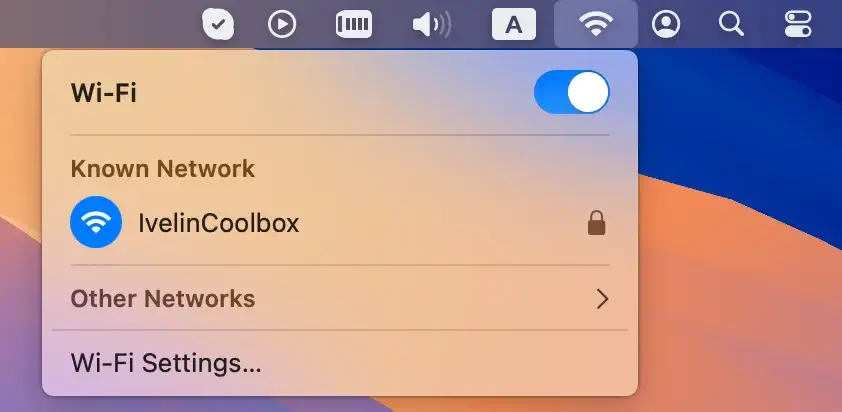
- Click the Wi-Fi icon in the menu bar and make sure your Wi-Fi is turned on and connected.
- If your connection seems weak, try restarting your router or connecting to a different network.
2. Restart your Mac
Temporary system errors can cause Error 102 on Mac. Restarting the Mac can refresh the system’s memory and eliminate temporary bugs.
- Click the Apple menu.
- Select
Restartand wait for the Mac to reboot.
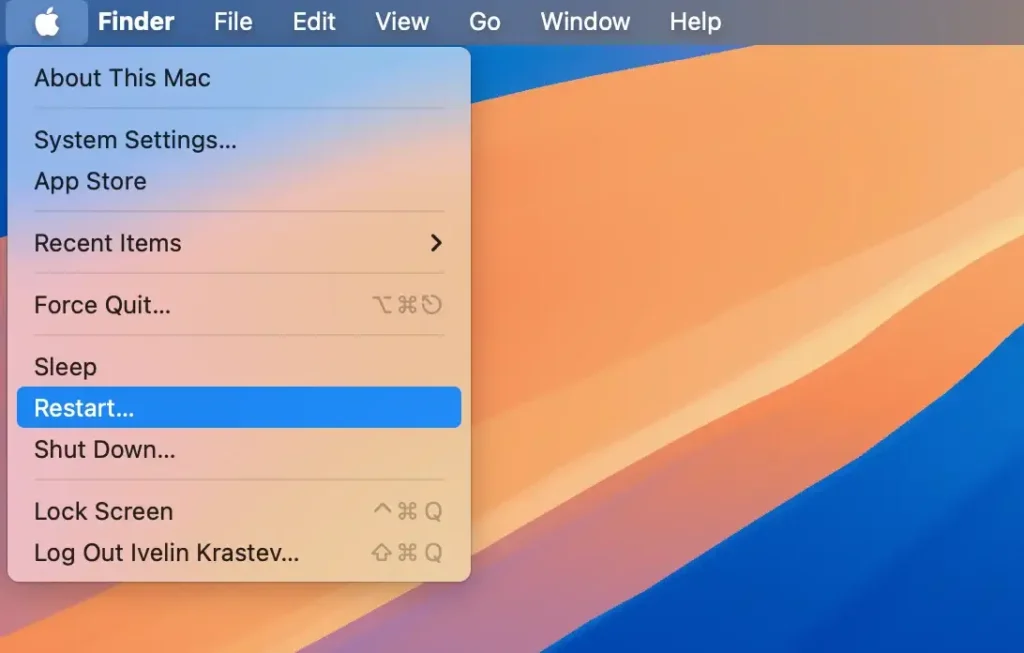
This action refreshes your system and may resolve minor update issues.
3. Scan your Mac for malware
Malware can be a hidden cause of error 102, as malicious software may interfere with app updates and system functionality.
SpyHunter for Mac is designed to detect and remove malware, adware, and other potentially unwanted programs that can compromise your Mac’s security and performance.
It performs a deep scan of your system to uncover hidden threats and offers easy removal options. Here’s how to use SpyHunter for Mac to scan for malware:
- Download the app for free here and install it on your computer.
- Launch SpyHunter and run a system scan to detect malware that could be causing Error 102.
- Examine the list of detected threats displayed after the scan.

- Follow the prompts to fix detected issues.
- Reboot your Mac if prompted to finish the cleanup.

Using SpyHunter ensures that your Mac is free of harmful programs that might be causing Error 102 and helps maintain optimal performance over time.
4. Update macOS and apps
Outdated software can lead to Error 102, as certain app versions or macOS builds may encounter software incompatibility issues.
Here’s how to update macOS and your apps:
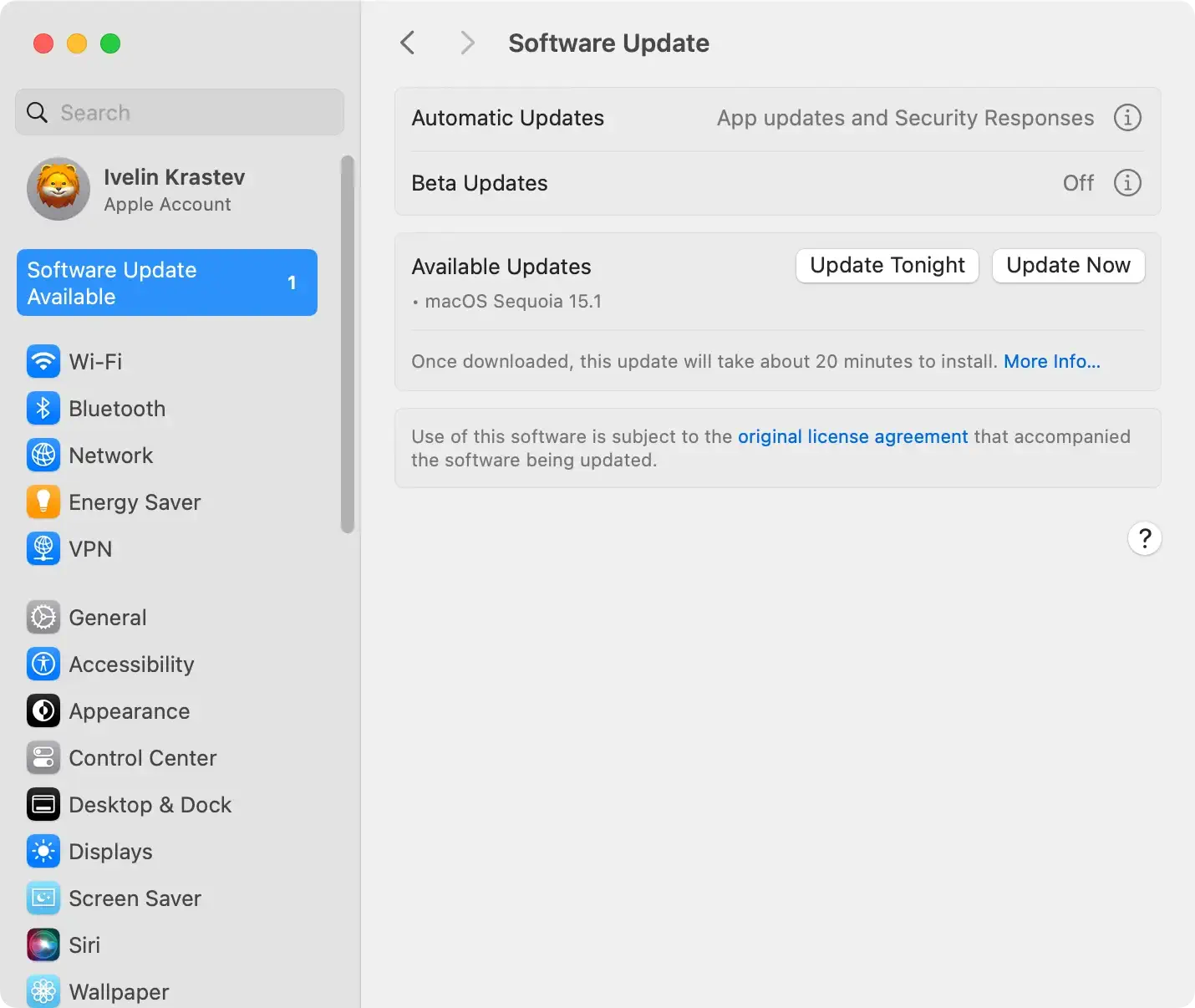
- Click on the Apple menu in the top-left corner of your screen and select
System Settings. - Choose
Software Updatefrom the available options. - If a macOS update is available, click
Update Nowto install it.
- Now, open the App Store from your Dock or
Applicationsfolder. - In the App Store, click on
Updatesin the left sidebar. - If updates are available, click
Updatenext to each app, or chooseUpdate Allto update all apps at once.
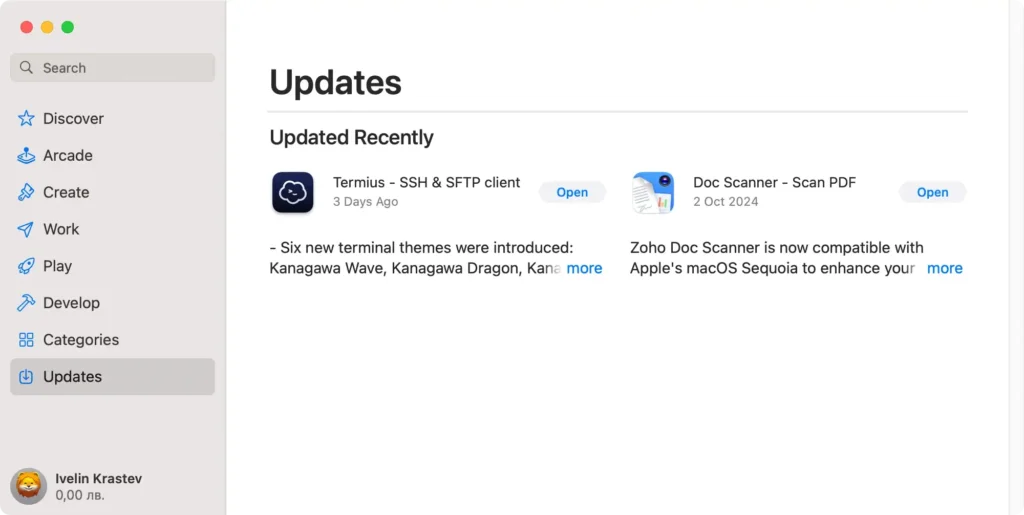
For apps downloaded from the web, open each app and open the app menu at the top-left corner of the screen. Click the Check for Updates option. Follow the prompts to install any available updates.
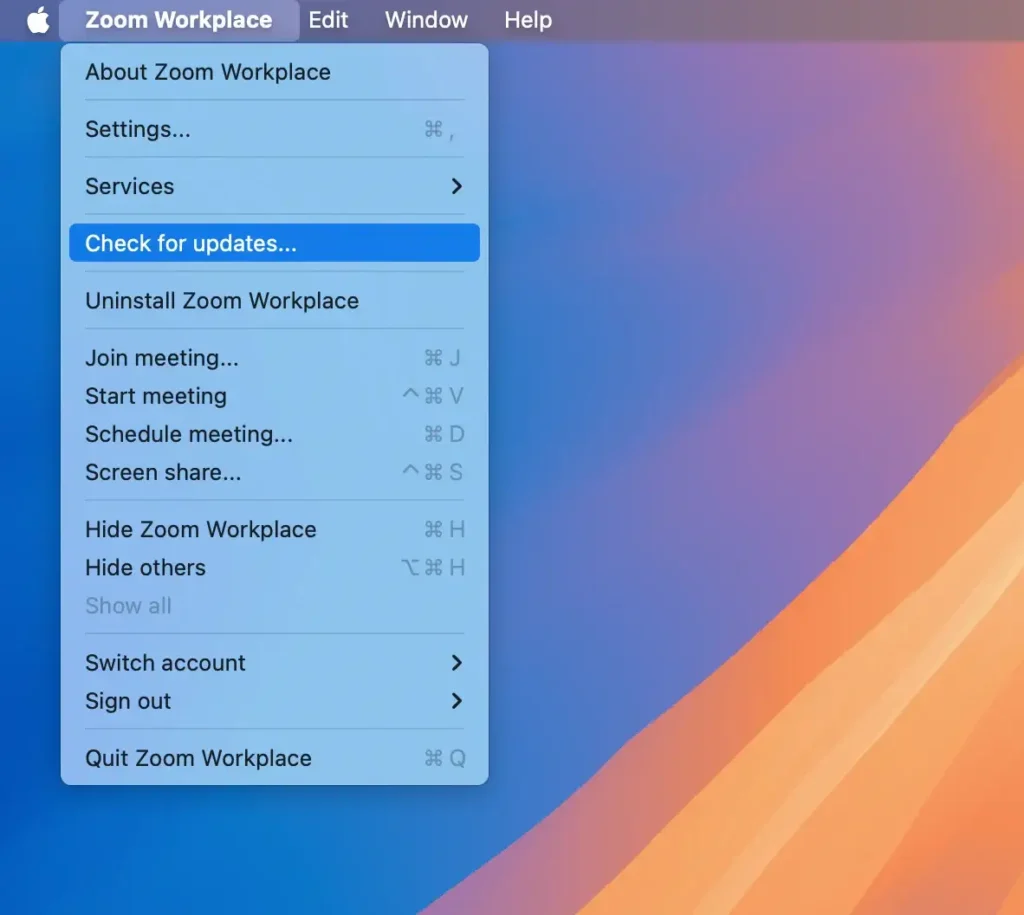
This can help pinpoint any problematic apps and resolve software conflicts that might be causing Error 102.
5. Delete cache files
Cache files can accumulate over time and interfere with your Mac’s performance. Removing them can help resolve Error 102.
- Open
Finder. - Select
Gofrom the menu, then chooseGo to Folder. - Type
~/Library/Cachesand pressEnter. - Select all files in this folder and move them to the
Trash. - Empty the Trash to delete the cache files permanently.
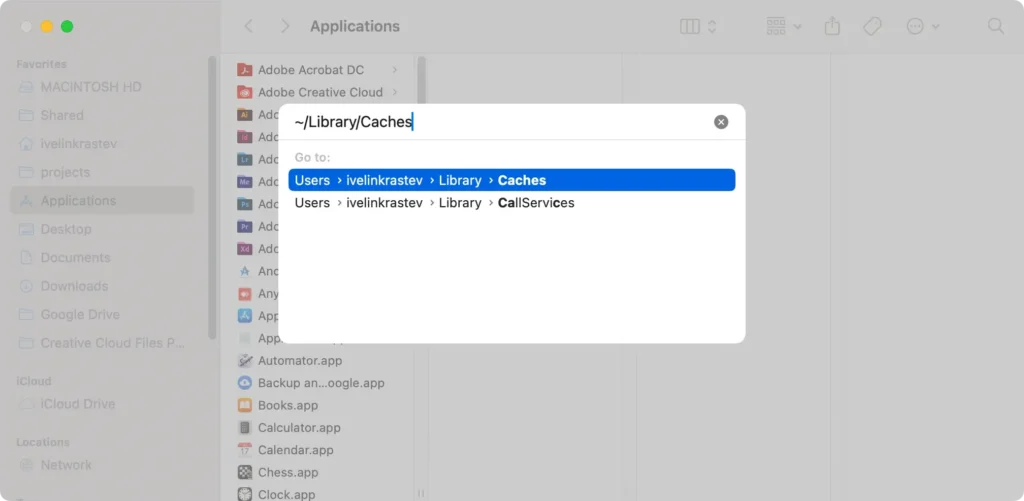
Note: Junk and cache files should be regularly cleaned to maintain optimal performance. This will also help free up storage space on your Mac.
6. Delete preference files
Corrupted preference files can prevent your Mac from updating properly. Here’s how to delete them:
- In Finder, click
Go > Go to Folder. - Type
~/Library/Preferencesand pressEnter. - Once in the Preferences folder, look for files related to the problematic app (e.g.,
com.apple.[AppName].plist) - Move them to the Trash.
Deleting corrupted preference files can clear corrupted data that may cause the 102 error message.
7. Disable startup items
Startup items can run in the background and may cause errors during updates.
- Open
System Settingsand go toGeneral. - Scroll through the list and choose
Login Items & Extensions. - Select any unnecessary startup items and click the “-” button to remove them.
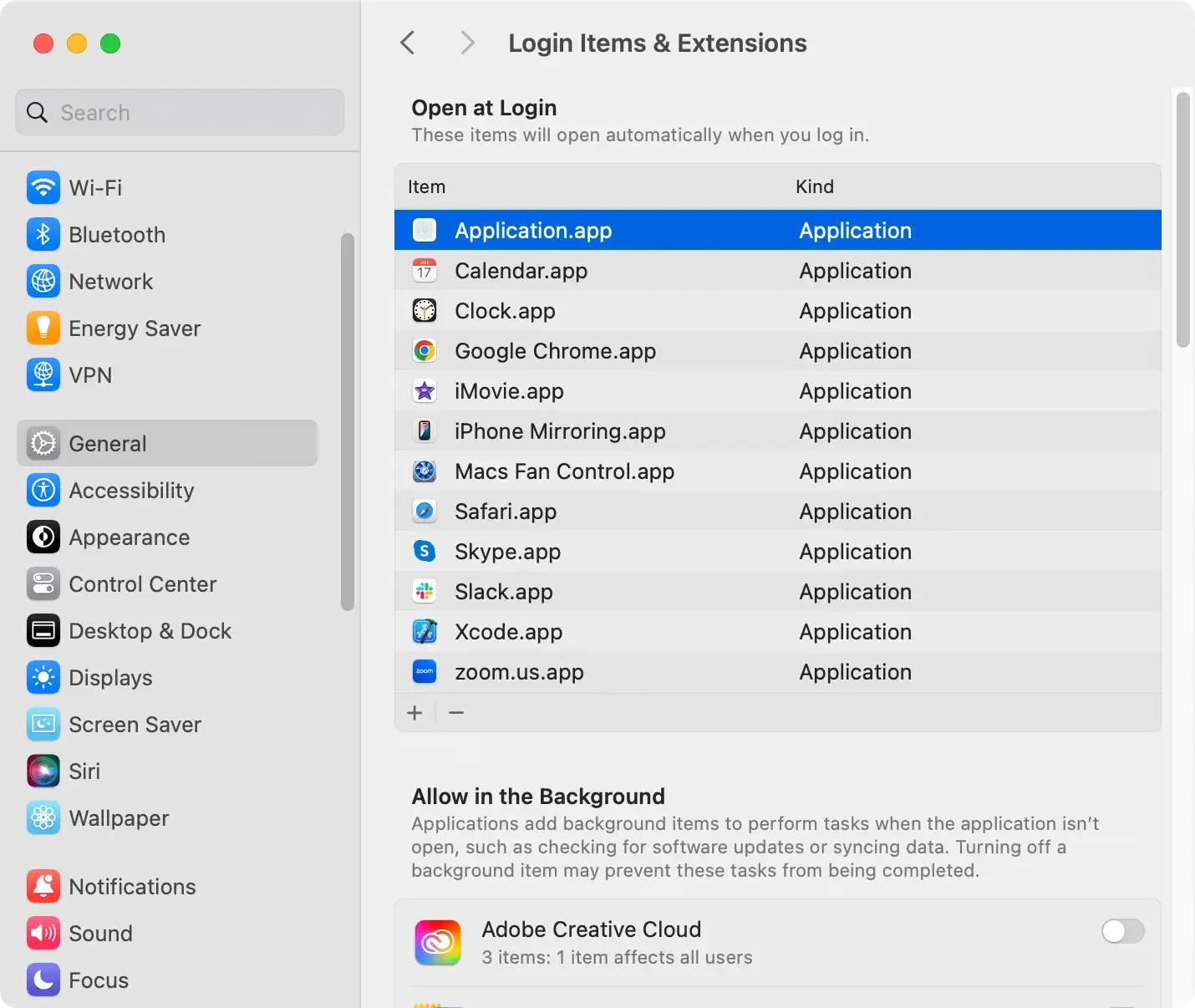
This action prevents background processes from interfering with updates.
8. Repair disk permissions
Improper disk permissions can block updates and cause Error 102. Disk Utility can help fix this.
- Open
Disk UtilityfromApplications > Utilities. - Select your startup disk and click
First Aid. - Click
Runand wait for Disk Utility to repair permissions.
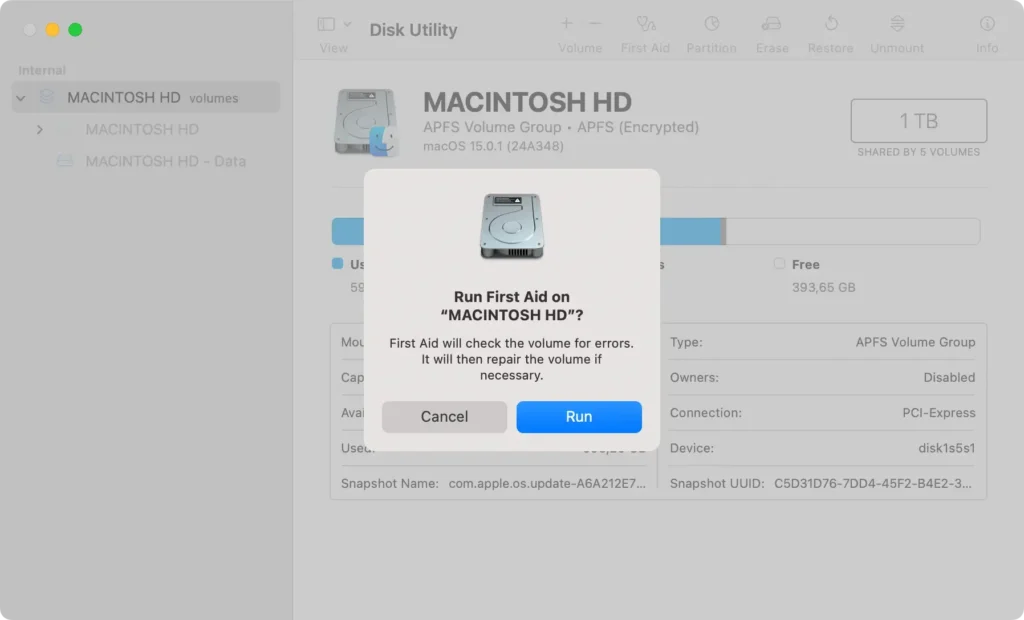
This process ensures the correct permissions are in place, which may resolve the 102 Mac error.
9. Reset PRAM/NVRAM
PRAM (Parameter RAM) and NVRAM (Non-Volatile RAM) store system settings that can sometimes cause system errors.
- Shut down your Mac.
- Press
Command + Option + P + Ras you restart. - Release the keys when you hear the second startup sound or see the Apple logo appear and disappear twice.
10. Boot into Safe Mode
Safe Mode disables non-essential software, helping identify software-related issues.
- Restart your Mac while holding down the
Shiftkey. - Release the
Shiftkey when you see the login screen. - Try updating your macOS or app again.
If the 102 Mac error doesn’t appear in Safe Mode, a third-party app may be the cause.
11. Reinstall macOS in Recovery Mode
If Error 102 persists, the final solution is to reinstall macOS. This will refresh the operating system without affecting your files.
- Restart your Mac and hold
Command + Ras it boots to enter the Mac Recovery Mode. - Select
Reinstall macOSfrom the macOS Utilities window. - Follow the on-screen instructions to complete the reinstallation.
These steps can help fix Error 102 on your Mac, allowing you to update apps and macOS successfully.
Final words
Encountering Error 102 on your Mac can be frustrating, but with the right steps, you can resolve it and maintain a smooth-running system.
These solutions target the common causes behind this error, from clearing out old cache files to updating macOS and removing problematic apps.
Remember, keeping your software up to date and scanning for malware are essential habits to prevent similar issues in the future.
If the error persists, a complete macOS reinstall may be the most effective way to achieve a fresh start.
With these steps, you’ll have a better-performing Mac and a hassle-free experience.
