

How To Remove Omegle.onl Virus On Mac (Full Guide)

Before we dive in
Before we dive in, let's make sure you stay safe online. We created SpyHunter because your security matters to us.
Protect your computer today — download SpyHunter right here! Check out our top tips below to keep your computer safe and secure.

Ever found yourself redirected to a whole different webpage when all you did was click a seemingly harmless link? This could be triggered by browser hijackers like Omegle.onl.
Often mistaken for a virus, this unwanted software can make your web surfing experience anything but smooth, modifying your browser settings to throw ads your way and even lead you into security risks.
What exactly is this Omegle.onl, and how can you sweep it clean from your computer? This article points out efficient ways to restore your browser’s health and secure your system against such unwanted intruders.
What is the Omegle.onl virus?
The term “Omegle.onl virus” often misleads users, as it is not a virus in the conventional sense.
Omegle.onl classifies as a browser hijacker. This means it primarily alters web browser settings without permission, redirecting users to different websites and bombarding them with unwanted ads and pop-ups.
While these actions do not damage files or steal data like traditional malware, they significantly disrupt normal browsing activities and can undermine the overall user experience.
Omegle.onl generally infiltrates systems through bundled software installations or misleading links. Once installed, it might change your homepage, insert additional toolbars, or modify your search engine, directing you to pages that generate revenue for its creators based on clicks.
Besides being a hassle, these redirects can occasionally expose users to potentially harmful content, increasing the risk of more severe infections.
Thus, while Omegle.onl doesn’t pose a direct threat to system safety like a virus or a Trojan, it is considered a security concern due to its intrusive nature and the potential for risk exposure.
Can the Omegle.onl virus harm your computer?
While the Omegle.onl software is not a virus in the traditional sense, it can still harm your computer in indirect ways.
It modifies your browser settings without permission. This not only disrupts your usual browsing experience but could also increase the risk of encounters with genuinely malicious software.
For instance, the altered browser settings might direct you to unsecured websites, where you’re more likely to inadvertently download malware. Therefore, while Omegle.onl itself does not damage files or steal data, the environment it creates can make your system vulnerable to more severe threats.
Use SpyHunter to clean Omegle.onl on Mac
SpyHunter is a great tool for removing Omegle.onl efficiently and ensuring your system remains secure.
SpyHunter is specifically engineered to adapt and counteract continuously evolving malware threats like the Omegle.onl virus. This means it not only eliminates the immediate threat but also prevents future infections with its robust real-time safeguards.
To use SpyHunter to clean Omegle.onl from your Mac, follow these steps:
- Download SpyHunter for free here and install it, following the instructions on your screen.
- Launch SpyHunter and perform a full Mac scan from the main menu.

- Wait for the scan results and make sure all threats detected are selected for removal.
- Proceed with the automated removal process and enjoy a clean, safe Mac.

Step-by-step guide to remove Omegle.onl virus
Omegle.onl can be intrusive and harmful, redirecting your browser and displaying unwanted ads. Follow this guide to clean your system effectively.
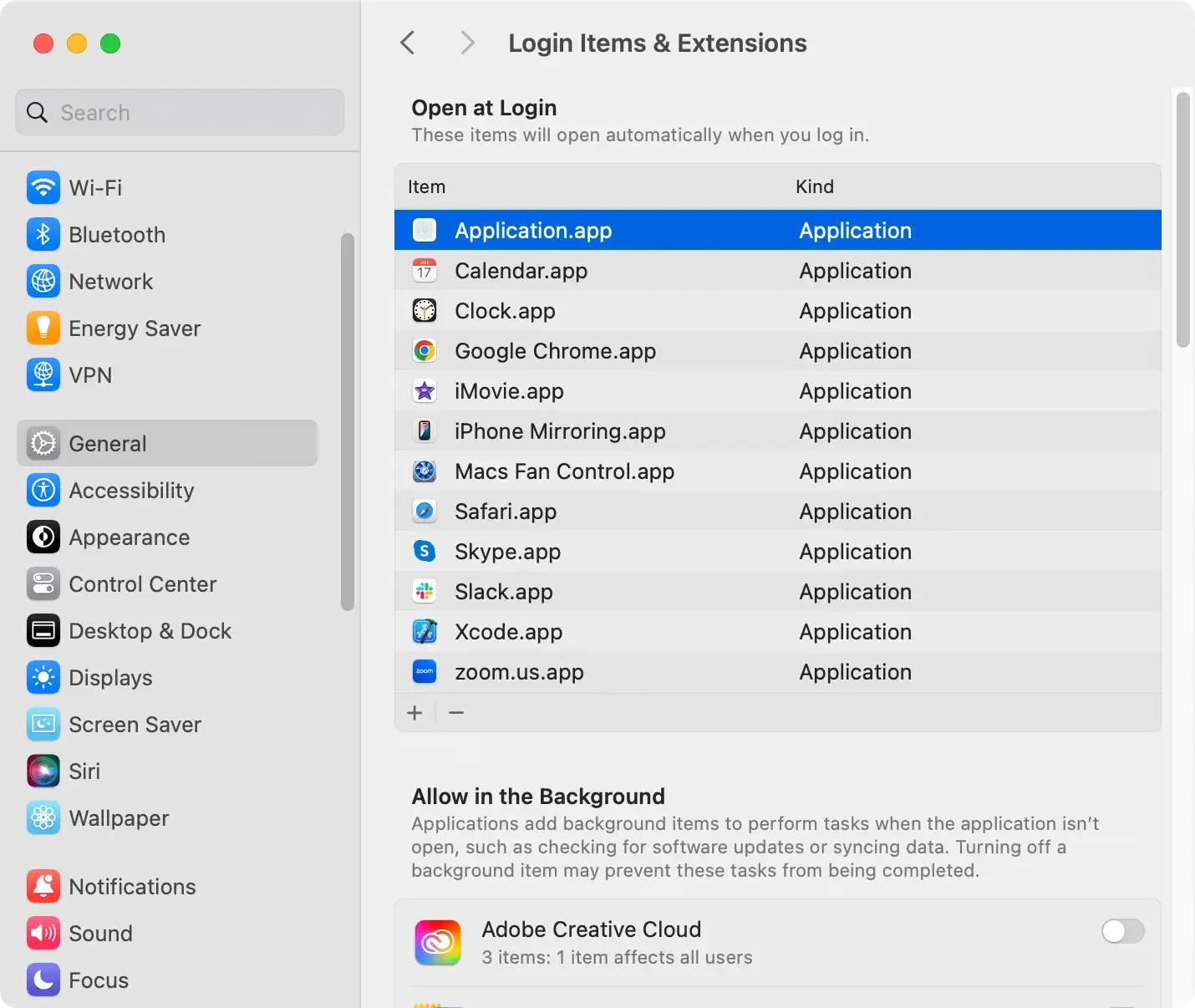
Step 1: Delete unwanted login items
- Using the Apple menu, open
System Settings. - Click on
General > Login Items & Extensions. - Check for any suspicious or unfamiliar items in the list on the right.
- Select any unwanted apps and click the minus button to remove them.
Step 2: Remove Omegle.onl from Applications
- Open your
Applicationsfolder throughFinder. - Look for any apps that you don’t remember installing, or that look suspicious.
- Drag and drop those apps into the
Trash. - Empty the
Trash.

Step 3: Clean Omegle.onl from your web browsers
Removing malicious browser extensions and restoring your browser settings are critical steps in completely removing browser hijackers.
Cleaning Safari
- Open Safari and go to
Safari > Preferencesin the top menu. - Go to the
Extensionstab, and look for any unfamiliar or suspicious extensions. - Select all unwanted extensions and click
Uninstallto remove them. - Restart Safari to apply changes.
Cleaning Google Chrome
- Open Chrome and go to Menu > Settings > Extensions.
- Look for Omegle.onl or any other suspicious extension and click Remove.
- Go to Settings > Reset settings and click Restore settings to their original defaults.
- Confirm by clicking Reset settings.
Cleaning Firefox
- Open Firefox and access Add-ons and themes > Extensions.
- Disable or remove any extension related to Omegle.onl.
- Navigate to Help > Troubleshooting Information and click on Refresh Firefox.
- Confirm the action by clicking Refresh Firefox again.
Protect your device from future infections
To safeguard your computer from future threats such as malware, adware, and viruses, it’s crucial to adopt preventive measures.
Keeping your software updated, using strong, unique passwords for your devices and online accounts, and avoiding downloading files or clicking on links from unknown sources are essential steps.
Additionally, consider using a dedicated firewall and regularly updating your operating system and applications to protect against any vulnerabilities.
Secure browsing practices to avoid similar threats
Engaging in secure browsing practices is vital in minimizing the risk of unwanted infections. Always verify the URLs of websites to ensure they are what they purportedly claim to be, especially when entering personal information.
Enable your browser’s pop-up blocker and use privacy-enhancing plugins to keep intrusive ads at bay. Regularly clear your cookies and browsing history, and log out of websites after you have finished using them.
Another effective strategy is to use incognito or private browsing modes, which can prevent some forms of tracking and data collection.
Be skeptical of free Wi-Fi networks and use a VPN when accessing the internet from public or semi-secured networks to encrypt your connection and shield your online activities from prying eyes.
