

Fix “An Error Occurred While Preparing the Installation”

Before we dive in
Before we dive in, let's make sure you stay safe online. We created SpyHunter because your security matters to us.
Protect your computer today — download SpyHunter right here! Check out our top tips below to keep your computer safe and secure.

If you’re trying to reinstall or upgrade macOS and hit the frustrating message, “An error occurred while preparing the installation. Try running this application again,” don’t panic.
This issue is more common than you think and can happen for several reasons—ranging from minor system misconfigurations to corrupted installers.
Let’s examine what causes this error and how to fix it so you can successfully install macOS again.
What causes “An error occurred while preparing the installation” messages on Mac?
This installation error often arises during macOS reinstalls or updates, especially in macOS Recovery.
Some of the most frequent triggers include:
- Incorrect date & time settings – The macOS installer checks timestamps during installation. If your system clock is off, the installation may fail.
- Corrupted or outdated installer – If the installer app is damaged or not compatible with your Mac, it won’t complete the process.
- Disk issues or leftover data – Problems with the startup disk or system files can interfere with installation.
- Network or server connectivity issues – If macOS can’t connect to Apple’s servers, the installation process might get stuck.
How to fix the error and resume macOS installation
Follow the steps below in the order they are listed to rectify the error message and continue using your Mac.
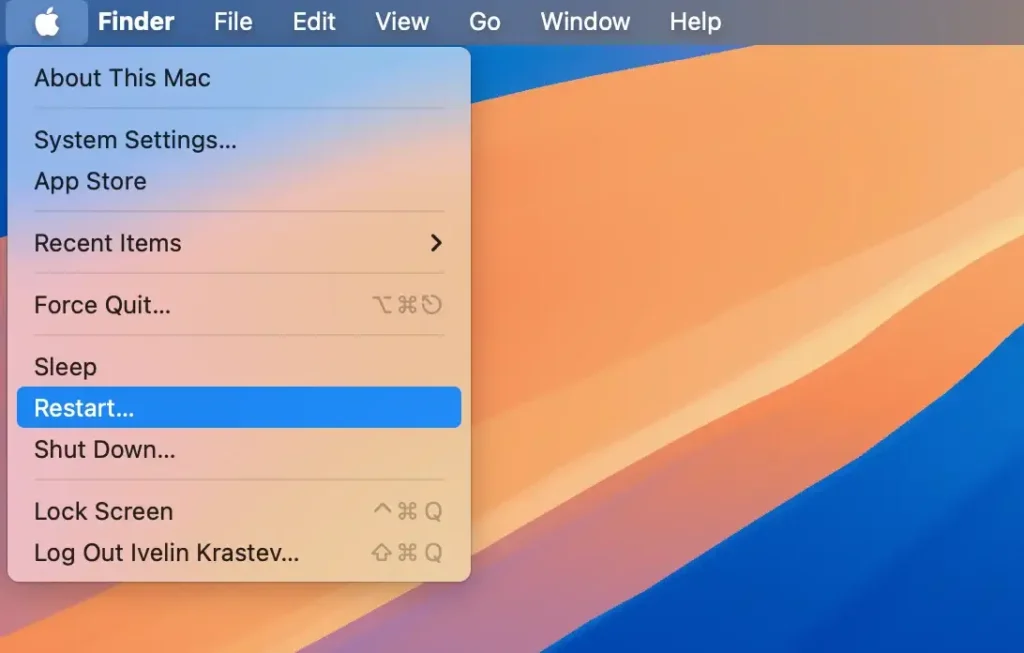
1. Restart your Mac
Before trying anything else, restart your computer. Sometimes a simple reboot can resolve temporary issues with system resources or installers.
2. Check and set the correct date & time
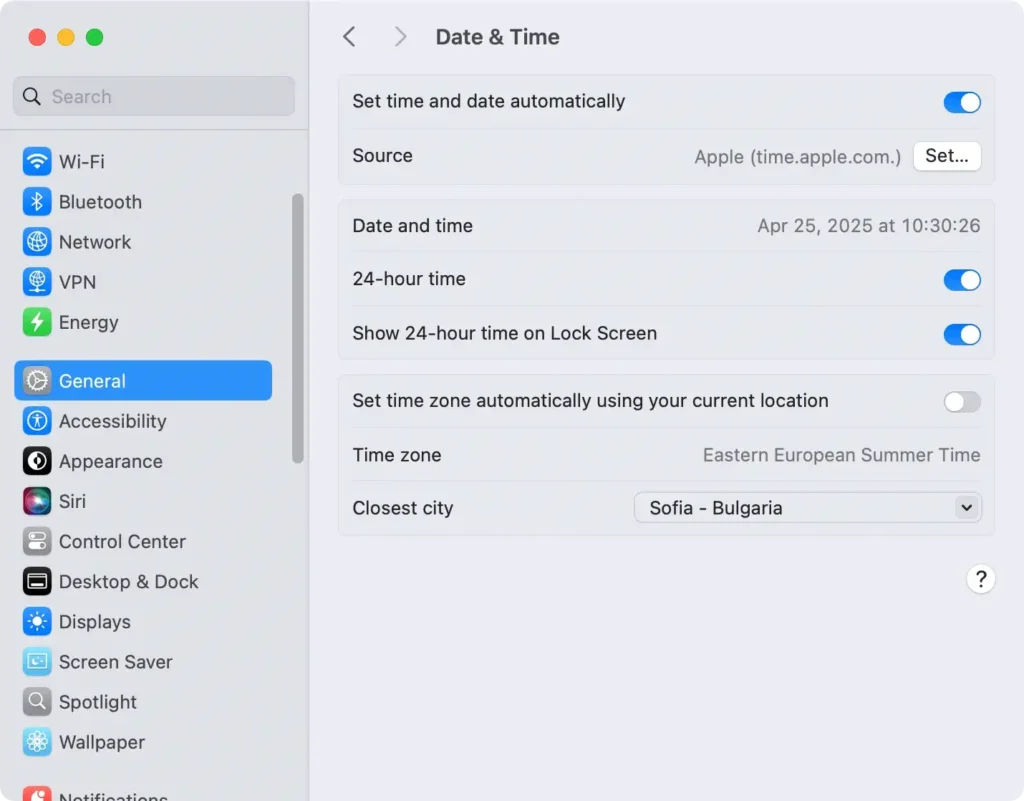
One of the most common culprits is an incorrect date setting. Here’s how to reset it:
In macOS:
- Open
System Settings > General > Date & Time. - Enable
Set time and date automaticallyand make sure your region is selected correctly.
From macOS Utilities (if in Recovery mode):
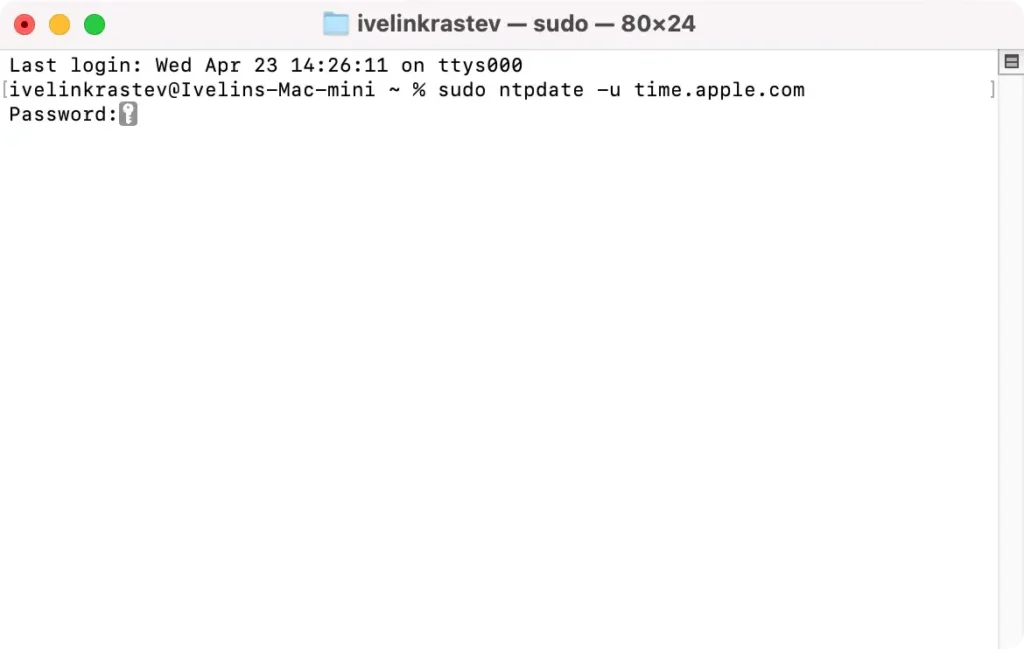
- Open
Terminalfrom the Utilities menu. - Type:
sudo ntpdate -u time.apple.com - This command syncs your Mac’s time with Apple’s server.
Then try restarting the installer.
3. Start in Safe Mode
Booting into Safe Mode clears some caches and disables third-party drivers that might cause conflicts.
- Shut down your Mac.
- For Intel Macs: Turn it on and immediately press and hold
Shift. - For Apple Silicon Macs: Hold the power button until “
Loading startup options” appears, then choose your drive and holdShiftbefore clickingContinue in Safe Mode.
Once booted, try the installation again.
4. Try macOS Recovery reinstallation
You can use macOS Recovery to reinstall the OS without deleting your files.
- Restart your Mac and hold one of the following:
Command (⌘) + R:Reinstalls the latest macOS installed.Option + Command + R:Upgrades to the latest compatible macOS.Shift + Option + Command + R:Installs the original macOS your Mac came with.
From the menu that appears, choose Reinstall macOS and follow the on-screen instructions.
5. Use Disk Utility to erase the drive
If you’re still stuck, your disk might have remnants of a previous installation that are causing conflicts.
You can erase the drive and start fresh—just back up first.
- Boot into
macOS Recovery. - Select
Disk Utilityand then choose your startup disk. - Click
Erase. - Format it as
APFS(orMac OS Extended (Journaled)for older systems) withGUID Partition Map.
Then return to the main menu and select Reinstall macOS.
This method erases everything on the drive – proceed only if you’ve backed up your data.
6. Download a fresh installer or try using a combo update
If you’re installing macOS via a USB or app and it’s throwing errors, redownload the installer from Apple’s official source.
Alternatively, if you’re doing a minor upgrade within the same macOS version, consider using a combo update, which can patch corrupted system files.
You can find combo updates on Apple’s support site.
7. Contact Apple Support
If none of the above steps work, it’s time to reach out to Apple. There could be hardware issues or obscure bugs affecting your system.
Book an appointment at your local Apple Store or start a support session online.
Final thoughts
The “an error occurred while preparing the installation” message can feel like a dead end, but it’s usually fixable.
Start with the basics—date and time, Safe Mode, or Recovery Mode—and work your way toward more advanced fixes like disk formatting or installer replacement.
With the right approach, your Mac should be back to running smoothly in no time.
