

How To Find Duplicate Files On Mac (6 Ways Explained)

Before we dive in
Before we dive in, let's make sure you stay safe online. We created SpyHunter because your security matters to us.
Protect your computer today — download SpyHunter right here! Check out our top tips below to keep your computer safe and secure.

Are you running out of space on your Mac or simply looking to tidy up your digital workspace? Duplicates are more common than you might think. They silently accumulate over time, occupying valuable disk space that could be used more efficiently.
This article explores six effective methods to find and eliminate duplicate files on your Mac, ensuring a cleaner, more efficient environment.
Whether you prefer using built-in techniques, third-party software, or manual techniques, you’ll find a solution that fits your needs.
Get ready to reclaim your Mac’s speed and storage by tackling duplicate files head-on.
Find duplicate files using Finder
The Finder on your Mac can be a helpful tool for locating duplicate files manually, although it requires some effort and attention to detail.
Here’s how to use Finder’s Smart Folders to locate duplicate files:
- Open New Finder Window: Launch Finder from your Dock or Applications folder.
- Create a New Smart Folder: In Finder, go to the
Filemenu at the top of the screen and selectNew Smart Folderto create a dynamic folder that automatically updates based on search criteria. - Set Search Criteria: In the Smart Folder, click the ‘+’ button on the right side to add additional criteria. You can specify the file type, such as images or documents, by selecting
Kindfrom the drop-down menu. This helps narrow down the files you want to sift through for duplicates.
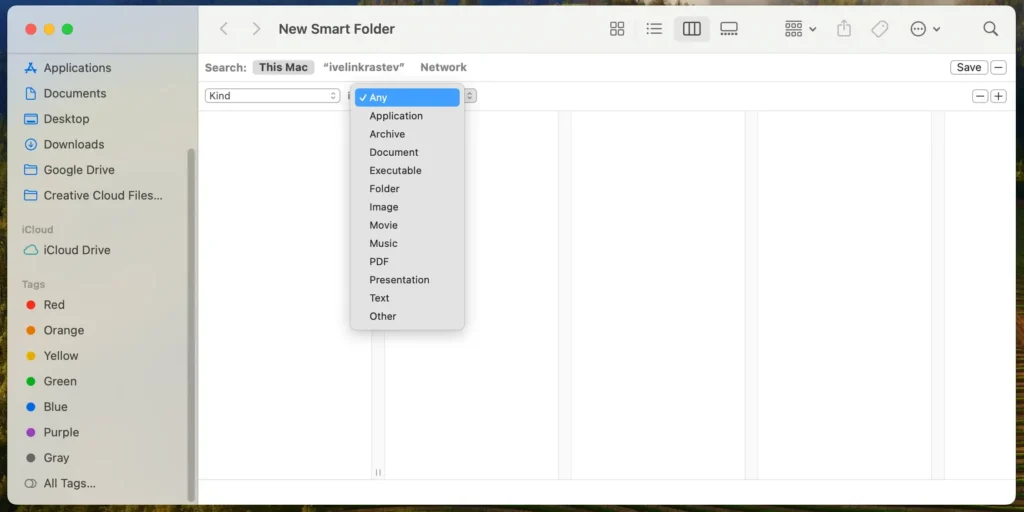
- Add More Criteria for Better Filtering: You might add additional criteria based on Date Created, Date Modified, or File Size to narrow down the results to potential duplicates.
- Review the Files: The Smart Folder will display all the files that meet your criteria. Review these files carefully to identify duplicates. Since Smart Folders don’t move files, everything remains at its original location, but you get a centralized view of potential duplicates.
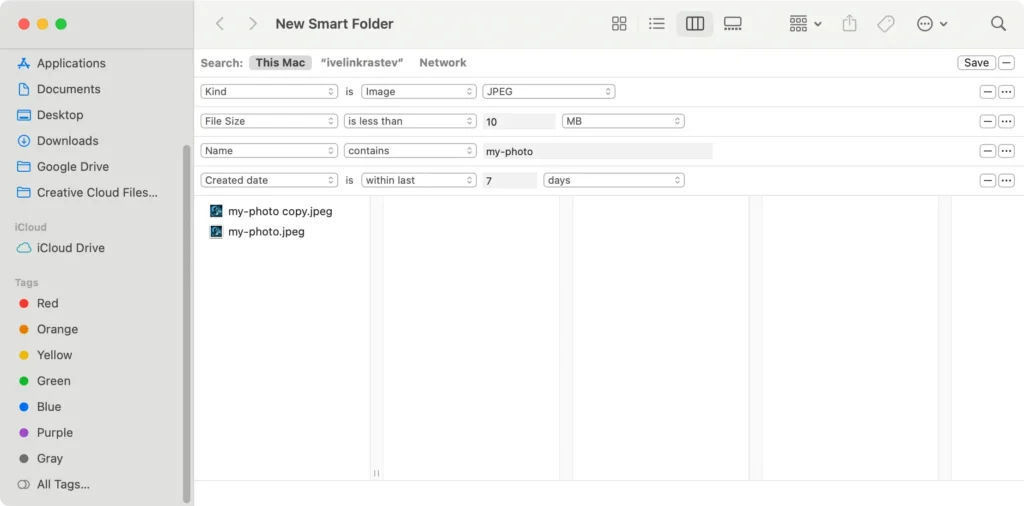
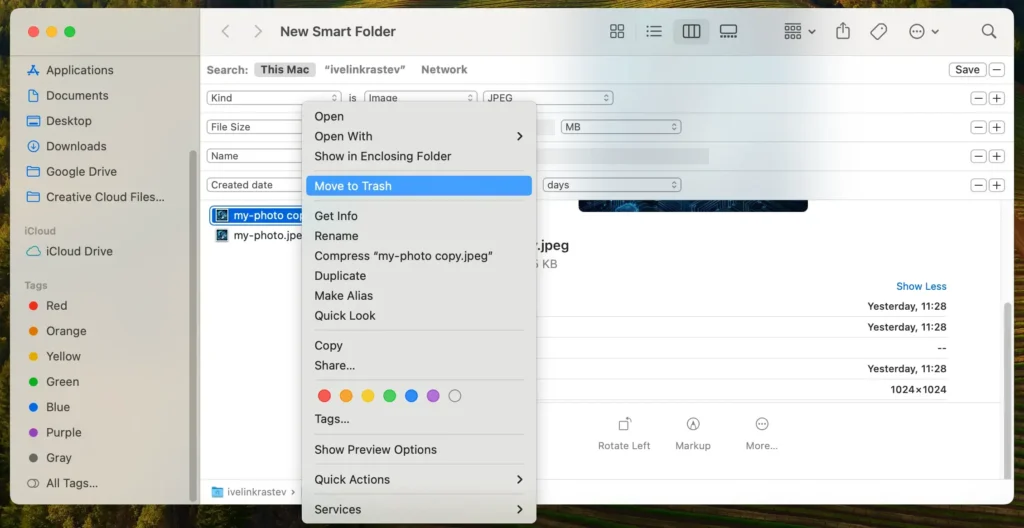
- Select and Remove Duplicates: Manually check each file to confirm it is a duplicate. When you find duplicates, select them (hold
Commandand click to select multiple files), then right-click and chooseMove to Trashor pressCommand + Deleteto remove them. - Empty the Trash: To free up space and permanently remove the duplicates, right-click the Trash icon in your Dock and select
Empty Trashfrom the context menu.
Using smart folders to find duplicates is a manual process that works best when you know which files might be duplicated, such as documents or photos saved in multiple locations. It’s a good starting point for users who prefer not to download additional software.
Although this method doesn’t require any additional software, it’s worth noting that it might not catch every single duplicate, especially if there are files with slightly different names.
Delete duplicate files on Mac with Terminal
Using the Terminal on your Mac offers a powerful way to find and delete duplicate files through command-line utilities. This method is suited for those who are comfortable with Unix commands and prefer a hands-on approach.
Here’s how you can use Terminal to tackle identical files:
- Open Terminal: Begin by opening the Terminal app. This is your doorway to executing commands directly on your Mac.
- Specify Your Target Folder: Decide which folder to search for duplicates. Once you’ve decided, navigate to this particular folder using the
cdcommand followed by the path. For example, if you want to check theDocumentsfolder, type the following command:
cd ~/Documents- Enter the Duplicate-Finding Command: Next, you’ll input the command to search for duplicate files based on file size or MD5 hash – a type of digital fingerprint for files. Here’s a simple command you can use:
find . -type f -exec md5 {} \; | awk -F '=' '{print $2 "\t" $1}' | sort | tee duplicates.txt- Examine and Delete Duplicates: After the command runs, you’ll find a text file named duplicates.txt in your scanned folder. Open this file to view the list of duplicates. Each line will show a file path alongside its MD5 hash. Review this list to identify and manually delete any unnecessary duplicates by moving them to Trash.
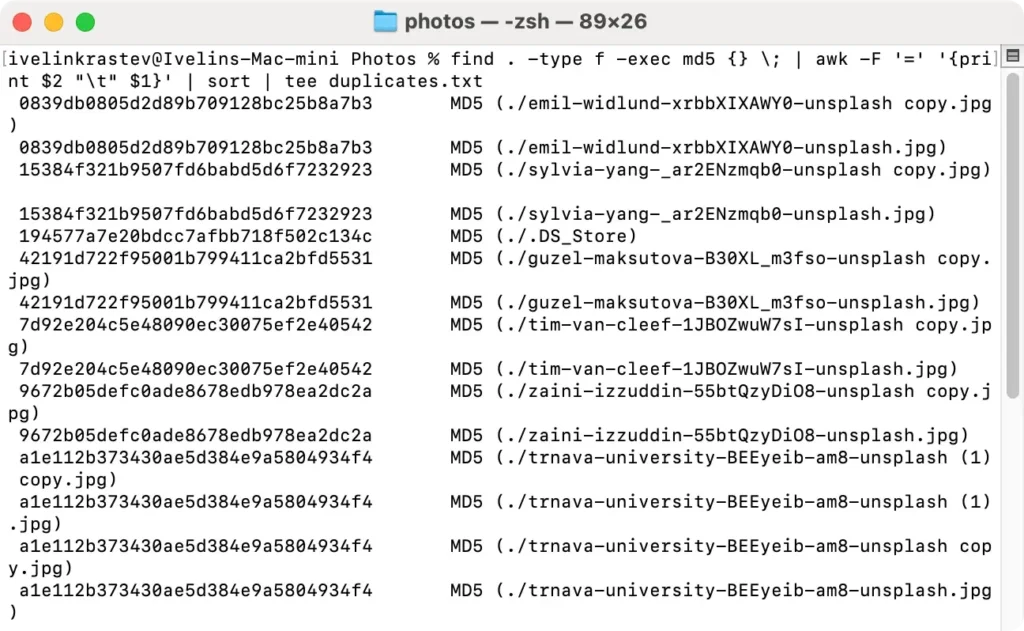
Using Terminal to delete duplicate files gives you control and flexibility but requires caution to avoid deleting essential files unintentionally.
Always double-check before removing files, and consider backing up important data before performing bulk deletions.
This powerful method is recommended for more advanced users familiar with command-line operations.
Remove duplicate files on Mac using SpyHunter
For those looking for a straightforward and reliable way to eliminate duplicate files on their Mac, SpyHunter offers a robust tool designed explicitly for this purpose.
Here’s how to use SpyHunter’s Duplicate File Finder to clean up your system:
- Download SpyHunter from here and follow the instructions to install the app on your Mac.
- Once installed, open SpyHunter and initiate a duplicate file scan. This feature is designed to find all the files that are the same, helping you identify duplicates that consume unnecessary space.
- After the scan, SpyHunter will display a grouped list of duplicate files. Carefully review this list to confirm which files you want to remove.
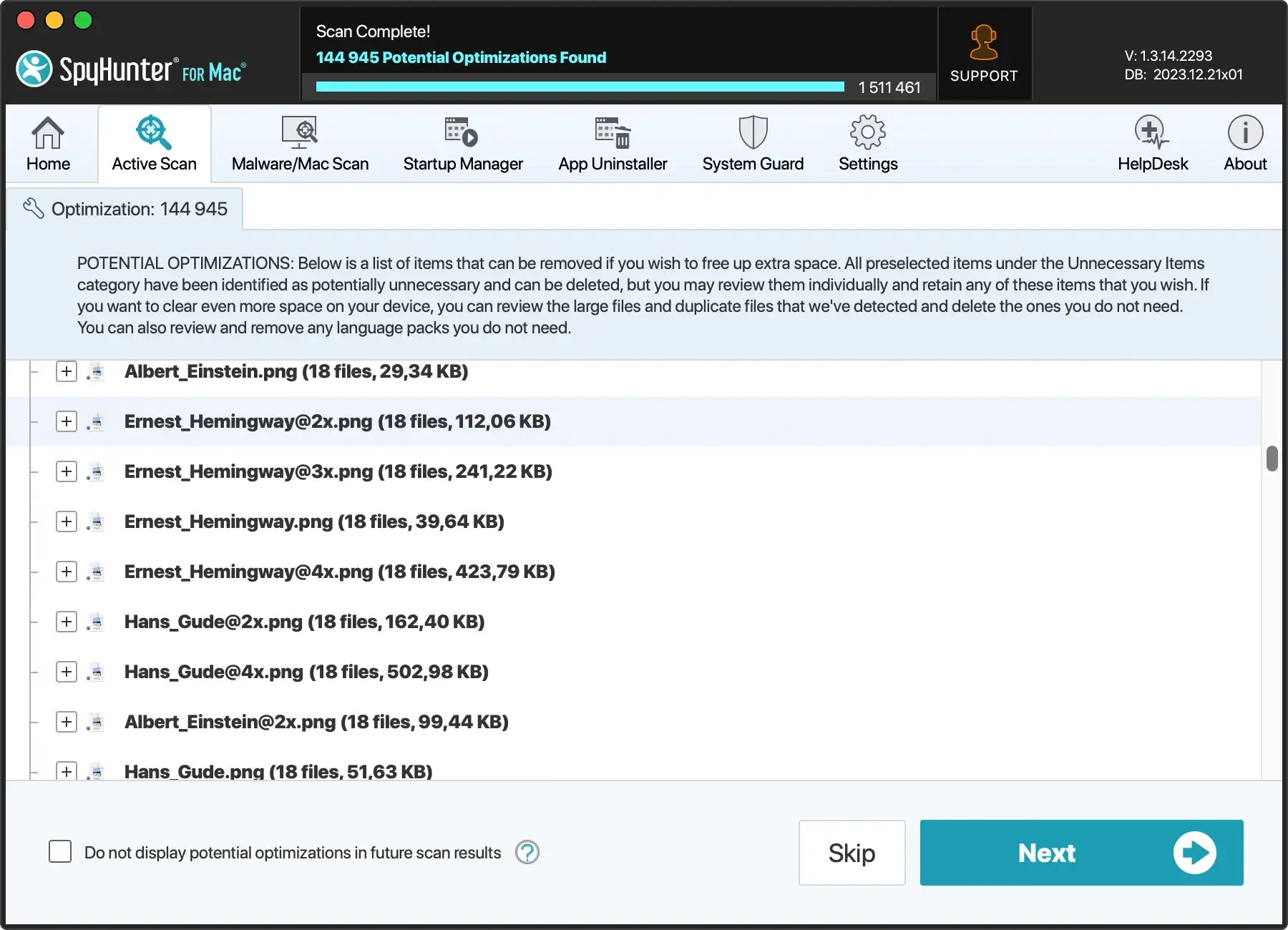
- Once you have selected the duplicates you wish to delete, you can instruct SpyHunter to remove them. This action will free up space and declutter your file system efficiently.
- After deleting the duplicates, verify that your system operates as expected. SpyHunter also offers features to clean up unnecessary files to ensure your Mac remains optimized.
Using SpyHunter helps remove duplicate files efficiently and enhances your system performance.
Its automated process reduces the risk of human error, making it a reliable choice for maintaining a clean and organized digital environment on your Mac.
Remove duplicates from your Photos Library
As our digital photo collections grow, managing and organizing them becomes increasingly challenging. One common issue many of us face is dealing with duplicate pictures.
These unnecessary copies clutter our photo library and take up valuable storage space.
Thankfully, there are straightforward steps you can follow to clean up these duplicates and keep your photo library organized and efficient.
- Launch the Photos App: Open the Photos app on your Mac. This is your central hub for managing all your photographic content.
- Find Duplicate Pictures: Look for a
Duplicatessection in the sidebar. This feature is handy for those running macOS Ventura or later versions, as it automatically detects duplicate photos in your library. - Select Duplicates for Removal: Once you’ve identified the duplicates, the app will allow you to review them.
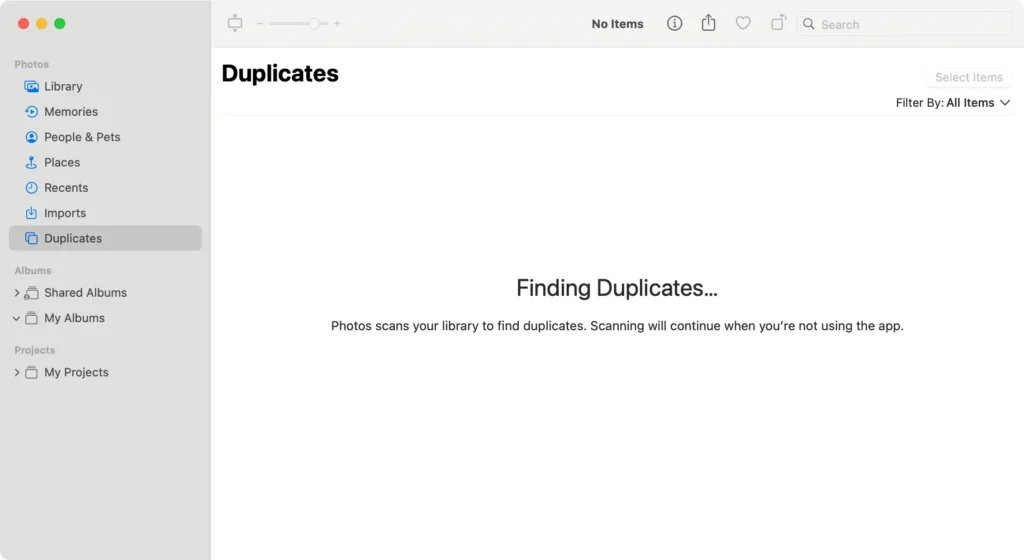
- Merge or Delete Duplicates: You can merge the duplicates that have been identified. Merging keeps the highest quality photo and moves the rest to the
Recently Deletedfolder. - Permanently Remove Duplicate Photos: To reclaim the storage space, empty the
Recently Deletedfolder. This permanently removes the duplicate photos from your Mac, ensuring they no longer occupy space.
It’s essential to regularly check for duplicates, especially after importing new batches of photos or merging photo libraries.
While the process is easy, it requires attention to detail to ensure no important memories are accidentally removed.
Regular maintenance of your digital photos library frees up valuable storage space and makes your collection more accessible and enjoyable to browse.
Find and delete duplicate music files
Managing your music library on a Mac can seem like a formidable task, especially when duplicates cloud your collection.
However, with a few simple steps, you can clean up your library, making navigating and enjoying your music easier.
Below, we’ll walk through a simple process to locate and erase duplicate music files directly within the Music app, ensuring your library remains crisp and enjoyable.
- Opening the Music Application: Begin by launching the Music app. On the sidebar to the left, click on
Songsto view the song library. - Finding Exact Duplicates: While holding the
Optionkey, navigate to theFilemenu and hover theLibraryoption. SelectShow Exact Duplicate Itemsto view only the duplicates. - Decision Time – Deleting Duplicates: Review each set of duplicate songs, deciding which to keep based on criteria like bit rate or personal preference.
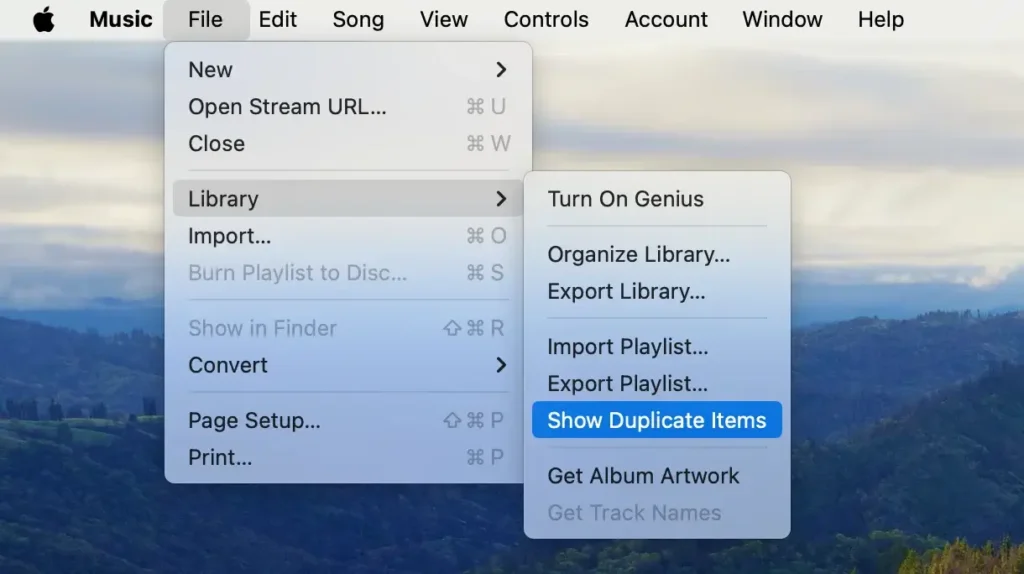
Recognizing and removing duplicate files in your music library saves space and enhances your listening experience by eliminating unnecessary clutter.
Find duplicate files in the Mail folder
The Mail Downloads folder on your Mac can quickly become cluttered with multiple copies of the same files, especially if you frequently open mail attachments without cleaning up afterward.
Here’s how you can find and delete duplicate files in this specific folder:
- Locate Mail Downloads: Open Finder, then click
Goin the menu bar at the top of your screen. From the drop-down menu, chooseGo to Folderand type~/Library/Containers/com.apple.mail/Data/Library/Mail Downloadsin the search field.
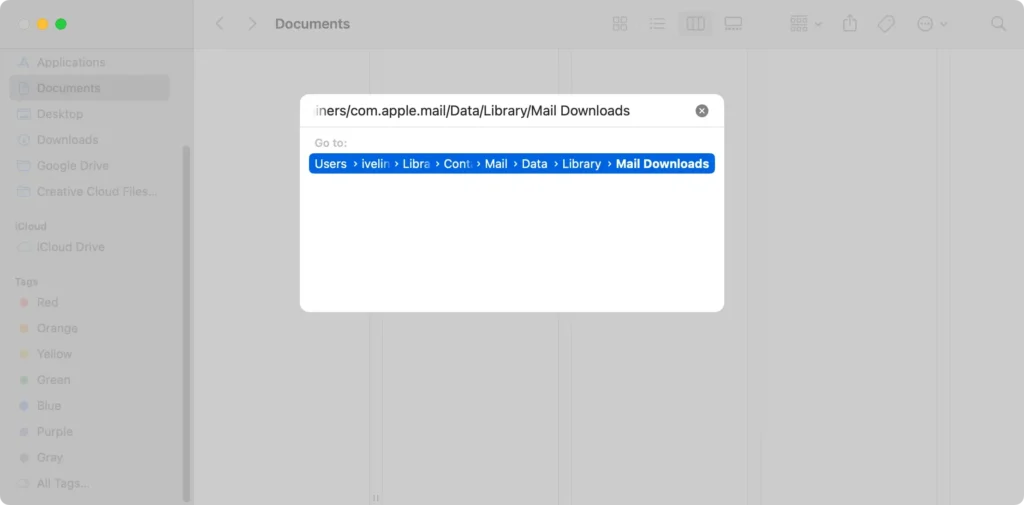
- Search for Duplicates: In the Mail Downloads folder, use the search bar at the top right of the Finder window to help identify duplicates. You can type in specific file names or extensions to see if multiple copies of the same file exist.
- Manually Review Files: Scroll through the list and look for files with similar names, sizes, or dates. MacOS does not automatically tag duplicates, so this step requires careful examination to ensure you don’t accidentally delete any critical files.
- Delete Duplicates: Once you’ve confirmed which files are duplicates, select them and drag them to the Trash.
- Empty the Trash: To free up the space occupied by these duplicates, empty the Trash bin.
Regularly checking and cleaning the Mail Downloads folder can prevent it from using unnecessary disk storage and keep your system more organized. This routine is especially beneficial for users who receive many attachments via email.
FAQs
Does Mac have a duplicate file finder?
No, macOS does not come with a built-in duplicate file finder. Mac users must rely on third-party applications like SpyHunter or use manual methods like creating Smart Folders in Finder or using Terminal commands to identify and remove duplicate files.
What is the easiest way to find duplicates on a Mac?
The easiest way to find duplicates on a Mac is by using third-party software designed for this purpose. Applications like SpyHunter feature a Duplicate File Scanner that automates the process, making identifying and removing duplicate files straightforward and hassle-free.
Is there a way to quickly delete duplicate files?
The quickest way to delete identical files on a Mac is to use dedicated duplicate file removal software. These tools scan your storage, identify duplicates, and allow you to remove them with just a few clicks, saving time and ensuring you don’t accidentally delete important files.
Why are there so many duplicate files on my Mac?
Duplicate files on a Mac can accumulate for various reasons:
- downloading the same file multiple times
- duplicating files for backup
- syncing errors with cloud services
- multiple installations of the same apps.
Over time, these files can take up a significant amount of space and clutter your system. Regular maintenance and clean-up using appropriate tools can help manage and reduce duplicates.
Summary
Managing duplicate files on your Mac is essential to maintaining an organized system and ensuring efficient use of storage.
Whether you’re dealing with duplicate images, documents, or media files, understanding how to find and remove these duplicates is crucial.
This article explored various methods, including using Finder’s Smart Folders, Terminal commands, third-party duplicate finder like SpyHunter, and checking specific folders like Mail Downloads.
Regularly employing these strategies to find and delete duplicate files can reclaim valuable disk space and maintain a cleaner, more streamlined Mac environment.
Whether you choose manual methods or automated tools, the key is consistent maintenance to prevent the buildup of unnecessary files.
Keep your Mac free of duplicates to ensure it runs smoothly and efficiently.
