

Remove Illation.app Adware on Mac (Step-By-Step Guide)

Before we dive in
Before we dive in, let's make sure you stay safe online. We created SpyHunter because your security matters to us.
Protect your computer today — download SpyHunter right here! Check out our top tips below to keep your computer safe and secure.

Are you experiencing unexpected ads and browser behavior on your Mac? It might be due to Illation.app, a piece of adware that can disrupt your browsing experience and compromise your system’s security.
This guide will walk you through the steps to identify and remove Illation.app from your Mac, helping you restore your computer’s performance and safeguard your online privacy.
Read on to learn how to eliminate this intrusive adware and prevent future infections effectively.
What is Illation.app?
Illation.app is software that infiltrates your computer, often without your knowledge, and displays unwanted advertisements. These advertisements can appear as
- pop-ups,
- banners,
- or unexpected redirections to other sites.
The main goal of Illation.app adware is to generate revenue for its creators through these ads. However, it results in a frustrating and less secure browsing experience for the user.
Is Illation.app a virus?
It’s essential to clarify the distinction between viruses and adware.
A virus is a type of malware designed to replicate itself and spread to other computers, often causing damage to systems or stealing information.
On the other hand, Illation.app falls under the category of adware due to its primary function of showing ads and potentially redirecting searches or web pages to generate advertising income.

While not a virus in the traditional sense, Illation.app can still pose a risk. This is because adware can sometimes be a gateway, opening the door to more harmful viruses or potentially unwanted programs (PUPs).
Illation.app infection signs
Recognizing the symptoms of an Illation.app infection is critical to addressing it promptly.
Here are the primary indicators that your Mac might be affected:
- Unexpected Ads: An increase in pop-ups, banners, and other intrusive advertisements that disrupt your browsing experience.
- Browser Redirections: Frequent redirects to unfamiliar websites you didn’t intend to visit.
- Altered Browser Settings: Changes in your homepage or default search engine settings that occur without your consent.
- Slowed System Performance: A noticeable slowdown in your Mac’s performance, particularly during internet browsing.
- Suspicious Browser Extensions: New toolbars or extensions in your browser that were installed without your knowledge.
These symptoms suggest that Illation.app may have compromised your system. Addressing these signs swiftly by following the removal instructions can help restore your Mac’s usual performance and security.
Manually remove Illation.app on Mac
Removing Illation.app from Mac can restore your device’s performance and internet browsing experience. This guide walks you through the removal process in a straightforward manner.
Step 1: Remove profiles created by Illation.app
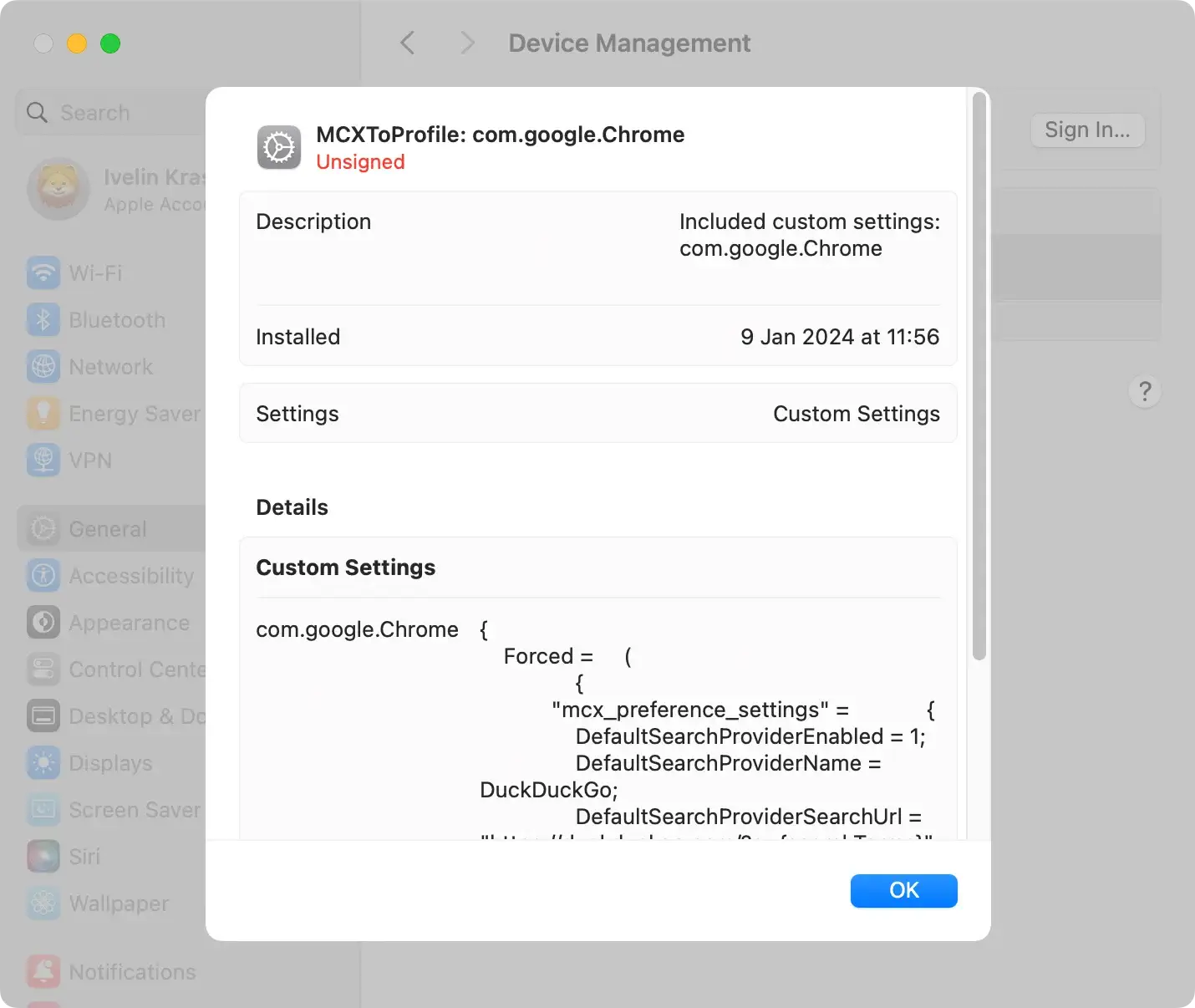
Illation.app may create profiles on your Mac to control your settings. To check for these, open System Settings and select Profiles in the Privacy & Security section.
If you don’t see it, that means none are installed. However, if you find profiles that seem out of place or you don’t remember installing, it’s safe to remove them.
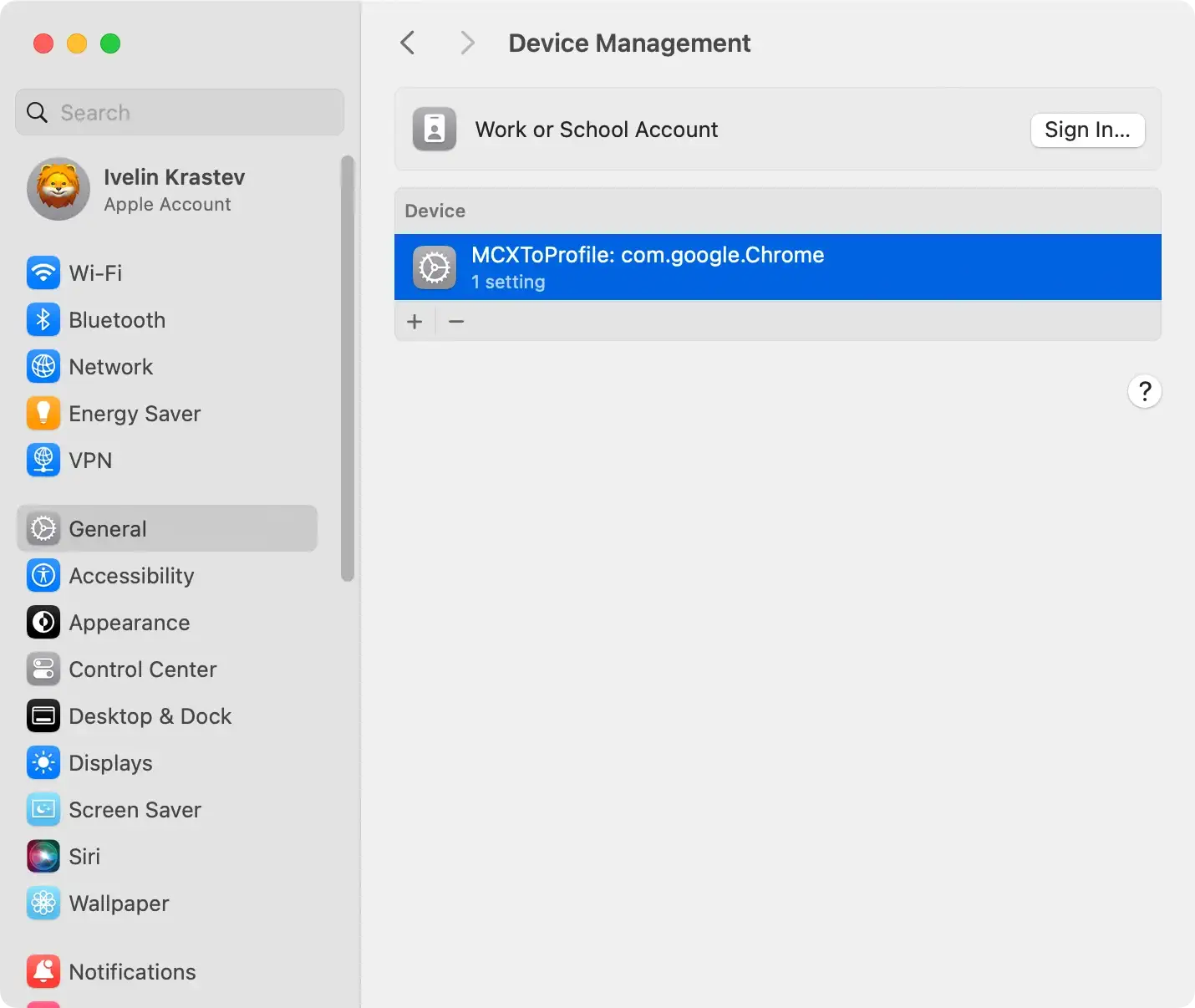
Simply select the suspicious profile and press the minus (-) button to delete it.
Step 2: Delete Illation.app applications
Next, open Finder and head to the Applications folder located in the sidebar.
Look through the list for apps you don’t recognize or remember downloading. Illation.app might disguise itself under different names, so be skeptical of any unfamiliar app.
Either drag the pinpointed app to the Trash or right-click (Ctrl-click) it and select Move to Trash from the contextual menu.
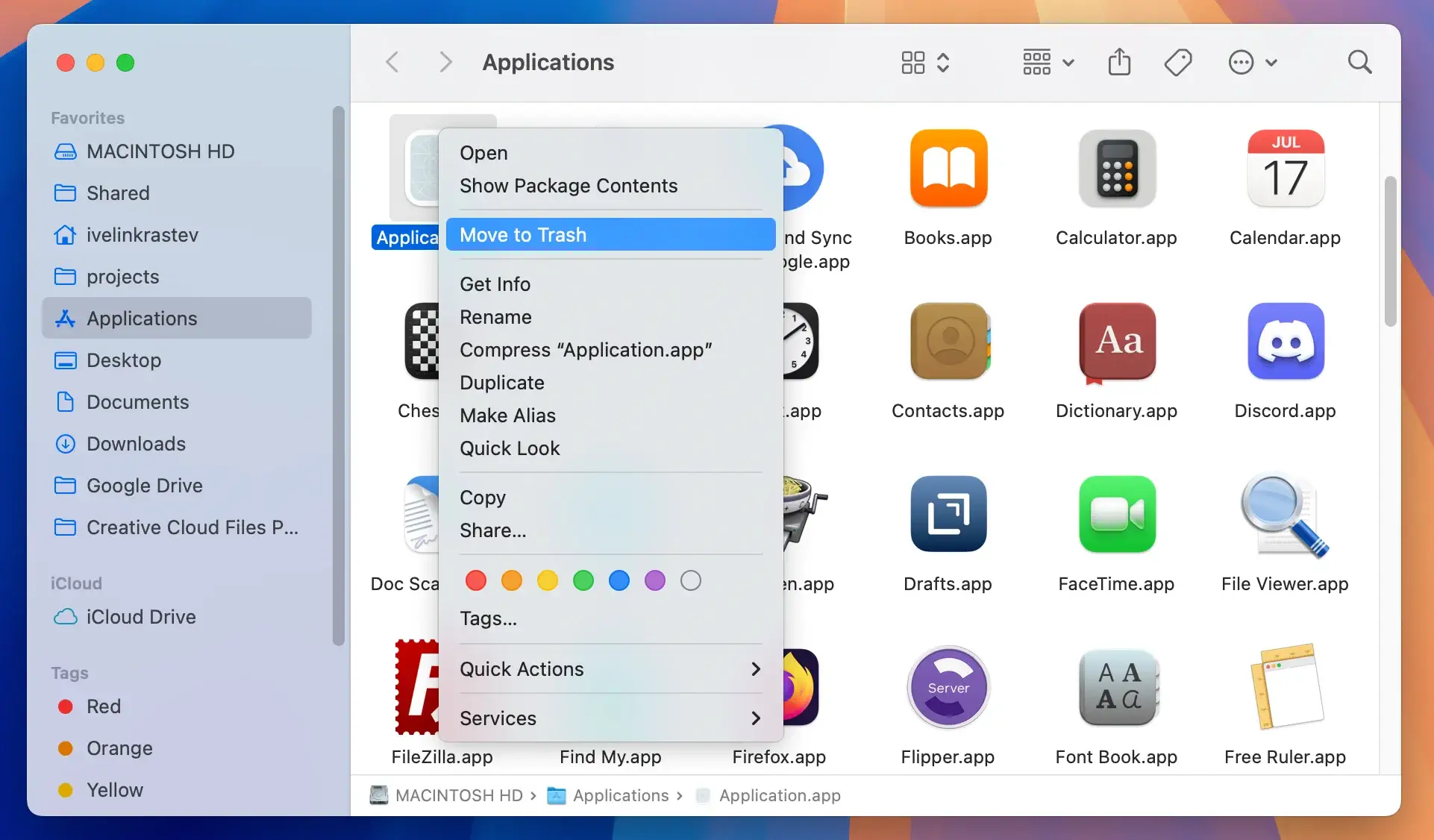
Remember to empty the Trash afterward to eliminate the potential threat.
Step 3: Eliminate Illation.app from your web browsers
After addressing configuration profiles and applications, the next crucial step is to clear Illation.app from your web browsers.
This ensures that all elements related to the adware are removed, including any unwanted browser extensions or changes to browser settings.
For Safari:
- Open Safari and go to
Preferencesfrom the Safari menu - Click the
Extensionstab to view all installed extensions - Identify any unfamiliar or unwanted extensions related to Illation.app and remove them
- Reset your homepage and search engine settings if the adware altered them
For Google Chrome:
- Launch Chrome and open the menu by clicking the three dots in the upper right corner
- Go to
Extensions > Manage Extensions - Locate and remove any extensions linked to Illation.app
- Check your browser’s startup and search settings, resetting them as needed
For Mozilla Firefox:
- Open Firefox, click on the menu button (three horizontal lines) and select
Add-ons and Themes - In the
Extensionssection, find any extensions associated with Illation.app, and remove them - Revert any changes to your homepage or search engine settings made without your approval
By thoroughly cleaning each of your web browsers, you help ensure that Illation. app’s influence is completely eradicated from your Mac, restoring your preferred browser configurations and improving overall security.
Step 4: Remove files and folders related to Illation.app
The final step in manually removing Illation.app involves deleting residual files and folders that the adware may have left behind on your system.
These leftovers can continue to affect your Mac’s performance and privacy if not addressed.
- Open Finder: Start by launching Finder on your Mac.
- Go to Folder: From the Finder menu, select
Goand chooseGo to Folderfrom the dropdown. - Enter the Paths: Type in the following paths one by one in the search field. Carefully review the directories for any files or folders related to Illation.app and delete them.
~/Library/Application Support/~/Library/LaunchAgents//Library/LaunchAgents//Library/LaunchDaemons//Library/StartupItems/
- Empty the Trash: After moving all the suspicious files to the Trash, right-click the Trash icon and select
Empty Trashto remove the files permanently.
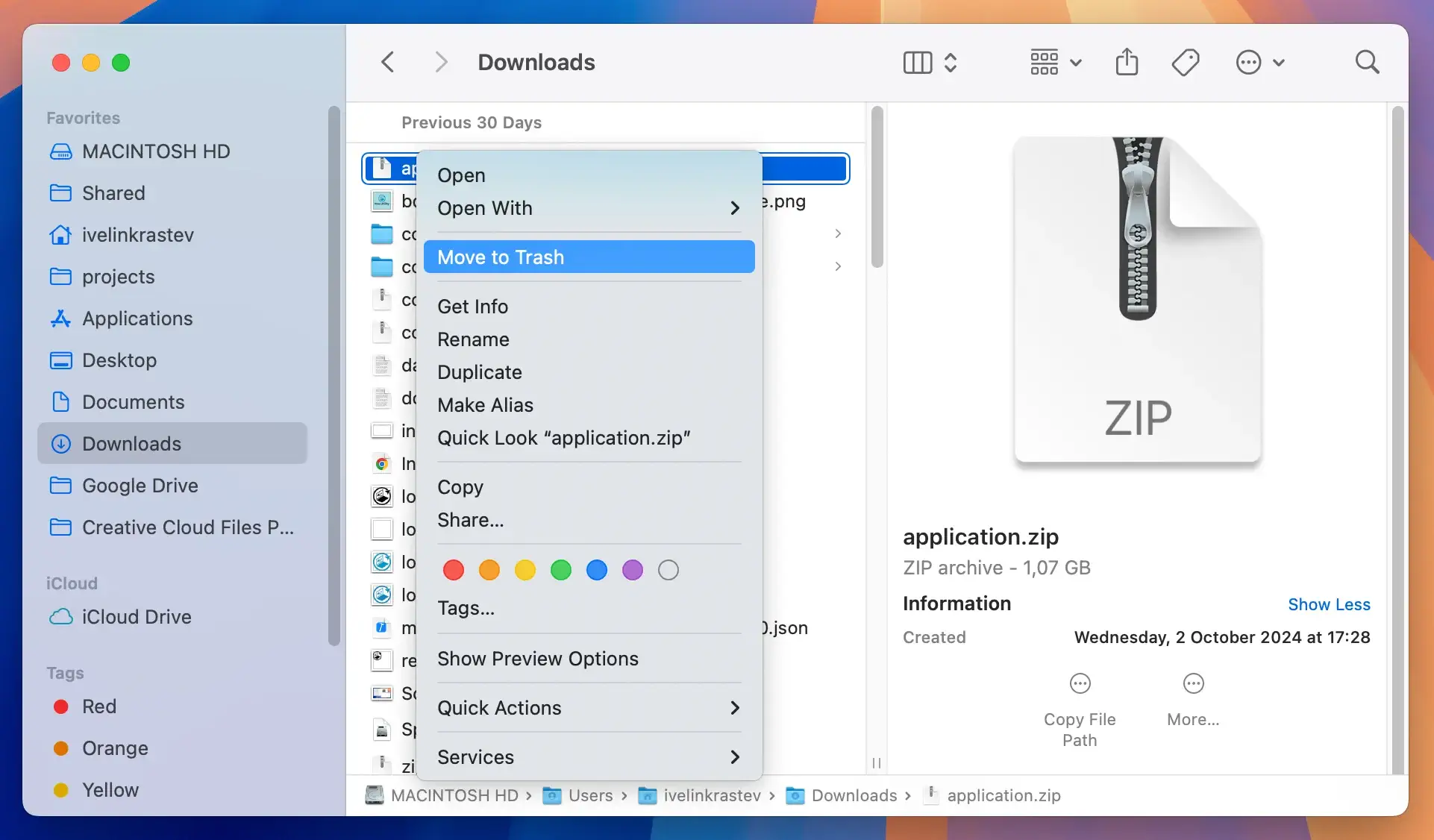
By thoroughly cleaning out these locations, you ensure that all Illation.app adware components are removed from your Mac, which helps prevent any future performance or security issues related to leftover files.
Completely remove Illation.app with SpyHunter
SpyHunter is a robust anti-malware tool that excels in detecting and removing various types of malware, including adware like Illation.app.
Its powerful scanning algorithms are designed to identify even the most deeply embedded adware components, ensuring no infection traces remain.
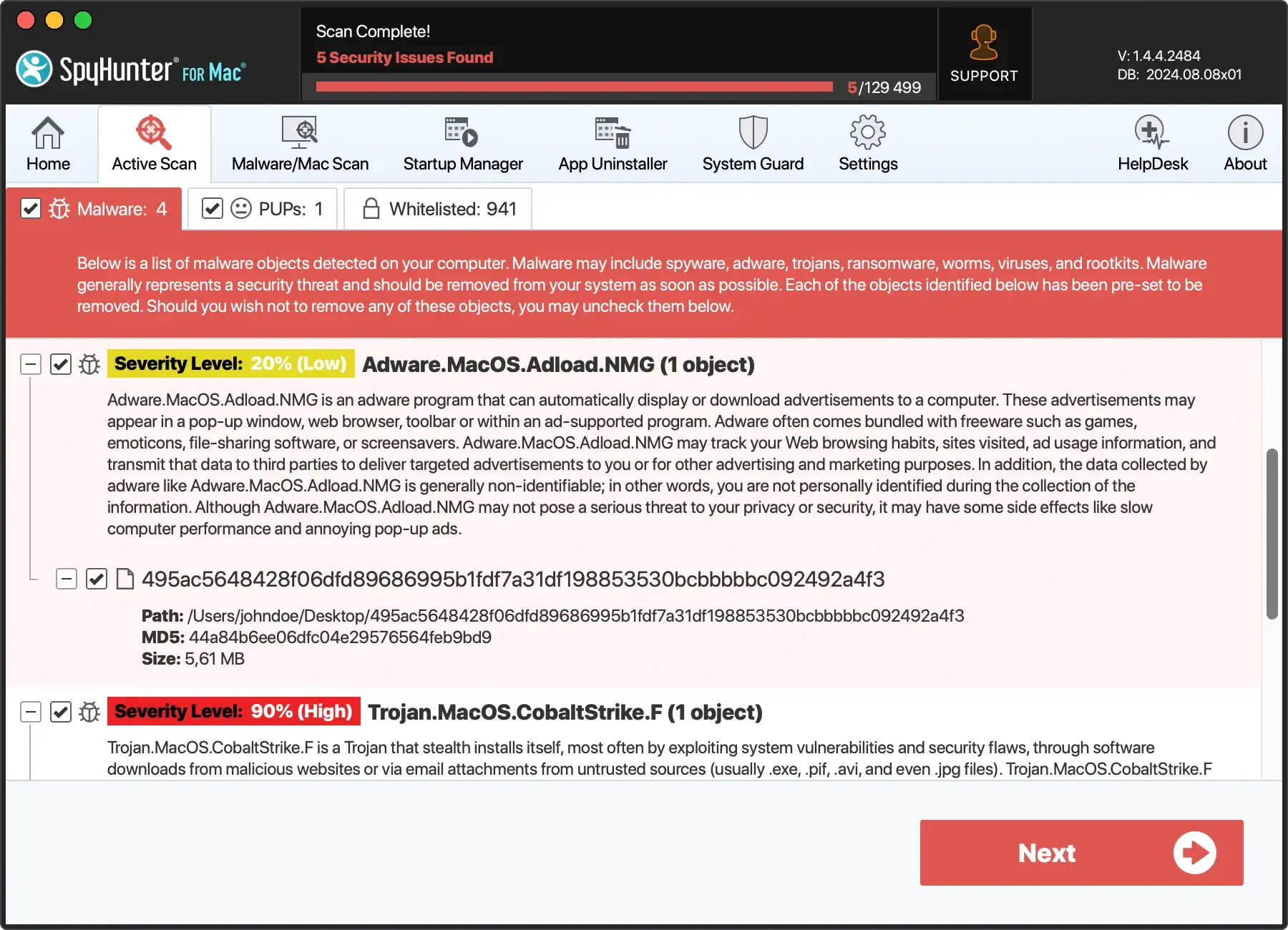
SpyHunter is continuously updated to handle the latest malware threats, providing reliable protection against current and emerging risks.
The tool is user-friendly, making it accessible for all levels of tech expertise, and it works effectively to safeguard your privacy and enhance your Mac’s performance.
How to remove Illation.app using SpyHunter?
Removing Illation.app using SpyHunter involves a few straightforward steps:
- Download SpyHunter from here and follow the on-screen instructions to install SpyHunter on your Mac.
- Launch SpyHunter and select the option to perform a full system scan. The software will thoroughly check your Mac for Illation.app and other potential threats.
- After the scan, SpyHunter will display a list of detected malware. Browse through this list to find any entries related to Illation.app.
- Select the malicious files identified by SpyHunter and execute the removal process.
- SpyHunter will safely eliminate Illation.app and any associated malware from your system.
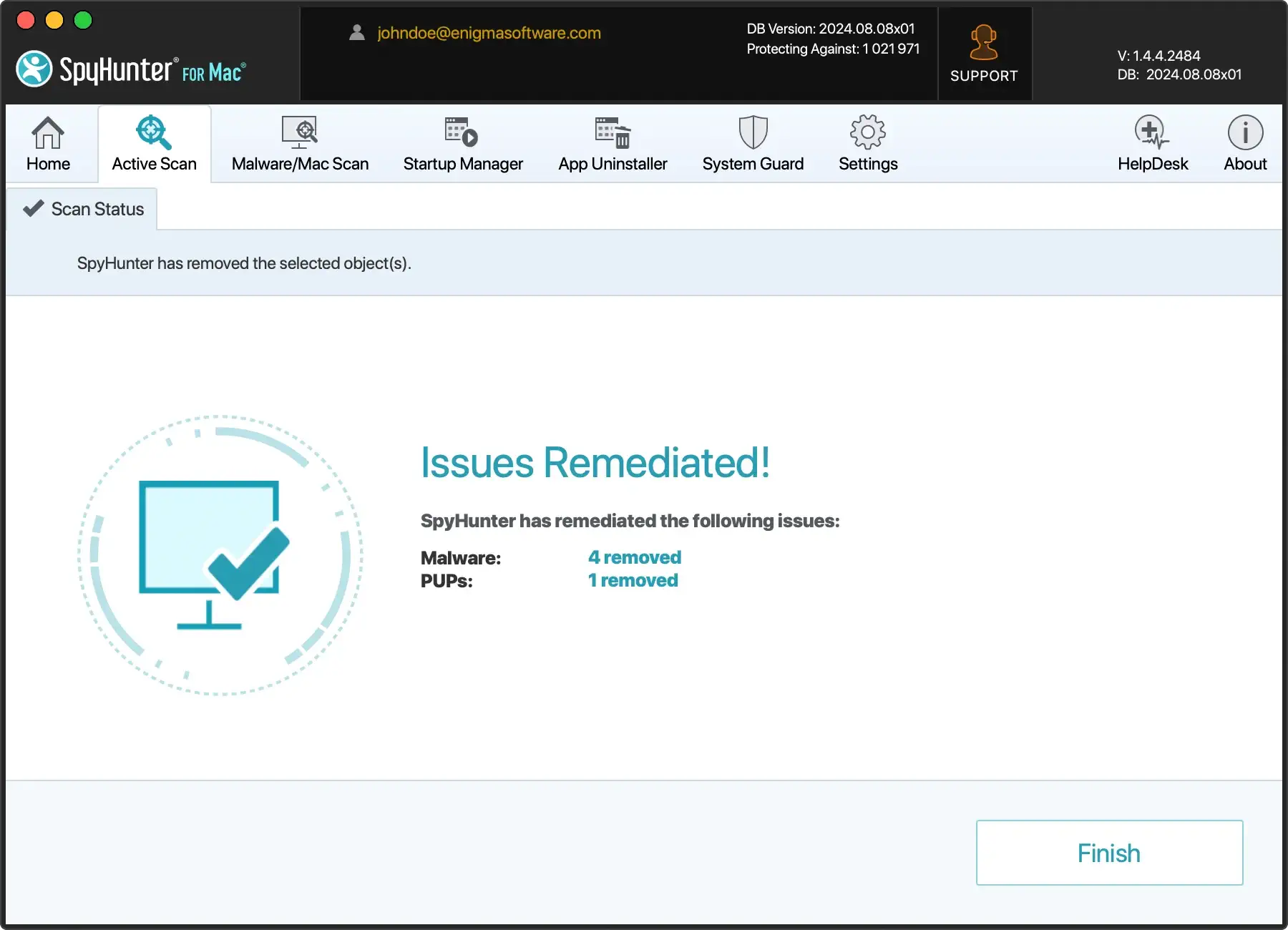
SpyHunter can ensure that your Mac is completely free of Illation.app and protected from future infections, allowing you to enjoy a secure and optimized computing experience.
Prevent future Illation.app infections
To safeguard your Mac against future infections by Illation.app or similar adware, adopt these proactive measures:
- Update Regularly: Keep your macOS and all installed applications up to date. Software updates usually include security patches that close vulnerabilities exploited by adware.
- Download Wisely: Only download software from trusted sources like the App Store or developers’ websites. Avoid downloading apps from third-party sites.
- Customize Installations: Always choose custom installation options when available. This allows you to deselect any additional software bundled with the main application you are installing.
- Utilize Antivirus Software: Install and maintain a reliable antivirus program. Tools like SpyHunter remove existing infections and provide real-time protection against new threats.
These guidelines can reduce the risk of adware infections and keep your Mac running smoothly and securely.
FAQs about Illation.app removal
Can Illation.app cause permanent damage to my Mac?
No, Illation.app itself does not cause permanent damage to your Mac. However, its presence can lead to performance issues and security vulnerabilities.
While Illation.app mainly displays intrusive ads and redirects, these activities can expose your system to other potential threats or malware, which might cause more severe problems. Prompt removal and ensuring good digital hygiene can mitigate these risks effectively.
Is manual removal of Illation.app sufficient?
Manual removal might seem like a straightforward solution, and for some, it may work.
However, adware often comes bundled with other hidden components that are not easily found or removed. Simply deleting the app might not entirely remove it. Renewed pop-ups or a slow system are signs that remnants are still present.
For comprehensive removal and to ensure your Mac remains clean, using dedicated anti-malware software like SpyHunter is recommended. This not only removes Illation.app but also ensures no leftovers are hiding in your system.
How often should I check my Mac for malware?
Regular checks are essential for keeping your Mac safe. Once a week is a good starting point, but if you frequently download software from the internet or click on ads, you might want to increase this frequency.
Running periodic scans with SpyHunter for Mac ensures that any potential threat, like Illation.app, is detected and removed promptly.
Remember, adware developers continually update their methods, so staying on top of your system’s health is crucial.
Summary
Removing Illation.app from your Mac enhances your device’s performance and strengthens its security against potential threats.
By following the detailed steps in this article, you can ensure your Mac OS remains clean and secure.
Prevention is vital; adopting safe browsing practices and being vigilant about what you download are crucial steps in avoiding future infections.
Keep your system updated, and consider using reputable antivirus software to maintain optimal protection for your Mac.
